





Visualize Dynamics 365 CRM Relationships with Interactive Mind Maps
Visualize accounts, contacts and connected records through interactive mind maps, tree views and hierarchies. Discover who is connected to whom in a single click, or just ask the AI agent.
Turn Dynamics 365 CRM Relationships into Clear Visual Insights
The Challenge: Dynamics 365 CRM spreads accounts, contacts, opportunities, and related records across multiple views. Seeing how they connect and who the key stakeholders are takes time.
How we Help : Map My Relationships transforms complex CRM data into interactive Mind Maps, Tree Views, and Hierarchy Controls. Visualize connected records, explore multi-level relationships, and discover who is connected to whom, all from within Dynamics 365 CRM.
What You Can Achieve with Relationship Mapping in Dynamics 365 CRM
Dynamics 365 AI Agent
Type a prompt in Microsoft 365 Copilot or Microsoft Teams, and the Map My Relationships Agent returns an interactive map of your Dynamics 365 CRM relationships, with AI-generated relationship health analysis alongside.
See Connections at a Glance
Use visual Dynamics 365 relationship mapping to view connections Dynamics 365 already holds between Accounts, Contacts and Opportunities, all in one workspace. Open an account relationship map Dynamics 365 teams can use before every call or meeting.
Act Without Switching Screens
Create activities, associate records and trigger workflows from any node on the map, so insight turns into action immediately.
Understand Structures Faster
Explore every Dynamics 365 account hierarchy as a tree or a live org chart Dynamics 365 users can drill into, level by level.
Identify Key Stakeholders
Color-coded paths and legends support influence mapping Dynamics 365 sellers can use to spot decision-makers, sponsors and blockers before every conversation.
25,000+
Connections Visualized
100%
40%
Faster Account Prep
Why Switch to a Visual Relationship Map for Dynamics 365?
Features
Here’s How Map My Relationships Helps You Visualize and Manage CRM Relationships
Visualize Relationships with an Interactive Mind Map
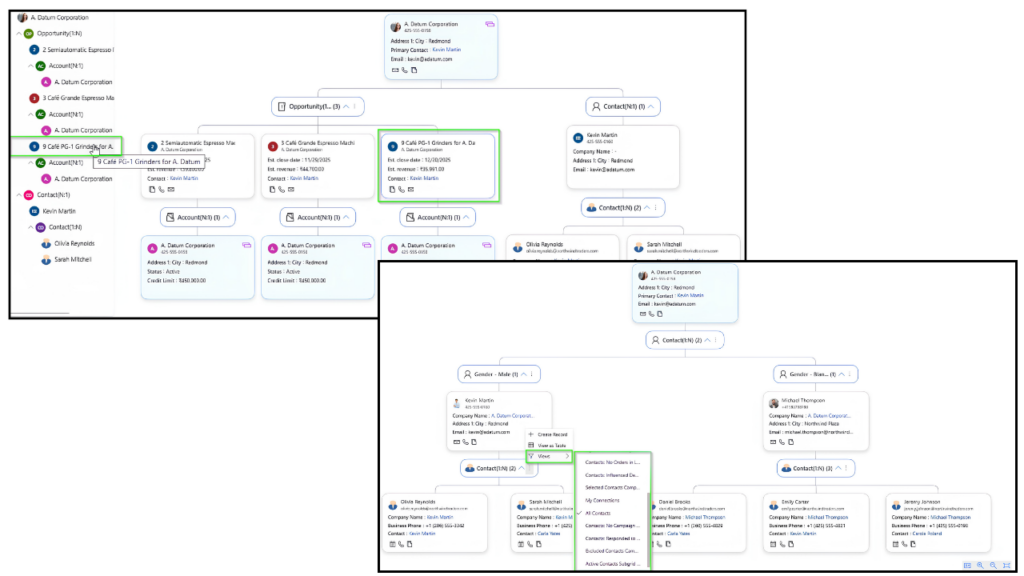
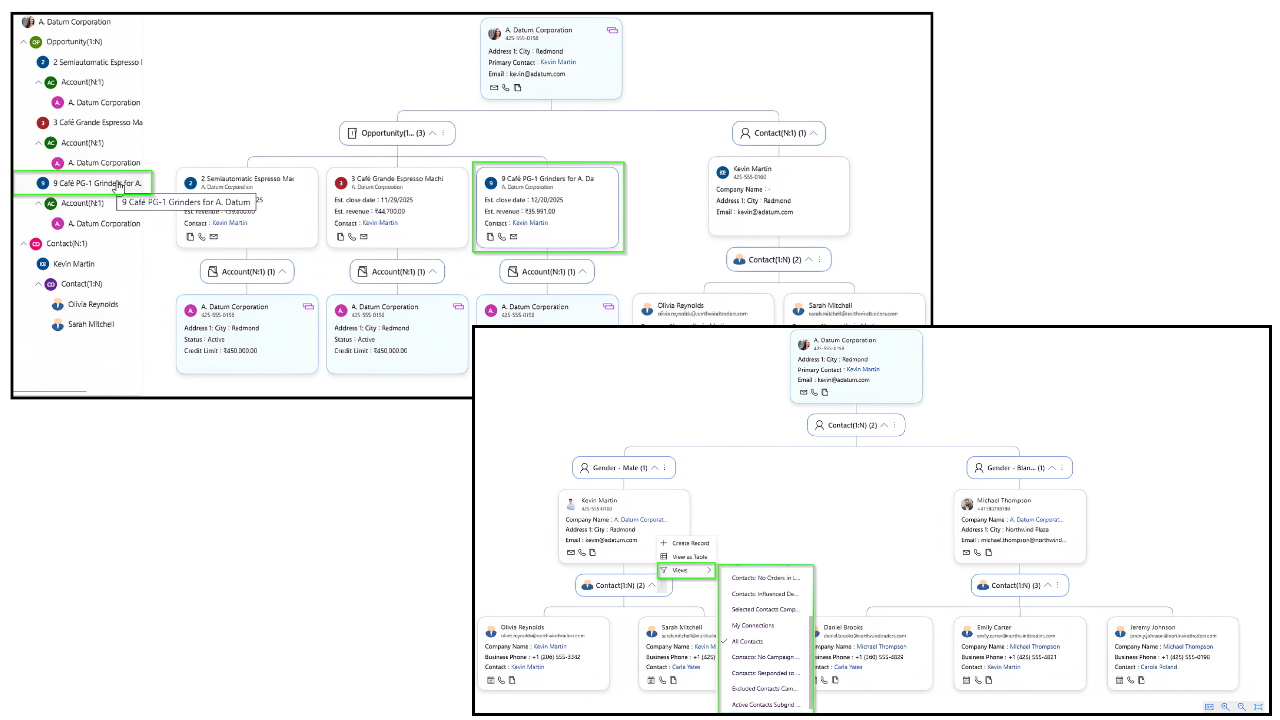
Turn connected records into a 360° map. Start from a central Account, Contact or Opportunity and expand outward to see stakeholders, influence paths and related records in a relationship graph Dynamics 365 users can explore level by level.
- Navigate unlimited relationship levels across standard and custom entities in one Dynamics CRM relationship view.
- Spot relationship types and stakeholder roles with color-coded connections and visual legends.
- Group complex connections in Spider View, or expand the canvas to full screen.
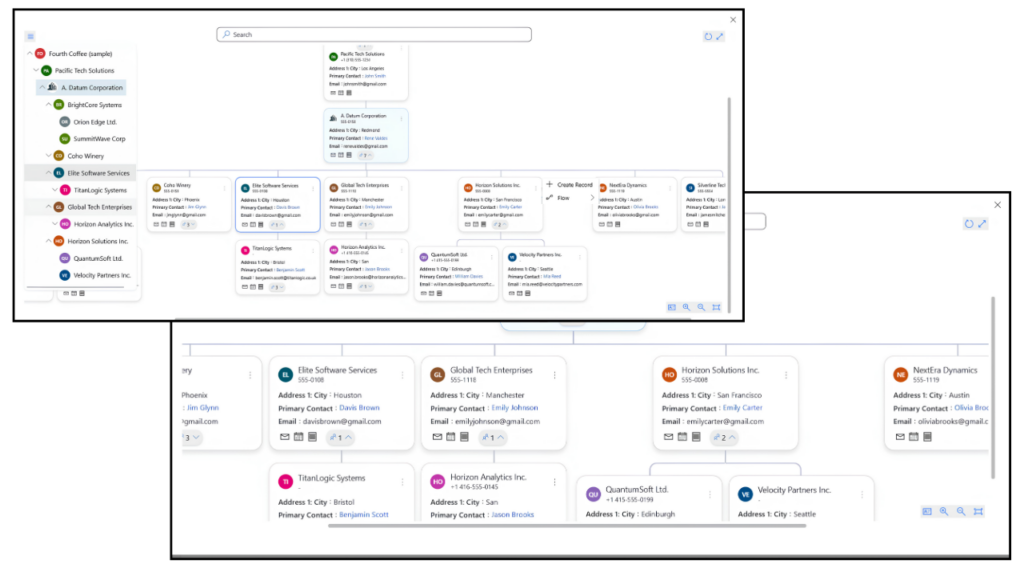
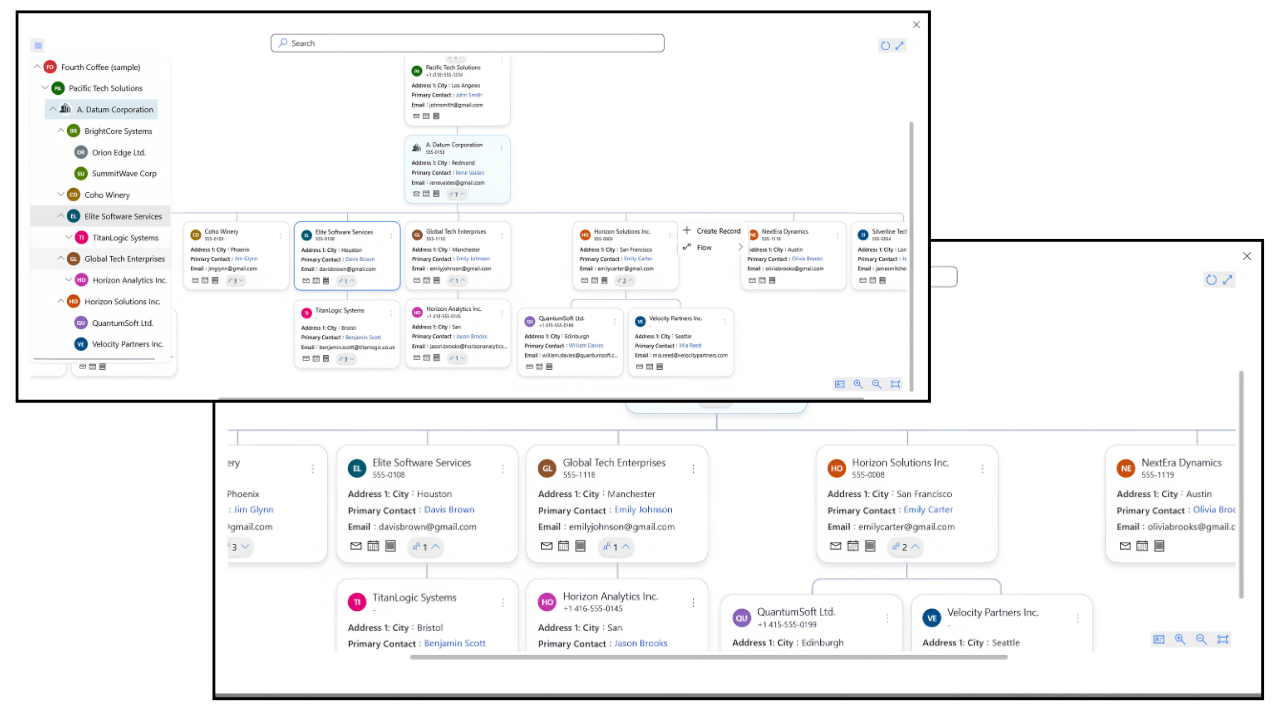
Our hierarchy control Dynamics 365 view displays self-referential parent-child relationships, such as Account-to-Account and Contact-to-Contact, in a structured visual layout. It is a hierarchy view Dynamics 365 teams can keep open while they work, always in sync with CRM data.
- View complete hierarchies top-down as a live org chart, without navigating between records.
- Create child records instantly, automatically linked to the right parent.
- Trigger tasks, emails, activities and on-demand workflows from the hierarchy panel.
- Drill up or down across multiple levels with a single click.
Use a tree view chart Dynamics 365 teams can group, filter and act on. Tree View lays out parent-child structures top to bottom with a synchronized navigation panel. Whether you need to visualize Dynamics 365 relationship chart data for account hierarchies, project structures or case escalations, it keeps every level in view.
- Mirror the full hierarchy in a collapsible side panel for faster navigation.
- Group records and view aggregated values right inside the visualization.
- Create records and apply filters without leaving the tree.
Customize Relationship Maps Around Your Business
Configure the map to show what each team needs. Administrators select entities, set relationship types and apply filters, so users get a Dynamics 365 relationship view tailored to their process. Whether you build a mind map Dynamics 365 sellers use daily or a hierarchy for service teams, everything stays synchronized with live data.
- Choose which standard and custom entities appear on the map.
- Personalize node layouts, custom labels and color-coded paths.
- Apply filters and aggregated values to focus on what matters.
Take Action Without Leaving the Map
Keep everyday actions next to the records users are exploring. Teams that visualize Dynamics 365 relationship map data can act on it immediately instead of hunting for the right form.
- Create tasks, emails and phone calls from any node.
- Create and associate new records, linked to the correct parent automatically.
- Link related records across multiple relationship levels from a single view.
- Hover over a node to preview key record details.
More Features
Effortless Data Filtering
Analyze CRM records using aggregated values, custom node layouts, and personalized filters
Export Relationship Maps
Download relationship maps as images to easily share insights across teams
Auto-Expand Nodes
Automatically expand hierarchy levels for easier navigation of complex relationships.
Hover for Record Details
Preview key record information without opening additional records or screens.
Create Associated Records
Create and associate new records directly from the relationship map.
Link Related Records
Connect related records across multiple relationship levels from a single view
Spider View
Group multiple relationships around a central record for a clearer view of complex connections.
Full-Screen View
Expand Mind Map and Hierarchy views for a more focused relationship mapping experience.
Interactive Tree Navigation
Browse parent-child hierarchies with a synchronized navigation panel.
Information Vault
Recent Updates
New 2026 Updates: New Map My Relationships Features for Dynamics 365 CRM
Mind Map View
See how records, stakeholders and accounts are connected in one interactive canvas.
Hierarchy Control View
View Account and Contact hierarchies as a clear, structured org chart.
Collapsible Tree View
Navigate account, project and case hierarchies with ease.
Custom Maps
Use color-coded paths, custom labels and filtered views to tailor every map.
Map Your Way to Success: A Guide to Using Mind Maps to Unlock the Power of Dynamics 365 CRM Connections
testimonials
What Our Customers Are Saying?
Our Blogs
How to Configure CRM Relationships for a Mind-Map View in Dynamics 365
In this blog, we’ll walk through how to configure CRM records and relationships to visualize them in a Mind Map View within Dynamics 365 CRM.
Dynamics 365 CRM Hierarchy Control: 5 Benefits Every CRM Admin Should Know
In the world of CRM, data visibility, navigation, and relationship mapping are critical for smooth operations. Yet many Dynamics 365 CRM…
Relationship Mapping and Data Visualization in Dynamics 365 CRM: A Complete Guide
In modern B2B selling, revenue rarely depends on one contact. It depends on networks, influencers, decision-makers, sponsors, blockers, subsidiaries…
Frequently Asked Questions
Map My Relationships Agent is an AI agent for Dynamics 365 CRM that returns interactive relationship maps from natural-language prompts in Microsoft 365 Copilot and Microsoft Teams. Each map shows how accounts, contacts, opportunities and cases connect, with an AI-generated relationship health analysis alongside.
Ask the agent in Microsoft 365 Copilot, for example “Show relationships for [account name].” It generates an interactive mind map from the relationships configured for that table, showing related contacts, opportunities and cases. You can then drill into any record by prompt or by double-clicking a node.
Yes. Map My Relationships Agent works in Microsoft Teams as well as Microsoft 365 Copilot, so users can request relationship maps where they already work and collaborate. An administrator must complete the required configuration first.
Relationship health analysis is an AI-generated summary that appears with every map the agent creates. It includes an overview of the central record, relationship observations, key findings and recommended actions, helping users decide what to review before a customer conversation.
Dynamics 365 CRM relationship mapping helps teams visualize how Accounts, Contacts, Opportunities, Cases and custom entities connect, so they can identify stakeholders, account hierarchies and influence paths in one interactive relationship view. Map My Relationships delivers this inside Dynamics 365 CRM as live Mind Map, Tree View and Hierarchy layouts. This approach to relationship mapping in Dynamics CRM replaces navigating multiple records with a single Dynamics 365 Map View.
Map My Relationships transforms Dynamics 365 CRM records into an interactive mind map with a spider-style layout that shows connected records level by level from a central node. Users can expand nodes, explore stakeholders, create emails and calls, and edit records without switching screens, all synchronized with live CRM data.
Use the interactive Tree View and Hierarchy Control layouts to explore parent-child account structures and organizational hierarchies from a single visual workspace. Multi-level drill-down, color-coded relationship paths and real-time CRM synchronization make complex account structures and stakeholder relationships easy to understand.
Mind Map, Tree View and Hierarchy layouts display relationships across both standard and custom entities, including parent-child and cross-entity connections. Administrators configure which custom entities and relationship types appear, so teams can view business-specific data alongside standard Dynamics 365 records without opening multiple forms or subgrids.
Yes. Users can create tasks, emails and phone calls from the Dynamics 365 CRM relationship map without switching screens. They can also create and associate related records in Mind Map, Tree View and Hierarchy layouts, with new records automatically linked to the correct parent. This helps teams manage Dynamics CRM relationships and connected records faster.
Map My Relationships is Dynamics CRM customer mapping software built specifically for Dynamics 365 CRM. It creates interactive relationship charts from live CRM data without external diagramming software, and lets users create records, log activities and send emails directly from the visual map.
Relationship mapping helps teams understand customer connections, identify key stakeholders, navigate account hierarchies and spend less time searching through records, so users can take action faster.
Administrators can select entities, configure relationship types, apply filters, personalize node layouts and use color-coded connections. Whether using the Mind Map View, Tree View or Hierarchy Control, users get a view tailored to their business processes, synchronized with live Dynamics 365 CRM data.
Gain visibility into customer relationships and accelerate your sales pipeline with the right connections!