In the world of CRM, data visibility, navigation, and relationship mapping are critical for smooth operations. Yet many Dynamics 365 CRM admins still struggle with understanding how Dynamics 365 CRM records are connected, how Dynamics 365 CRM relationships are mapped – especially in complex scenarios involving complex CRM relationships between accounts, contacts, opportunities, cases, and custom entities.
Are you dealing with:
- Difficulty visualizing Dynamics 365 CRM relationships between records
- Manual effort to track and manage related data
- Inefficient activity tracking
- No unified view to trigger workflows
- Limited navigation through parent-child hierarchies in Dynamics 365
If so, it’s time to consider the power of Hierarchy Control in Dynamics 365 CRM—a smarter way to manage, explore, and act on related data in one unified screen.
And if you want to take it even further, Map My Relationships, a data visualization and relationship mapping app for Dynamics 365 CRM by Inogic, goes beyond the out-of-the-box capabilities in Dynamics 365. It gives CRM admins a powerful top-down and bottom-up view of record relationships across entities, offering deeper insight and actionable context.
In this blog, we’ll explore 5 practical ways CRM administrators use the Hierarchy Control in Dynamics 365 CRM, and how Map My Relationships takes those capabilities to the next level for smarter, faster data management.
What is Hierarchy Control View in Dynamics 365 CRM?
Hierarchy Control View in Dynamics 365 CRM enables users to visualize and manage relationships between records using a tree-like structure. Instead of navigating between multiple records or views, you can easily trace parent-child relationships and understand how records are connected—whether you’re dealing with customer accounts, cases, or project hierarchies.
What’s Missing in Dynamics 365 Hierarchy View?
Dynamics 365 does have a hierarchy view. Most teams assume it’s enough — until they’re mid-deal and realise it isn’t.
The native view gives you a read-only tree. You can look at it. That’s about it.
You can’t see the contact tied to a subsidiary. You can’t spot the open opportunity two levels down. You can’t create a record, trigger a task, or log a call without abandoning the view entirely. And when your hierarchy runs five levels deep, it stops being a tool and starts being a scrolling exercise.
The result? Your account structure, stakeholder map, and relationship data stay scattered across lookup fields, sub-grids, and tabs, impossible to piece together before a meeting that matters.
The data exists. The visibility doesn’t.
And in modern B2B sales, that gap is dangerous. Deals don’t happen with one person at one company. They happen across networks, decision-makers, influencers, internal champions, and procurement gatekeepers. Yet in D365:
- Sales reps can’t identify key influencers at a glance
- Account managers can’t see how contacts connect across accounts
- Leadership has no complete view of relationship dynamics
The CRM holds the intelligence. The native hierarchy just doesn’t surface it.
Visualize Complex Dynamics 365 Record Relationships Instantly
Without Hierarchy Control, CRM admins often struggle to trace how one record relates to another—especially in large accounts with multiple levels of related child records.
How CRM Admins Use It:
- View a complete tree structure of account > Parent account > Child account at a glance
- Quickly understand customer hierarchies and related engagement history
How Map My Relationships Helps:
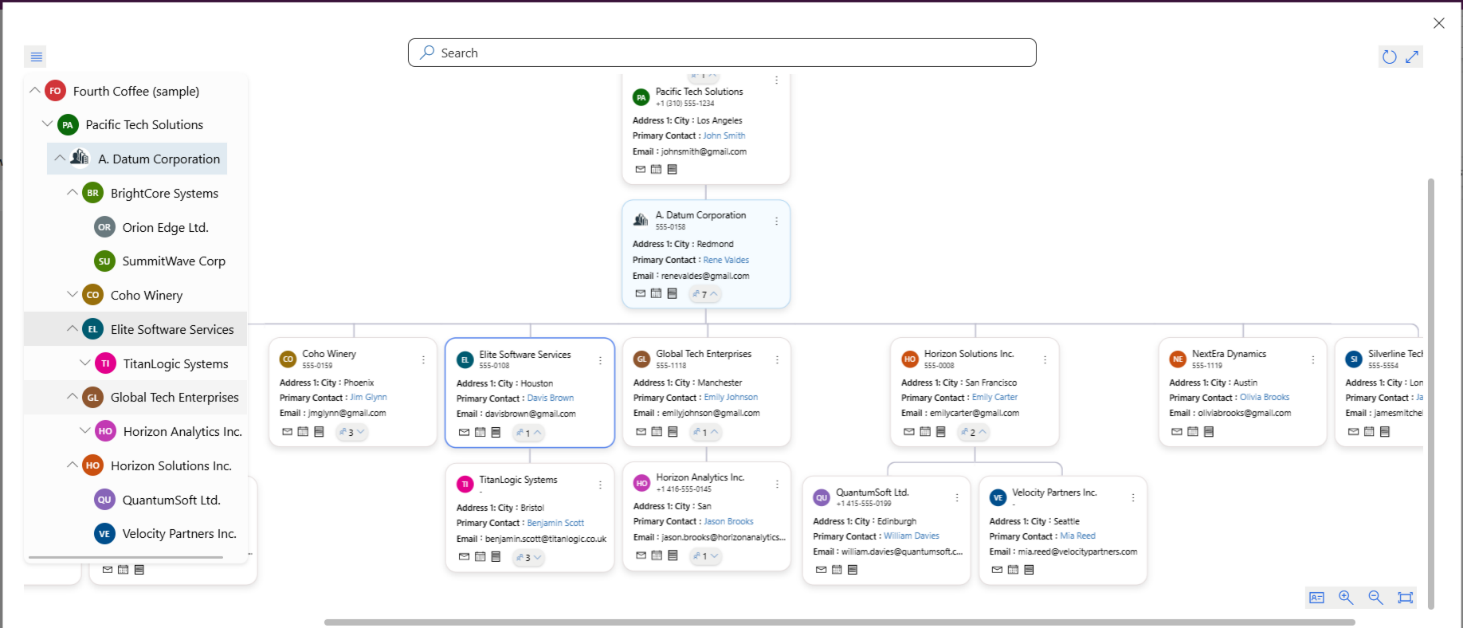
- Displays all related entities (even custom ones) in a visual map
- Supports N-level child record navigation—click any record and see its N-level child relationships
Real-world scenario: A CRM admin needs to determine which associate record belongs to a global parent account. With Map My Relationships, they can instantly visualize the hierarchy and click into any layer, and explore details without switching tabs or losing context. 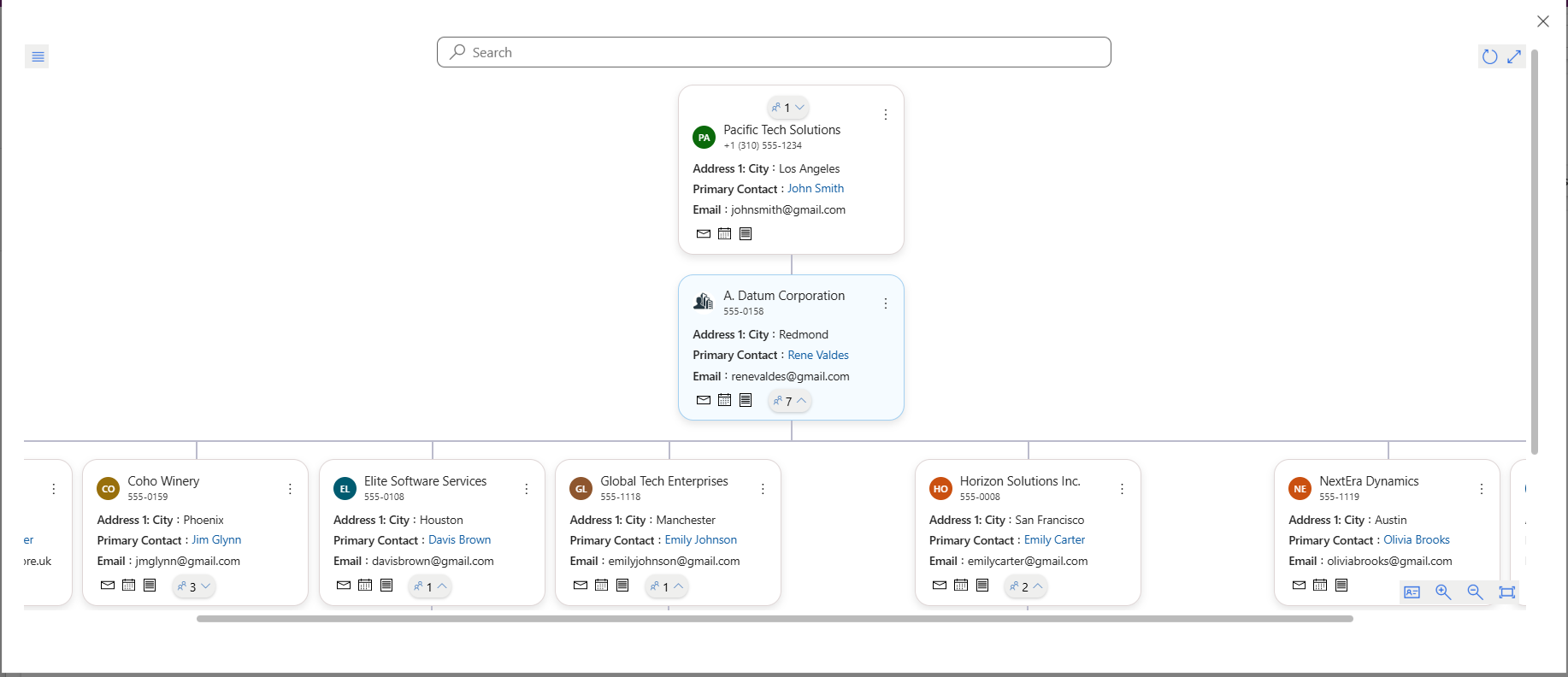
Create Associated Dynamics 365 Records Without Manual Linking
Traditionally, adding related child records in Dynamics 365 means creating the record first and then manually linking it with the parent – a process that’s both time-consuming and prone to errors.
How CRM Admins Use It:
- Use Hierarchy Control View to directly add a child record under its parent
- Maintain parent-child relationships without extra steps
How Map My Relationships Helps:
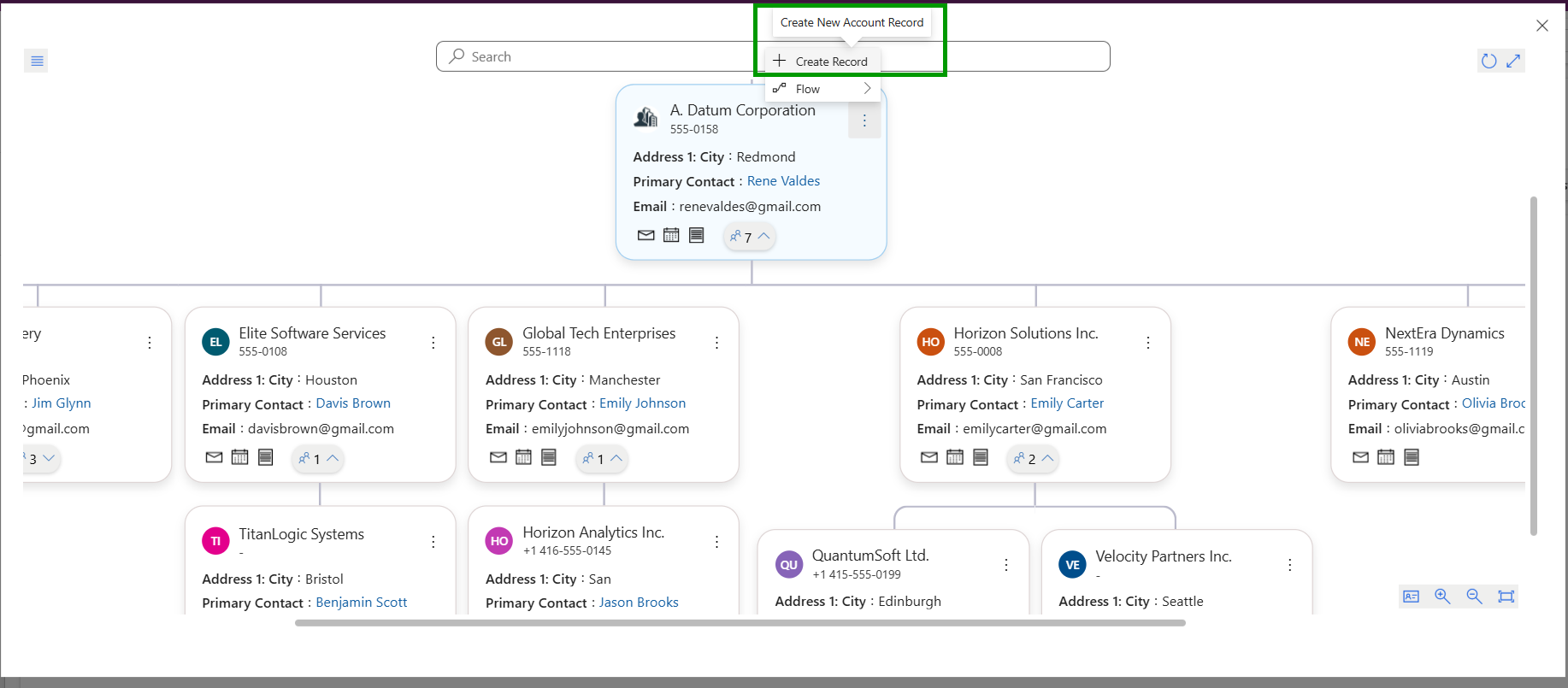
- Offers an “Add Record” option from within the visual relationship map
- Automatically links the new record to the correct parent entity
Works seamlessly with custom entities for industry-specific requirements
Result: Faster data entry and fewer errors when onboarding new contacts, leads, or child accounts – all without leaving the relationship view.
Execute Quick Activities Right from the Map
Every CRM admin knows the hassle of creating repetitive activities – like logging follow-ups, calls, or tasks—by jumping between multiple records. This constant navigation breaks focus and slows down productivity.
How CRM Admins Use It:
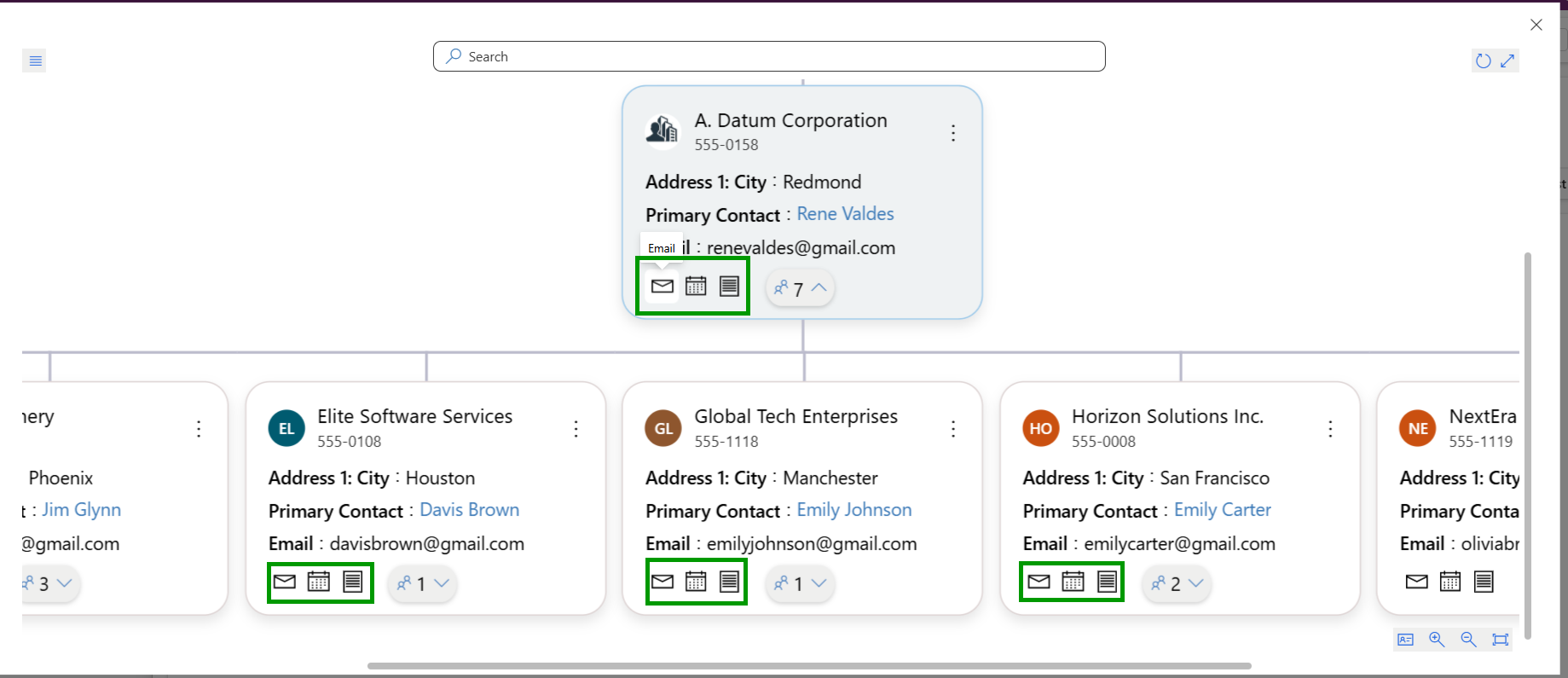
- In Hierarchy Control View, create common activities (task, email, phone call without leaving the current record view.
How Map My Relationships Enhances Hierarchy Control View:
- Allows users to create any activity or action (not just the default three)
- Supports custom activities, workflows, or actions directly from the visual map
Allows faster engagement and task execution without unnecessary clicks
Use Case: When reviewing a hierarchy of customer cases in Dynamics 365 CRM, a support manager can schedule follow-up calls all without leaving the visual relationship map.
Run On-Demand Workflows Without Switching Screens
CRM admins often need to run workflows such as record updates, email alerts, or escalations— but typically have to open each record individually to execute them.
How CRM Admins Use It:
- Run On-Demand Workflows directly from the Hierarchy Control view
How Map My Relationships Adds Value:
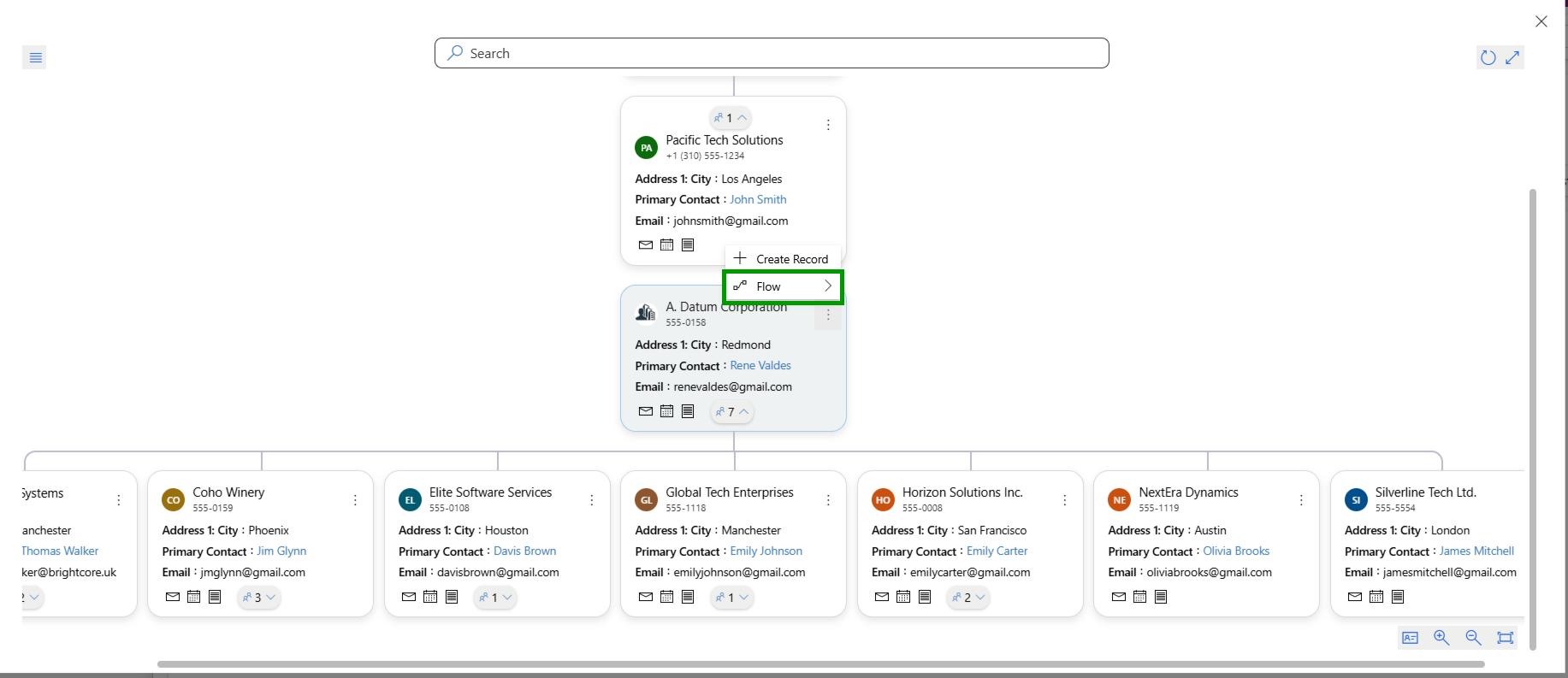
- Trigger workflows from any node in the hierarchy map
- Execute bulk workflows for multiple selected records
- Supports custom workflows and Power Automate flows for flexible automation
Example: A CRM admin needs to update all opportunities under a specific account. With Map My Relationships, they can trigger the workflow instantly — without leaving the visual map or opening records one by one.
Drill into Upper-Level Hierarchies for Full Context
The default Hierarchy Control View supports basic downward navigation (parent > child), but often fails when users need to navigate upward or explore multiple levels deep in complex structures.
How CRM Admins Use It:
- Get a general top-down view, but often require multiple clicks and page changes to trace relationships
How Map My Relationships Excels:
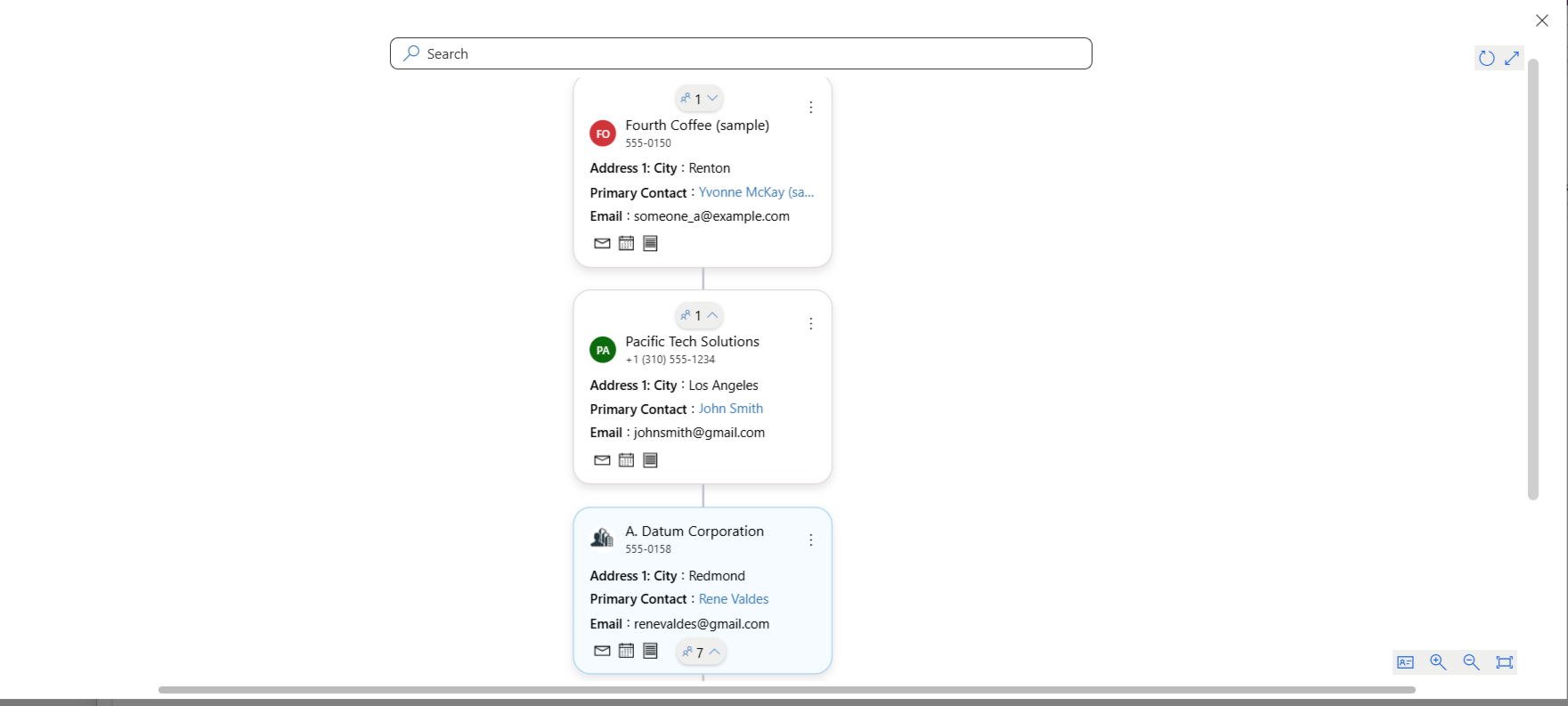
- Navigate up the hierarchy using parent record icons
- Drill through N-levels of parent-child relationships effortlessly
- Stay on the same screen while tracing even the most complex relationship chains
Scenario: A project manager wants to see a project’s root account and its entire associated structure. With Map My Relationships, they can trace relationships from project → division → holding company — all without leaving the visual map.
Beyond Hierarchy Control: What Else Map My Relationships Offers?
In addition to enhanced Hierarchy view, Map My Relationships delivers a suite of powerful features to help Dynamics 365 CRM users understand, manage, and act on complex data relationships more effectively:
- 360° Visual Relationship Mapping
Instantly view all related records—standard or custom—around a primary record in an interactive, configurable map. - Multi-Entity & Complex Relationship Support
Easily visualize N:1, 1:N, and N:N relationships across multiple entities, including activities and custom entities. - In-Map Editing & Quick Navigation
Update related records directly within the map and navigate seamlessly without switching between multiple screens. - Drag-and-Drop Relationship Management
Modify parent-child links using intuitive drag-and-drop functionality to restructure hierarchies effortlessly. - Custom Display Rules & Role-Based Views
Control which data appears using filters, icons, color codes, and restrict visibility based on user roles and permissions. - Flexible Deployment with No-Code Configuration
Embed maps as subgrids in forms, configure without coding, and integrate with other Inogic apps like User Adoption Monitor or Attach2Dynamics.
FAQ:
Q: What does the native Dynamics 365 hierarchy view lack?
A: The native Dynamics 365 hierarchy view is read-only and limited to a single entity type. It does not show related contacts, open opportunities, or custom records alongside accounts. Users cannot create records, log activities, or trigger workflows from within the view, making it a passive display rather than an actionable decision-making tool.
Q: What is Hierarchy Control in Dynamics 365 CRM?
A: It is a feature that displays related CRM records in a tree-style format making it easier for users to understand and navigate parent-child data relationships.
Q: Can I create related records from the hierarchy control?
A: Yes. And with Map My Relationships, you can do it even more efficiently — adding related records directly from the visual map with automatic linking to the correct parent entity.
Q: How do I visualize multiple levels of record relationships?
A: Map My Relationships allows you to drill into multiple parent and child levels from a single screen, providing a complete view of complex relationships without switching between different records or views.
Q: What is the difference between hierarchy view and relationship map in Dynamics 365?
A: The hierarchy view in Dynamics 365 shows a basic parent–child account structure in a read-only tree. A relationship map, such as the one provided by Map My Relationships, goes further — displaying connections across multiple entity types, allowing users to act on records directly, and visualising stakeholder networks, influence paths, and account structures in a fully interactive, exportable format.
Ready to Transform How You Manage CRM Relationships?
As a CRM admin, having a clear, editable, and interactive view of your data relationships isn’t just helpful—it’s essential. While Microsoft’s native Hierarchy control view had its time, tools like Map My Relationships by Inogic are redefining what’s possible inside Dynamics 365 CRM.
With features like 360° visualization, drag-and-drop editing, and support for multiple entity types, you gain complete control over even the most complex record structures—without writing a single line of code.
Don’t just view your CRM data—understand it, manage it, and act on it.
Want to try it firsthand? Get a 15-day free trial directly from our website or Microsoft Appsource.
Prefer a guided walkthrough? Book a personalized demo and watch the difference unfold in real time.
Have questions? Email us at crm@inogic.com – we’re here to help.