 Field technicians often work at customer locations and use the Dynamics 365 Field Service Mobile app to access work orders, update booking statuses, view related records, and record important information. On a mobile device, however, navigating forms and entering information can sometimes be difficult. Small controls and accidental taps can interrupt a technician’s workflow.
The Dynamics 365 Field Service 2026 release wave 1 includes several user interface (UI) improvements designed to make common tasks easier and the mobile experience more convenient. This blog explains four of these improvements, why they are useful, and how to configure or use them.
- Enhanced Field Service Booking Status control.
- Disable clickthrough on lookup values in forms.
- Capture and review notes with the mobile notes control.
- Add the simplified lookup control.
1. Enhanced Field Service Booking Status Contro
In Dynamics 365 Field Service, a booking represents a scheduled job assigned to a field technician. As work progresses, technicians update the booking status—for example, from Scheduled to In Progress, and then to Completed when the job is finished.
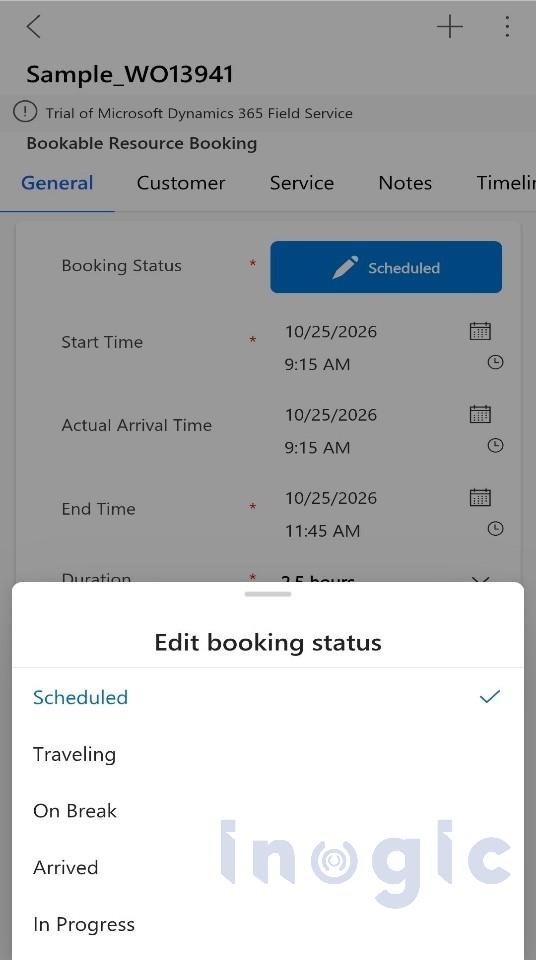
The enhanced Booking Status control provides a more mobile-friendly way to select a status. The status is displayed as a prominent button, and selecting it opens a drawer-style panel where the technician can choose an available status. A drawer-style panel opens over the current screen, so the user can select without navigating through several screens.
Key benefits
- Easier status selection: The prominent button is easier to identify and use.
- A more convenient mobile experience: The drawer-style selector is designed for smaller screens.
- Fewer unnecessary interactions: Technicians can select a status without navigating away from the booking.
Example
A technician arrives at a customer’s location to repair an air conditioning unit. The technician opens the assigned booking, selects the Booking Status button, and chooses In Progress. After completing the repair, the technician selects the status control again and chooses the appropriate completion status.
How to use the enhanced Booking Status control
Microsoft’s release-plan description states that the enhanced control is applied automatically to organizations already using the existing Field Service Booking Status control, so no additional setup is required to enable this enhancement.
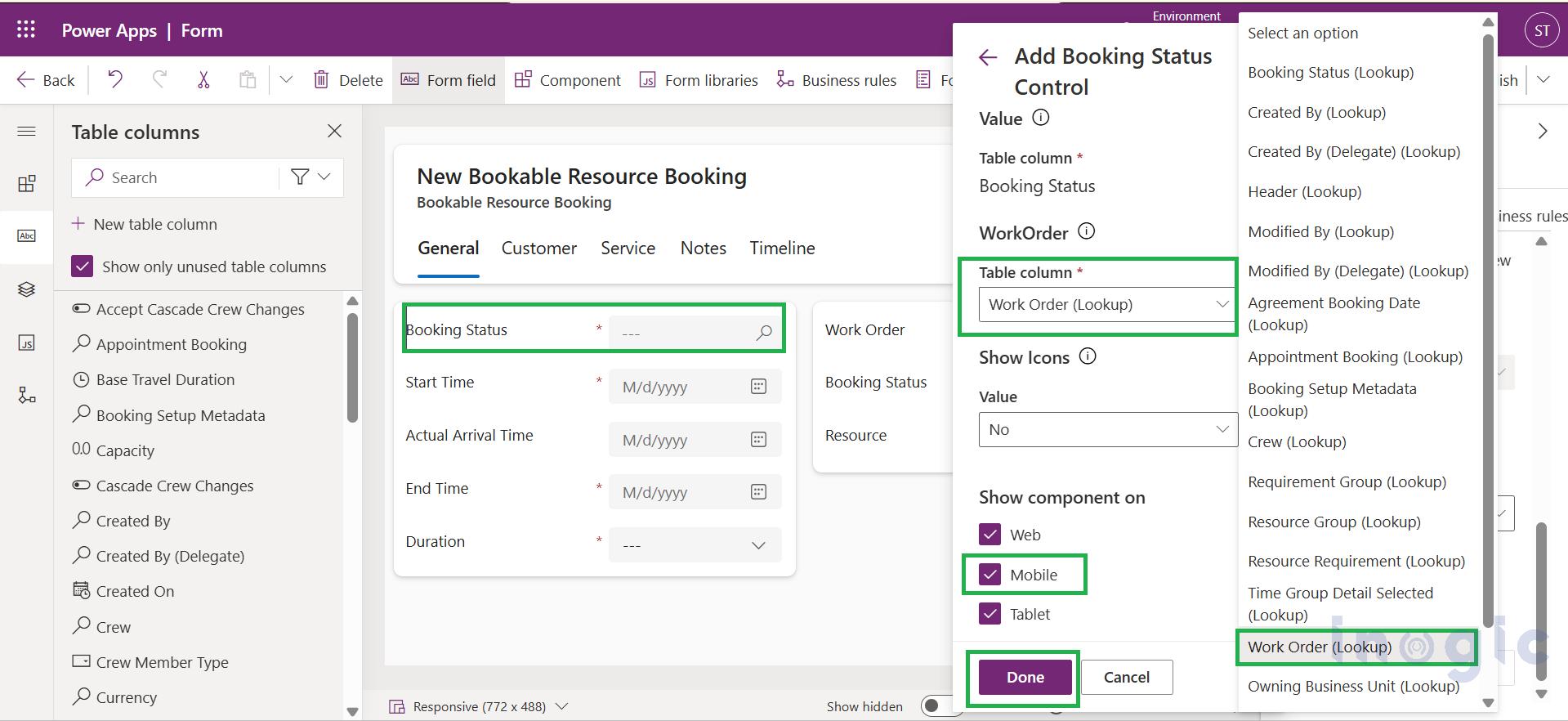
- In Power Apps, open Tables, select Bookable Resource Booking, then Forms.
- Open the form your mobile app uses, usually Booking and Work Order. Avoid the form marked “Deprecated”.
- Select the Booking Status Add it from the table columns if it is not on the form.
- Under Components, select + Component and choose Booking Status Control.
- Set Work Order to Work Order (Lookup). This is required.
- Set Show icons to Yes if you want icons.
- Under Show component on, tick Mobile and Tablet.
- Select Done, then Save and publish.
2. Capture and Review Notes with the Mobile Notes Control
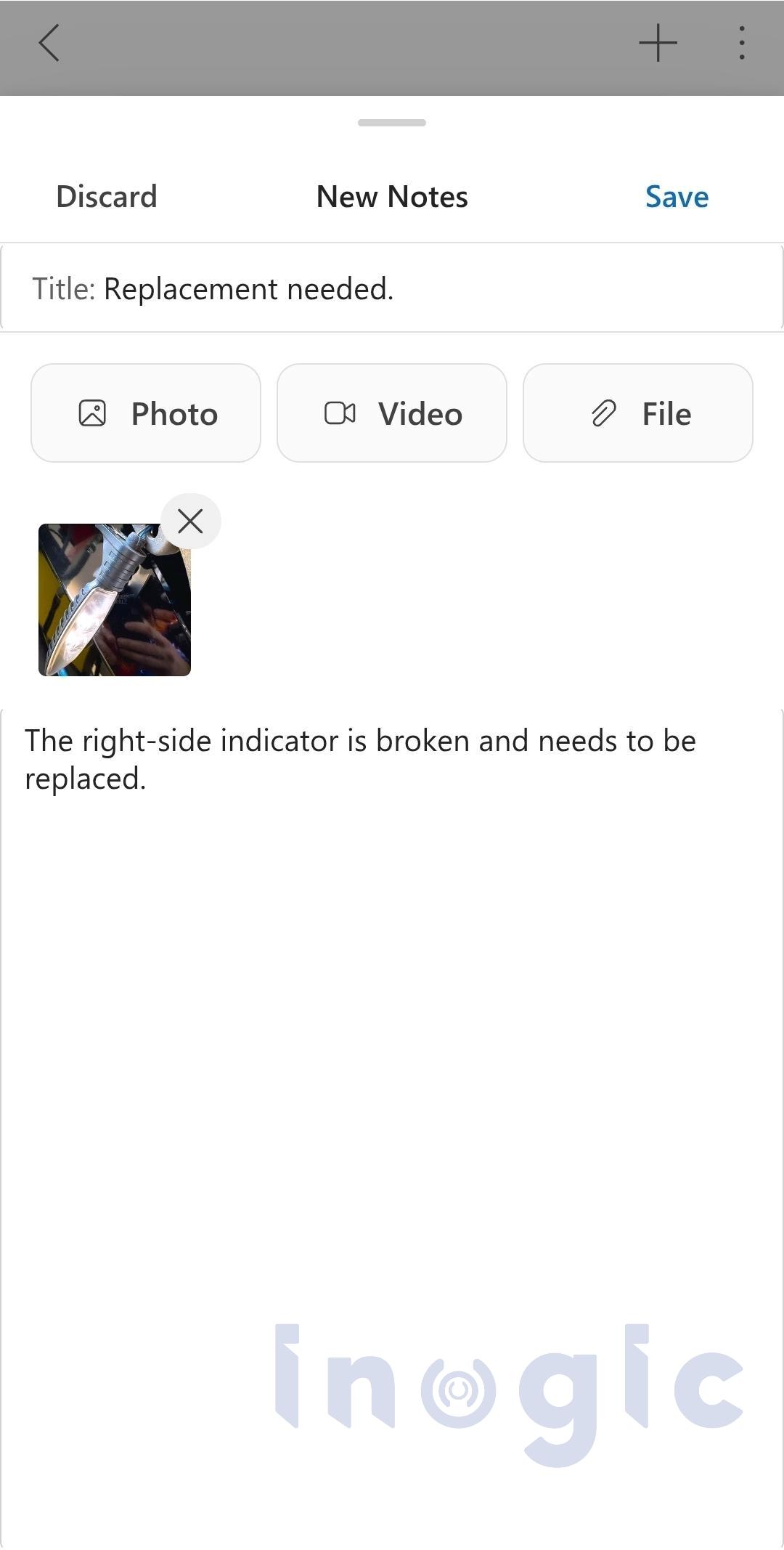
Field technicians often need to record details while working at a customer location. They may need to describe a repair, document an equipment issue, or attach a photo or video. The mobile notes control provides a mobile-friendly experience for creating and reviewing notes from a supported record form.
The control supports note content such as text, images, and videos, helping technicians record information in a way that other team members can review later. Notes are associated with the relevant record.
Key benefits
- Allows technicians to capture important information directly from a supported record form.
- Supports visual documentation through images and videos, where available.
- Makes it easier to review notes associated with a record.
- Helps teams keep service information together for follow-up work.
Example
A technician inspects a damaged water pump and needs to document the issue. The technician opens the relevant record, adds a note describing the damaged component, attaches a photo if supported, and saves the note. The team can then refer to the note when planning the repair.
How to configure the mobile notes control
- In Power Apps, create a new column on the table. Type: Single line of text.
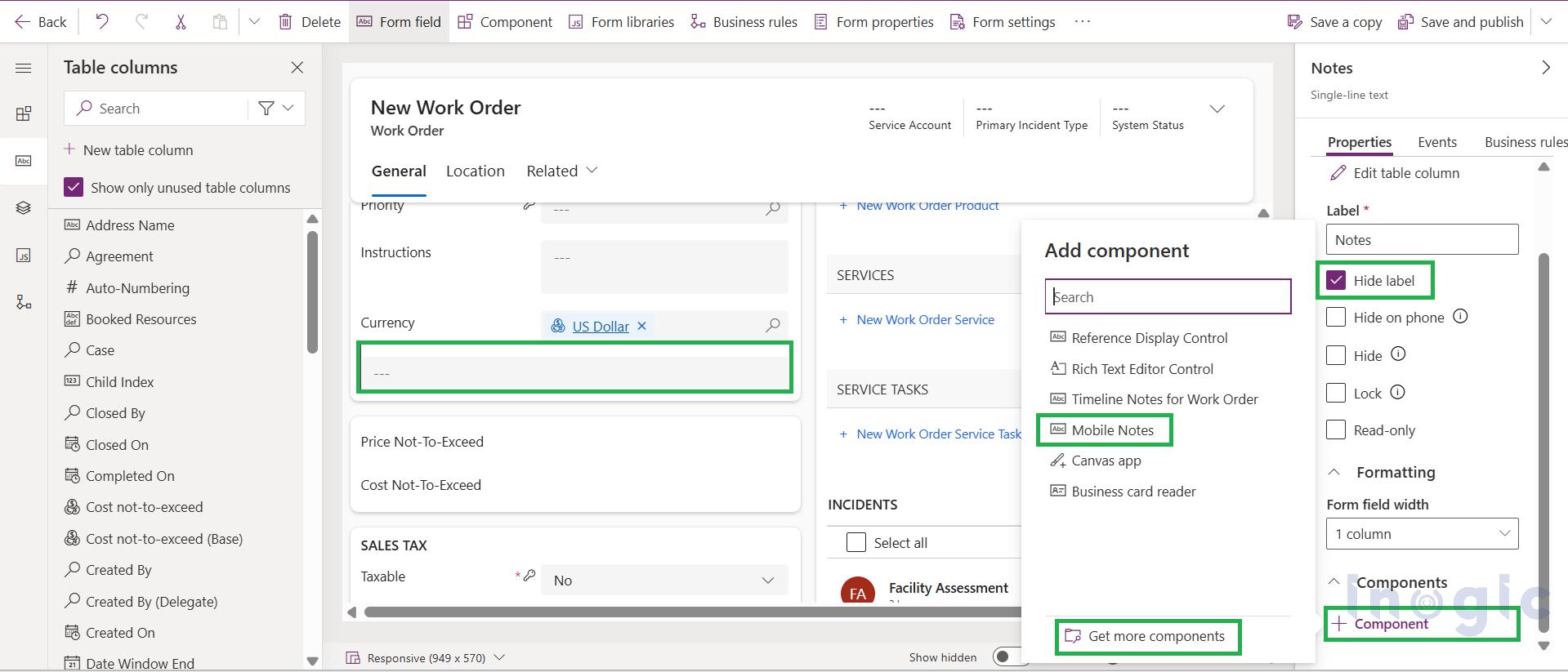
- Add the column to the form and tick Hide label.
- Select the column, go to Components, and select + Component.
- Choose Mobile Notes.
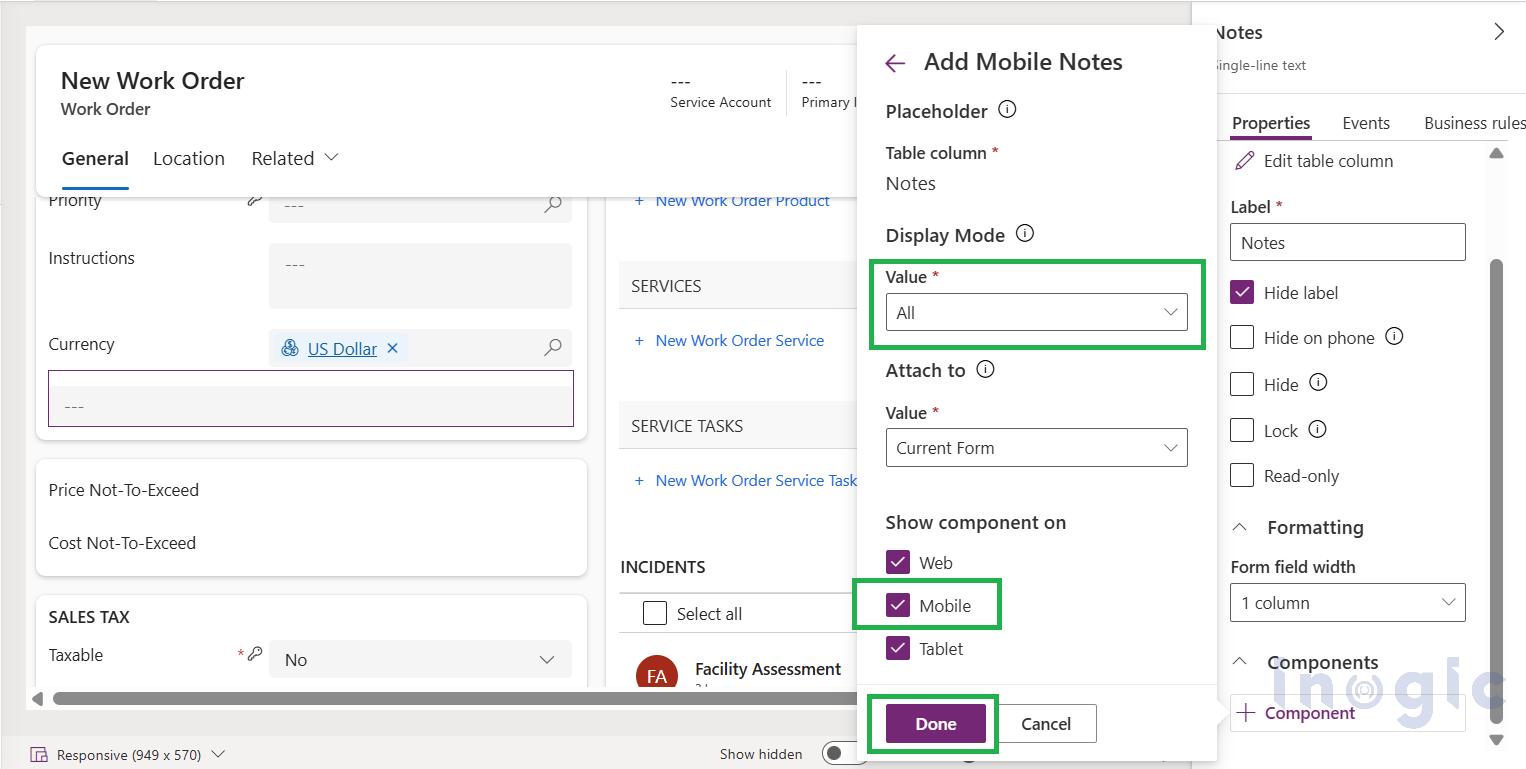
- Set Display mode: All, Add Notes only, or Notes Wall only.
- Set Attach to: Current Form, or Top-Level Form (saves notes on the parent record of a nested form).
- Select Done, then Save and publish.
For a custom table, notes must be enabled on it: select Enable attachments (including notes and files) when you create the table.
3. Add the Simplified Lookup Control
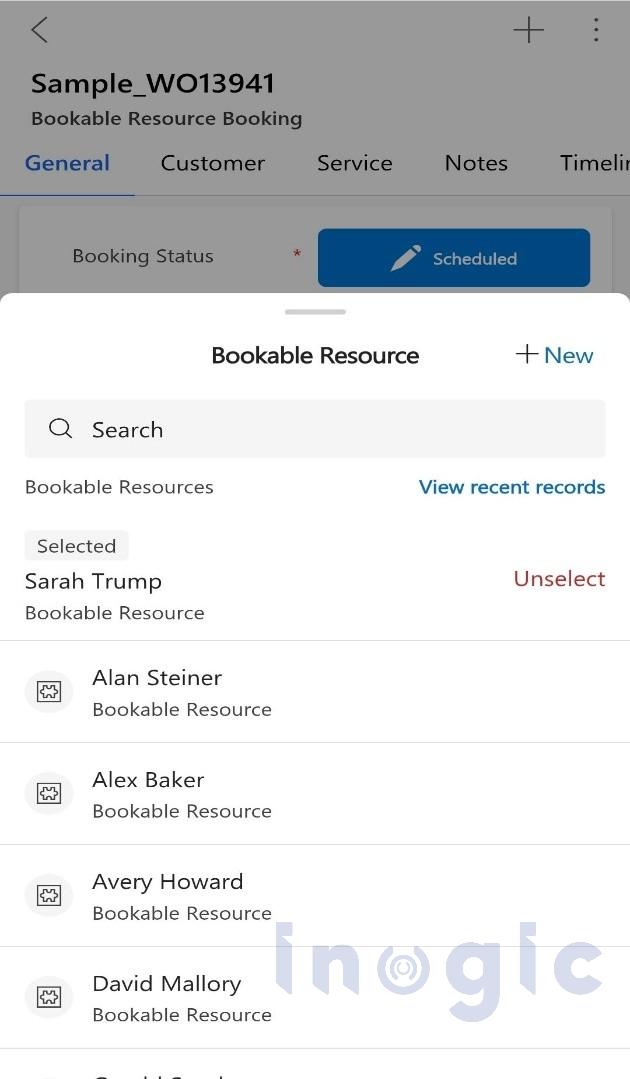
Lookup fields connect records in Dynamics 365 Field Service. For example, a Work Order may include lookups to an Account, Contact, or Incident Type. The simplified lookup control, referred to in Microsoft’s documentation as the Drawer Lookup control, provides a lookup experience designed to be easier to use on mobile screens.
When configured, users can select a related record through a drawer-style interface. This can make record selection more convenient for technicians who regularly update lookup fields while working in the mobile app.
Key benefits:
- Provides a lookup interface designed for mobile screens.
- Makes selecting related records more straightforward.
- Can improve usability for technicians who frequently work with lookup fields.
- Can be configured for specific lookup fields and forms.
Example:
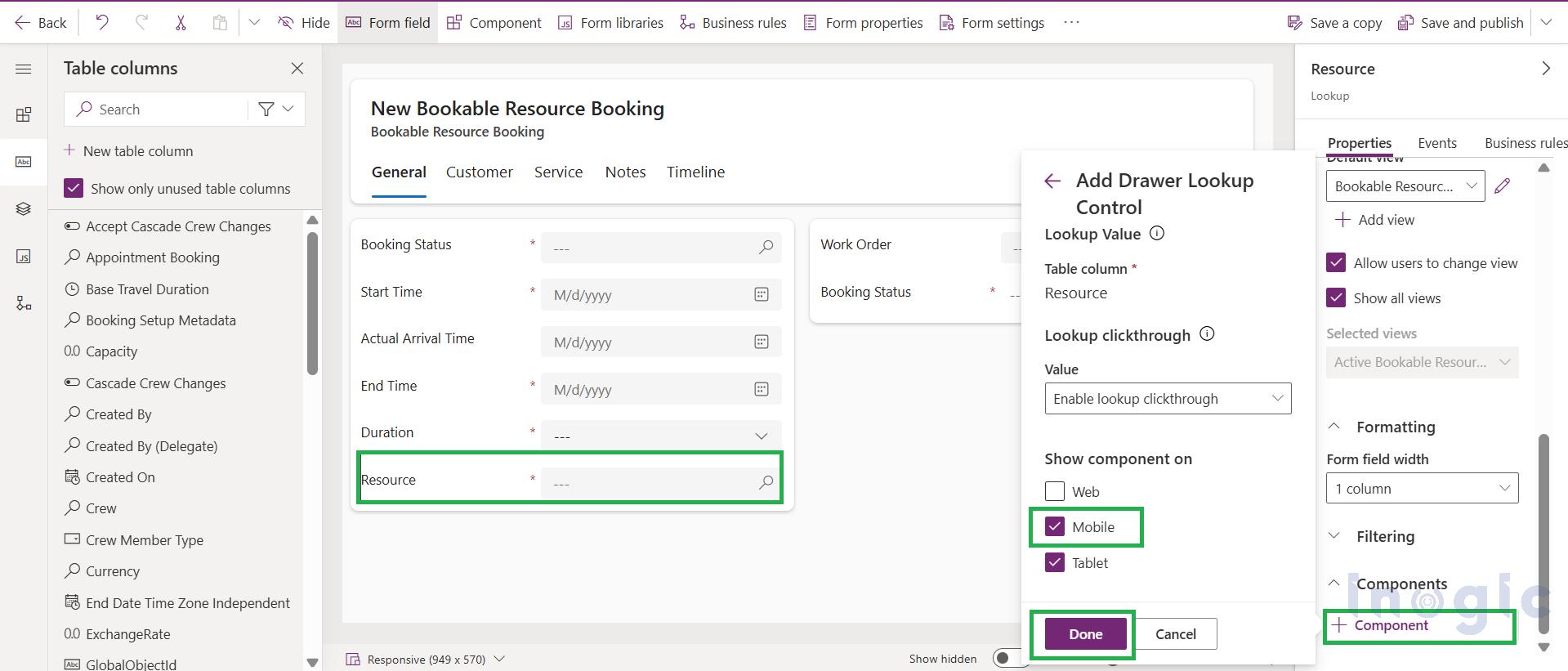
A dispatcher needs to assign a Work Order to a technician using the Resource field on the Bookable Resource Booking form. With the Drawer Lookup control, the dispatcher can open a simplified lookup panel to search for and select the appropriate technician without navigating away from the form. This makes resource selection easier and helps the dispatcher complete booking assignments more efficiently.
How to configure the simplified lookup control
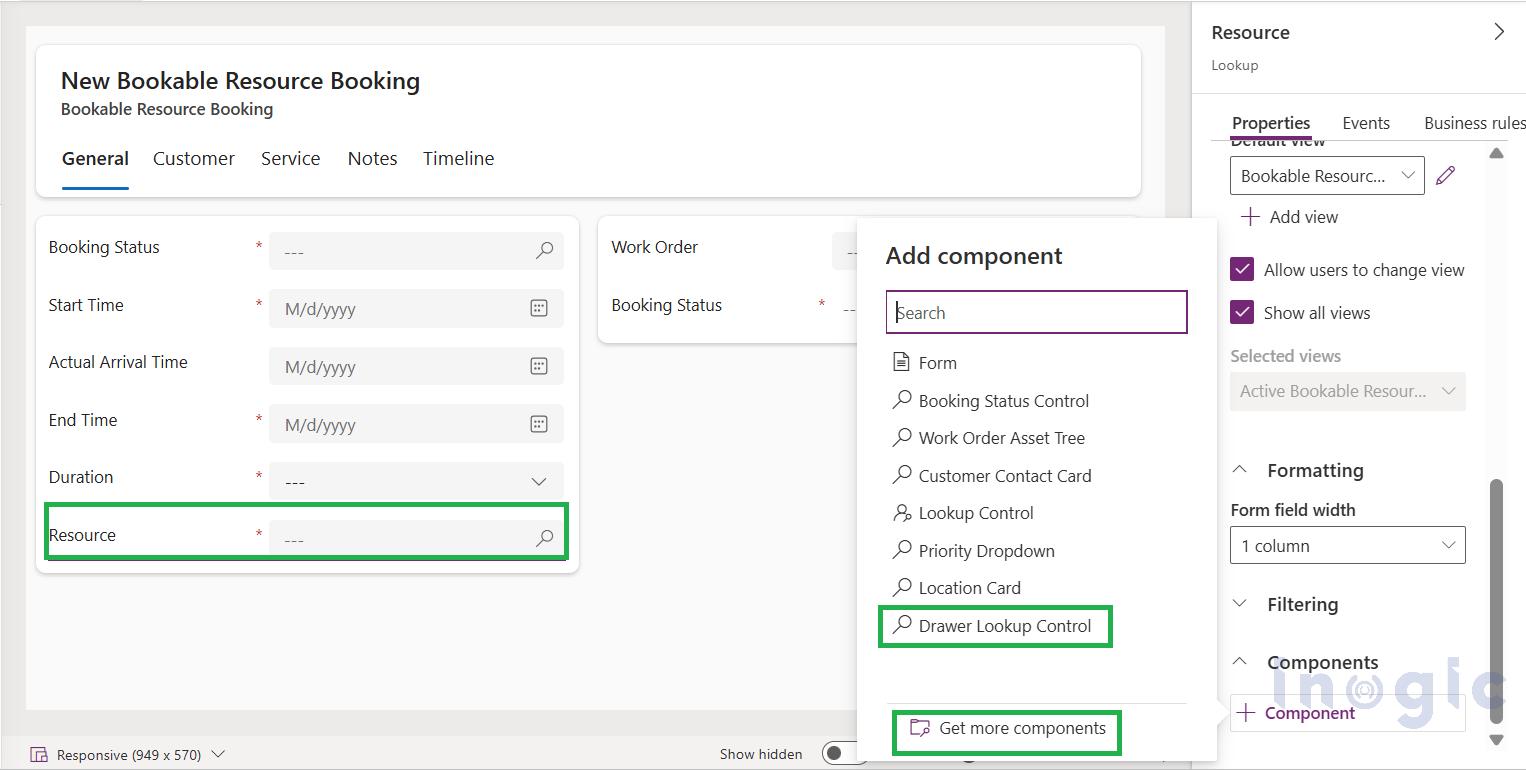
- In Power Apps, open the form and select the lookup field.
- Under Components, select + Component.
- Choose Drawer Lookup Control.
- Set it for the phone and tablet clients.
- Select Done, then Save and publish.
To undo it, remove the control and publish again.
Conclusion:
The Dynamics 365 Field Service 2026 release wave 1 introduces four UI improvements to make everyday tasks easier for field technicians. These updates simplify booking status selection, help prevent accidental navigation, make it easier to add notes on mobile devices, and improve record selection. Although these changes are small, they can help technicians complete their daily tasks more easily and efficiently. Organizations can add or remove these controls as needed to suit their requirements.
Frequently Asked Questions
What are the new UI enhancements in Dynamics 365 Field Service 2026 release wave 1?
Dynamics 365 Field Service 2026 release wave 1 introduces four UI enhancements: an enhanced Booking Status control, the ability to disable clickthrough on lookup values, a mobile notes control for capturing and reviewing notes, and a simplified Drawer Lookup control. These updates improve mobile usability and help technicians complete everyday tasks more efficiently.
How does the enhanced Booking Status control work in Dynamics 365 Field Service?
The enhanced Booking Status control displays the current status as a prominent button. When technicians select it, a drawer-style panel opens with available booking statuses, allowing them to update a booking without navigating through multiple screens. Organizations already using the existing control receive this enhancement automatically.
How can I prevent users from accidentally opening related records in Dynamics 365 Field Service?
Administrators can disable clickthrough on lookup fields using the Lookup Control in Power Apps. This displays lookup values as plain text instead of clickable hyperlinks, preventing users from accidentally navigating to related records. The setting can be configured individually for lookup fields on forms.
What is the Mobile Notes control in Dynamics 365 Field Service?
The Mobile Notes control is a mobile-focused component that allows field technicians to create and review notes directly within record forms. It supports text, images, and videos, helping technicians document equipment issues, repair details, and other service information.
Can field technicians attach photos and videos to notes in Dynamics 365 Field Service?
Yes. The Mobile Notes control supports rich note creation, including text, images, and videos. Technicians can use it to capture visual evidence of equipment damage, maintenance activities, and completed repairs directly from the mobile app.