It is 8:40 on a Tuesday. A sales rep is sitting in a contractor’s parking lot, minutes away from a renewal meeting for a rooftop unit order. He searches Dynamics 365 for the customer and finds three records: “Dan Walker, Brightline Mechanical,” “Daniel Walker, Brightline Mechanical Services,” and a third Dan Walker with a different phone number and no job title.
He opens the second record. The call reaches a colleague who left the account a year ago. He walks into the meeting without confirming the right contact details, leaving the customer wondering whether their supplier knows who they are.
The short answer: duplicate contacts in Dynamics 365 are a data-quality and process problem. Start by verifying which records belong to the same person, consolidate confirmed duplicates without losing important sales history, and establish a process for updating contacts when they change jobs. Use duplicate detection and prevention rules to reduce repeat issues.
Why Do Duplicate Contacts Appear After a Job Change?
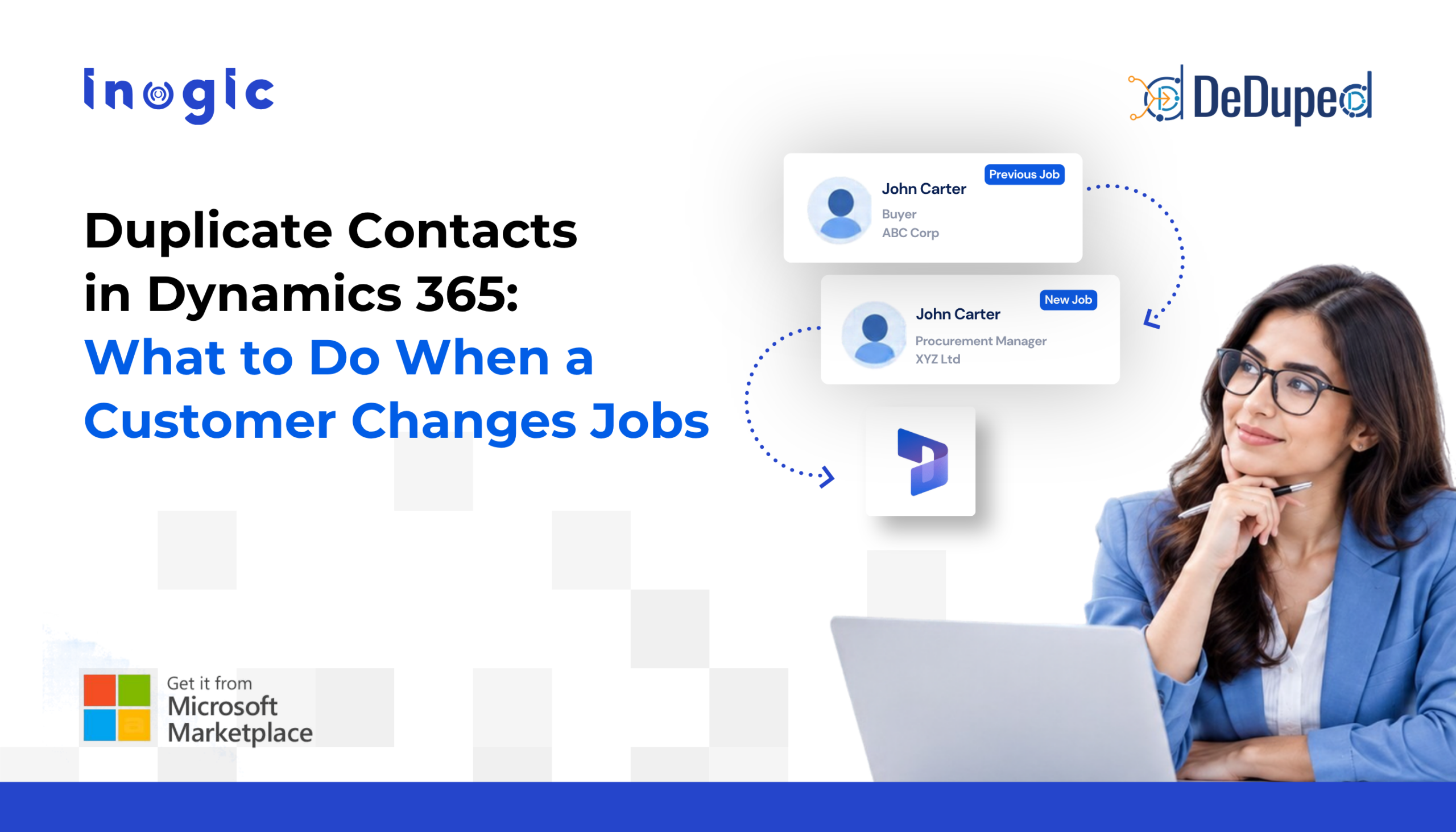
A common reason is that sales reps cannot find an existing contact under the customer’s new company, so they create another record. The original contact remains in Dynamics 365, and both records continue to be used.
For example, Dan moves from Brightline Mechanical to another contractor. A rep searches for Dan under the new company but finds no matching record. Creating a new contact seems easier than investigating the old one.
Other sources of duplicates include trade show imports, web enquiries, integrations, and contacts entered manually by different sales reps. Over time, calls, notes, quotes, and customer history become scattered across multiple records.
Native duplicate detection can help, but its effectiveness depends on the rules configured for the organization. If a rule compares fields that have changed, such as a business email or company name, it may not identify the old and new records as the same person.
Which System Should Own External Contact Data?
For a sales team, Dynamics 365 is a sensible system of record for external customer relationships. Microsoft 365 and Microsoft Entra ID serve different purposes, including internal collaboration and employee identity management.
A practical ownership model could look like this:
| Data | Recommended system or owner |
| External customer contact and account relationships | Dynamics 365 |
| Internal employee identity | Microsoft Entra ID |
| Email correspondence | Exchange, with relevant sales interactions tracked in Dynamics 365 |
| Verification of customer phone numbers and job changes | A designated sales or data owner |
This is a recommended governance model, not a universal Microsoft requirement. The organization should decide who can update each field and which source is authoritative for it.
Syncing systems alone will not resolve conflicting information. If one system contains an outdated number, synchronization can simply spread that value. A defined verification and update process is still necessary.
What Should You Do When a Contact Changes Companies?
Update the contact’s business information, preserve the old relationship history, and check for duplicates before creating another record. The exact steps depend on how your Dynamics 365 environment manages contact and account relationships.
| Situation | Recommended action |
| Same person, new employer | Verify the person’s identity, update their current details, and associate them with the correct account. Preserve the history of the previous business relationship. |
| Same person, same company, new title or phone | Update the existing contact after verifying the new details. |
| Same person appears under slightly different names | Compare email, phone, account, and activity history. Merge only after confirming the records belong to the same person. |
| Same name and company, but different email or role | Investigate first. These may be two different people. |
Before merging records, ask the account owner to confirm the current phone number and email for important customers. A record’s latest modification date does not prove that its contact details are correct.
How to Find and Merge Duplicate Contacts in Dynamics 365
Start with native duplicate detection, then consider more advanced matching when spelling variations and phone formats cause records to be missed.
-
Run native duplicate detection.
An administrator can configure and publish duplicate detection rules for contacts, then run a duplicate detection job to find existing records. Native rules support exact matching and comparisons based on the first or last specified number of characters.
Microsoft recommends using duplicate detection jobs to find potential duplicates that may already exist in the database.
-
Add more advanced matching where necessary.
For records such as “John Smith” and “Jon Smyth,” phonetic fuzzy matching can identify similar-sounding names that exact matching may miss.
DeDupeD supports configurable matching methods, phonetic fuzzy matching, and phone number format matching. For existing records, fuzzy matching requires fuzzy indexing. Its documentation recommends high accuracy and a score above 90% when prioritizing precision.
Matching rules should be tested against real examples from your CRM. Avoid relying on a name alone, since two different people may share the same name.
-
Merge only confirmed duplicates.
In the standard Dynamics 365 merge experience, select two contact records of the same type, choose Merge, select the primary record, and review which field values should be retained. The subordinate record is deactivated, and its notes, activities, and related details are linked to the primary record.
DeDupeD also offers configurable master-record deciding rules, field merge settings, and bulk duplicate cleanup. These can help teams handle larger duplicate groups, but the rules must reflect the organization’s data policies. For example, selecting the most recently modified record does not guarantee that its phone number is current.
Review the DeDupeD merge settings before configuring automated merges.
How Can You Prevent Duplicate Contacts From Returning?
Cleaning existing records is only part of the solution. Sales operations should establish a simple process that reps follow whenever a customer changes jobs or contact details.
-
Search before creating:
Search by name, email, phone, and company before adding a new contact.
-
Define ownership:
Assign responsibility for verifying customer phone numbers, emails, job changes, and account relationships.
-
Configure prevention rules:
Use appropriate matching conditions to flag or prevent likely duplicates during record creation and updates.
-
Review existing data regularly:
Schedule duplicate detection jobs and send results to the person responsible for CRM data quality.
-
Automate carefully:
Consider automatic merging only for high-confidence matches with tested rules. Send uncertain matches for manual review.
DeDupeD supports client-side and server-side duplicate prevention, scheduled duplicate detection, and configurable merge options. Its scheduled jobs can run daily, weekly, or monthly and send reports to designated users. See the DeDupeD duplicate prevention documentation and scheduled detection guide.
Every Job Change Needs a Clear CRM Process
Customers will continue changing jobs, phone numbers, and email addresses. The goal is not to stop those changes. It is to ensure that each change updates the right contact, preserves relevant history, and does not create another unverified record.
Start by reviewing a sample of duplicate contacts in Dynamics 365. Identify why each duplicate was created, agree on who owns contact updates, and configure matching and prevention rules around that process.
Explore DeDupeD for Dynamics 365 CRM and start a 15-day free trial through the Microsoft Marketplace. For more queries, drop us a mail at crm@inogic.com.
Frequently Asked Questions
How do I find duplicate contacts in Dynamics 365?
Publish duplicate detection rules and run a duplicate detection job. For spelling variations and other differences that native rules miss, consider additional matching methods such as phonetic fuzzy matching.
Why can Dynamics 365 miss a contact who changed jobs?
If duplicate detection rules compare fields such as email address or company-related information, a change in those fields can prevent a match. The result depends on the configured rules.
Can I merge duplicate contacts in bulk?
The standard Dynamics 365 merge experience merges two records at a time. DeDupeD provides bulk duplicate cleanup and configurable merge capabilities.
Should Dynamics 365 or Microsoft 365 hold external customer contacts?
For a sales organization, Dynamics 365 is a practical system of record for customer relationships. Define field-level ownership and synchronization rules to keep information consistent across connected systems.