Imagine your Dynamics 365 environment holds years of customer emails, notes, sales documents, and file attachments. Your organization wants to reduce Dataverse storage usage by moving these files to SharePoint or another cloud storage platform.
But where do you start?
Do you migrate every attachment? Should you move older files or retain them in CRM? What happens to the original attachments? And how will employees access these documents after migration?
These decisions matter because an attachment migration affects more than storage. It also involves data selection, document organization, CRM references, and user access.
The short answer: Start by reviewing your existing attachments, defining migration criteria, selecting a suitable storage destination, and testing document accessibility. A structured approach helps prevent unnecessary transfers and makes it easier to monitor migration results.
To simplify these migration tasks, Attach2Dynamics (A2D) helps organizations bulk-migrate historical CRM attachments, Notes, and email content to multiple connectors such as SharePoint, Azure Blob Storage, or Dropbox. By moving files to external storage, organizations can reduce Dataverse storage consumption and additional storage costs while keeping documents accessible from Dynamics 365.
Now let’s discuss in detail the six things to check before migrating Dynamics 365 attachments to external cloud storage.
The 6 Things to Check Before Migrating Dynamics 365 Attachments
1. Identify Which Dynamics 365 Attachments Need Migration
Dynamics 365 attachments are not limited to files uploaded to Notes. They can also be associated with different attachment types. Before starting the migration, identify where your organization’s documents are stored and whether these attachment types are consuming Dataverse file storage.
| Attachment type | What to review before migration |
| Notes attachments | Documents, PDFs, images, and other files attached to CRM notes. |
| Email attachments | Files exchanged through customer, sales, and support email activities. |
| Email body content | Email content that your organization wants to move to external storage. |
| Sales literature attachments | Product brochures, presentations, catalogs, and other sales-related documents. |
| Other configured entity attachments | Files associated with additional entities configured for attachment migration. |
These attachment categories are stored differently in Dataverse. For example, Note attachments use the Annotation table, while email attachments use the ActivityMimeAttachment table. Understanding these differences helps you identify where your attachments are stored and which data sources your migration solution needs to support. This also helps you confirm that the solution can migrate the attachment types and entities relevant to your organization.
2. Decide how much historical data to migrate and define the date range.
Once you identify the attachment types that need migration, the next step is to determine how much historical data your organization should move. Migrating every attachment at once may not be necessary. Some organizations may want to move files older than a year, while others may need to migrate several years of historical documents to manage storage growth.
Consider these factors before defining your migration period:
- Document relevance: Are older attachments still accessed by employees?
- Business requirements: Do sales, customer service, or finance teams need historical documents?
- Retention policies: Are there legal, regulatory, or internal retention requirements?
- Storage priorities: Which date ranges contain the largest volumes of attachments?
- Migration capacity: Can your organization process the selected volume within the planned migration window?
For example, you might prioritize attachments older than two years while keeping recently uploaded documents in Dynamics 365. You can also divide the migration into smaller batches, starting with older records and gradually moving toward more recent attachments.
Defining a clear migration date range helps you prioritize historical attachments, avoid unnecessary transfers, and track which records fall within your migration scope.
3. Decide Whether to Move or Copy Attachments
After defining the migration period, one of the most important decisions in a Dynamics 365 attachment migration is whether to move or copy the files.
Both actions transfer attachments to external storage; they serve different purposes. Your choice will depend on whether you want to retain the original files in Dataverse or remove them as part of your storage optimization plan.
| Consideration | Copy attachments | Move attachments |
| Original CRM attachment | Retained | Removed from its original attachment location as part of the move operation |
| External storage | A copy is created | The attachment is transferred |
| Best suited for | Testing and phased migration | Planned storage optimization |
| Main consideration | Duplicate storage may remain | Validate document access before moving large volumes |
When should you copy attachments?
Copying is useful when you want to retain the original CRM attachment while testing the external storage setup. It gives your team an opportunity to verify that files have transferred correctly and that users can access them before making further changes.
When should you move attachments?
Moving is suitable when your organization has decided to transfer attachments to external storage and reduce the files retained in Dataverse. However, before moving large volumes, confirm that the external files are accessible and that the required CRM references are available.
Before choosing between Move and Copy attachments, test the selected option on a small set of records. Verify document accessibility, confirm how the original CRM attachments are handled, and establish a process for investigating unsuccessful transfers. Choosing the right action helps you align your attachment migration with your storage optimization goals while maintaining access to important business documents.
4. Choose the Right Cloud Storage Destination
After identifying what to migrate and how to migrate it, select where your Dynamics 365 attachments will be stored. The choice should depend on how your organization manages, accesses, shares, and organizes documents.
Three commonly considered options are SharePoint, Azure Blob Storage, and Dropbox.
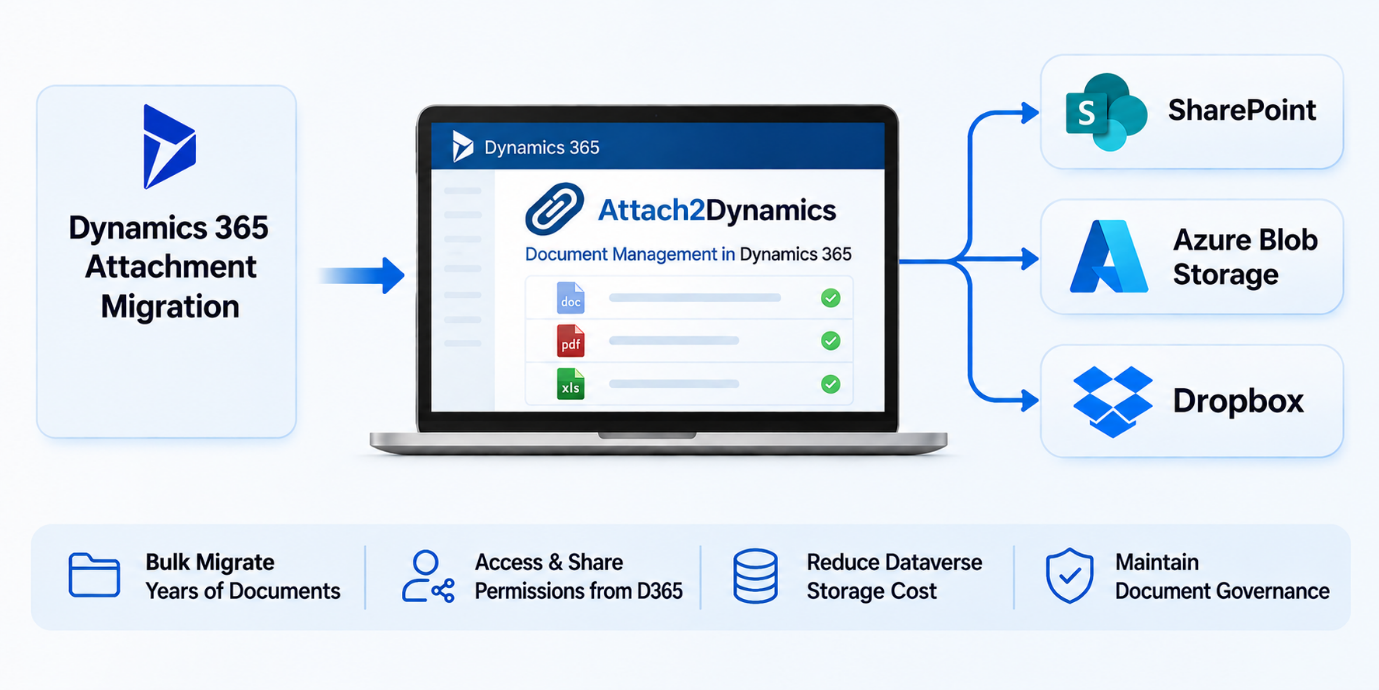
Attach2Dynamics (A2D) supports all three storage destinations, allowing organizations to migrate their CRM attachments to the platform that best fits their requirements.
There is no single destination that suits every organization. The right choice depends on your document management strategy.
5. Plan How Migrated Documents Will Be Organized and Accessed
After selecting your cloud storage destination, decide how employees will locate and access migrated documents from Dynamics 365. Moving attachments to external storage is only part of the migration. You also need to maintain the relationship between CRM records and their associated files so employees can continue accessing the right documents.
For example, when a user opens an Account, Contact, or Opportunity record, they should have a clear way to locate its related documents in external storage.
- Define your folder structure and maintain CRM references
- Decide how documents should be organized in the destination and how migrated attachments will be referenced from Dynamics 365.
- If your organization uses multiple SharePoint document locations for a CRM record, decide where migrated files should be stored.
- Review document access permissions
For SharePoint, you can use our companion product, SharePoint Security Sync, to synchronize Dynamics 365 users, teams, security roles, record ownership, and permissions. This helps align SharePoint document access with CRM security.
Finalizing your folder structure, CRM references, and access permissions helps employees find the right documents and access them according to their assigned permissions.
6. Verify Migration Results and Document Accessibility
A migration job completing does not necessarily mean every attachment was transferred successfully. You need to verify the results, investigate unsuccessful records, and confirm that users can still access their documents.
- Check migration status
- Verify migrated file sizes
- Review the total size of successful, ignored, and failed files.
- Test document accessibility
- Investigate failed and ignored records
- Maintain a migration record
Attach2Dynamics provides an Information tab in its Bulk Migration Job entity that displays total processed, succeeded, ignored, and failed records, along with their corresponding file sizes. This gives administrators a consolidated view of migration results.
A final verification process helps ensure that migrated documents are available where users expect them and that unresolved migration issues are not overlooked.
Make Your Dynamics 365 Attachment Migration Successful
Planning a Dynamics 365 attachment migration requires cost-effective storage, clear migration rules, and proper document access management.
Attach2Dynamics is a Microsoft-certified solution that helps reduce Dataverse storage consumption and simplify attachment migration and document management. Download your FREE trial of Attach2Dynamics from our Website or Microsoft AppSource.
Have questions, or want a demo? Email us at crm@inogic.com.
Frequently Asked Questions
1. Can you migrate only older attachments from Dynamics 365?
Yes. Attach2Dynamics allows you to select a specific date range for bulk attachment migration. This helps organisations target historical attachments while leaving recent files in Dynamics 365. You can select the applicable attachment categories and CRM entities to control which files are included in the migration.
2. What happens to Dynamics 365 attachments after migration?
It depends on the migration option you select:
- Move: Transfers attachments to the selected external storage and removes the original files from Dynamics 365, helping free up Dataverse storage.
- Copy: Creates copies in external storage while retaining the original attachments in Dynamics 365.
If your primary goal is to reduce CRM storage consumption, the Move option is generally more suitable.
3. Can you migrate Dynamics 365 email attachments without migrating the entire email?
Yes. Attach2Dynamics supports migrating email attachments and email body content as separate migration options. This allows organisations to move email-related content to external storage without necessarily moving the entire email record out of Dynamics 365.
4. Can you migrate Dynamics 365 attachments to storage platforms other than SharePoint?
Yes. Instead of migrating all historical attachments in one operation, you can divide the migration into smaller batches using date ranges and applicable attachment categories. This makes it easier to monitor migration progress, identify failed jobs and manage large volumes of CRM documents. The documentation also discusses using date-based migration periods, including batches of around four to five months.