It’s 6 pm. Ravi has just finished inspecting a site with no mobile signal. His notes are scribbled on paper, his photos are sitting on his personal phone, and the record he’s supposed to file will get typed up on Monday, from memory, if it gets typed up at all. Then Meera, his manager, asks a simple question: “Did we check that site?” Nobody can prove it.
This isn’t a rare failure. It’s how a surprising amount of field work still runs: clipboards, camera rolls, and good intentions.
Now picture the same evening differently. Ravi opens one app, picks the account, taps Pass, Fail, or Needs follow-up, adds his notes, snaps the photos, and hits save. The record lands in Dataverse, and Meera sees it before Ravi has left the parking lot.
What if you could get that app by simply describing it?
That’s the promise of Power Apps native apps (preview): real iOS and Android apps built with React Native, Expo, and TypeScript, generated by an AI coding agent from a plan you review and approve. In this post, we’ll build a Site Inspector app from scratch, wired to Dataverse and the device camera, and you can use it as a starting point for your own field scenarios.
According to Microsoft, native apps connect to:
- Dataverse tables and Power Platform connectors for data.
- Microsoft Entra app registration for sign-in.
- Dataverse mobile offline profiles for field work with limited connectivity.
- Wrap for distribution through the App Store, Google Play, or Mobile Device Management (MDM), such as Microsoft Intune, which lets IT install the app on staff phones.
Microsoft suggests choosing native apps when you need deep device access, a polished native feel, or a long-term single-platform investment. It also says they aren’t recommended for quick MVP projects. For quick no-code apps, the Power Apps mobile player with canvas apps is still the established route.
In this blog, we’ll build the app using:
- A Dataverse data model with an inspection table and a photo table, linked to the existing Account table.
- The mobile-app plugin to plan and generate the project.
- The camera and photo library through the host’s image picker.
- The Power Apps Mobile Preview app to test on the phone.
Prerequisites:
- js 24 (LTS) and Git 2.30 or later.
- A supported AI host: GitHub Copilot CLI, VS Code with Copilot Chat, or Claude Code (I used Claude Code).
- A Power Platform environment with Dataverse, and the System Customizer role.
- Admin help for the app registration, Wrap and offline profiles.
- The Power Apps Mobile Preview app on your phone, with the phone and PC on the same network.
Install the tools first, running each command on its own line (open a new terminal afterwards so the commands are found):
npm install -g @anthropic-ai/claude-code
winget install -e –id Microsoft.AzureCLI
az login –tenant <your-tenant-id> –allow-no-subscriptions
pa auth login
The Azure CLI sign-in and the Power Apps CLI sign-in are separate, so you need both. If your account has no Azure subscription, –allow-no-subscriptions lets you sign in at tenant level.
Implementation Steps:
1. Create the project from the template. Microsoft provides a starter template. In a command prompt, run the commands below. They create the project folder and install its dependencies. I named mine field-inspector.
npx deg it microsoft/power-platform-skills/plugins/mobile-apps/template#main field-inspector
cd field-inspector
npm install
2. Install the mobile-app plugin. Install it from the Power Platform Skills marketplace into your AI host. For Claude Code:
claude plugin marketplace add microsoft/power-platform-skills
claude plugin install mobile-app@power-platform-skills –scope user
3. Describe the app. Open the template folder in your AI host and run /create-mobile-app with a description of what you want, for example: “Create a site inspection app. Technicians log inspections with a site name, inspection date, result (Pass, Fail, Needs follow-up) and notes, and link each inspection to an existing Account. Show a recent-inspections list and an add form. No barcode scanning.”
4. Review and approve the plan. The plugin writes a plan and pauses at approval gates for the data model, native capabilities, connectors and screens. Nothing is created in Dataverse until you approve. A build plan page shows which step is waiting for you. 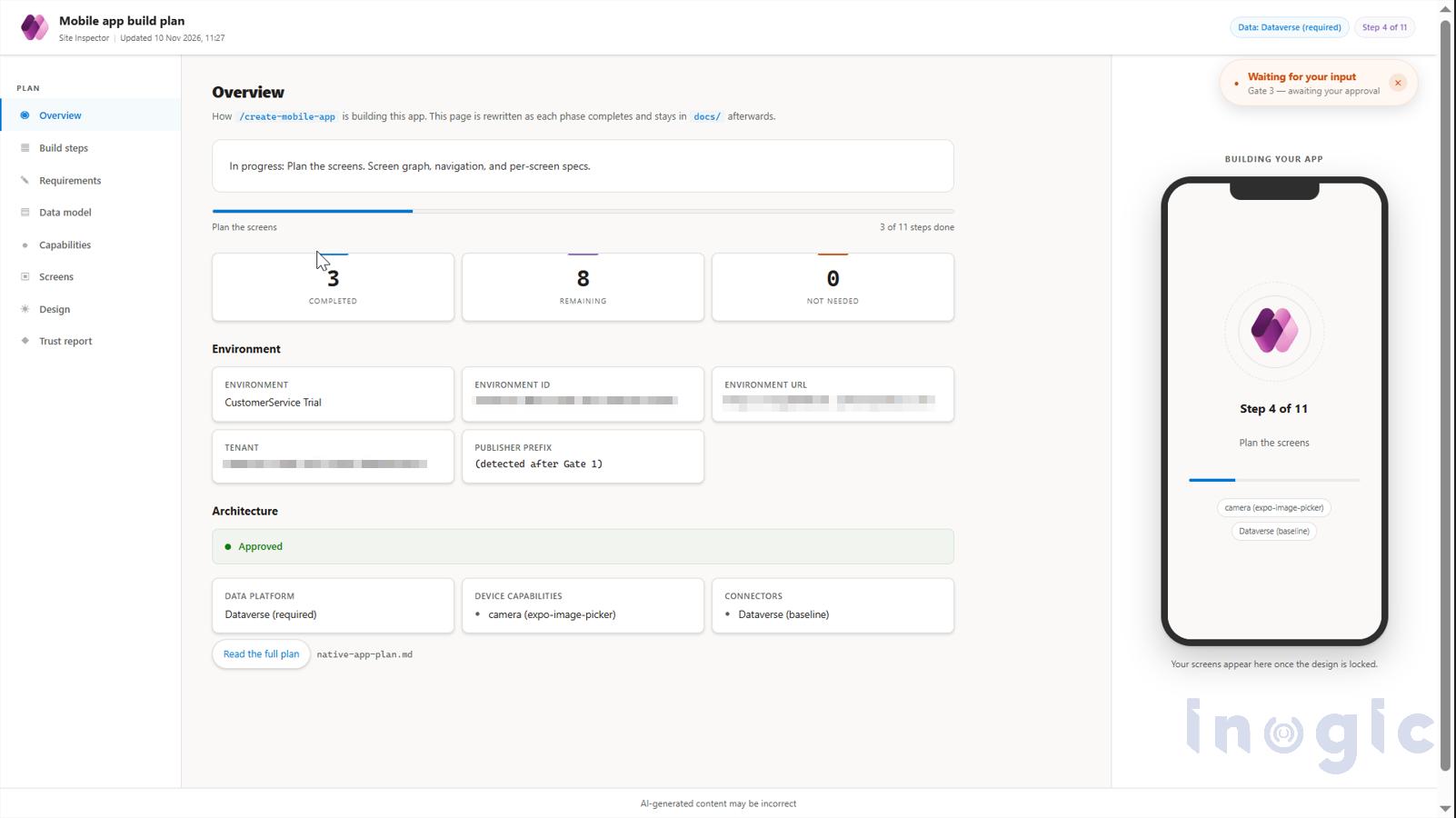
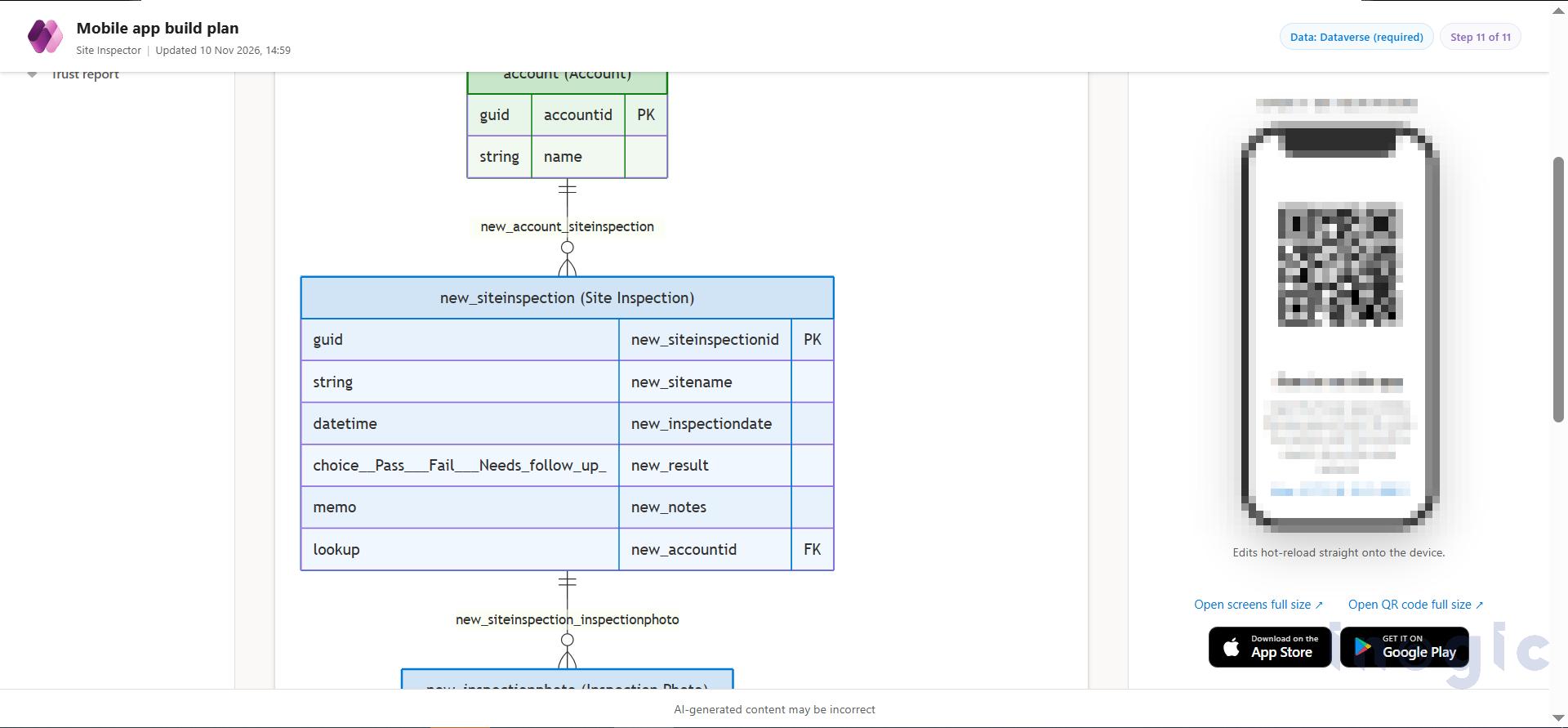
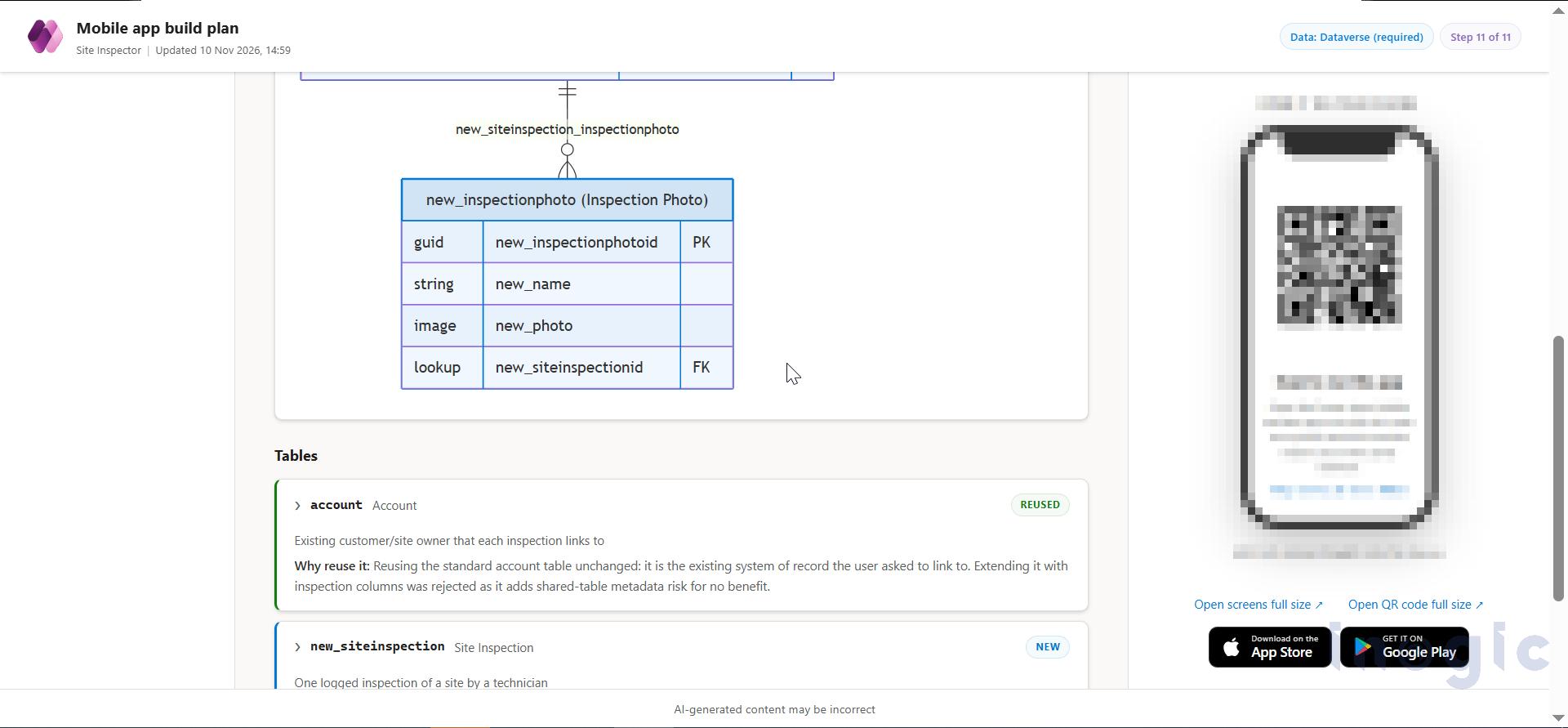
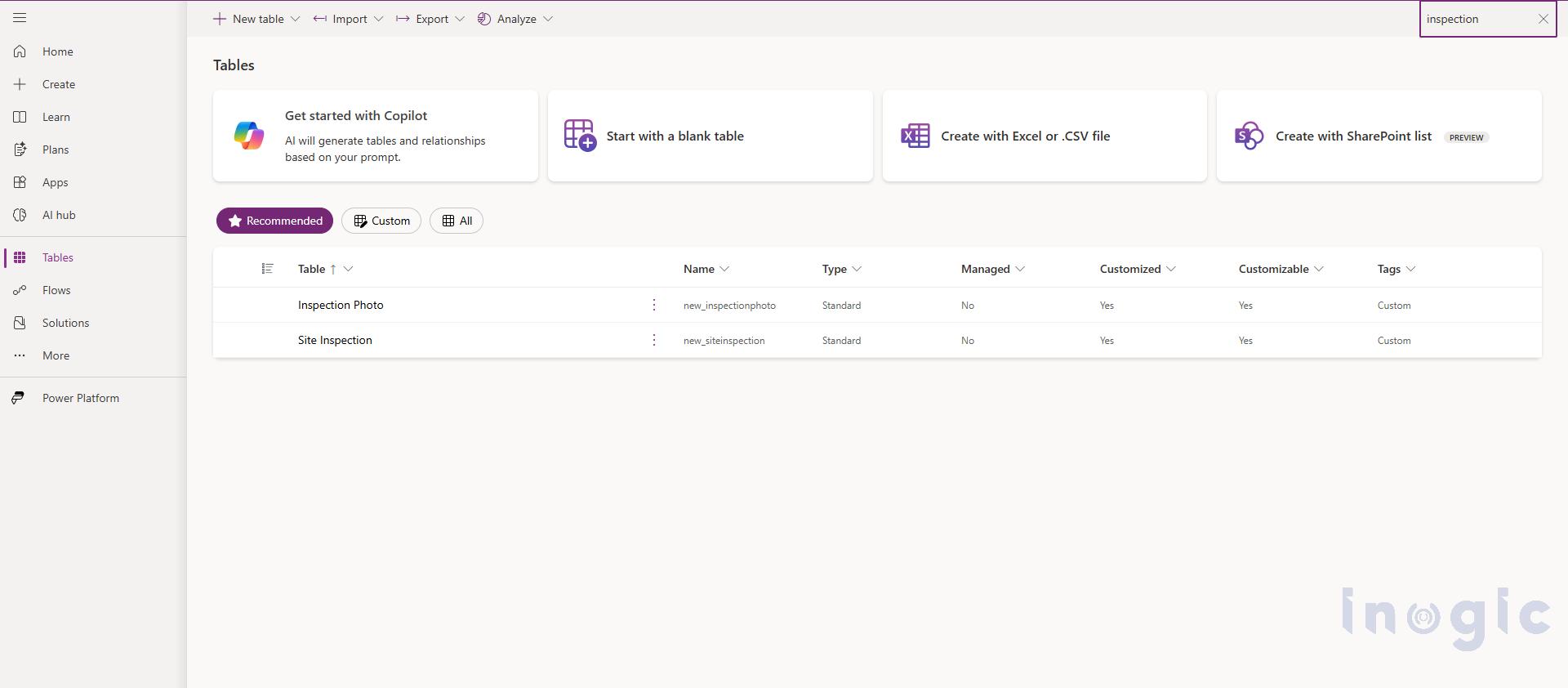
5. Check the data model. The plan reused the existing Account table and added two tables: Site inspection (site name, date, result, notes, account lookup) and Inspection photo (an image column, linked to the inspection).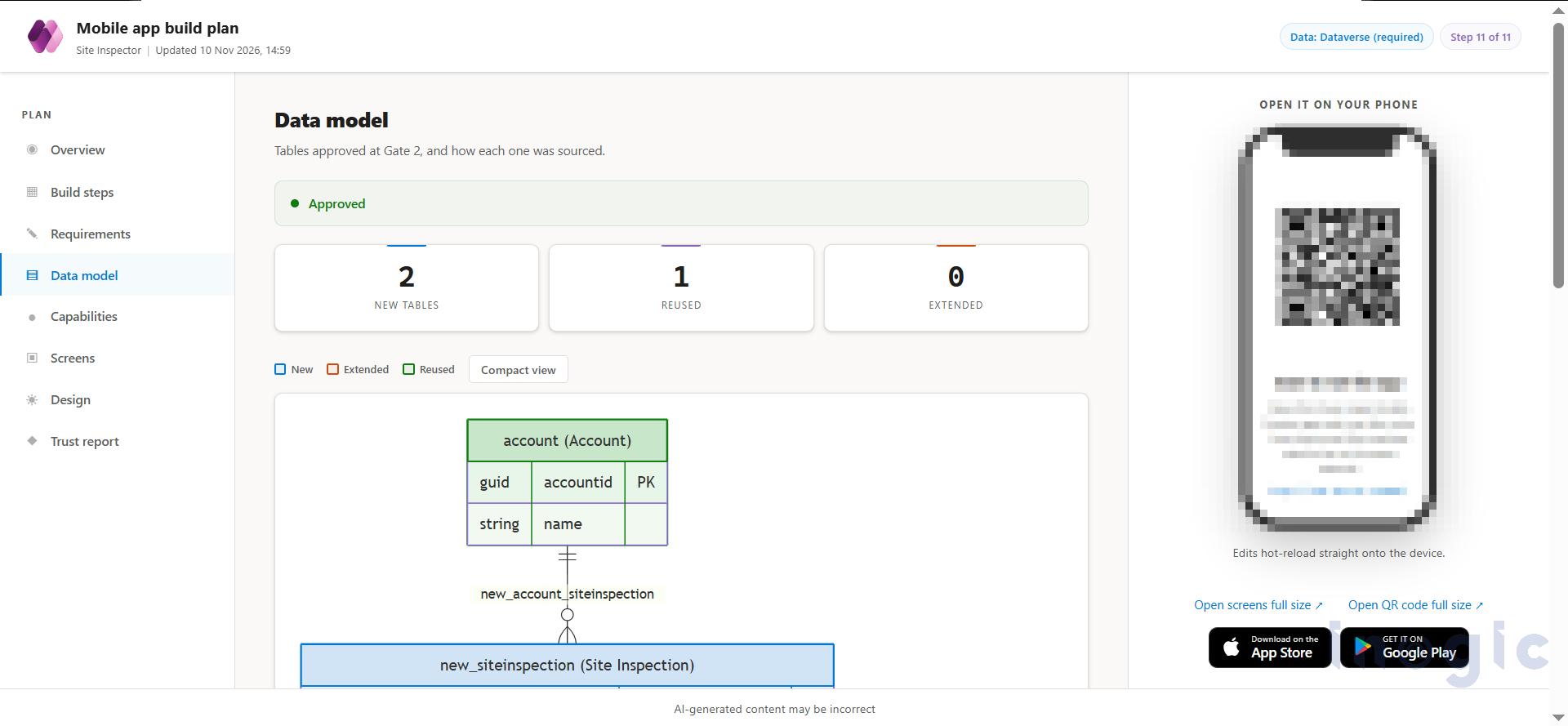
6. Set up sign-in. The app needs a Microsoft Entra app registration. Microsoft notes you need one even if you never wrap the app. The plugin opens the registration page, and you paste in the client ID.
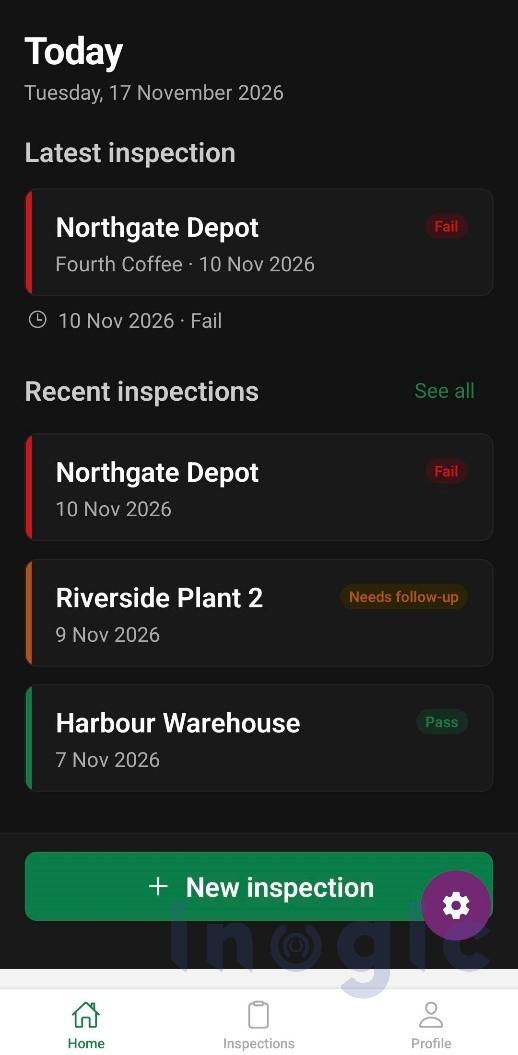
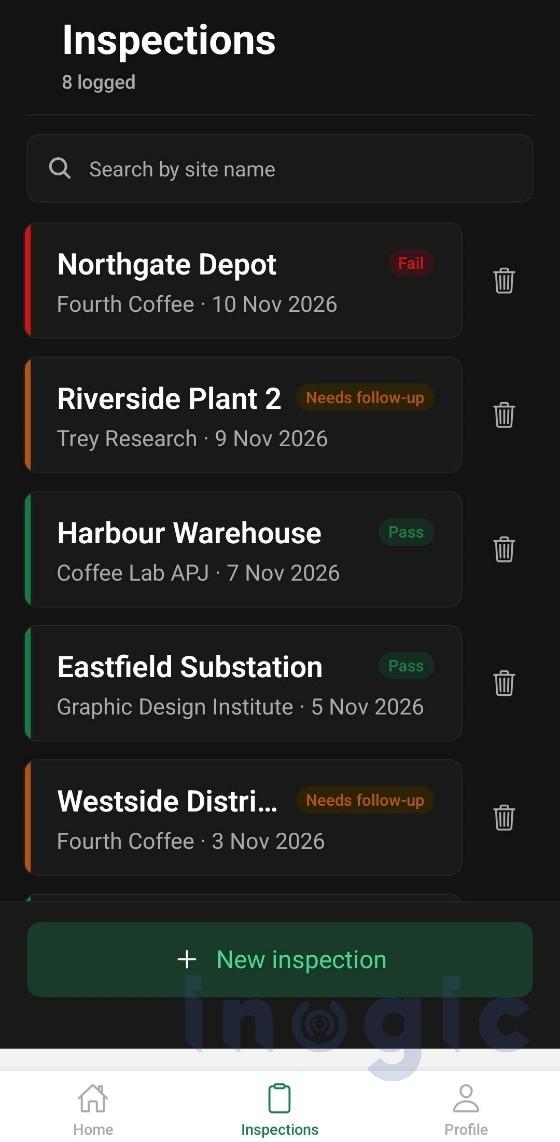
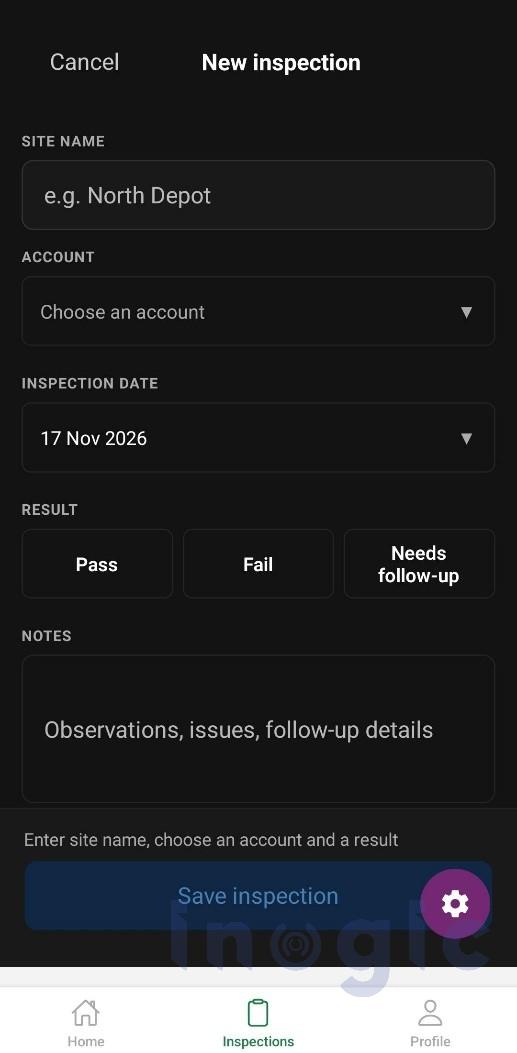
7. Generate the app. After approval, the plugin creates the tables and the project. Mine has three tabs and five screens: Home, Inspections, Inspection detail, Add/Edit form (with an account picker), and Profile.
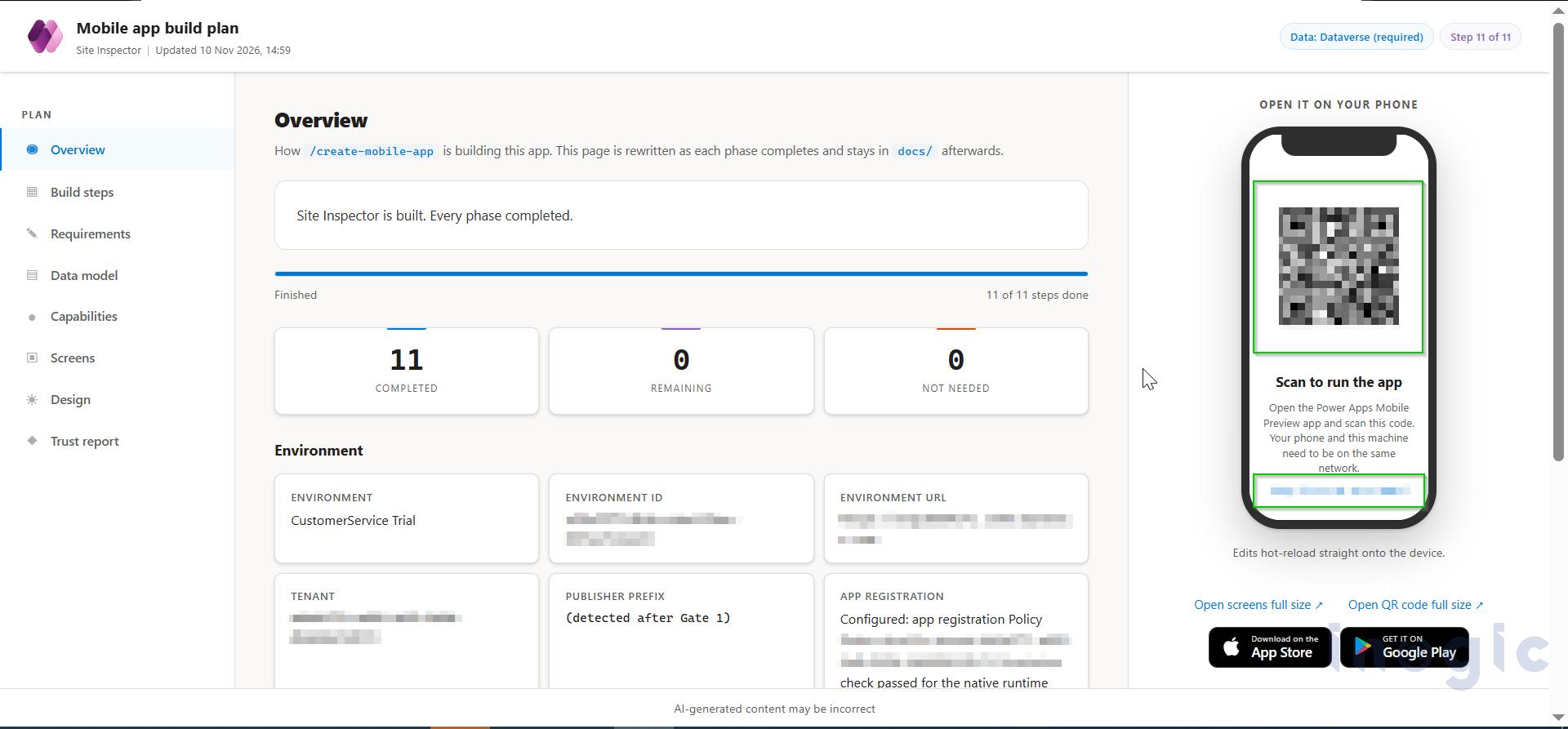
8. Test on the phone. Put the phone and PC on the same network, run npm run dev, open the Power Apps Mobile Preview app, and scan the QR code. Edits to files in the app/ folder hot-reload onto the device. If the QR code doesn’t connect, Microsoft’s quickstart describes a dev tunnel: run az login, then npm run dev — –tunnel, and scan the new QR code.
9. Deploy. Run /deploy in your AI host. It publishes the app to your environment. The first deploy takes two rounds: the first push creates the app ID, and the second rebuilds with that ID inside.
Demo:
- Ravi opens the app and sees the list of recent inspections.

- He taps New inspection, enters the site name, picks the account and the result.

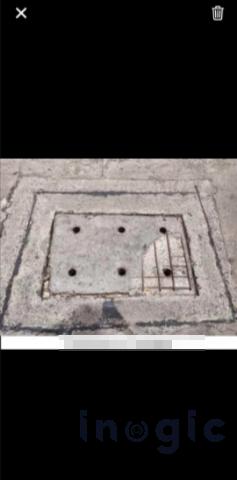
- He adds photos from the camera or the photo library, then saves.
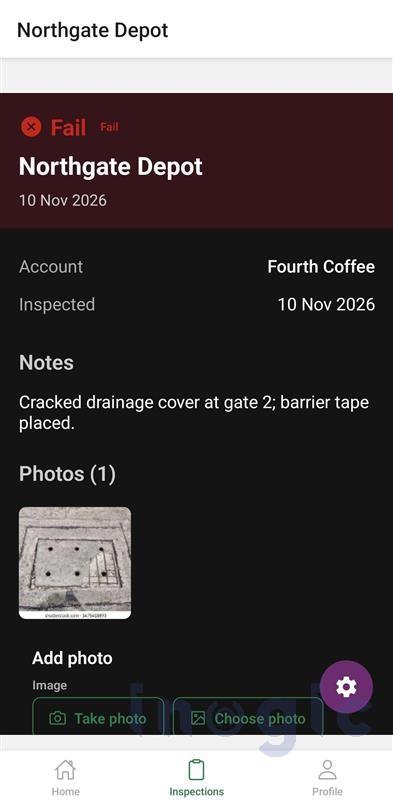
- The new inspection opens with its result, notes, and photos. He can tap a photo to view it full screen and zoom in.
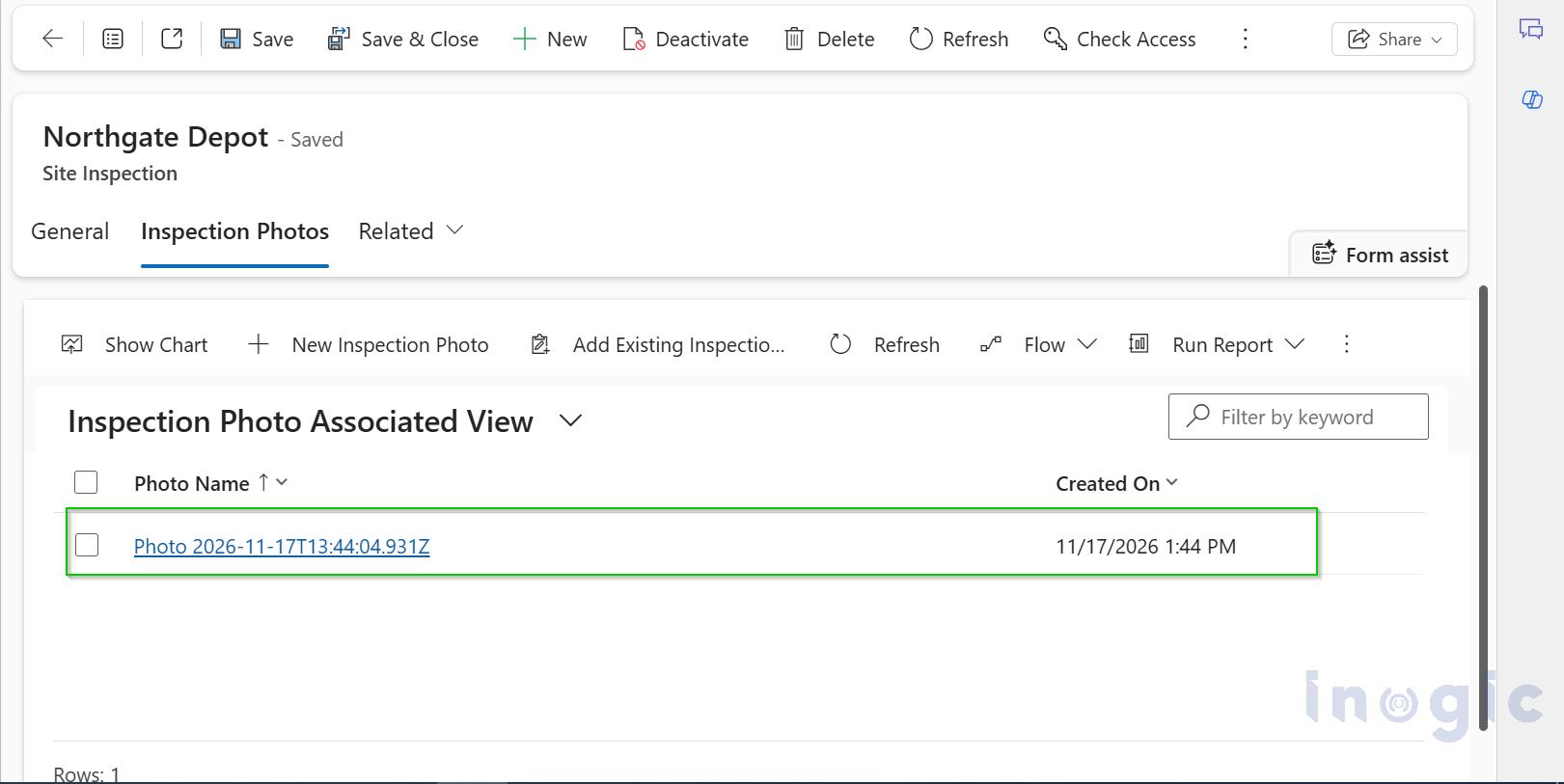
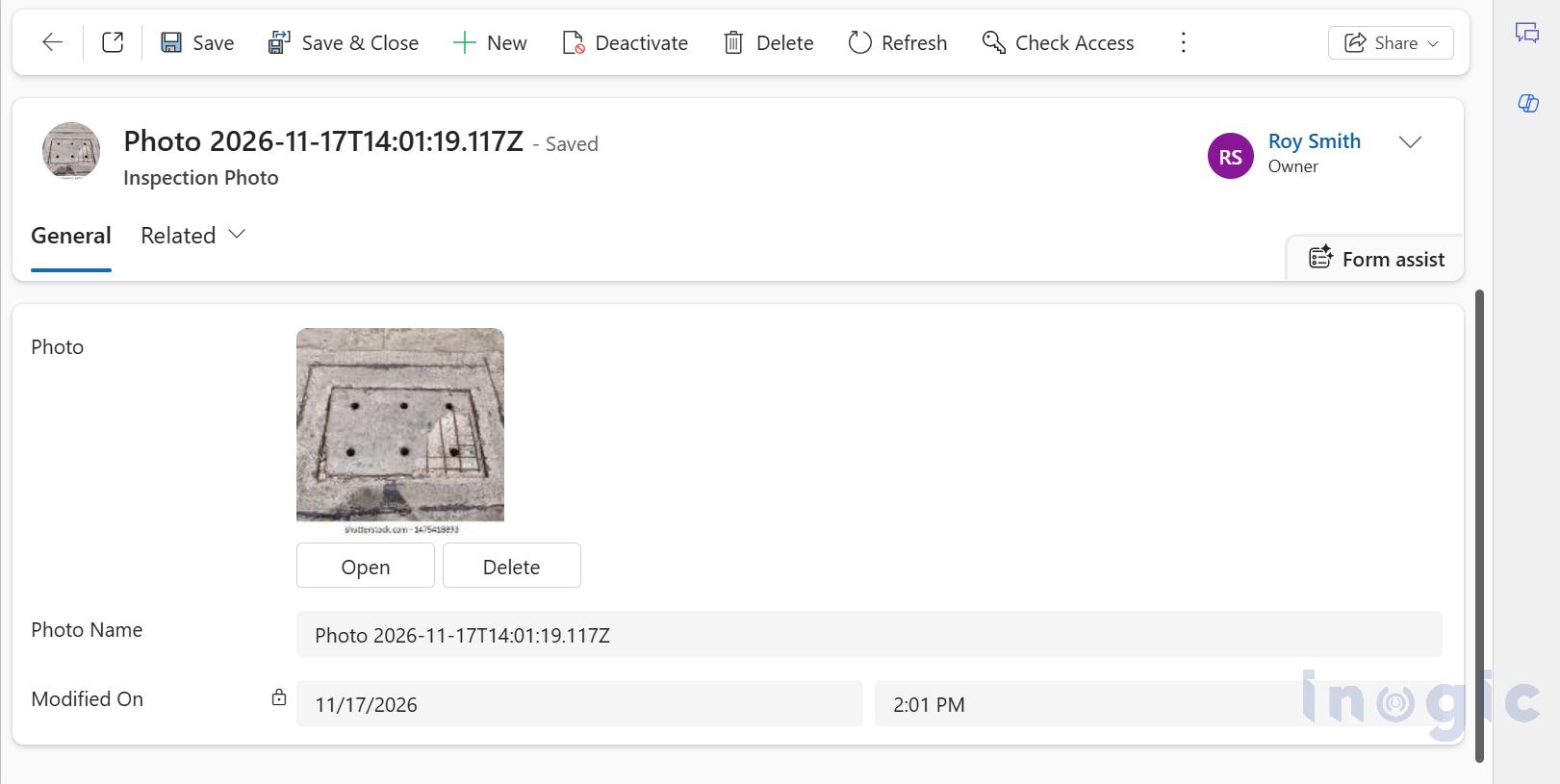
- Meera opens the same record in Dataverse and sees the inspection and its photos straight away.
Conclusion
Go back to Ravi’s 6 pm problem. The inspection was done, the evidence existed, but it was trapped on a clipboard and a personal phone. With the Site Inspector app, the same inspection ends with a saved Dataverse record, photos attached, and Meera able to answer “Did we check that site?” with a single click.
What makes this exciting isn’t just the app. It’s the workflow behind it: you describe what you need, review a plan, approve each gate, and an AI agent turns it into a real mobile project that you can hot-reload on your own phone within minutes. Code-first mobile development on Power Platform has rarely been this approachable.
Native apps are still in preview, so expect rough edges, read the limits before committing, and remember that for quick no-code apps the canvas app and Power Apps mobile player route is still the established choice. But if your team needs deep device access and a polished native feel, this is well worth exploring.
So take the Site Inspector sample, swap in your own tables and screens, and ask yourself: which paper process in your organization is the Ravi problem waiting to be solved? Build that app next, and let us know how it goes.