While exploring the capabilities of low-code plug-ins in Dataverse in our previous blog, we experimented with a simple scenario involving billing details calculation. The objective was to implement a small piece of logic that calculates the total bill amount based on values such as price, duration, and user count.
During the implementation, you may notice that the same low-code plug-in can also be used as an action within a Copilot Agent. Curious to explore this capability further, you might decide to experiment by integrating the plug-in into a Copilot Agent to see how it could enhance the user experience.
To test this, you can add the plug-in as an action in the Copilot Agent and interact with it using natural language prompts. The results are quite encouraging—it works seamlessly. The Copilot Agent triggers the plug-in based on the user’s prompt and returns the required total billing details.
In this blog, we will demonstrate how to create a Low-Code Plug-in and integrate it with a Copilot Agent to execute actions.
Step-by-Step Guide to Create low-code plug-ins to use with a copilot:
Step 1: Create Low-Code Plug-Ins from the Dataverse Accelerator App.
A comprehensive guide on creating a low-code plug-in is available in our previous blog and can be referred to for detailed steps.
Step 2: Now, we will see how to use these plug-ins within the Copilot Agent.
The Copilot Agent is used to invoke these plug-ins so that business logic can be executed dynamically based on user queries. By integrating plug-ins with the Copilot Agent, you can enable automated actions, real-time data processing, and intelligent responses within the conversation experience. To do this,
- Create an agent in Copilot Studio.
- Add a Tool to the agent.
- From the available options, select Perform Unbound Action to proceed.
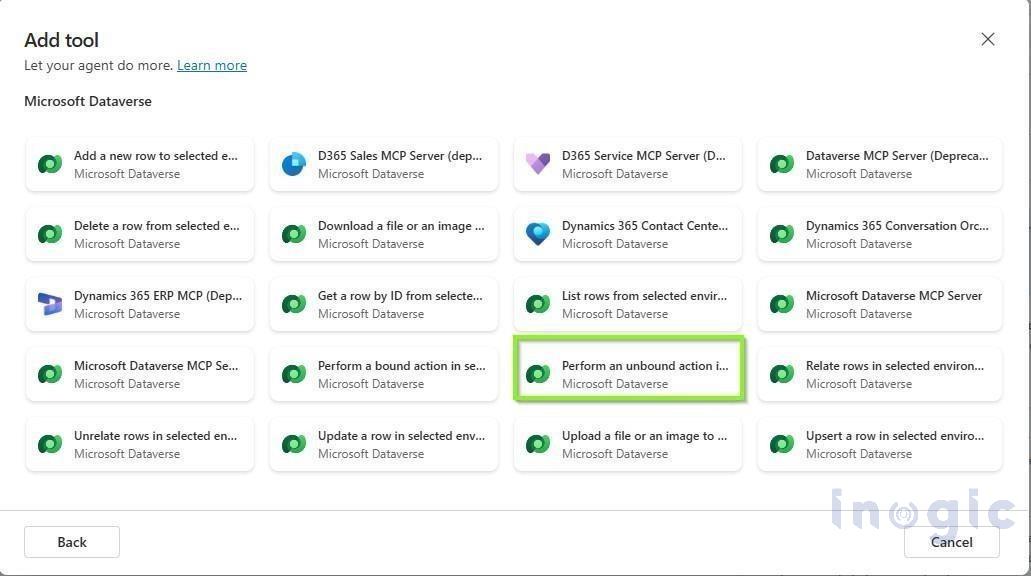
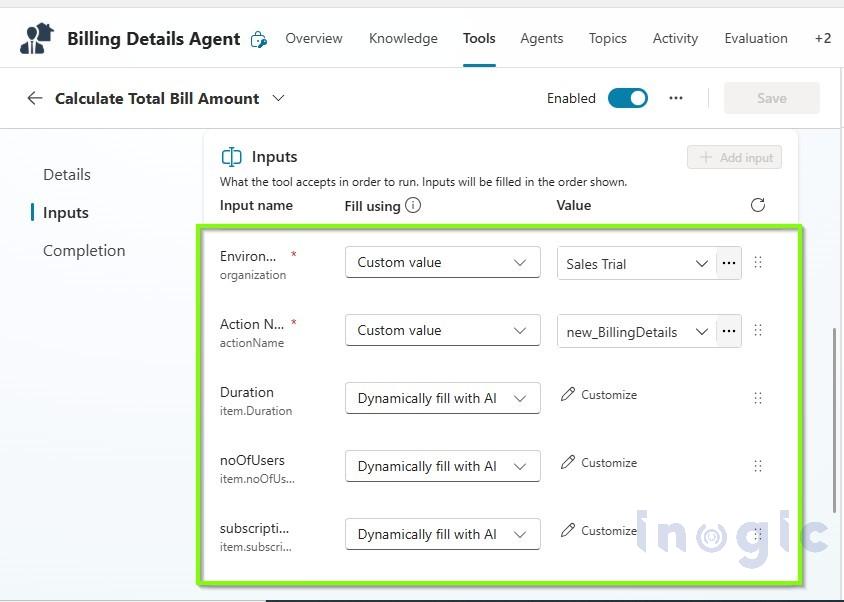
- Fill in the Name, Description, and Inputs.
- Select the environment where the plug-in is created.
- In the Action field, select the plug-in you created.
- Map the required inputs to the plug-in parameters.
- Click Save to complete the configuration.
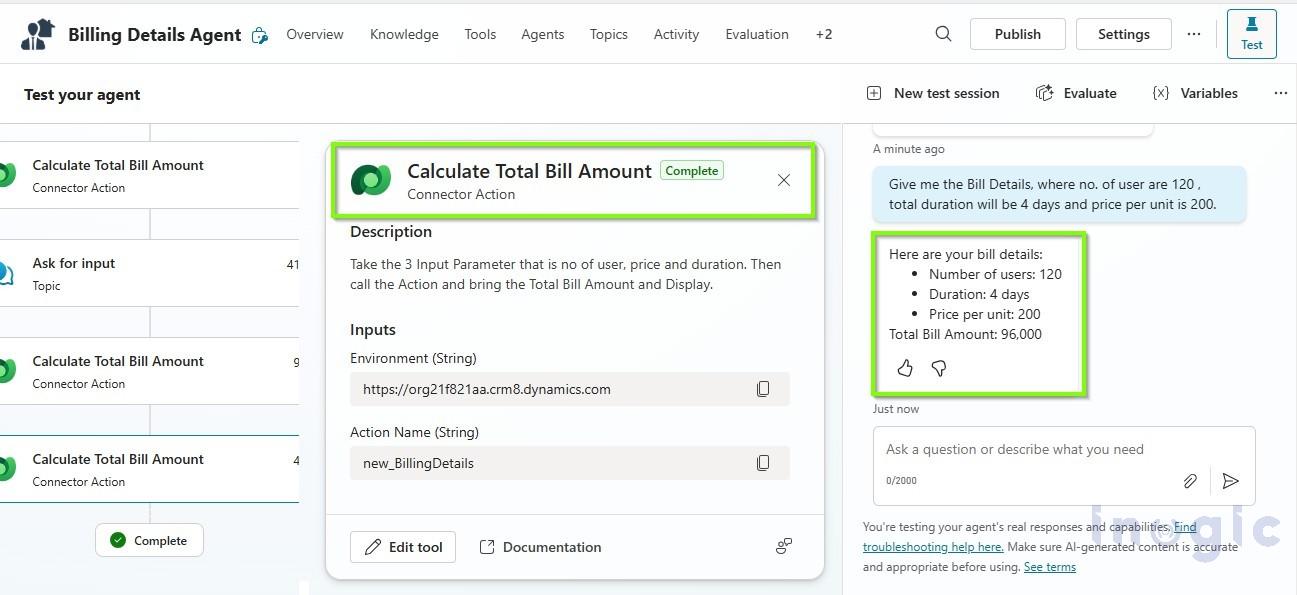
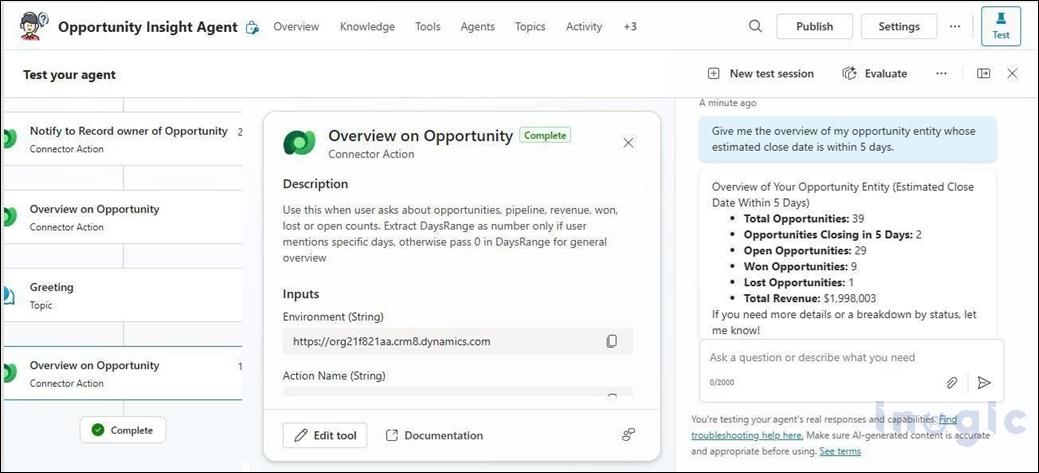
You can test it by giving the Prompt. It will successfully calculate and display the billing details.
We implemented a low-code plug-in that provided a quick overview of the Opportunity table and sent reminder notifications to record owners whose Estimated Close Date was approaching.
Calling this Plug-in in the Copilot agent as an action, users can simply ask questions such as requesting an overview of Opportunities or identifying records with an upcoming Estimated Close Date. Based on the prompt, the Copilot Agent automatically calls the plug-in, retrieves the relevant data, and can even trigger reminder notifications to the respective record owners.
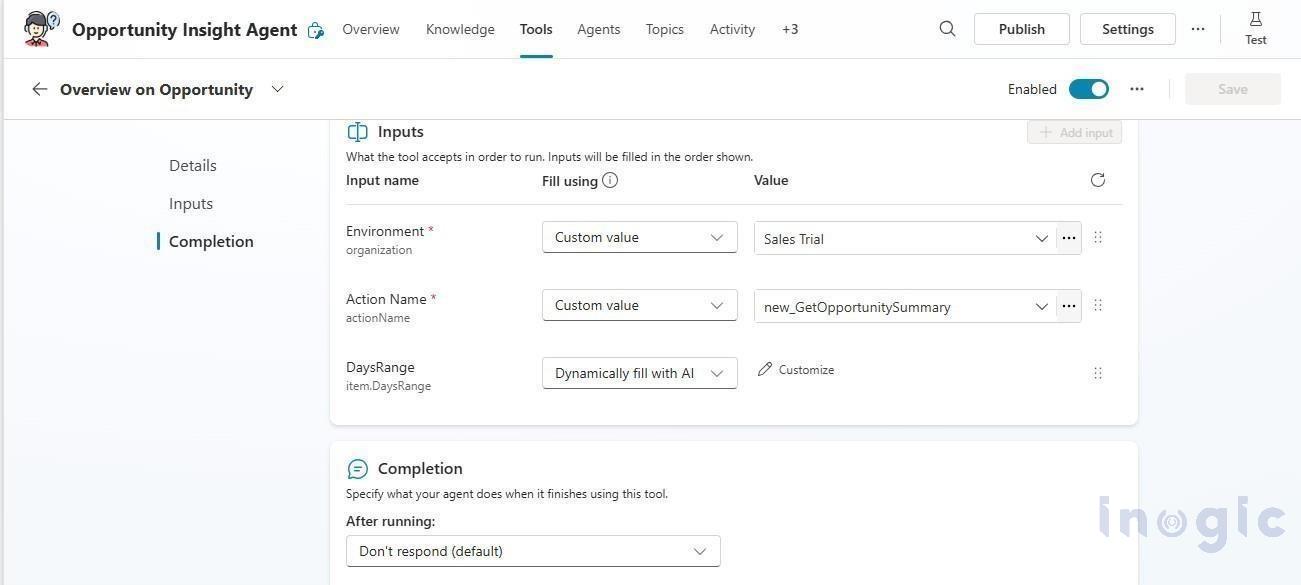
Do the Same for all Plug-ins that you have created. Add the tool to select Unbound Action. Fill in the Details and map the input, then save.
Test and Result
Test Case 1: Overview of the Opportunity Entity.
 Test Case 2: Send the Reminder to the owner of the Opportunities Record whose Estimated Close Date is within the Specified Range of Days.
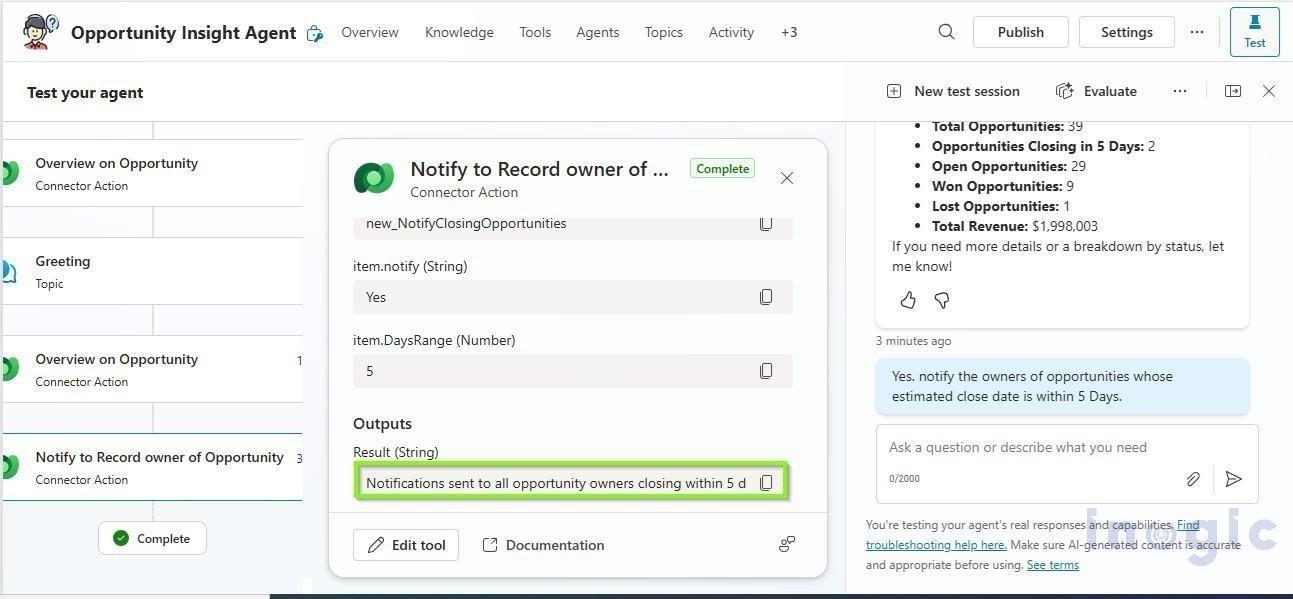
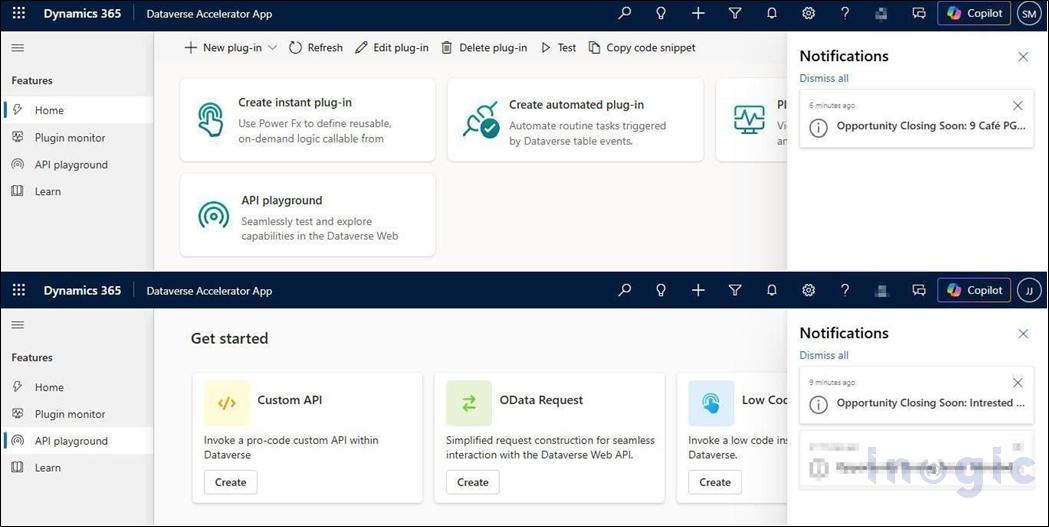 These scenarios demonstrate that, by leveraging low-code plug-ins, Copilot can perform dynamic data summarization and derive actionable insights directly from table data without requiring users to repeatedly apply filters. Additionally, trigger contextual reminders or notifications based on the derived insights with user consent.
Frequently Asked Questions (FAQs)
Q1. What is a low-code plugin in Dataverse?
A low-code plugin is a Power Fx-based function created in the Dataverse Accelerator App that can be registered as a Generative Action in Copilot Studio. It allows you to query, create, or update Dataverse records through natural language without writing traditional code.
Q2. How does XSendAppNotification work?
XSendAppNotification sends an in-app notification to a user in a Model Driven App. It takes 2 parameters – the notification title (String) and the recipient (User record). The notification appears in the Bell icon in the Model Driven App.
Conclusion
Low-code plugins significantly extend CRM Copilot capabilities by enabling Power Fx-based business logic execution directly within the Dataverse runtime – eliminating the need for C# custom plugins, sandbox assemblies, or external automation layers.