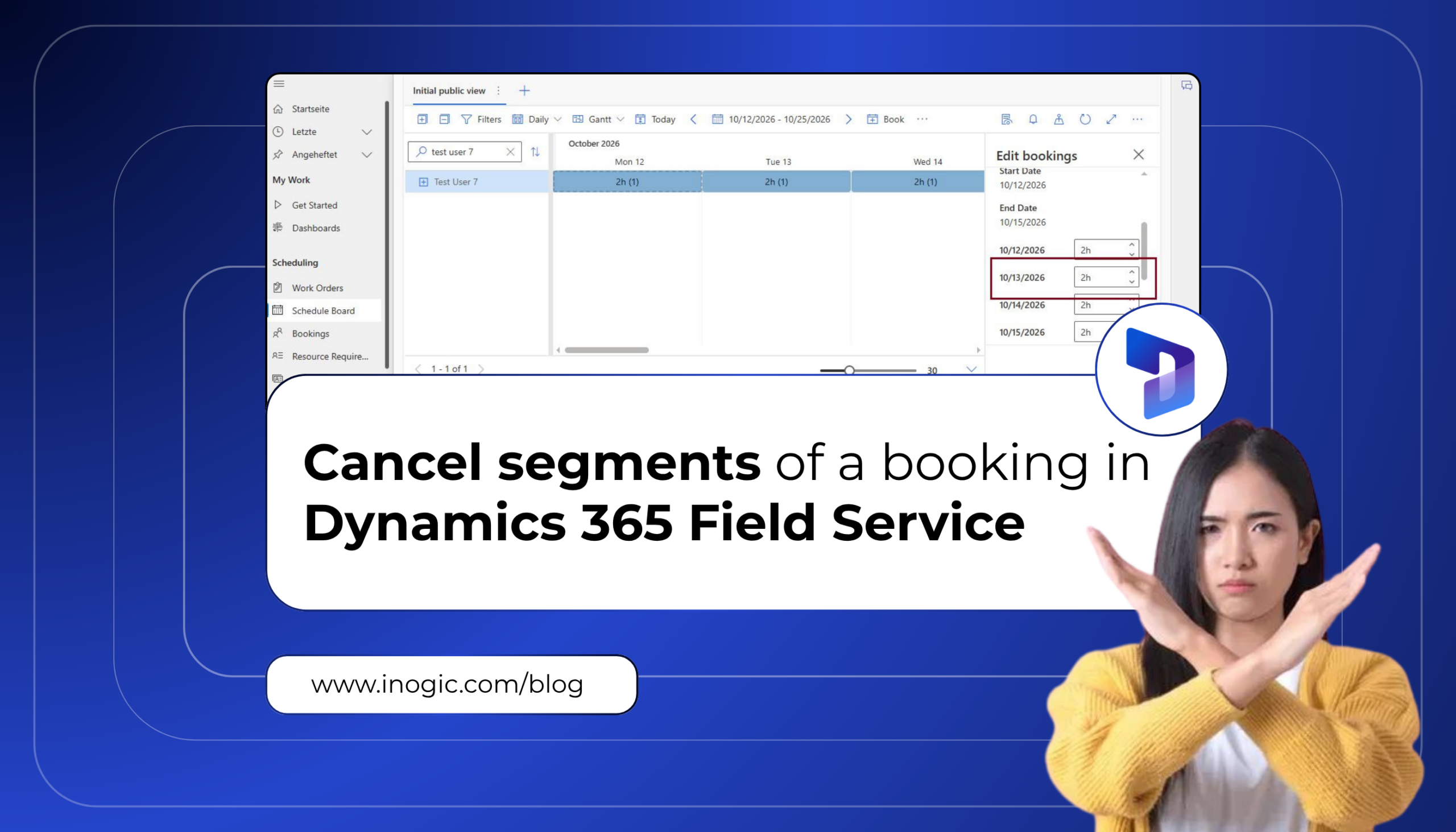
Managing multi-day bookings can be difficult when plans change for only a specific day or time period. The Cancel segments of a booking in aggregate views feature in Dynamics 365 Field Service allows schedulers to cancel only the required portion of a booking without canceling the entire booking.
For example, a scheduler can cancel one day of a multi-day booking directly from the Schedule Board. This makes schedule changes easier while keeping the remaining booking and schedule intact.
Use case
Consider a field service company that schedules a technician to work on a customer project for several consecutive days. A Bookable Resource Booking is created for the technician from Monday through Thursday, with a specific number of working hours allocated to each day.
On Tuesday, the customer informs the service team that the site will be unavailable due to an unexpected maintenance issue. As a result, the technician cannot perform the scheduled work on Tuesday. However, the work planned for Monday has already been completed, and the customer confirms that the technician can continue the remaining work on Wednesday and Thursday.
Instead of canceling the entire multi-day Booking and creating new Bookings for Wednesday and Thursday, the scheduler can use the Cancel segments of a booking in aggregate views feature. From the Schedule Board, the scheduler opens the Edit Details panel and changes the duration of the Tuesday segment from its scheduled hours to 0 minutes.
This cancels only the Tuesday segment while keeping the Monday, Wednesday, and Thursday portions of the Booking intact. The scheduler can therefore keep the technician’s schedule accurate without recreating the entire Booking, reducing manual effort and preventing unnecessary changes to the remaining schedule.
Prerequisites – Create a Multi-Day Booking
Before canceling a booking segment, create a multi-day Bookable Resource Booking with the working hours distributed evenly across the selected days. For example, create a booking for four working days with a total duration of 8 hours and distribute the duration evenly across those days. This creates four individual 2-hour booking segments, which can then be used to demonstrate how a specific segment can be canceled without affecting the remaining booking segments.
| Date | Booking Duration |
| Day 1 | 2 hours |
| Day 2 | 2 hours |
| Day 3 | 2 hours |
| Day 4 | 2 hours |
| Total | 8 hours |
Steps to Cancel a Segment of a Multi-Day Booking
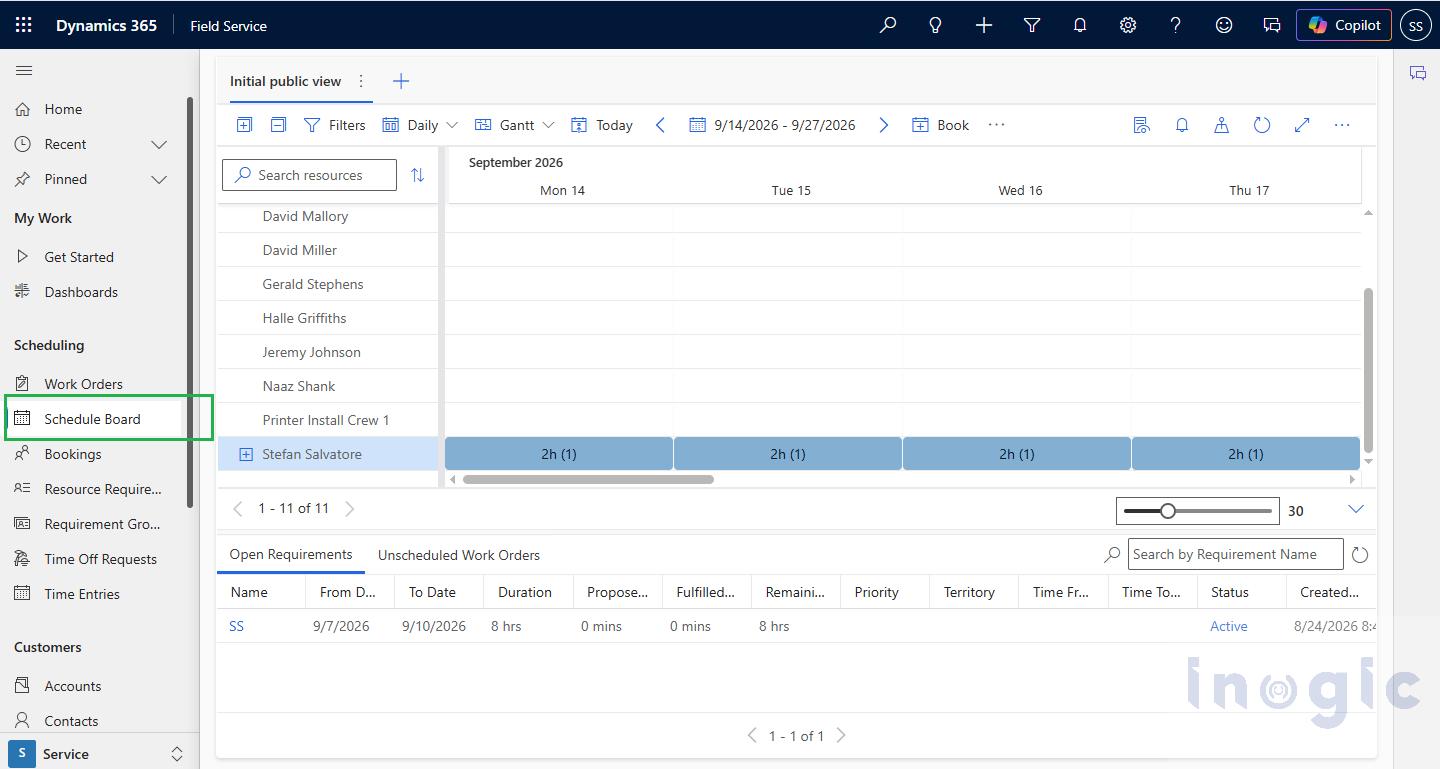
- Open the Schedule Board in Dynamics 365 Field Service.

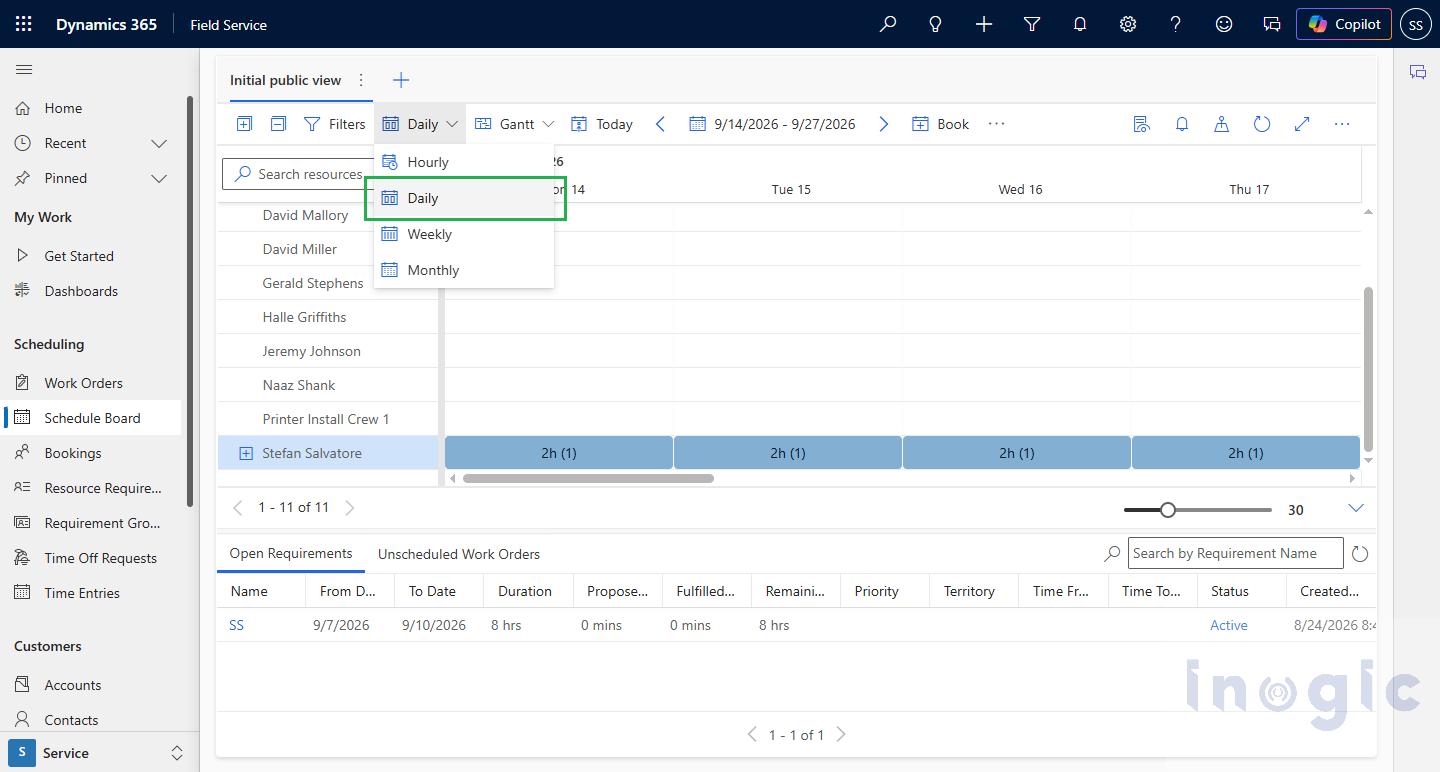
- From the Schedule Board view options, select the Daily aggregate view.

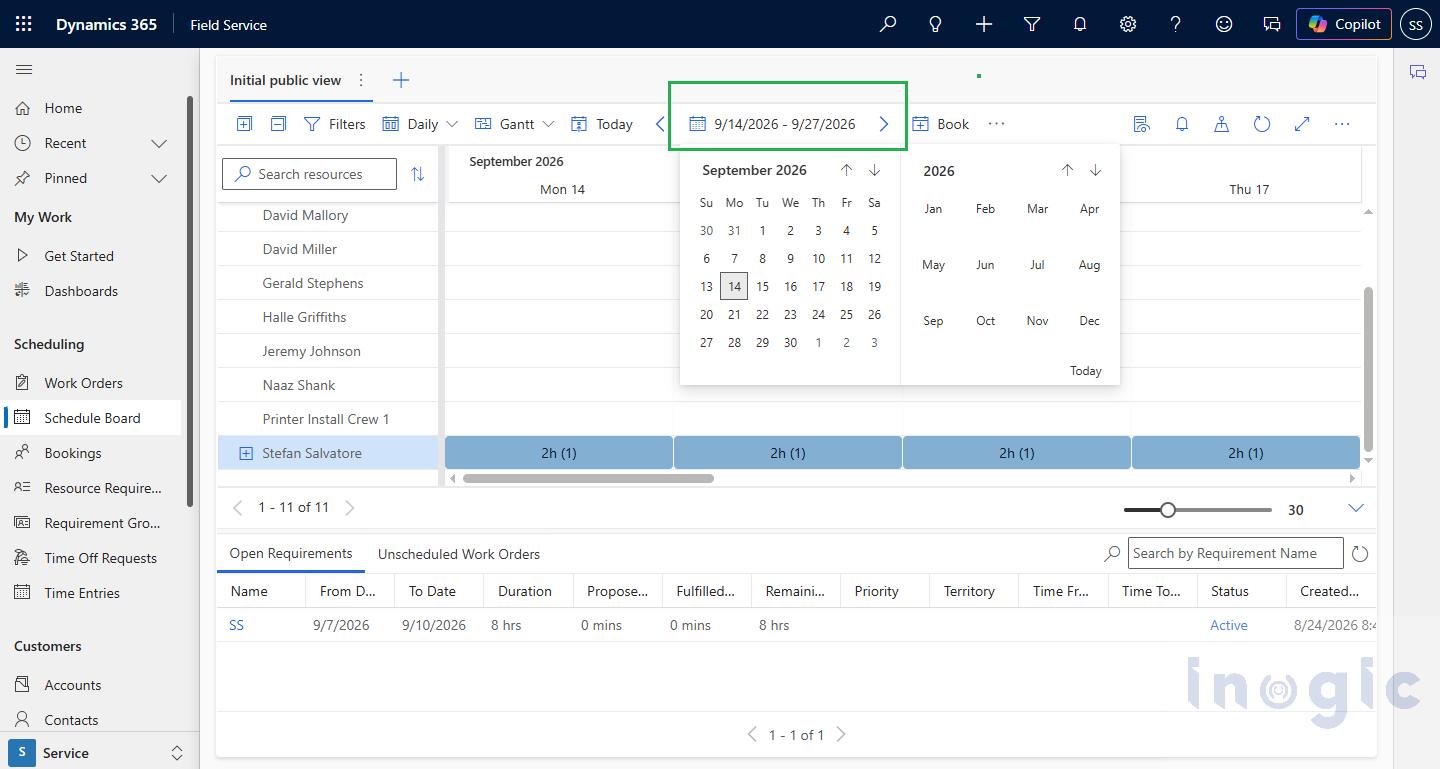
- Set the date range to include the period in which the multi-day Bookable Resource Booking is scheduled. For example, select September 14-17, 2026.
- In the Resources area, select the Bookable Resource associated with the Booking.
- Select the Booking to open the Edit Details
- In the Edit Details panel, select the specific day/segment that you want to cancel. For example, select the September 15 segment
- In the Duration field, change the selected segment’s duration from 2 hours to 0 minutes.

- Save the changes to update the Booking.
- Return to the Schedule Board and verify the updated schedule.
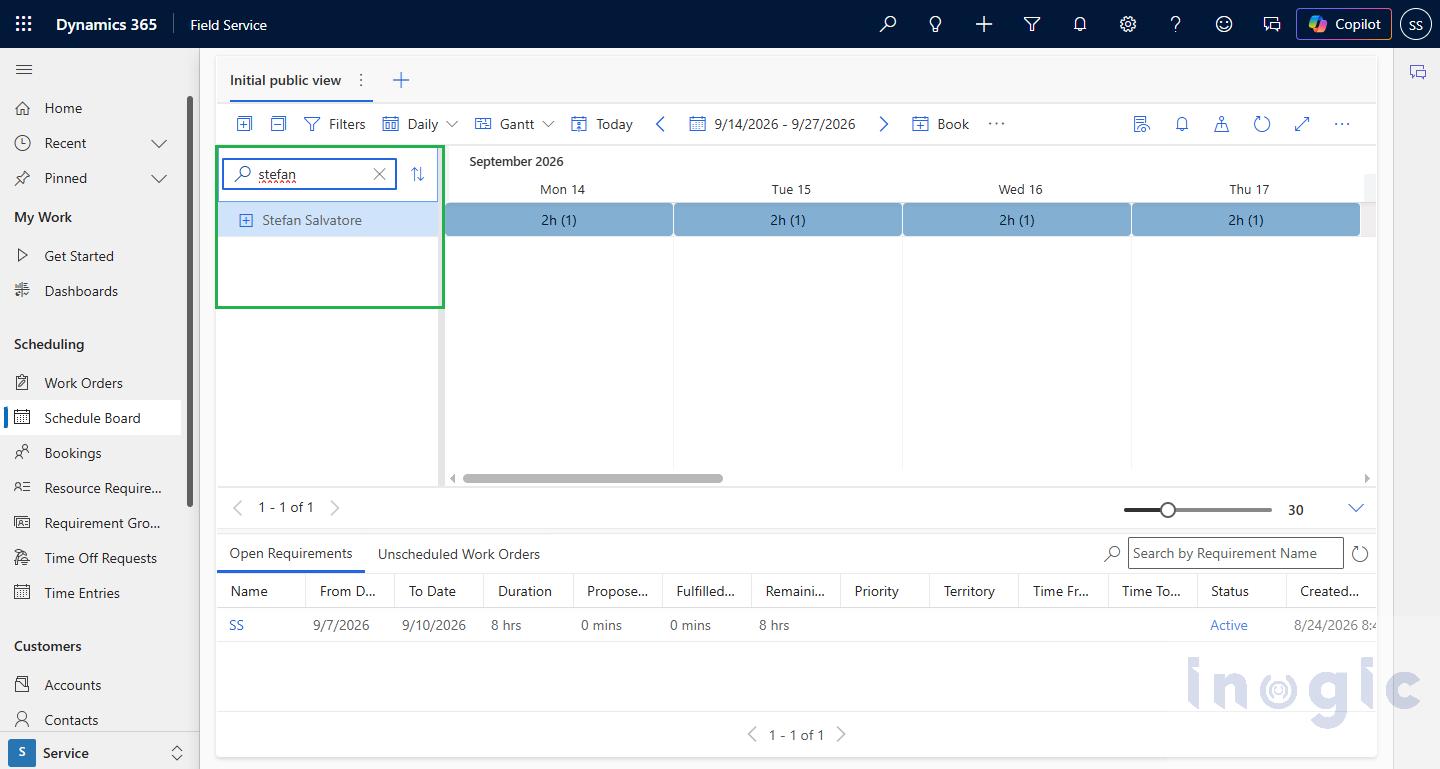
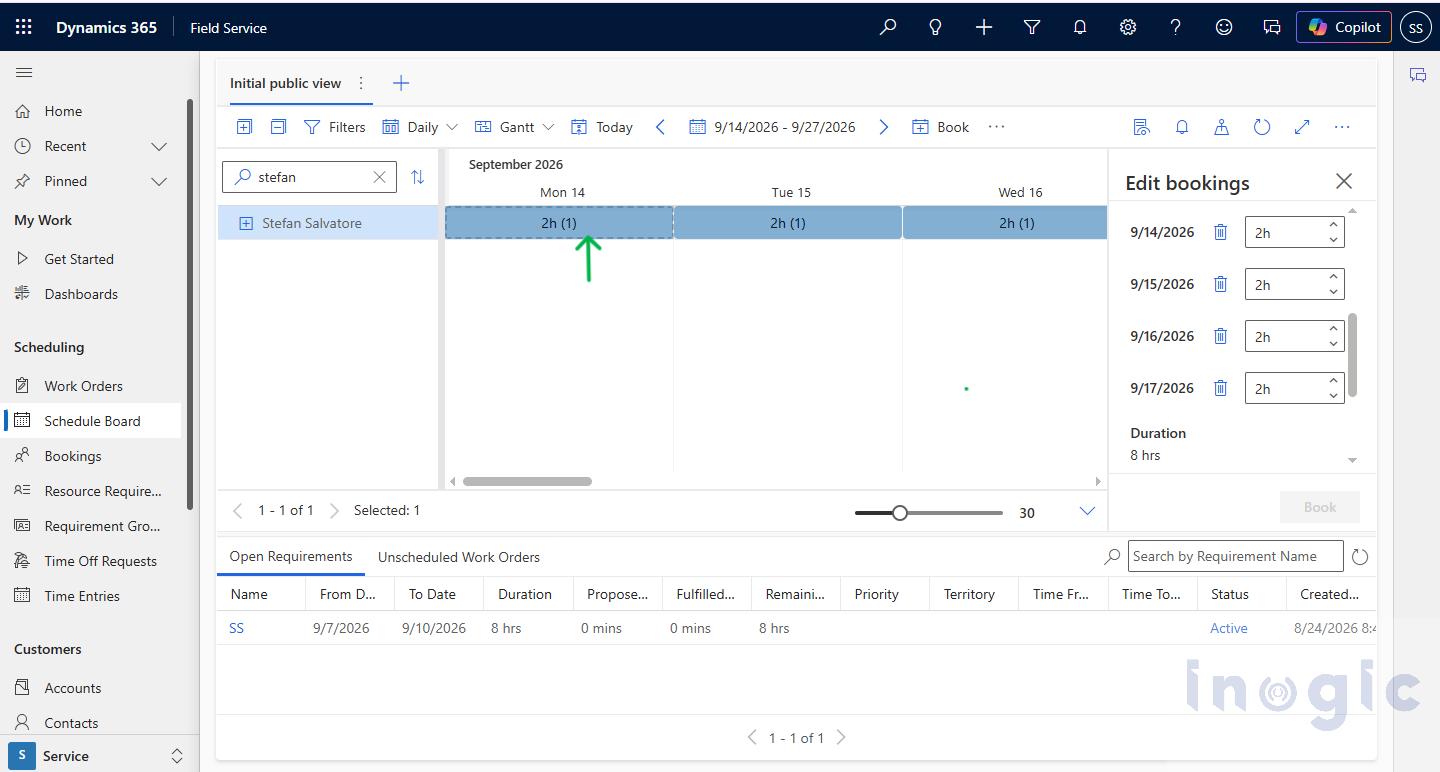
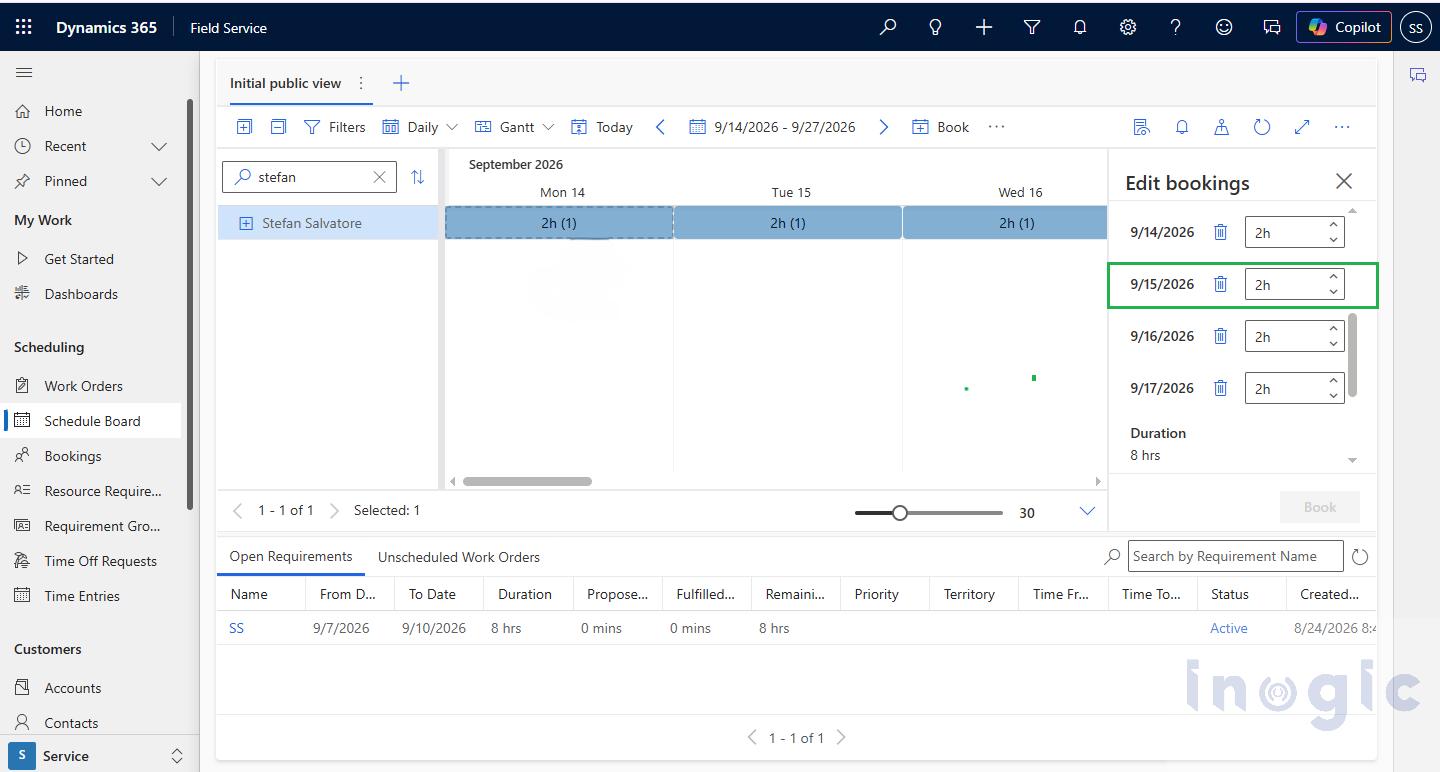
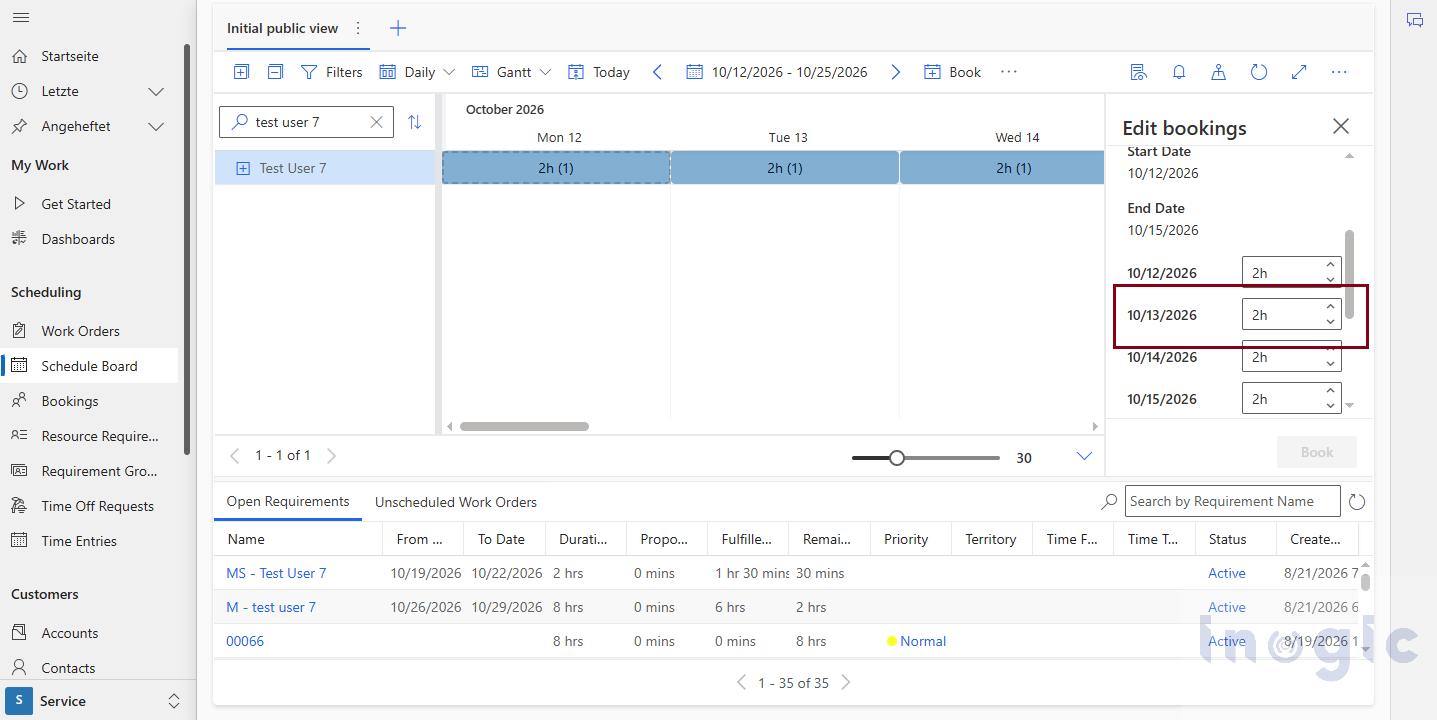
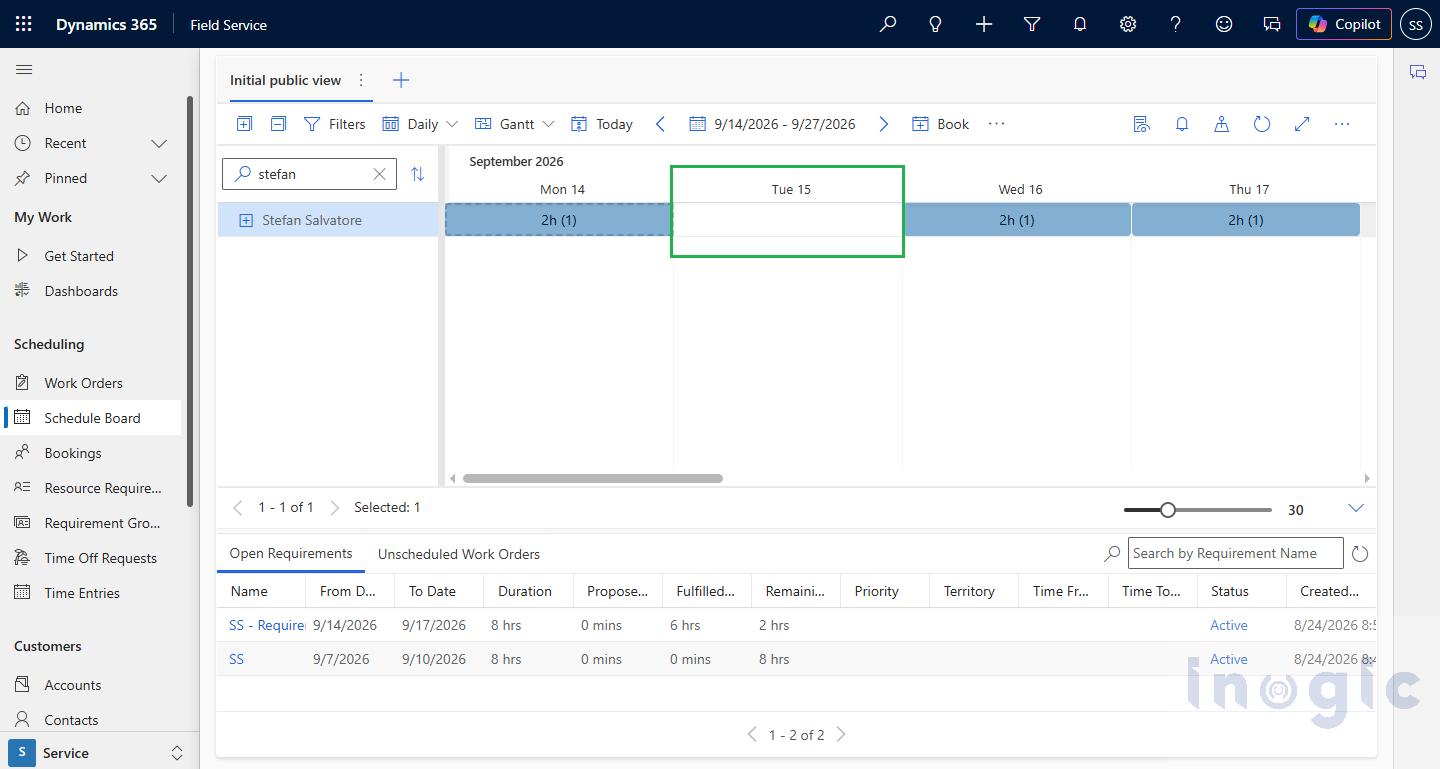
Before Segment Cancellation – 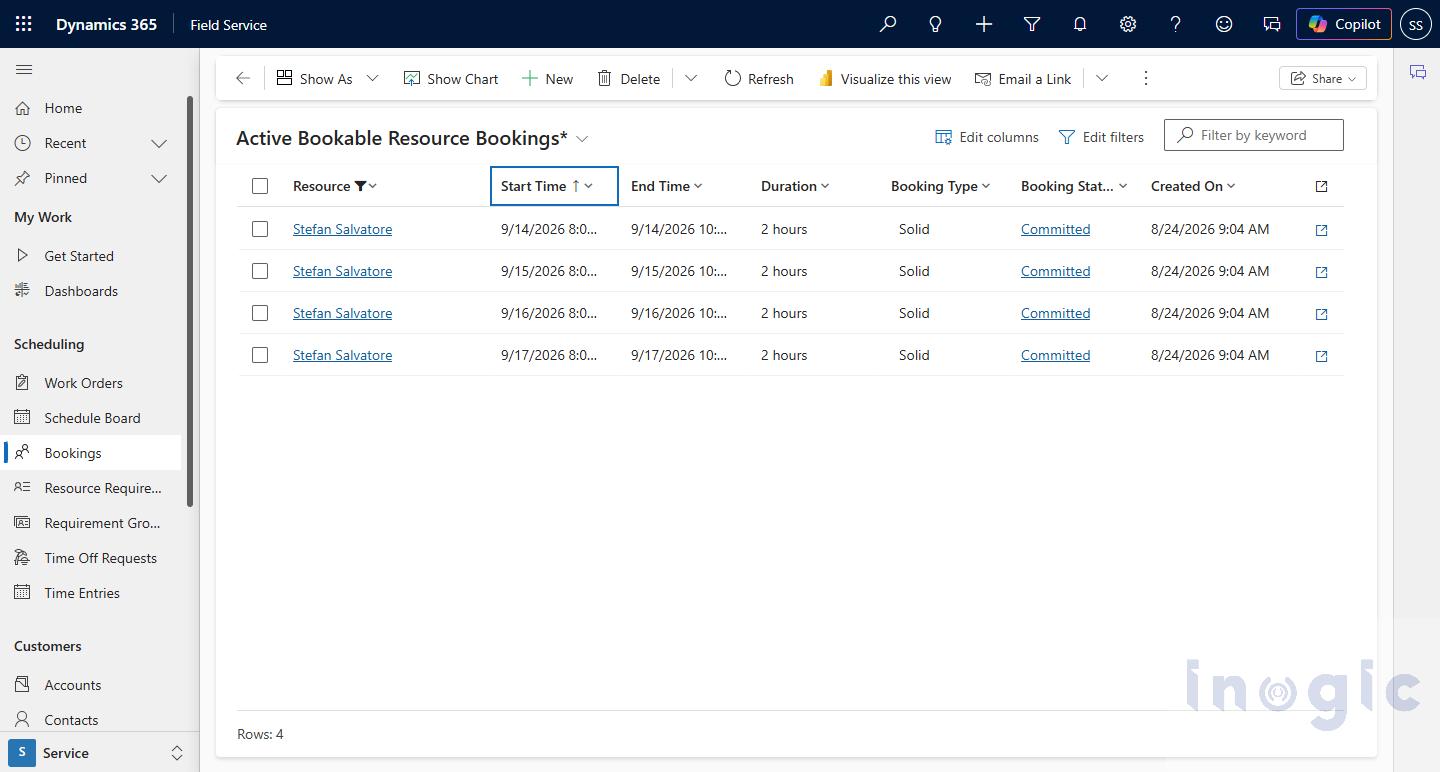 After Segment Cancellation –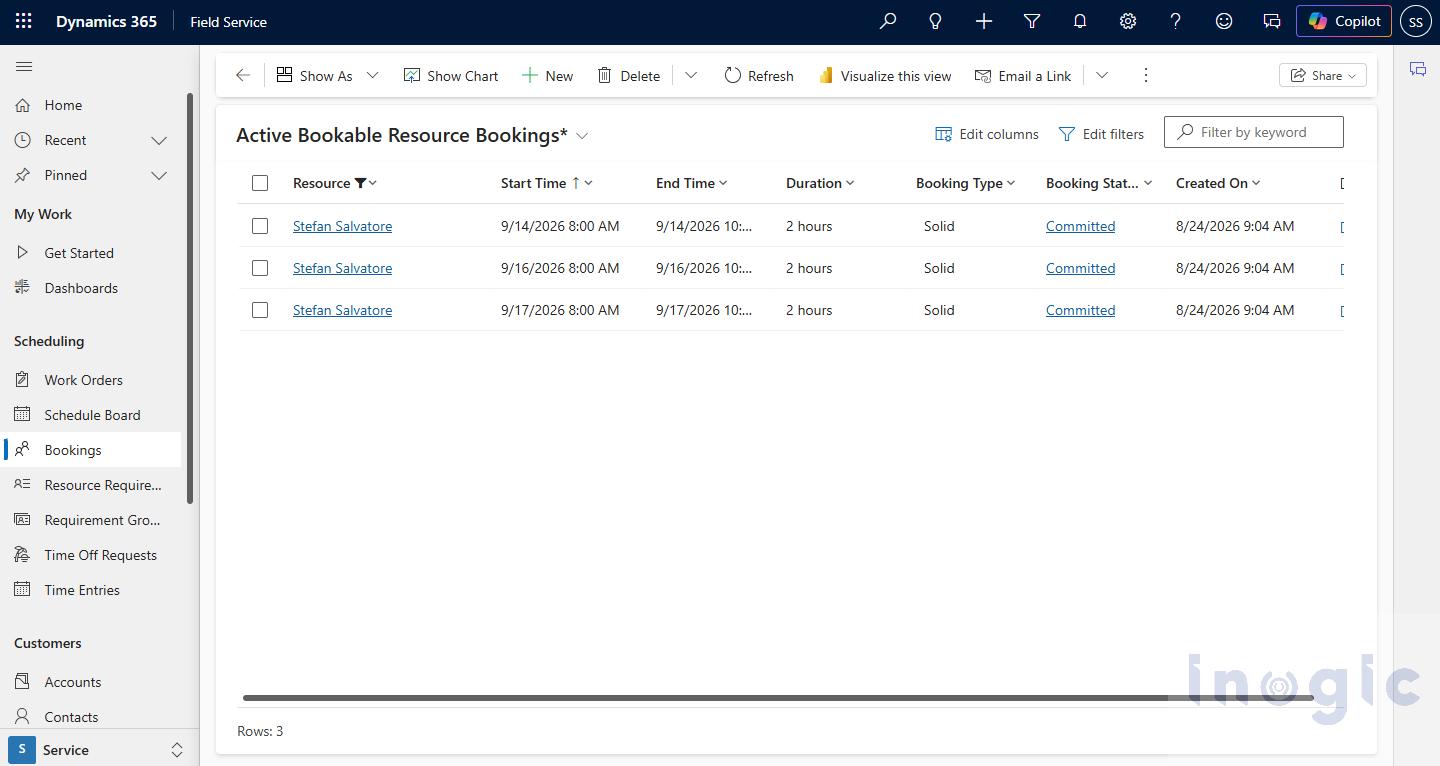
Conclusion
The Cancel segments of a booking in aggregate views feature makes it easier to manage changes to multi-day Bookable Resource Bookings. When plans change for a specific day or time period, schedulers can cancel only that particular segment by setting its duration to 0 minutes, without affecting the remaining segments. This eliminates the need to cancel and recreate the entire Booking and helps keep the Schedule Board accurate. It also reduces manual effort when handling last-minute schedule changes and provides greater flexibility in managing partial cancellations. Overall, the feature provides a simpler and more efficient way to handle schedule changes while keeping the remaining work properly planned and minimizing disruption to the overall schedule.
FAQs
Can I cancel a booking segment without affecting the remaining schedule?
Yes, Dynamics 365 Field Service allows you to cancel only the selected segment while keeping the remaining booking intact.
What are aggregate views in Dynamics 365 Field Service scheduling?
Aggregate views help schedulers manage multi-day bookings and update specific booking segments more efficiently.
Why cancel individual segments of a Bookable Resource Booking?
It reduces manual effort and avoids canceling and recreating the entire multi-day booking when plans change.
Can schedulers manage partial cancellations from the Dynamics 365 Field Service Schedule Board?
Yes, schedulers can manage partial booking cancellations directly from the Schedule Board, helping keep field service schedules accurate.