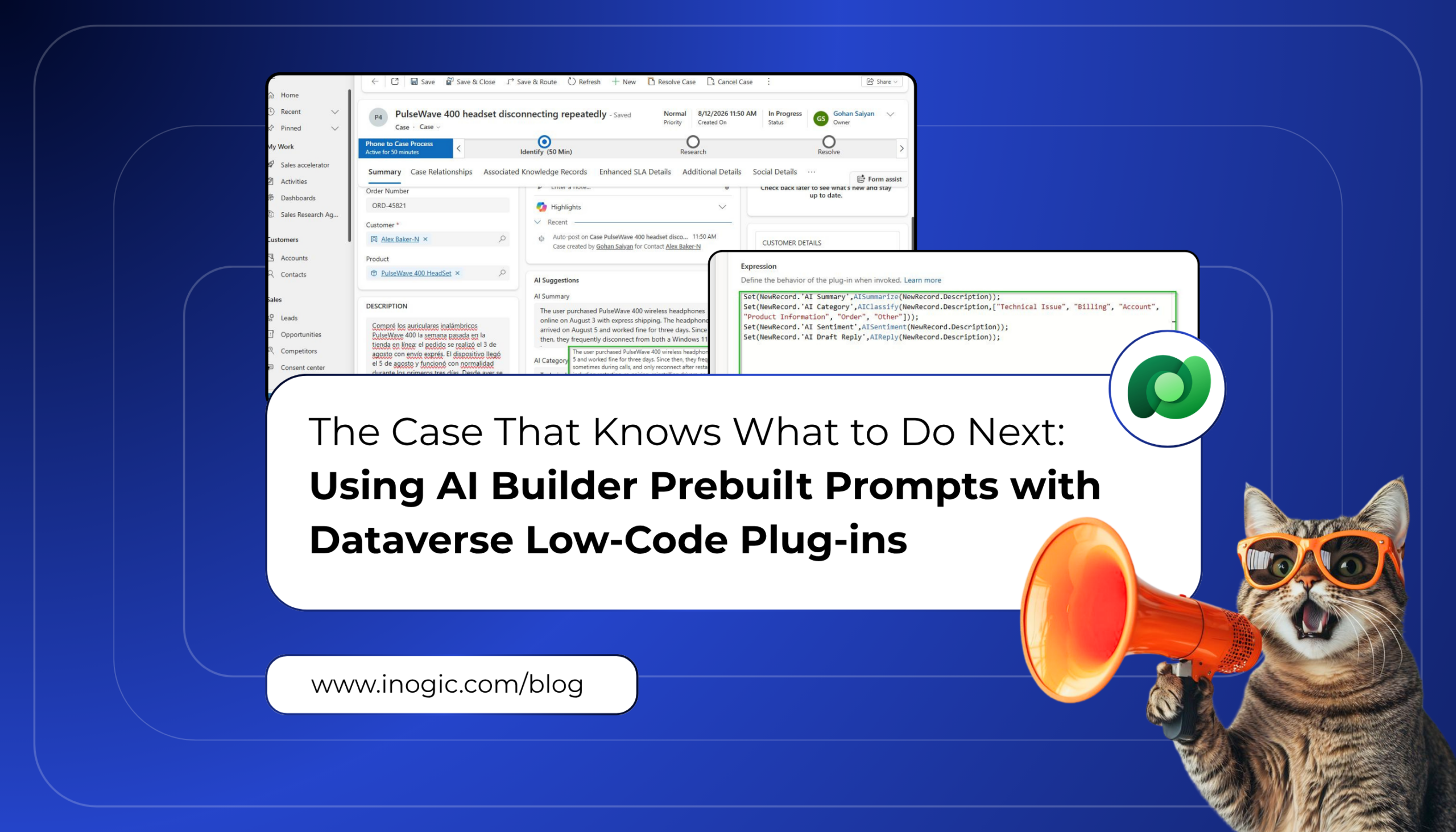
 If you have spent any time around a support queue in Dynamics 365, you know what a fresh case usually looks like. One long description where the actual problem is buried somewhere between an order number, a list of fixes the customer already tried, and a lot of frustration. The agent has to read the whole thing just to figure out what is going on, pick a category, and gauge how annoyed the customer is before they can even start on a reply. And then the next case comes in and it starts all over again.
AI Builder prebuilt prompts claim to handle that first pass. We were curious whether they actually do, so we took a simple everyday scenario, a faulty product complaint coming in as a new Case, and built the whole thing inside a Dataverse low-code plug-in to see what happens.
Key Takeaways
- Use AI Builder prompts to summarize cases, identify categories, detect sentiment, and draft replies.
- Build the entire workflow with Power Fx in a Dataverse low-code plug-in.
- Trigger the AI workflow when a new case is created, with no manual action.
- Give agents key case details and a suggested response upfront.
- Use AI-generated categories and sentiment to support prioritization and case routing.
- Apply the same pattern to leads, emails, feedback, and other Dataverse records.
What Are Prebuilt Prompts and Low-Code Plug-ins?
A prebuilt prompt is an AI Builder capability that we can call directly from a Power Fx expression without designing a prompt ourselves. We hand it text and it hands back a result. There are six of them: AISummarize, AIClassify, AISentiment, AIExtract, AITranslate, and AIReply.
A low-code plug-in uses Power Fx for server-side logic instead of C#. It runs inside Dataverse itself, so it fires no matter how the record was created, whether that is a form, an integration, or an import. There are two kinds. Instant plug-ins are triggered manually and accept input and output parameters. They are useful when something or someone needs to call the logic on demand. Automated plug-ins fire on a table event such as Created, Updated, or Deleted, with no manual trigger at all. This is what we used, because we wanted the AI work to happen the moment a case lands, without anyone clicking anything.
Both are built in the Dataverse Accelerator App, a Microsoft-provided preview solution that also includes a Plugin monitor for execution logs and an API playground. One thing worth knowing upfront is that Microsoft has already said the Accelerator and its Instant plug-ins are being deprioritized in favour of the newer Functions in Dataverse feature. So it’s better to treat this as a good place to learn the pattern rather than something you’d rely on long term.
Understanding NewRecord and OldRecord
Inside an automated plug-in, two special objects give us access to the row that triggered it.
NewRecord is the record as it stands in the current operation. On Create it is the row being created. On Update it is the row after the change is applied.
OldRecord holds the row’s values from before the operation, which makes it useful on Update when we want to compare what actually changed. On Create it is effectively empty, since there is no previous state.
The pattern to set the powerfx formula is Set(NewRecord.’Column Name’, value). This is not creating a throwaway variable. It writes to the row inside the same transaction.
Prerequisites
Before starting, make sure these are in place:
A Power Apps or Dynamics 365 license and a Dataverse database installed on the environment.
An environment in a supported region. Prompts are not available everywhere. Check Feature availability by region in the Microsoft documentation before assuming your environment qualifies.
The Dataverse Accelerator App installed. This one takes a few steps, so here is the full path:
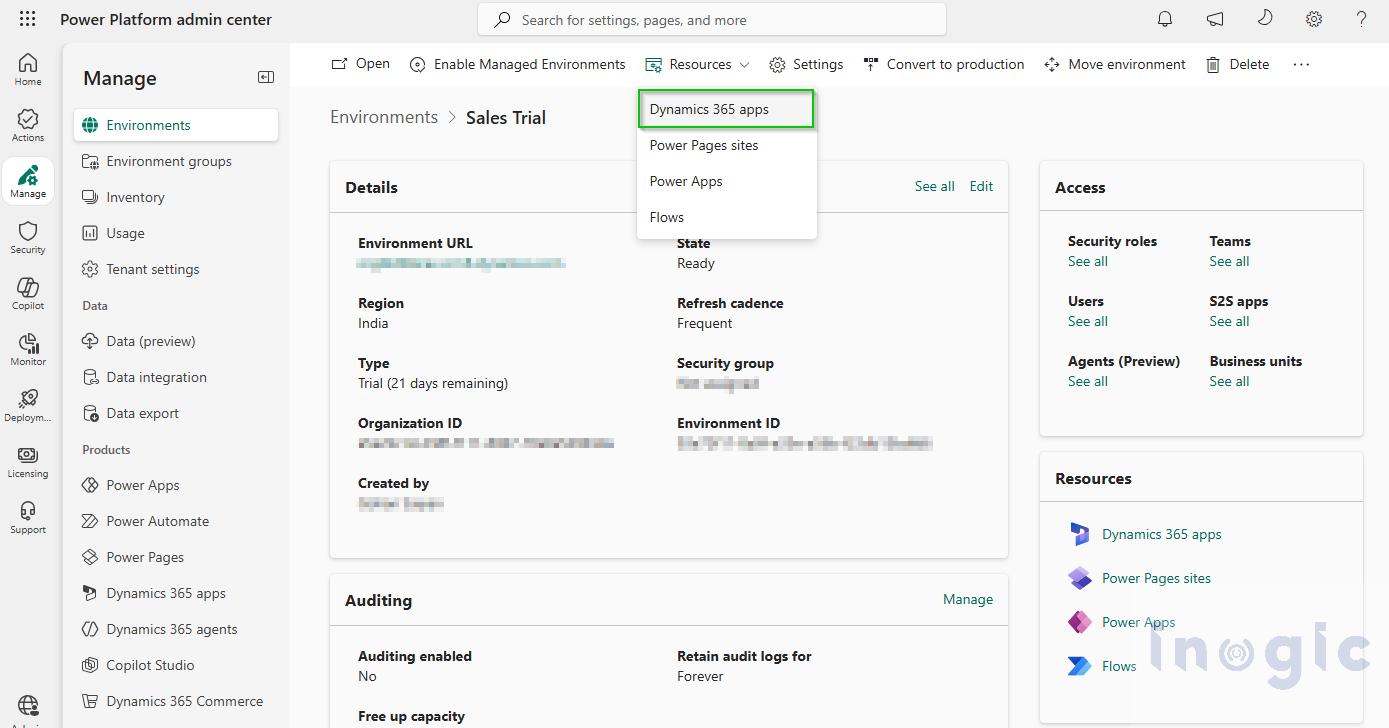
- Sign in to the Power Platform Admin Center and open Environments, then select the environment you want to work in.
- Go to Resources → Dynamics 365 apps. This lists every first-party app installed in that environment.

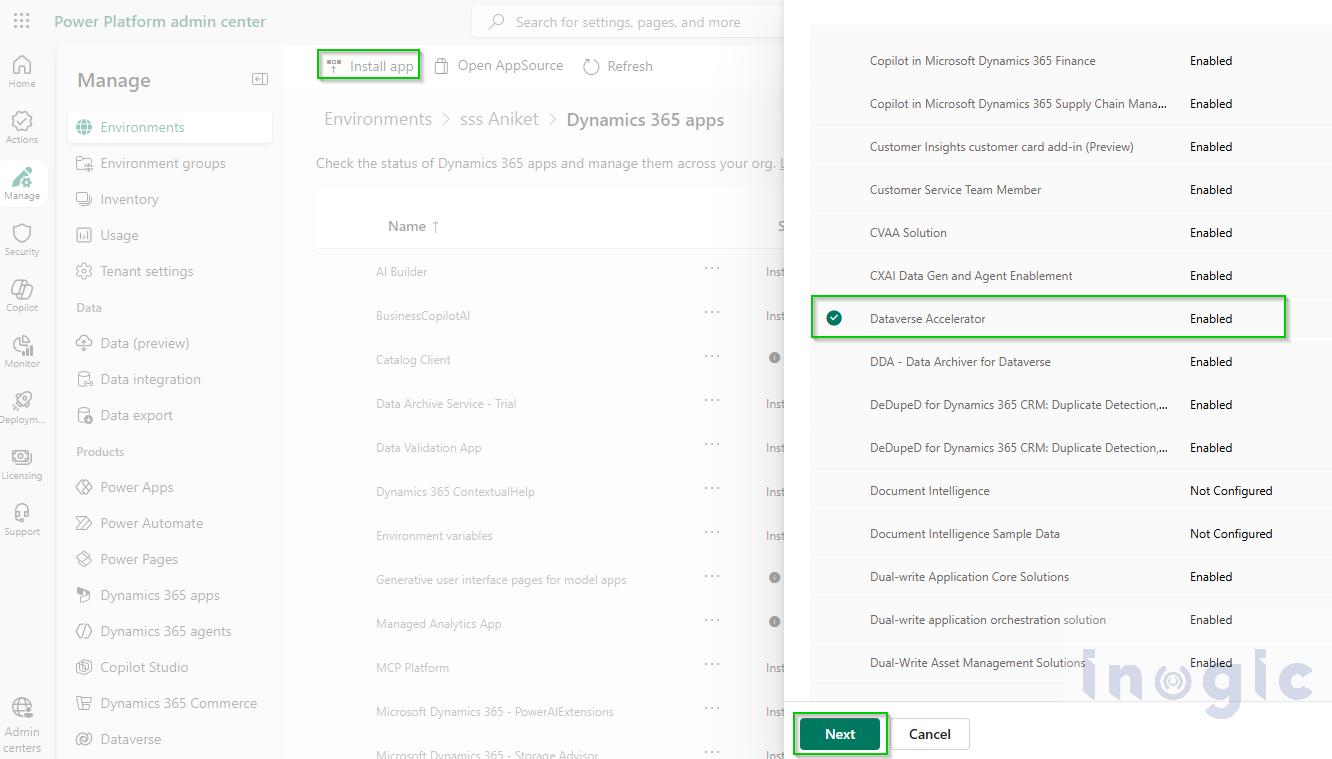
- Find Dataverse Accelerator in the list. If it’s missing, install it from this location. If it is already installed, check the status column for a pending update and apply it before continuing, since this is a preview app that receives fixes regularly and an outdated version can behave unpredictably in the plug-in editor.

Scenario We Tested
A customer submits a complaint about a wireless headset that keeps disconnecting. The description they provide is long, detailed, and unstructured, exactly the kind of thing an agent has to unpick manually:
The user purchased PulseWave 400 wireless headphones online on August 3 with express shipping. The headphones arrived on August 5 and worked fine for three days. Since then, they frequently disconnect from both a Windows 11 laptop and an Android phone, sometimes during calls, and only reconnect after restarting the headphones. The user has tried multiple troubleshooting steps, including restarting, re-pairing, reinstalling drivers, and updating firmware, without success. The battery is over 80 percent, and no other Bluetooth devices are interfering. The order number is ORD-45821. The user paid extra for express shipping but the product has not worked properly within a week. They previously contacted support by phone on August 10, but the call was cut off before the issue was recorded. This is their second attempt to get help. They urgently request a replacement or refund because they need the headphones for an important client meeting the next morning.
The idea was simple. By the time an agent opens this case, the summary, category, and client sentiment should already be sitting there waiting.
Step 1: Add Columns to the Case Table
Go to make.powerapps.com → your environment → Tables → Case → Columns, and add fourcustom columns:
AI Summary, Multiple lines of text, holds the condensed version of the description.
AI Category, Single line of text, holds the classification result.
AI Sentiment, Single line of text, holds the detected tone.
AI Draft Reply, Multiple lines of text, holds the suggested response
Once the columns are created, add them to the Case main form and publish all customizations. Without publishing, the columns will not resolve inside the plug-in editor.
Step 2: Create the Automated Plug-in
Open the Dataverse Accelerator App, and from Home choose Create automated plug-in.
Set the Table to Incident, and set the trigger to Created, so the plug-in runs the moment a case is saved for the first time. Under Advanced options, set the stage to Pre-operation.
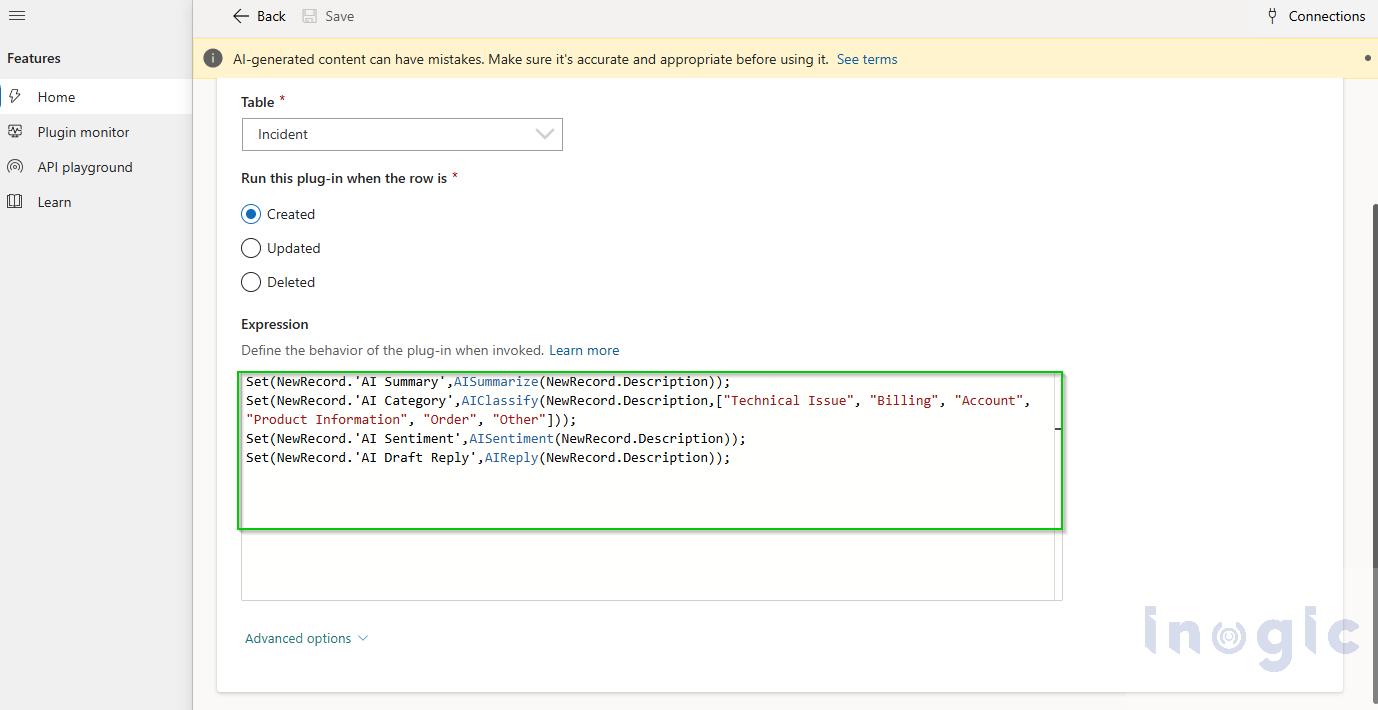
In the Expression box, enter all four prompts as one chained expression:
Set(NewRecord.'AI Summary', AISummarize(NewRecord.Description));
Set(NewRecord.'AI Category', AIClassify(NewRecord.Description, ["Technical Issue", "Billing", "Account", "Product Information", "Order", "Other"]));
Set(NewRecord.'AI Sentiment', AISentiment(NewRecord.Description));
Set(NewRecord.'AI Draft Reply', AIReply(NewRecord.Description))
We kept everything in one plug-in rather than splitting it into four, mostly so the execution order stays predictable and there is only one thing to maintain. Save it and you are done with the setup.

A tip that saved us time: when typing a column name, start with the opening quote, so Set(NewRecord.’AI. The intellisense then filters properly to actual column names on the table. Typing without the quote produces a generic, unfiltered list that is close to useless.
Step 3: Create a Case and Watch It Run
Create a new Case, fill in the Description with the customer’s message, and save. Because the plug-in triggers on Created, the description has to be present before that first save.
The Result
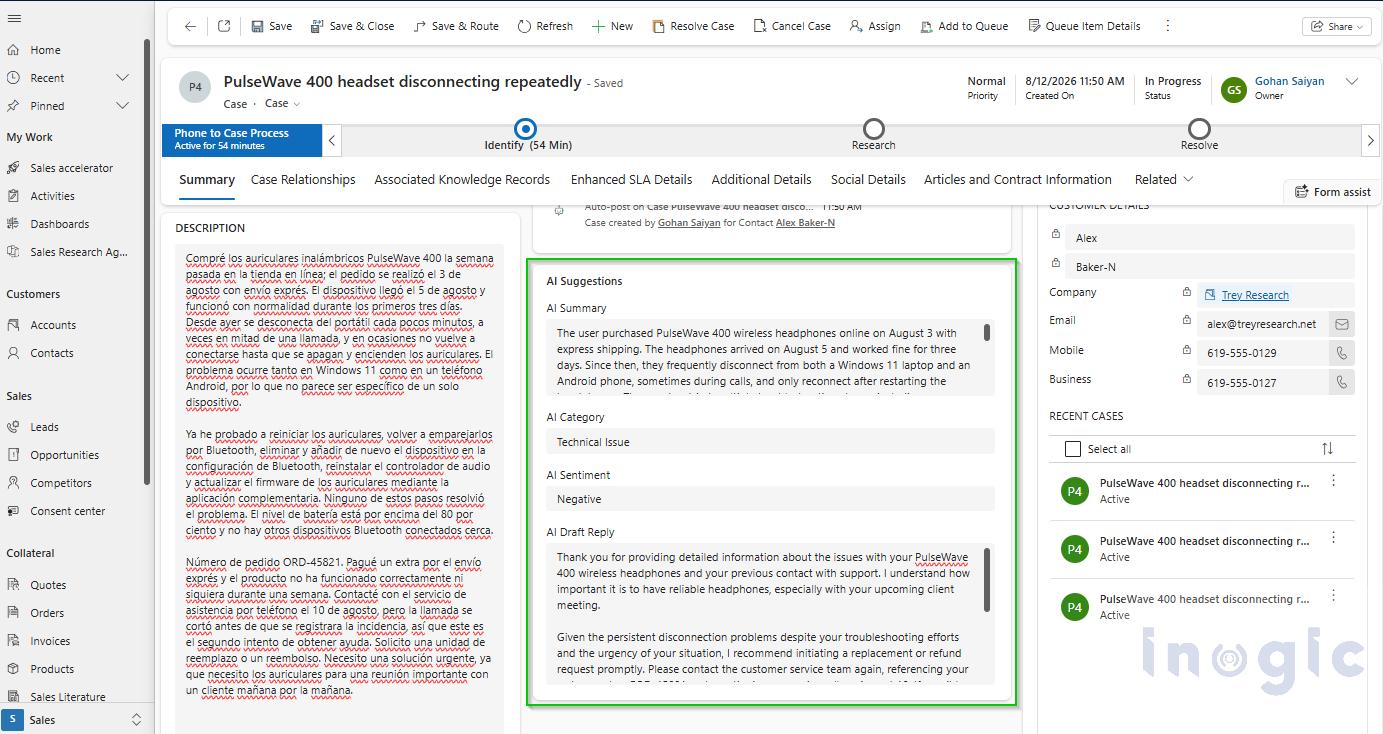
Opening the case after save, all four columns were populated without anyone touching them.
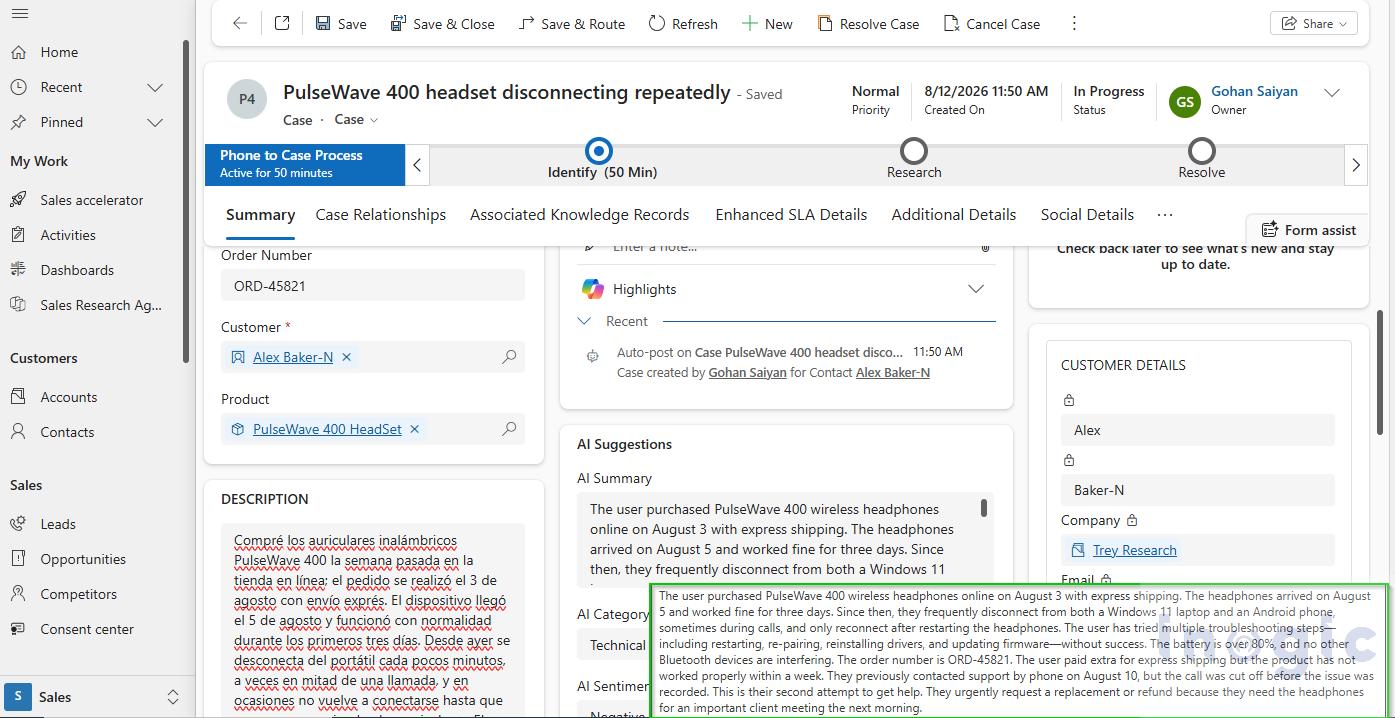
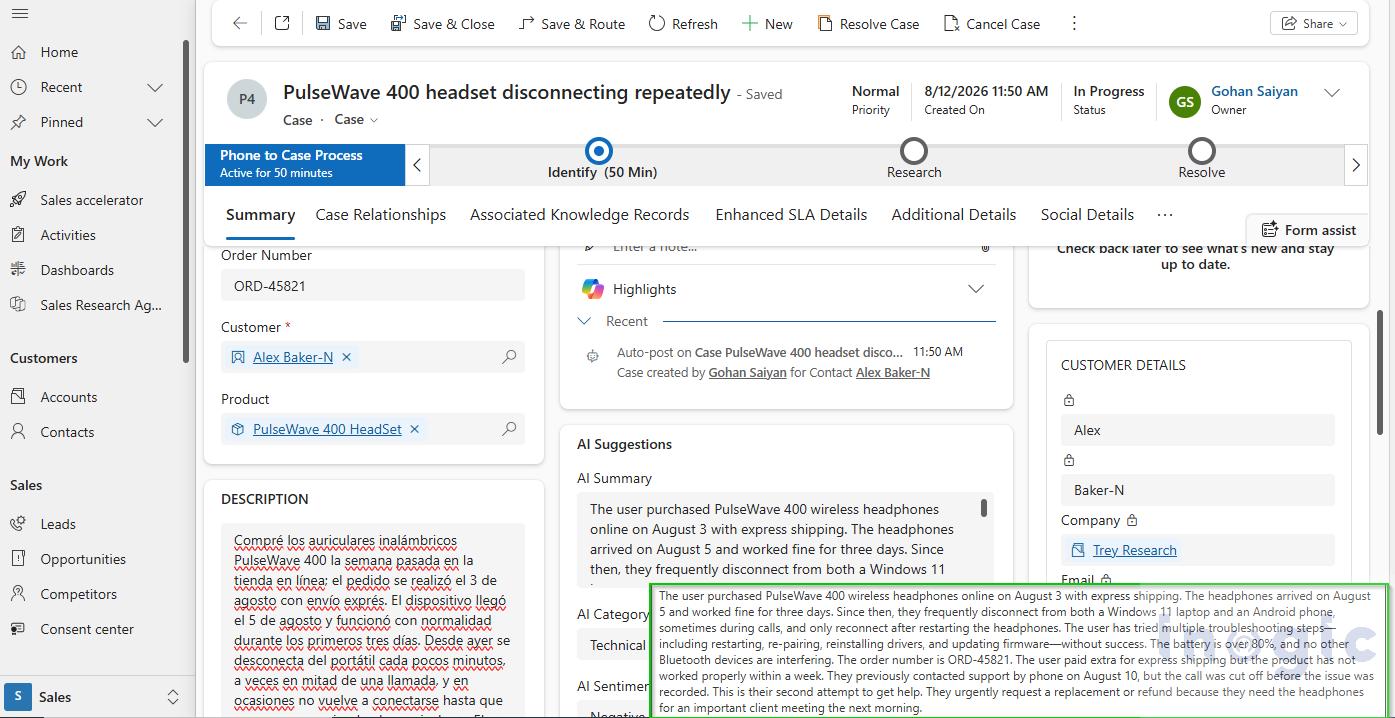
AI Summary condensed the whole complaint into a few readable lines covering the product, the timeline, the failed troubleshooting steps, the order number, and the fact that this was a second support attempt with a replacement or refund requested.
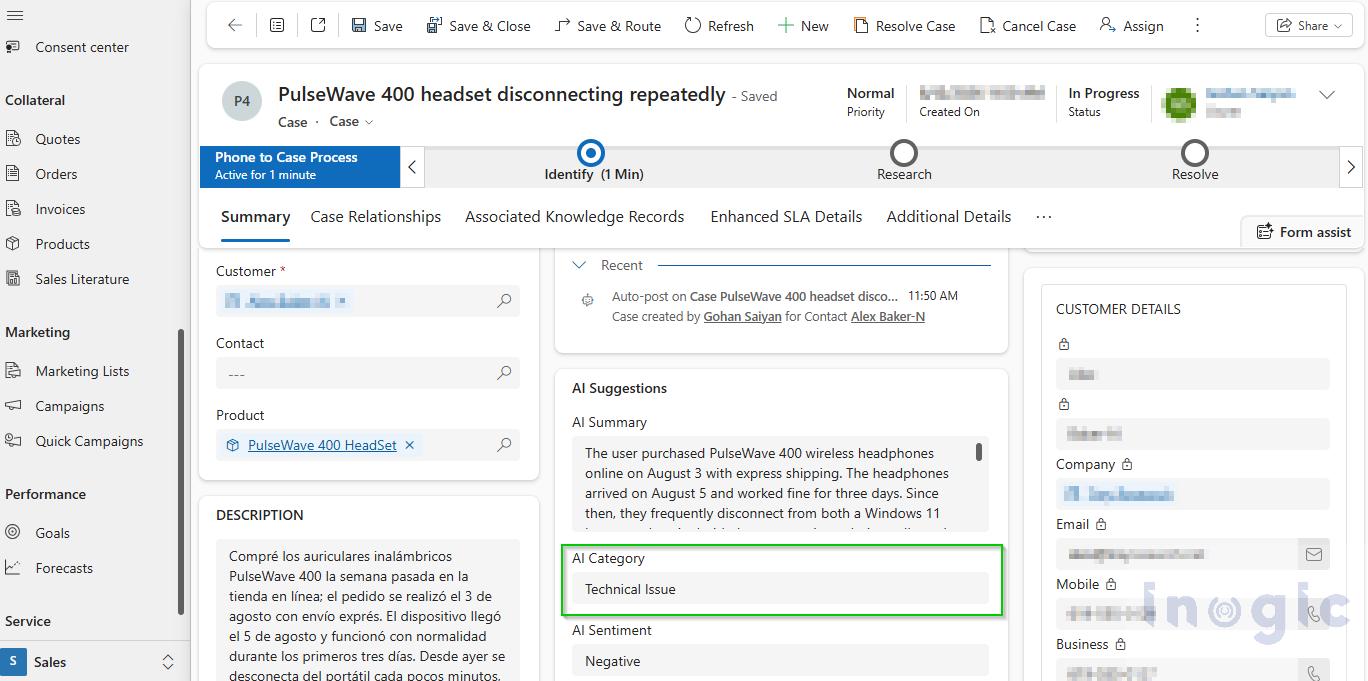
AI Category returned Technical Issue, correctly picking that out of the six categories we supplied even though the description also mentions shipping, an order number, and a refund request, any of which could have pulled the classification toward Order or Billing.
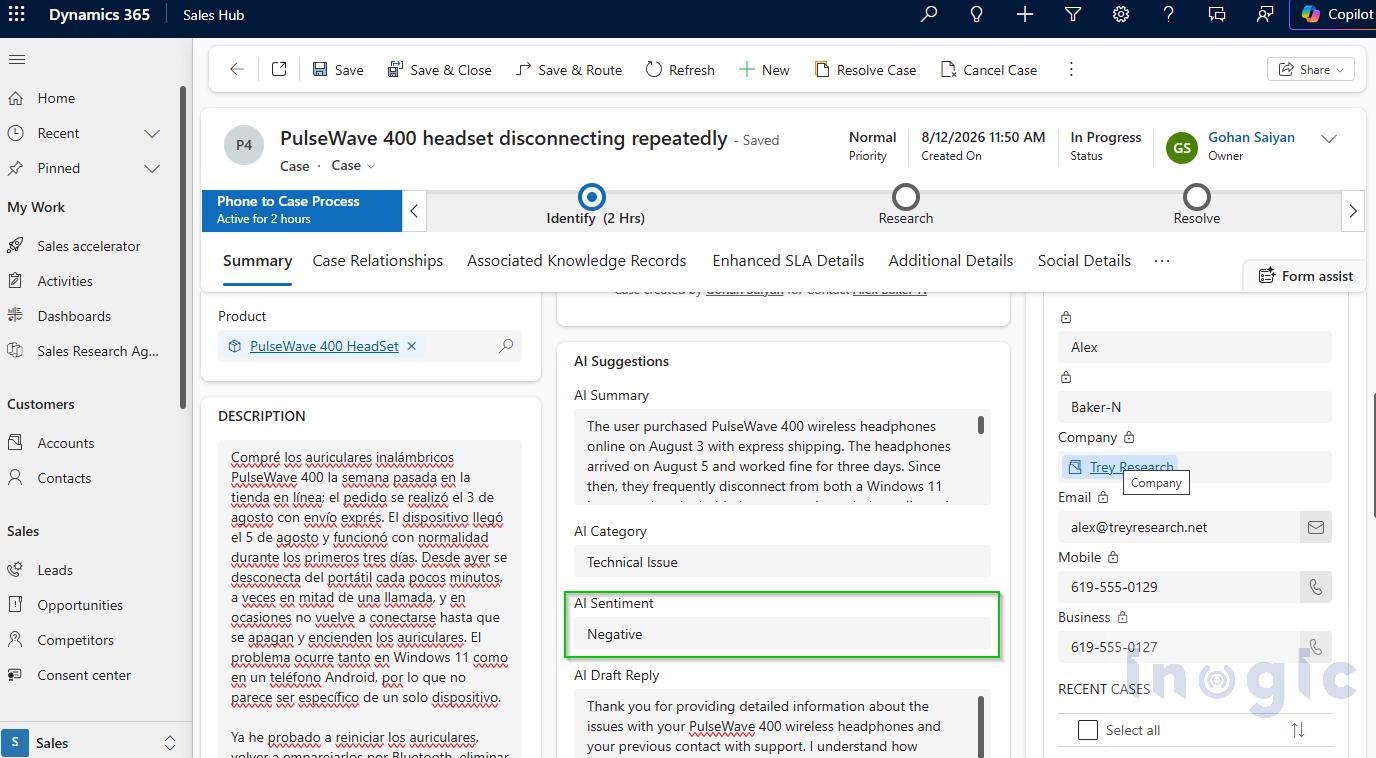
AI Sentiment returned Negative, which reads correctly given the repeated failed fixes, the dropped support call, and the time pressure.
AIReply takes the text and drafts a suggested response, written as if replying directly to the person who wrote it. It does not know your brand voice or support policies, it is only reacting to what the original message says.
So by the time anyone actually opens this case, the reading has already been done. Routing can key off the category, prioritisation off the sentiment, and nobody has to go through four paragraphs to learn that a headset keeps disconnecting.
Two More Worth Exploring
Dataverse ships six prebuilt prompts in total, and we have covered four here: AISummarize, AIClassify, AISentiment, and AIReply. The remaining two, AIExtract and AITranslate, did not behave reliably for us in this preview environment despite testing, so we have left them out of the main walkthrough rather than present something we could not get working cleanly. Both are worth trying in your own environment, since preview behaviour can vary and improve over time.
Conclusion
Honestly, the part that surprised us was how little effort this took. No model training, no C#, no deployment pipeline. Four lines of Power Fx in a plug-in, and every new case shows up already summarised, categorised, tone-checked, and with a draft reply waiting to be edited.
And there is nothing case-specific about the pattern. A lead, an email, a feedback form, anything with a free-text field can be run through the same idea. Wherever people are reading long descriptions just to figure out what a record is about, this saves them that step.
If your team has a queue that grows faster than anyone can read it, this is a pretty cheap experiment to run.