
The modern Attachments control in canvas apps lets users add, download and remove files on a record, and unlike the classic control, it no longer needs a form to work.
In this article, we cover how the Attachments control used to work, what the modern control changes, and how to use it with and without a form. We also go through its benefits, its limitations, and the steps to try it in your own canvas app.
Key Takeaways
- The modern Attachments control in canvas apps works without a form, unlike the classic control.
- Pass its Attachments output directly to Patch(). Inside a form, use SubmitForm().
- Added or removed files are only staged in the app. They are saved to Dataverse only after Patch() or SubmitForm() runs.
- Use AcceptedFileTypes (for example [“.pdf”, “.docx”]) to restrict uploads.
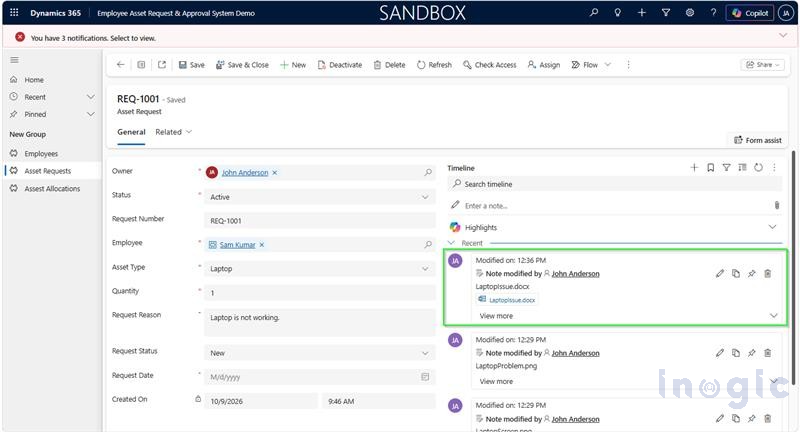
- Saved files show up in Notes and Activities in Dataverse.
- The control is in preview, so test it before using it in production.
Previously: Classic Attachments Control
The classic Attachments control worked only inside a form. It was not available on the Insert tab; it appeared only when you added the Attachments field to an Edit or Display form connected to a SharePoint list or a Dataverse table.
Outside a form, the control looked disabled, and file additions or deletions were saved only when the user saved the form.
- Add a form to the screen and set its data source to a SharePoint list or Dataverse table.
- Select Edit fields > Add fields.
- Select the Attachments field and select Add.
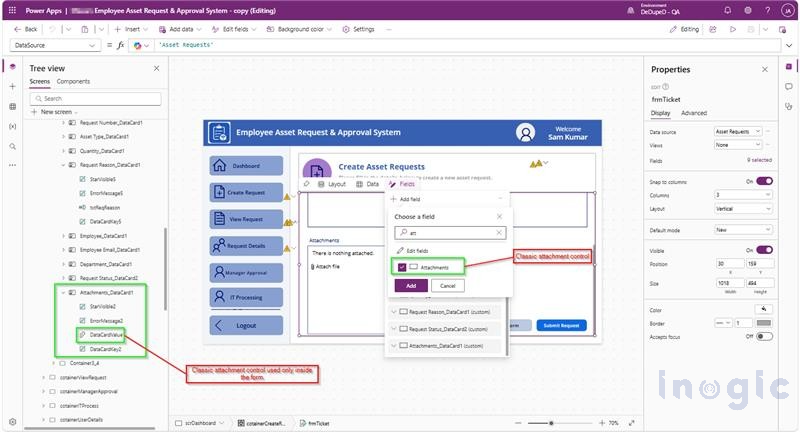
Figure : Classic Attachment Control in Canvas App.
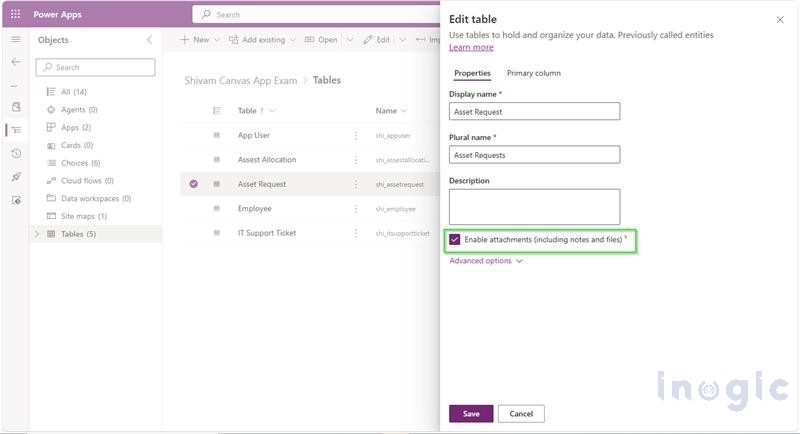
Note: If the attachment field is not found in the insert tab while adding the field on the canvas app, please enable the attachment setting in the table.
Limitations of the Classic Attachment Control:
- Works only inside a form; the form save action stores the files.
- Supports only SharePoint lists and Dataverse tables as data sources.
- Collections and tables are not supported as the source.
- On mobile, files can be added only one at a time.
Now: Modern Attachments Control (Preview)
The modern Attachments control can work outside a form. Its Attachments output can be passed directly to Patch(), and inside a form you can still use SubmitForm() to save the record together with its files.
Users get a file picker and (on web) a drag-and-drop area, limits for file count, size and type, and clear indicators for saved files, unsaved additions and files marked for removal.
Important: Adding a file only stages it in the app. The file is saved to the data source only when you run Patch() or SubmitForm().
Hands-On Demonstration
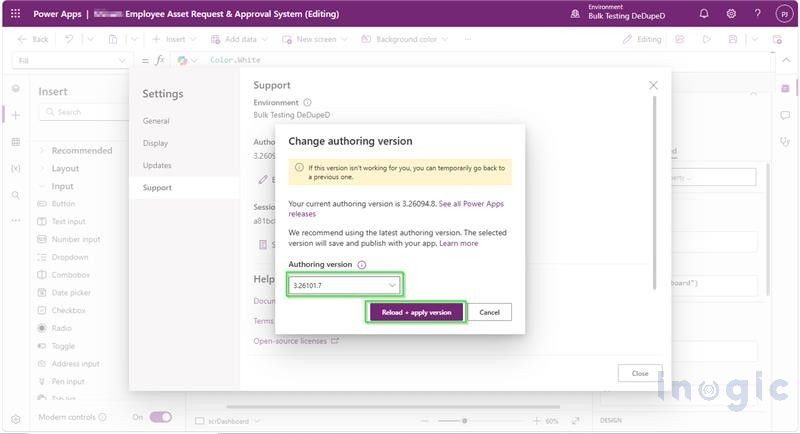
In this section, we will use the modern Attachments control in two ways: inside a form with Dataverse, and without a form using Patch on a Dataverse. Open an existing canvas app in Power Apps Studio after signing in to Power Apps.
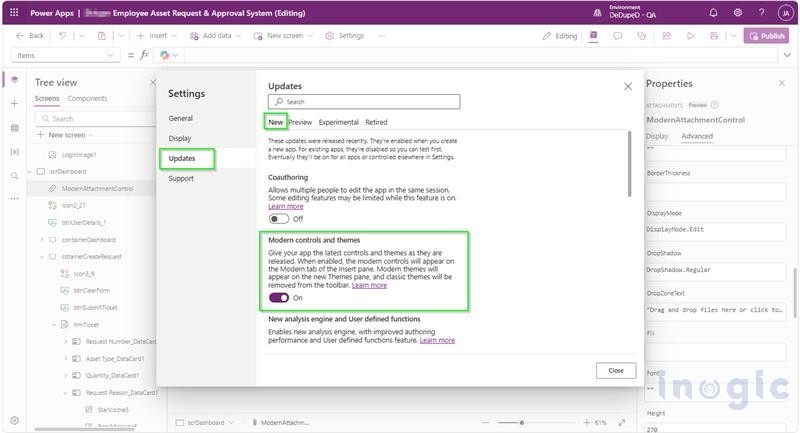
Prerequisite: Turn on modern controls and themes in your app (Settings > Updates, if it is not already on).
Demonstration 1: Dataverse Attachments Inside a Form
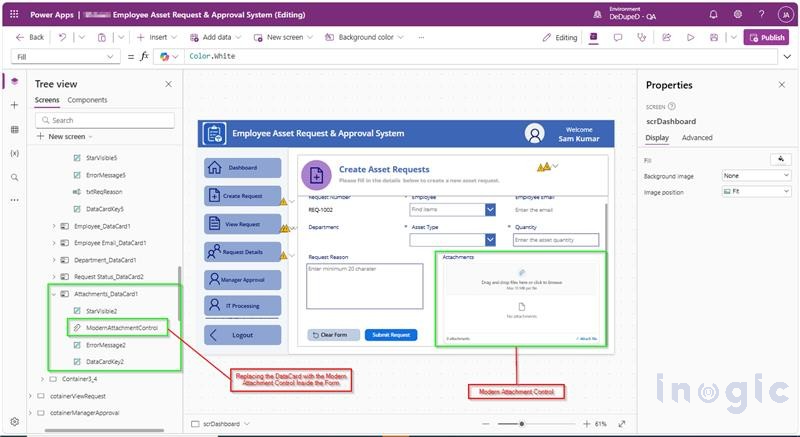
To use the Modern Attachments control inside a form, replace the existing classic Attachments control in the form’s Attachments data card with the Modern Attachments control.
The form remains connected to the Dataverse table, allowing users to add or remove attachments while creating or updating an asset request. Once the user submits the form using SubmitForm(), the attachment changes are saved along with the record.
The following screenshot illustrates how the Modern Attachments control is integrated into the existing asset request form.
Demonstration 2: Dataverse Attachments Outside a Form
In this demonstration, we will explore how to manage attachments associated with Dataverse records using the Modern Attachments control without using an Edit Form.
For this scenario, we use a gallery to display records from the table. When a user selects a record, its existing attachments are displayed in the Modern Attachments control. The user can then add new files or remove existing ones and use the Patch() function to save the changes back to Dataverse.
This approach provides a more flexible user experience by allowing users to manage attachments directly from a selected record.
Step 1: Display existing attachments with the records in the modern attachment control
First, add a gallery that displays records from the table. When the user selects a record, the application stores the selected record in a variable named varSelectedRequest.
The following formula is used to load the selected record:
Select(Parent);
If(
IsBlank(Gallery1.Selected),
Notify(
"Select an asset request first.",
NotificationType.Warning
),
Set(
varSelectedRequest,
Gallery1.Selected
);
Reset(ModernAttachmentsControl);
Notify(
"Selected request loaded.",
NotificationType.Success
)
)
To display the attachments associated with the selected asset request, configure the Items property of the Modern Attachments control as follows:
varSelectedRequest.Attachments
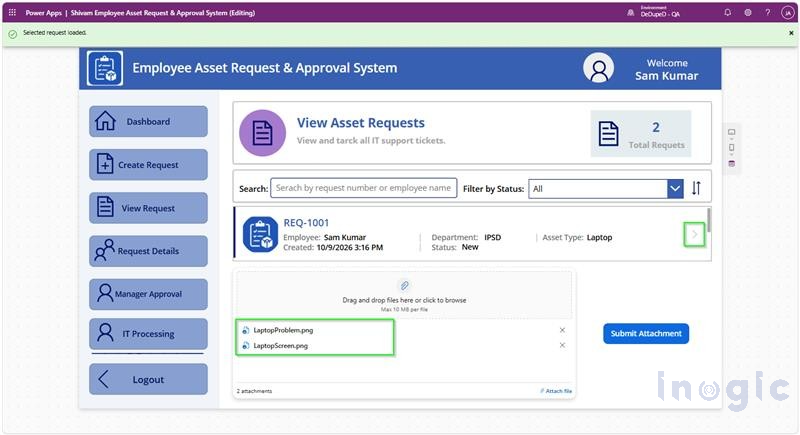
Figure: Displaying the associated attachment records in the Modern Attachment Control
Step 2: Add Attachments and Validate File Types
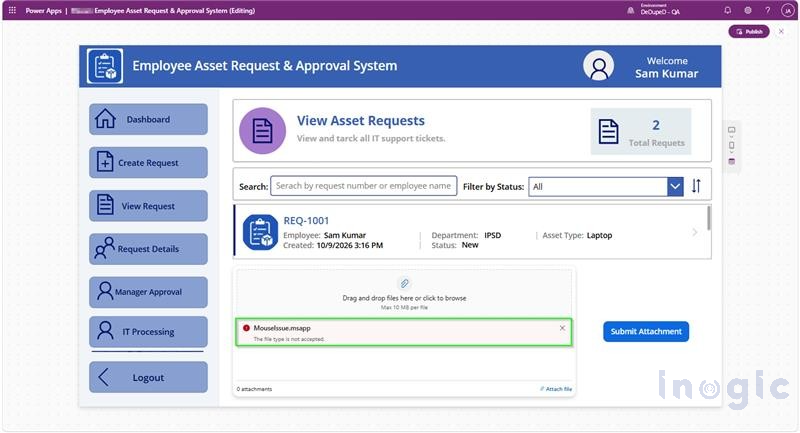
You can control which file extensions users may upload by setting the AcceptedFileTypes property of the modern Attachments control.
For example, if the application accepts PDF and Word documents, configure the property as follows:
[“.pdf”, “.docx”]Uploading an unsupported file type: Verify how the control handles a file that does not match the configured accepted file types.
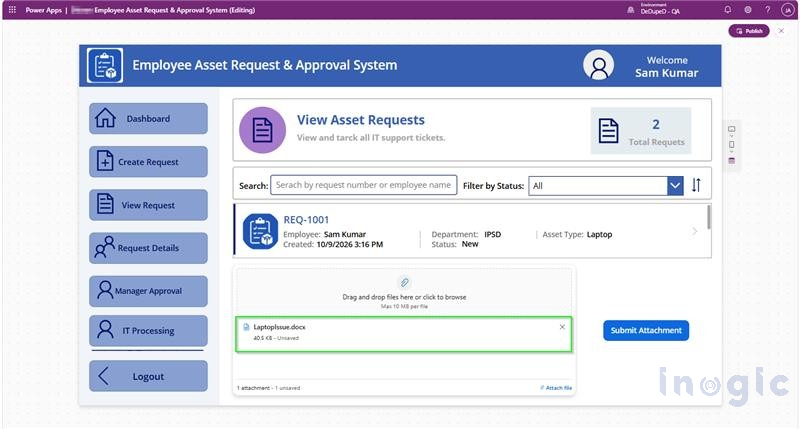
Uploading a valid file type: Select a supported file and verify that it appears in the attachment list.
Step 4: Save the Updated Attachments Using Patch()
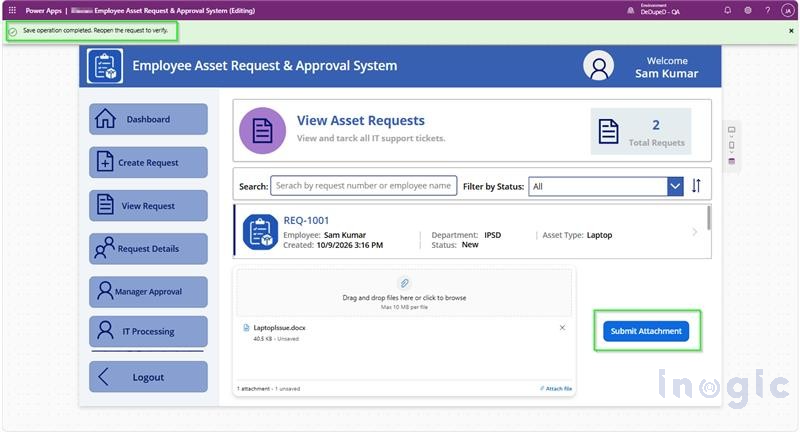
After adding or removing attachments, users can select the Save button to submit the changes.
This formula first confirms that an asset request is selected, then uses Patch() to update that request’s attachments.
If(
IsBlank(varSelectedRequest),
Notify(
"Select an asset request first.",
NotificationType.Warning
),
IfError(
Patch(
'Asset Requests',
varSelectedRequest,
{
Attachments: ModernAttachmentsControl.Attachments
}
); true,
Notify(
"Attachments could not be saved. " &
FirstError.Message,
NotificationType.Error
),
Refresh('Asset Requests');
Notify(
"Save operation completed. Reopen the request to verify.",
NotificationType.Success
)
)
)
When the attachment is added through the Classic Attachment Control or Modern attachment Control it can be seen in the Notes and Activities.
Limitations
The control is still in preview, so test it well before relying on it, and keep the following points in mind.
| Limitation | Details | Recommendation |
| Preview feature | Not meant for production use and may have restricted functionality | Use it for testing and feedback only |
| Files are staged, not saved | Adding or removing a file changes only the app’s in-memory state | Always save with Patch() or SubmitForm() |
| Drag and drop | Available on web only; mobile uses the device’s file picker | Test on your target devices |
| Mobile downloads | File availability, download behavior and file-size details depend on the device and client | Validate downloads on mobile before release |
| Dataverse file column | Accepts one file per record, not the whole Attachments table | Pass a single record with FileName and Value |
| Data source rules | Control limits do not override the data source’s size limits or file-type policies | Validate on the data source side as well |
| Same file name | A suffix is added to avoid a name clash; it does not replace the saved file | Do not treat a same-name upload as a replacement |
Table: Limitations of the modern Attachments control.
Conclusion
The modern Attachments control removes the biggest restriction of the classic control: it no longer has to live inside a form. With file-count, size and type limits, clear status indicators and Patch support, it makes file handling in canvas apps simpler and more flexible. Since it is still in preview, try it in a test app first and watch for updates before using it in production.
FAQs
- What is the modern Attachments control in Power Apps canvas apps?
It is a control that lets users add, download and remove files on a record. Unlike the classic control, it does not need a form. - Can I use the Attachments control without a form in a canvas app?
Yes. The modern Attachments control works outside a form. Pass its Attachments property to Patch() to save files to Dataverse. - How do I save attachments to Dataverse from a canvas app?
Use Patch() when working without a form, or SubmitForm() inside a form. Adding a file only stages it, and nothing is saved until one of these runs. - How do I restrict file types in the modern Attachments control?
Set the AcceptedFileTypes property to the extensions you allow, such as [“.pdf”, “.docx”]. Files of other types are rejected.