 Copying the same Liquid and HTML block onto page after page works fine until the first design change, when you have to edit every copy. Web templates as components in Power Pages fix this: you write the layout once, reuse it on any page, and each page only sets its own values in the design studio.
In this post I build a hiring agency site with just two reusable components, one for department cards and one for recruiter profiles. Both are fed live from Dataverse. You will get the tables, the full Liquid and FetchXML code, the manifest, the page setup, and the problems I hit along the way.
What are web templates as components?
A web template becomes a component when it carries a {% manifest %} block that declares its type and parameters. Developers write the Liquid; makers then add the component to a page and set its values in the design studio without touching code. Microsoft documents the feature in Web templates as components.
- The manifest. A JSON object inside {% manifest %} and {% endmanifest %}. It sets type to “Functional” (required, so the component appears in the design studio), plus displayName, description, tables (Dataverse logical names) and params.
- The template code. Liquid reads each parameter by its id, which acts like a variable name. All parameters arrive as strings, so numbers need a filter such as | integer.
- The include tag. {% include ‘TemplateName’ param1: ‘value’ %} on a page passes the values. Makers can also change them later through Edit custom component.
One limit to know before you design: nesting is not supported, so one web template component cannot be placed inside another. That shapes this build, where the home page and the department pages use two separate components.
Use case:
A hiring agency website where each department has its own page, and each page lists the recruiters who specialise in that sector. Two reusable components do the work, fed by two Dataverse tables. You will see the tables, the Liquid code, the pages, the finished site, and the problems I ran into along the way.
Every agency profile follows the same structure on every page:
- Professional qualifications: education, certifications and credentials.
- Industry experience: years of experience in the sector.
- Successful placements: how many candidates they have placed.
- Areas of expertise: the industries, roles and positions they recruit for.
- Professional background: previous experience and key achievements.
The goal is a clear, professional site where the structure never changes and only the content does. That is exactly what a component with parameters is for. Adding a department or a recruiter should mean adding a record, not rebuilding a page.
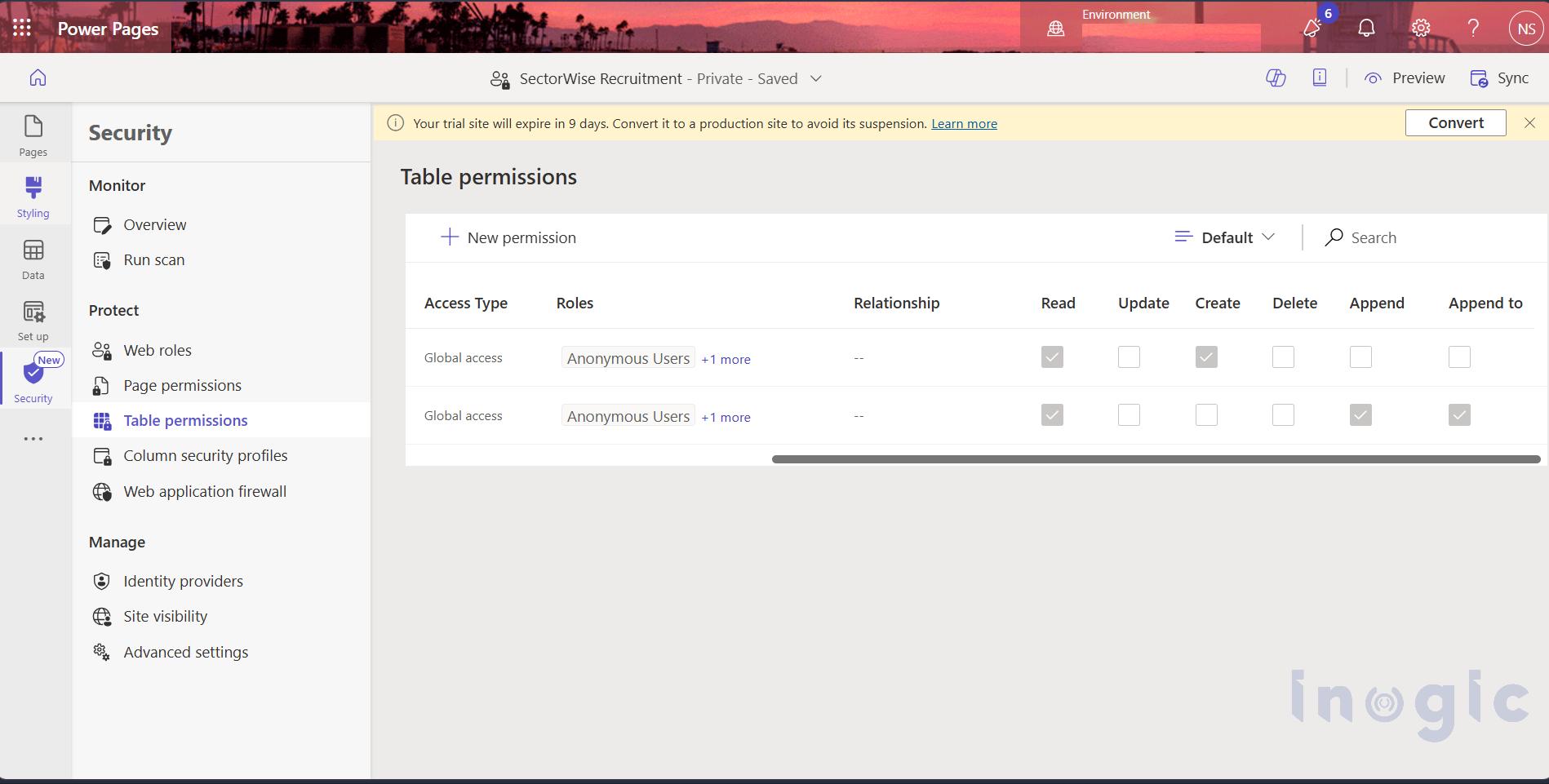
Step 1: Create the Dataverse tables and give appropriate table permissions to read the data.
Create two tables Department and Recruiters table and add in power pages and give appropriate permissions.
Step 2: Create the two web templates
Open the Portal Management app, go to Content, then Web Templates, and select New. Make sure the Website field points to your site. Each template combines three things: a FetchXML query, the layout, and the manifest.
Department Card
This component reads every Department record in display order and renders a clickable card that links to the record’s Page URL.
{% fetchxml dQuery %}
<fetch mapping='logical'>
<entity name='crf69_department'>
<attribute name='crf69_name'/>
<attribute name='crf69_description'/>
<attribute name='crf69_pageurl'/>
<attribute name='crf69_displayorder'/>
<order attribute='crf69_displayorder' descending='false'/>
</entity>
</fetch>
{% endfetchxml %}
{% assign cols = columns | integer %}
{% if cols < 1 %}{% assign cols = 1 %}{% endif %}
<div class="dc-wrap">
<h2 class="dc-title">{{ name | default: 'Our recruitment departments' }}</h2>
<div class="dc-grid" style="--cols:{{ cols }}">
{% for d in dQuery.results.entities %}
<a class="dc-link" href="{{ d.crf69_pageurl }}">
<div class="dc-card">
<h3 class="dc-name">{{ d.crf69_name }}</h3>
<p class="dc-desc">{{ d.crf69_description }}</p>
<span class="dc-cta">View recruiters →</span>
</div>
</a>
{% endfor %}
</div>
</div>
{% manifest %}
{
"type": "Functional",
"displayName": "Department Cards",
"description": "Shows recruitment departments as clickable cards",
"tables": ["crf69_department"],
"params": [
{ "id": "name", "displayName": "Title", "description": "Heading text" },
{ "id": "columns", "displayName": "# of Columns", "description": "1 to 4" }
]
}
{% endmanifest %}
Recruiter Card
This is the reusable one. The department parameter is dropped into the FetchXML filter, so the same template returns a different set of recruiters on each page. When the parameter is blank, the filter is skipped and everyone is returned. Recruiters are sorted by most placements first.
{% fetchxml rQuery %}
<fetch mapping='logical'>
<entity name='crf69_recruiter'>
<attribute name='crf69_name'/>
<attribute name='crf69_department'/>
<attribute name='crf69_qualifications'/>
<attribute name='crf69_experienceyears'/>
<attribute name='crf69_placements'/>
<attribute name='crf69_expertise'/>
<attribute name='crf69_background'/>
<order attribute='crf69_placements' descending='true'/>
{% if department and department != '' %}
<filter>
<condition attribute='crf69_department' operator='eq' value='{{ department }}'/>
</filter>
{% endif %}
</entity>
</fetch>
{% endfetchxml %}

{% assign cols = columns | integer %}
{% if cols < 1 %}{% assign cols = 1 %}{% endif %}
<div class="rc-wrap">
<h2 class="rc-title">{{ name | default: 'Our recruiters' }}<span class="rc-count">({{ rQuery.results.entities.size }})</span></h2>

{% if rQuery.results.entities.size > 0 %}
<div class="rc-grid" style="--cols:{{ cols }}">
{% for r in rQuery.results.entities %}
{% endfor %}
</div>
{% else %}
<p class="rc-empty">No recruiters listed for this department yet.</p>
{% endif %}
</div>

{% manifest %}
{
"type": "Functional",
"displayName": "Recruiter Cards",
"description": "Shows recruiter profiles, optionally for one department",
"tables": ["crf69_recruiter"],
"params": [
{ "id": "name",       "displayName": "Title",        "description": "Heading text" },
{ "id": "department", "displayName": "Department",   "description": "Exact department name, blank shows all" },
{ "id": "columns",    "displayName": "# of Columns", "description": "1 to 3" }
]
}
{% endmanifest %}
Note: Replace the crf69 prefix with your own publisher prefix, or the queries will return nothing.
Step 3: Create the pages and add the components
Each page needs one line of code. In the design studio, open Pages and select + Page to create five pages with a blank layout, then open each one, select Edit Code, and add its include line to the page’s web page copy file. Press Ctrl+S to save, then return to the studio and select Sync so the preview updates.
| Page | Include line |
| IT Recruitment | {% include ‘RecruiterCards’ name: ‘IT recruiters’ department: ‘IT’ columns: ‘2’ %} |
| Healthcare Recruitment | {% include ‘RecruiterCards’ name: ‘Healthcare recruiters’ department: ‘Healthcare’ columns: ‘2’ %} |
| Finance Recruitment | {% include ‘RecruiterCards’ name: ‘Finance recruiters’ department: ‘Finance’ columns: ‘2’ %} |
| Engineering Recruitment | {% include ‘RecruiterCards’ name: ‘Engineering recruiters’ department: ‘Engineering’ columns: ‘2’ %} |
| Our Recruiters | {% include ‘RecruiterCards’ name: ‘Meet our recruiters’ columns: ‘2’ %} |
The four department pages differ only in the department value. The Our Recruiters page leaves it out, so it lists all eight recruiters. That is the reuse payoff: one template, five placements, no copied markup.
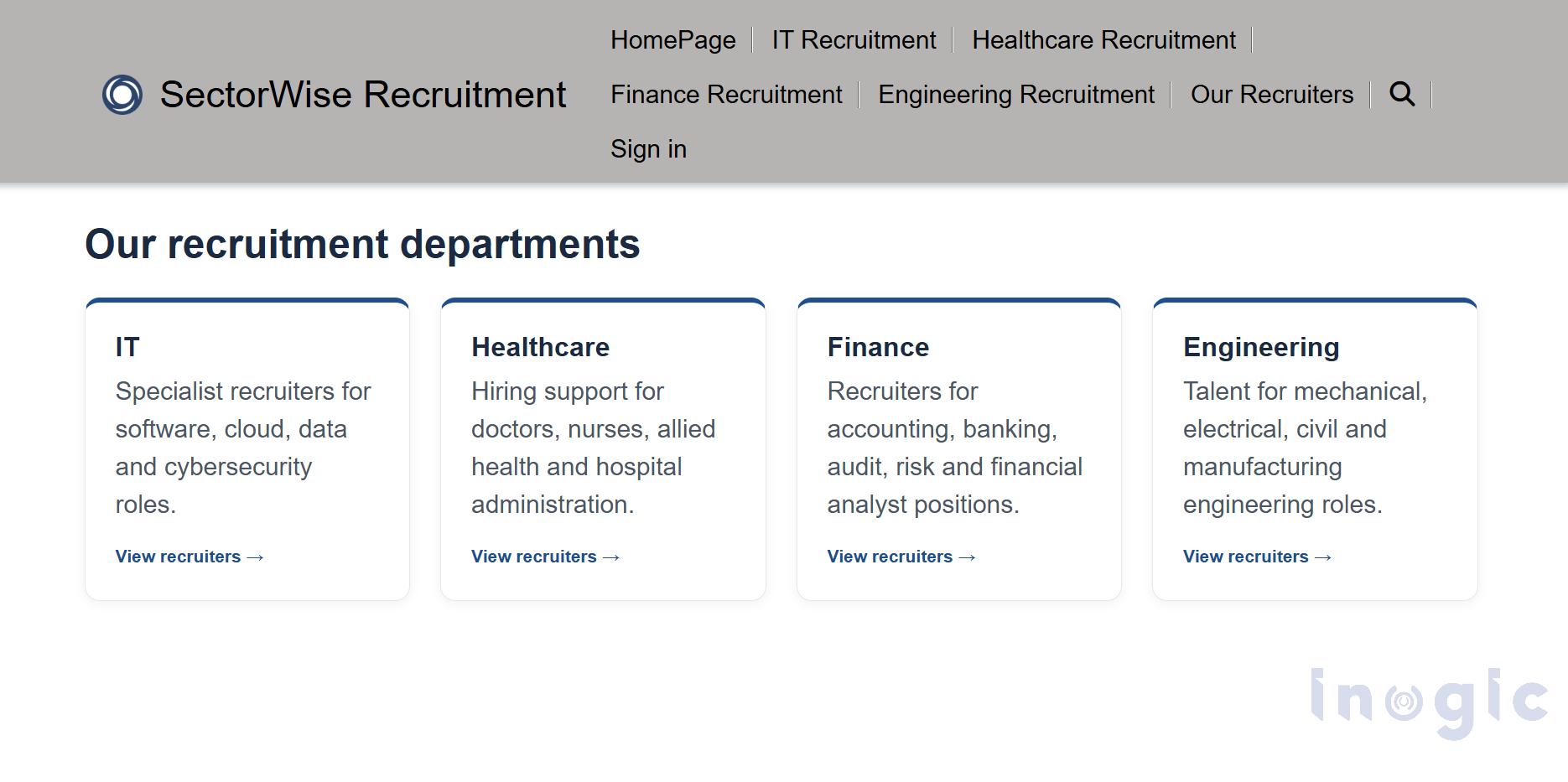
Then add the department cards to the Home page the same way:
{% include 'DepartmentCards' name: 'Our recruitment departments' columns: '4' %}
Step 4: Connect the cards to the pages
Each department card links to whatever is stored in its Page URL column. After creating a page, check its partial URL in the page settings and copy it into the matching Department record: /it-recruitment, /healthcare-recruitment, /finance-recruitment and /engineering-recruitment.
The five pages then appear in the site’s main navigation next to the Home page.
Department page: recruiters for one sector
Selecting Finance opens the Finance Recruitment page. The heading shows the title parameter and a count of matching recruiters.
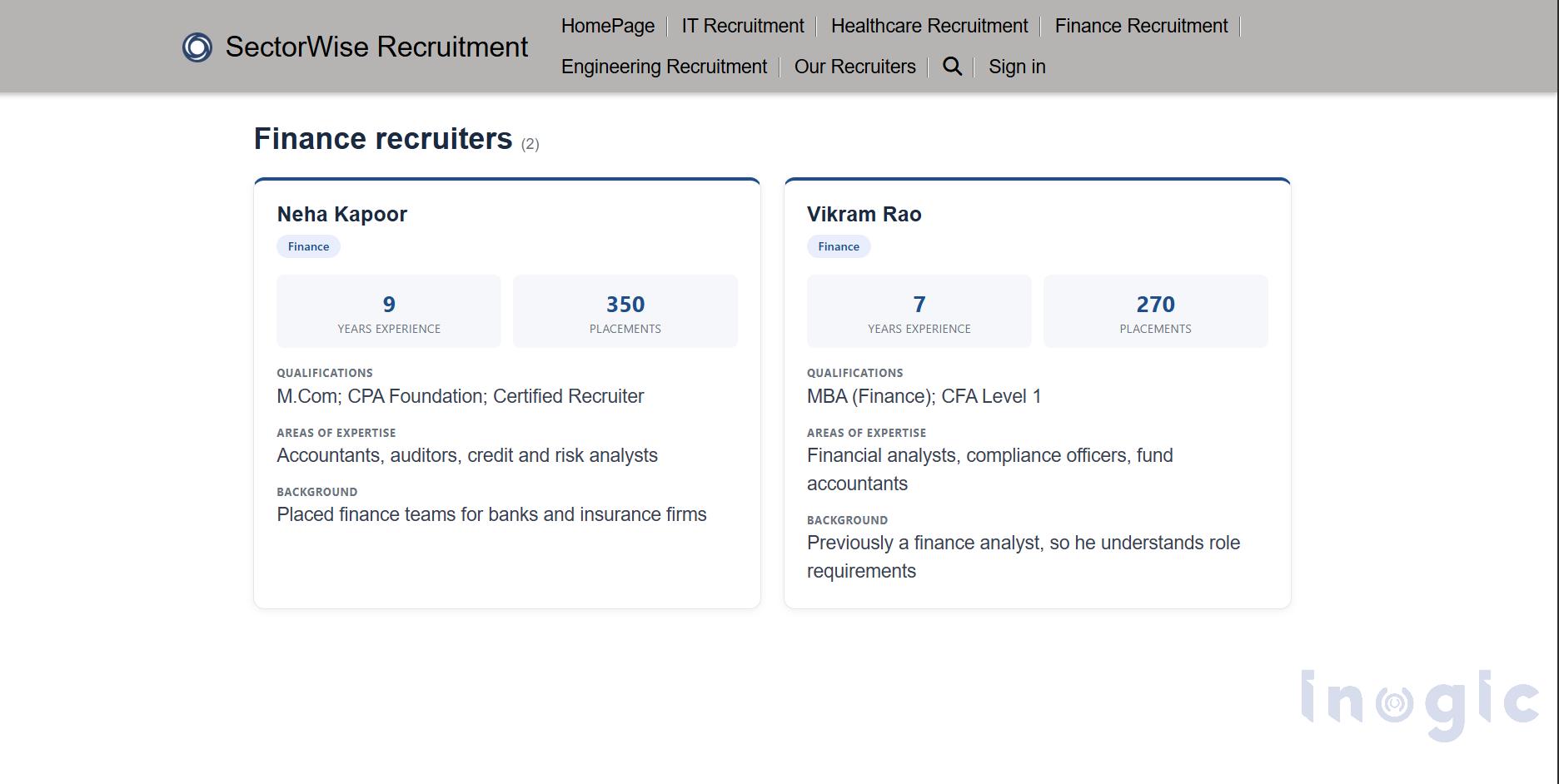
The other department pages look identical and differ only in the recruiters shown. The same template also powers the Our Recruiters page, which lists all eight.
Conclusion
Web templates as components in Power Pages turn a repetitive job into a simple one. The recruiter layout that would have been copied across every department page is now one template and one include line per page. Adding a department or a recruiter means adding a Dataverse record, not rebuilding a page, and the data stays live. Content editors can also adjust each component through its parameters without reading any Liquid.