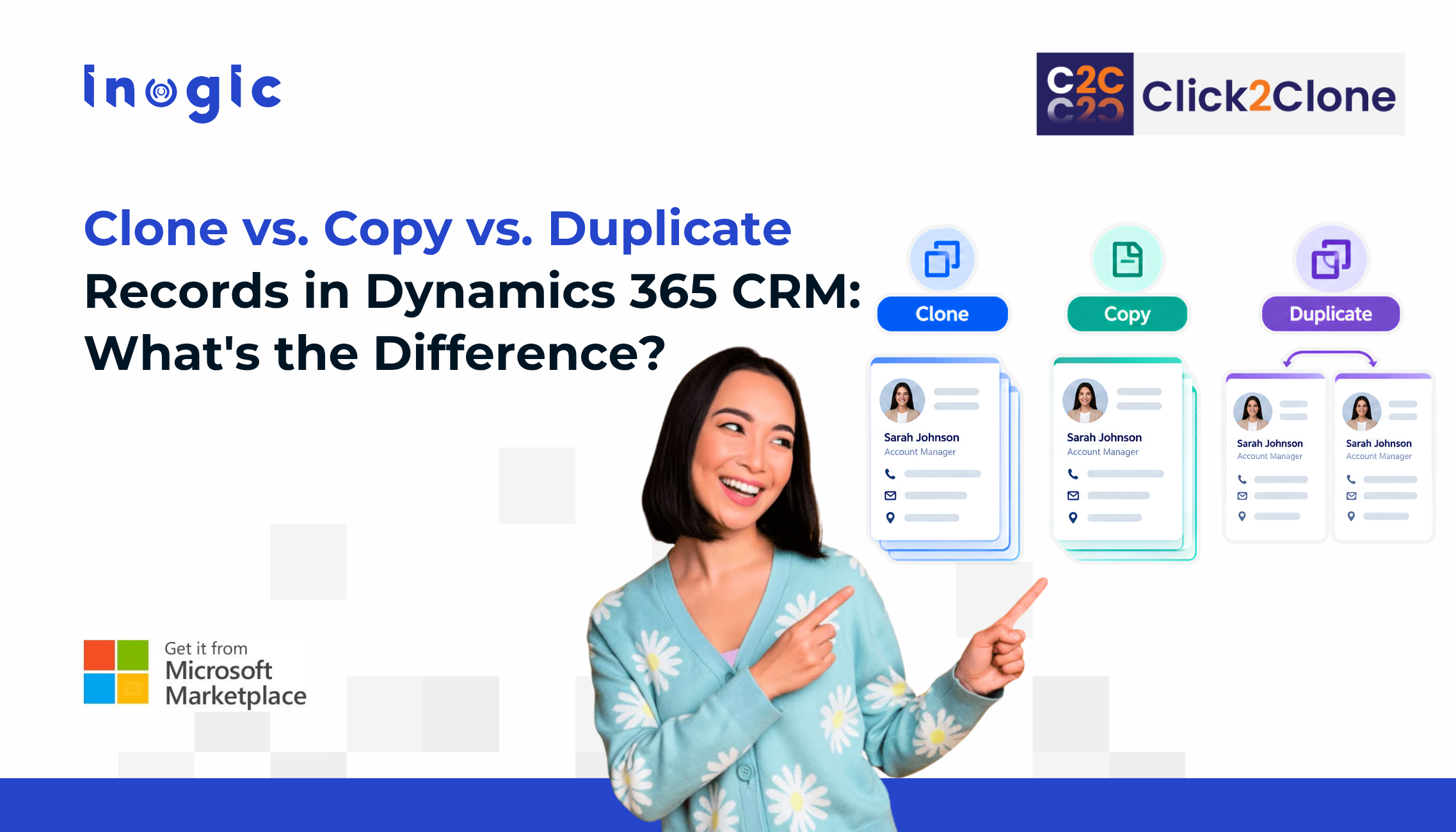
Quick answer: In Dynamics 365, cloning deliberately creates a new record from an existing one, including its child records. Copying moves selected data from one record to another. A duplicate is an accidental second record for the same customer. Clone to reuse a structure, copy to transfer data, and merge duplicates to clean up.
Sales, service and operations teams use these three words interchangeably, and the mix-up leads to the wrong tool and wasted effort. Study reports that Dynamics 365 teams can lose 20-30% of productive hours to repetitive data entry, so it pays to know which action fits which job.
Clone, Copy and Duplicate: Quick Definitions
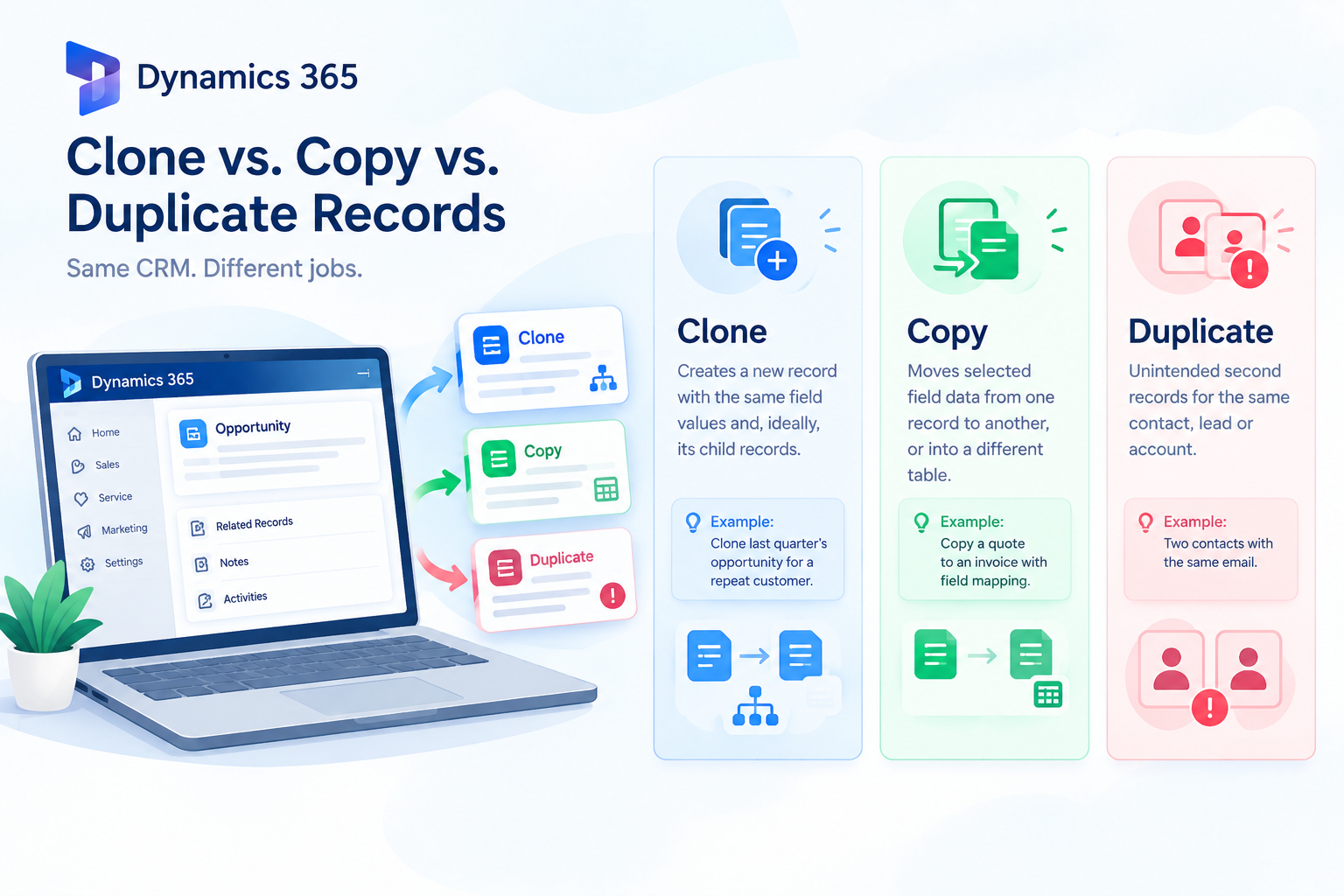
- Clone records in Dynamics 365: Cloning creates a new record from an existing one, with the same field values and, ideally, its related child records (order lines, notes, activities).
Example: cloning last quarter’s opportunity in Dynamics 365 Sales for a repeat customer, instead of re-entering the data manually. - Copy records in Dynamics 365: Copying moves selected field data from one record to another, or into a different table in Dataverse.
Example: copying a quote to an invoice with field mapping. - Duplicate records in Dynamics 365: Duplicate records are unintended second records for the same contact, lead or account, such as two contacts with the same email. This is a CRM data quality problem that duplicate detection and merge are meant to solve, not a feature.
| Clone | Copy | Duplicate | |
| Intent | Deliberate reuse | Deliberate transfer | Accidental repeat |
| Result | New record, same structure | Data placed in a new or existing record | Two records for one real-world entity |
| Child records | Can be included | Selected only | Not applicable |
| Typical tool | Cloning template, Power Automate flow, Click2Clone | Field mapping, flow, Click2Clone | Duplicate detection rules, DeDupeD |
| Best for | Repeat orders, renewals, standard deals | Quote-to-invoice, cross-table transfers | Data cleanup |
Related reading: Clone Records in Microsoft Dynamics 365 CRM
Why the Confusion Costs You
Teams that treat cloning as a duplicate problem switch on duplicate detection and wonder why reps still retype records. Name the job first: reuse a structure, transfer data, or clean data. Most of the daily time loss sits in the first two, because reps rebuild orders, quotes, opportunities and cases by hand.
How Dynamics 365 Handles Cloning and Copying Out of the Box
There is no general-purpose clone command that works across standard and custom tables in Dataverse. Some records have specific actions, such as revising a quote, but for most tables users retype fields, re-add line items and re-link related records. That is slow, and every manual step is a chance for an error.
The Manual Workaround: Power Automate
Many admins build a Power Automate flow that reads a record and creates a new one. It works for simple, flat records, but child records need extra steps for every relationship, the flow needs maintenance whenever fields change, and every new table means a new flow.
Related reading: Top Strategies to Simplify Record Cloning in CRM for Faster Workflows
The No-Code Fix: Click2Clone
Click2Clone is a Microsoft Marketplace-certified app built for Dynamics 365 and Dataverse. It replaces the retyping and the custom flows with reusable templates. Study reports it can cut duplication time by up to 70%.
Clone single or bulk records
Select one record, or many from a view, and clone them across standard and custom tables in one click. You can also create multiple copies of a single record in one action.
Deep clone parent-child hierarchies
Orders with line items, cases with activities, and opportunities with quotes come across together, including 1:N and N:N relationships, notes and attachments.
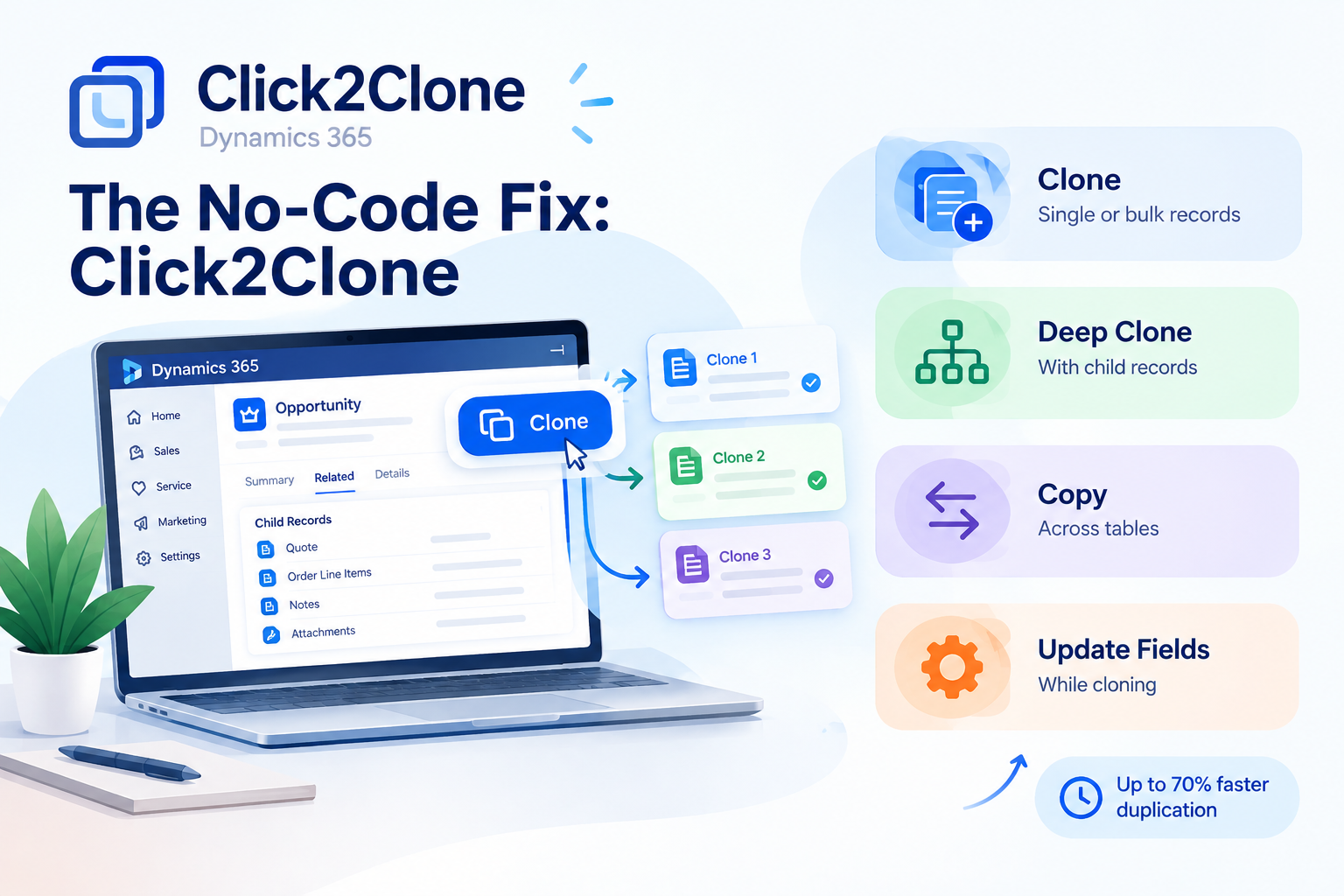
Copy across tables
Map fields between pairs like Opportunity to Order or Quote to Invoice with a configurable template.
Update fields while cloning
Override lookups, dates, option sets or owners across all cloned records in one step, so nothing needs fixing afterward.
Stay in control
Rule-based selection targets specific records, workflows automate cloning, and every clone keeps a two-way reference to its source for auditing.
Best for: teams cloning orders, quotes, opportunities or cases regularly, especially with child records, bulk volumes or custom tables.
Related reading: Copy Related Records in Dynamics 365 CRM: Hierarchical Cloning Guide
How to Clone a Record with Click2Clone
- Configure a cloning template. Choose the fields and relationships to copy, plus any prefix or suffix for the new record’s name.
- Open the record, or select several in a view.
- Click Clone on the command bar.
- Review the new record. Fields, child records, notes and attachments arrive as configured, and you can trace it back to its source.
How to Copy Data Between Tables with Click2Clone
- Create a mapping template for the source and target pair, such as Quote to Invoice.
- Select the fields and child records to transfer.
- Set any field overrides, such as a new owner or date.
- Run the copy from the source record and check the result.
Which One Do You Need?
- Need to reuse a record’s structure? Clone it with Click2Clone.
- Need to move data into another record or table? Copy with field mapping in Click2Clone.
- Seeing the same customer twice? That is a duplicate problem, not a cloning one, and a dedicated tool such as Inogic’s DeDupeD handles detection and merging.
FAQ
What is the difference between cloning and copying a record in Dynamics 365?
Cloning creates a new record from an existing one, usually with its child records. Copying transfers selected data from one record to another, often across tables, such as Quote to Invoice.
Does Dynamics 365 have a built-in clone button?
Not a general-purpose one for all tables. Some records have specific actions, such as revising a quote, but most teams rely on a Power Automate flow, custom code or an app like Click2Clone.
Can I clone a record with its child records in Dynamics 365?
Yes. Click2Clone supports deep cloning of parent-child hierarchies, including 1:N and N:N relationships, in a single action. A Power Automate flow can also do it, but each relationship needs its own steps.