 Bulk Reassignment of Bookings to a Different Resource
Dispatchers in field service often need to reschedule multiple bookings at once due to technician absence, emergencies, or sudden priority changes. Handling each booking individually is slow and increases operational effort. It also makes workload balancing difficult when several jobs must be redistributed quickly across resources. In high-volume environments, this can lead to delays and manual errors. To overcome this inefficiency, Microsoft introduced this capability in Dynamics 365 Field Service to allow schedulers to handle multiple assignments together. This helps reduce manual effort, improve scheduling speed, and ensure more accurate and consistent updates while managing disruptions more efficiently.
The duration and timing of reservations are kept constant, guaranteeing continuity as ownership changes smoothly. Without requiring laborious human changes, bulk reassigning helps balance workloads, minimise scheduling problems, and maintain service continuity.
Business scenario:
Suppose a dispatcher in your organization is responsible for managing technician schedules, balancing workloads, and ensuring service appointments are assigned efficiently. If Tech A is overloaded with 12 jobs while Tech B has available capacity, manually updating each booking would take significant time. Using the bulk move feature, the dispatcher can select multiple bookings from Tech A and reassign them to Tech B in a single action. This helps streamline scheduling, reduce manual effort, and improve resource utilization.
Getting Started with the feature:
- Navigate to the Schedule Board.
- Select multiple bookings by holding the Ctrl key on the keyboard.
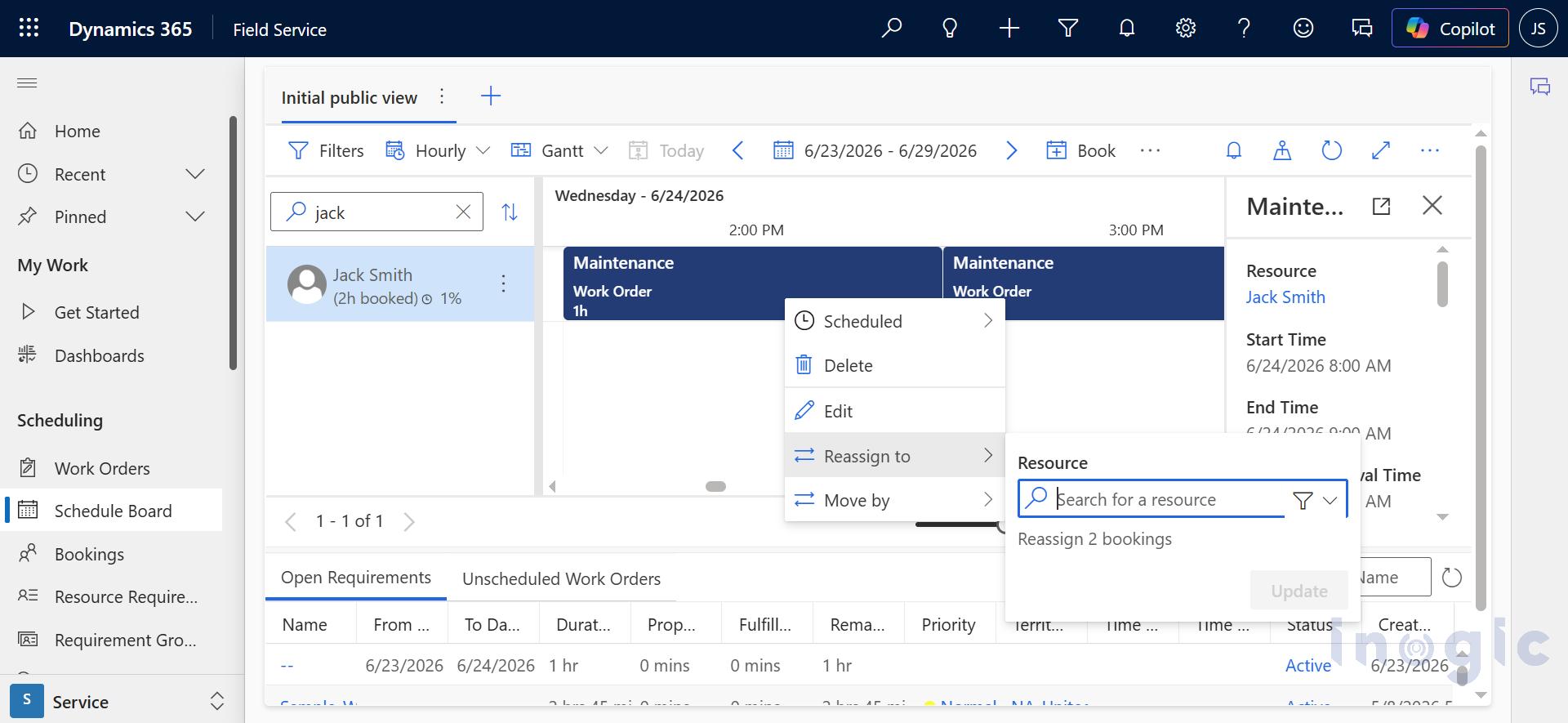
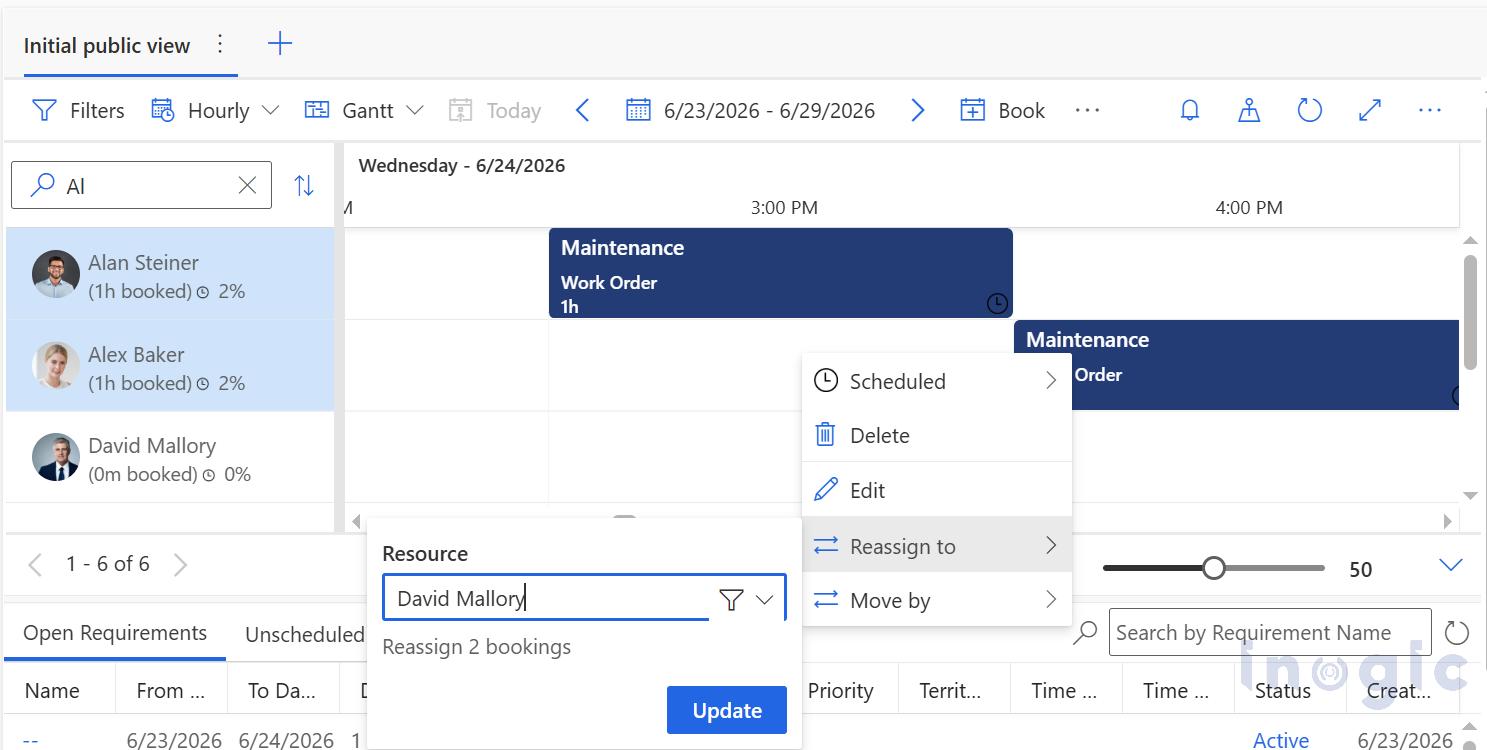
- Right-click on the selected bookings and choose the Reassign to option.

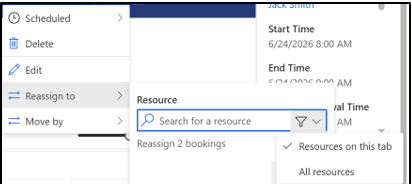
- You can now select the desired resource. By default, the “Resources on Tab” option is selected. To choose any other resource, click the filter icon in the resource lookup field and change the selection to “All Resources.”
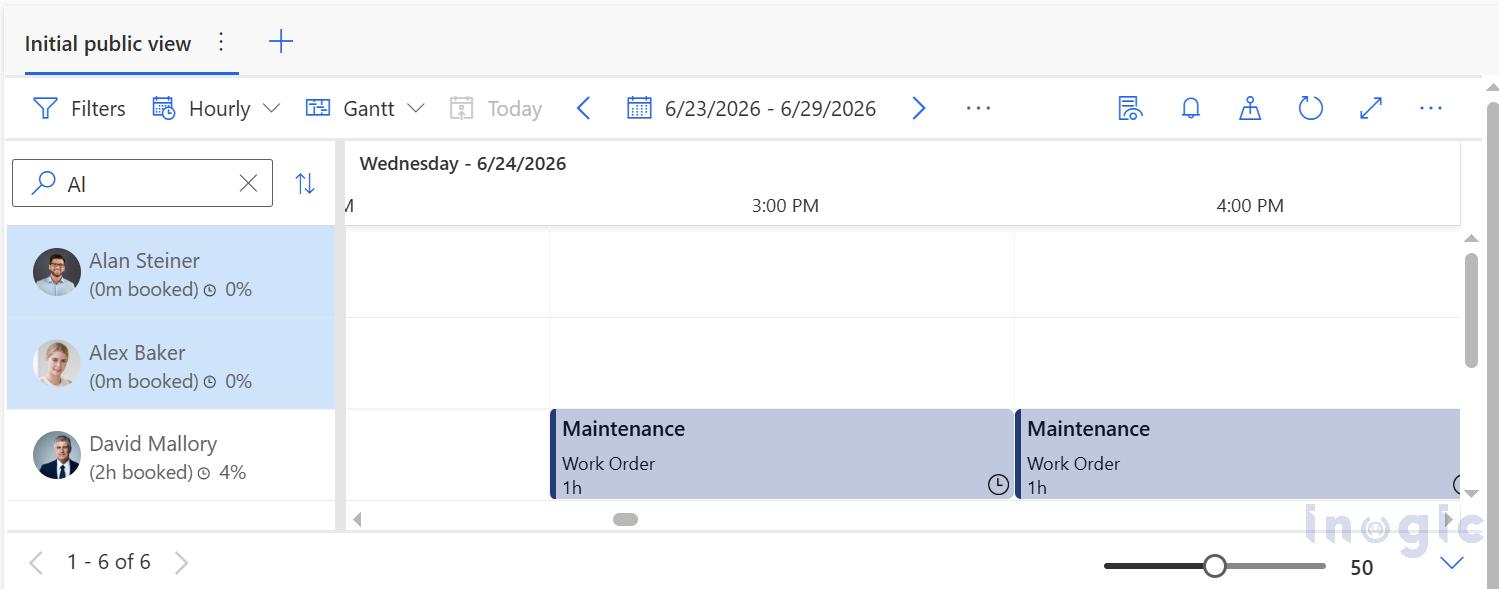
When you enter any character, all resources containing that character will be displayed in the dropdown list.
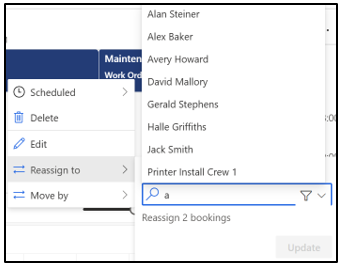
- Select the desired resource and click the Update button.
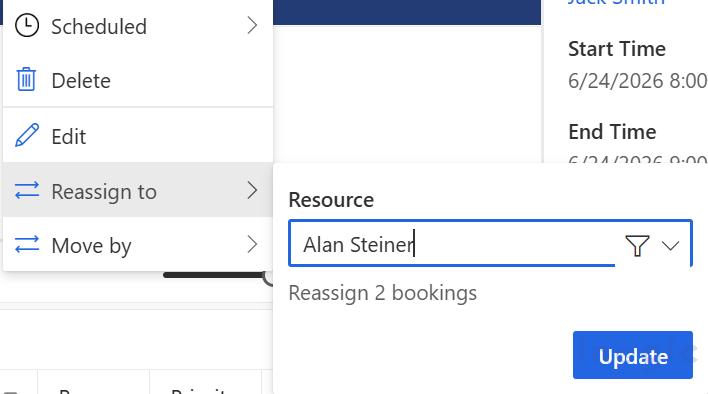
After this, the bookings will be reassigned to the selected resource without any change to the date and time.
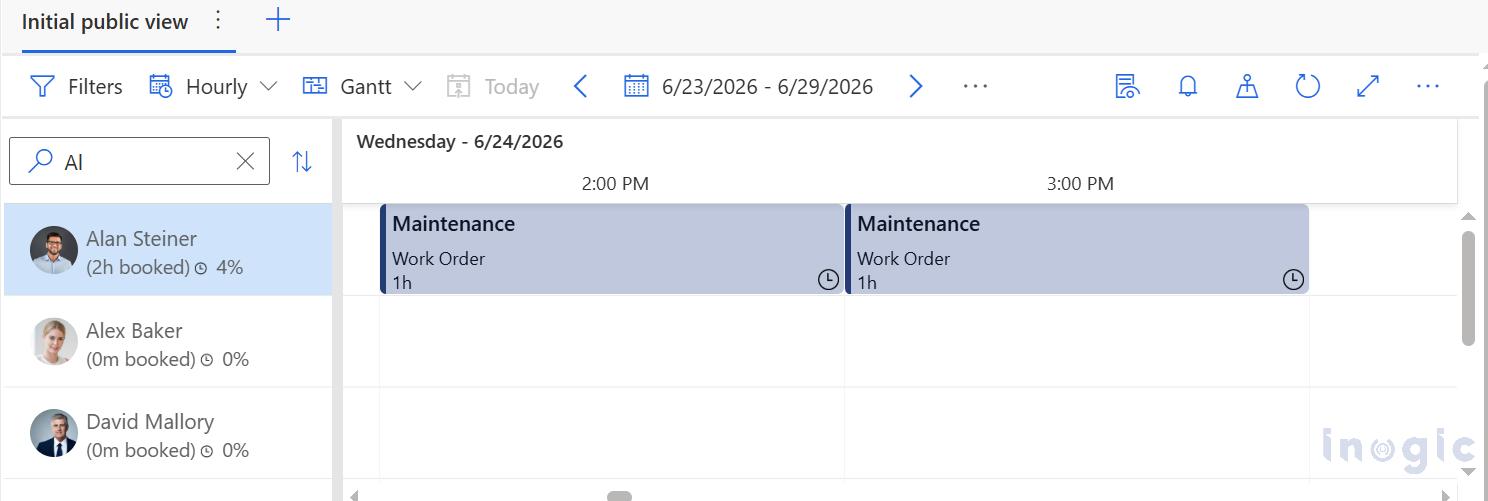
Bulk Time Shift of Bookings Using a Fixed Offset
Schedulers often face challenges when multiple bookings need to be rescheduled due to delays, staffing changes, customer requests, or unexpected operational disruptions. Manually updating each booking one by one is time-consuming and increases the chances of errors or missed changes. It also becomes difficult to maintain a consistent schedule when several bookings need to be shifted together. To overcome this, the feature allows users to move multiple bookings in a single action using a common time offset. Instead of editing each booking individually, all selected bookings can be shifted forward or backward at once. The booking details, order, and duration remain unchanged while only the timing is updated. His ensures the schedule stays aligned and consistent with the new plan. Overall, it reduces manual effort, improves accuracy, and enables faster scheduling adjustments.
Business Scenario:
If a technician starts late due to any delay in the morning, all their scheduled bookings for the day need to be adjusted accordingly. Instead of updating each booking individually, the dispatcher can shift all bookings together by a fixed time. This ensures the entire schedule moves uniformly while maintaining the order of jobs. It helps avoid manual effort and keeps the technician’s plan consistent for the rest of the day.
Getting Started with the feature:
1. Navigate to the Schedule Board.
2. Select multiple bookings by holding the Ctrl key on the keyboard.
3. Right-click on the selected bookings and choose the Move by option. 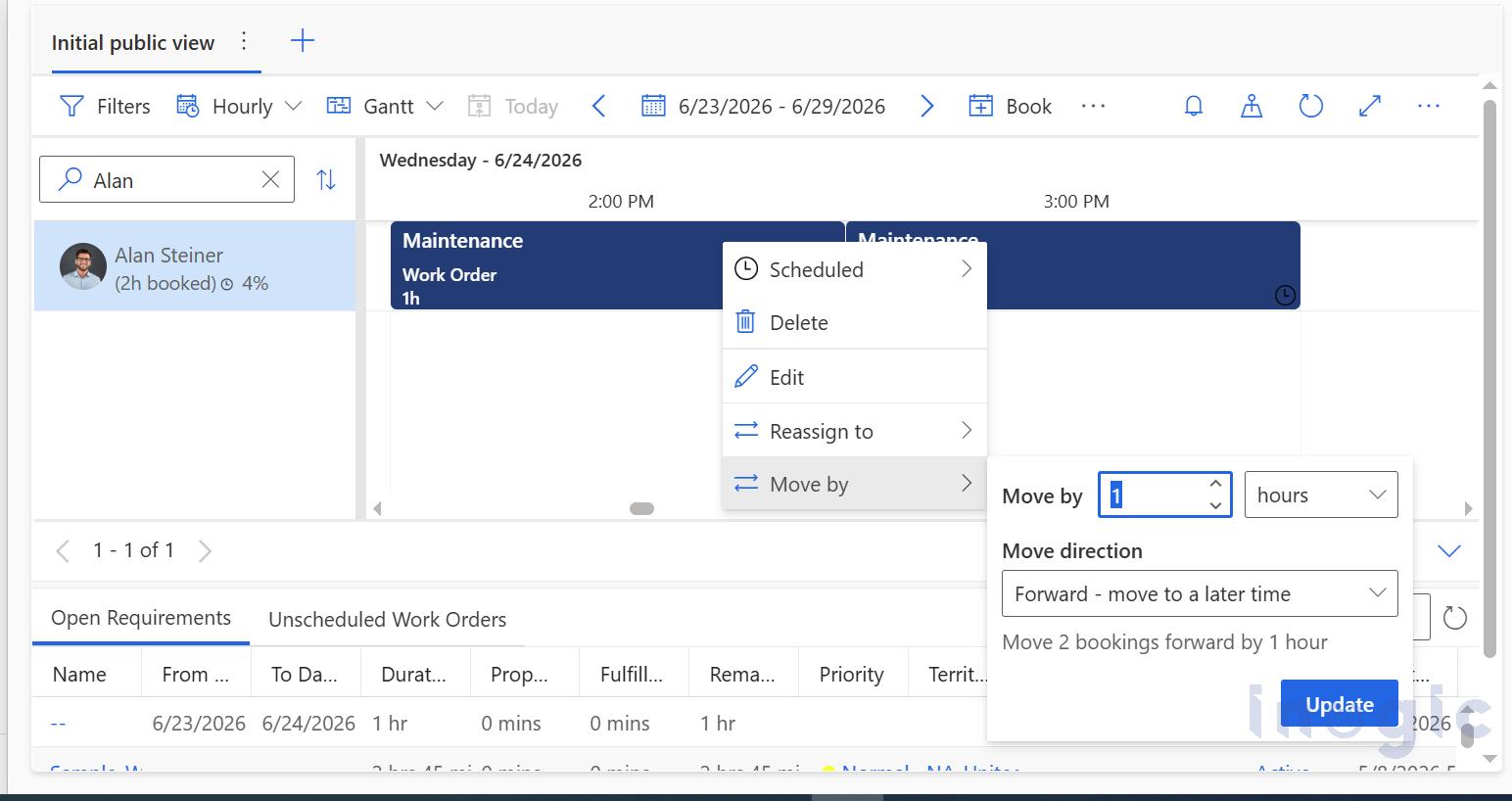
4. Now select the standard unit of time and enter the number by which you want to adjust the bookings.
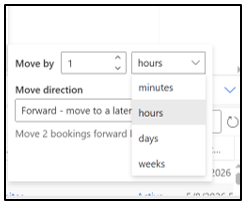
5. You can also select moving direction forward or backward.
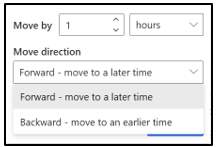
6. After making necessary changes click on update button.
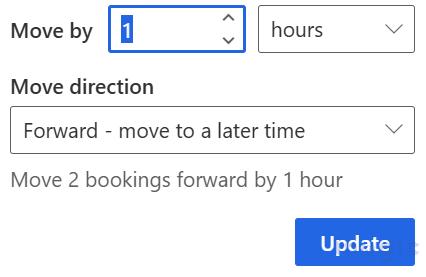
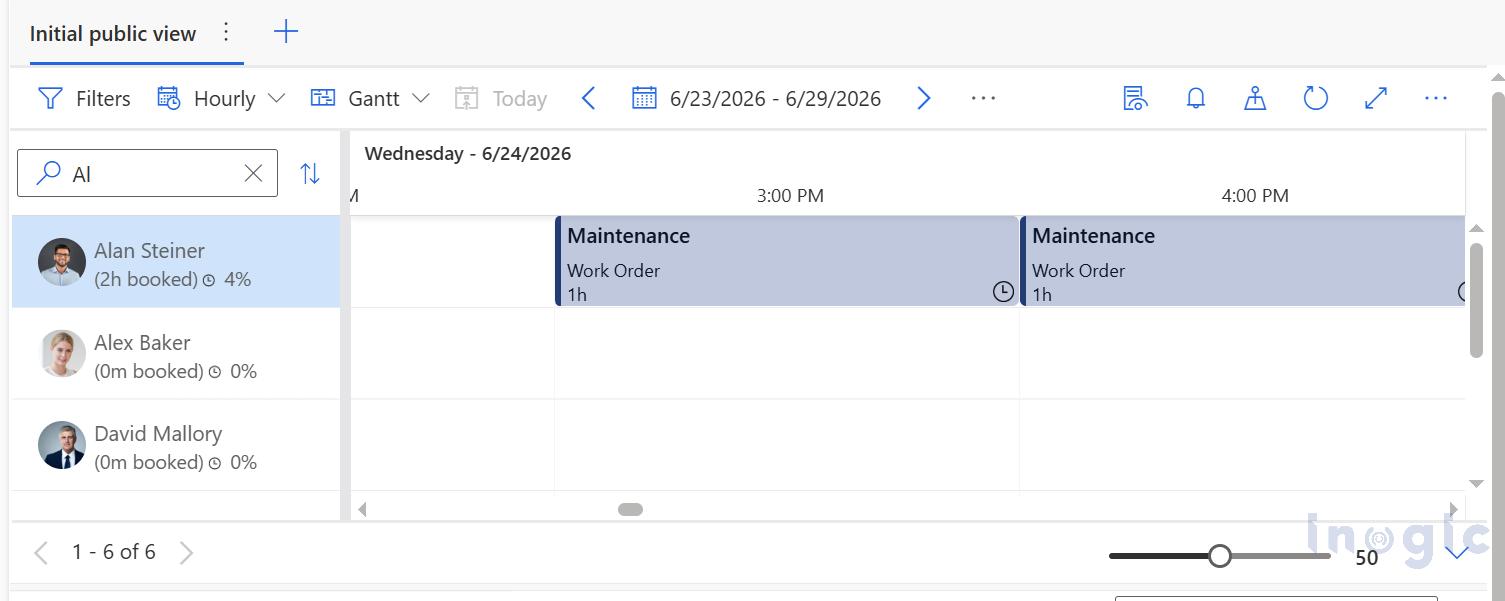
Bookings will move forward by 1 hour.
You can also select multiple resources bookings and reassign or move them based on the required condition.
Conclusion:
The “Bulk Reassignment of Bookings to a Different Resource” feature in Dynamics 365 Field Service allows multiple bookings to be reassigned to a different resource in one action. It eliminates the need to update each booking individually. The timing and duration of bookings remain unchanged. This improves scheduling efficiency and reduces manual effort.
The “Bulk Time Shift of Bookings Using a Fixed Offset” feature allows multiple bookings to be shifted together by a fixed time interval. Users can move bookings forward or backward in time while keeping their details intact. It is useful during delays or schedule changes. This helps maintain a consistent and updated schedule quickly.
FAQs
What is bulk reassignment of bookings in Dynamics 365 Field Service?
Bulk reassignment lets dispatchers assign multiple bookings to a different technician or resource in one action. The booking date, time, and duration remain unchanged, making workload balancing faster and easier.
How do I reassign multiple bookings in Dynamics 365 Field Service?
Dynamics 365 Field Service lets dispatchers move multiple bookings together using the Move by option on the Schedule Board. Simply select the bookings, choose the time unit and offset, select whether to move them forward or backward, and apply the changes. The booking order and duration remain unchanged.
How can I shift multiple bookings at the same time?
Use the Move by option on the Schedule Board. Select multiple bookings, choose a time offset and direction (forward or backward), then click Update. The booking duration and sequence stay the same.
When should I use bulk reassignment or bulk time shift?
Use bulk reassignment when a technician is unavailable, workloads need balancing, or jobs must be transferred to another resource. Use bulk time shift when appointments need to move together because of delays, customer requests, weather disruptions, or other scheduling changes. Both features help dispatchers make updates faster while maintaining an organized schedule
What are the benefits of bulk booking updates in Dynamics 365 Field Service?
Bulk booking updates help dispatchers save time by updating multiple bookings in one action instead of editing each booking individually. They improve scheduling efficiency, reduce manual errors, maintain consistent booking information, optimize technician utilization, and enable organizations to respond quickly to unexpected operational changes.