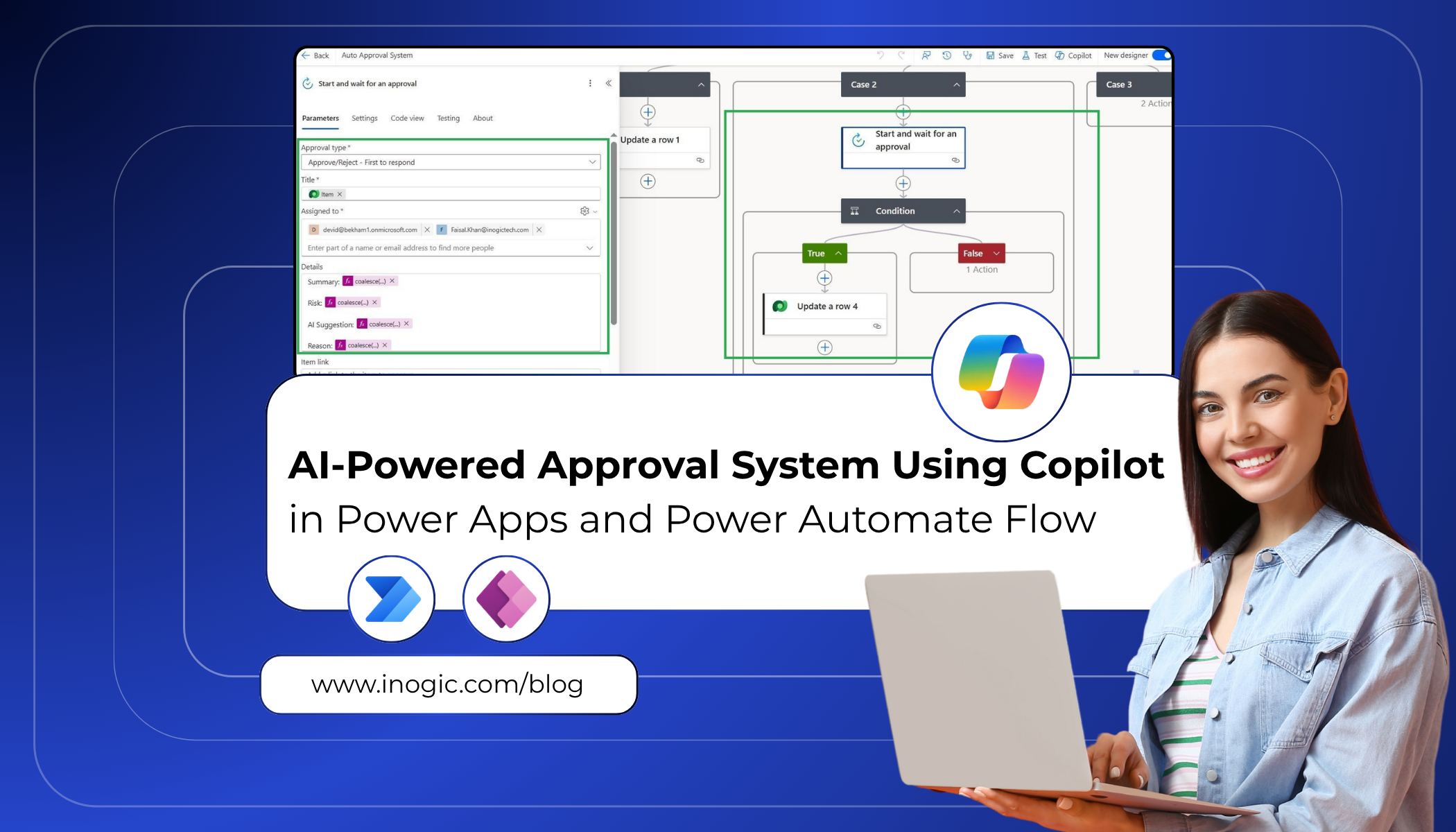
 Modern approval processes are often slow, manual, and inconsistent, leading to delays, policy violations, and poor decision-making. In this solution, we combine Power Apps, Power Automate, and Copilot to create an intelligent purchase approval system.
Employees submit requests through a Power Apps form, and AI instantly analyzes each request and detects risks, and recommends actions. Based on AI-driven insights, Power Automate dynamically routes approvals such as auto-approve, manager review, or high-risk escalation to finance team.
Example Use Case
Scenario: USB Keyboard Purchase Request
An employee from the IT department submits a request to purchase a USB keyboard.
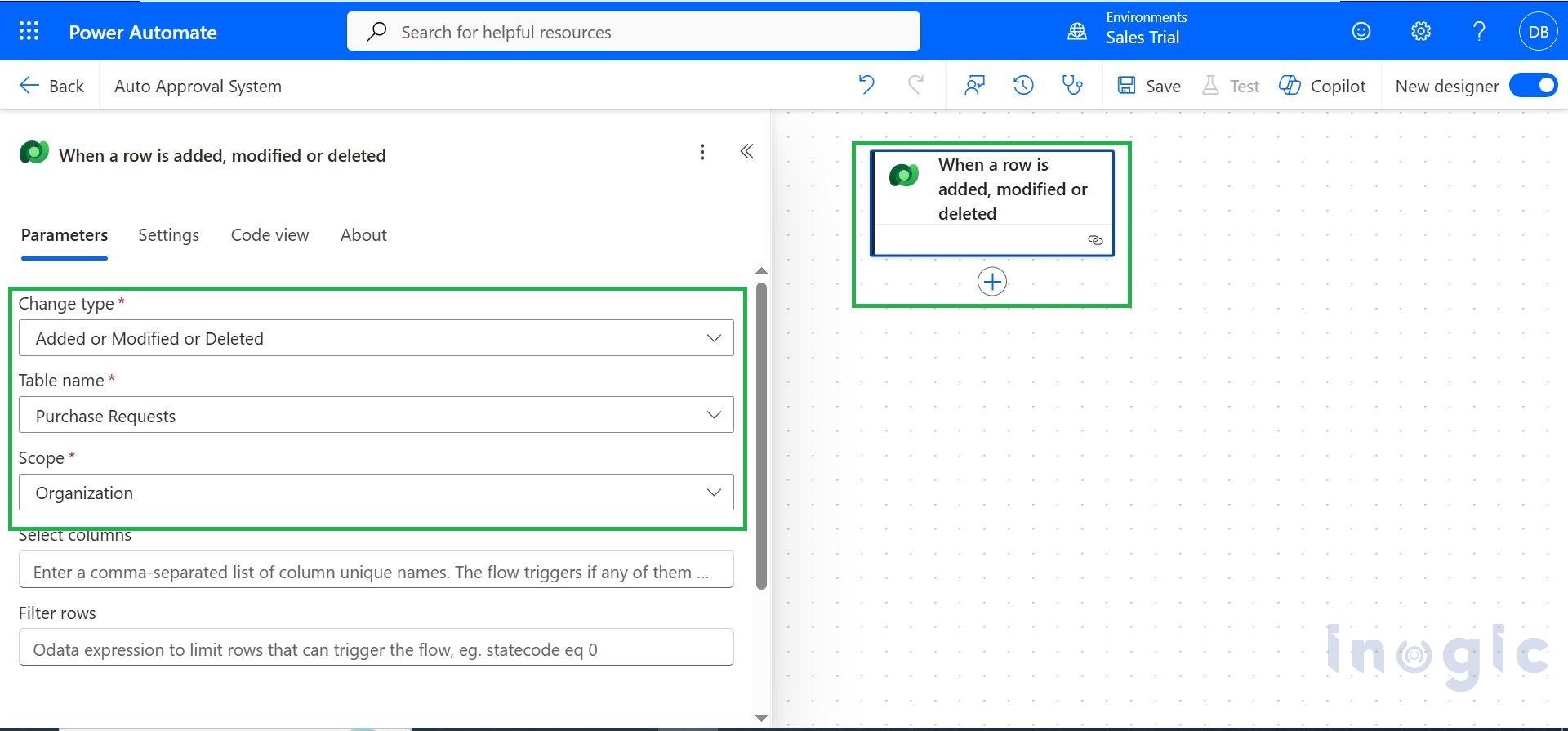
Step 1: Make a Model Driven App & Create the Flow
Once your structured data file is ready, create a new agent in Copilot Studio.
- Open Microsoft Power Apps and create a Model-Driven App.
- Create a Purchase Request table with fields: Item, Cost, Reason, Department.
- Open Microsoft Power Automate and create a new flow for the approval process.
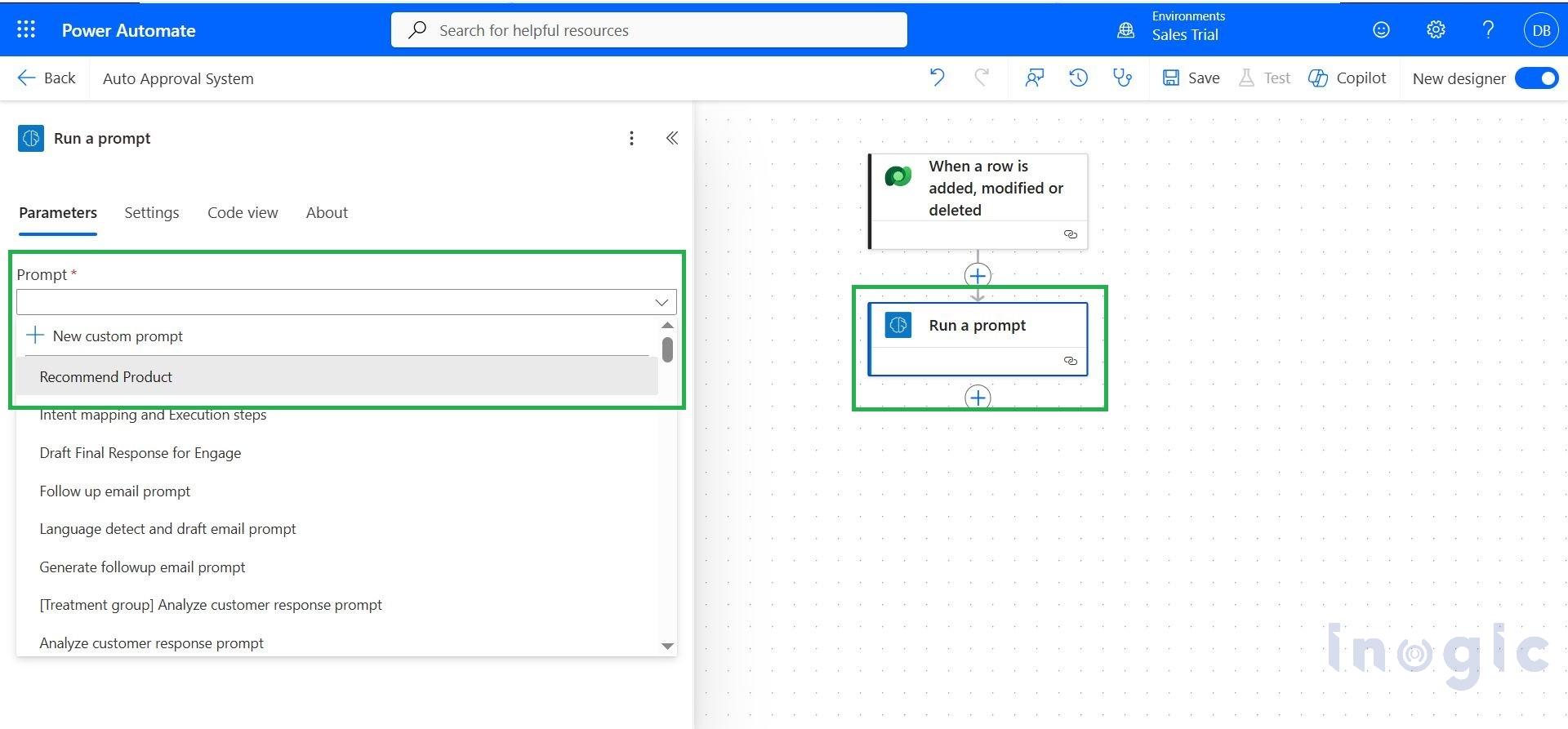
Step 2: Add “Run a Prompt” Action
- In Microsoft Power Automate, add a new action “Run a Prompt”.
- Choose Custom Prompt to define your own AI logic.
- Configure the prompt to analyze purchase request details (Item, Cost, Reason, Department).
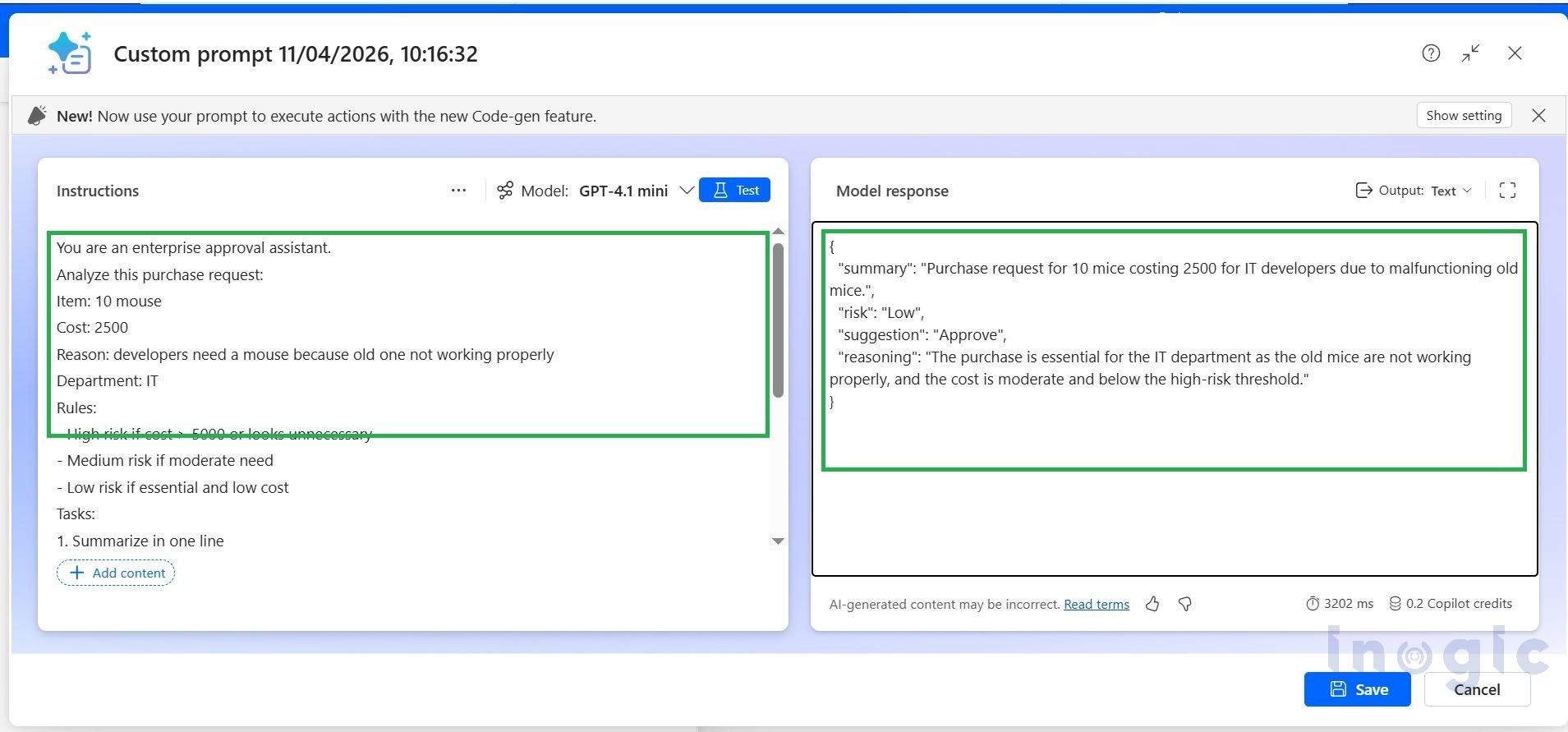
Step 3: Test the Custom Prompt
- In Microsoft Power Automate, test the configured Custom Prompt.
- Provide sample input (Item, Cost, Reason, Department).
- Verify that the AI returns summary, risk level, and recommendation correctly.
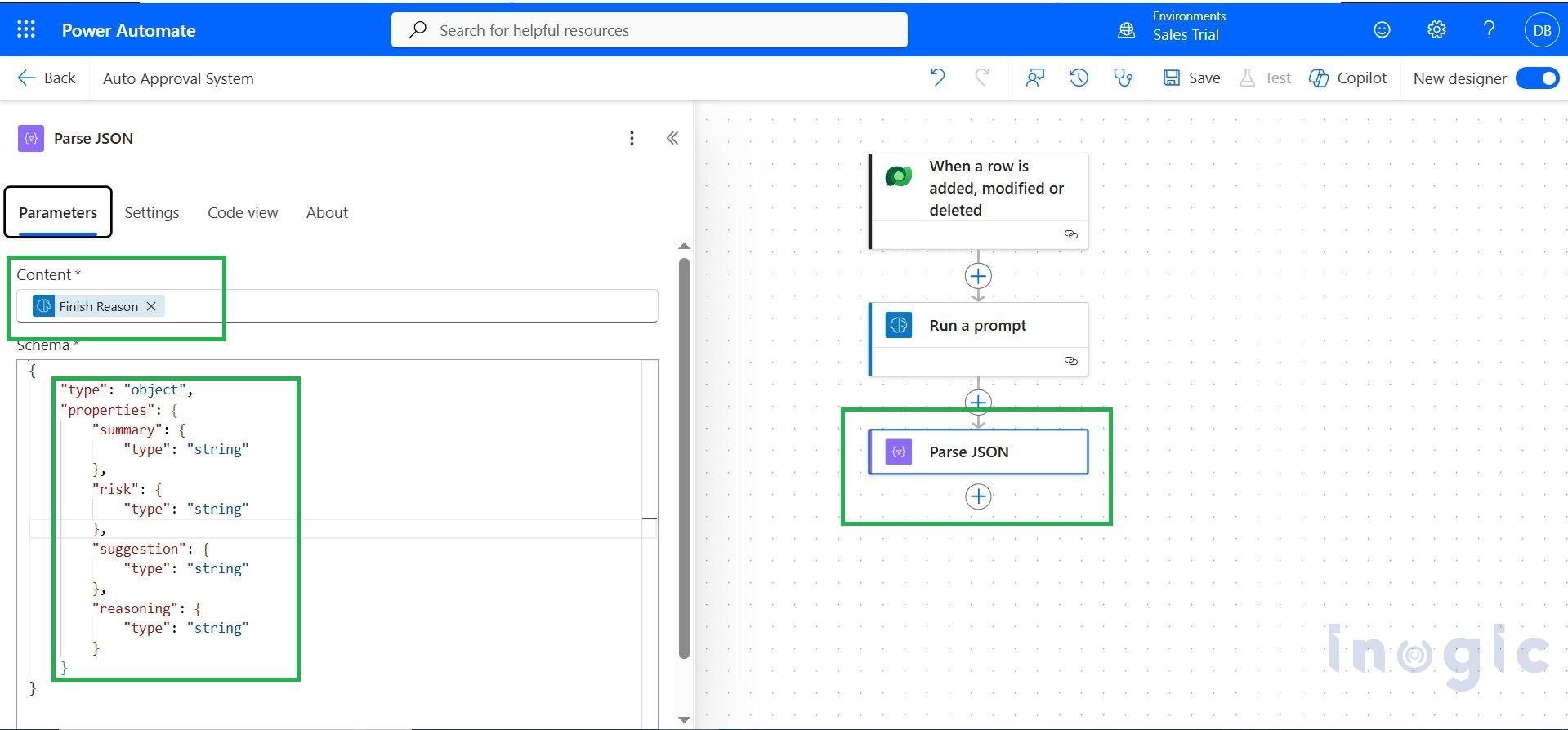
Step 4: Add Parse JSON Action
- In Microsoft Power Automate, add the Parse JSON action.
- Pass the output from Run a Prompt as the input.
- Generate the schema to extract fields like summary, risk level, and recommendation.
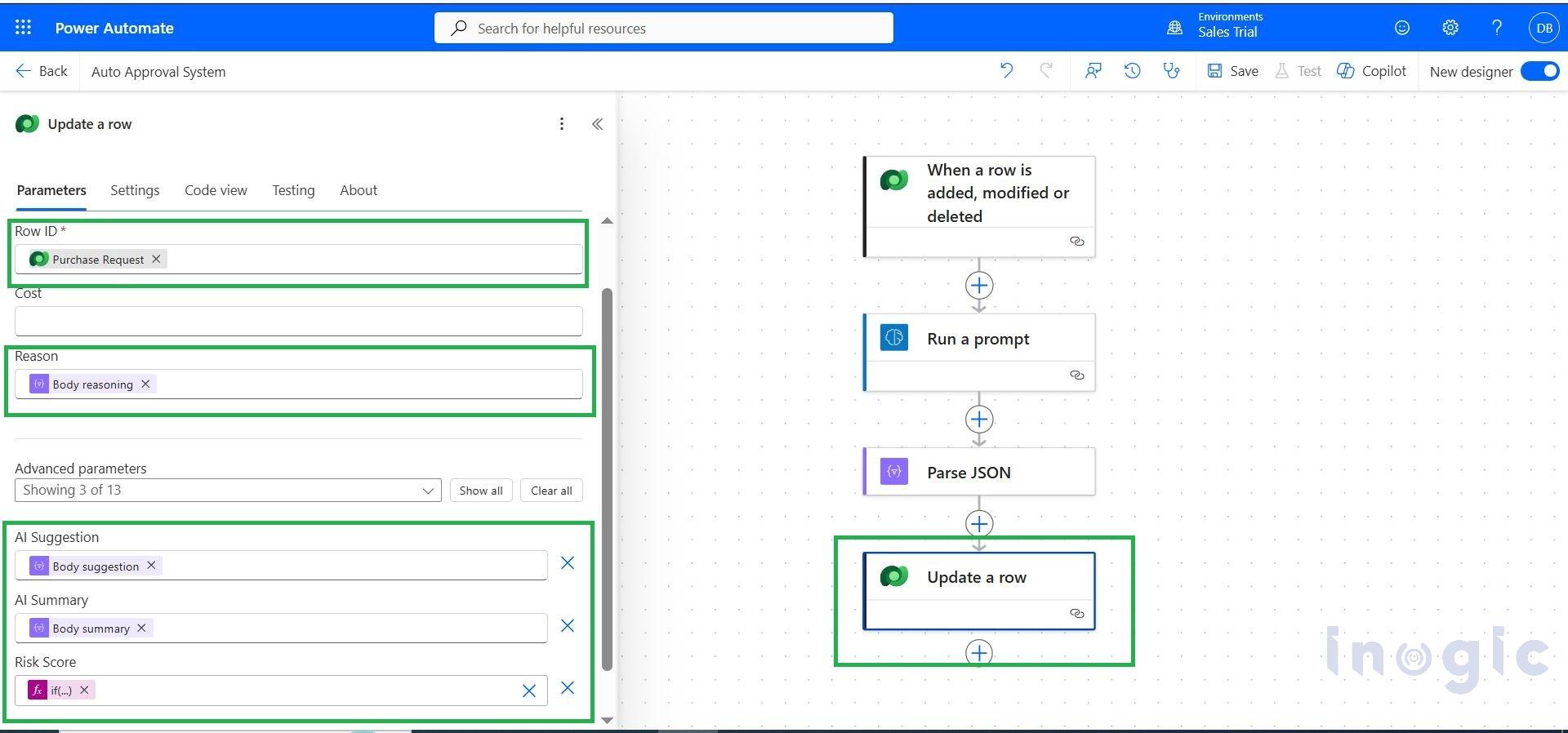
Step 5: Map AI Response Fields
- In Microsoft Power Automate, map the parsed AI response fields.
- Assign values to fields such as AI Suggestion, AI Reason, and Summary.
- Ensure each field correctly captures data from the Parse JSON
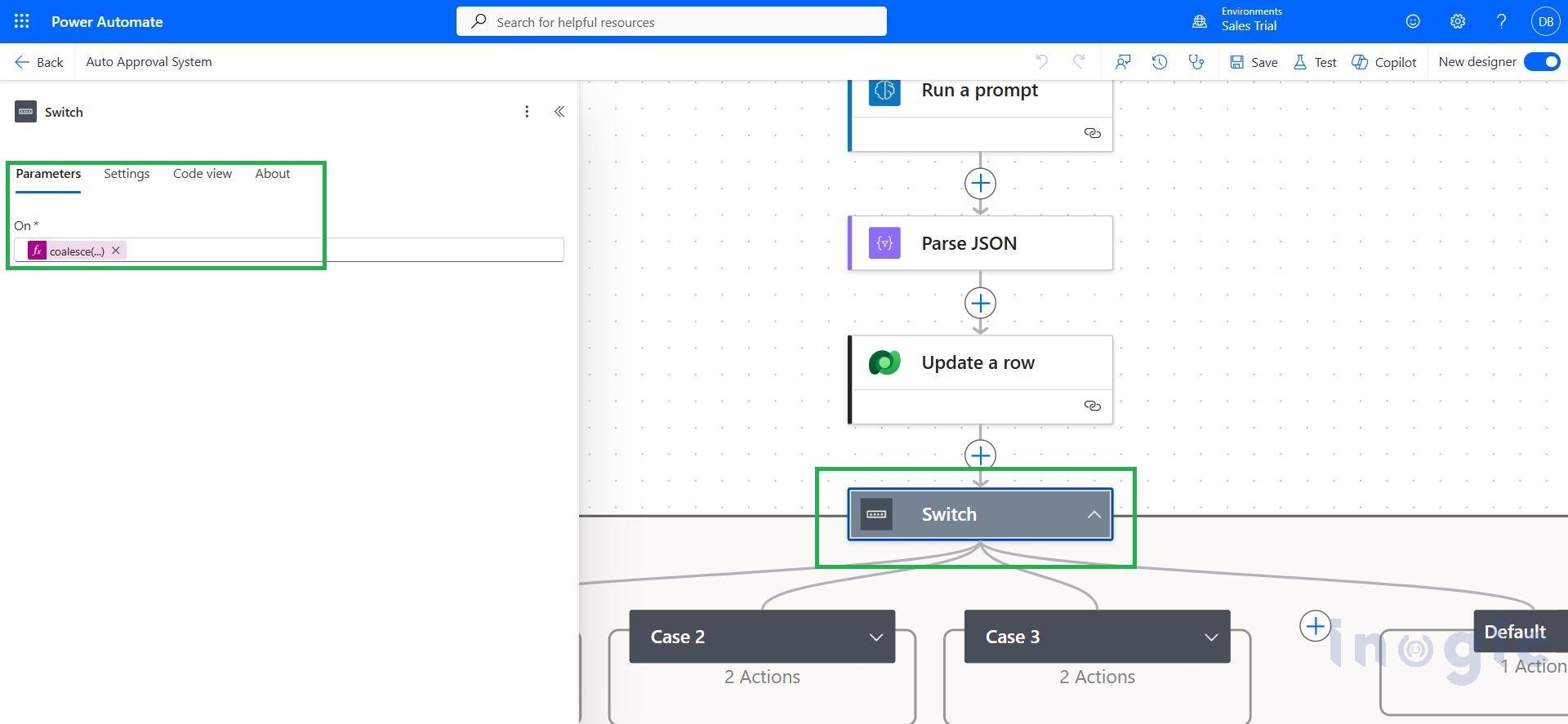
Step 6: Add Switch Case for Risk Categorization
- In Microsoft Power Automate, add a Switch
- Use the AI Risk Level (Low / Medium / High) as the condition.
- Create separate cases to route the flow based on the risk category.
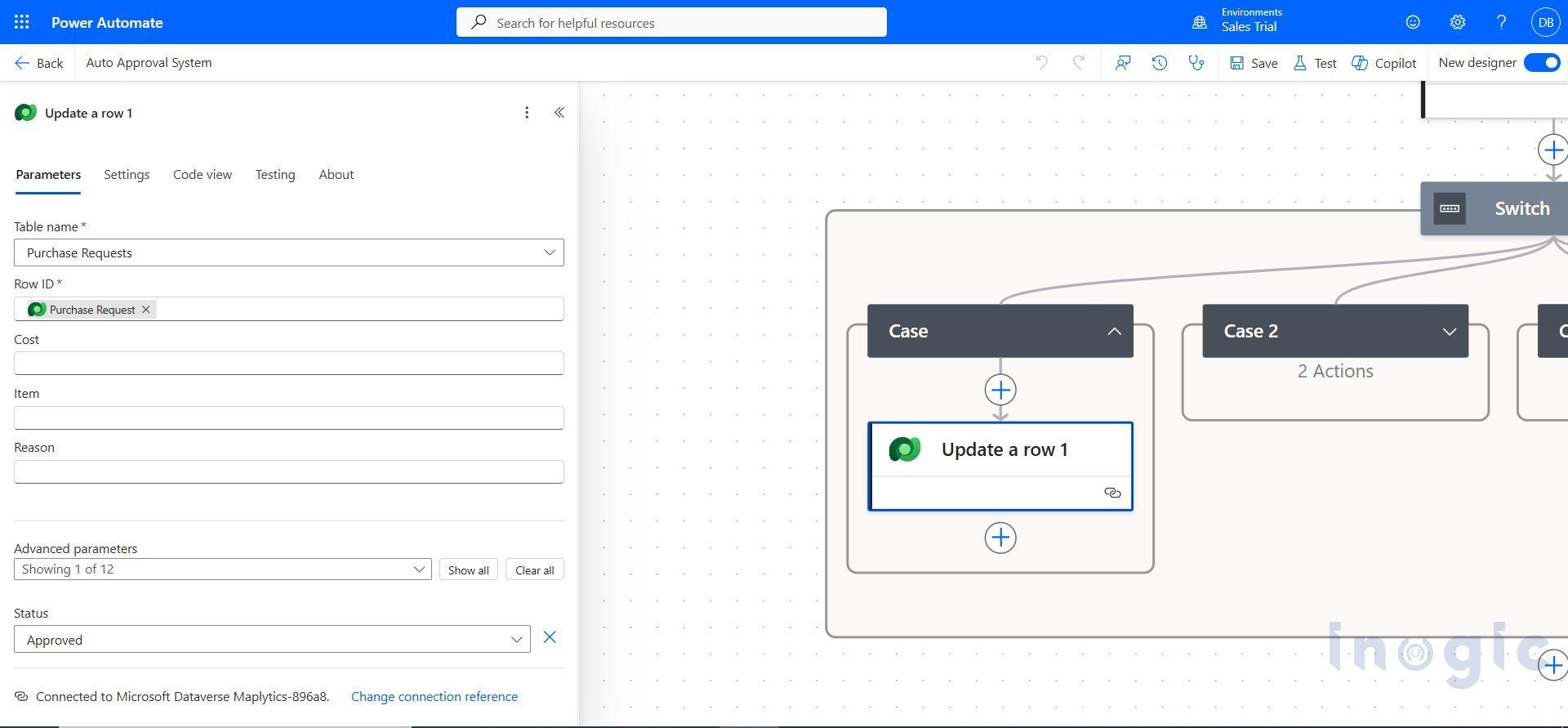
Step 7: Auto-Approve Low Risk Requests
- In Microsoft Power Automate, add Update a Row action for the Purchase Request table.
- If the risk level = Low, set the status to Auto Approved.
Add a message like “Request Auto Approved” in the approval status field.
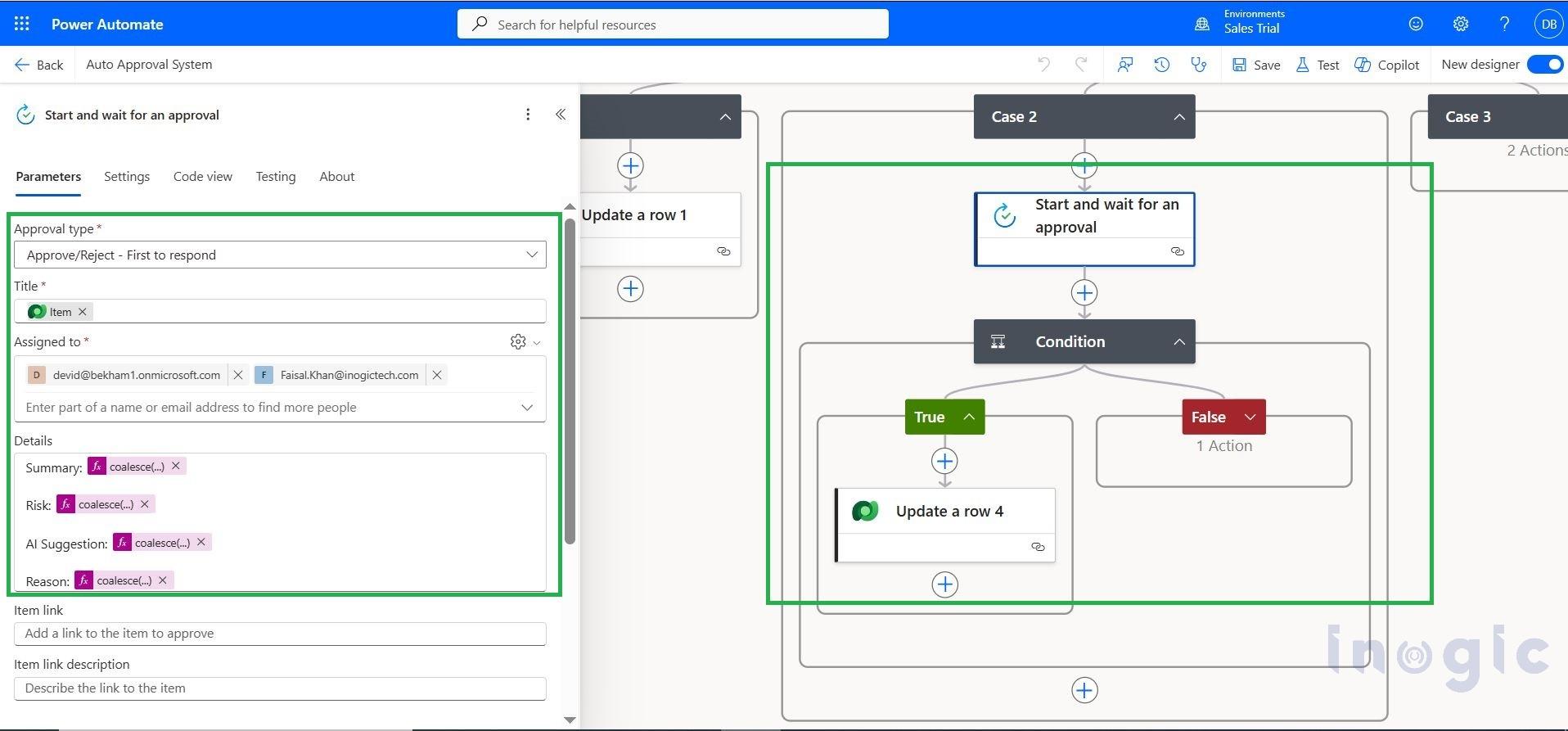
Step 8: Handle Medium Risk with Manager Approval
- In Microsoft Power Automate, add a Start and wait for an approval action for Medium risk requests.
- Send the request to the manager for review and decision.
- If the manager rejects, update the record status to Rejected.
If the manager approves, update the record status to Approved.
Step 9: Escalate High Risk to Finance Team
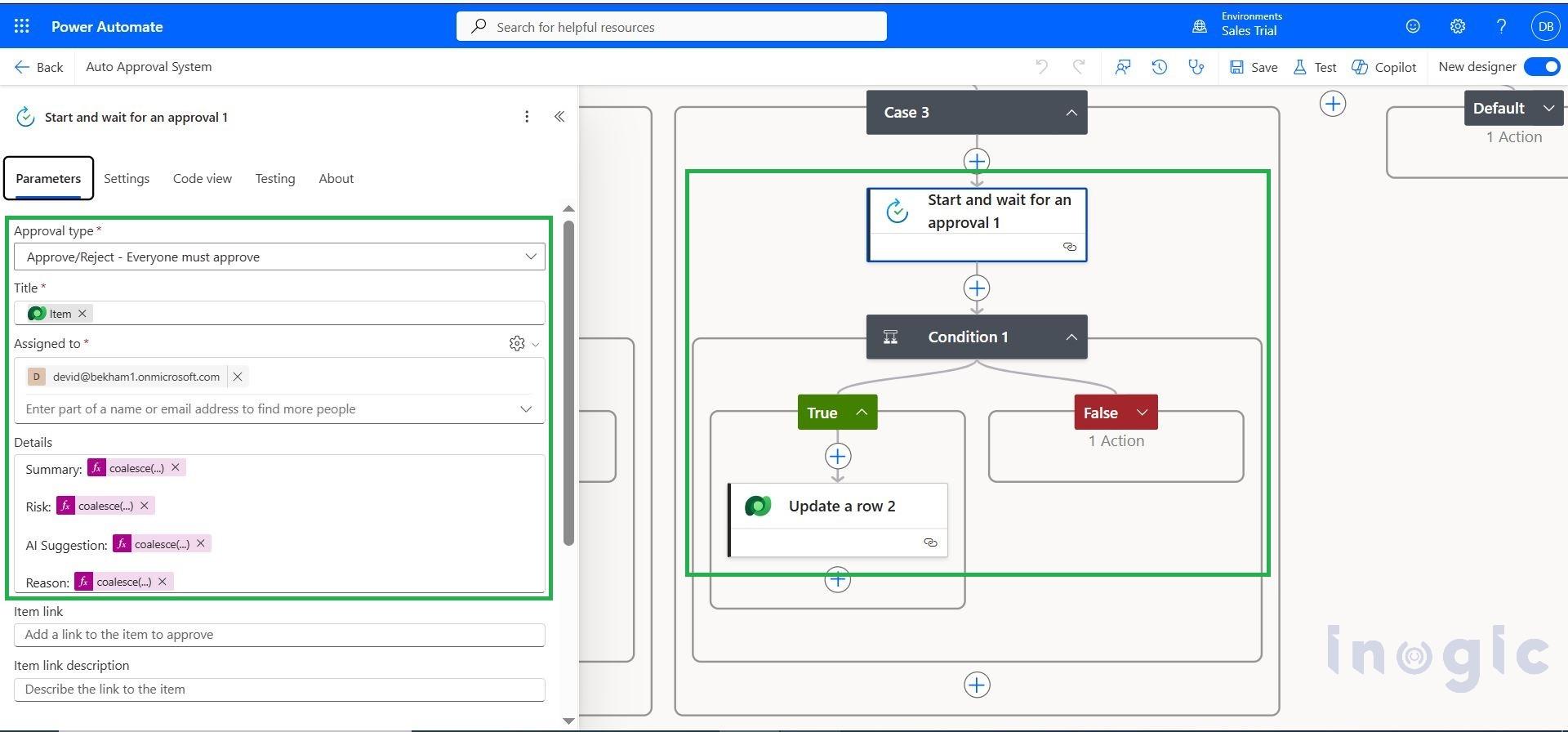
- In Microsoft Power Automate, route High risk requests to the Finance Team using an approval action.
- Finance team reviews the request and takes a decision.
- If approved, update status to Approved.If rejected, update status to Rejected.
Step 10: Add Default Condition, Manual Review
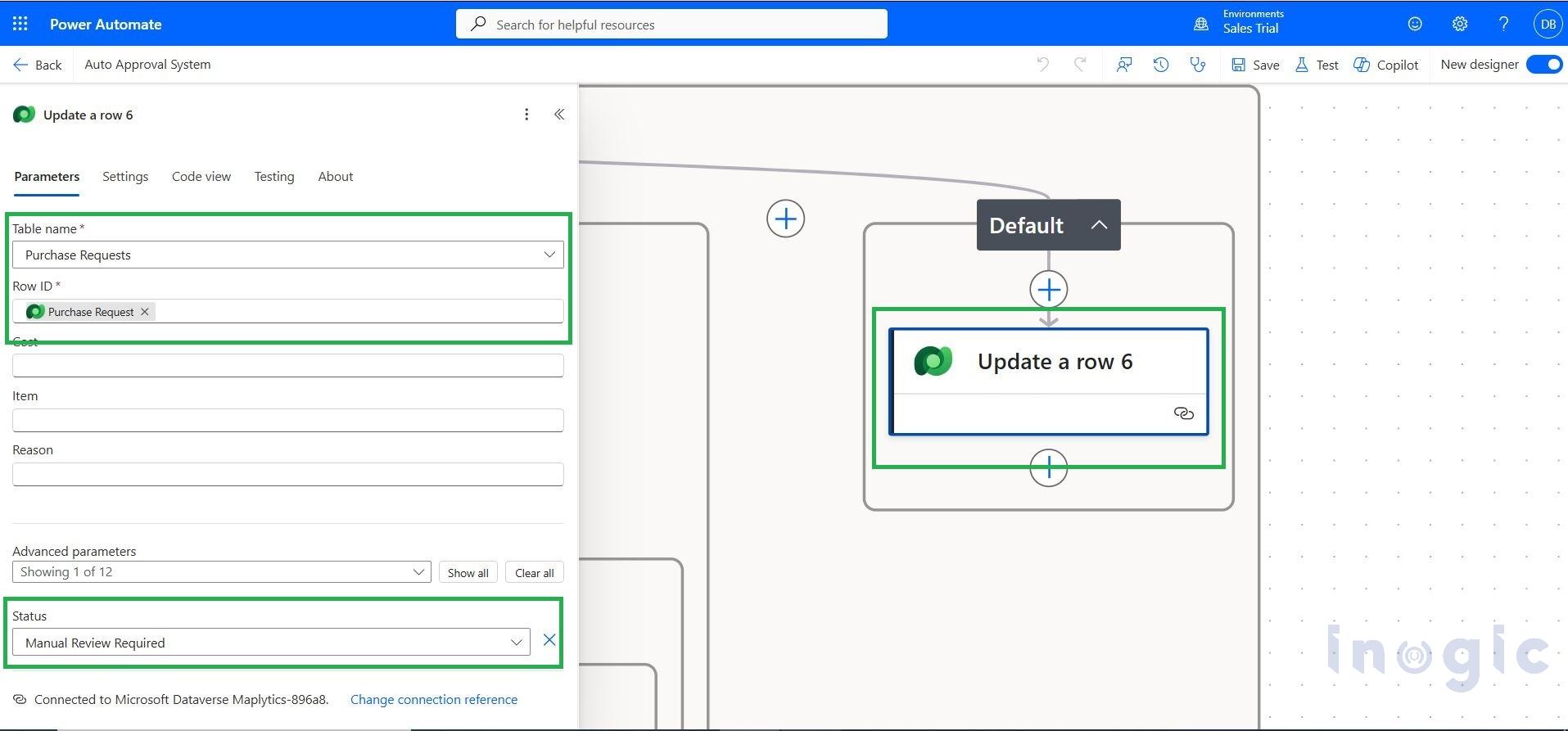
- In Microsoft Power Automate, configure the default case in the Switch control.
- If the AI prompt does not return a valid risk output, set the request status to “Manual Review Required”.
- Route the item to a human reviewer for further evaluation.
Conclusion:
The system successfully processes purchase requests using AI in Microsoft Power Apps and Microsoft Power Automate. Each request is automatically analyzed, categorized by risk, and routed for approval resulting in auto-approval for low risk, manager review for medium risk, finance approval for high risk, and manual review when AI output is unavailable.
FAQs
1. What is an AI-powered approval system in Power Apps and Power Automate?
An AI-powered approval system uses Copilot, Power Apps, and Power Automate to automatically analyze requests, determine risk levels, and route approvals without manual intervention.
2. How does Copilot help in approval workflows?
Copilot analyzes request data such as cost, item, and department, then generates a summary, assigns a risk level, and recommends the next action for faster decision-making.
3. What are the benefits of using AI in approval processes?
AI improves approval speed, ensures consistency, reduces human errors, and enables intelligent decision-making by automatically categorizing requests based on risk.
4. How are approval decisions automated in this system?
Power Automate uses AI-generated risk levels (Low, Medium, High) to trigger different approval paths such as auto-approval, manager review, or finance escalation.
5. Why use Power Platform for AI-based approvals?
Power Platform provides seamless integration between Power Apps, Power Automate, and Copilot, enabling low-code development of intelligent and automated workflows.