A consistent and visually appealing user interface can improve user adoption, productivity, and confidence when working with Dynamics 365.
Dynamics 365 has traditionally provided built-in theming capabilities through the classic Themes feature. However, with the introduction of the modern, refreshed look for model-driven apps, Microsoft introduced a new theming approach called Modern Theme Overrides.
Modern Theme Overrides allow organizations to customize the appearance of model-driven apps using supported configuration, including custom colors, application header styling, fonts, and logos.
In this blog, we’ll explain:
- What the classic OOB theming approach provides
- Why Modern Theme Overrides were introduced
- The key differences between the two approaches
- How to configure a Modern Theme Override
- How organizations can use different themes to distinguish environments
Classic OOB Themes in Dynamics 365
Before exploring Modern Theme Overrides, it is important to understand that Dynamics 365 already provides an out-of-the-box theming capability.
Administrators can access the classic theme configuration through:
Settings → Customizations → Themes
The classic theme allows administrators to customize elements such as:
- Navigation bar colors
- Command bar colors
- Accent colors
- Entity-specific colors
- Company logo
- Logo tooltip
Administrators can clone an existing theme, customize the available properties, preview the changes, and publish the theme.
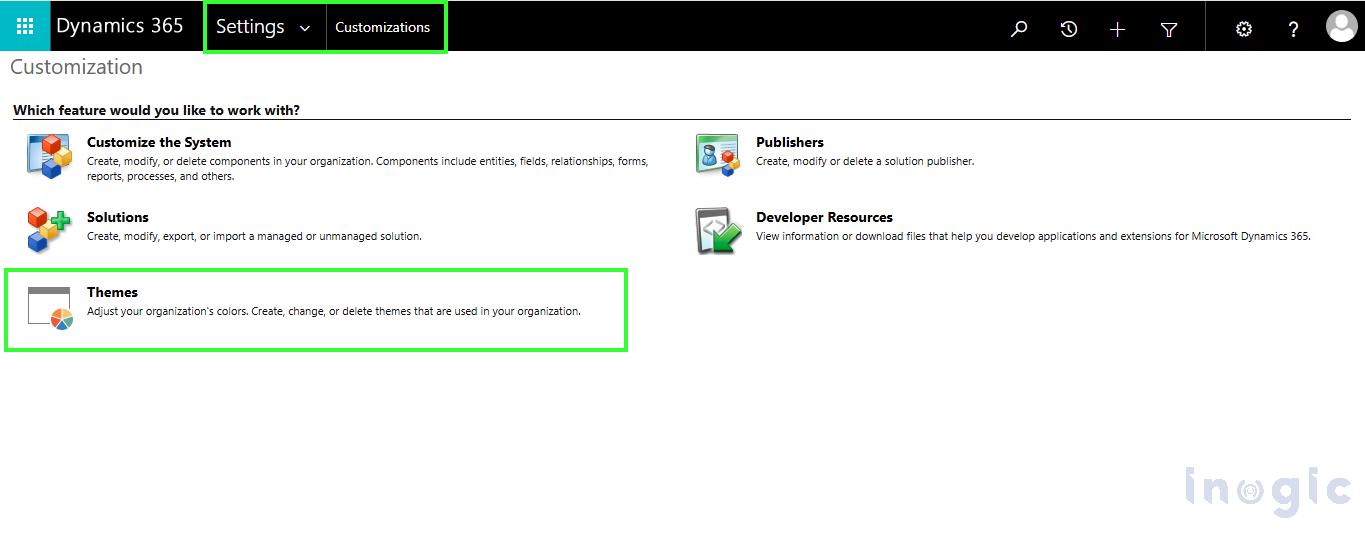
Classic Dynamics 365 OOB Themes configuration.
However, the classic theming approach is associated with the older model-driven app experience. Microsoft states that classic themes aren’t honored when the modern, refreshed look is enabled.
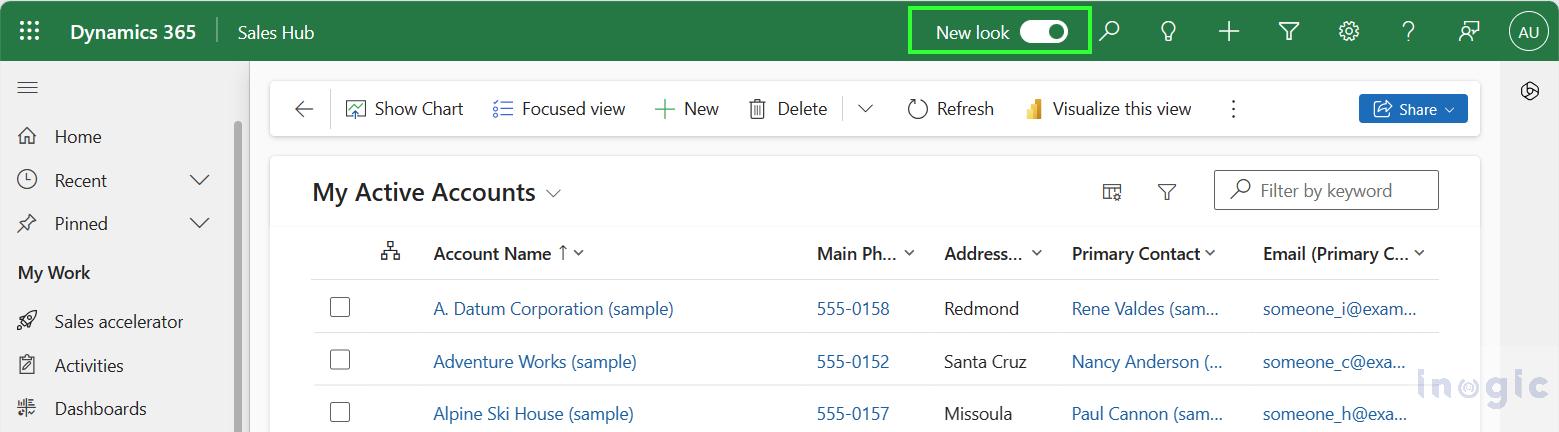
This is where Modern Theme Overrides become relevant.
What Are Modern Theme Overrides?
Modern Theme Overrides are Microsoft’s supported approach for customizing the appearance of model-driven apps that use the modern, refreshed look.
Instead of configuring a classic theme through the Themes interface, administrators define the desired theme using an XML web resource and associate it with the Custom Theme Definition setting.
With Modern Theme Overrides, organizations can customize:
- Application header colors
- Primary theme color
- Hyperlinks
- Buttons
- Active tab indicators
- Row selection and hover effects
- Font
- Application logo
- Logo tooltip
Microsoft also supports customizing individual application header states such as hover, pressed, and selected states.
Classic Themes vs. Modern Theme Overrides
The most important distinction is that these are two different theming approaches for different UI experiences.
| Classic OOB Themes | Modern Theme Overrides |
| Available through the classic Themes interface | Configured through XML and Power Apps settings |
| Designed for the classic model-driven app experience | Designed for the modern, refreshed look |
| Uses the built-in Themes configuration page | Uses an XML web resource |
| Classic theme customizations aren’t honored with the modern refreshed look | Specifically designed for the modern refreshed look |
| Provides standard theme customization options | Provides modern theme, header, font, and logo customization |
| Primarily configured through the UI | Can be managed through a solution |
Therefore, Modern Theme Overrides aren’t simply another version of the existing Themes page. They are the supported theming mechanism for the modern model-driven app experience.
Why Were Modern Theme Overrides Introduced?
As Microsoft moved model-driven apps toward the modern, refreshed experience, organizations still needed a supported way to maintain their corporate branding.
For example, an organization may want to:
- Apply its corporate colors to Dynamics 365
- Display its company logo
- Customize the application header
- Use different colors for Development, UAT, and Production
- Make the application easier for users to identify
Modern Theme Overrides address these requirements while working with the modern model-driven app experience.
Business Scenario
Consider Sarah, a Sales Director at Contoso Electronics.
- Her team uses Dynamics 365 Sales to manage:
- Accounts
- Contacts
- Leads
- Opportunities
- Customer activities
Contoso maintains separate Development, UAT, and Production environments.
Because these environments have a similar appearance, users can sometimes find it difficult to immediately identify which environment they are working in.
Sarah wants to:
- Apply Contoso’s corporate branding
- Make each environment visually distinguishable
- Improve the user experience
- Reduce the possibility of users performing actions in the wrong environment
Using Modern Theme Overrides, Contoso can create different themes for each environment.
For example:
EnvironmentExample ThemeDevelopmentOrangeUATPurpleProductionGreen
How to Configure Modern Theme Overrides
Prerequisites
- Before configuring a modern theme, ensure that:
- You have access to a Microsoft Dataverse environment.
- The model-driven app is using the modern, refreshed look.
- You have access to Power Apps.
- You have sufficient privileges to customize the environment.
Microsoft’s current documentation confirms that Modern Themes require the model-driven app to use the New Look.
Step 1: Create the XML Theme File
Create an XML file using a text or XML editor.
The XML defines the theme parameters, such as the primary palette color, font, logo, and application header colors.
For example:
<CustomTheme
basePaletteColor="#22A93B"
lockPrimary="true"
vibrancy="-10"
font="'Segoe UI', sans-serif"
logoWebResource="contoso_company-logo"
logoTooltip="Contoso"
>
<AppHeaderColors
background="#1F7A33"
foreground="#FFFFFF"
backgroundHover="#266B30"
foregroundHover="#FFFFFF"
backgroundPressed="#185C26"
foregroundPressed="#FFFFFF"
backgroundSelected="#1F6B2C"
foregroundSelected="#FFFFFF"
/>
</CustomTheme>
The basePaletteColor acts as the seed color from which the theme palette is generated. The AppHeaderColors element allows you to define the appearance of the application header and its interaction states.
Step 2: Open Power Apps and Create or Open a Solution
Go to Power Apps and open an existing solution or create a new solution.
Power Apps → Solutions
Microsoft recommends managing the theme components through a solution.
Step 3: Create the XML Web Resource
Once the XML file has been created, it must be uploaded as a Web Resource in Dynamics 365.
Navigate to:
Power Apps → Solutions → Open your Solution → New → More → Web Resource
In the New Web Resource window, provide the following details:
| Property | Value |
| Display Name | Green Custom Theme (or any preferred name) |
| Name | Accept the generated unique name or provide your own unique name |
| Type | Data (XML) |
| File | Browse and select the XML file created earlier |
Select Save.
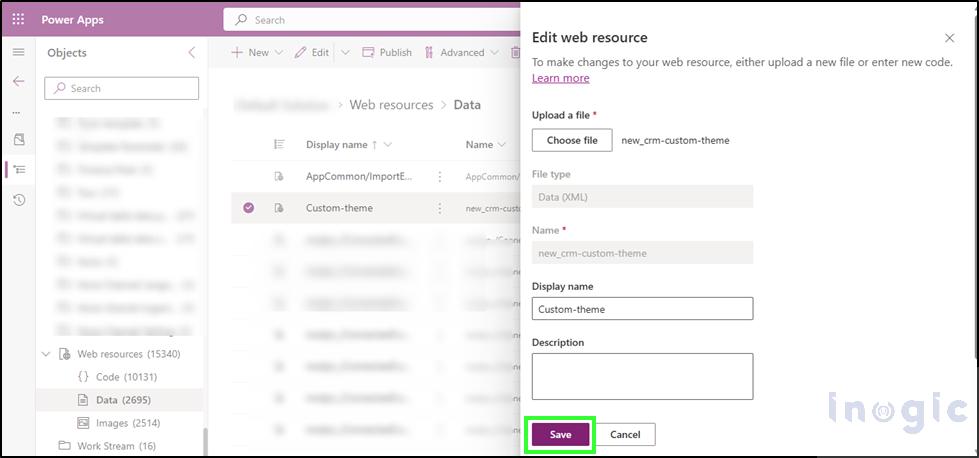
Creating the XML web resource containing the modern theme definition.
Make a note of the Name of the web resource. You will need this value when configuring the Custom Theme Definition setting.
Step 4: Add the Custom Theme Definition Setting
Uploading the XML Web Resource alone is not sufficient.
To tell Dynamics 365 which theme should be applied, configure the Custom Theme Definition environment setting.
Inside the same Solution:
Select Add Existing → More → Setting
Search for: Custom Theme Definition
Select it and click Add.
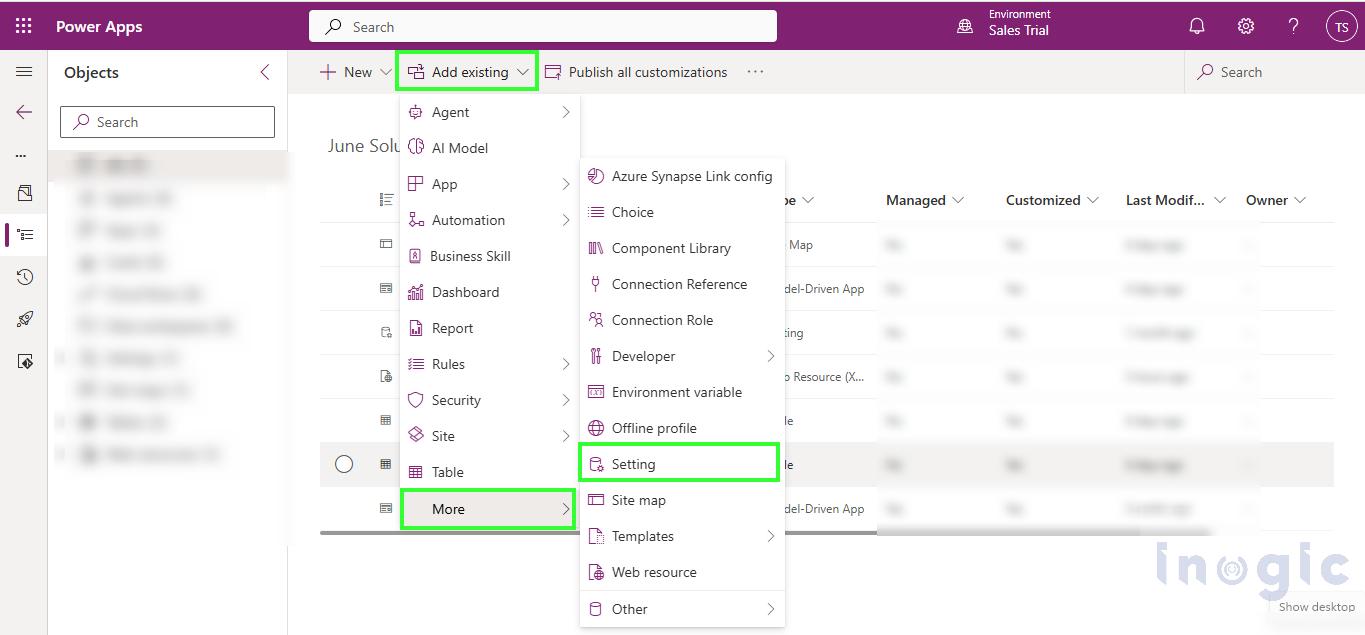
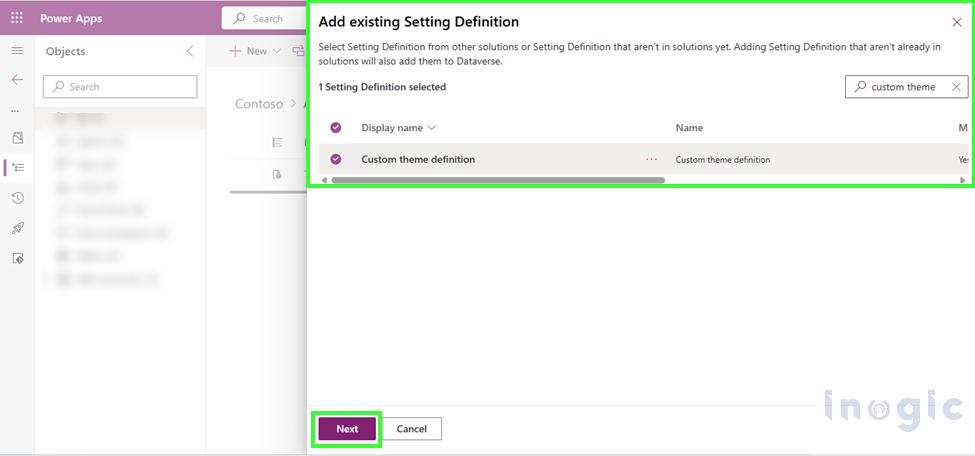
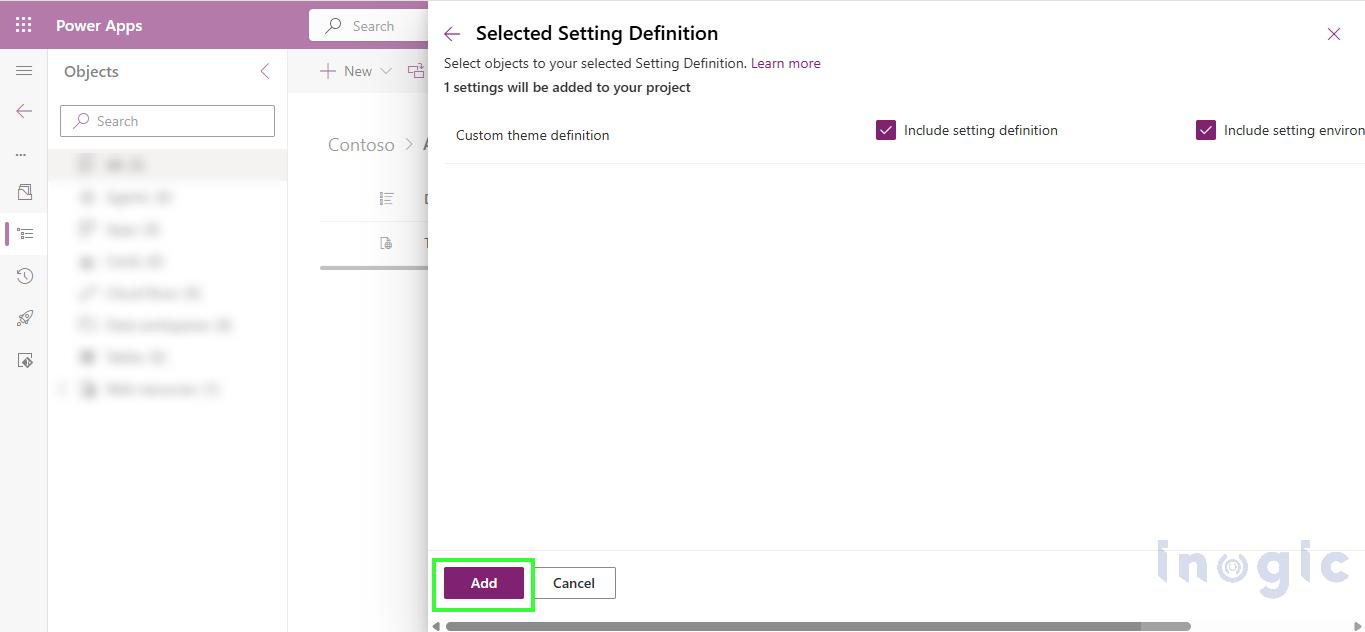
Adding the Custom Theme Definition setting to the solution.
Step 5: Associate the XML Web Resource with the Theme Setting
Open the Custom Theme Definition setting and select Edit.
Under Setting environment value, select New environment value.
Enter the unique Name of the XML web resource created earlier.
For example:
contoso_green-custom-theme
Make sure you use the web resource’s logical name, including the publisher prefix, rather than its display name. Do not include quotation marks.
Select Save.
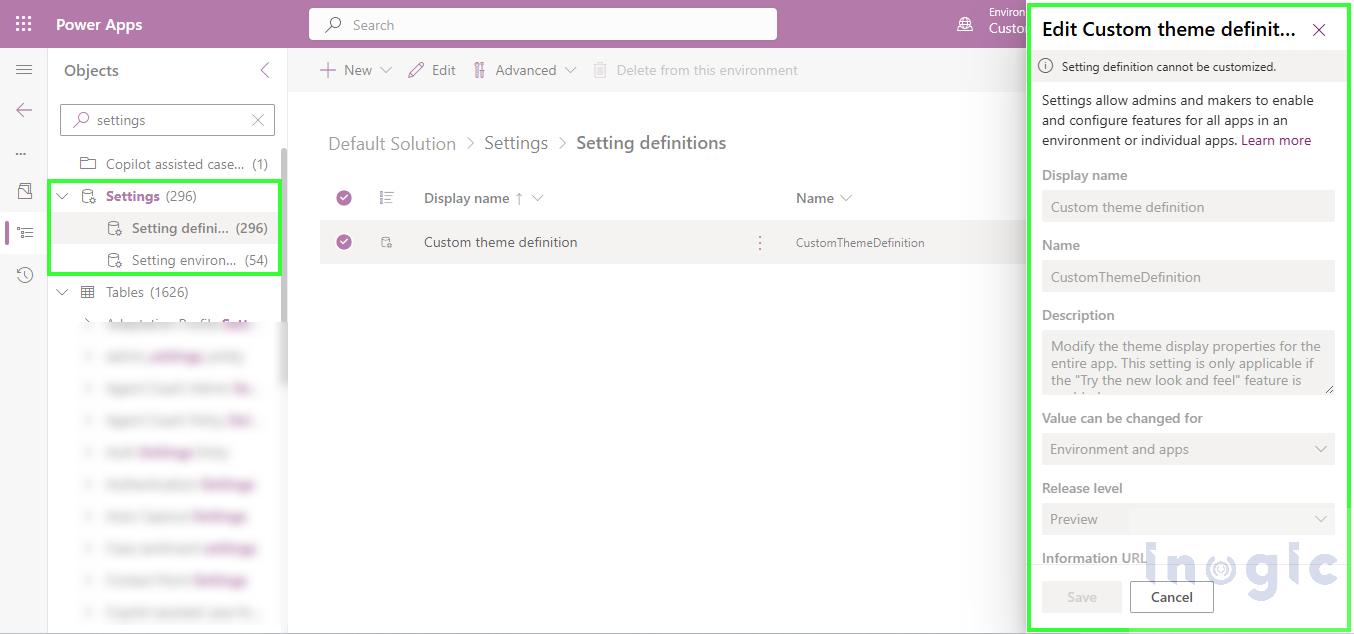
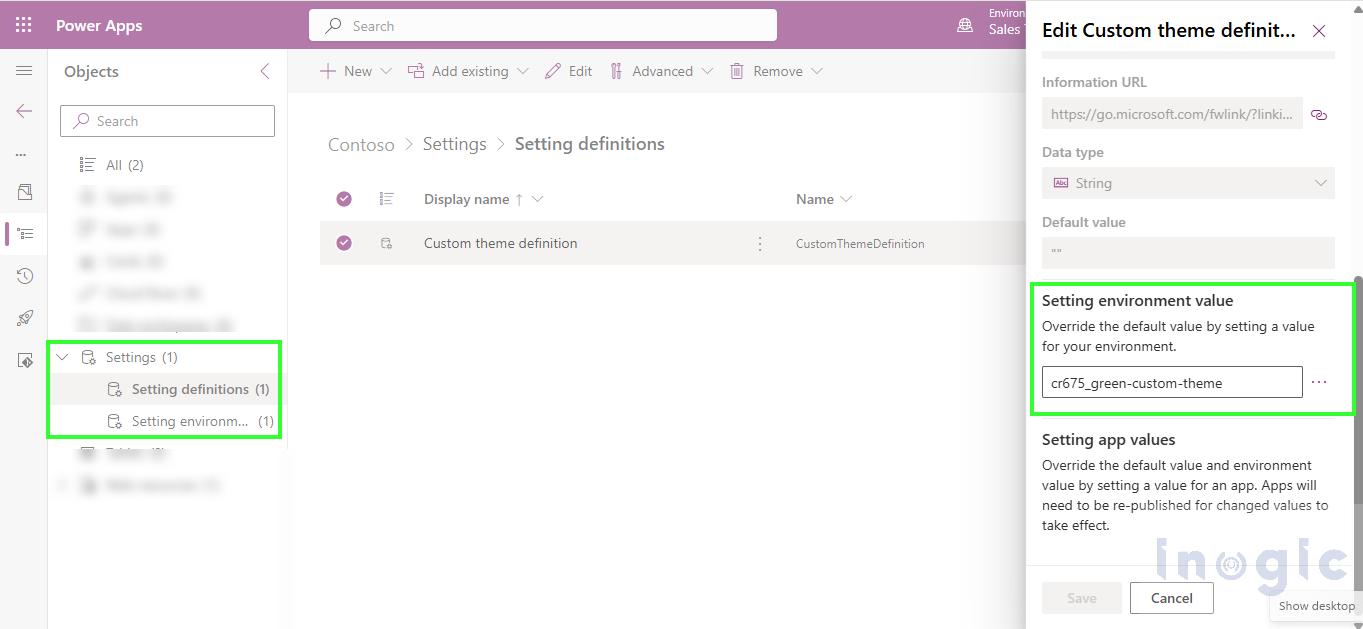
Configuring the Custom Theme Definition
Step 6: Publish the Customization
In the solution, select:
Settings → Setting definitions → Publish all customizations
Wait for the publishing process to complete.
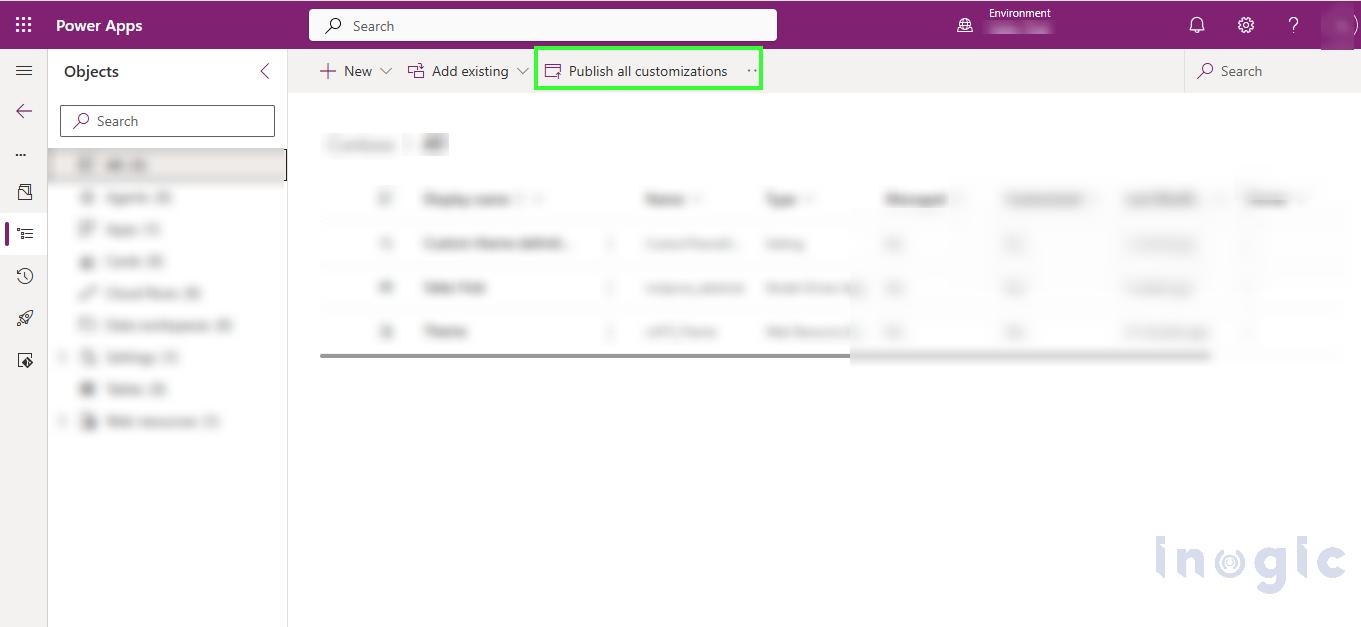
Publishing the custom theme customization.
Step 7: Verify the Modern Theme
Open your model-driven app after publishing the customization.
The application should now reflect the configured theme.
Verify that:
- The application header displays the configured colors.
- Buttons and links use the expected theme colors.
- Hover and selection states appear correctly.
- The configured logo is displayed correctly.
- The font is applied as expected.
- Text remains readable against the selected background.
If everything has been configured correctly, the application will now display your customized branding instead of the default Microsoft colors.
Depending on browser caching, you may need to:
- Refresh the browser.
- Perform a hard refresh (Ctrl + F5).
- Sign out and sign back in.
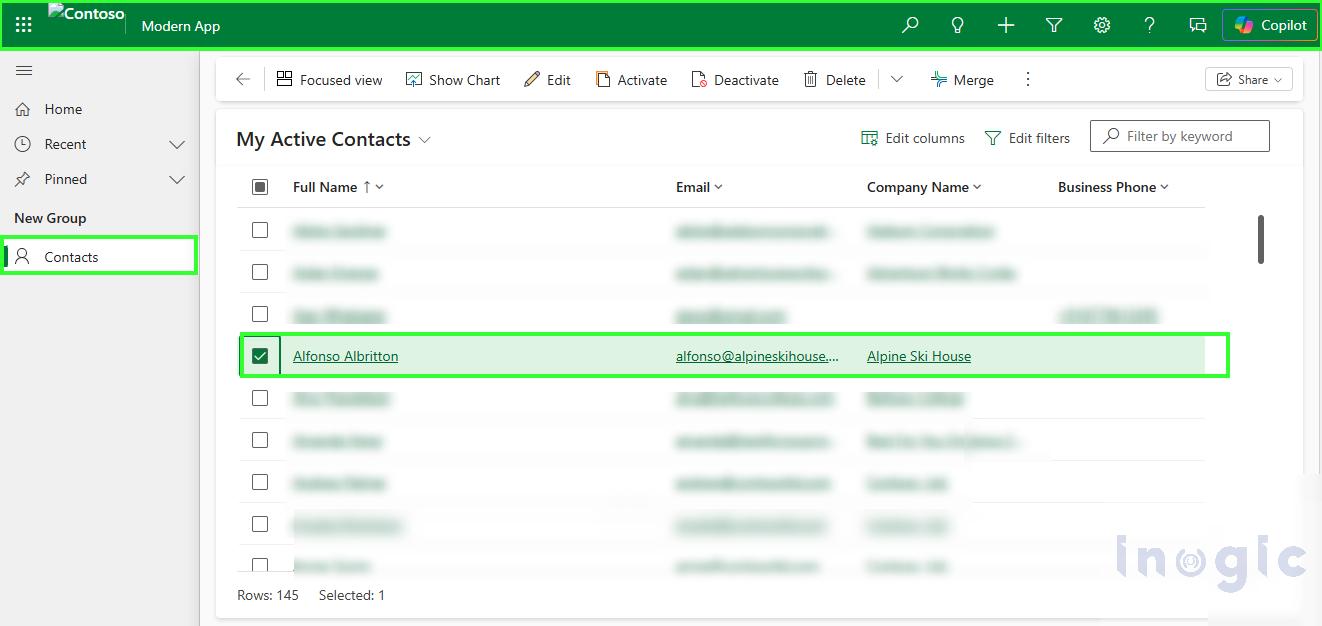
Model-driven app after applying Modern Theme Overrides.
Before and After
Default ExperienceCustomized ExperienceMicrosoft default colorsOrganization-specific brandingDifficult to distinguish environmentsColor-coded environmentsGeneric user interfacePersonalized experienceStandard application headerCustom branded header
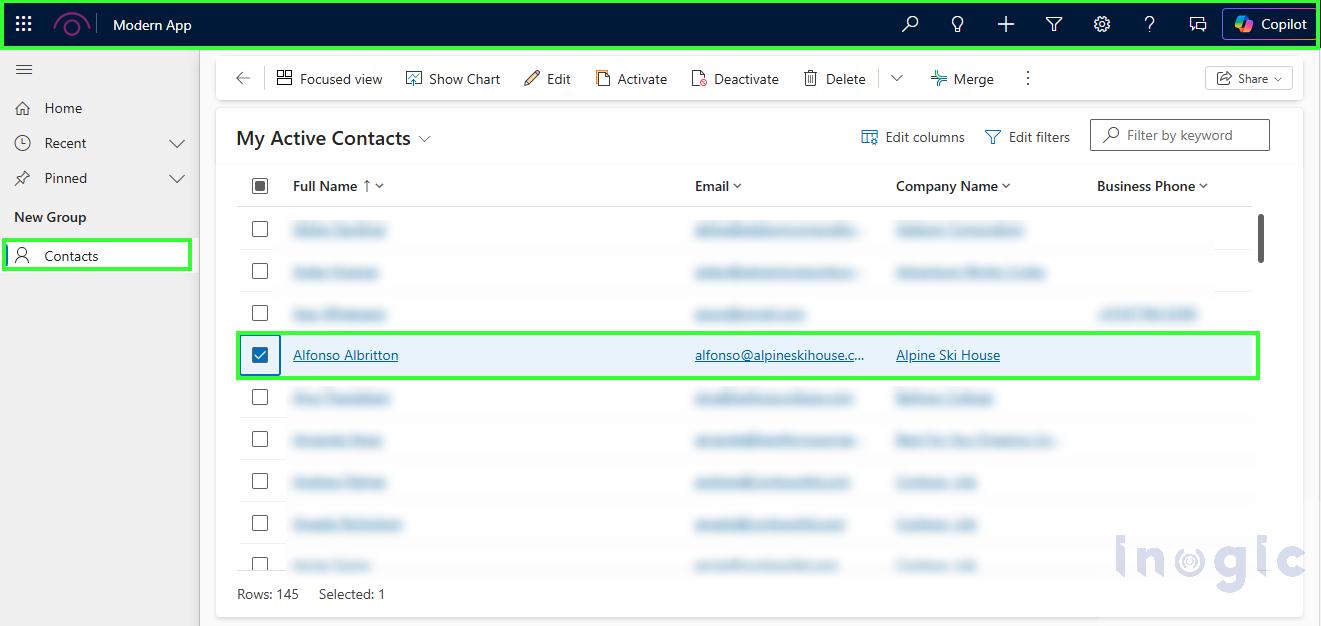
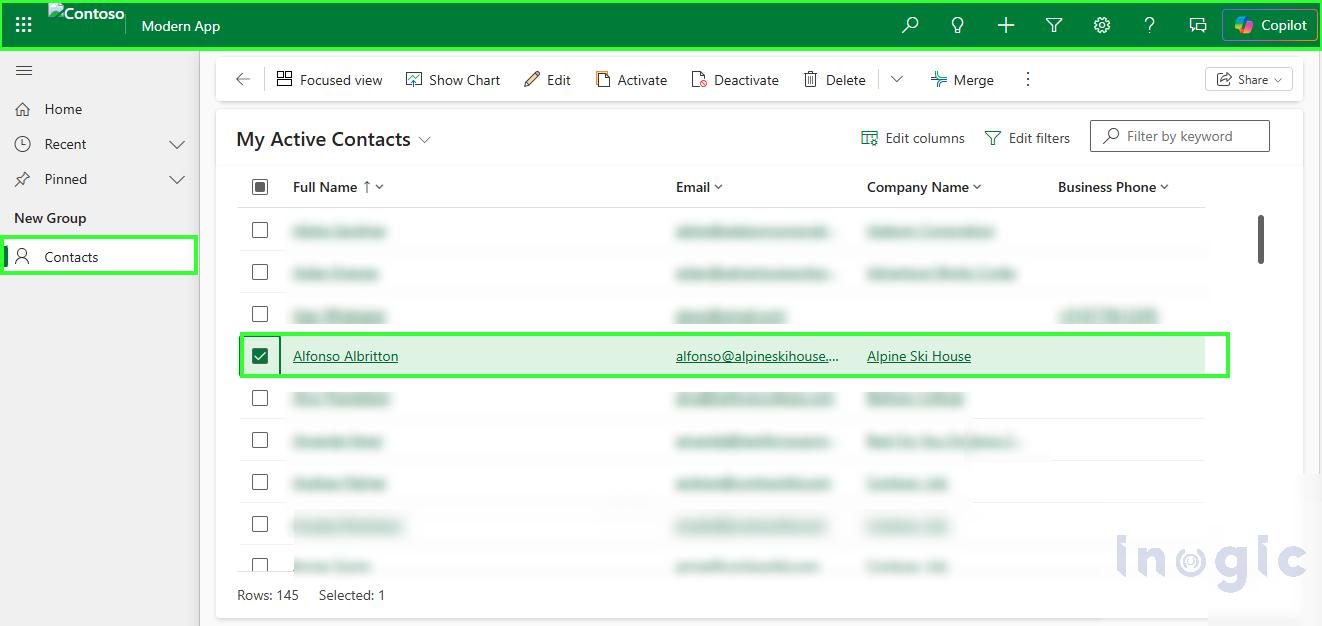
Comparison between the default application experience and the customized modern theme.
Why Modern Theme Overrides Matter
Modern Theme Overrides provide organizations with a supported way to customize model-driven applications while using the modern Power Apps experience.
They can help organizations:
- Maintain corporate branding
- Improve user recognition
- Clearly distinguish environments
- Improve user confidence
- Provide a consistent application experience
- Avoid unsupported CSS or JavaScript-based UI modifications
Most importantly, Modern Theme Overrides should be understood as the modern replacement for classic theming when working with the modern refreshed model-driven app experience, rather than as a completely new concept unrelated to the existing OOB Themes capability.
Conclusion
Dynamics 365 has supported application theming through the classic OOB Themes feature for many years. With the introduction of the modern, refreshed experience, Modern Theme Overrides provide a supported way to customize the application’s colors, header, logo, and font using XML-based configuration and Power Apps settings.
Modern Theme Overrides also allow organizations to maintain consistent corporate branding and visually differentiate between Development, UAT, and Production environments, helping improve usability and reduce the risk of users working in the wrong environment.