 Building business applications in Power Apps Canvas Apps often involves displaying and managing large amounts of data. Traditionally, developers have relied on classic controls such as Gallery, Data Table, Forms, and Buttons to build these experiences.
While these controls are fully functional, creating a modern and responsive user interface often requires significant customization. Developers frequently spend additional time configuring layouts, aligning controls, writing formulas, and applying custom styling to achieve a polished user experience.
To simplify app development, Microsoft introduced Modern Controls, which provide a Fluent UI experience with improved accessibility, responsive layouts, and a consistent design language across applications.
One of the most valuable additions is the Modern Data Grid, which makes displaying business data easier while significantly reducing development effort.
Why Choose the Modern Data Grid?
The Modern Data Grid offers several advantages over traditional approaches:
- Fluent UI design that matches Microsoft 365 applications
- Responsive layout with minimal configuration
- Multi-row selection
- Automatic row selectors
- Built-in sorting
- Built-in search
- Column sorting and resizing
- Better accessibility
- Cleaner and more maintainable apps
- Less custom Power Fx
Prerequisites
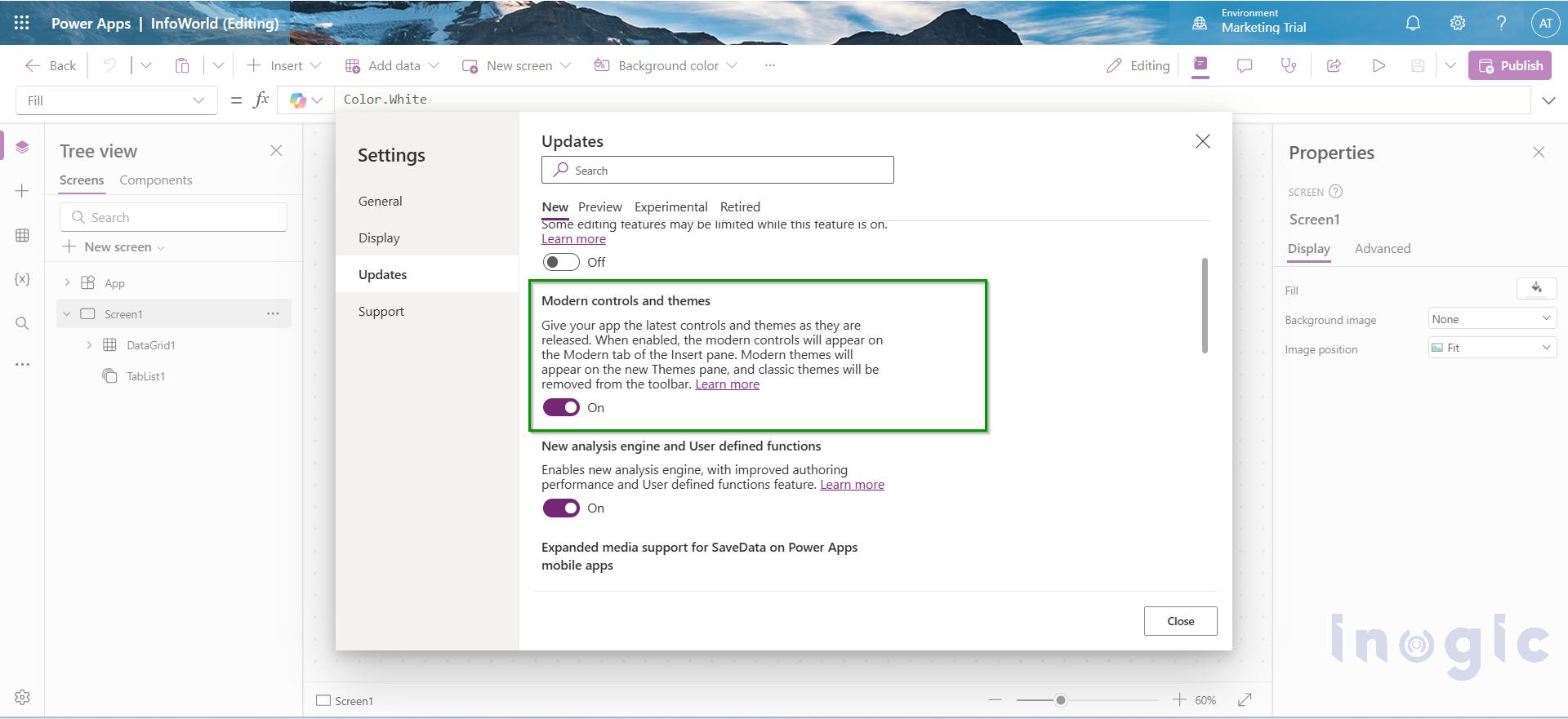
Before getting started, make sure Modern Controls are enabled in your Canvas App.
Navigate to:
Settings → Updates → Enable Modern controls and themes
Real-World Scenario
Let’s build a simple Account Management Canvas App.
The app displays a list of customer accounts with the following information:
- Account Name
- Account Number
- Main Phone
- City
- Status
We’ll first build the application using classic controls and then modernize it using Modern Controls.
Displaying Data Before Modern Controls
Option 1 – Gallery
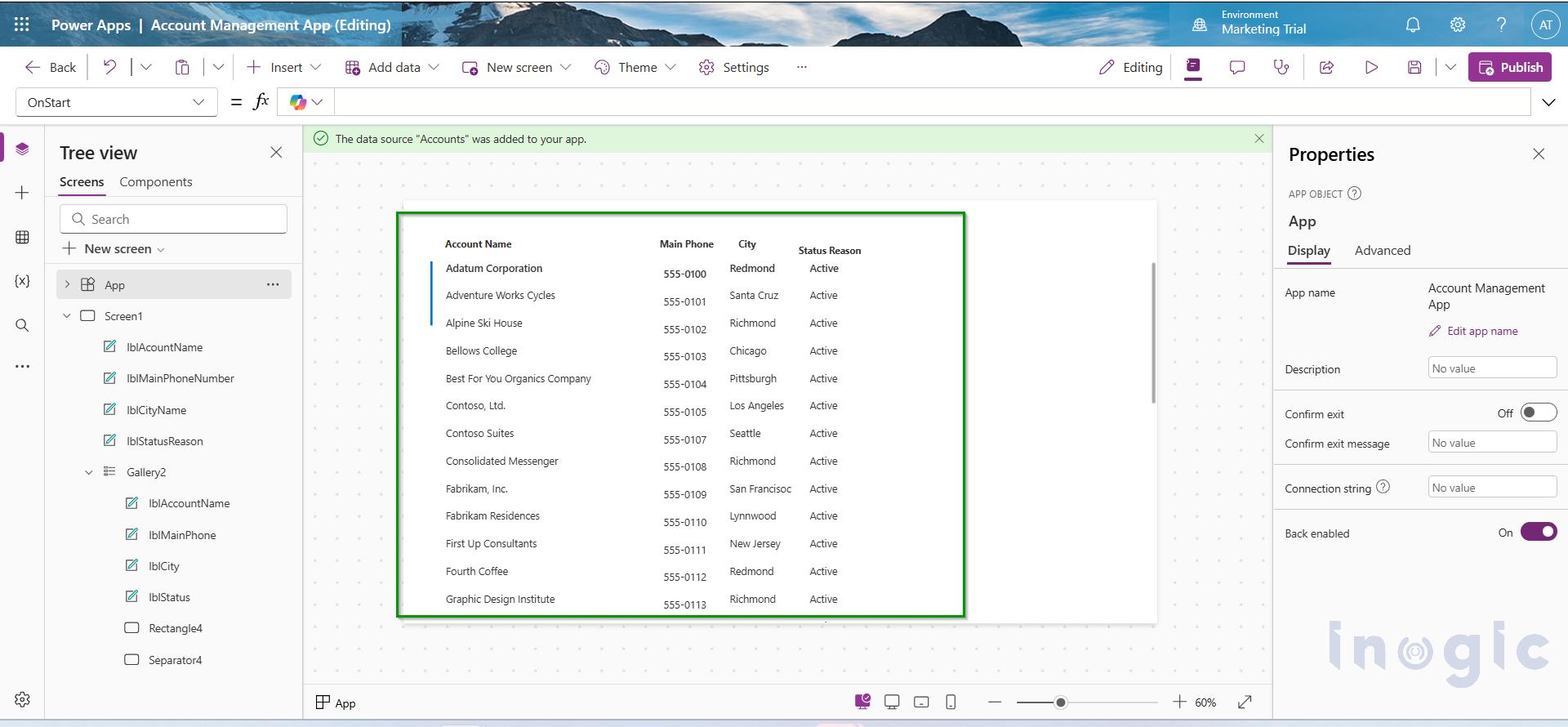
The Gallery control has always been a popular choice for displaying business data because it offers complete flexibility over the layout.
For our Account Management app, the gallery displays:
| Account Name Main Phone City Status |
Although the Gallery works well, creating a table-like experience requires considerable manual effort.
Developers typically need to:
- Create column headers manually
- Align every label with its corresponding header
- Configure row spacing
- Add alternating row colors
- Implement sorting and filtering
- Handle responsive layouts
- Implement filtering
- Implement sorting
For example, sorting the accounts alphabetically requires a formula similar to:
| Sort( |
| Accounts, |
| ‘Account Name’ |
| ) |
As the application grows, maintaining this layout becomes increasingly difficult.
Note: A Gallery does not automatically generate column headers. Developers must manually create and align each header label to match the data displayed inside the gallery.
Option 2 – Data Table
Another common approach is the Data Table control.
Unlike the Gallery, it automatically displays data in rows and columns.
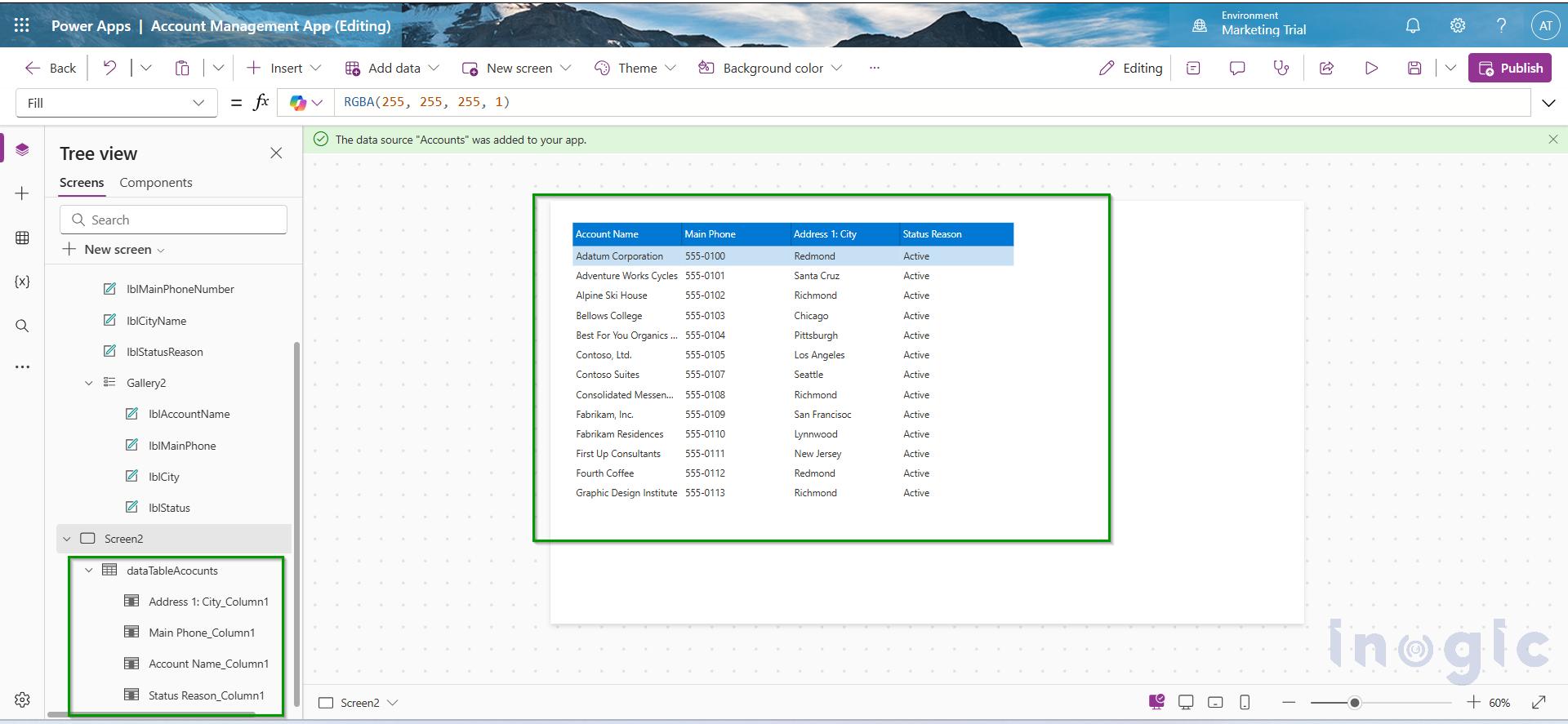
Although it provides a tabular layout, it comes with several limitations:
- Limited styling options
- Limited customization
- Doesn’t fully match Fluent UI
- Limited interaction
- Fewer built-in configurable behaviors
- Less responsive than Modern Controls
While the Data Table improves the presentation of data, developers often find it restrictive when designing modern business applications.
A Better Approach – Modern Data Grid
The Modern Data Grid combines the structured layout of a table with the Fluent UI experience expected in modern Microsoft applications.
Simply insert:
Insert → Modern → Data Grid
Connect it to the Accounts table and choose the required columns.
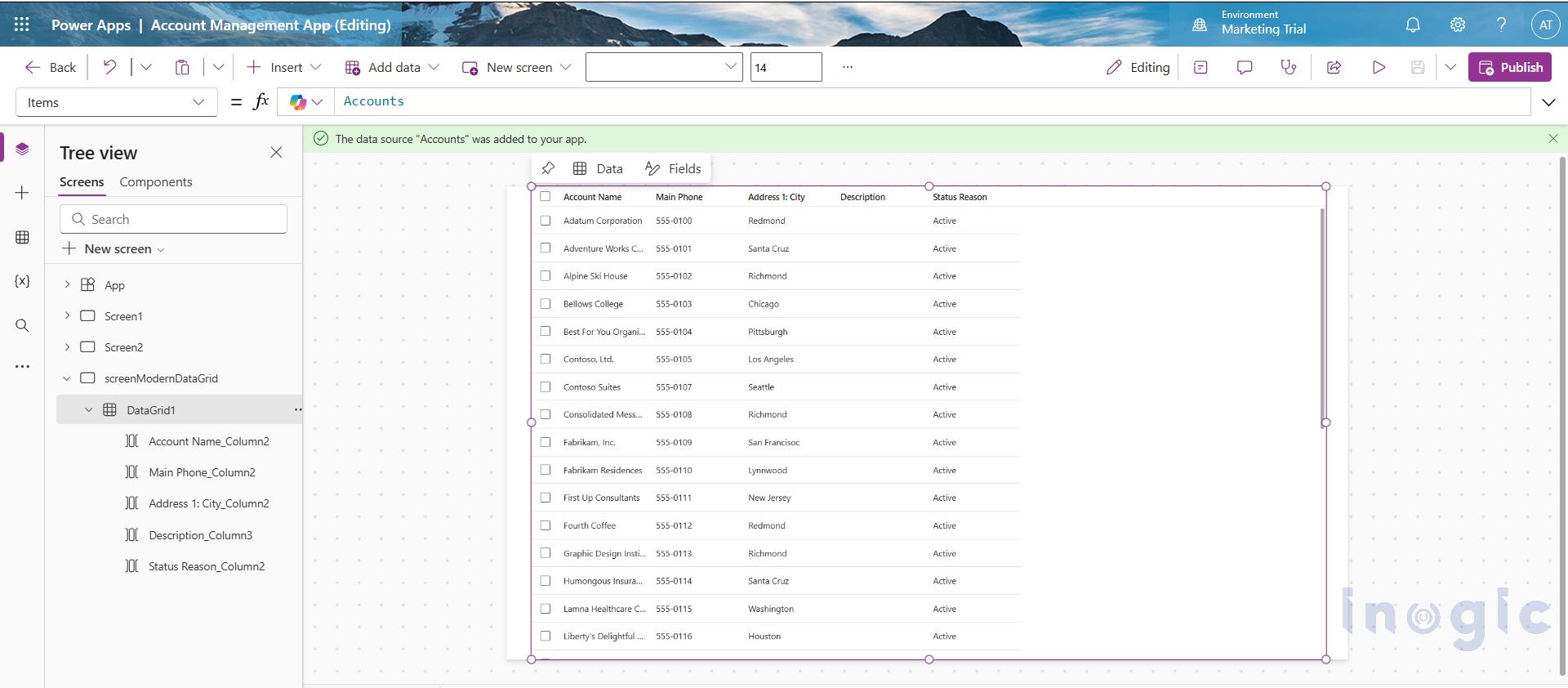
Immediately you’ll notice:
- Fluent UI styling
- Better spacing
- Responsive layout
- Built-in search
- Built-in sorting
- Multi-row selection
- Automatic column headers
- Professional appearance
The result closely resembles the experience users already know from Microsoft Lists and Dynamics 365, making the application more intuitive and visually appealing.
Built-in Features That Save Development Time
Beyond its modern appearance, the Modern Data Grid includes several built-in capabilities that developers would otherwise need to implement manually when using classic controls like a Gallery.
The following properties can be enabled directly from the Properties pane without writing additional Power Fx formulas.
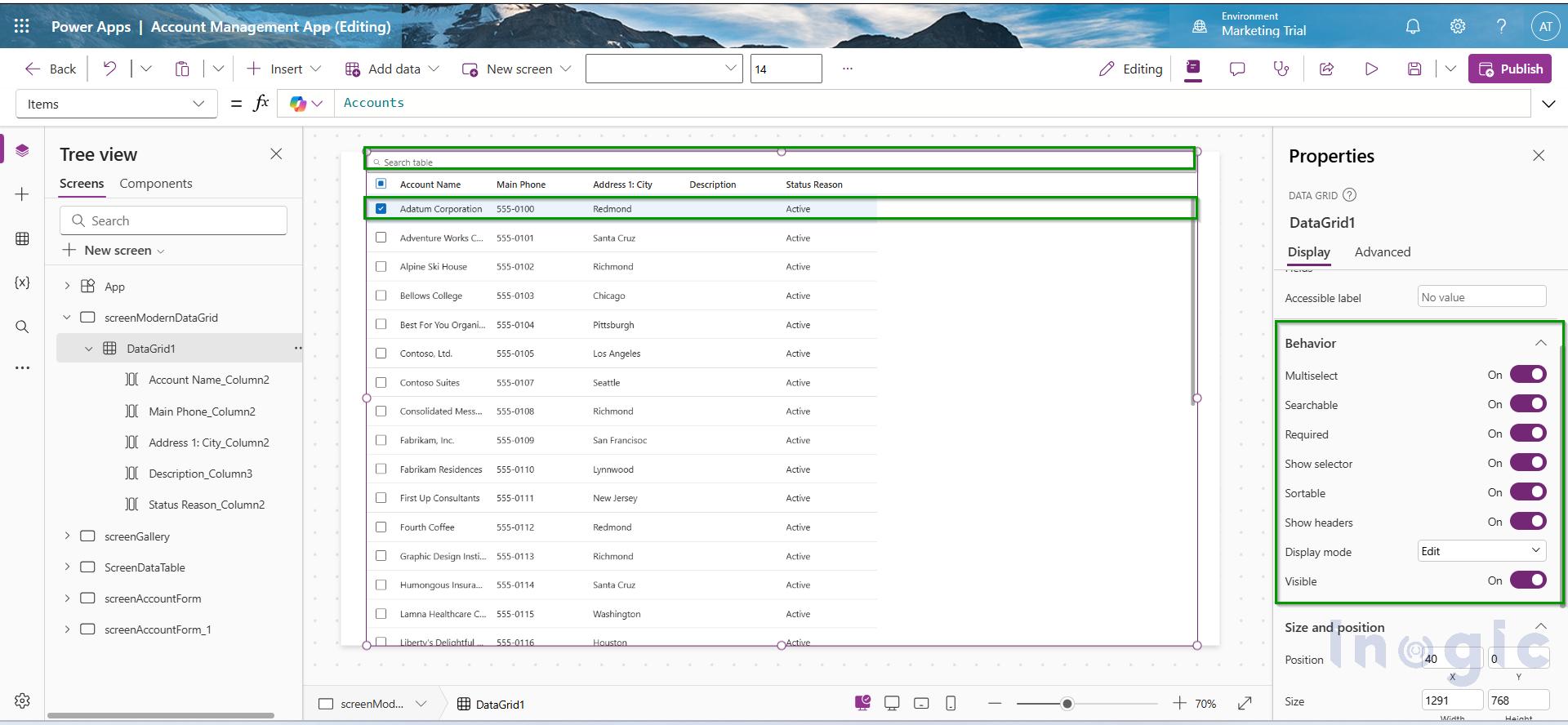
These include:
- Searchable
- Sortable
- MultiSelect
- Show Selector
- Show Headers
- Required
These capabilities significantly reduce development effort while providing a familiar Microsoft 365 experience.
Data Table vs Modern Data Grid
Built-in Search
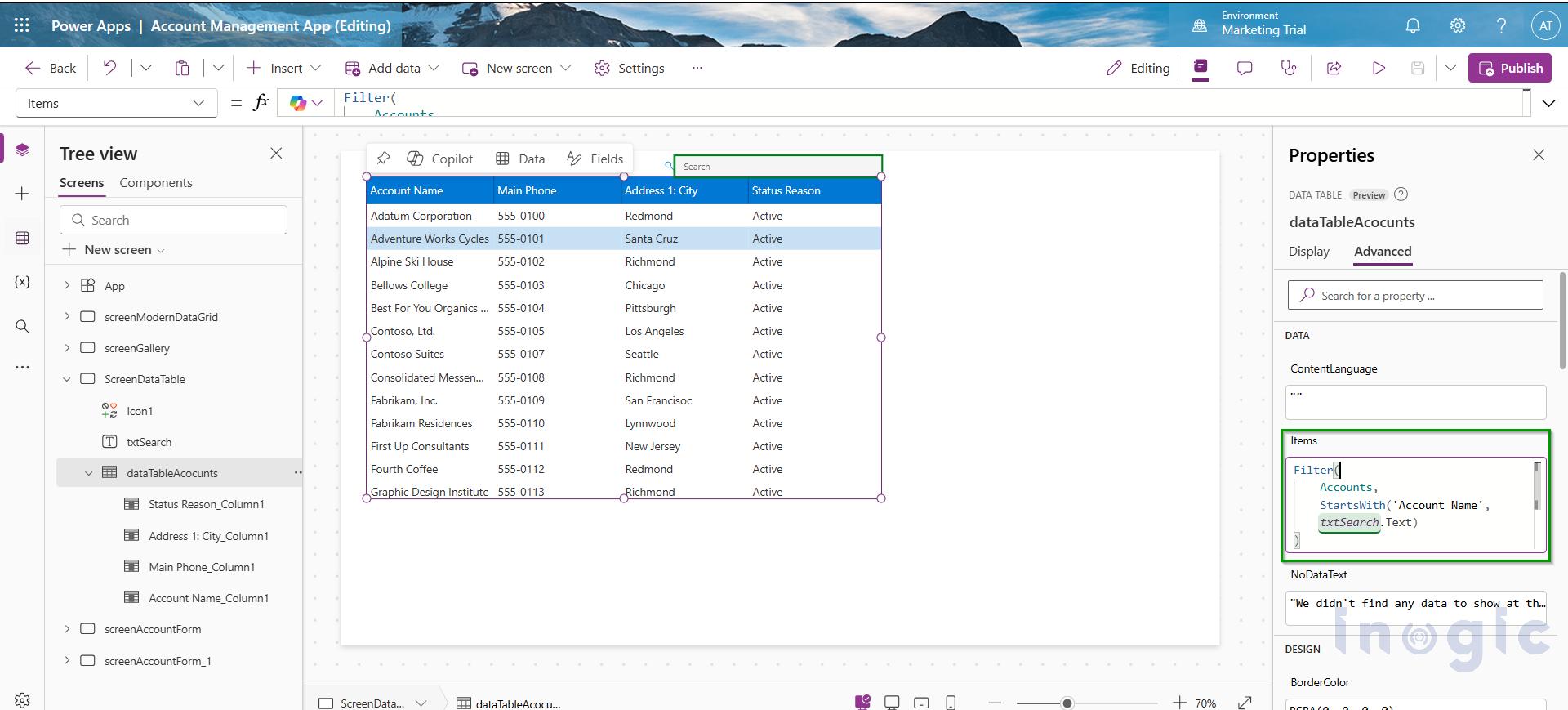
Data Table
If users need to search records, developers must create:
- A Text Input
- A filtering formula
- Maintain the search logic
Example:
Search(
Accounts,
txtSearch.Text,
‘Account Name’
)
or
Filter(
Accounts,
StartsWith(
‘Account Name’,
txtSearch.Text
)
)
Modern Data Grid
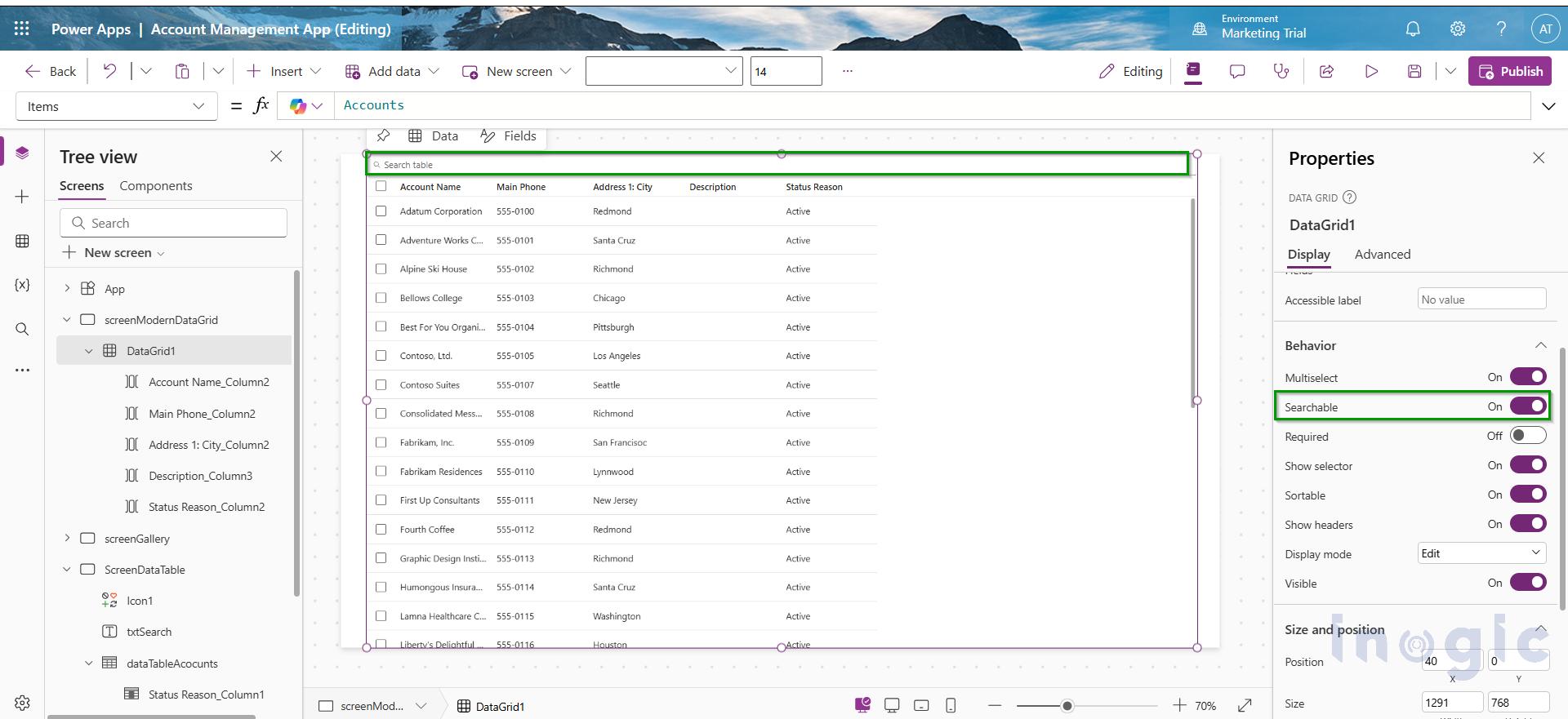
Simply enable the Searchable property.
A search box is automatically displayed above the grid, allowing users to quickly search records.
Sorting
Data Table
Sorting typically requires additional formulas or custom implementation depending on the scenario.
Modern Data Grid
Enable the Sortable property.
Users can sort records directly by clicking the column headers.
No additional implementation is required.
Multi-Row Selection
Data Table
Selecting multiple records requires custom logic or additional controls, depending on the application’s requirements.
Modern Data Grid
Enable MultiSelect.
Users can immediately select multiple rows.
Required Selection
Data Table
Developers must manually validate whether a row has been selected before performing an action.
Modern Data Grid
Enable Required.
The control can enforce that a record is selected before continuing.
Best Practices
- Use the Modern Data Grid for displaying structured business data from Dataverse, SharePoint, or SQL, especially when you need features like search, sorting, and multi-row selection.
- Use a Data Table for simple read-only tabular data where minimal customization is required.
- Use a Gallery when records require a highly customized layout, such as cards, images, or dashboards.
- Prefer Modern Controls for new Canvas Apps to provide a consistent Fluent UI experience with less development effort.
Conclusion
The Modern Data Grid is a significant improvement over traditional controls for displaying structured business data in Canvas Apps. While Galleries offer maximum flexibility for custom layouts and Data Tables provide a simple tabular view, both often require additional customization or Power Fx formulas to support common business requirements.
With the Modern Data Grid, many of these capabilities—such as search, sorting, multi-row selection, row selectors, and required selection—are available through built-in properties, reducing development effort while delivering a modern Fluent UI experience.
Choosing the right control depends on your scenario. Use a Gallery for highly customized layouts, a Data Table for basic read-only data, and the Modern Data Grid when you need an interactive, professional, and feature-rich tabular experience. By adopting Modern Controls in new Canvas Apps, developers can build applications that are easier to maintain, more consistent, and provide a familiar Microsoft 365 user experience.
Frequently Asked Questions
What is the Modern Data Grid in Power Apps Canvas Apps?
The Modern Data Grid is a modern control in Power Apps Canvas Apps that displays business data in a structured, interactive table. It offers built-in features such as search, sorting, multi-row selection, automatic column headers, and Fluent UI styling, helping developers create professional applications with less customization.
What is the difference between the Modern Data Grid, Gallery, and Data Table in Power Apps?
The Gallery provides maximum flexibility for custom layouts but requires manual configuration for headers, sorting, and filtering. The Data Table offers a simple tabular view but has limited customization options. The Modern Data Grid combines a structured table layout with built-in search, sorting, responsive design, and Fluent UI, making it the preferred choice for modern business applications.
When should you use the Modern Data Grid in Power Apps?
Use the Modern Data Grid when your app needs to display structured business data with features like built-in search, sorting, row selection, and a responsive Microsoft 365-style interface. It is ideal for Dataverse, SharePoint, and SQL data sources.
What are the main benefits of using the Modern Data Grid in Power Apps?
The Modern Data Grid reduces development effort by providing built-in search, sorting, row selection, automatic headers, responsive layouts, improved accessibility, and a modern Microsoft Fluent UI experience.
What is the best control for displaying business data in Power Apps?
The best control depends on your requirements. Use the Modern Data Grid for interactive tabular data, the Gallery for customized layouts, and the Data Table for simple read-only data displays. For most modern business applications, the Modern Data Grid offers the best balance of functionality, usability, and maintainability.