 Microsoft has introduced the Disable Click-Through on Lookup Values in Forms feature in Dynamics 365 Field Service, giving administrators greater control over how lookup fields behave on model-driven forms.
With this enhancement, lookup values can be displayed as plain text instead of clickable hyperlinks. This helps prevent accidental navigation to related records, allowing users to stay focused on their current task and providing a smoother, more efficient experience, especially in the Field Service Mobile app.
Let’s explore how this feature improves the user experience through a practical Field Service scenario.
Key Takeaways
- Display lookup values as plain text instead of clickable hyperlinks.
- Prevent accidental navigation to related records in model-driven forms.
- Improve productivity for Field Service Mobile users by minimizing workflow interruptions.
- Configure the feature using a no-code, out-of-the-box Lookup Control component.
Use Case –
Consider a field technician using the Field Service Mobile application to update a Work Order after completing a service task.
While updating the work order, the technician needs to verify the Service Account before changing the work order status.
By default, the Service Account lookup is displayed as a clickable hyperlink. On a mobile device, where interactions are touch-based, accidental taps are more common. If the technician unintentionally taps the Service Account lookup, the application navigates to the related Account record.
This interrupts the current workflow and requires the technician to navigate back to the Work Order to continue updating it. When this happens multiple times throughout the day, it creates unnecessary interruptions, slows task completion, and negatively impacts productivity.
By enabling the Disable Click Through on Lookup Values feature, the Service Account is displayed as plain text instead of a clickable hyperlink. This allows technicians to verify the required information while remaining on the current Work Order, reducing accidental navigation and enabling them to complete their tasks faster and more efficiently.
Steps to Configure Disable Click through on Lookup Values –
Follow the steps below to disable click through for a lookup field in a model-driven form –
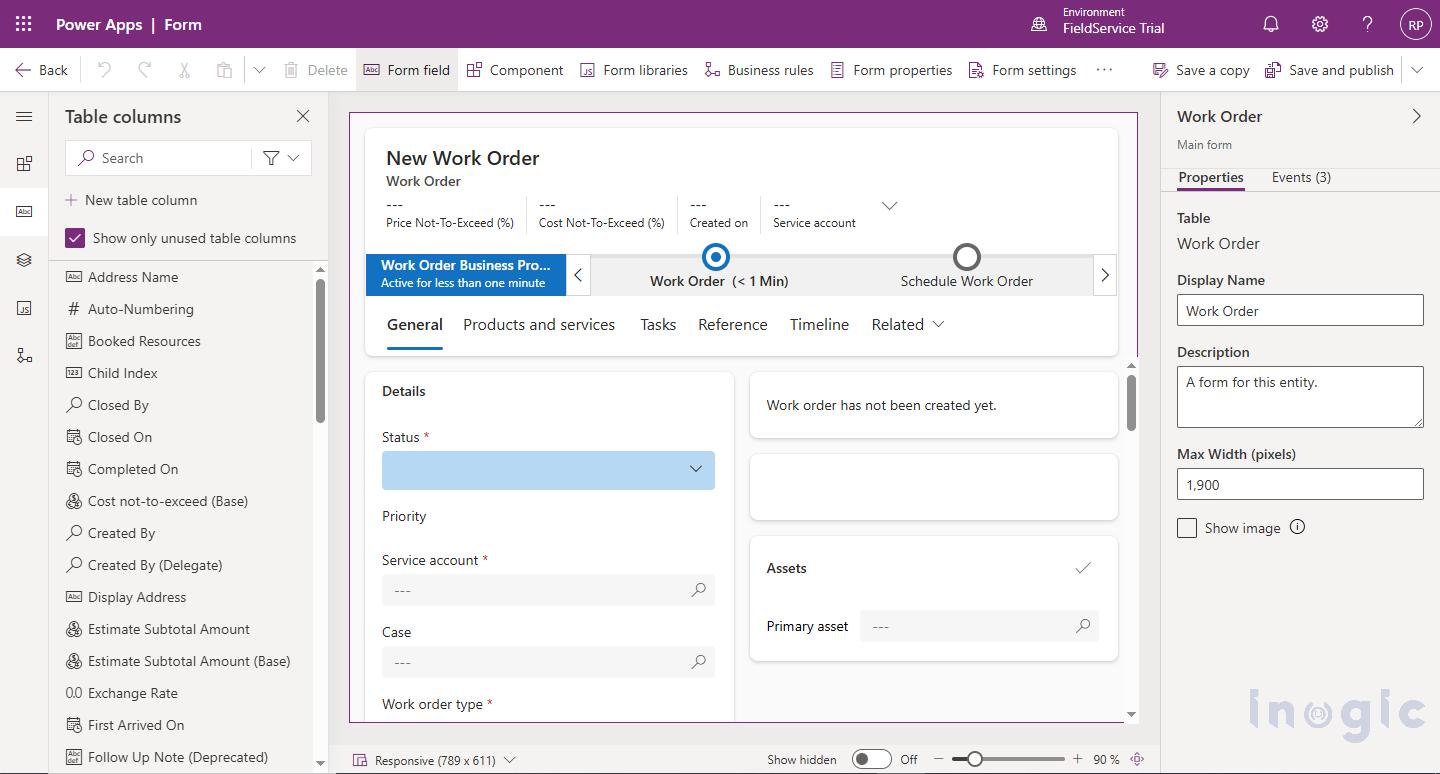
- Navigate to the Power Apps Maker Portal and open the form where you want to disable click through on a lookup field.

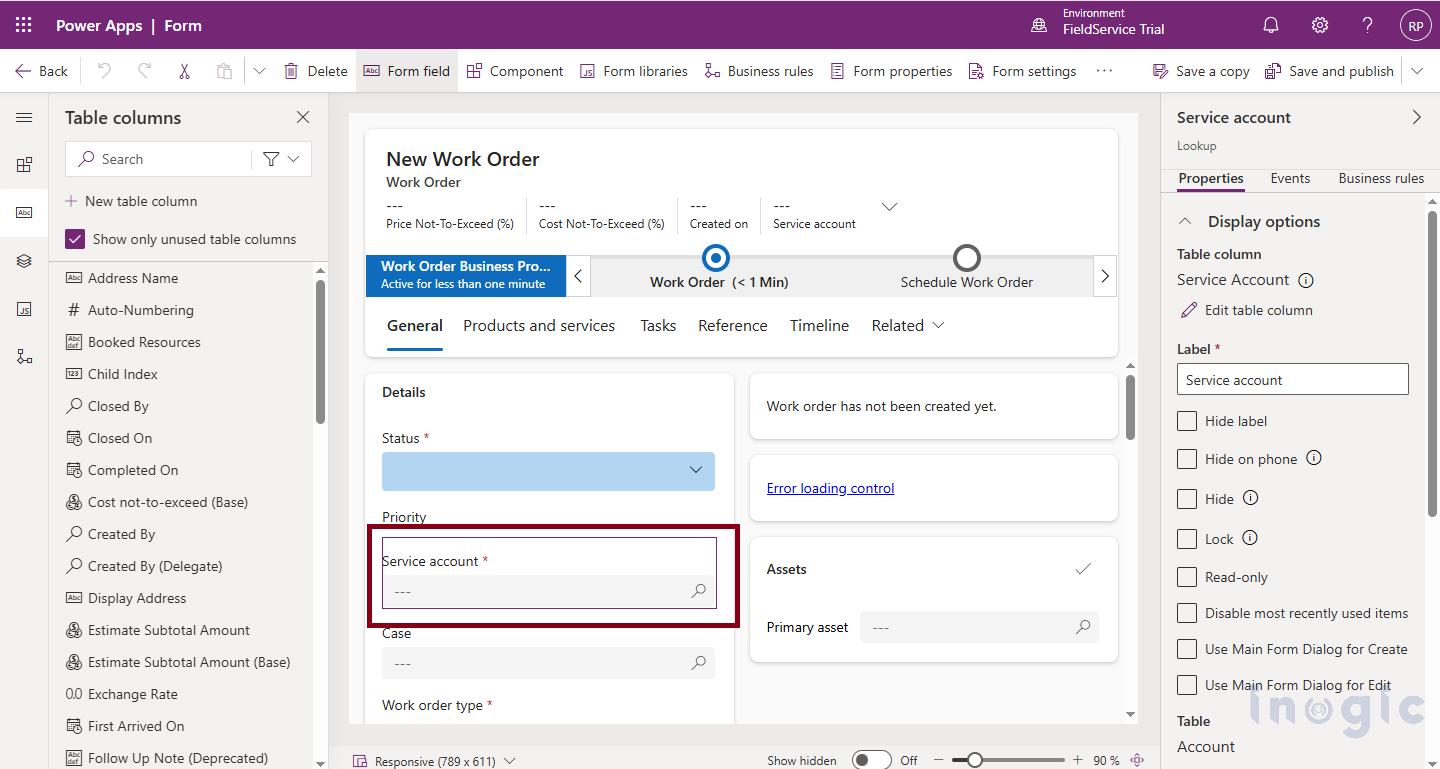
- In the form designer, select the lookup field for which you want to disable click through – Service Account

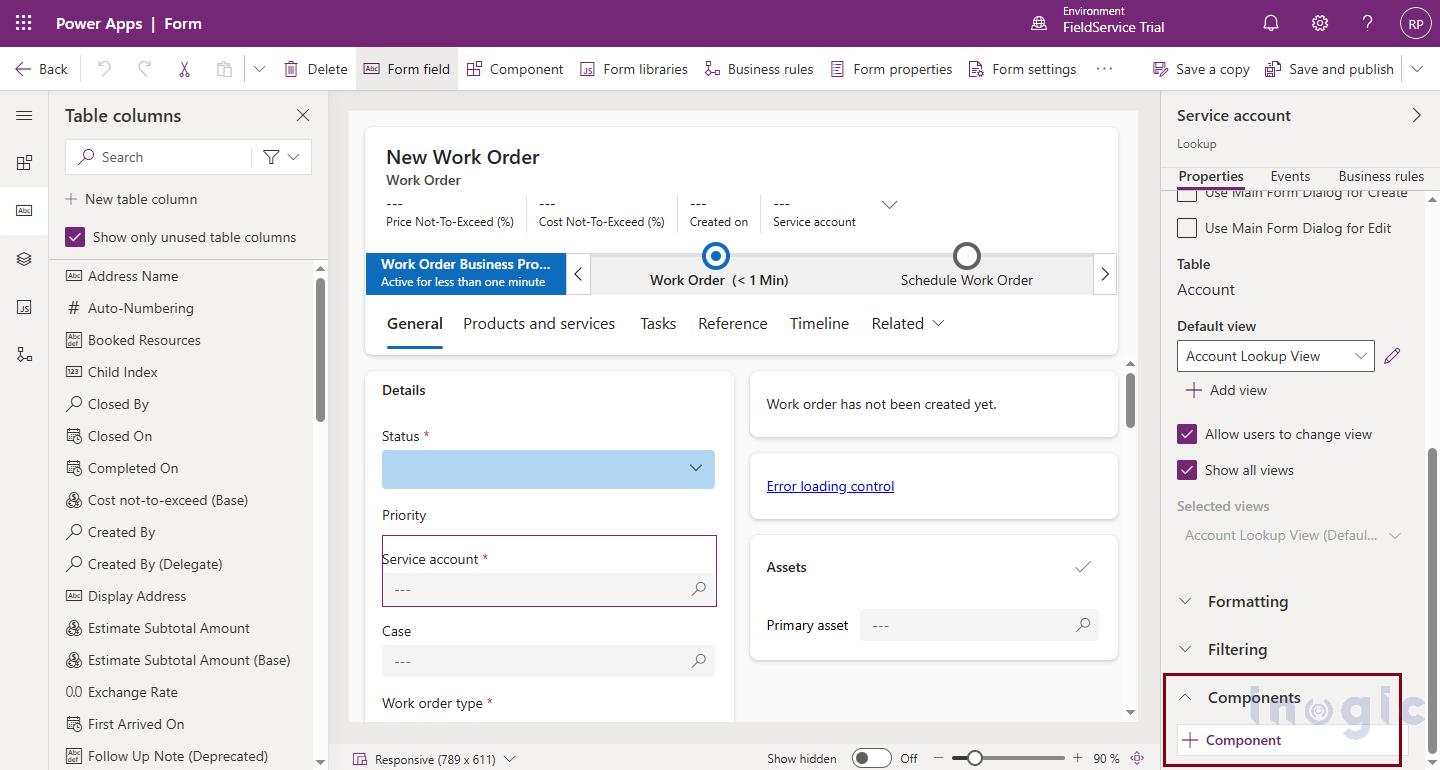
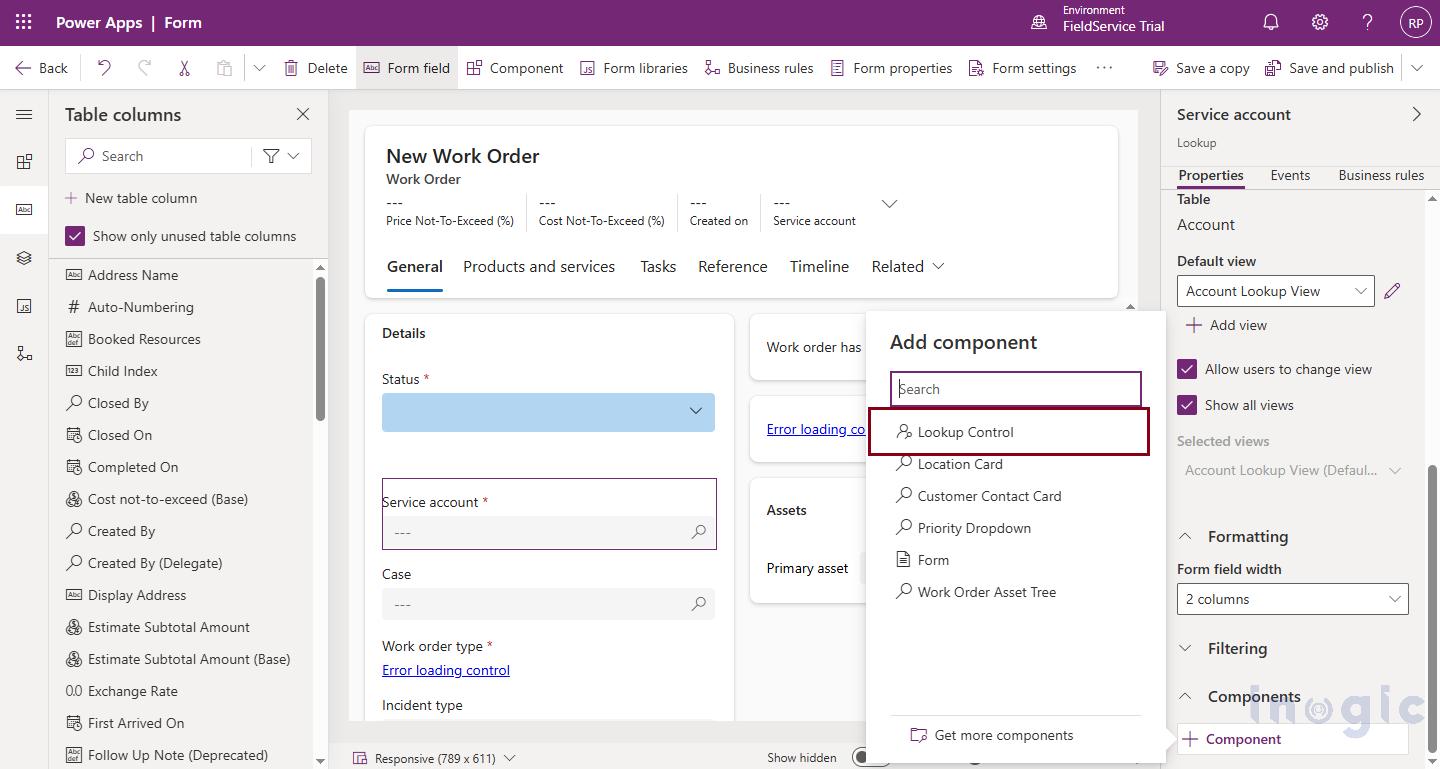
- In the Properties pane, scroll down to the Components

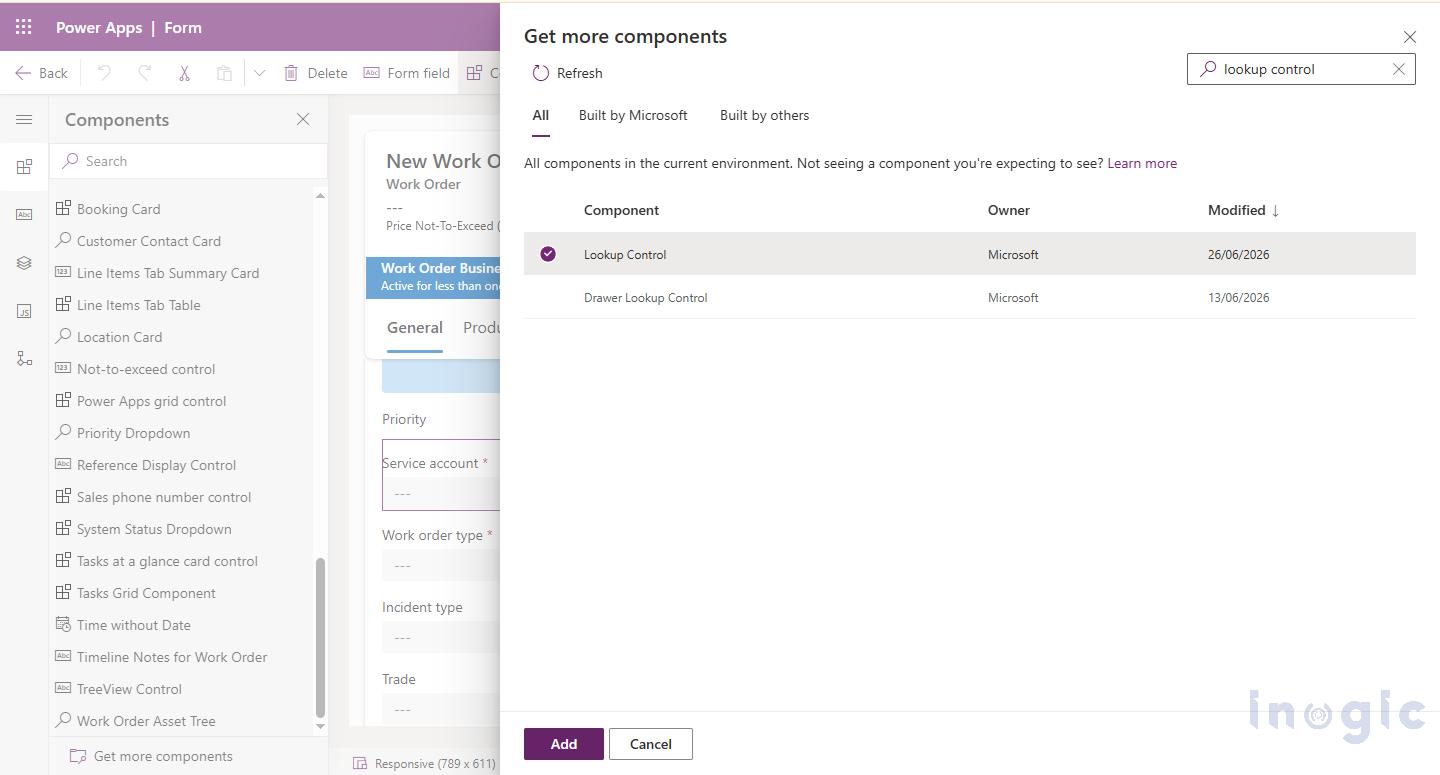
- Click + Component, search for Lookup Control (not Look-up Control), and add it to the selected lookup field.

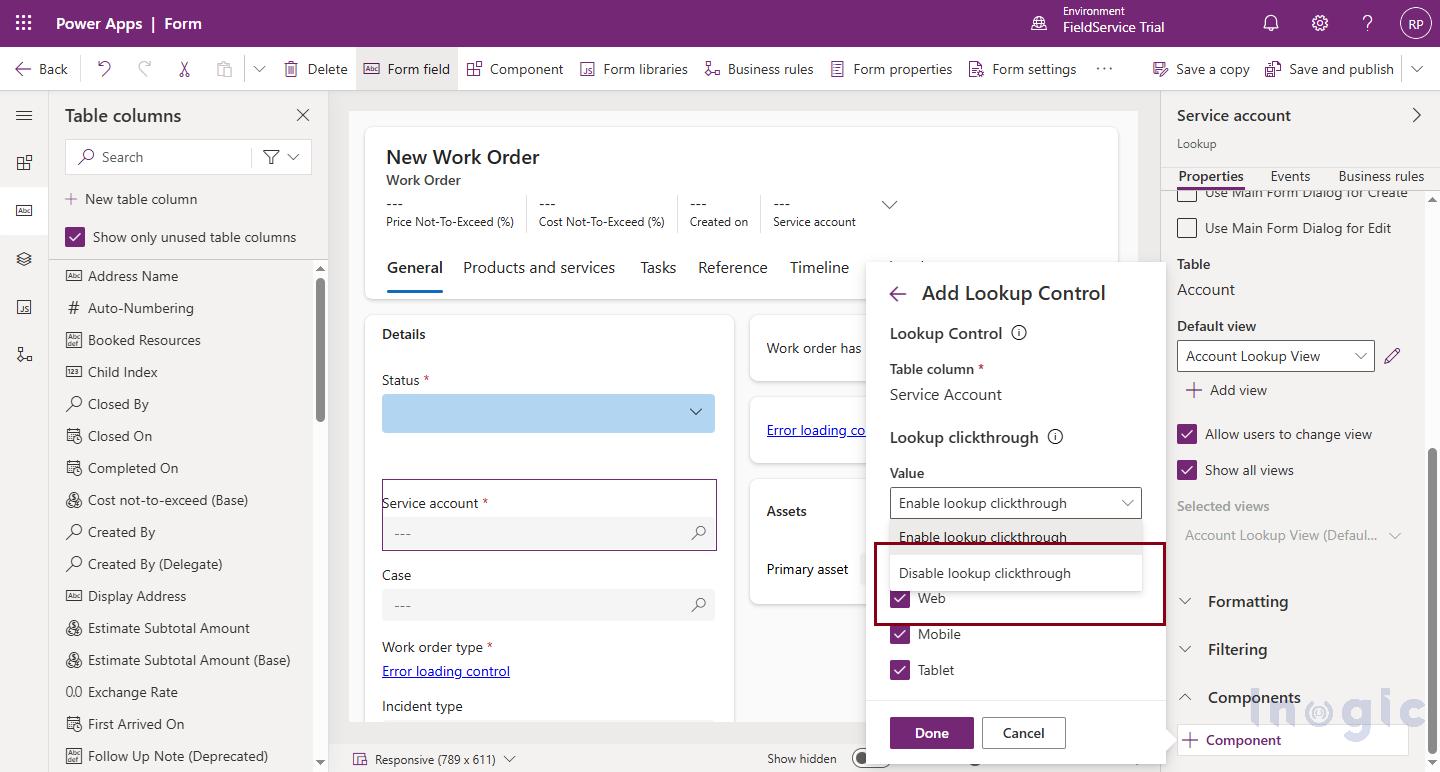
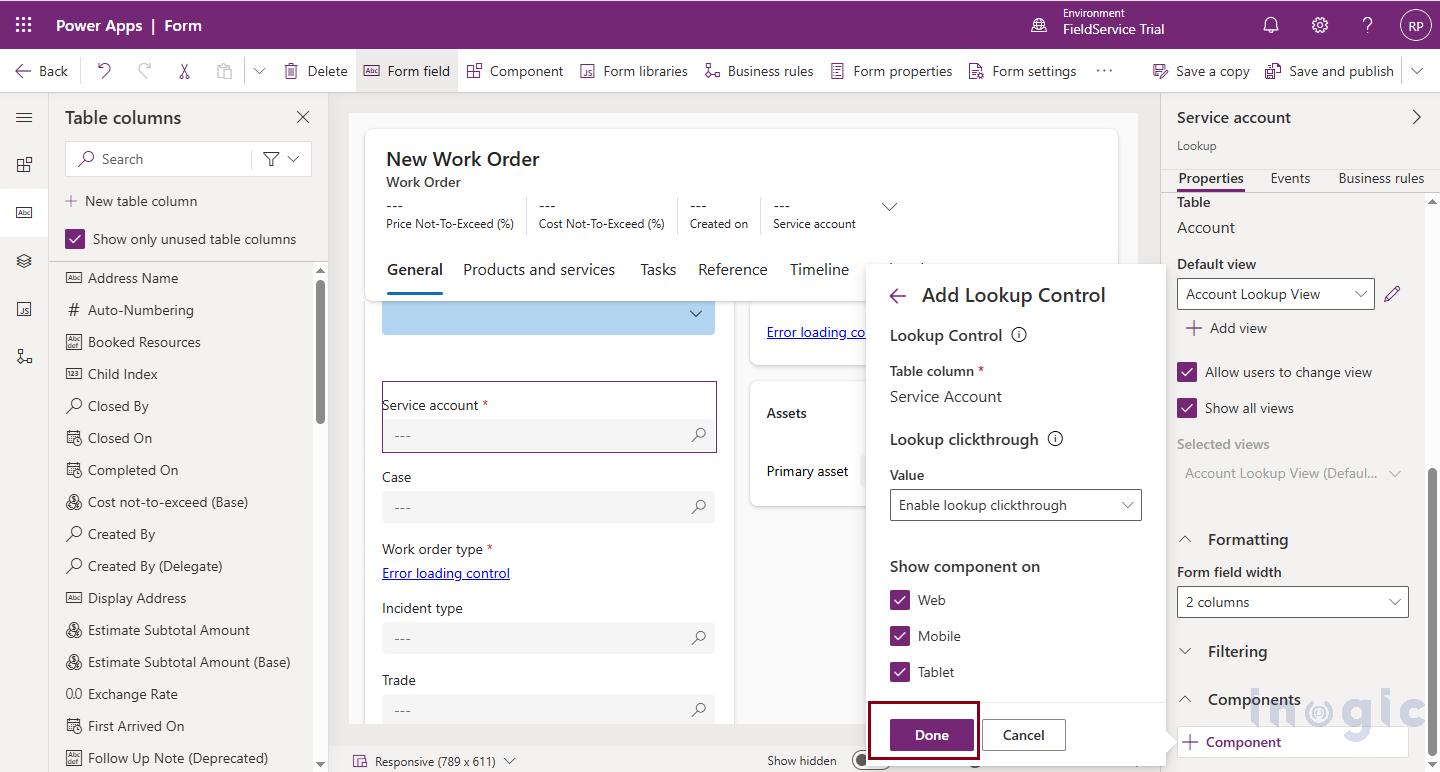
- Select the newly added Lookup Control component and set the Lookup Click through property to Disable lookup click through.

- Click Save and then Publish the form to apply the changes.
Conclusion
The Disable Click Through on Lookup Values feature is a valuable enhancement that improves the usability of model-driven forms in Dynamics 365 Field Service. By allowing administrators to disable navigation for specific lookup fields through a simple, no-code configuration, Microsoft has eliminated the need for custom development while providing a fully supported solution.
This feature is particularly beneficial in scenarios where users only need to reference lookup information rather than open related records. By preventing accidental navigation, it helps users stay focused on their current task, improves workflow efficiency, and delivers a smoother experience, especially for technicians using the Field Service Mobile application.
Overall, this enhancement simplifies customization, reduces maintenance effort, and enables organizations to build cleaner, more efficient, and easier-to-maintain model-driven applications while improving the overall user experience.
Frequently Asked Questions
1. What is the Disable Click Through on Lookup Values feature?
It is a Dynamics 365 Field Service enhancement that allows administrators to display lookup fields as plain text instead of clickable hyperlinks, preventing users from accidentally opening related records.
2. Which applications benefit the most from this feature?
The feature is especially beneficial for Dynamics 365 Field Service Mobile, where touch-based interactions make accidental taps more likely. However, it can also improve usability in other model-driven apps.
3.Does disabling click through affect the lookup value itself?
No. The lookup still displays the related record’s name and maintains the relationship. Only the ability to navigate directly to the related record from the form is disabled.
4. Is custom JavaScript required to disable lookup navigation?
No. This is a fully supported, out-of-the-box, no-code feature that can be configured using the Lookup Control component in the form designer.
5. Can I enable or disable click through for individual lookup fields?
Yes. The setting is configured per lookup field, allowing administrators to decide which lookups should remain clickable and which should be displayed as plain text.