Sales teams generate large volumes of data in Microsoft Dynamics 365 CRM, but turning that data into accurate sales predictions can be challenging. Using AI-powered predictive models, organizations can automatically forecast outcomes such as:
- Whether a Lead will convert
- The probability of closing an Opportunity
- Lead qualification likelihood
- Sales pipeline outcomes
This guide explains how to configure an AI model in Dynamics 365 CRM for sales prediction step-by-step, even if you are not a data scientist.
Key Takeaways
- AI models in Dynamics 365 CRM predict sales outcomes using historical CRM data.
- Predict4Dynamics enables users to configure predictive models without coding.
- Predictions automatically run when records are created or updated.
- Explainable AI helps users understand why predictions are generated.
What Is an AI Model in Dynamics 365 CRM?
An AI prediction model analyzes historical CRM data to identify patterns and predict future outcomes. For example:
| CRM Entity | Prediction Example |
| Leads | Predict whether a lead will qualify |
| Opportunities | Predict deal win probability |
| Accounts | Predict the likelihood of churn |
Once configured, the model automatically generates predictions whenever a record is created or updated.
How do you configure an AI model in Dynamics 365 CRM for sales prediction?
To configure an AI model in Dynamics 365 CRM for sales prediction:
- Navigate to Predict AI Models.
- Create a new predictive model.
- Select the CRM entity (such as Leads or Opportunities).
- Provide historical data using FetchXML.
- Choose the fields that influence predictions.
- Select the target column to predict.
- Configure prediction triggers (Create or Update).
- Train the AI model.
- View predictions directly on CRM records.
Once configured, the model automatically predicts outcomes whenever CRM records are created or updated.
Let’s dive in one by one.
Step-by-Step Guide to Configure an AI Model in Dynamics 365 CRM
Step 1: Open Predict AI Models
Select Predict AI Models from the left navigation
You can either:
- Create a new AI model
- Use an existing sample model
This section is where all prediction models are managed.
Step 2: Create a New AI Model
Click New Model and start defining the prediction settings.
Enter Model Name: Provide a unique name for your model.
Example:
- Lead Conversion Predictor
- Opportunity Win Predictor
- Sales Probability Model
This name helps differentiate multiple predictive models in CRM.
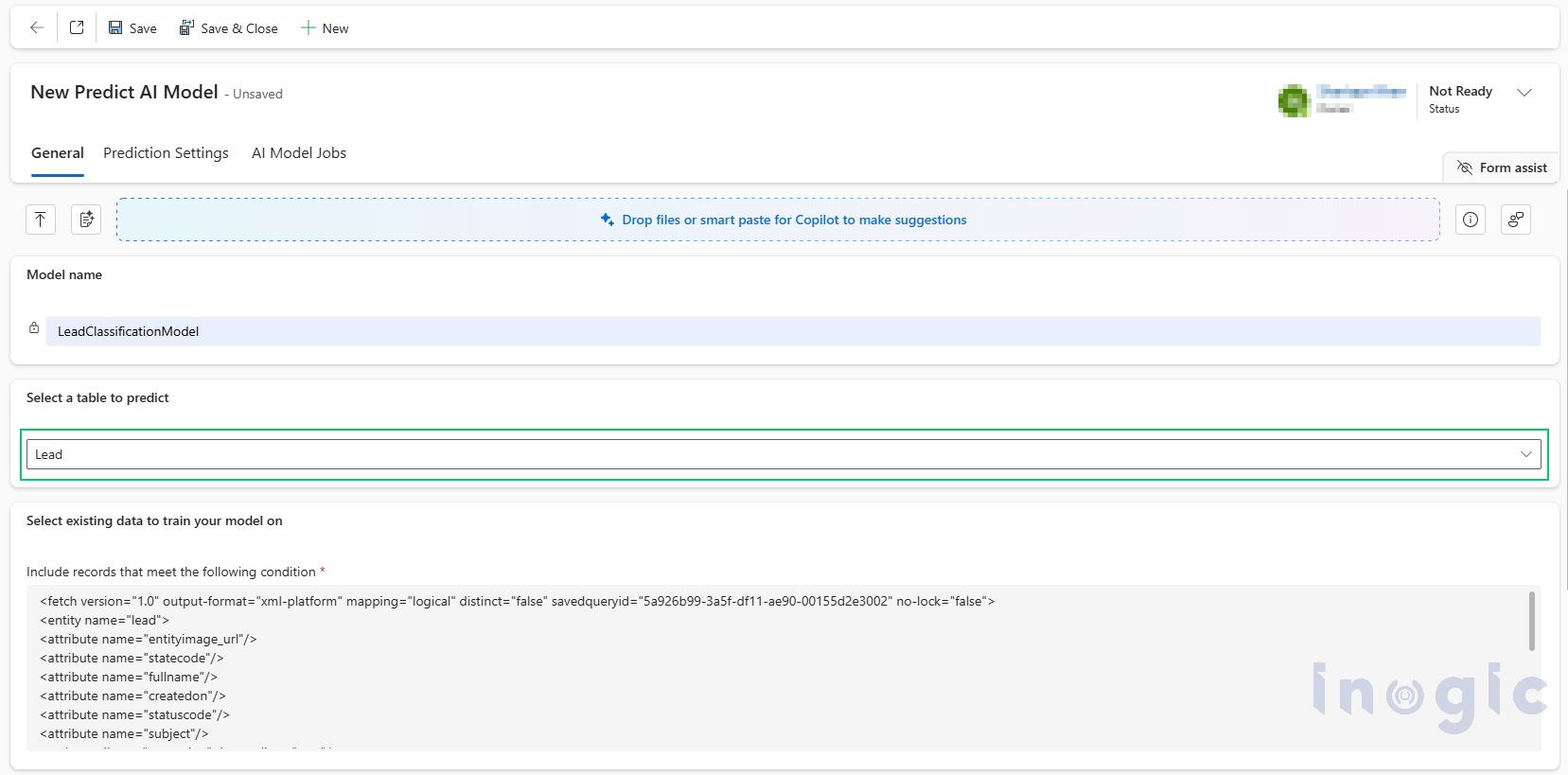
Step 3: Select the Table (Entity) to Predict
Choose the Dynamics 365 table (entity) where predictions will run.
Examples:
- Leads
- Opportunities
- Accounts
- Custom Entities
Both Out-of-Box and custom entities are supported.
Once configured, predictions will appear automatically for records in this entity.
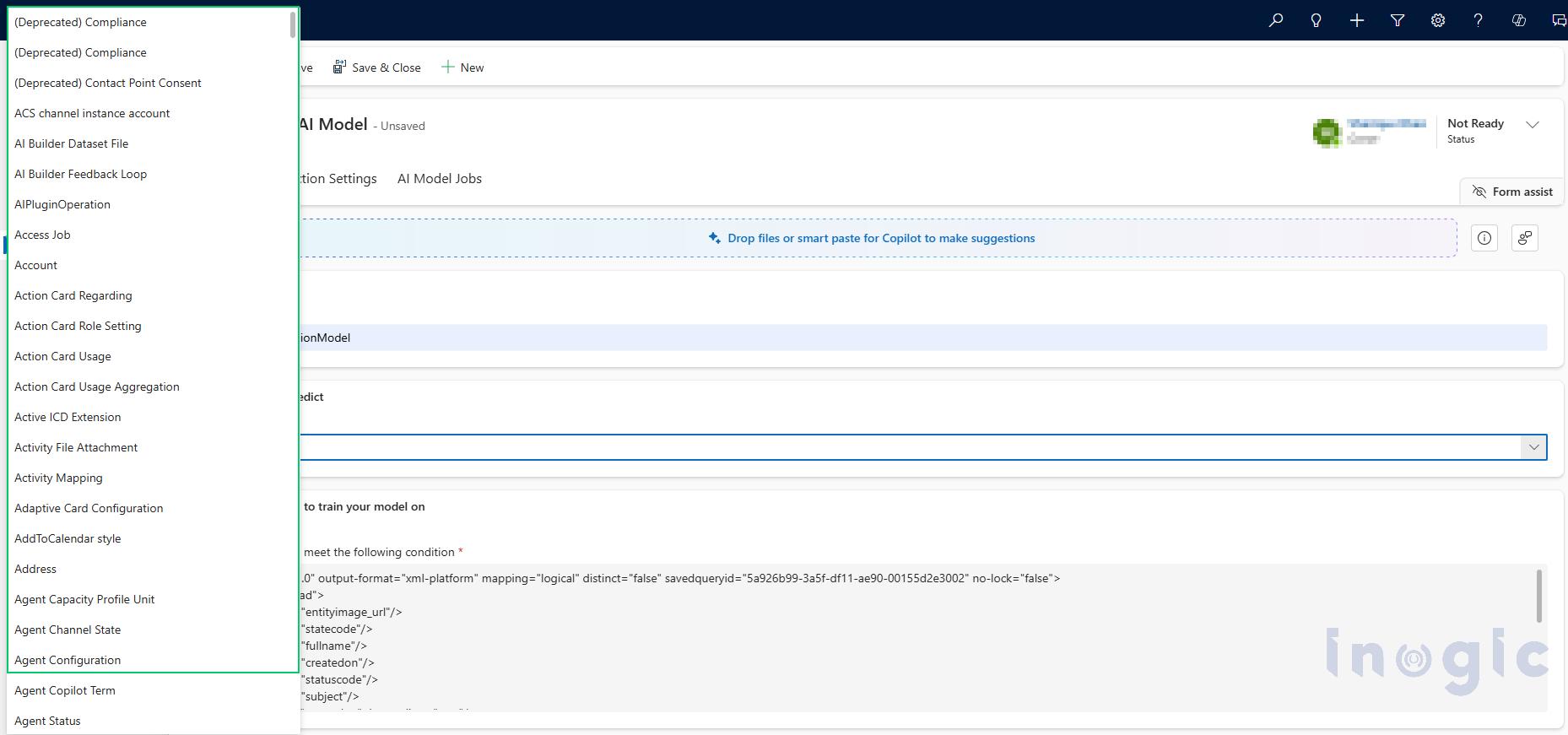
Step 4: Select Historical Data for Model Training
The AI model needs historical CRM data to learn patterns.
In this step:
- Provide a FetchXML query
- Ensure the query retrieves data from the selected entity
- Include relevant fields used for prediction
Example data used for training:
- Lead source
- Industry
- Region
- Deal value
- Probability score
Cleaner data improves prediction accuracy.
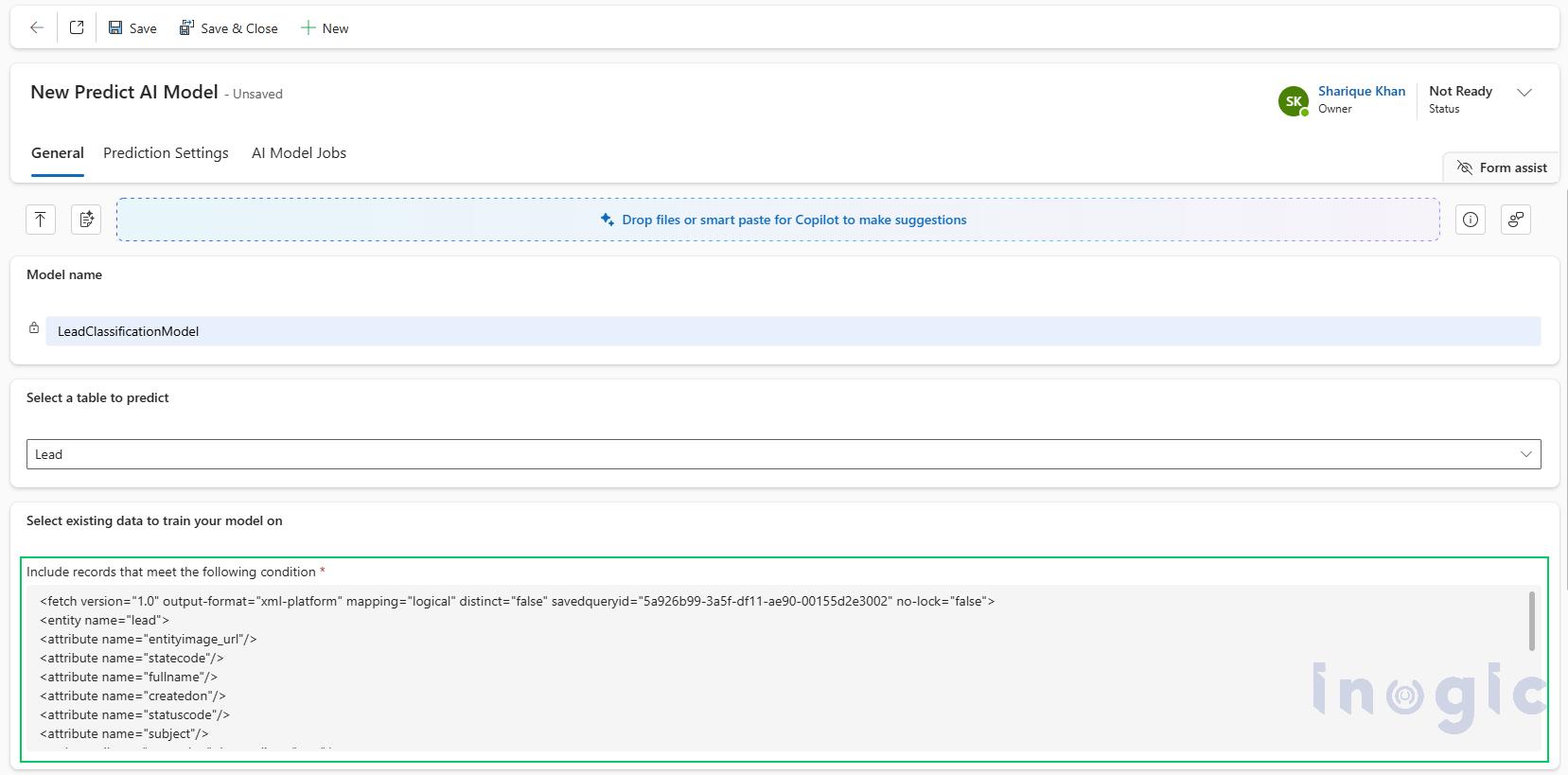
Step 5: Choose Columns That Influence the Prediction
Select fields that impact the prediction outcome.
These columns act as input features for the AI model.
Examples:
- Lead source
- Budget
- Sales region
- Customer industry
- Opportunity size
Choosing the right influencing columns significantly improves prediction accuracy.
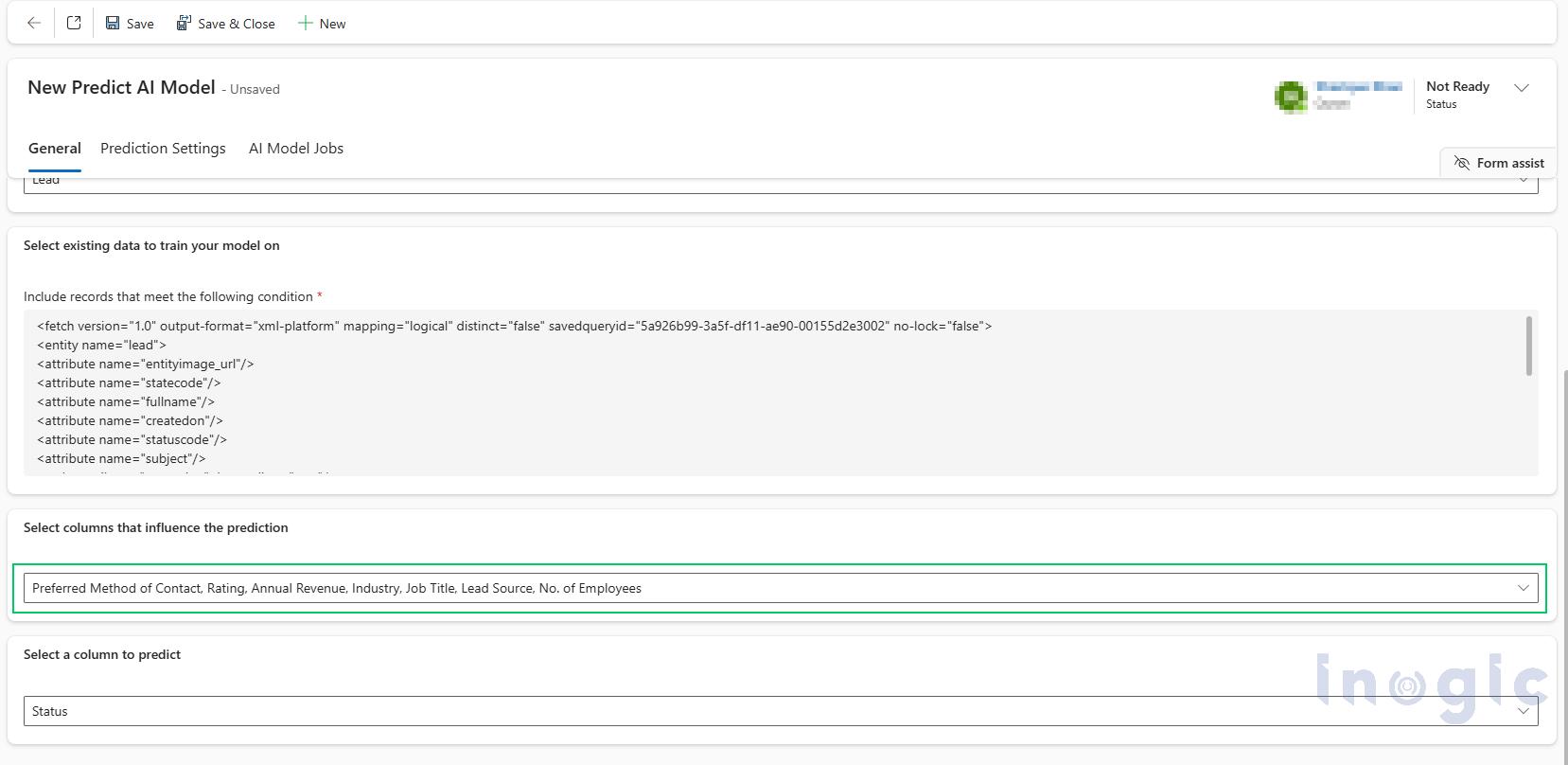
Step 6: Select the Column to Predict
This is the target field the AI model will forecast.
Example predictions:
| Entity | Prediction Column |
| Lead | Status (Qualified / Disqualified) |
| Lead | Rating (Hot / Warm / Cold) |
| Opportunity | Win Probability |
This enables automated insights for sales decision-making.
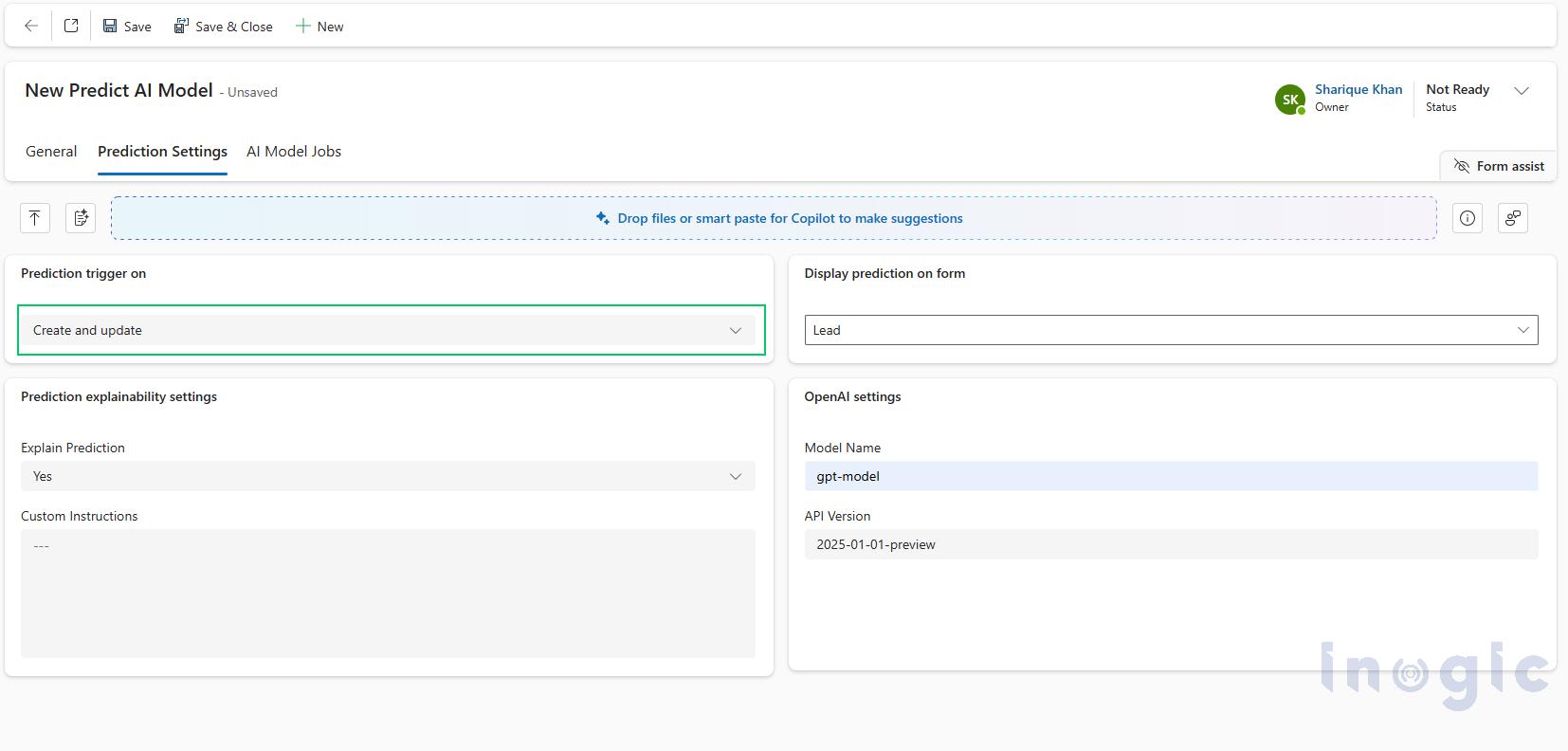
Step 7: Configure Prediction Triggers
Define when predictions should run. Available options:
- On Create – Prediction runs when a new record is created
- On Update – Prediction runs when influencing fields change
Most organizations enable both triggers to keep predictions updated automatically.
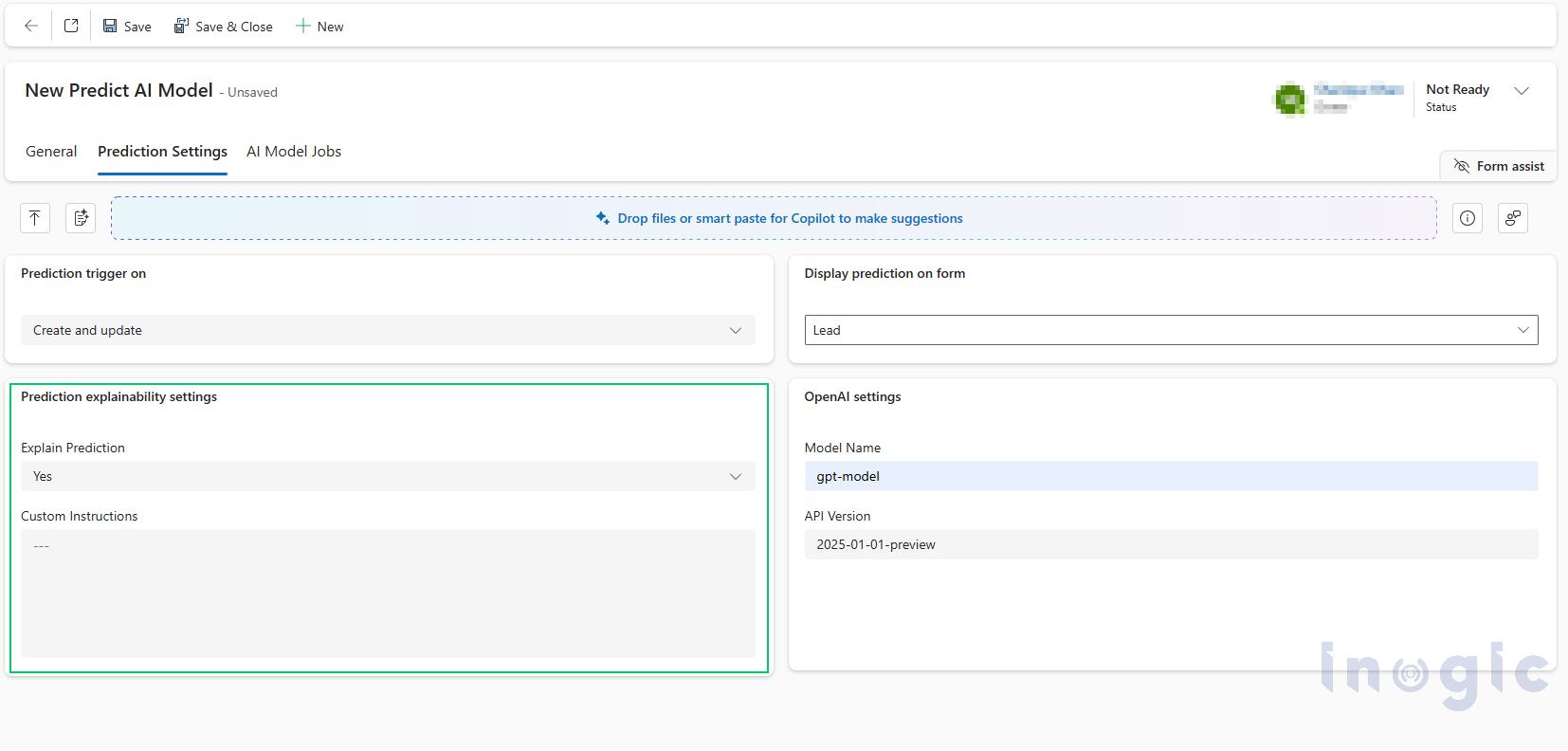
 Step 8: Enable Prediction Explainability
You can enable Explainable AI (XAI).
Options:
Yes: Shows explanation of why the prediction was generated
No: Displays only the predicted value
Explainability helps users trust AI-generated predictions.
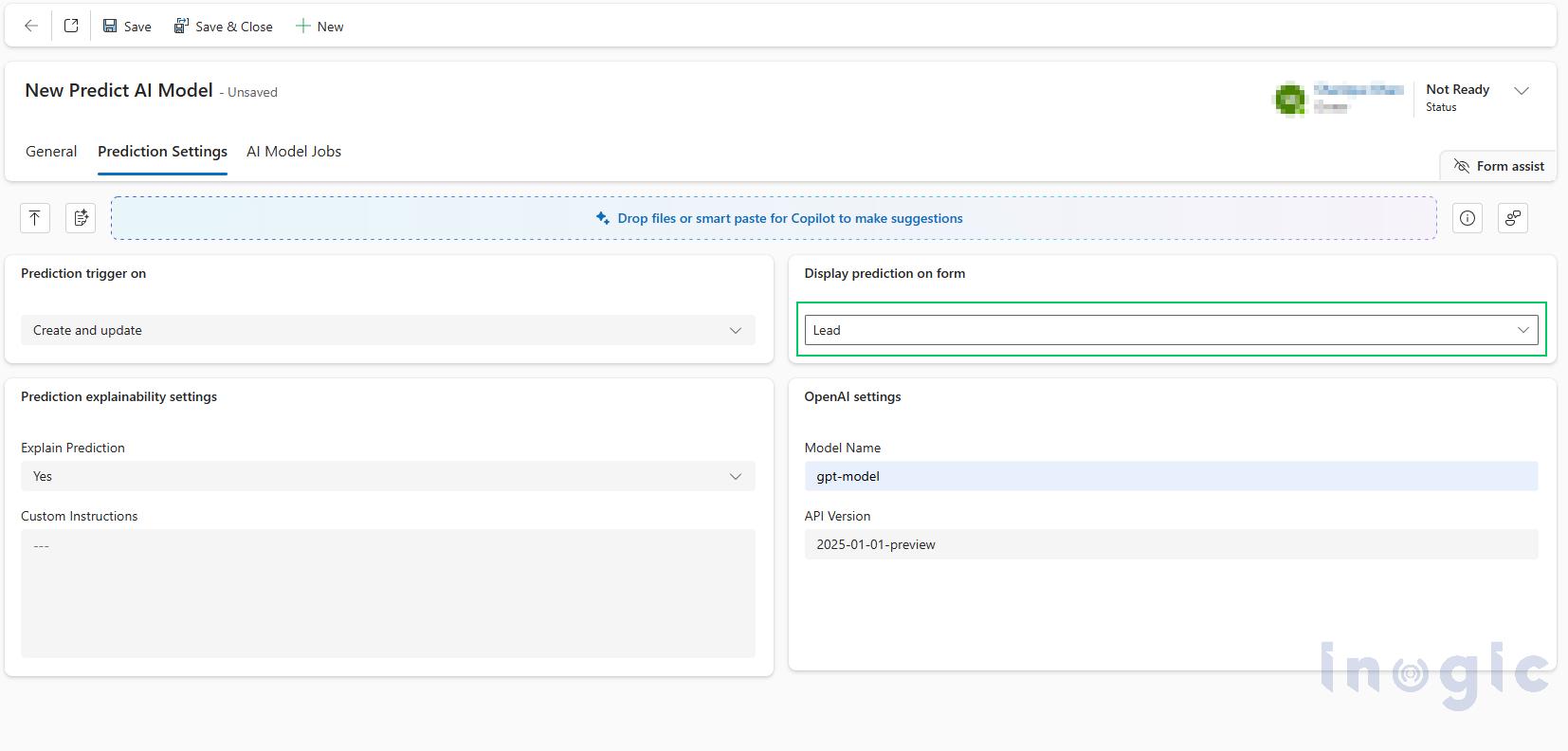
Step 9: Display Predictions on CRM Forms
Select the Dynamics 365 form where prediction results will appear.
This ensures users can view predictions directly on the record page without navigating elsewhere.
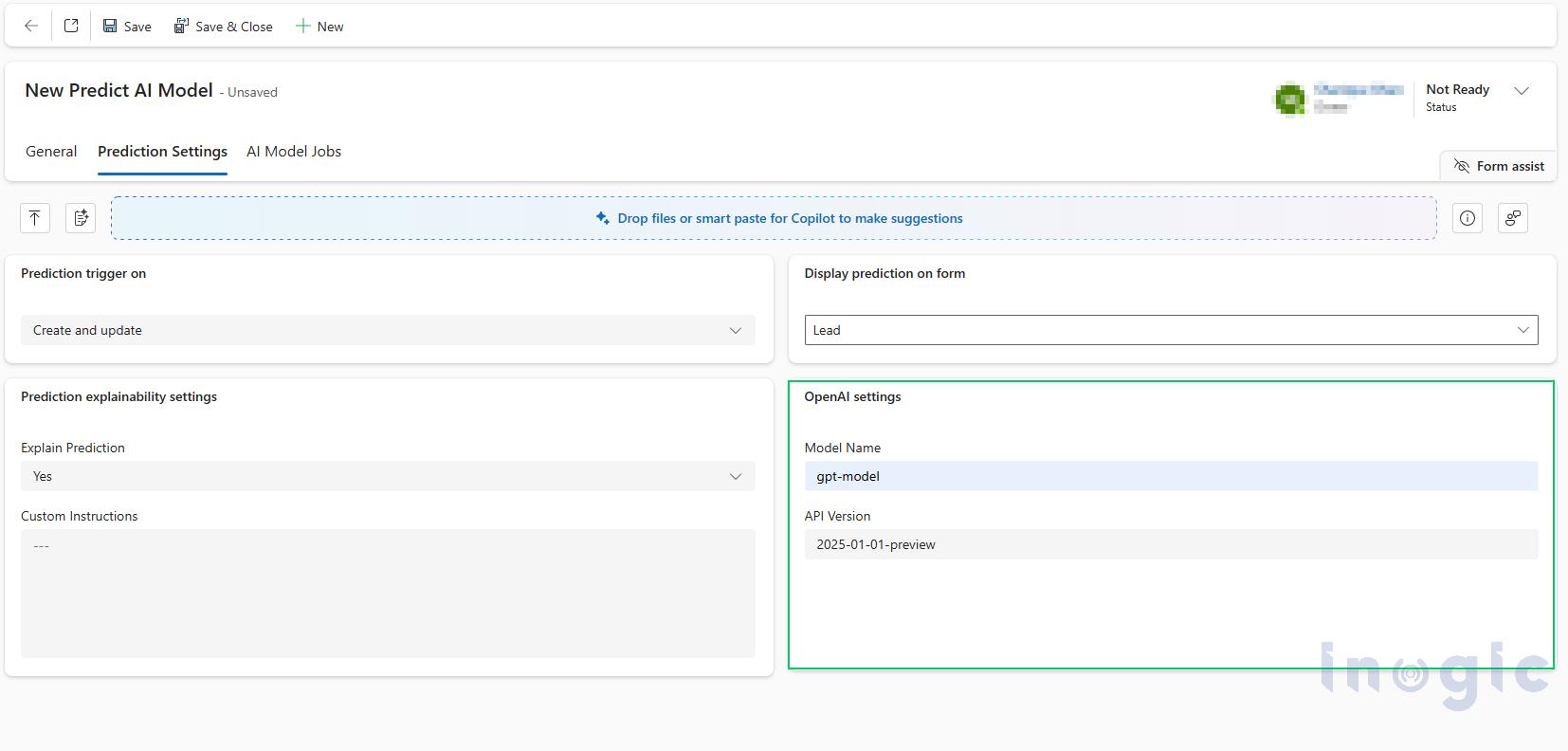
Step 10: Configure Azure OpenAI Settings
By default, the model uses:
- Model Name: gpt-model
- API Version: 2025-01-01-preview
If your organization uses a custom Azure deployment:
- Enable OpenAI Configuration Settings
- Enter your Azure OpenAI model name
- Provide the API version
This enables seamless integration with Azure AI services.
Training the AI Model
After configuration:
- Click Configure Model
- Start the model training process
During training:
- Status may show Queued
- Then Running
The system analyzes historical CRM data to build predictive intelligence.
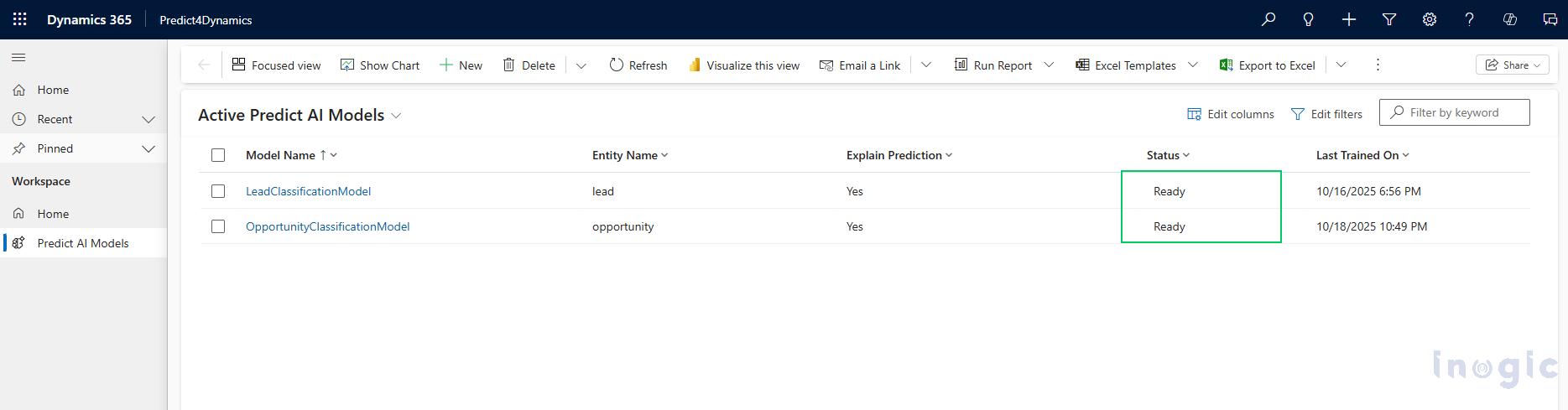
Verify Model Training Status
Once training completes:
- Model status changes to Ready
This indicates the AI model is fully trained and available for predictions.
How Predictions Work in Dynamics 365 CRM
After activation:
- Create or update a Lead or Opportunity
- Prediction triggers automatically
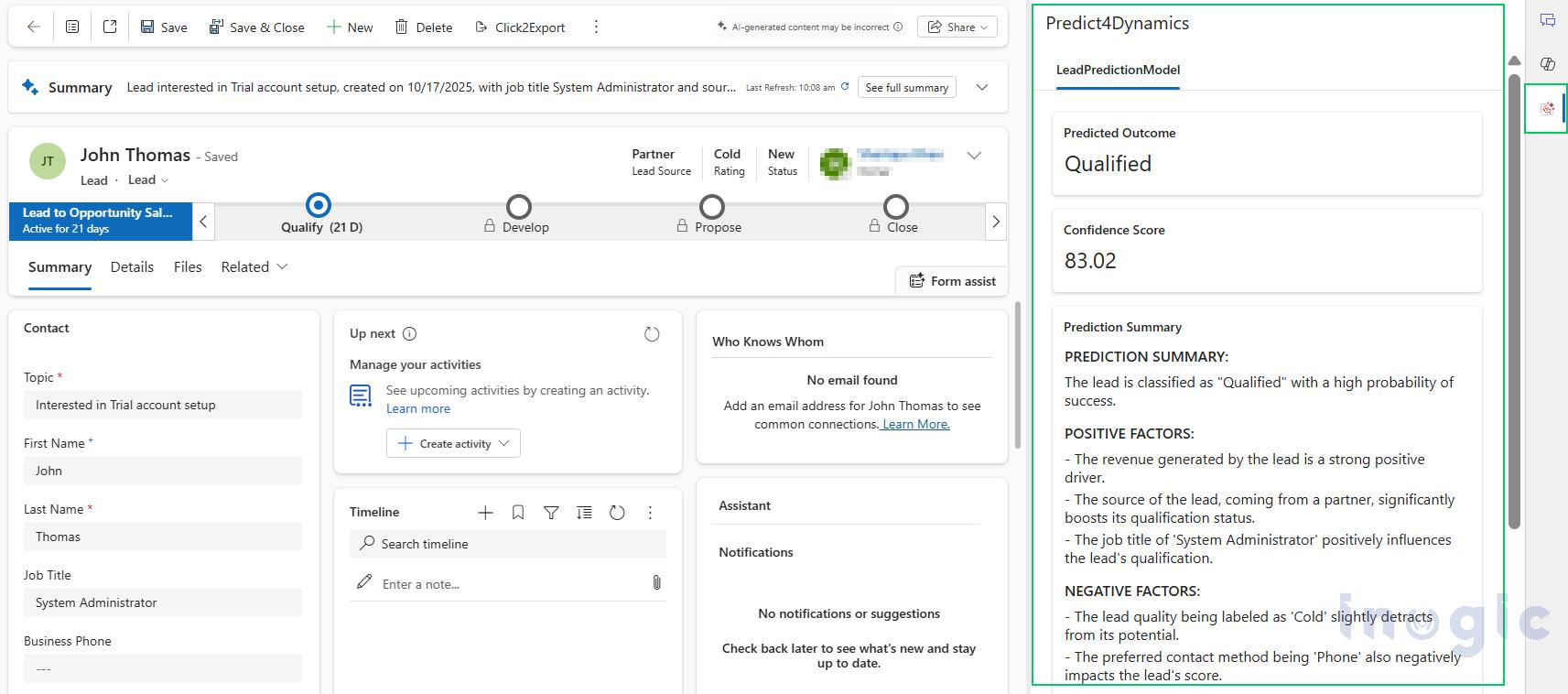
- Open the record
- View prediction results in the Predict4Dynamics side panel
The panel displays:
- Predicted outcome
- Confidence explanation
- AI insights
This allows sales teams to prioritize high-probability deals and improve forecasting.
Best Practices Post-Deployment of AI Prediction Model
After deploying the AI model:
- Verify Azure resources are deployed successfully
- Ensure AI service is active
- Monitor prediction accuracy
- Update training data periodically
Organizations should retrain models regularly to maintain accuracy as CRM data grows.
Benefits of Using AI Sales Prediction in Dynamics 365 CRM
Using predictive AI in CRM helps organizations:
- Improve sales forecasting accuracy
- Identify high-value leads
- Prioritize sales efforts
- Automate decision-making
- Increase revenue predictability
Bonus:
If you are also looking for ways to guide your sales and service teams toward the right actions at the right time, Inogic’s Next Best Action app extends the power of predictive intelligence inside Microsoft Dynamics 365. This AI-driven assistant analyzes historical CRM data, engagement signals, and activity patterns to recommend the most impactful next step for leads, opportunities, cases, and custom entities. Whether it’s scheduling a call, sending a follow-up email, re-engaging a stalled opportunity, or escalating a case, the solution learns from past outcomes and delivers contextual, explainable recommendations directly within CRM forms, helping teams move from reactive actions to proactive decision-making.
Final Thoughts
AI-powered sales prediction is transforming how organizations use CRM data. Instead of relying on manual forecasting, businesses can use predictive intelligence to identify winning opportunities and optimize sales strategies. By configuring AI models directly within Dynamics 365 CRM, organizations can turn historical data into actionable sales insights that improve decision-making and pipeline visibility.
Want to have a complete demonstration of a working AI model? Reach us at crm@inogic.com or get Predict4Dynamics from the Inogic Website or the Microsoft Marketplace.