“See how Sales and Customer Service teams use coloured cards to find hot leads, urgent cases and big deals the moment they open the board.”
You open your board to hundreds of identical cards. Somewhere is a customer about to leave, a deal slipping, an order due today. You just can’t see them.
Card Colour, a new feature in Kanban Board for Dynamics 365 CRM by Inogic, colours each Kanban card in Dynamics 365 by a field you choose, so urgency shows before you read a word.
Key Takeaways
- Card Colour is a feature of Kanban Board for Dynamics 365 CRM by Inogic that colours each Kanban card based on a field you choose, such as priority, rating, timeframe or risk.
- Kanban lanes show where a record is in the process, but not how urgent or valuable it is. Card Colour adds that second layer to the same board.
- Cards stay in their lanes, and dragging a card still updates the field value. Colour appears in the Default style or Vertical with label, which adds a text label beside the colour.
- It works on any view in Dynamics 365 CRM or Dataverse. Examples include leads by rating, opportunities by purchase timeframe and cases by priority.
- Faster decisions, urgent records surfaced first, one shared meaning for each colour and shorter review meetings, without extra filters, views or reports.
Why Lanes Alone Are Not Enough in a Kanban Board for Dynamics 365 CRM
Kanban Board is an interactive Kanban board for CRM data. Dynamics 365 and Dataverse records appear as cards in a Kanban view, with stages as lanes; drag a card to the next lane and the field value updates. This card-based view for Dynamics CRM is fast, but two leads in one lane can differ greatly.
What Card Colour does
Each card takes a colour from your chosen field, so your eyes go straight to the cards that need you. The same lead board, before and after:
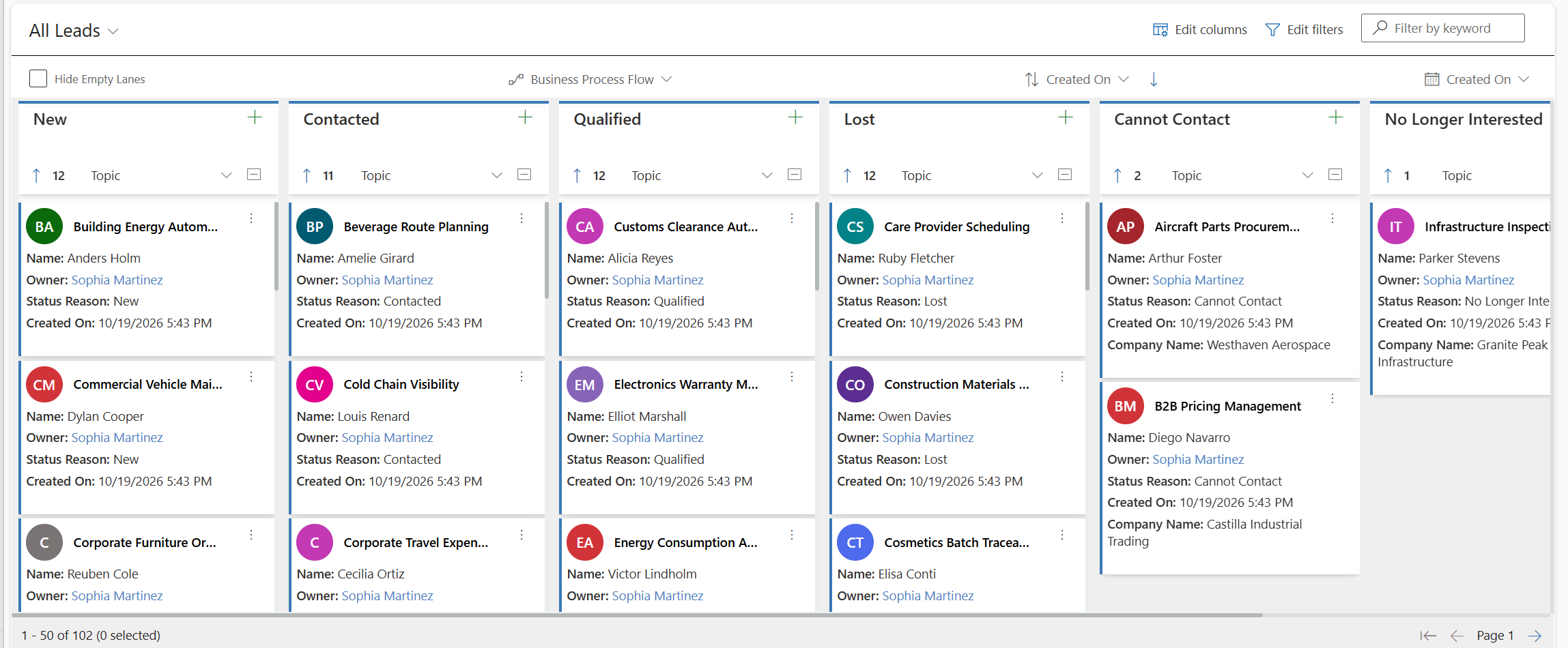
Before: every lead card looks the same.
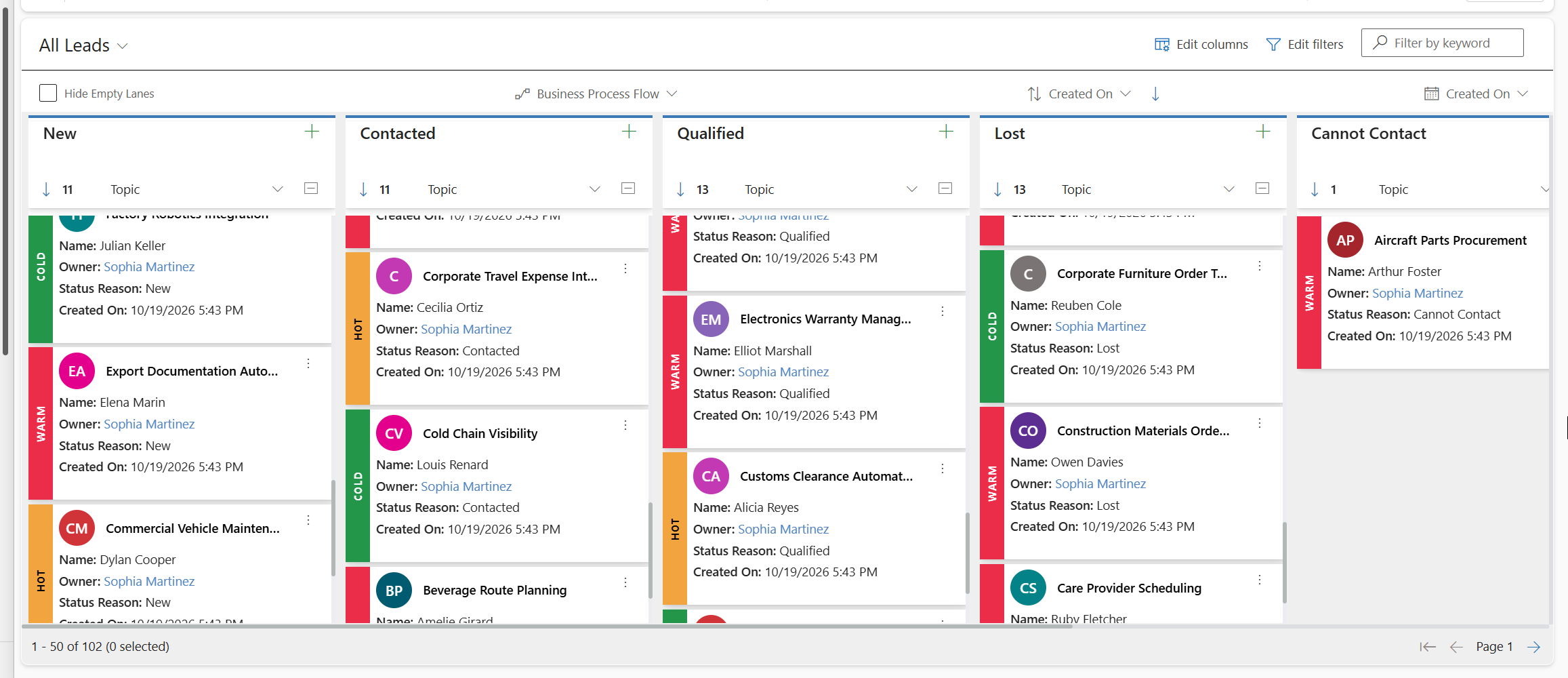
After: Hot (orange), Warm (red) and Cold (green) cards stand out.
What Changes for Your Team
- Decide faster. Colour is noticed before text.
- Do the right work first. Urgent items don’t get lost among routine ones.
- Managers see the full picture. Stage and priority sit on one board.
- One shared meaning. Red means the same to everyone.
- Shorter meetings. “Let’s talk about the red ones.”
Card Colour Examples from Dynamics 365 Sales and Customer Service
Sample scenarios for task management in a Kanban CRM board:
1. Hot leads first (software and IT services)
Setup: Lead view, lanes by status, colour by rating: Hot (orange), Warm (red), Cold (green).
Before: With 100+ open leads, reps call in arrival order.
With Card Colour: Reps call orange first; managers spot Hot leads waiting.
Impact: Faster first replies, no extra views.
2. Deal meetings that start with what can close (industrial equipment dealer)
Setup: Opportunity view, each Kanban lane in Dynamics 365 a sales stage (Qualify to Close, via Business Process Flow), colour by purchase timeframe.
Before: Weekly reviews give every deal equal time.
With Card Colour: Deals wanted soon lead: “What is stopping this deal?”
Impact: Shorter meetings, clearer closes.
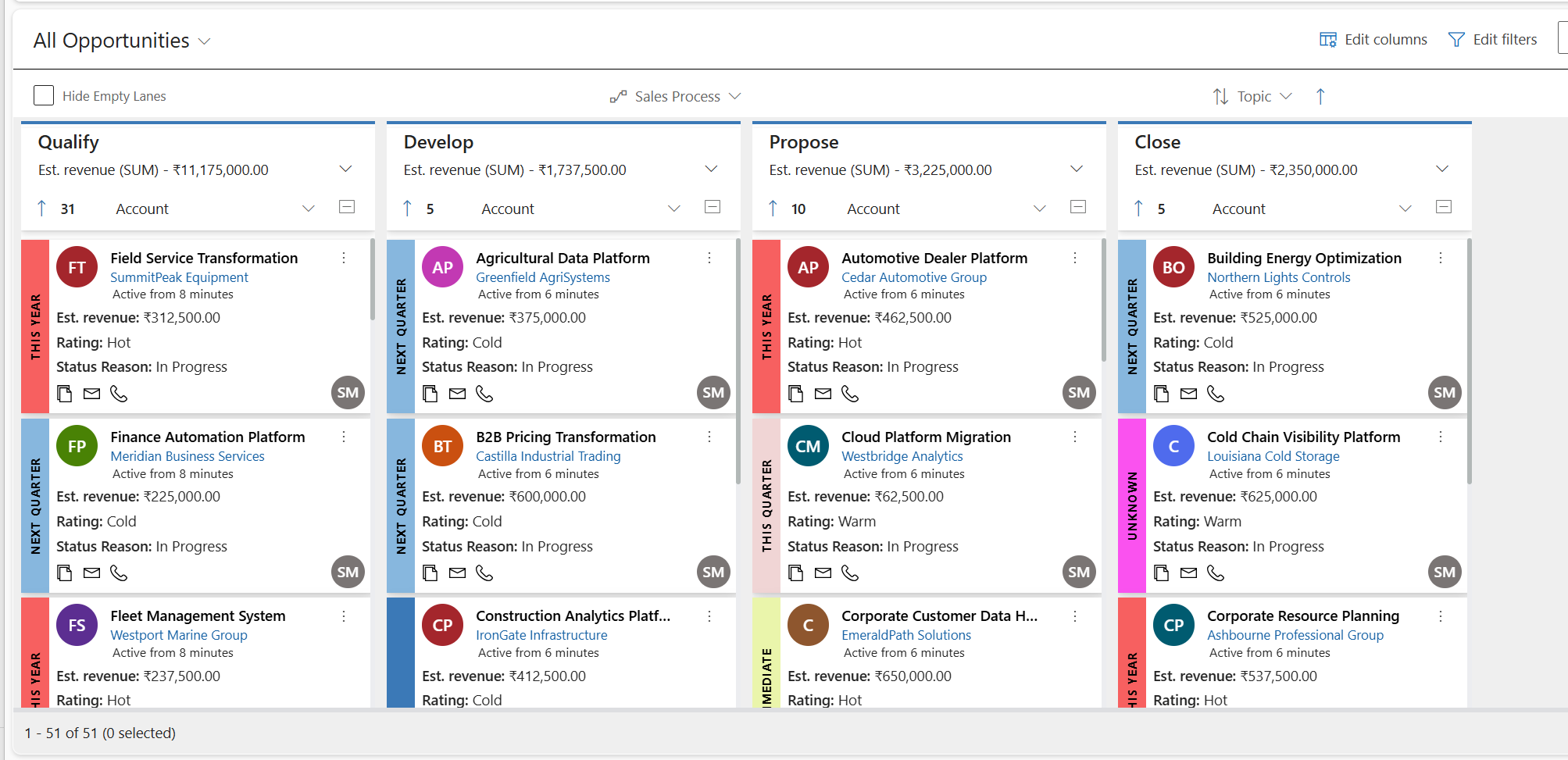
Opportunities by stage, coloured by purchase timeframe.
3. No high-priority case waits (telecom and internet provider)
Setup: Case view, swim lanes by owner, lanes by status reason, colour by priority: High (red), Normal (blue), Low (green).
Before: High priority cases look like routine questions.
With Card Colour: Red cards stand out; leads use Multiple Move to reassign some.
Impact: Faster help, evenly shared work.
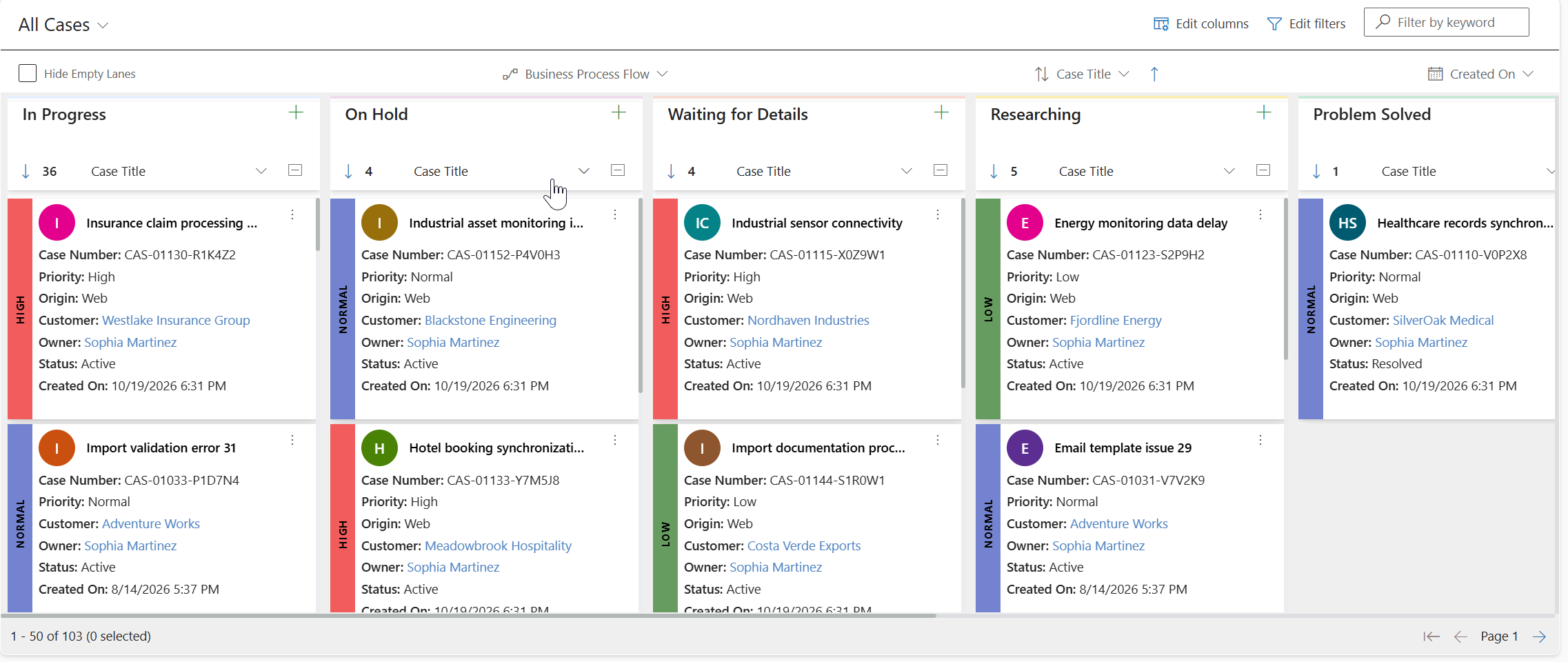
Cases coloured by priority in every lane.
4. Biggest customers first (wholesale distribution)
Setup: Accounts grouped by review step (Review due, Meeting booked, Review done), coloured Preferred or Standard.
Before: Big and small customers look alike.
With Card Colour: Managers contact Preferred customers first.
Impact: Fewer lost key customers.
5. Customers ready to buy (software projects)
Setup: About 80 possible sales, coloured by budget: green yes, orange maybe, red not yet.
Before: Managers open every card to check budget; a week-long proposal can end in “no budget.”
With Card Colour: The team works green first and calls orange and red lightly.
Impact: Less wasted effort, more wins.
Made for Everyone on the Team
- Front-line users know where to start.
- Team leads see risks without chasing updates.
- Managers run faster, focused reviews.
- Leaders see business health fast.
- New joiners grasp priorities immediately.
Vertical with label adds a text label for people who find some colours hard to tell apart.
A Small Feature with a Big Impact
Card Colour does not change how your team works. It changes how fast they see what needs to be done. Over every stand-up, customer call and review meeting, that saved time adds up. On a Kanban app for Dynamics 365, it turns an organised board into a prioritised one.
Your work was always organised. Now it is prioritised at a glance.
See Card Colour on Your Own Dynamics 365 Board
If your team spends time hunting for urgent leads, deals and cases, Card Colour helps you see them first. Start a 15-day free trial of Kanban Board for Dynamics 365 CRM from the Inogic website or Microsoft Marketplace, or ask our team for a personalized demo.
Visit us at www.inogic.com or write to us at crm@inogic.com.
FAQs
What is Card Colour in Kanban Board for Dynamics 365 CRM?
A feature of Kanban Board for Dynamics 365 CRM by Inogic that colours each Kanban card by a field you choose, such as priority, rating or risk.
How does Card Colour help prioritise work in a Kanban view in Dynamics 365 CRM?
Lanes show where a record is; colour shows urgency. Hot leads and High-priority cases stand out without extra filters or reports.
Which Dynamics 365 records can use Card Colour?
Any view in a Dynamics 365 CRM or Dataverse environment, such as leads, opportunities, cases and accounts.
Does Card Colour change Kanban lanes or drag-and-drop?
No. Dragging a card still updates the field value; colour only adds a visual priority cue.
What display options does Card Colour offer, and is it accessible?
Default or Vertical with label, which adds a text label such as Hot or Cold, keeping meaning clear when colours are hard to tell apart.