 Business documents such as purchase orders, invoices, reports, and shipping documents often contain valuable information in tabular format. In many organizations, this information is still copied manually into spreadsheets or business applications, which takes time and increases the possibility of errors.
Microsoft Copilot Studio includes Computer Use, a capability that enables an agent to interact with applications through their user interface. Instead of depending on APIs or custom integrations, the agent can automatically open applications, navigate through screens, identify information, and complete tasks based on what it sees on the screen.
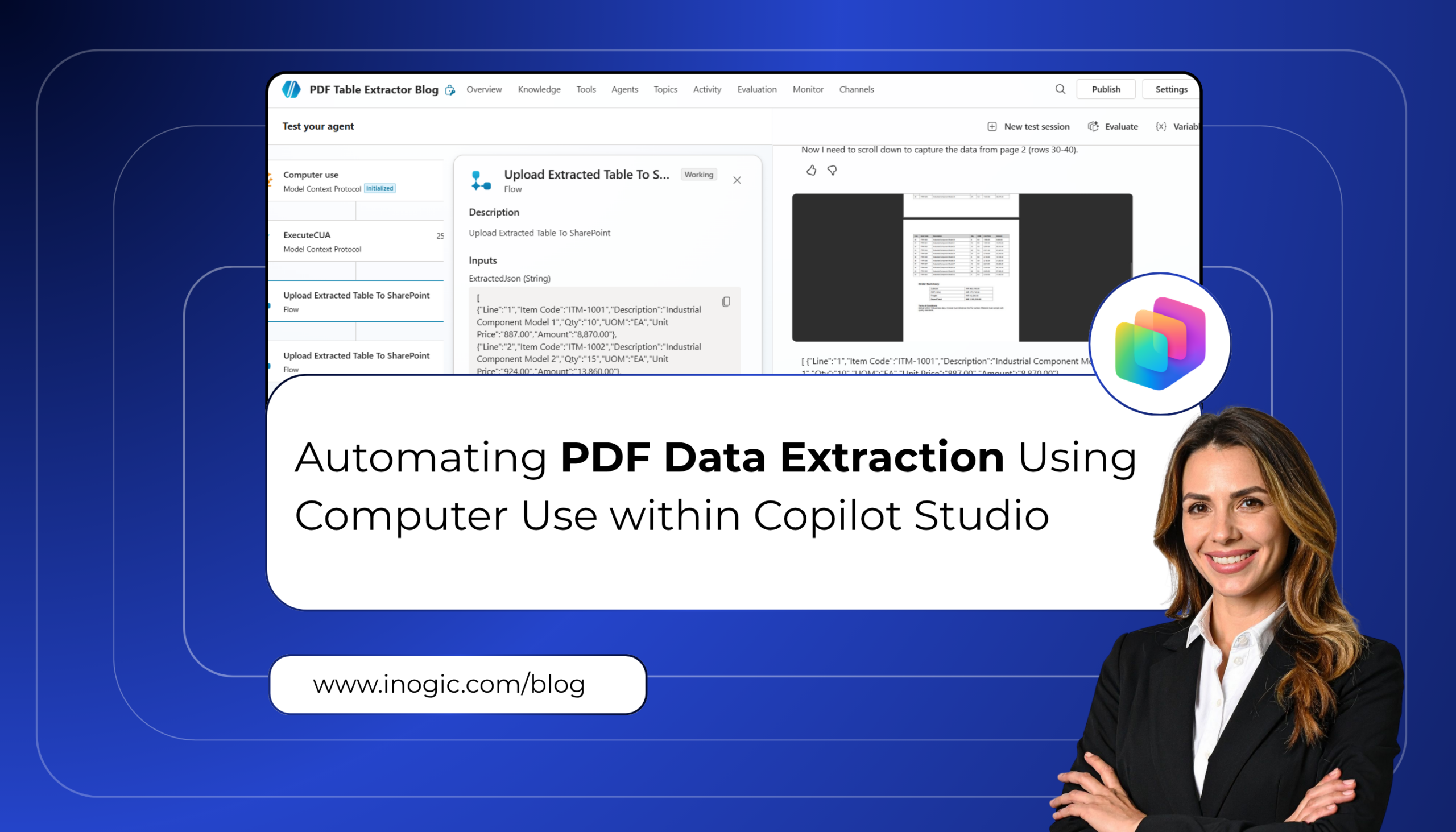
In this blog, we’ll build a practical solution that uses Computer Use to open a PDF document, identify the primary table, and extract its contents into a structured JSON format. The extracted data is then passed to a Power Automate flow, which converts it into a CSV file and sends it as an email attachment. This demonstrates how AI-driven UI automation can simplify document processing while reducing manual effort.
Let’s consider a potential use case:
Many organizations store business documents such as purchase orders, invoices, and reports in SharePoint document libraries for centralized access and collaboration. These documents often contain important tabular information that needs to be extracted and shared with other teams or business applications. Performing this task manually requires users to open each PDF, identify the required table, and copy the data into a structured format, making the process repetitive and prone to errors.
In this scenario, a purchase order PDF is stored in a SharePoint document library. A Copilot Studio agent uses Computer Use to open the PDF directly from SharePoint, identify the primary table containing the line-item details, and extract the data into a structured JSON format. The extracted data is then passed to a Power Automate flow, which converts it into a CSV file and sends it as an email attachment. This approach reduces manual effort and provides a simple way to automate document processing using AI-driven UI automation.
What You’ll Learn
By the end of this article, you’ll know how to:
- Configure a Computer Use tool in Microsoft Copilot Studio.
- Extract tabular data from a PDF stored in SharePoint.
- Pass the extracted JSON to Power Automate.
- Generate a CSV file from the extracted data.
- Email the CSV file automatically using Outlook.
Let’s go through the end-to-end implementation of this solution.
Prerequisites:
Before we get started, ensure you have the following:
- A Microsoft Copilot Studio environment with Computer Use enabled.
- A Microsoft 365 tenant with SharePoint Online available.
- A SharePoint document library containing the PDF document to be processed.
- A Power Automate environment to create the flow that converts the extracted JSON into a CSV file and sends it via email.
- An Outlook connection configured in Power Automate to send emails.
- A sample PDF containing tabular data (for this blog, a Purchase Order PDF is used).
Step 1:
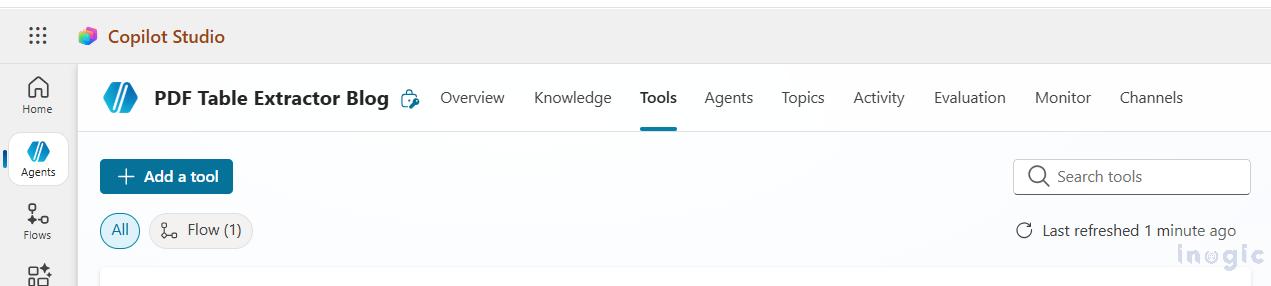
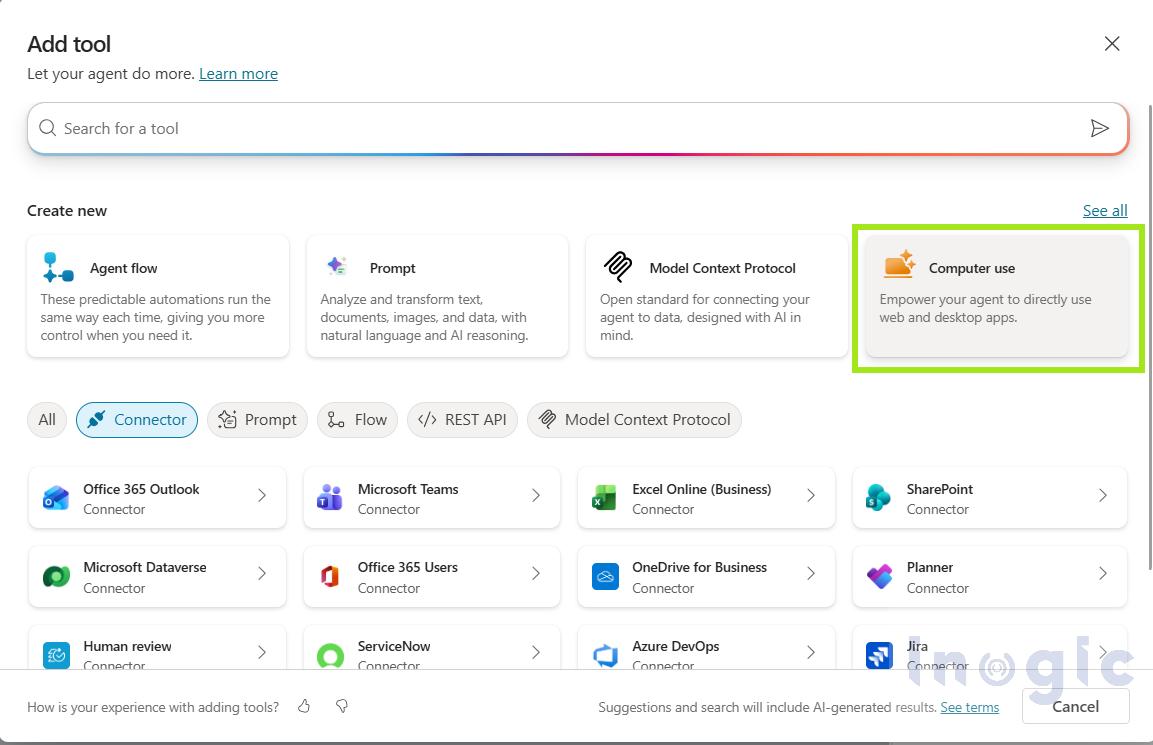
Sign in to Microsoft Copilot Studio by navigating to https://copilotstudio.microsoft.com/. Once you’re signed in, open your agent and select Tools from the left navigation menu. Click Add tool, select New tool, and then choose Computer use to create a new Computer Use tool.
Step 2:
Click Add and configure to create the Computer Use tool. This opens the configuration page where you can define the execution environment, authentication settings, and instructions for the agent. For now, keep the default configuration, as we will add the instructions for the Computer Use agent in a later step.
Step 3:
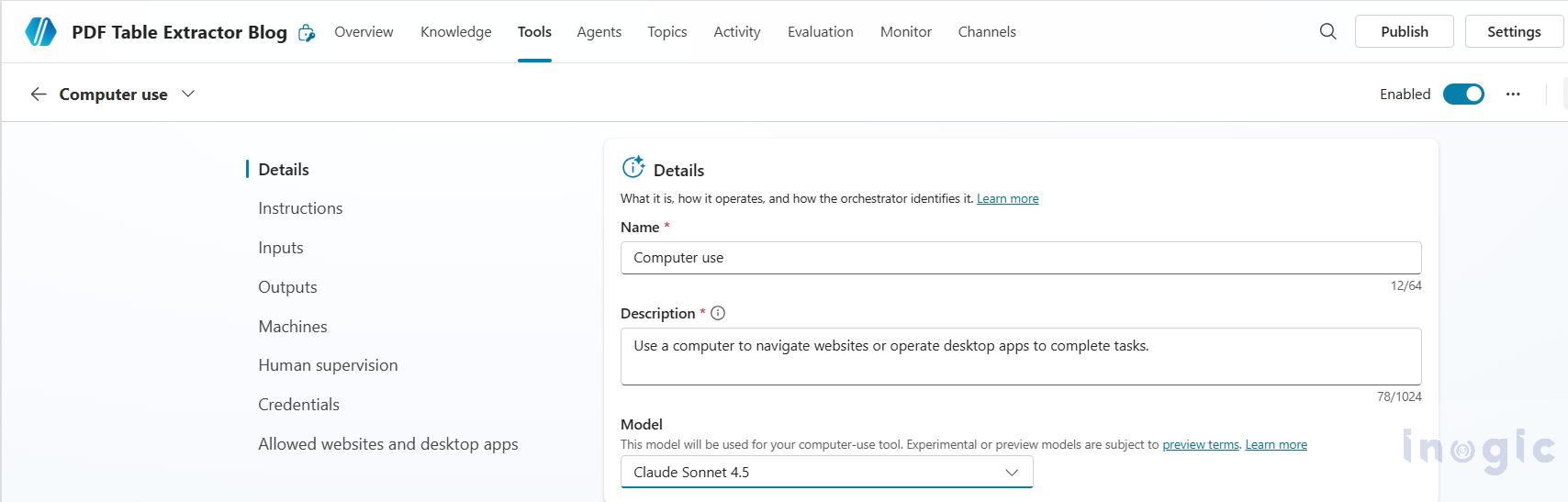
The Computer Use tool configuration page will open. Enter an appropriate Name and Description for the tool. Under the Model section, select Claude Sonnet 4.5, as it provides the capabilities required for performing Computer Use tasks. Once the basic configuration is complete, click Save to proceed.
Step 4: Add the Computer Use Instructions
The next step is to provide instructions that guide the Computer Use tool on how to interact with the PDF. These instructions tell the agent where the PDF is located, how to handle authentication, identify the required table, and return the extracted data in a structured JSON format.
Copy and paste the following instructions into the Instructions section of the Computer Use tool.
You are an intelligent document extraction assistant.
Your task is to extract the primary tabular data from a PDF document.
Open Microsoft Edge.
Navigate to: Please paste the sharepoint document folder link
If authentication is required:
– Use the stored username.
– Use the stored password.
– If Multi-Factor Authentication (MFA) is requested, pause and wait for the user to approve it.
– Continue automatically after authentication succeeds.
Wait until the PDF is fully loaded.
Examine the document to identify the main table containing business data.
Ignore logos, headers, addresses, titles, summaries, footers, and terms & conditions.
Focus on the largest table containing rows of business records or line items.
If the table spans multiple pages:
– Scroll through the document.
– Continue extracting rows until the complete table has been captured.
– Do not stop after the first page.
Preserve the original column names from the table header.
Extract every row exactly as displayed.
Use the following data types consistently:
– Line: String
– Qty: String
– Item Code: String
– Description: String
– UOM: String
– Unit Price: String
– Amount: String
Return ONLY a valid JSON array.
Each JSON object should represent one row.
Use the actual column names from the PDF as the JSON property names.
Do not include explanations, markdown, summaries, or additional text.
Return only valid JSON.
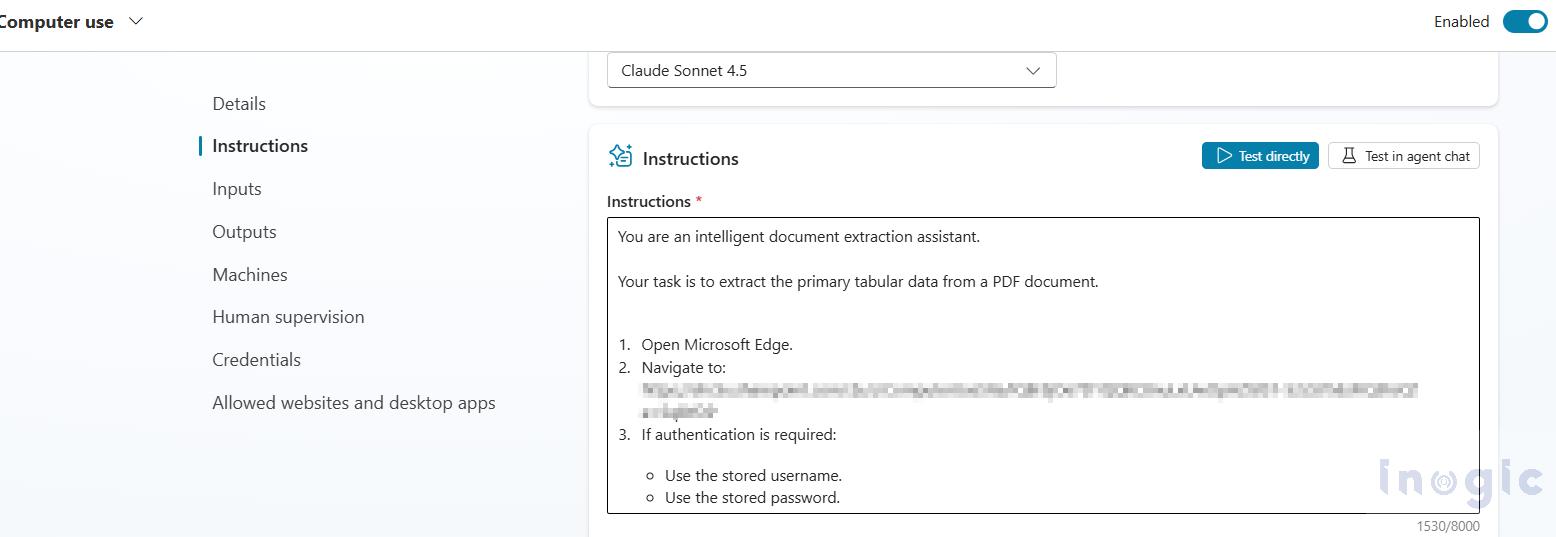
Step 5: Configure the Execution Settings
Next, configure the execution settings for the Computer Use tool. Set the Outputs type to Text, as the agent will return the extracted table data in JSON format. Under Machine, select Hosted Browser to execute the automation in a Microsoft-hosted browser session. Finally, set Credentials to use to End user credentials so the agent can authenticate using the credentials configured for the end user.
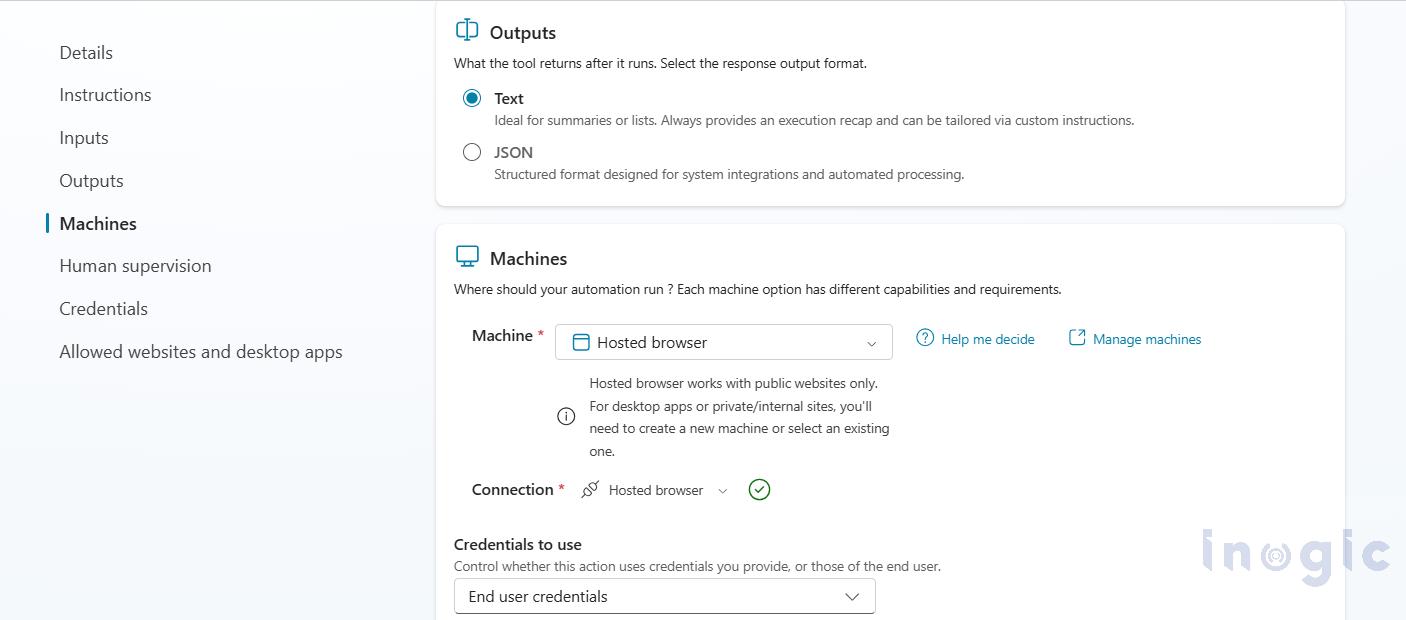
Step 6:
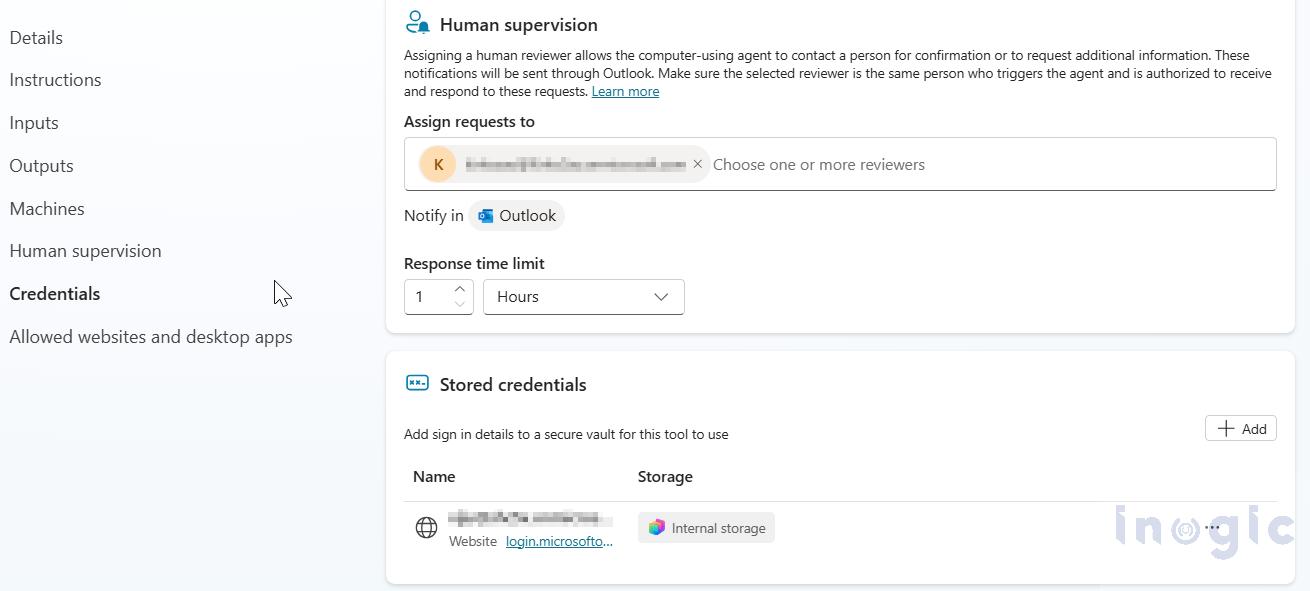
Under Human supervision, assign a reviewer who can receive and respond to requests from the Computer Use agent. Human supervision allows the agent to contact a designated reviewer for confirmation or to request additional information whenever manual intervention is required during execution. These notifications are sent through Outlook. Set the Response time limit to 1 Hour.
Next, under Stored credentials, click Add and configure the credentials that the agent will use to sign in to the SharePoint site. Store the username and password for the Microsoft sign-in page (for example, login.microsoftonline.com). During execution, the Computer Use agent automatically uses these stored credentials to authenticate. If additional verification, such as Multi-Factor Authentication (MFA), is required, the assigned reviewer can respond to the agent’s request and allow the execution to continue.
Step 7:
Sign in to Power Automate by navigating to https://powerautomate.microsoft.com/. From the left navigation pane, select Create, choose Instant cloud flow, and then select the When an agent calls the flow trigger. This trigger enables the flow to be invoked directly from a Copilot Studio agent, allowing it to process the data extracted by the Computer Use tool.
Provide an appropriate name for the flow and click Create to continue.
Step 8:
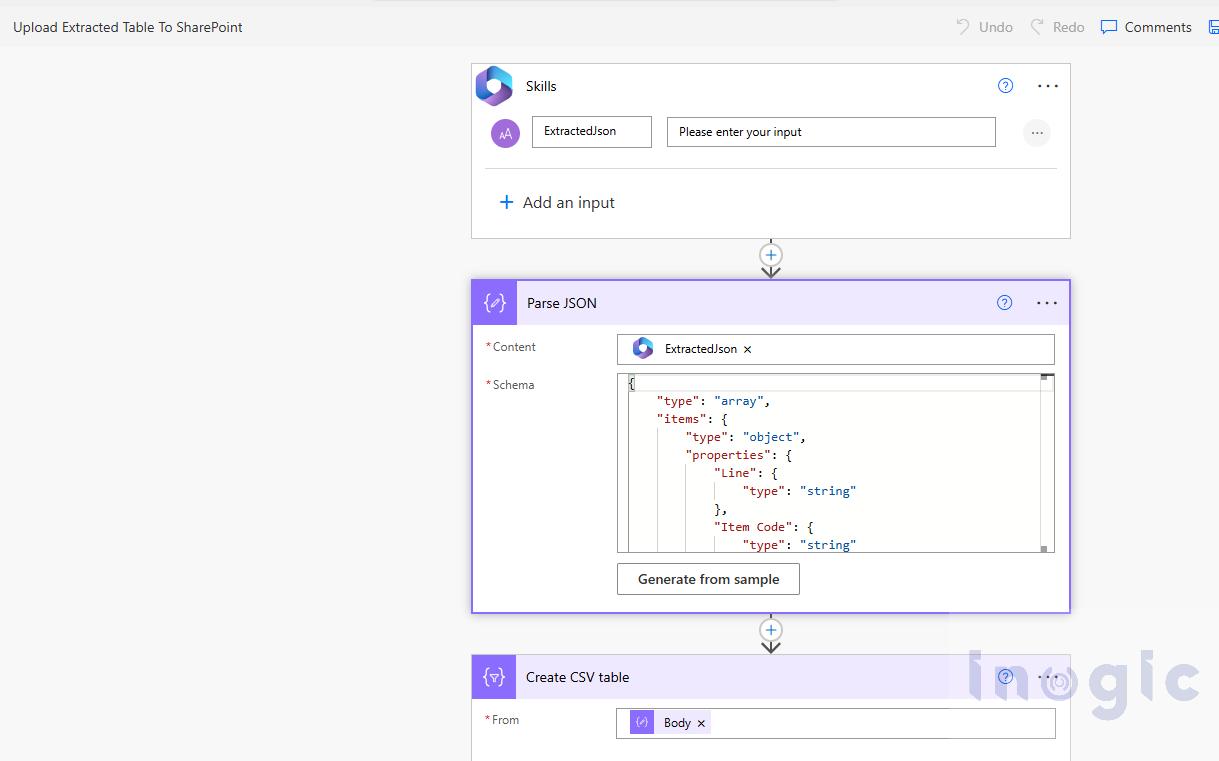
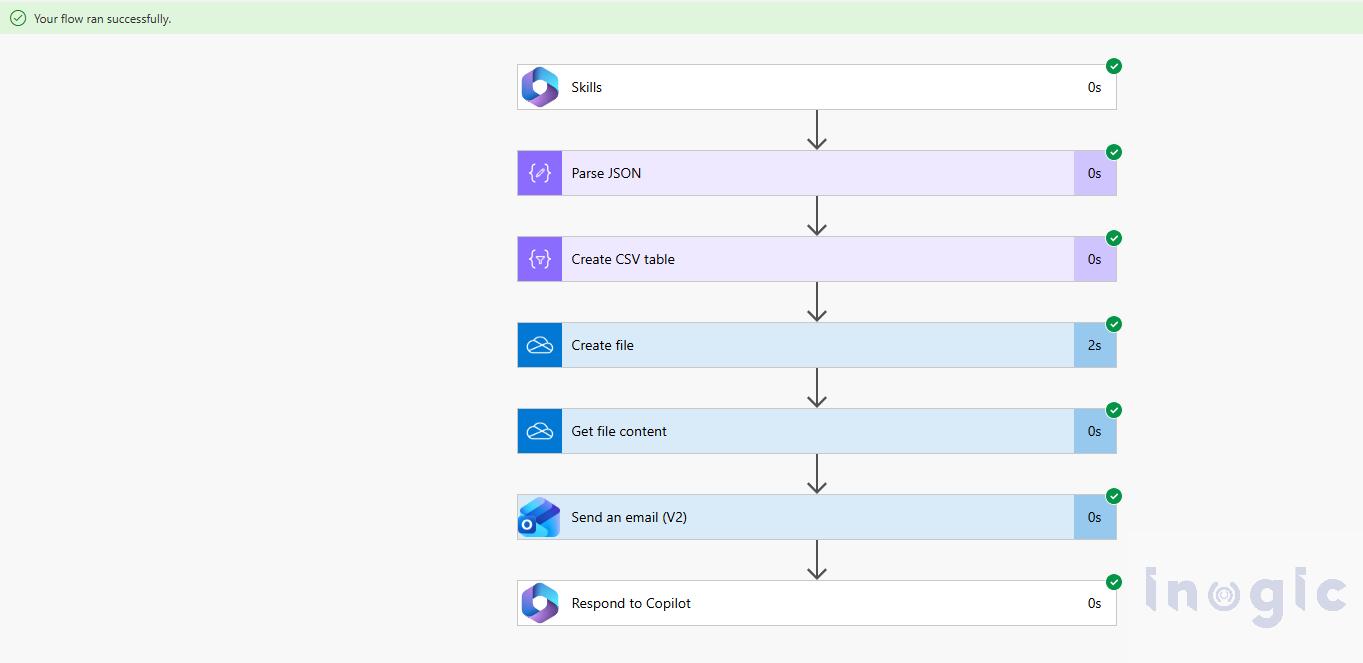
In the When an agent calls the flow trigger, add a Text input named ExtractedJson. This input will receive the JSON data returned by the Computer Use tool.
Next, add a Parse JSON action and set the Content field to the ExtractedJson input. Generate the schema using a sample of the JSON returned by the Computer Use agent. This enables Power Automate to interpret the extracted data and make each property available for subsequent actions.
After parsing the JSON, add the Create CSV table action. Set the From field to the Body output of the Parse JSON action. This converts the extracted table data into a CSV format that can be used in downstream actions, such as sending it as an email attachment.
This step prepares the extracted PDF data for further processing within the flow.
Step 9:
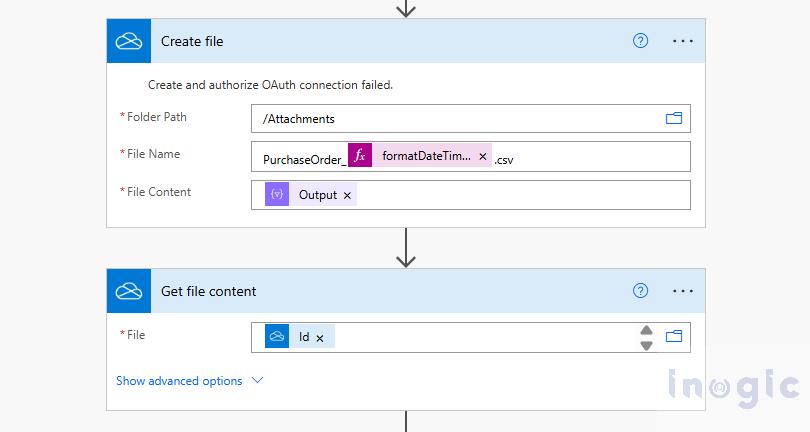
After generating the CSV data, add a Create file action (OneDrive for Business) to save the CSV file temporarily. Specify the destination folder, provide a meaningful file name (for example, PurchaseOrder_<timestamp>.csv), and set the File Content to the Output from the Create CSV table action.
Next, add a Get file content action and set the File field to the Id returned by the Create file action. This retrieves the contents of the generated CSV file, allowing it to be used in subsequent actions, such as sending it as an email attachment.
Step 10:
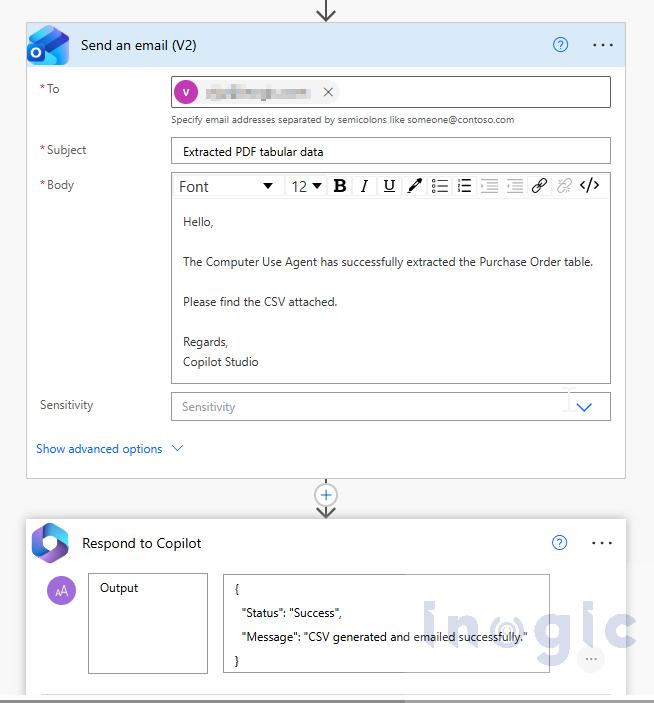
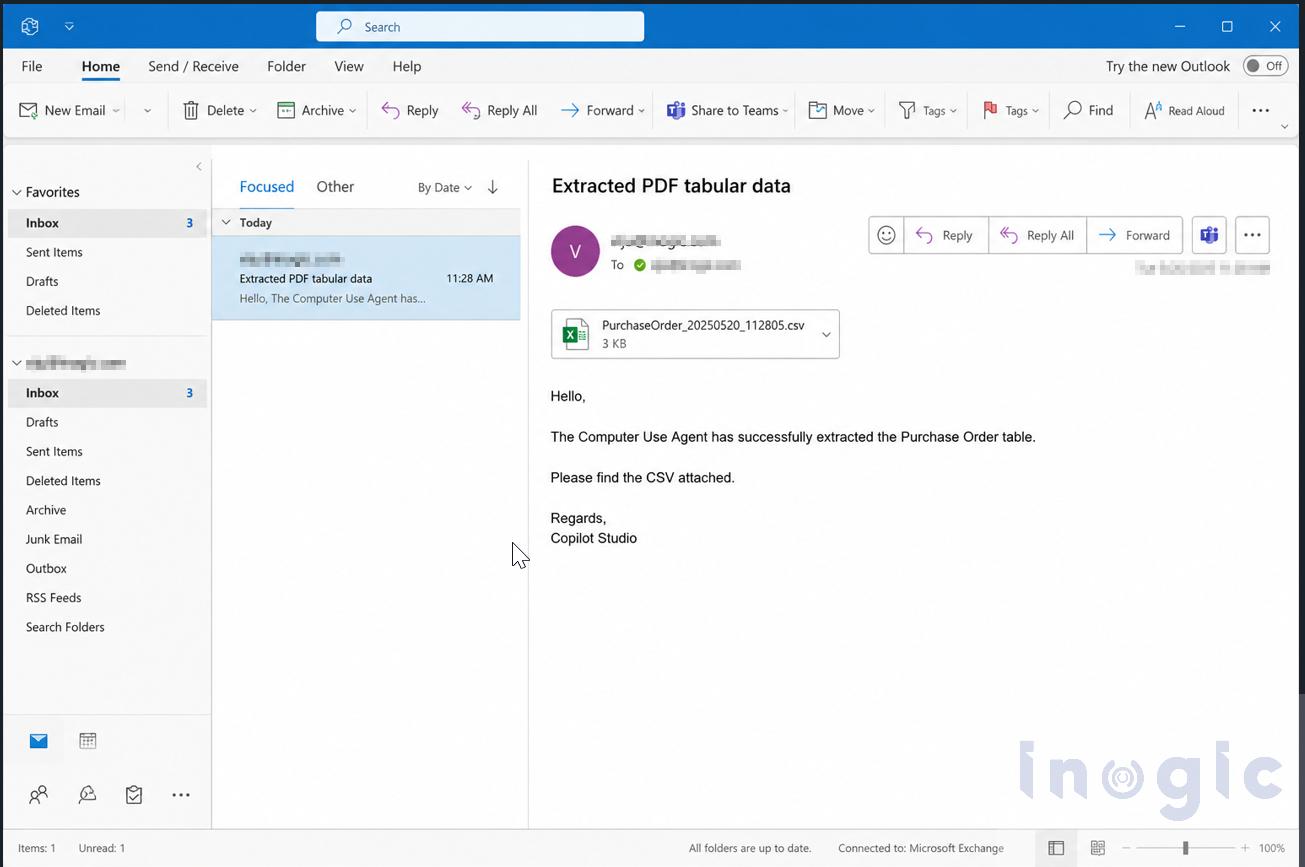
Add a Send an email (V2) action to the flow. Configure the recipient’s email address, provide an appropriate subject, and compose the email body. Under Attachments, use the file content obtained from the Get file content action and specify the CSV file name. This sends the generated CSV file as an email attachment to the intended recipient.
Finally, add the Respond to Copilot action. Return a success response indicating that the flow completed successfully. For example, you can return the following JSON:
{
“Status”: “Success”,
“Message”: “CSV generated and emailed successfully.”
}
Step 11:
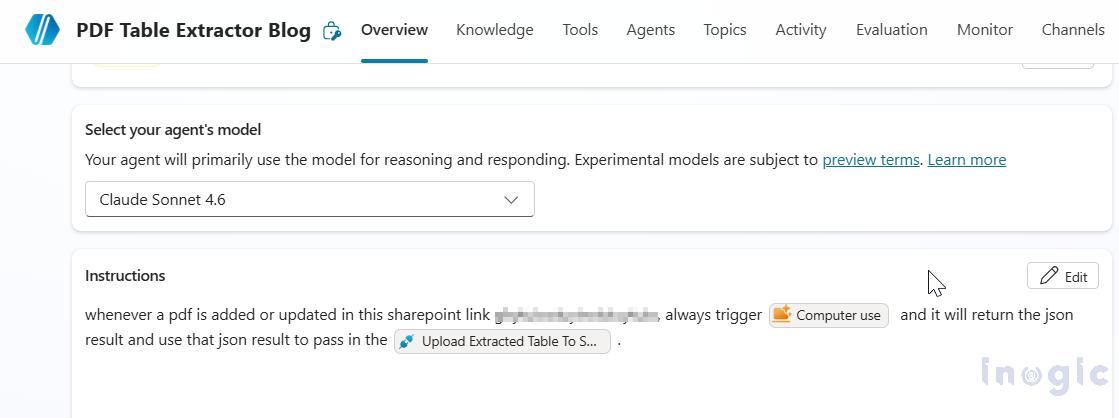
Save and enable the Power Automate flow. Return to your Copilot Studio agent and edit the agent instructions to orchestrate the complete process. The instructions should direct the agent to invoke the Computer Use tool to extract the table data from the PDF and then pass the extracted JSON to the Power Automate flow for further processing.
For example, you can use instructions similar to the following:
Whenever a PDF is added or updated in the specified SharePoint document library, invoke the Computer Use tool to extract the primary table from the PDF. Once the extraction is complete, pass the returned JSON to the Power Automate flow to generate a CSV file and email it to the configured recipient.
After saving the instructions, publish the agent. The agent is now configured to use the Computer Use tool for PDF table extraction and the Power Automate flow for generating and emailing the CSV output.
Test Results:
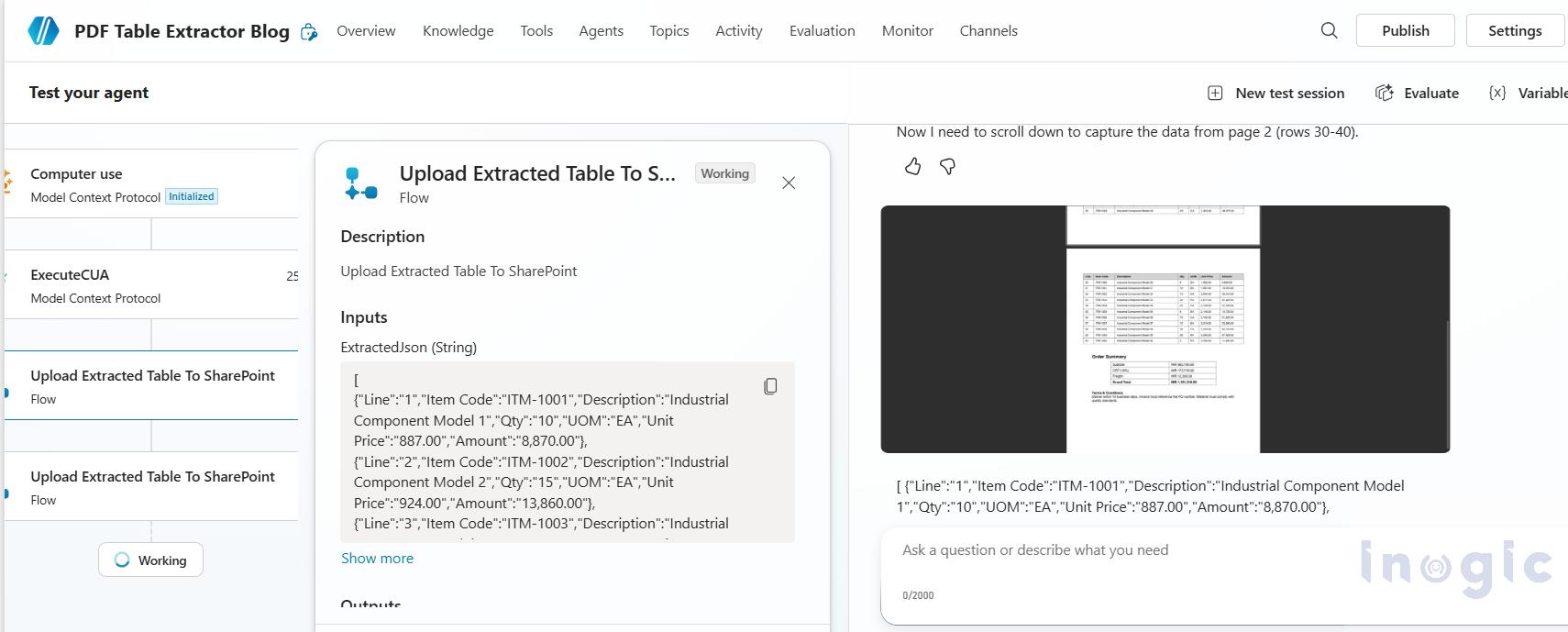
After publishing the Copilot Studio agent, invoke it by providing a prompt to extract the table from the Purchase Order PDF stored in the SharePoint document library.
During execution, the agent performs the following actions:
- Opens the PDF directly from SharePoint using the Computer Use tool.
- Authenticates using the configured stored credentials.
- Identifies the primary table containing the purchase order line items.
- Extracts the complete table into a structured JSON format.
- Invokes the Power Automate flow.
- Converts the JSON data into a CSV file.
- Sends the generated CSV file as an email attachment to the configured recipient.
Conclusion: In this blog, we built an end-to-end solution using Microsoft Copilot Studio Computer Use and Power Automate to automate the extraction of tabular data from a PDF stored in SharePoint. The Computer Use tool interacted with the PDF through its user interface, extracted the required table into a structured JSON format, and passed the data to a Power Automate flow. The flow then converted the extracted data into a CSV file and emailed it to the intended recipient.
Frequently Asked Questions (FAQs)
1. What is Computer Use in Microsoft Copilot Studio?
Computer Use is a capability in Microsoft Copilot Studio that enables agents to interact with applications through their graphical user interface (GUI). Instead of relying on APIs, the agent can open applications, navigate screens, extract information, and perform tasks based on what it sees.
2. Can Copilot Studio extract data from PDF files?
Yes. By using the Computer Use capability, a Copilot Studio agent can open PDF documents, identify tables or other relevant information, and extract the data into a structured format such as JSON for further processing.