 Canvas apps have always been known for rapid development using a low-code, drag-and-drop approach. However, even with this speed, developers still spend a significant amount of time on repetitive UI building, writing Power Fx formulas, and refining logic manually.
Microsoft has recently introduced support for external AI-powered development tools for Canvas Apps. This allows developers and business users to work with AI-assisted tooling outside the traditional Power Apps Studio experience. Using external tools such as GitHub Copilot, AI agents, and Power Platform skills, users can now generate Canvas App structures, layouts, and workflows using natural language prompts.
This blog explores the setup experience, the architectural shift introduced by these tools, and most importantly how AI-assisted Canvas App generation can significantly accelerate development and provide a strong starting point for projects.
Key Takeaways
- Generate Canvas Apps using natural language prompts with external AI-powered tools.
- AI agents can automatically create screens, navigation, and basic app logic.
- Reduce manual setup and accelerate development with GitHub Copilot and Power Platform skills.
- Sync generated changes directly to live Canvas Apps through coauthoring.
- Ideal for rapid prototyping and app scaffolding, while complex logic still requires developer expertise.
Overview
The introduction of external AI tooling for Canvas Apps represents a major change in the Power Platform ecosystem. Instead of relying completely on drag-and-drop development inside the browser, users can now interact with AI agents capable of understanding application requirements and generating app structures automatically.
The workflow combines:
- GitHub Copilot and AI-assisted coding tools
- Power Platform skills and AI agents
- Local CLI-based tooling
- Canvas App source generation
- Natural language prompts
This creates a development experience that feels closer to modern software engineering workflows rather than traditional low-code configuration.
One of the most interesting aspects of this approach is that the AI system is no longer behaving like a simple chatbot. Instead, it works through
specialized agents such as:
- canvas-app-planner
- canvas-screen-builder
These agents understand specific Power Platform concepts and can generate app scaffolding, screen layouts, navigation structures, and other components based on user instructions.
Prerequisites and Setup
Before working with external AI tools for Canvas Apps, several prerequisites must be configured locally.
Required Tools
The following components are required:
- .NET SDK 10+
- GitHub CLI
- Git installation
- Power Platform CLI
- GitHub Copilot access
- Power Apps environment access
These tools provide the local runtime, authentication, AI integration, and Power Platform connectivity required for AI-assisted Canvas App generation.
You also need to have Environment ID and Canvas App ID (if you need to modify in an existing app).
Installing the Power Platform Skills Plugin
To enable Canvas App generation capabilities, the Power Platform Skills marketplace plugin must be installed.
The following commands can be executed using either:
- Copilot CLI
- Claude Code
Step 1 – Add the Power Platform Skills Marketplace
/plugin marketplace add microsoft/power-platform-skills
Step 2 – Install the Canvas Apps Plugin
/plugin install canvas-apps@power-platform-skills
After installation, restart the CLI session to load the newly added skills:
/restart
Once restarted, the environment exposes specialized AI agents and skills capable of assisting with Canvas App generation and screen creation.
Enabling Coauthoring for Canvas Apps
To use AI-assisted capabilities with Canvas Apps, coauthoring must be enabled for the application.
This can be configured inside Power Apps Studio:
Power Apps Studio
→ Settings
→ Updates
→ Enable Coauthoring
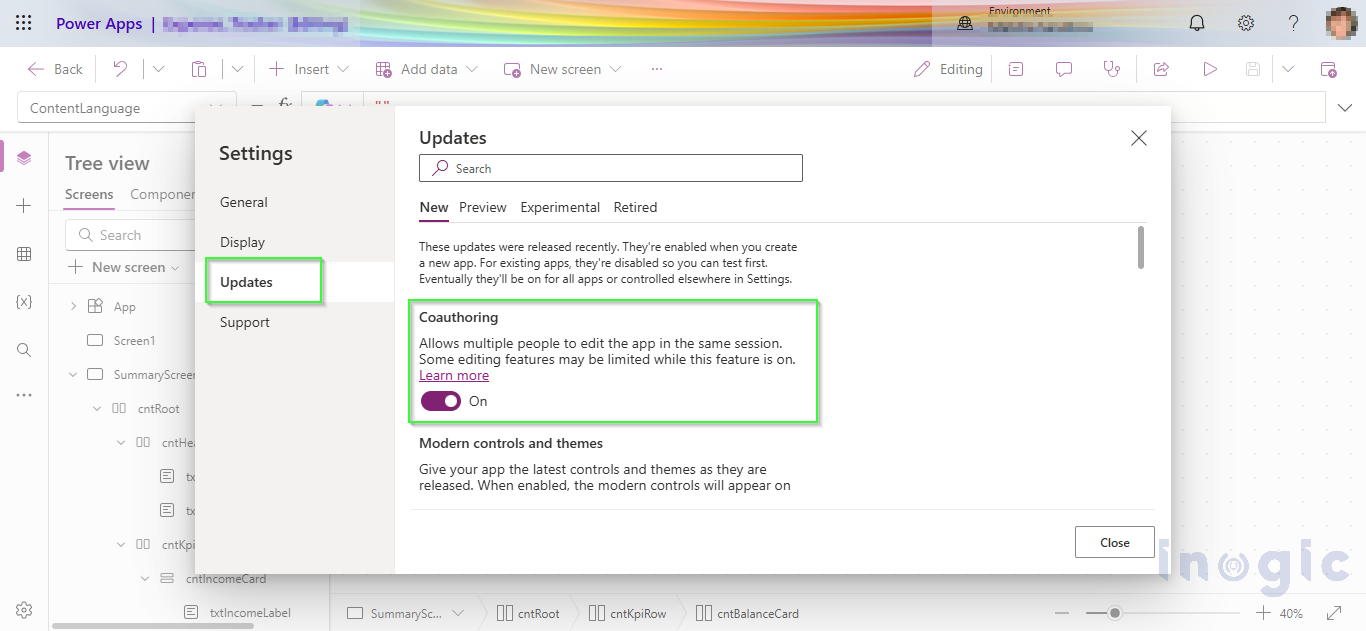
Without coauthoring enabled, the AI tooling cannot properly interact with the Canvas App source.
Connecting to the Power Platform Environment
Before generating apps, authentication with the target Power Platform environment is required.
Run the following command:
pac auth create –environment <your_environment_url>
This establishes the connection between the AI tooling and the Power Platform environment.
The environment ID is also required so the AI agents can correctly identify the target instance during app generation.
Initializing the Canvas App AI Workflow
Once the setup is complete, the Canvas App workflow can be initialized using:
/canvas-apps:canvas-app
This configures the MCP server connection and prepares the environment for AI-assisted Canvas App creation.
After initialization, users can begin generating app structures, screens, and workflows using natural language prompts.
Implementation
Instead of starting with a blank canvas and designing every screen from scratch, you can now just describe what you want in plain English. Something like:
“Create a LeadBoard showing all leads in card format. Clicking a card should open a qualification form where I can enter a score and add notes, with an option to save.”
That is all it takes to get started.
After you submit the prompt, the AI agent gets to work. It reads your requirement, checks the necessary connections, and starts building the app for you. One thing I really liked about this experience is that you can actually watch it work in real time, you are not just staring at a loading screen waiting for something to appear.
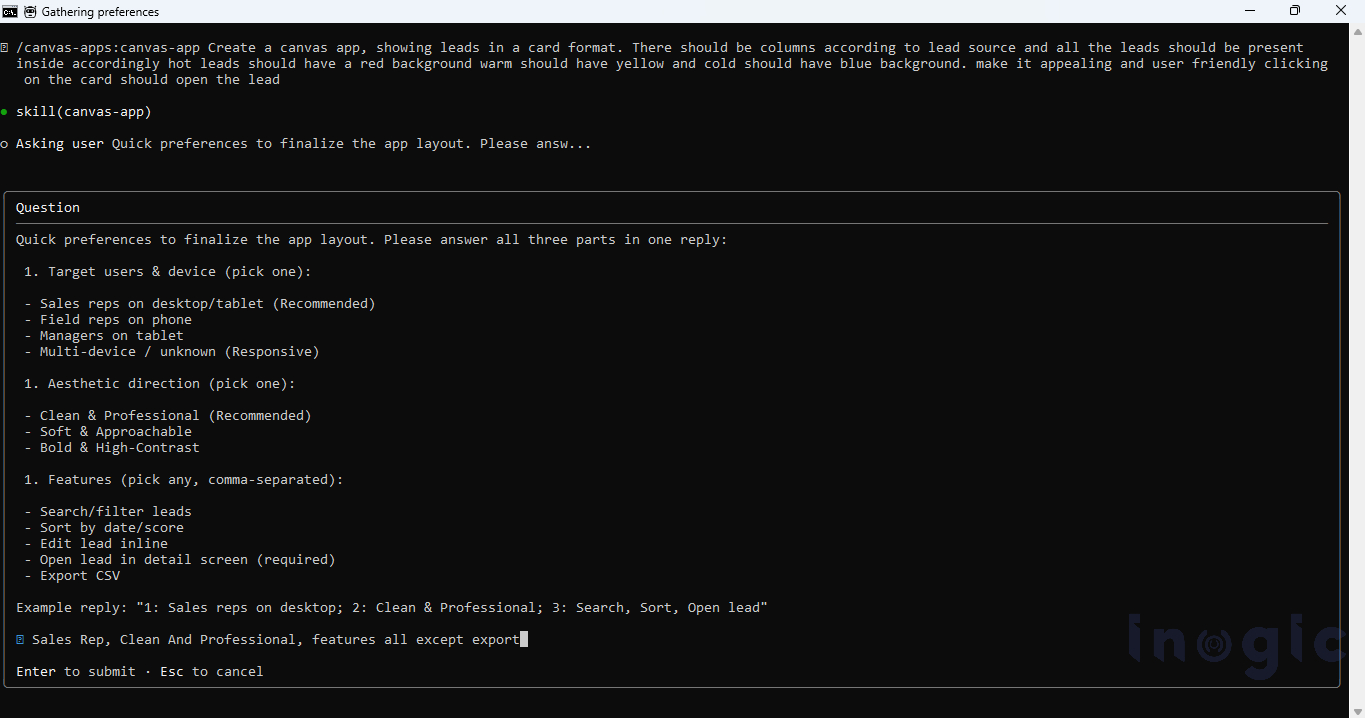
What surprised me is that the agent does not just guess and generate. If your prompt is missing something, it asks. It might check whether you have a preferred layout in mind, whether the data is already set up, or how many screens you need.
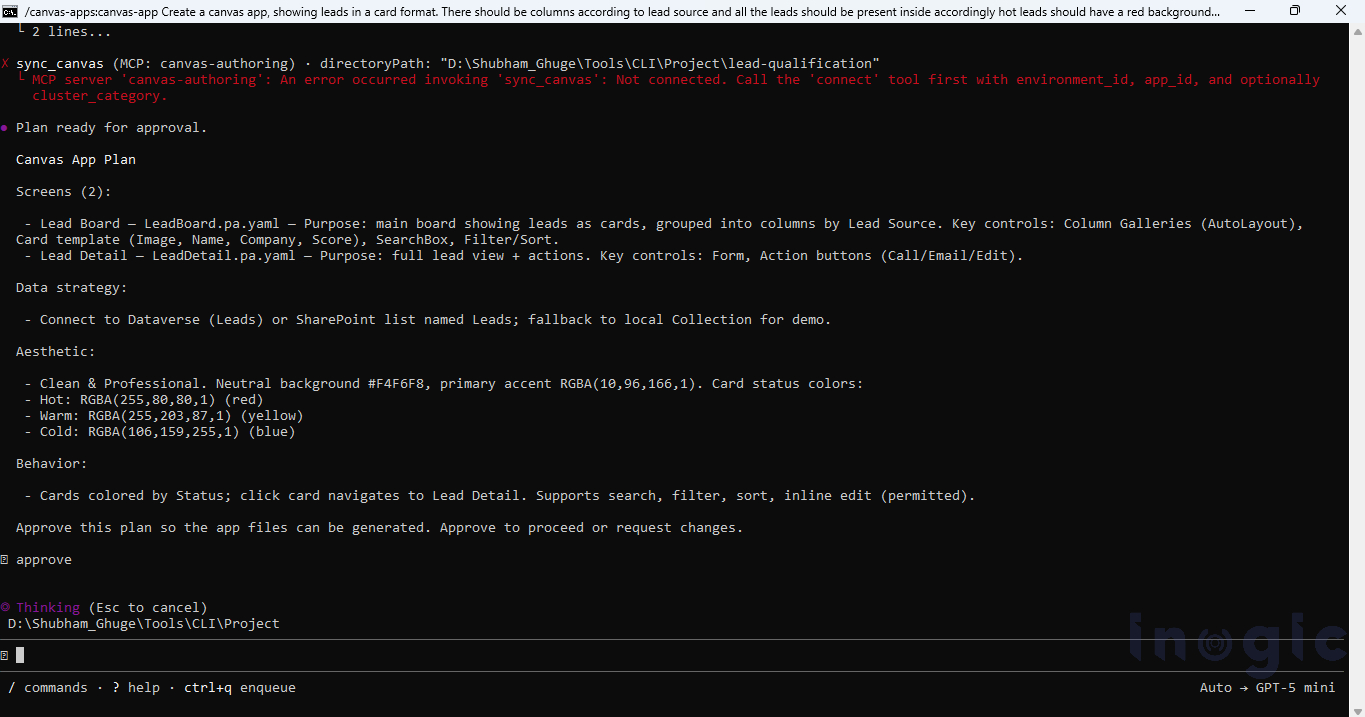
This means even a rough prompt gets you a decent result. The agent fills in the blanks by asking the right questions, so you are not stuck fixing a broken app just because you forgot to mention something upfront. The experience feels less like using a conventional tool and more like interacting with a partner that understands your objectives and provides meaningful assistance beyond basic commands.
Once everything is confirmed, it generates the screens, sets up the navigation, connects the data source, and puts together the basic app logic. Within a few minutes you have something you can actually open and use, not just a wireframe or a demo.
The results were better than I expected. Once the files were ready, the CLI compiled them and pushed the changes directly into the live app through coauthoring – the LeadBoard appeared in Power Apps Studio in real time without any manual copying or pasting. The card layout came through cleanly, showing each lead’s name, company, and source.
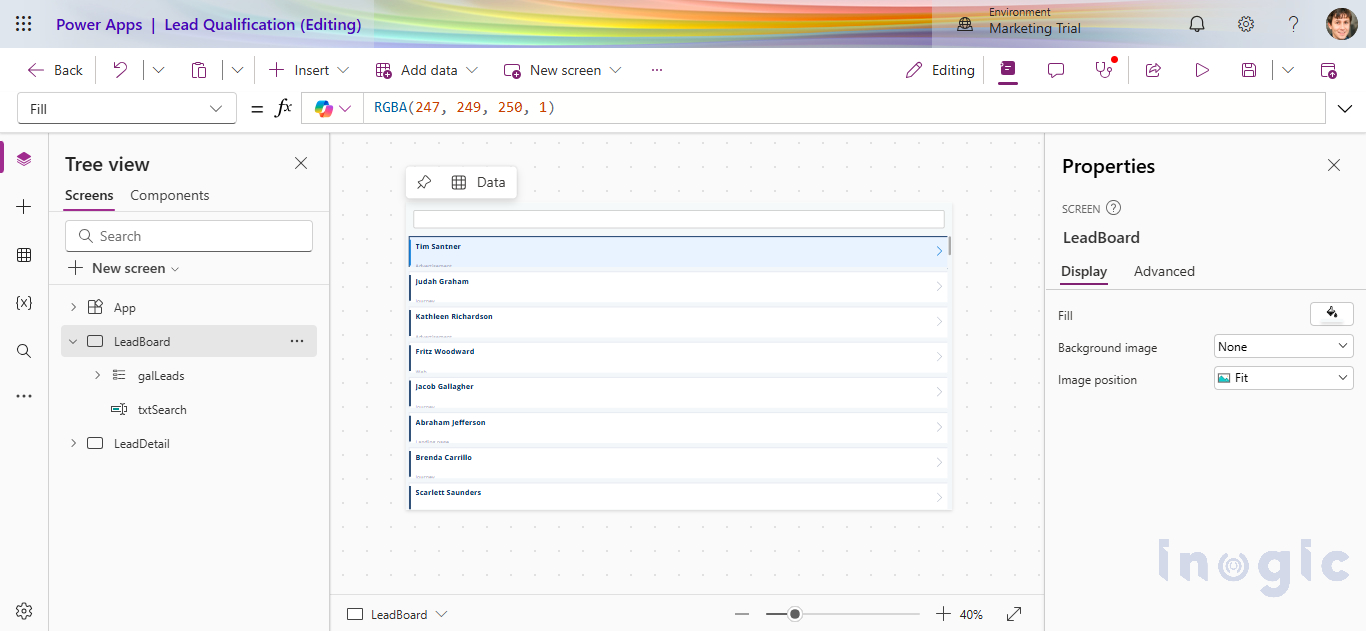
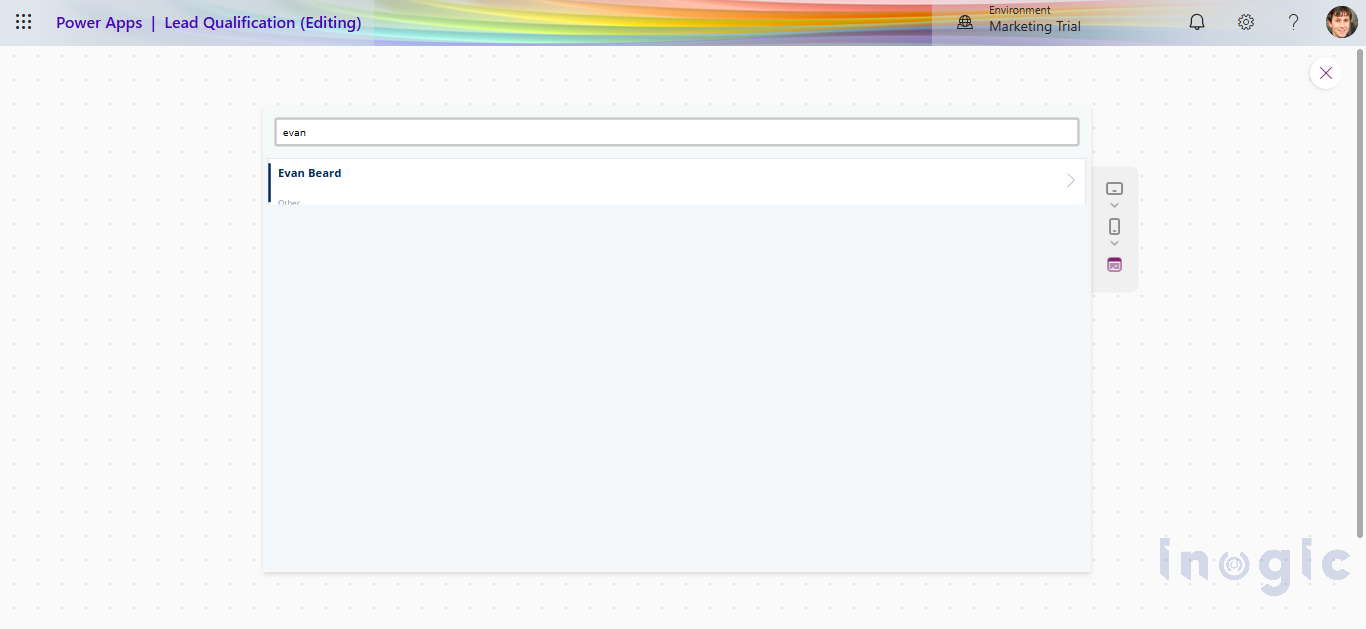
During the generation process, the AI asked whether a search bar should be included. We confirmed yes, and it handled the rest. It is a small thing but it reflects how the agent approaches requirements, it does not assume, it asks, and then it delivers exactly what was agreed.
The qualification screen came through the same way, compiled and synced live. A form with a score input, a notes field, and a Save button that writes back to the Lead record in Dataverse.
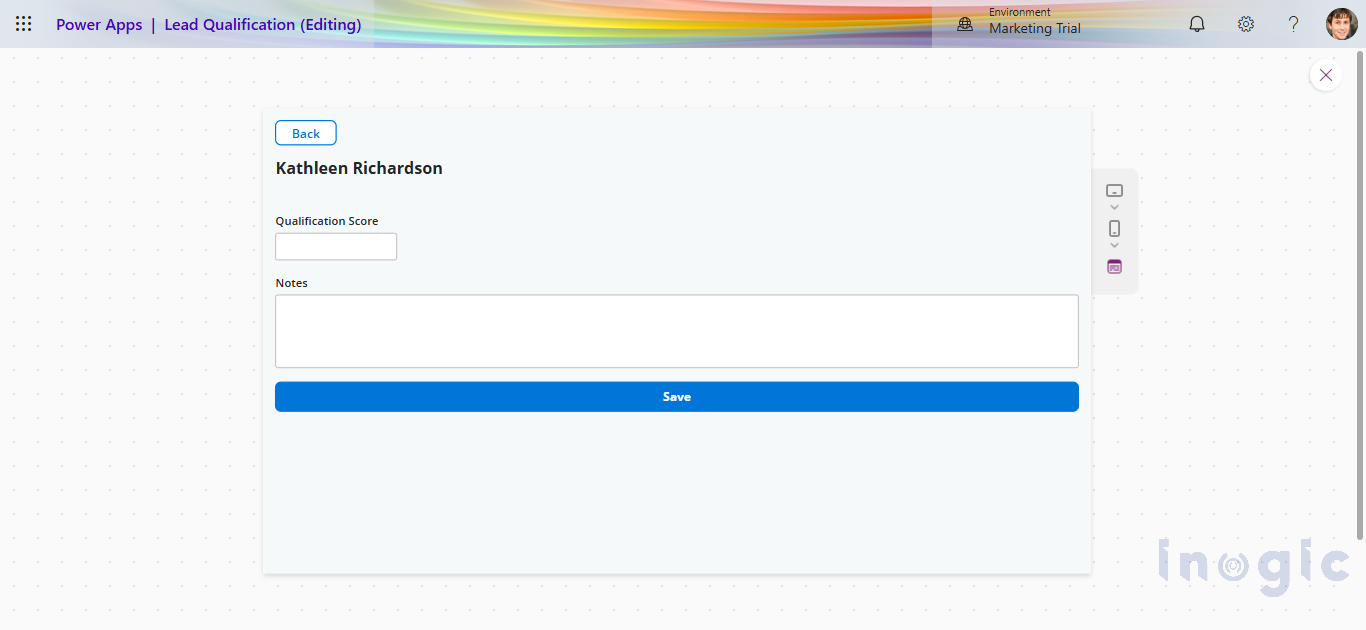
This is where AI-assisted Canvas App development really shows its value. Business users can take an idea and turn it into a working app quickly, without needing a developer involved from day one.
That said, there is a limit to what the AI handles well. If your app needs complex business logic, external integrations, security controls, or needs to scale across an enterprise, you will still need a developer in the loop. But the AI gives you a solid starting point. The boring setup work, scaffolding screens, wiring up navigation, connecting data, is done for you. Developers can jump straight into the parts that actually need their expertise.
Wrapping Up
The biggest takeaway from this experience is not that AI can generate a Canvas App for you. It is that it gives you a real starting point you can actually work from.
When I started this, I expected the AI to handle most of the heavy lifting. What I got instead was a collaboration, I described what I wanted, the agent generated a foundation, and then the real work began. Fixing YAML schema errors, figuring out the right control types, getting the Gallery variant string correct, iterating on the card design, none of that was automatic. But I was doing it on top of something that already existed, which is fundamentally different from staring at a blank canvas.
For business users, this matter because they can now describe an idea in plain English and get something tangible back within minutes. They do not need a developer just to see what an app might look like.
For developers, the value is different. The scaffolding, screens, navigation, basic data connections, is handled. You come in for the parts that actually need your skills: the business logic, the integrations, the performance tuning, the governance. The repetitive setup work that used to eat the first day of any project is largely gone.
That said, AI tooling for Canvas Apps is still maturing. The YAML schema is strict, control type strings are version-specific, and the gap between what the agent generates and what Studio actually accepts requires hands-on debugging. Knowing the platform well is still a prerequisite for getting the most out of these tools, not a nice-to-have. It’s also worth calling out that the model you’re running behind these tools matters a lot. The choice of AI model plays a significant role in the outcome: more advanced models understand business requirements more effectively, which shows up directly in app structure, logic quality, and how strong a starting point you actually get.
Canvas App development is moving toward an AI-assisted engineering workflow. We are not there yet, but projects like this make it clear the direction is set.