
“Which stage is causing the biggest backup?”
“Where is my team spending most of their time?”
“Why does this lane keep getting longer and longer?”
If you’ve ever tried to answer these questions by looking at a cluttered CRM screen, you know how frustrating it can be. Managing tasks without a clear view is like trying to find your way through a maze in the dark—you know the work is there, but pinpointing the hold-ups feels impossible.
The good news?
Kanban Board just got smarter to help you spot these bottlenecks instantly.

Introducing: Sort Lanes by Card Count
The latest enhancement to the Kanban Board for Dynamics 365 is here:
Sort Lanes by Card Count – an intuitive feature that automatically organizes your Kanban lanes based on the number of records they contain.
How Does It Work?
It’s simple—and powerful:
- Navigate to your Kanban View configuration.
- Choose how you want to sort:
- Descending: Lanes with most records first (e.g., “In Progress” with 48 records appears before “New” with 5).
- Ascending: Lanes with least records first (great for catching neglected stages).
- –Select–: No sorting; default behavior applies.
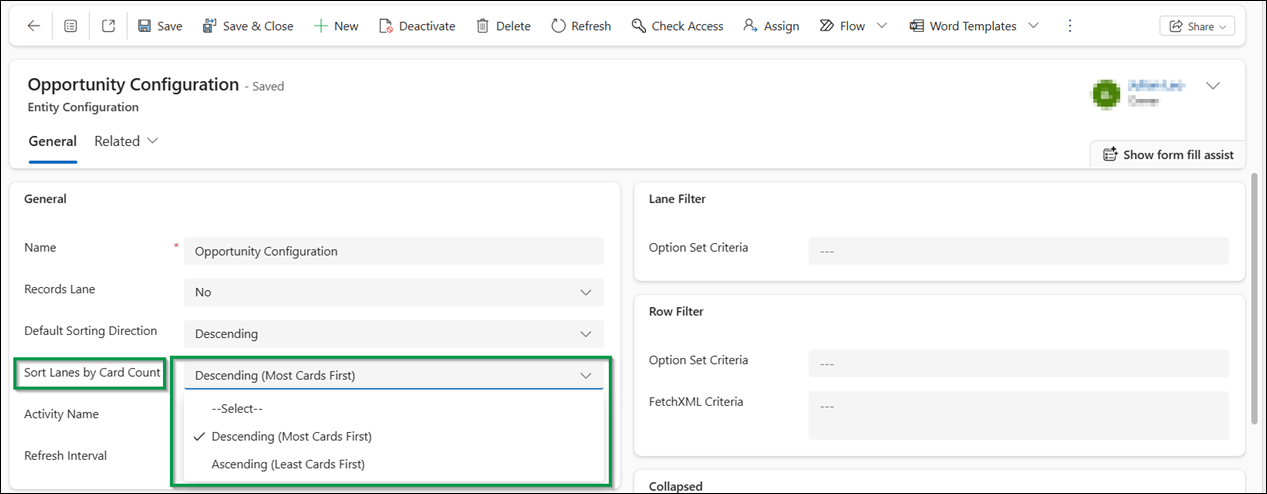
Example:
Imagine your Sales Team Kanban view has these lanes:
- Prospecting (12 leads)
- Qualified (34 leads)
- Negotiation (8 leads)
- Won (3 leads)
With Descending order, your board now starts with Qualified, highlighting where your team is most active—and maybe, where they need help!
Why This Matters
- Get clarity in a glance
- Boost team productivity
- Respond to high-load stages faster
- Make smarter, data-driven decisions
No more jumping between stages or trying to make sense of volume. Your Kanban Dynamics 365 view just got more insightful, actionable, and easier to manage.
Supercharge Your CRM with These Powerful Kanban Features:
Here’s a snapshot of the other Kanban Board capabilities helping teams move faster, collaborate better, and work smarter:
- Business Process Flow Support – Organize records by BPF stages for structured pipeline tracking.
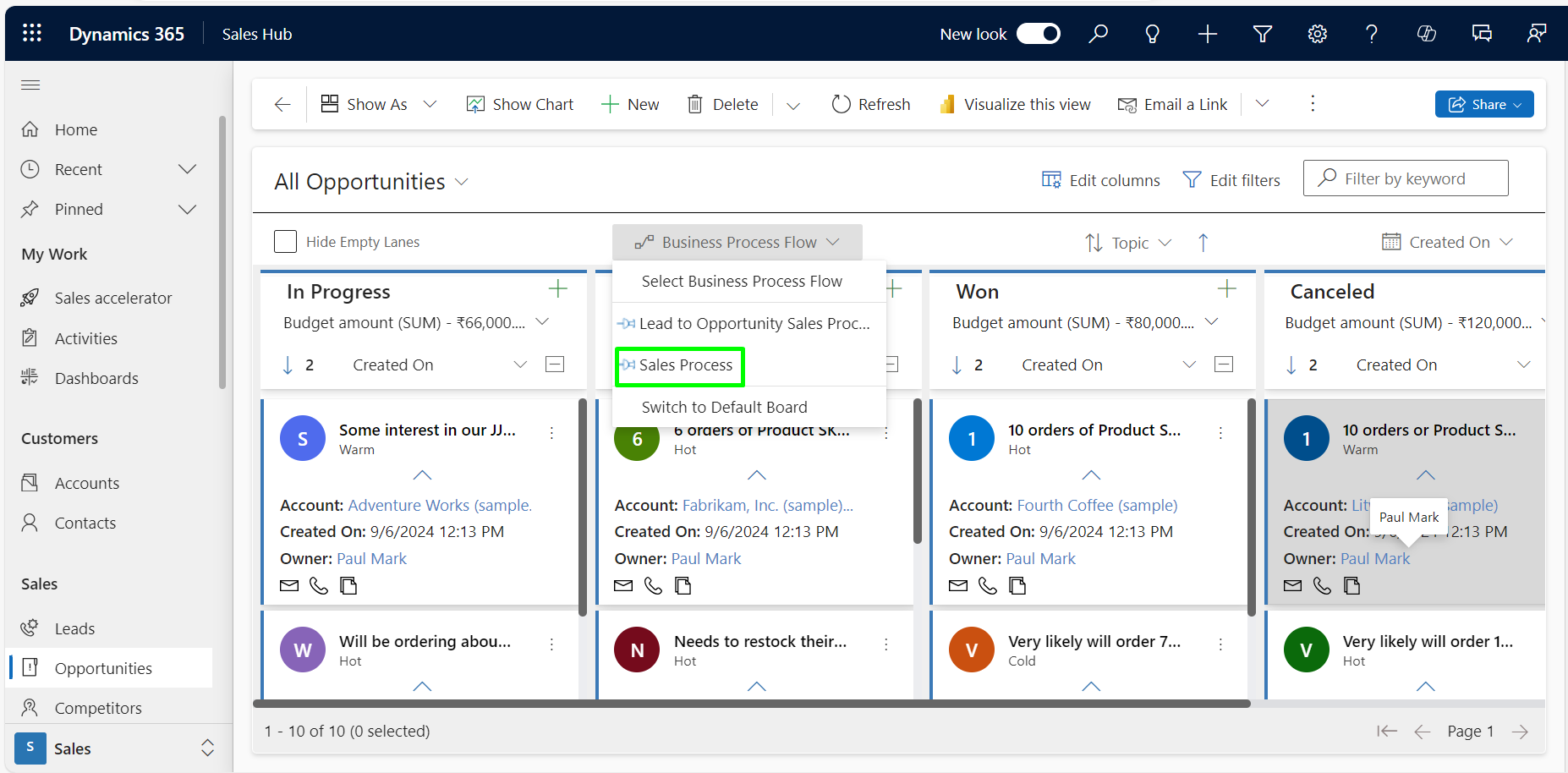
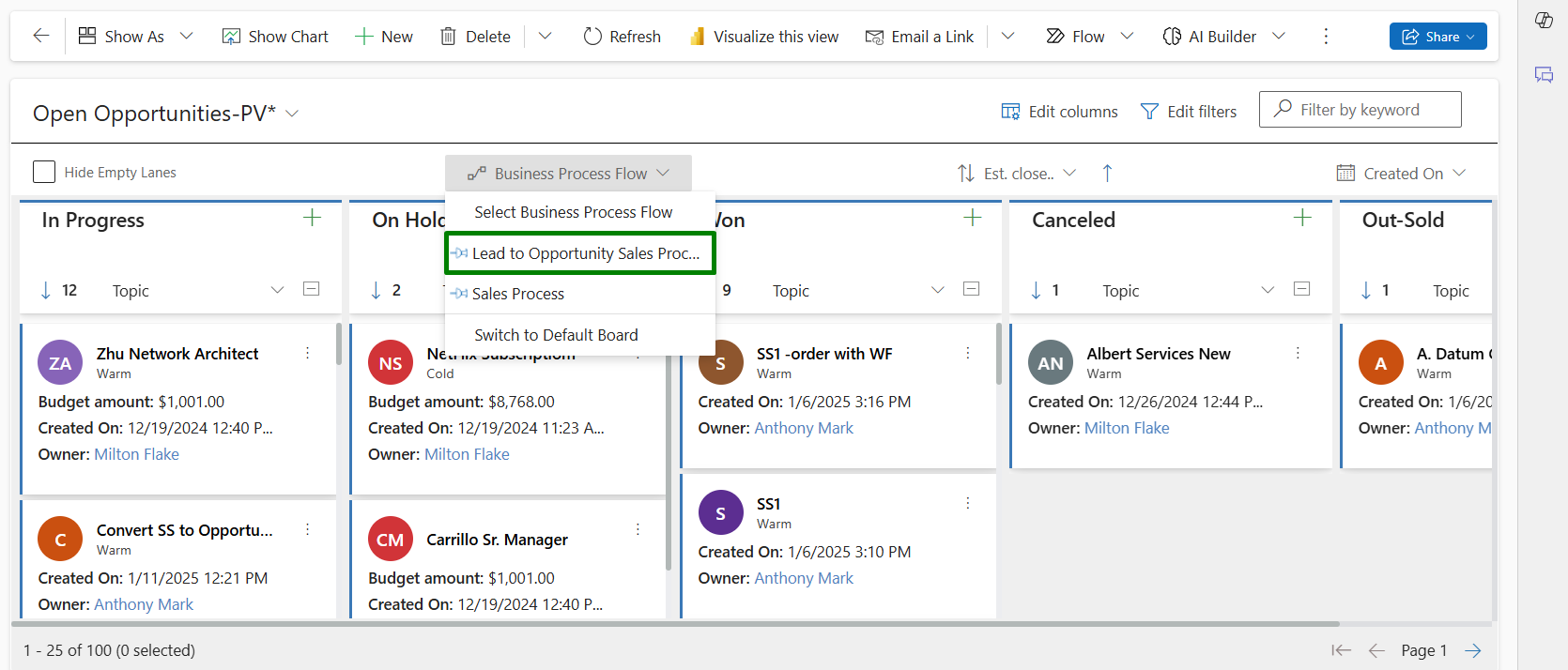
- Multi-Entity BPF Support – Apply BPFs across multiple entities like Leads and Opportunities seamlessly.
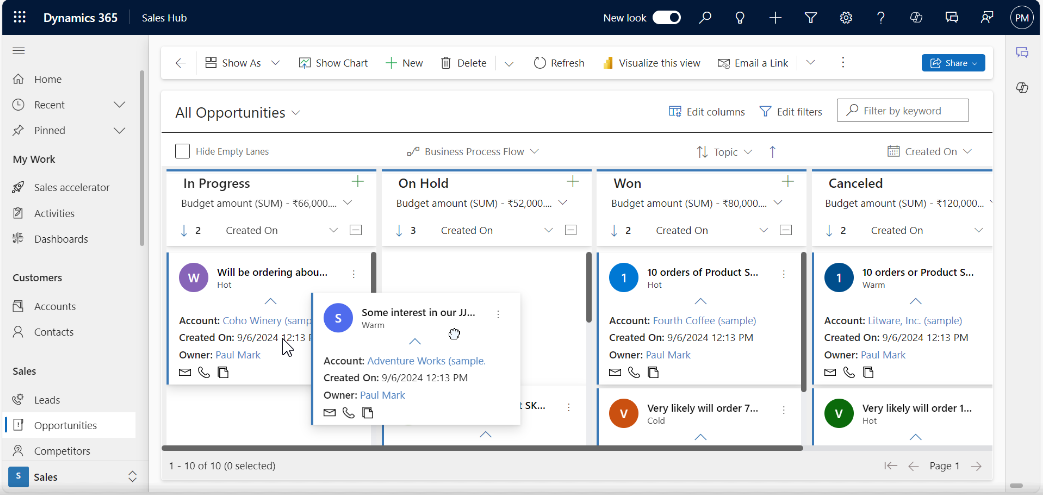
- Drag and Drop Cards – Instantly update status or fields by moving cards between lanes and rows.
- Row Grouping – Categorize data into rows (e.g., by priority or owner) for a multi-dimensional view.
- Quick Activity Actions – Trigger common activities (like calls or tasks) from within the card.
- Advanced Lane Filter – Show only the lanes you need to focus on.
- Advanced Row Filter – Filter rows to reduce clutter and see only what matters.
- Swim Lanes – Uniform row heights improve clarity and layout consistency.
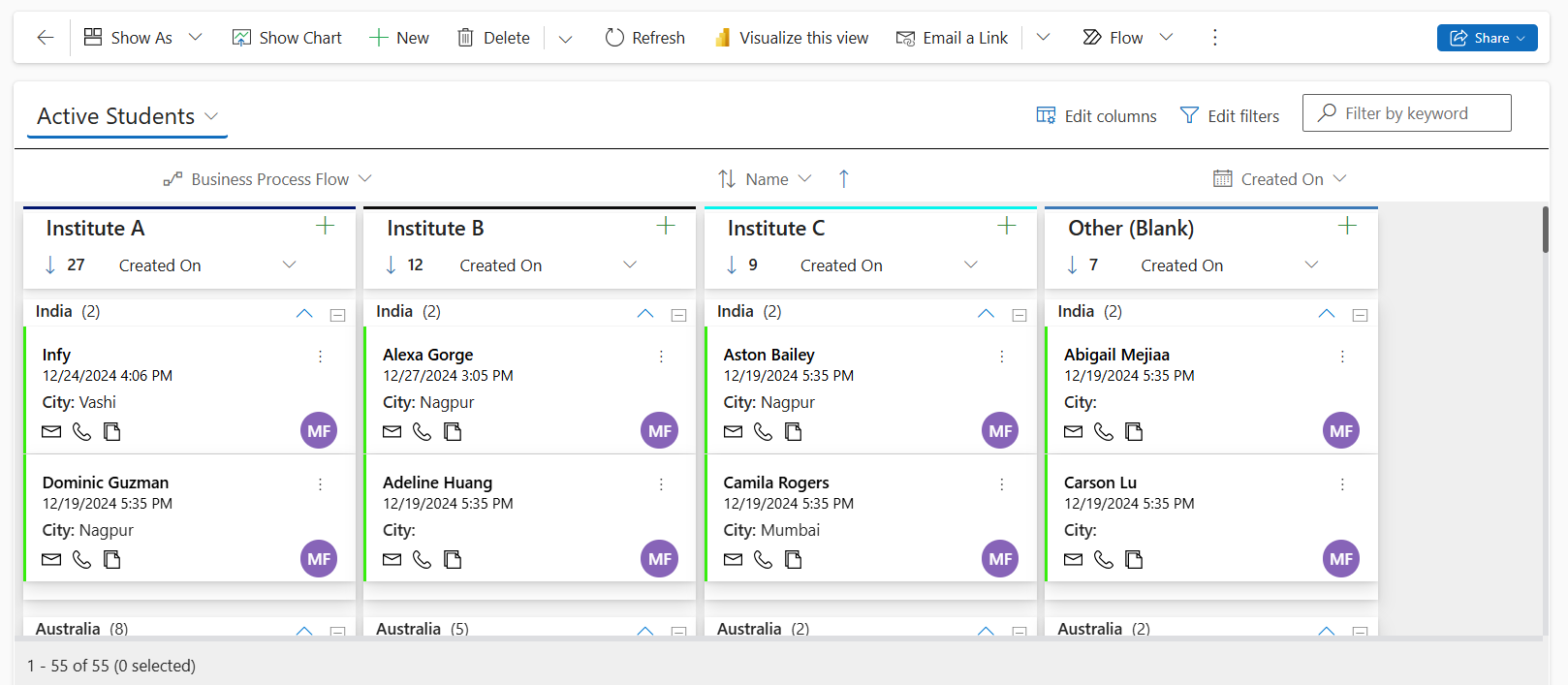
- Card Color Coding – Highlight cards based on field values like priority or status.
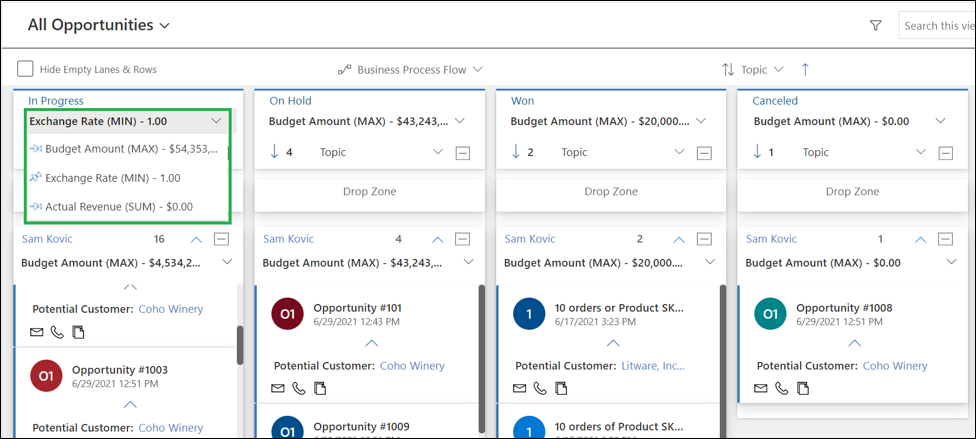
- Aggregate Field Values – Display totals like SUM or AVG at the top of lanes/rows.
- Multiple Move – Select and move multiple cards in one action.
- Card Width Control – Customize card size for a better fit on your screen.
Final Thoughts:
The Sort Lanes by Card Count feature is more than just an enhancement—it’s a smarter way to work. Whether you’re in sales, support, or operations, knowing where the bulk of your records lie lets you lead with insight, not instinct.
Take the Next Step
Ready to reduce clutter and spot bottlenecks instantly?
Try Kanban Board with a 15-day free trial from our website or Microsoft AppSource and start visualizing in Microsoft Dynamics 365!
Need a live demo? Contact us at crm@inogic.com.
Frequently Asked Questions
1. What is a Kanban Board in Dynamics 365 CRM?
A Kanban Board for Dynamics 365 CRM provides a visual, card-based way to organize and manage CRM records across lanes and stages. Users can quickly understand record status and move records between lanes using drag-and-drop actions.
2. How does a Kanban view work in Dynamics 365?
A Kanban view in Dynamics 365 displays CRM records as cards within configurable lanes. Users can organize records by fields such as status, stage, owner, or priority and manage them visually from the board.
3. Can I sort lanes in a Kanban Board for Dynamics 365?
Yes. The Kanban Board supports lane sorting, allowing users to control the order in which lanes appear. This makes it easier to prioritize stages or categories and quickly focus on the most important records.
4. Can I use Kanban in Dynamics CRM for opportunity pipeline management?
Yes. Kanban Dynamics CRM can be used to visualize opportunity pipelines across different stages. Users can move opportunities between lanes, monitor progress, and get a clearer view of the overall sales pipeline.
5. What is the benefit of using a Kanban Board in Dynamics 365 CRM?
A Kanban Board in Dynamics 365 CRM provides a more visual way to manage records, improve pipeline visibility, and track workflow progress. Drag-and-drop updates and configurable lanes make it easier to manage CRM processes.
6. How can I improve record prioritization in a Dynamics 365 Kanban view?
Using Kanban Dynamics 365 with lane sorting helps prioritize how records and stages are displayed. By arranging lanes according to business priorities, users can bring important stages or categories into focus and manage work more effectively.