 Imagine managing sales teams across four states. Your California sales reps should see California accounts, your Arizona reps should see Arizona accounts, and your sales head should have access to all accounts.
You could manage this using business units, teams, or manual record sharing. But as your business grows and records keep changing, maintaining these access rules can become complicated.
What if you could control who sees a record based on a value in the record itself?
That’s exactly what Microsoft’s new Filtered Record Ownership feature in Dataverse aims to do. Currently in preview, it lets you apply row-level security using column values, such as State, instead of relying on record ownership.
In this blog, we’ll walk through how to set up Filtered Record Ownership for a Regional Accounts table, create state-based filters, and assign them to security roles so each salesperson sees only the accounts relevant to their region.
What is Filtered Record Ownership?
Filtered record ownership lets you define filters based on your use case, such as State equals California, and grant them to a security role. Users with that role can create or read only the records that match the filter.
A few things are different from regular tables:
- A filtered table has no record owner, so records can’t be shared or assigned to an individual. The Created By column still tracks who created the record.
- When you create the table, the system creates a global All records privilege and gives it to the System Administrator role, so admins are never locked out.
- Filters can be granted for the Create, Read, Write, Delete, Append, and Append To
Prerequisites
- Access: The System Administrator security role, which you need to create and assign the security roles.
- A model-driven app: One that includes your table, since the filter is built from the table view.
- A test environment: Since this is a preview feature, try everything in a dev or sandbox environment first.
Steps to set up filtered record ownership
- Create a table with filtered record ownership
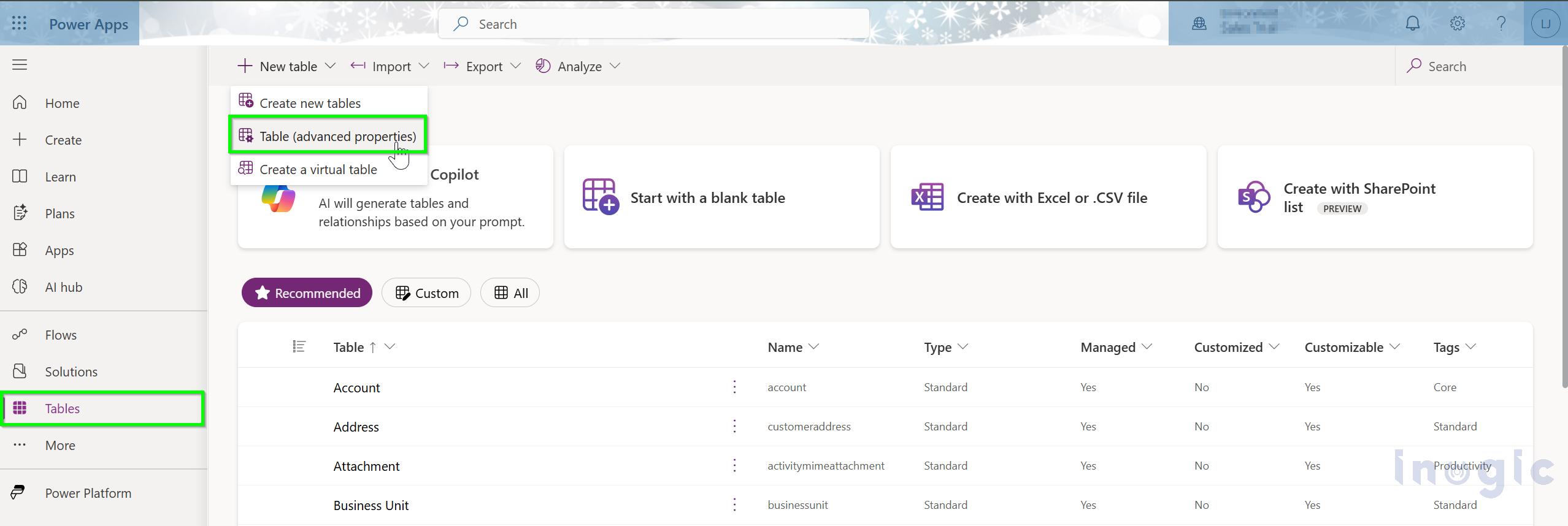
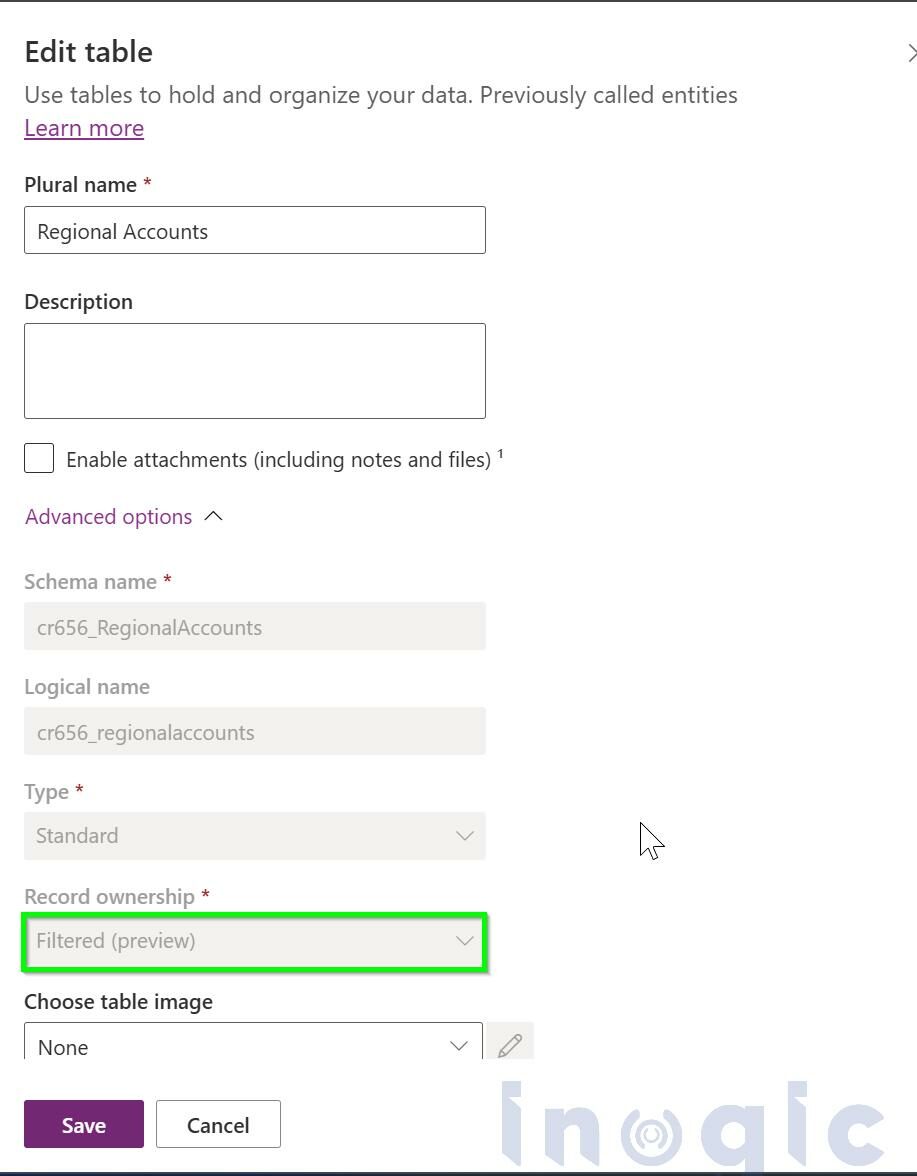
In Power Apps, open your solution and select New > Table (advanced properties). Enter the display name (we used Regional Accounts), expand Advanced options, set Record ownership to Filtered (preview), and click Save.
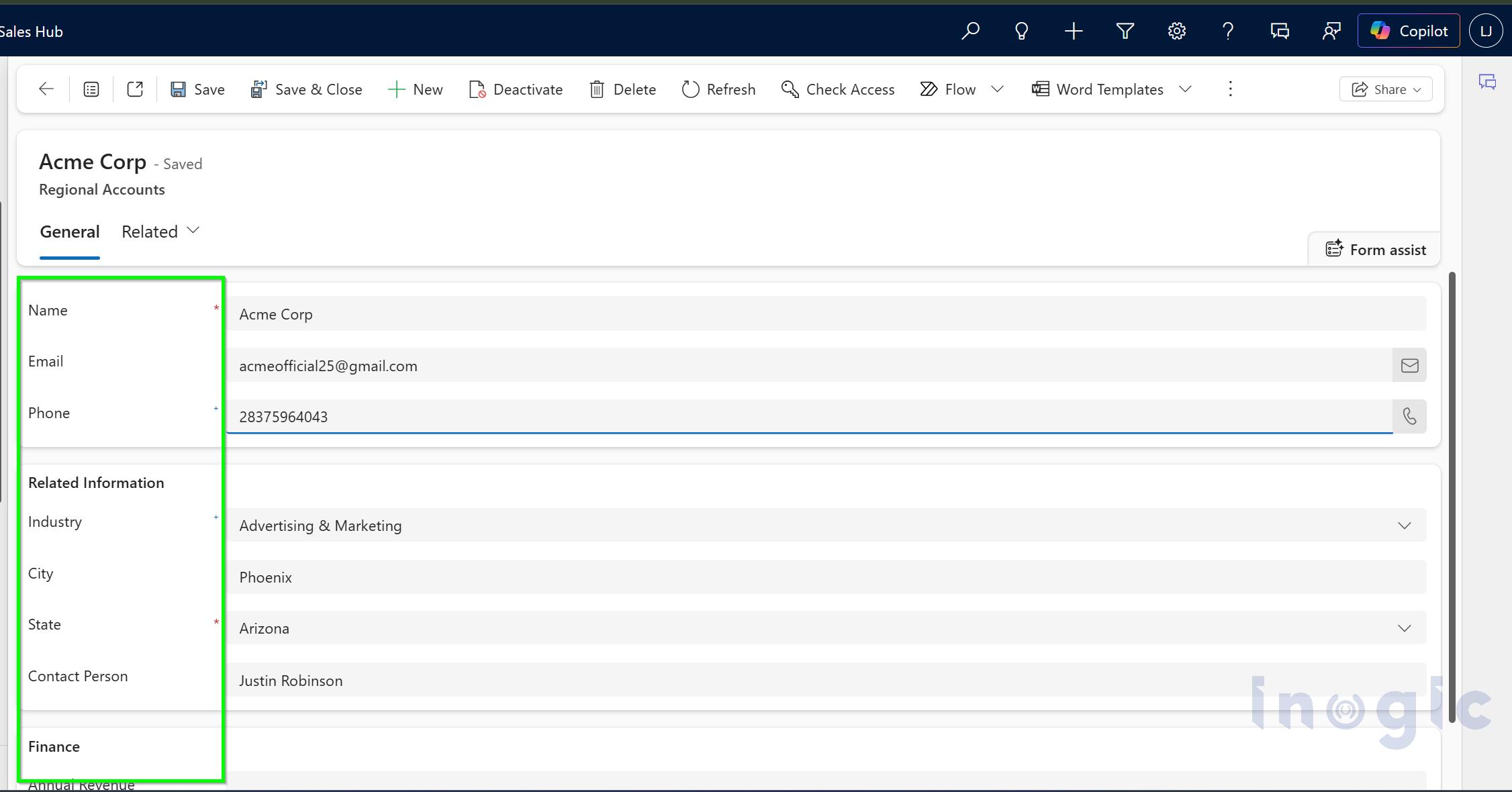
We added columns for Account Name, City, State, Industry, and Annual Revenue, and entered sample accounts for California, Georgia, Alaska, and Arizona. State is the column our filters are based on.
Note: You can’t change a table’s record ownership type after it is created.
- Create the filters and download the FetchXML
Open your model-driven app for editing and open the Regional Accounts table view. Select Filters in the top right of the action bar, remove any default filters, click + Add, and set State equals Arizona. Then click Download FetchXML and open the downloaded file in Notepad.
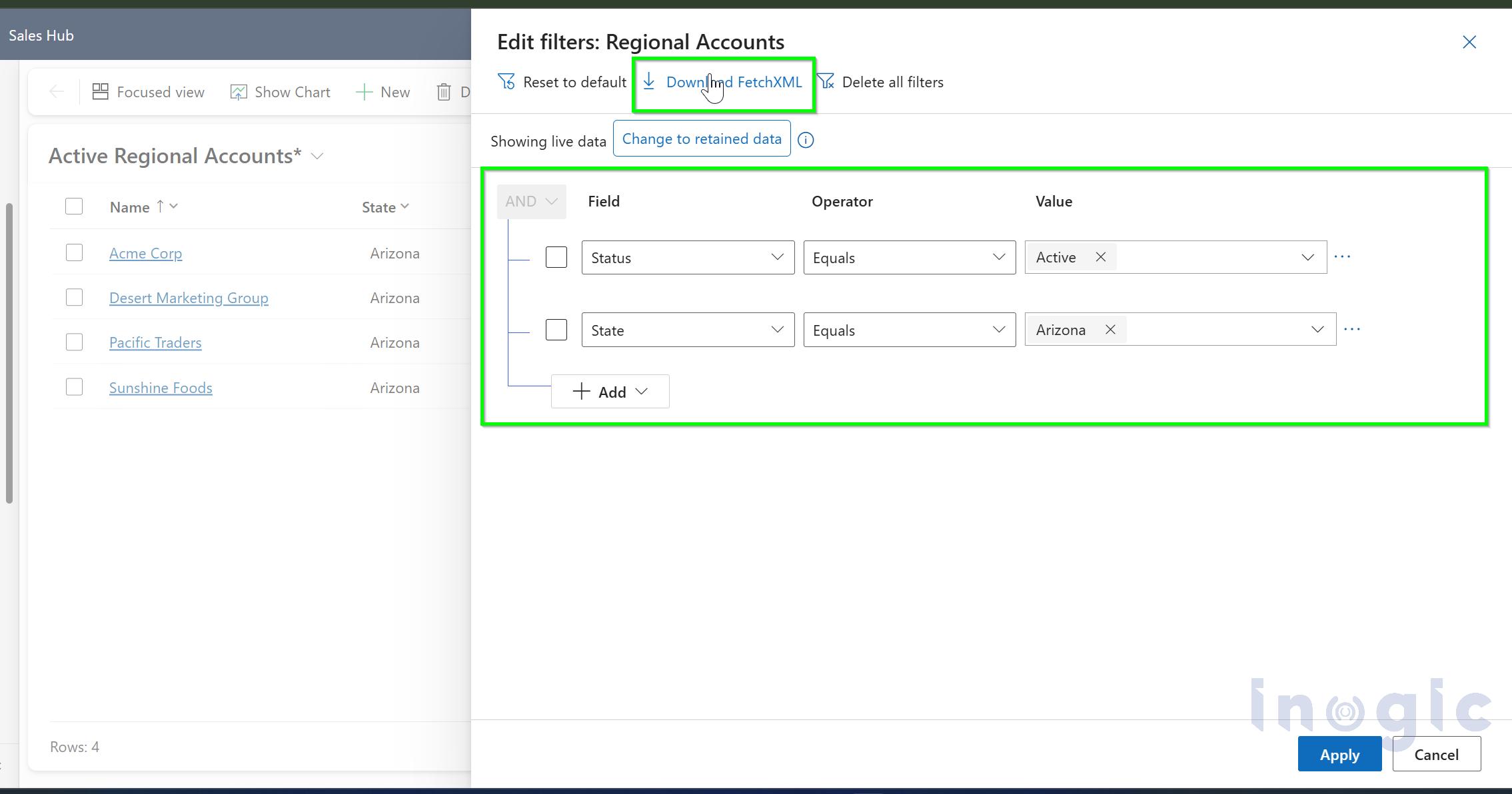
Repeat this for each state (Georgia, Alaska, and California), so you have one FetchXML file per state.
- Create a Record Filter
A record filter is the security predicate that decides which rows a user can access. In your solution, select
+ New > More > Other > Record Filter.
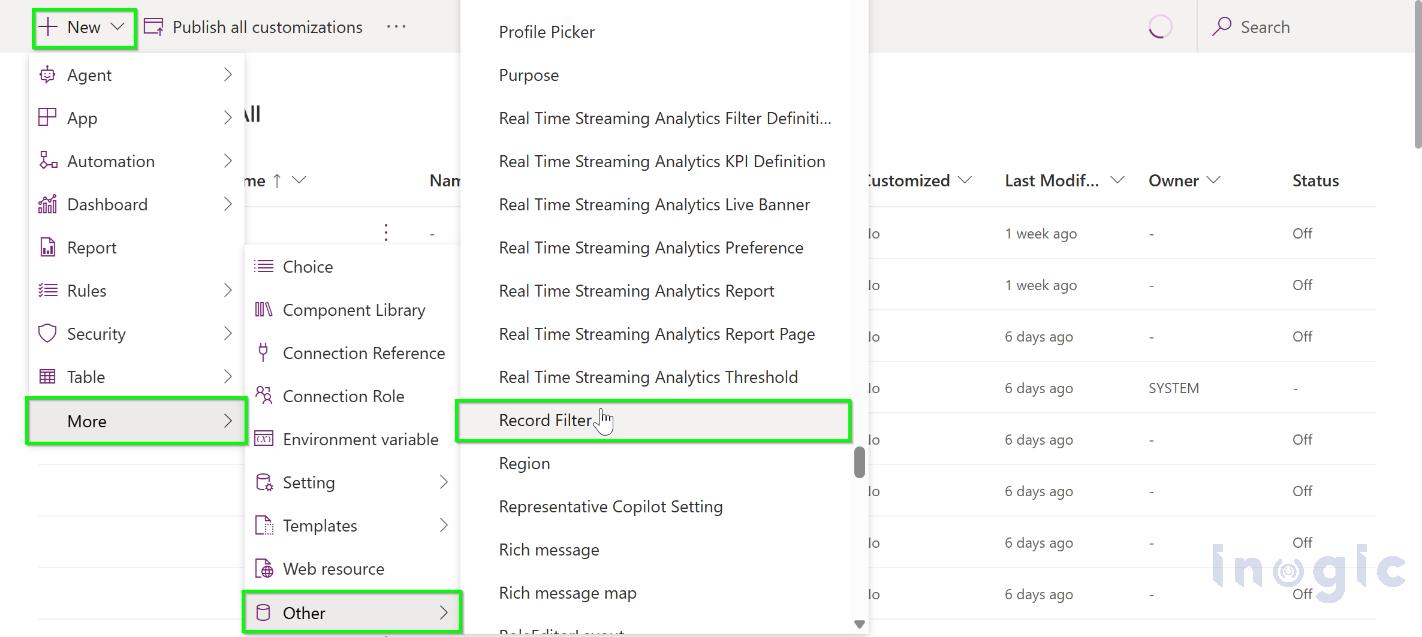
- Display name: Arizona
- Unique name: Filter_Arizona
- FetchXML: Paste the FetchXML you downloaded for Arizona
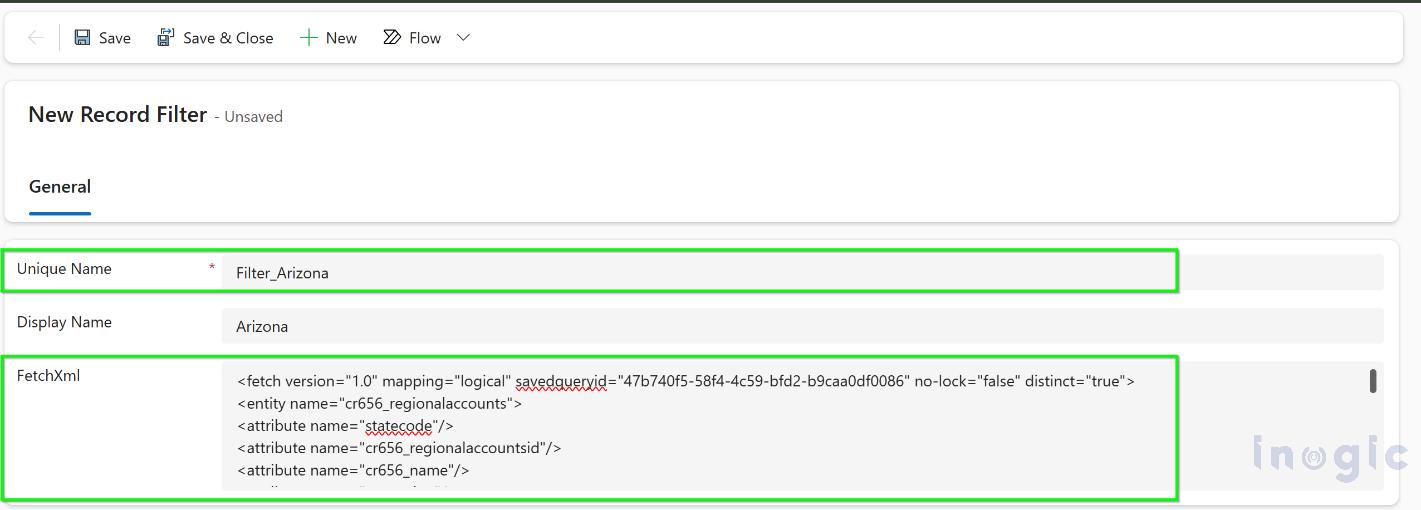
Click Save & close and repeat for the other states.
<fetch version="1.0" mapping="logical" savedqueryid="47b740f5-58f4-4c59-bfd2-b9caa0df0086" no-lock="false" distinct="true">

<entity name="cr656_regionalaccounts">

<attribute name="statecode"/>

<attribute name="cr656_regionalaccountsid"/>

<attribute name="cr656_name"/>

<attribute name="createdon"/>

<order attribute="cr656_name" descending="false"/>

<attribute name="cr656_state"/>

<attribute name="cr656_industry"/>

<attribute name="modifiedby"/>

<attribute name="cr656_contactperson"/>

<attribute name="createdby"/>

<filter type="and">

<condition attribute="statecode" operator="eq" value="0"/>

<condition attribute="cr656_state" operator="eq" value="2"/>

</filter>

</entity>

</fetch>
Note: The unique name can’t contain spaces. A name like “Filter Arizona” fails with the error “Export key attribute must begin with a letter and only consist of alpha-numeric and _.{}! characters”. Use underscores instead, for example Filter_arizona.
- Create an Entity Record Filter
An entity record filter links each record filter to the table. In your solution, select
+ New > More > Other > EntityRecordFilter and enter:
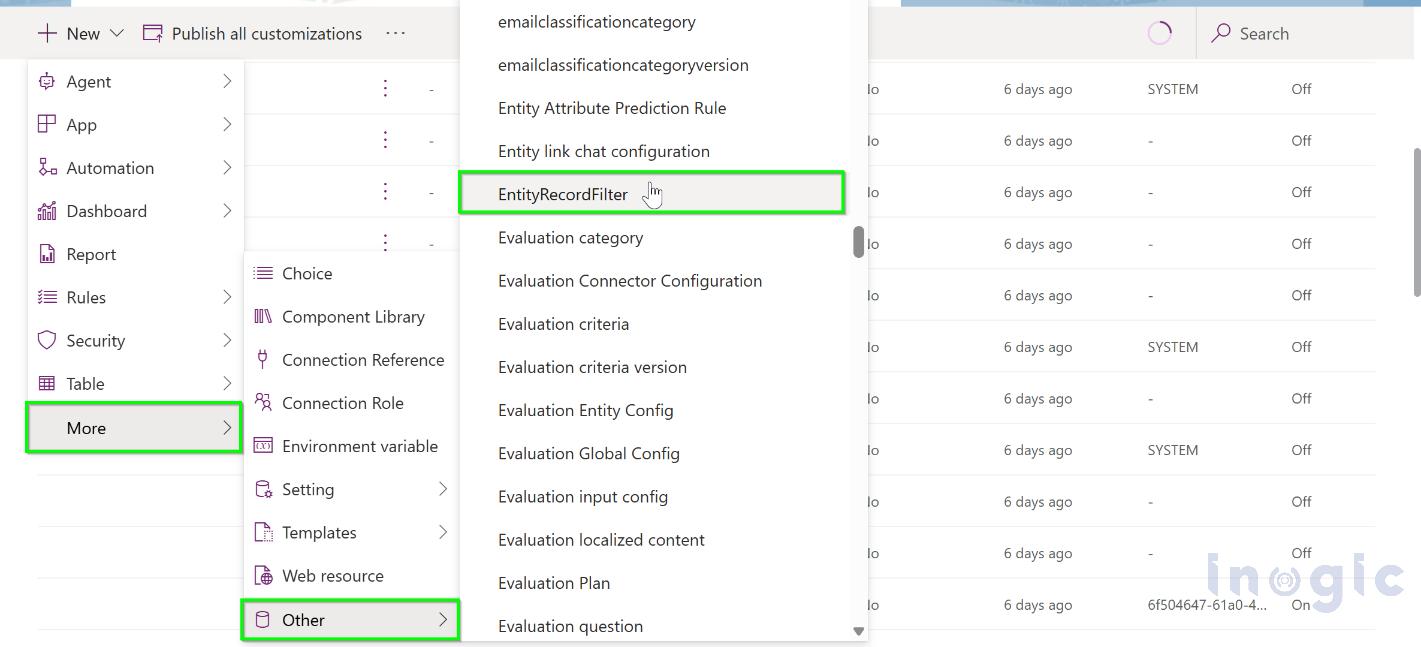
- Name: FilterArizona
- Record Filter: Arizona
- Related Entity: The logical name of the table, for example cr656_regionalaccounts
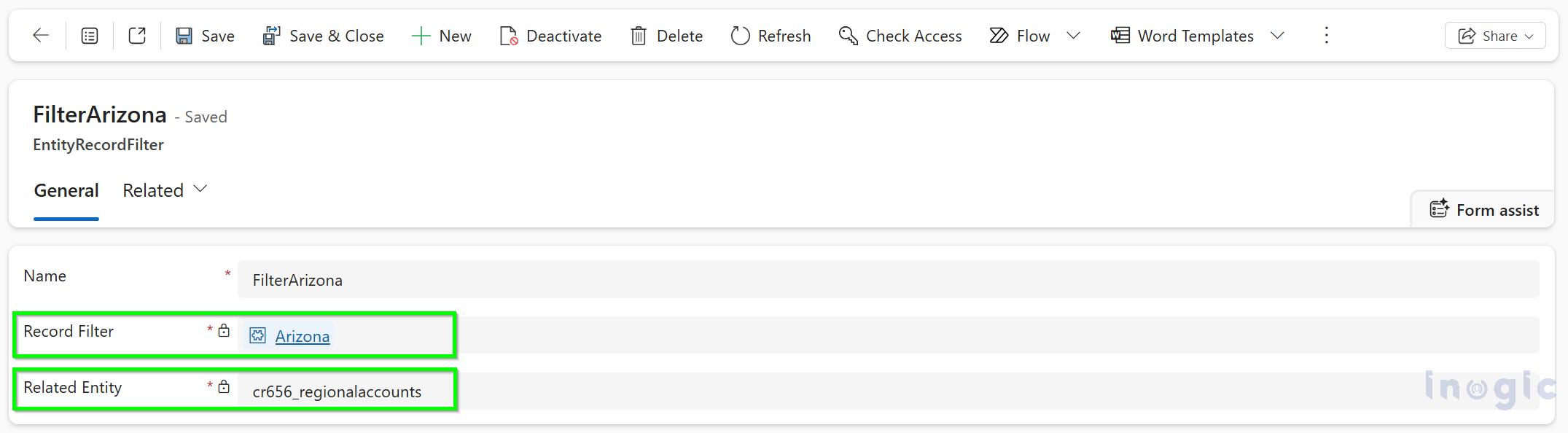
Click Save & close, repeat for each state, and then publish all customizations.
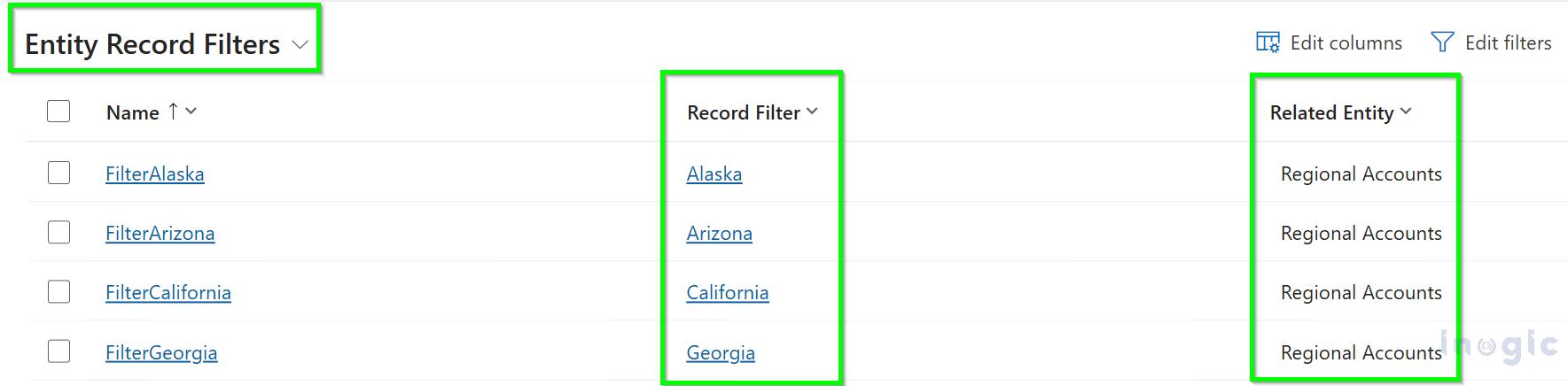
Note: Create the table, record filters, and entity record filters in the same environment where you will edit the security role. If they are in a different environment, the filters won’t show up in the role.
- Create a security role and grant the filter
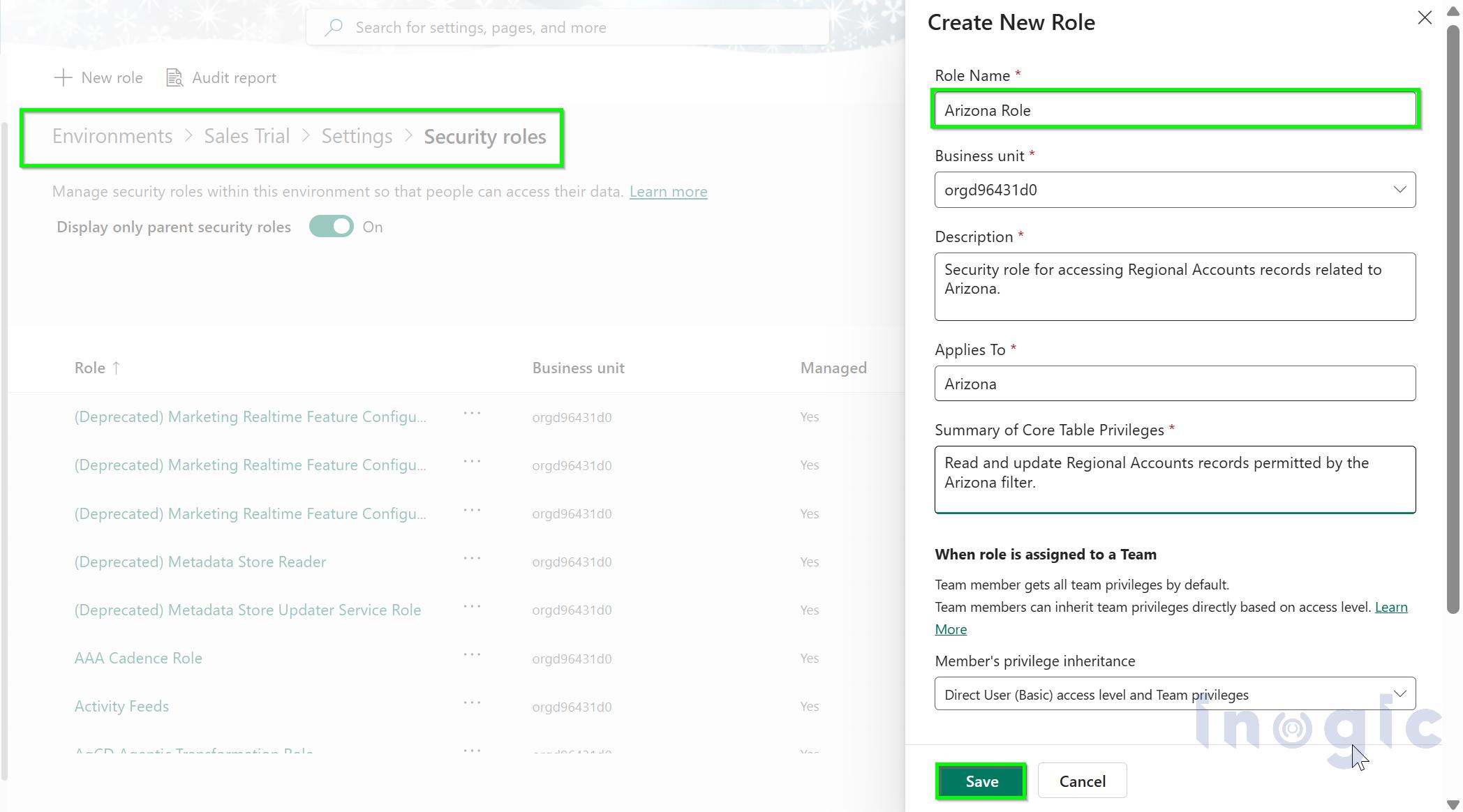
In the Power Platform admin center, go to your environment, then Settings > Users + permissions > Security roles > + New role. We created a role named Arizona Role.
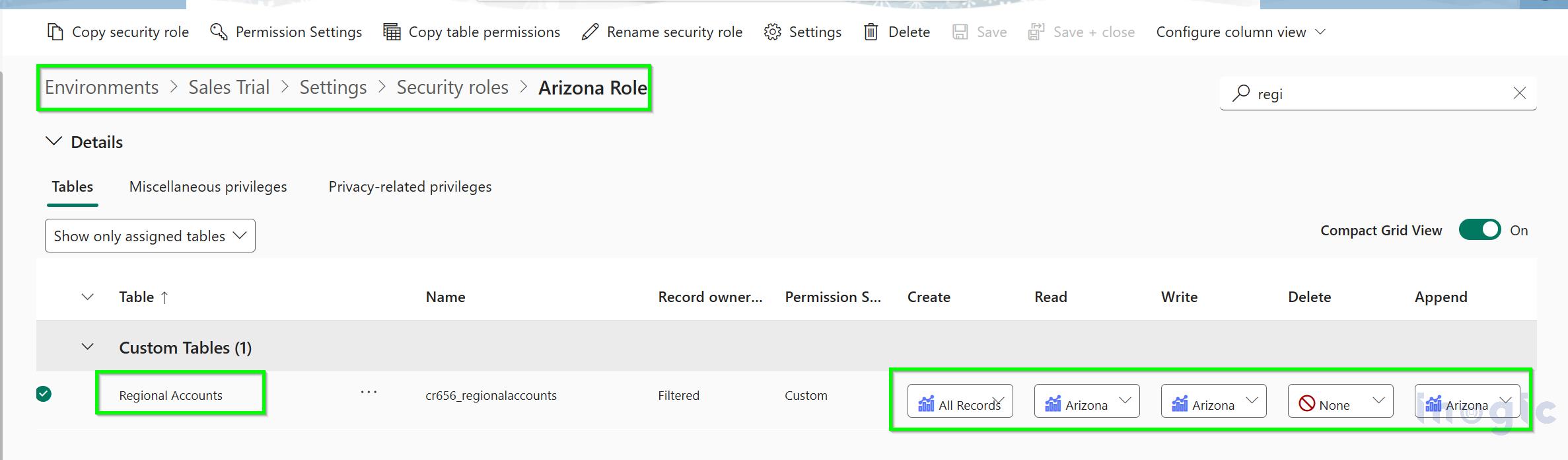
Open the role, find the Regional Accounts table, and on the Read privilege select the Arizona filter instead of None or All Records. If you want users to create, edit, or delete records, you can grant the filter on those privileges as well. Click Save + close.
Create one role per state in the same way.
- Assign the role to users
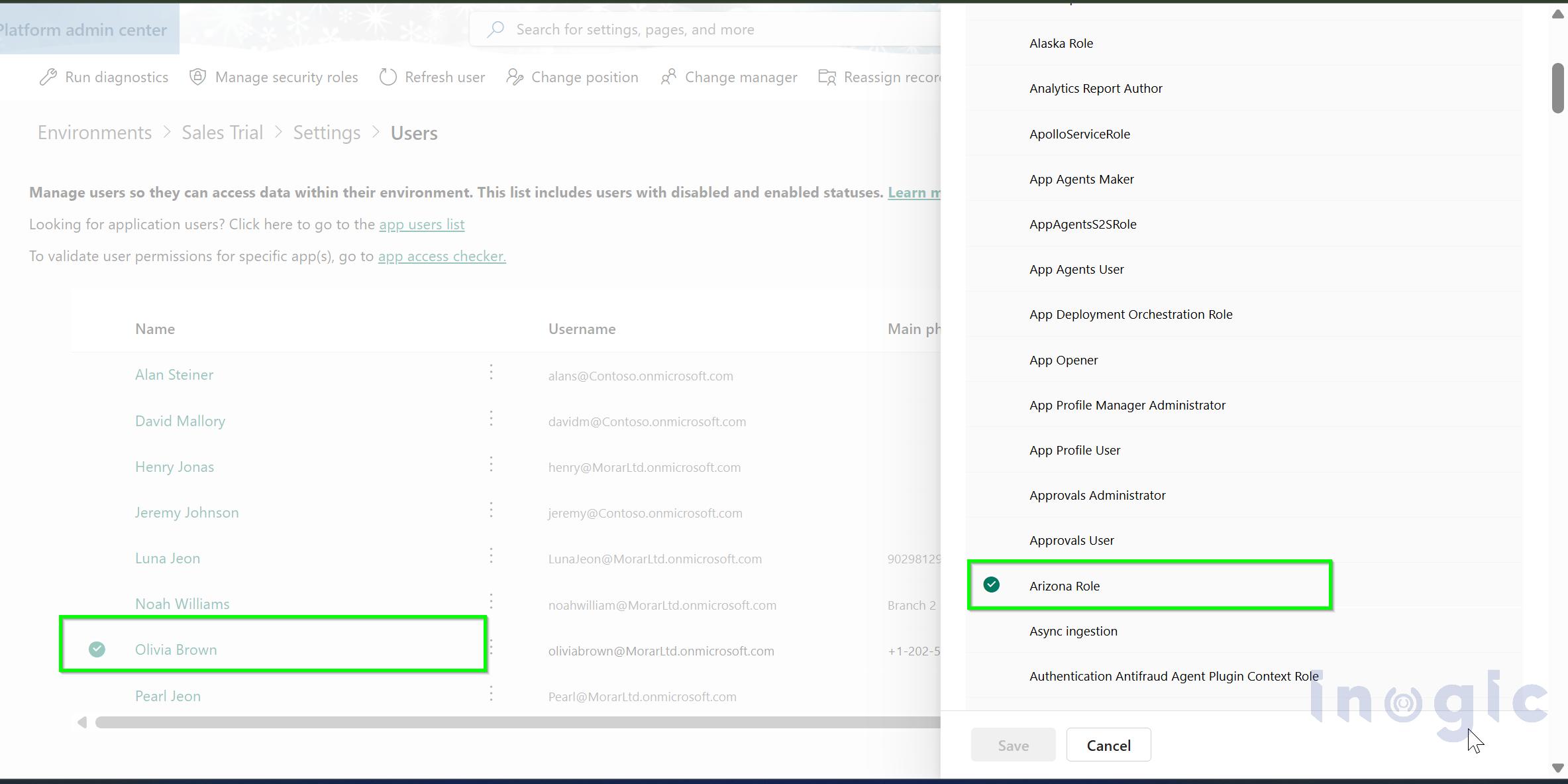
Select a user, click Manage security roles, and assign the matching role: California Role to the California salesperson and Arizona Role to the Arizona salesperson.
The result
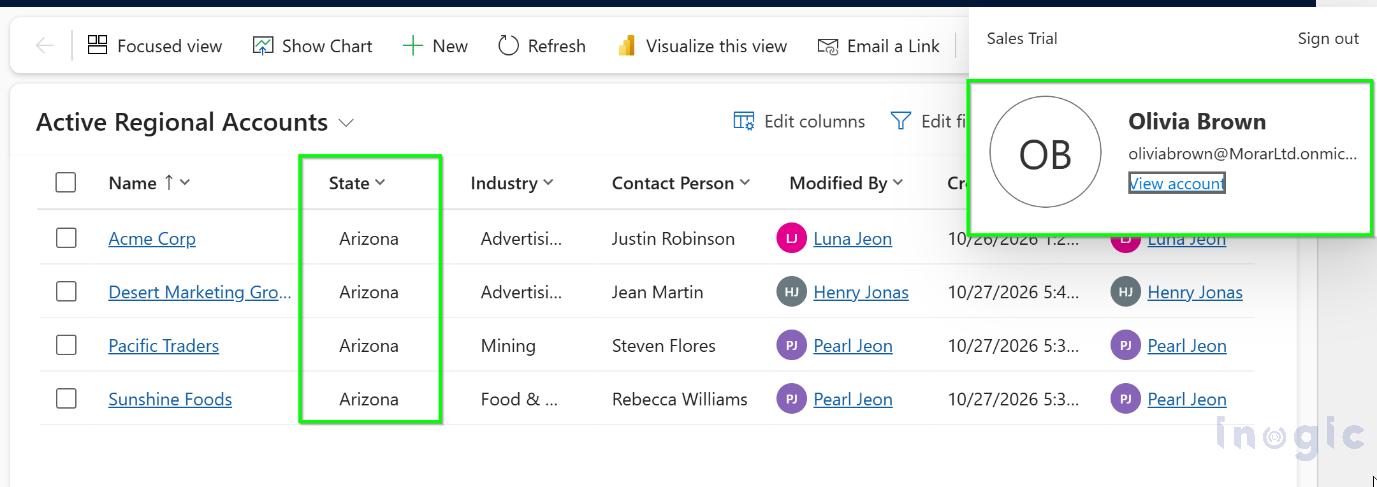
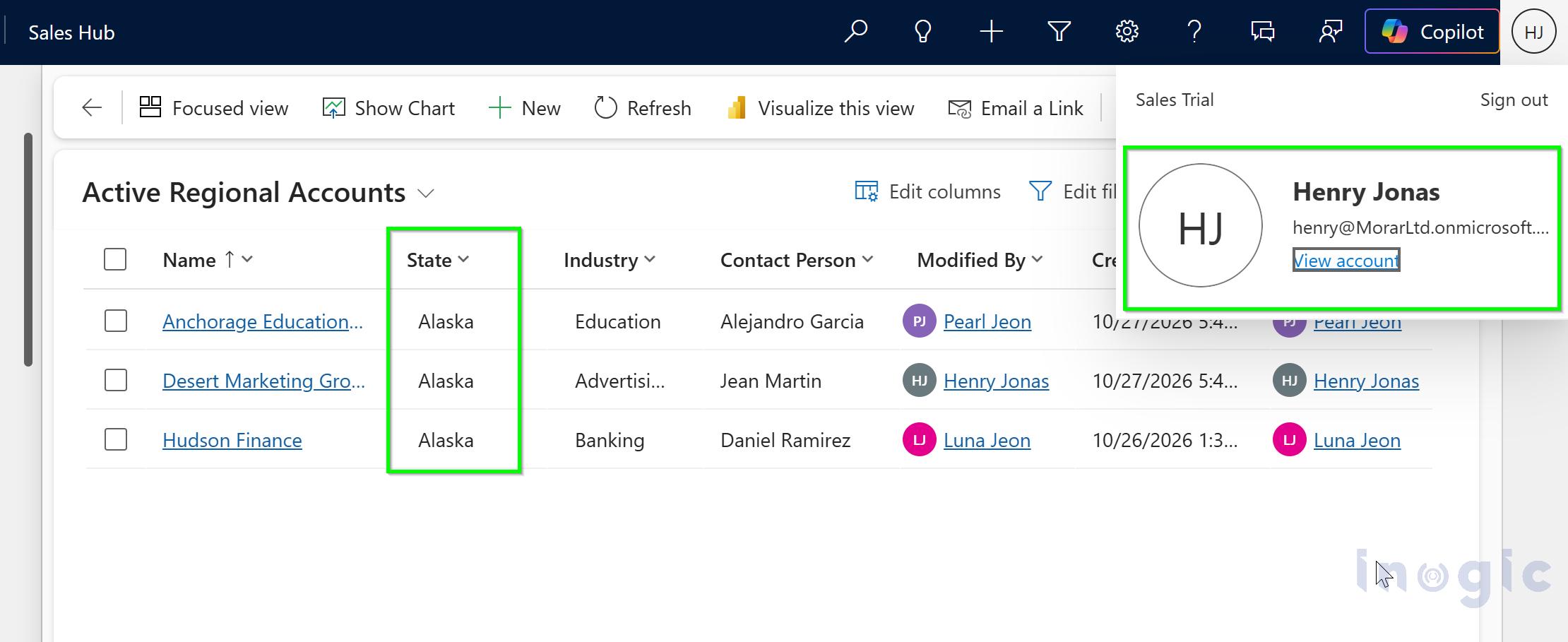
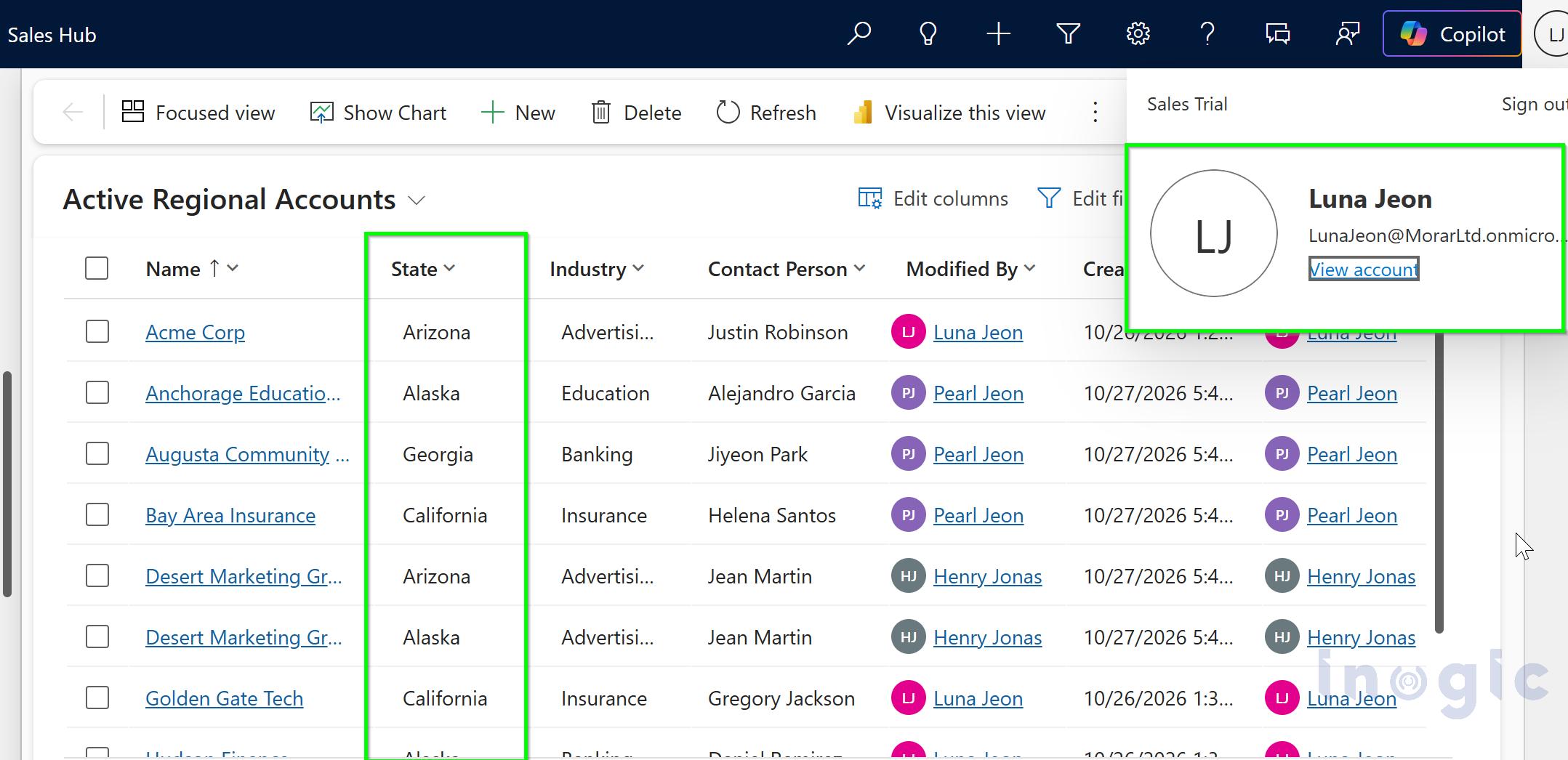
When the Arizona salesperson opens the Regional Accounts view, only accounts with State = Arizona appear. The Alaska salesperson sees only Alaska accounts. The administrator sees all accounts because of the global All records permission.
[ Admin view with all records]
Things to keep in mind
- It’s a preview feature, so it isn’t meant for production use yet.
- No record owner: filtered table records can’t be shared or assigned.
- Performance: every query applies the filter permissions, so design your filters efficiently.
- Existing tables: you can create record filters on existing user-owned or organization-owned tables, but a table’s ownership type can’t be changed later.
- Virtual tables: filter permissions don’t work with external virtual tables yet.
Conclusion
Managing record access across different teams doesn’t have to mean creating complicated ownership structures or manually sharing records.
With Filtered Record Ownership, you can use column values to define which records users can access. In our example, each salesperson sees accounts belonging to their assigned state, while administrators retain access to all records.
The biggest advantage is that access rules apply automatically. When a new account is added with a matching State value, it falls under the corresponding filter without requiring manual sharing or reassignment.
Beyond regional sales teams, this approach can also help manage access to bank branch records, hospital department data, HR records by office location, and other scenarios where access depends on a specific field value.
Since the feature is still in preview, test it in a development or sandbox environment before considering it for your business applications.
Frequently Asked Questions
What is filtered record ownership in Dataverse?
It is a row-level security feature, currently in preview, that grants users access to records based on filters on column values instead of record owners.
Can filtered record ownership tables have a record owner?
No. These tables have no owner, so records can’t be shared or assigned to an individual. The Created By column only tracks who created the record.
Can I use filters on an existing table?
Yes. You can create record filters for existing user-owned or organization-owned tables. A new table is needed only if you want the filtered (no owner) ownership type.
Can I change an existing table to filtered record ownership?
No. A table’s record ownership type can’t be changed after it is created.
Why can’t I see the filter in my security role?
The record filters and entity record filters probably aren’t in the same environment as the role, or the customizations haven’t been published. Check both, then reopen the role.
Does filtered record ownership affect performance?
Yes. Filter permissions apply to every query, so an efficient data model and well-designed filters help avoid performance problems.