We have a custom PCF control on our Power Pages site that loads employee details along with their locations on the Active Employees view. For every employee, it shows the coordinates in the list. The control reads data from our custom Employee table (new_employees), and since we use a lot of columns from this table, we’d simply set its Web API fields site setting to *. One day the control suddenly stopped showing any data, and every Web API call from it started coming back with this error:
innererror: {code: ‘90040122’, message: ‘You are unauthorized to process this request.’, type: ‘WebApiUnAuthorizedAccess’}
Nothing on our side had changed. Same code, same web roles, same table permissions. After some digging we found the reason: Microsoft no longer accepts * in the Web API fields site setting, so every request to a table still set to * gets rejected. We replaced it with column names and the data came back. The control, though, still wasn’t loading the locations. This second problem came from the site’s Content Security Policy (CSP), which was blocking Bing Maps, the external map service the control uses.
Below is what changed, why it changed, and exactly what we did to get the control working again. These steps aren’t only for PCF code components. If you have custom JavaScript on the site, for example a script you edit in VS Code, that retrieves employee information through the Web API, the same fix applies.
Why did Microsoft change the Web API column setting?
Two site settings control the Web API for a table. Webapi/<table-name>/enabled turns it on. Webapi/<table-name>/fields says which columns it can read or write. Many of us put * in the fields setting because it saved time, but then the API returned every column, even ones no page was using. Microsoft has deprecated the wildcard, and support started being removed in phases after September 14, 2026. A table that still has * in this setting returns an error for every request, even if table permissions and web roles are correct. Microsoft’s Power Pages Web API overview has the full details.
Prerequisites
- Access: Maker rights on the site in Power Pages design studio. You also need to open the Portal Management app.
- Column logical names: Display names like “Employee Name” won’t work here. Use the logical name, for example new_employeename. You can look them up in Power Apps under Tables > your table > Columns.
- Test environment: Try everything on a dev or test site first.
Steps to fix the Web API unauthorized error
- Replace the * with column names
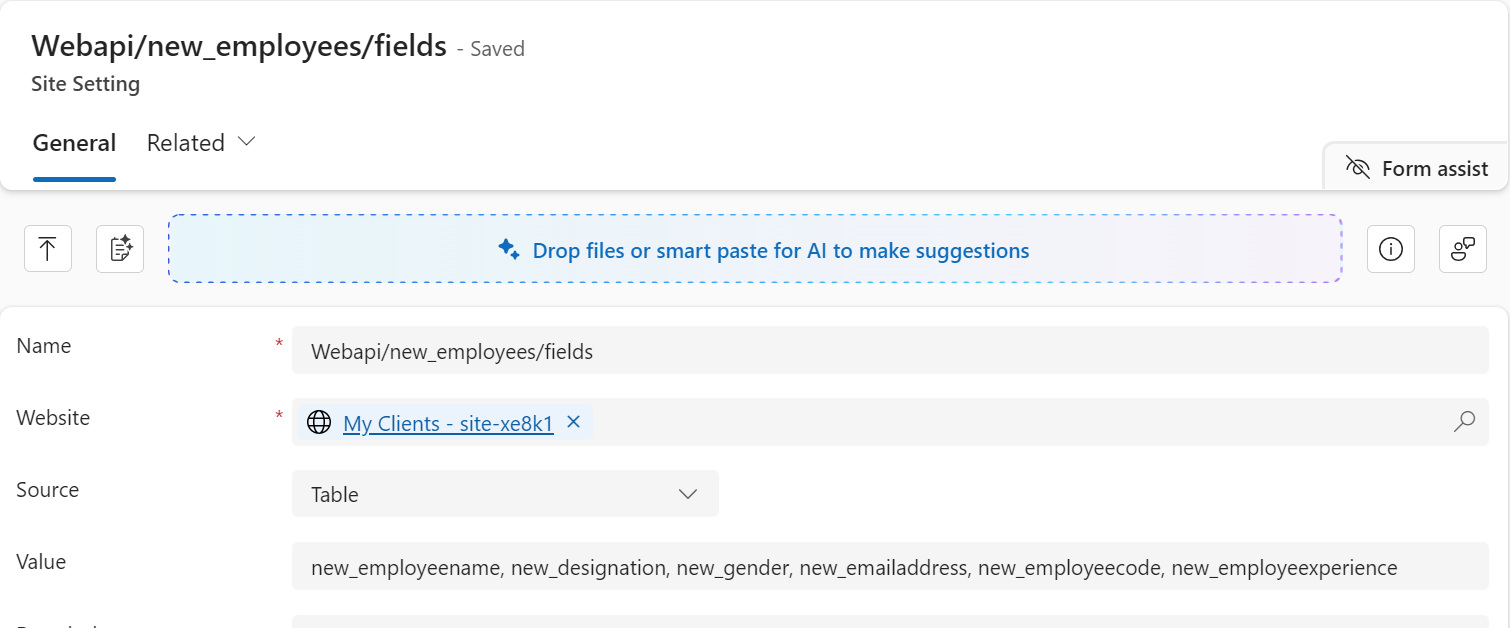
In design studio, go to More items (…) > Portal Management > Site Settings and search for Webapi/. Open the fields setting for each table, swap the * for the logical names of the columns you need (comma-separated) and click Save. The screenshot below is our Webapi/new_employees/fields record. It lists new_employeename, new_designation, new_gender, new_emailaddress, new_employeecode and new_employeeexperience.
- Use a system view for tables with many columns
For a table with 30 or 40 columns, one long comma-separated value is hard to read and easy to break. There is another way. On the table, create a public view with the name Power Pages Web API Columns, put the required columns in it and publish. After that, add the site setting Webapi/<table-name>/UseFieldsFromView with the value true (needs site version 9.8.8.x or later).
- Sync and test
Click Sync in design studio and refresh the page. Then check the Network tab (F12). Our /_api calls now came back with status 200.
Note: Can’t update every site in time? An admin can ask for a temporary extension in the Power Platform admin center under Manage > Power Pages > Manage exemptions.
Why was the map service blocked?
With CSP, the site sends the browser a list of places it is allowed to load scripts, fonts and other files from. Power Pages sites created after November 10, 2025 have CSP turned on by default, and the default list only covers your own site and Microsoft’s Power Pages domains. Our control uses Bing Maps for employee locations. Bing Maps loads files from bing.com and virtualearth.net, and the control also uses fonts hosted on res-1.cdn.office.net. None of those were on the list, so the browser blocked them. Microsoft’s Manage your site’s Content Security Policy article explains this in more detail.
Steps to allow the external map service
- Check the browser console
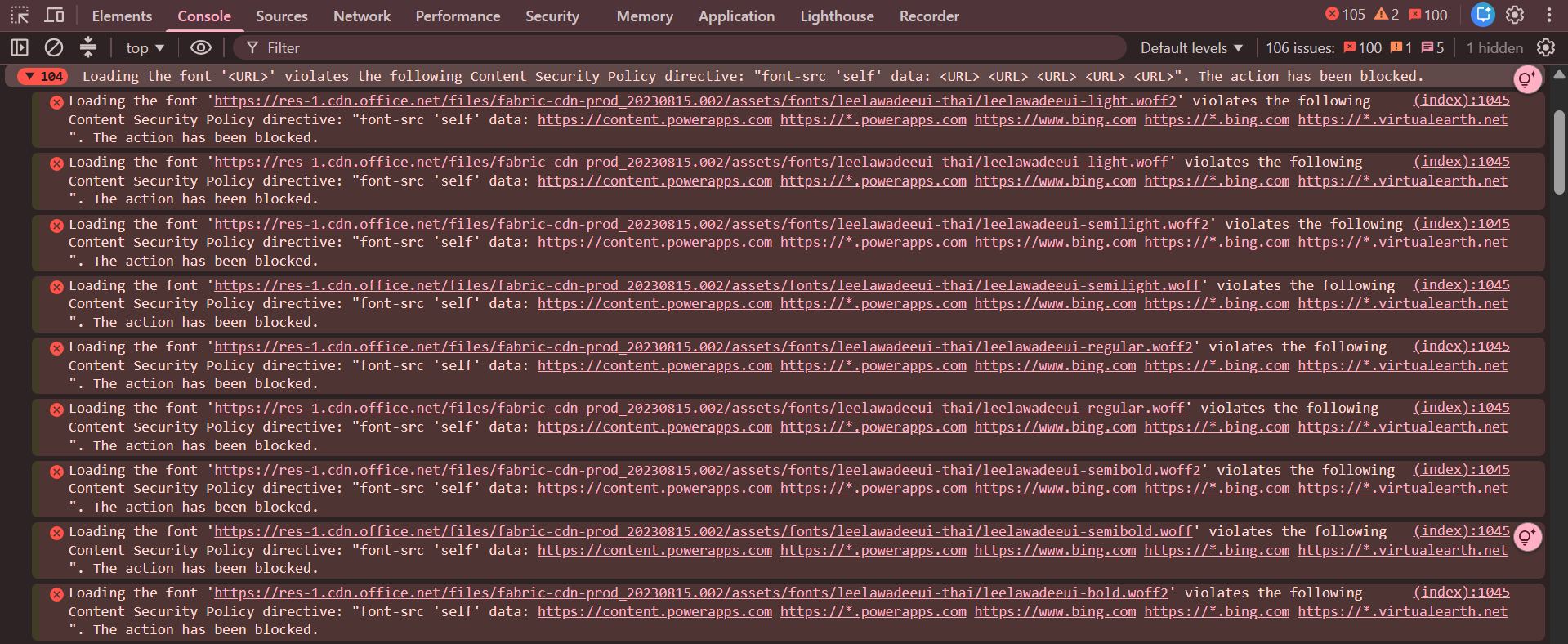
We opened developer tools on the page with the control and went to the Console. There were more than 100 red errors. Each one gives the URL that was blocked and the CSP directive that blocked it. The screenshot below shows what ours looked like.
- Update the HTTP/Content-Security-Policy site setting
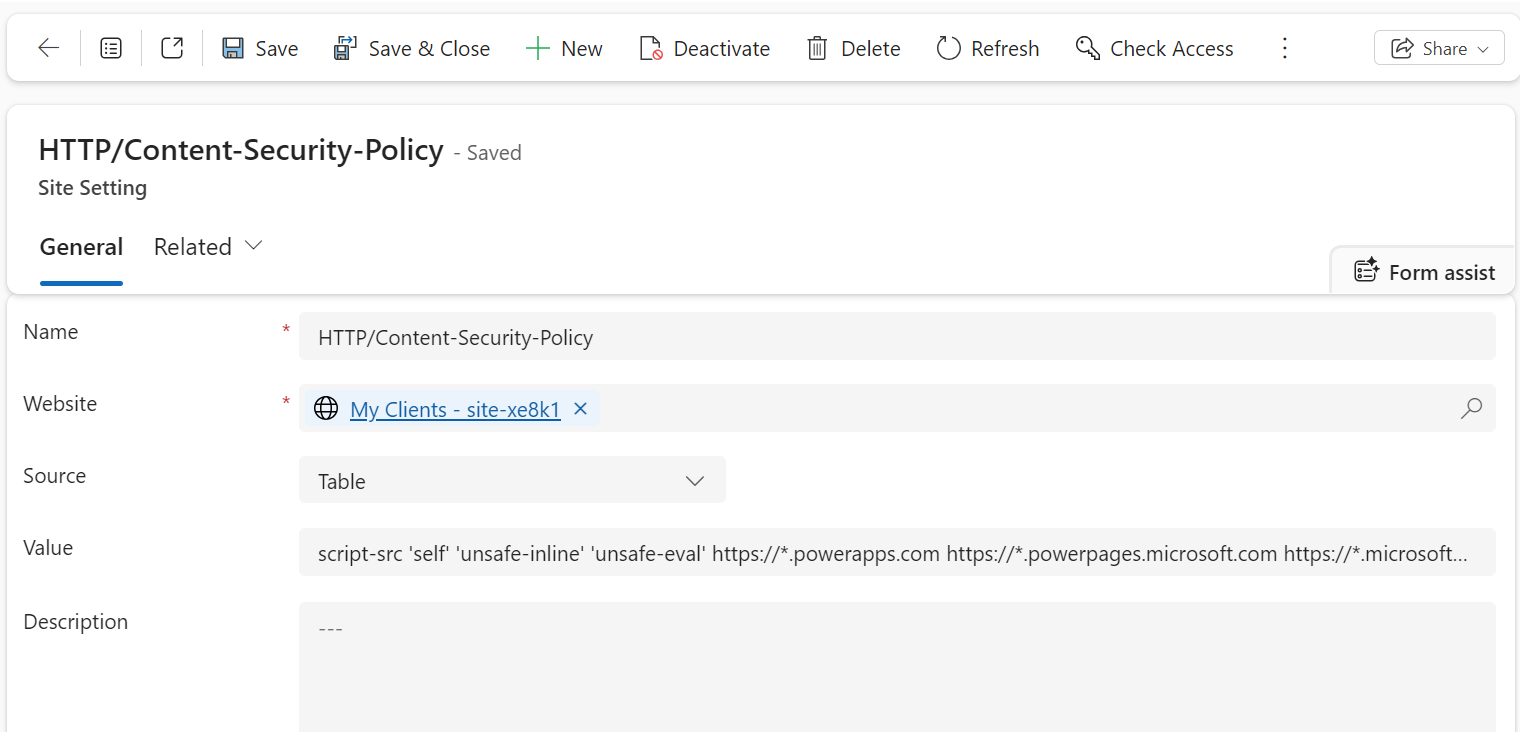
In Portal Management > Site Settings, open HTTP/Content-Security-Policy. If the record is missing, create it. Leave the current values as they are and add every blocked domain under the directive that the error mentions. We needed the Bing Maps domains (https://www.bing.com, https://*.bing.com and https://*.virtualearth.net), and res-1.cdn.office.net in font-src. After the change, our font-src part looked like this:
font-src ‘self’ data: https://content.powerapps.com https://*.powerapps.com https://www.bing.com https://*.bing.com https://*.virtualearth.net https://res-1.cdn.office.net;
The whole policy goes on one line in the Value field. If you’re on Azure Maps, add https://atlas.microsoft.com to script-src and worker-src ‘self’ blob: instead.
Note: Adding connect-src? Include ‘self’ as well, or your own /_api calls get blocked.
- Save and test
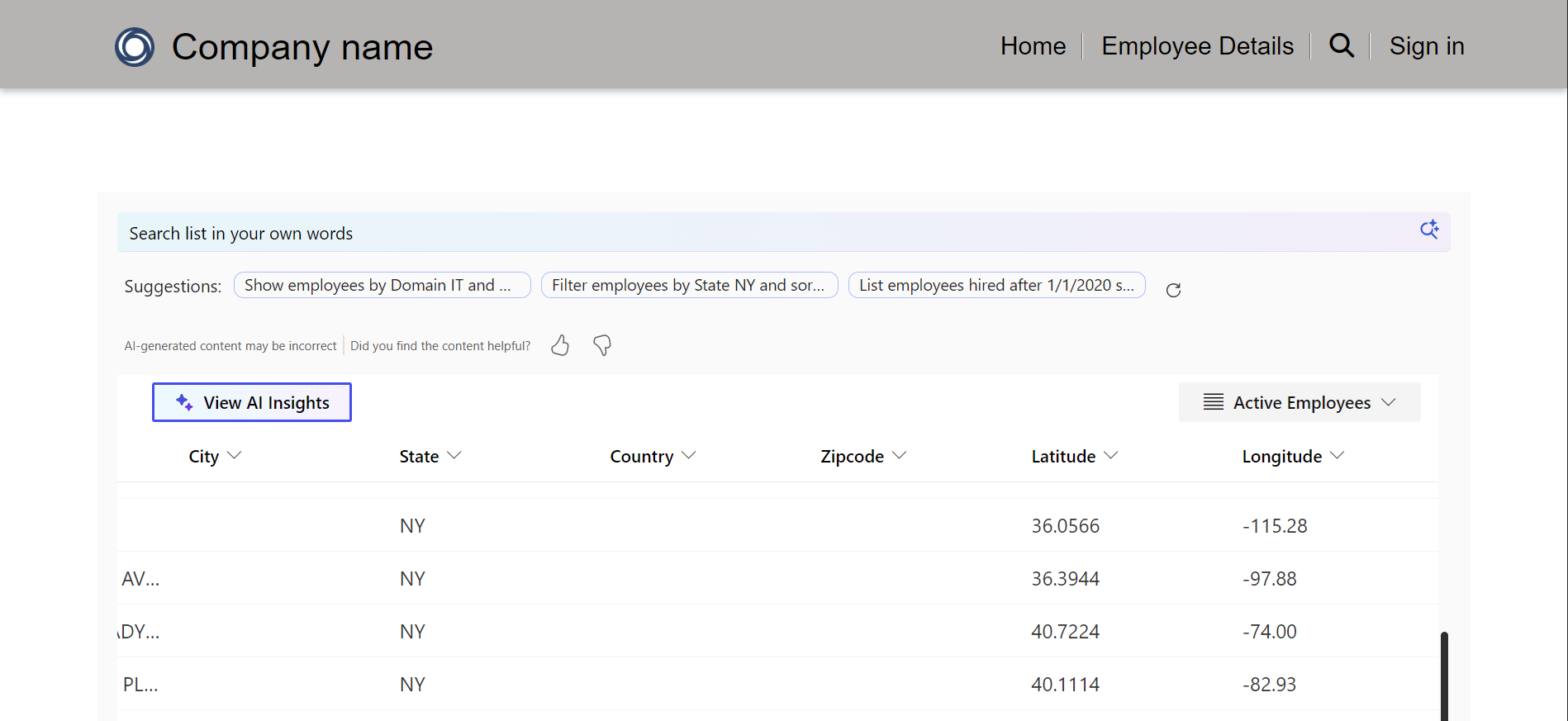
Save the record, sync the site and reload. The control now loads, and every employee shows up in the list with the correct coordinates.
Conclusion
Neither problem came from our code. Both came from security changes in Power Pages. The Web API now needs the exact columns, and the CSP needs the exact external domains. After we added both, the control worked again. Do this in dev, test and production, since each one has its own site settings.
Frequently Asked Questions
Why is the Power Pages Web API returning an unauthorized error?
The Power Pages Web API may return an unauthorized error when a table’s Web API fields site setting uses the deprecated * wildcard. Replacing it with explicitly specified column names can resolve the issue.
What is the purpose of the Power Pages Web API fields site setting?
The Web API fields site setting controls which columns of a table can be accessed through the Power Pages Web API. It helps restrict access to the data required by a page or application.
Why is my Power Pages PCF control not displaying data?
A Power Pages PCF control may stop displaying data if its Web API requests are rejected because of an incorrect or outdated site setting. Content Security Policy restrictions can also prevent the control from loading external resources it depends on.
What causes Content Security Policy errors in Power Pages?
Content Security Policy errors occur when a Power Pages site attempts to load scripts, fonts, or other resources from sources that its security policy does not allow. These restrictions can affect custom controls that use external services such as Bing Maps.
How can Content Security Policy affect custom JavaScript in Power Pages?
Content Security Policy can block custom JavaScript from loading external scripts, fonts, or other resources. If the script depends on those resources, some functionality may stop working even when the code itself has not changed.