What happens when an Agent Flow has more processing to do than its response window allows? As flows become more complex, multiple actions, calculations, record processing, and nested logic can increase execution time. Microsoft Copilot Studio Express Mode is designed to optimize Agent Flow execution and help return responses faster. In this blog, we will explore Express Mode using a simple Account and Contact scenario and compare execution times with Express Mode disabled and enabled.
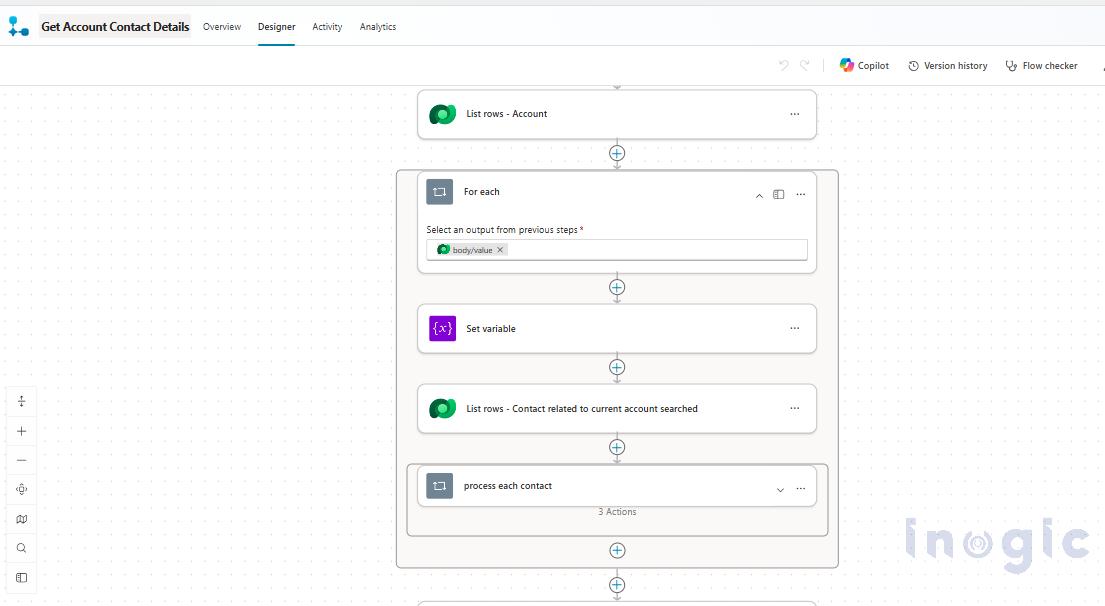
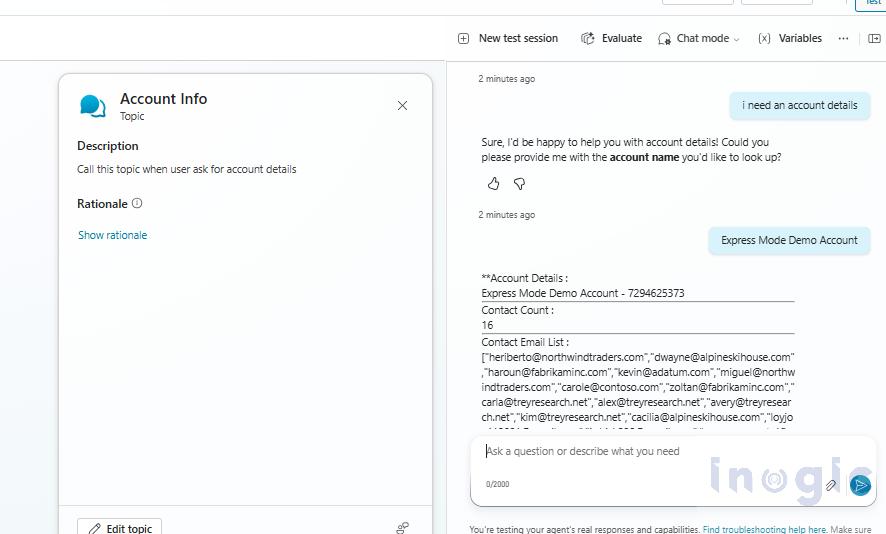
To demonstrate Express Mode, we first created a simple Copilot Studio agent and an Agent Flow named Get Account Contact Details. The flow accepts an Account name as input and uses Microsoft Dataverse to retrieve the corresponding Account and its related Contacts. It then processes the Contacts to determine the total count and collect their email addresses before returning the information to the agent.
Once the Agent Flow is completed, Express Mode (Preview) can be enabled in two ways.
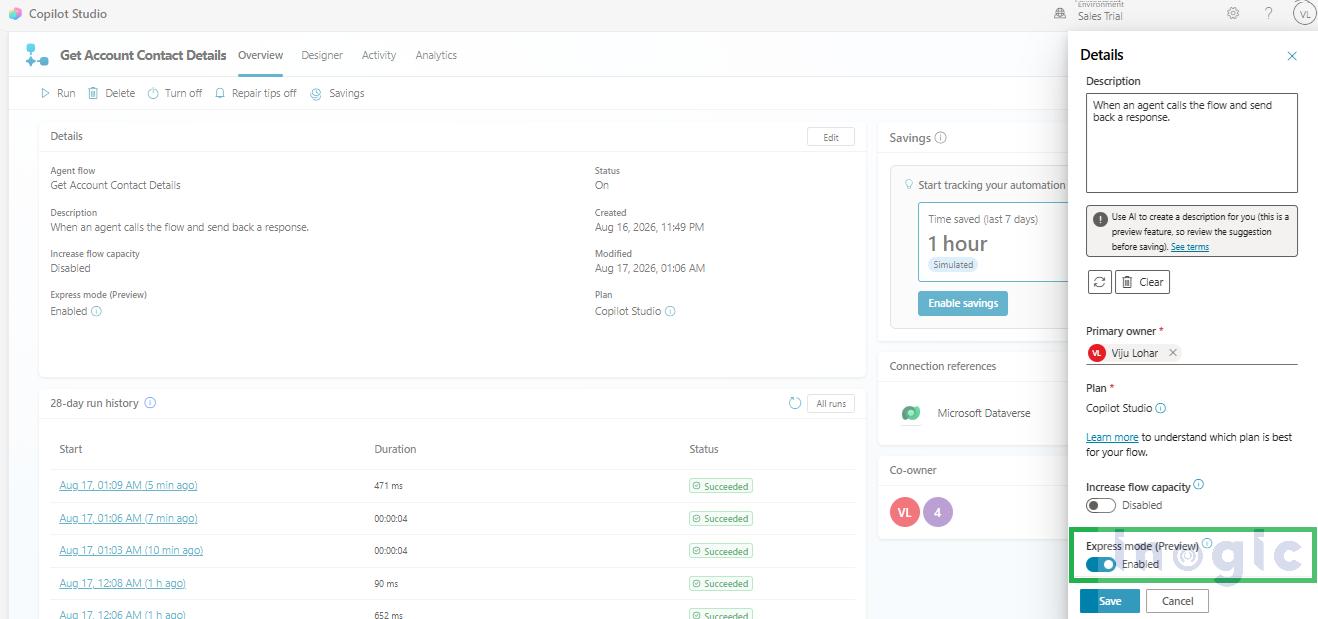
Method 1: Enable Express Mode from the Flow Overview
Open the Agent Flow and navigate to Overview. Click Edit, enable the Express Mode (Preview) toggle, and save the changes.
Method 2: Enable Express Mode from the Flow Trigger
Open the Agent Flow and select the When an agent calls the flow trigger. The Express Mode (Preview) toggle is available directly within the trigger configuration. Enable the toggle and save the flow.
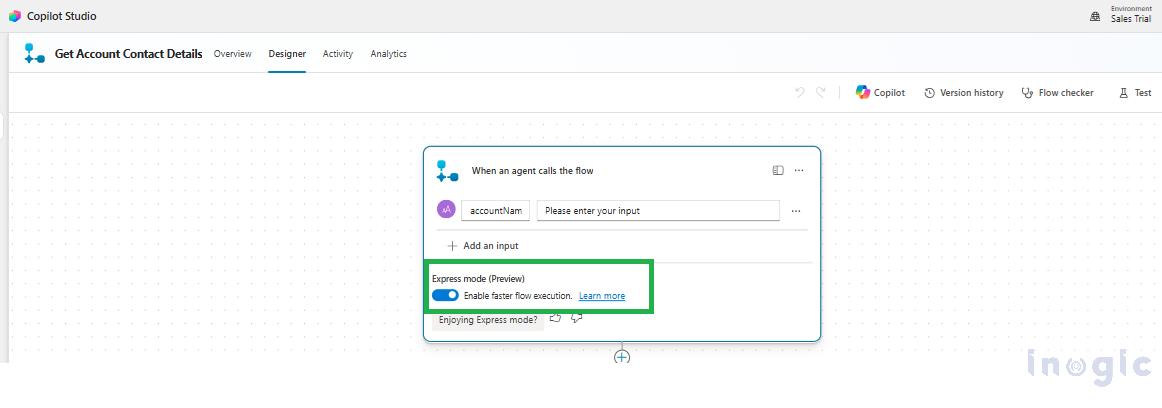
Both methods enable Express Mode for the same Agent Flow, allowing you to choose the approach that is more convenient while configuring the flow.
How the Agent Flow Processes Account and Contact Data
The flow first retrieves the Account based on the Account Name provided by the agent. Once the Account is identified, the flow retrieves the Contacts associated with that Account.
The returned records are then processed to count the Contacts and collect their email addresses. This information is finally passed back to the agent so that it can present the results to the user.
Comparing Agent Flow Performance With and Without Express Mode
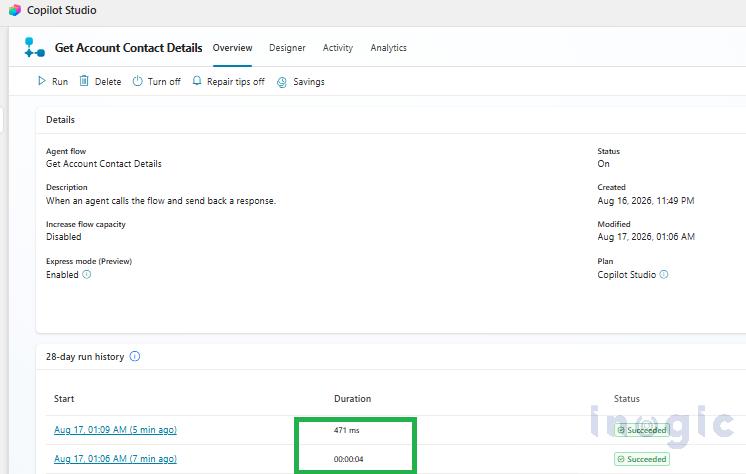
We tested the same Agent Flow with Express Mode disabled and then enabled to compare the execution time.
With Express Mode disabled, the flow took approximately 4 seconds to complete. After enabling Express Mode, the same flow completed in milliseconds, showing a noticeable improvement in execution time.
Although this example uses a simple Account and Contact scenario, the performance advantage can become more significant for complex Agent Flows involving multiple actions, nested processing, and calculations that could otherwise approach the response-time limit.
Limitations of Express Mode
While Express Mode can improve Agent Flow execution time, there are some limitations to consider:
- Agent Flows have a 2-minute response limit. Flows that take longer may fail to return a response to the agent.
- The Delay action is not supported in Express Mode, as we encountered during testing.

- Flows with many actions or extensive loops may not be suitable for Express Mode.
- Processing large amounts of data can also affect flow performance and supported limits.
- Express Mode is better suited for processing-heavy flows that need to return results quickly, rather than data-heavy or long-running flows.

Conclusion
Express Mode in Microsoft Copilot Studio provides a practical way to improve the execution speed of Agent Flows that need to return results quickly. In our Account and Contact scenario, enabling Express Mode reduced the execution time from approximately 4 seconds to milliseconds, demonstrating its potential to make Agent Flow responses more responsive.
However, the performance improvement will vary depending on the flow design, actions involved, processing requirements, and amount of data being handled. Express Mode is not intended for every type of Agent Flow, particularly workflows that are data-heavy, long-running, or dependent on unsupported actions.
For Agent Flows that involve significant processing but need to return results within the available response window, Express Mode is worth considering. Evaluating the flow’s actions, workload, and limitations before enabling the feature can help determine whether it is the right fit for your scenario.
Frequently Asked Questions
1. What is Express Mode in Microsoft Copilot Studio?
Express Mode is a feature in Microsoft Copilot Studio designed to optimize Agent Flow execution and help flows return responses faster. It is particularly useful for flows that perform processing and need to provide results to an agent quickly.
2. How do I enable Express Mode in Copilot Studio?
Express Mode can be enabled from the Agent Flow’s Overview section by selecting Edit and turning on the Express Mode (Preview) toggle. It can also be enabled directly from the When an agent calls the flow trigger configuration.
3. How much faster are Agent Flows with Express Mode?
The improvement depends on the flow design and workload. In our Account and Contact test scenario, the flow took approximately 4 seconds without Express Mode and completed in milliseconds after Express Mode was enabled.
4. What is the response-time limit for Agent Flows?
Agent Flows have a 2-minute response limit. A flow that takes longer than the available response window may fail to return a response to the agent.
5. Does Express Mode support the Delay action?
No. The Delay action is not supported in Express Mode. Flows that depend on this action should therefore be evaluated carefully before enabling Express Mode.
6. When should Express Mode be used in Copilot Studio?
Express Mode is best suited for processing-heavy Agent Flows that need to return results quickly. It may be less suitable for data-heavy workflows, long-running processes, extensive loops, or flows that rely on unsupported actions.