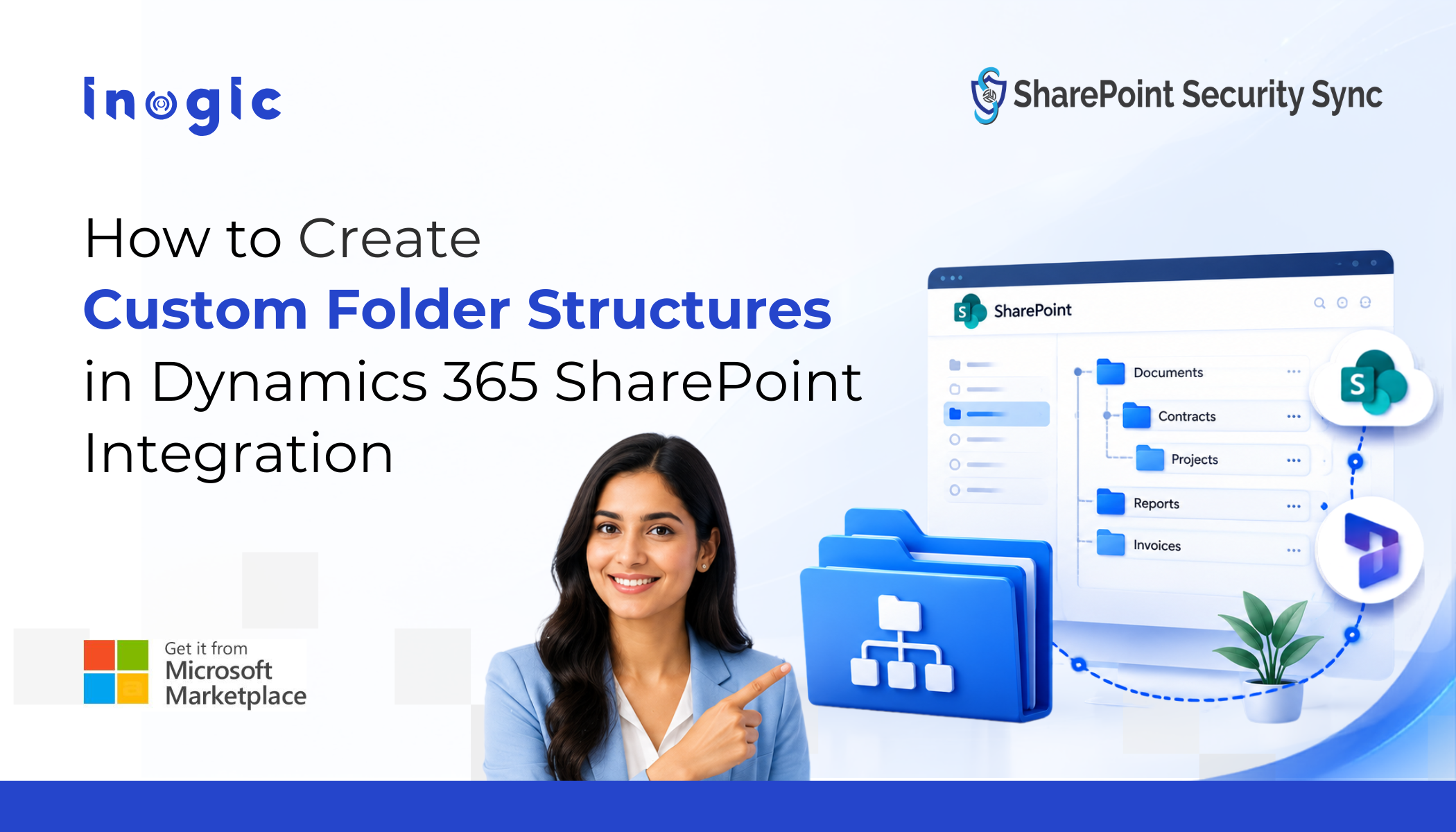
 Every department that touches Dynamics 365 CRM wants its documents organized differently, and no single folder structure has ever made everyone happy. Sales wants folders by account. Support wants folders by case and date. Project teams want folders by project code. This blog breaks down how Custom Folder Structure in SharePoint Security Sync lets every team win.
Key Highlights
- Custom Folder Structure lets admins define folder logic separately for each entity, and separately again for record folders vs. document libraries
- Three folder-building strategies are available per entity: By Period (time-based, ideal for high-volume entities like cases), By Starting Character (alphabetical, ideal for Accounts/Contacts), and Custom (built from CRM field values like project codes or department tags
- Sales, Support, Project teams, and Admins can each get the exact structure that fits how they search, without compromise or manual rework
- Well-structured document libraries directly improve resolution times, reduce compliance risk, and produce cleaner audit trails for secure Dynamics 365 documents
The Problem: One Folder Structure, Too Many Opinions
Native Dynamics 365 and SharePoint integration creates one rigid folder pattern for every record, regardless of which team or entity it belongs to. That single structure cannot satisfy a sales rep looking for a client folder, a support agent searching by case number, and a project manager filtering by phase, all at once.
The result is document chaos disguised as organization. Folders get renamed manually. Teams build their own shadow systems in Outlook or local drives. Search becomes guesswork instead of a shortcut. For organizations managing thousands of Dynamics 365 records, this is not a minor annoyance, it is a daily productivity tax that compounds every time a new record is created.
Why This Happens: SharePoint Wasn’t Built to Read CRM Context
SharePoint does not know that a Contact record and a Case record need different filing logic. It applies the same default folder-creation pattern to every entity connected to Dynamics 365, whether that entity is a fast-moving support ticket or a long-term project.
| Team | What they need | What default SharePoint gives them |
| Sales | Folders by customer or account | One generic structure for all records |
| Support | Folders by case, date, or priority | Same structure as sales and every other team |
| Project teams | Folders by project code or phase | No entity-specific logic at all |
| Admins | Scalable structure below SharePoint’s item threshold | Flat folders that hit the 5,000-item limit fast |
This mismatch is not a SharePoint failure. It is a gap in how most Dynamics 365 CRM SharePoint integration tools handle folder logic in the first place.
What is Custom Folder Structure?
Custom Folder Structure is a feature within SharePoint Security Sync that lets administrators define folder logic separately for every entity in Dynamics 365, and separately again for record folders versus document libraries. It is entity-aware folder architecture, not a single template forced across the entire CRM.
Instead of one folder rule for the whole system, admins configure how folders are created and named for each entity individually. Sales folders can follow one logic, support folders another, and project folders a third, all running inside the same Dynamics 365 environment without conflict. This directly supports secure Dynamics 365 documents by keeping every record’s files exactly where the right team expects to find them.
How It Works: Three Strategies, One System
The feature gives admins three distinct ways to build folder structures, and each can be applied entity by entity.
- By Period organizes folders by time increments such as daily, weekly, monthly, quarterly, or yearly. This suits high-volume entities like cases or activities where date-based filing keeps folders from growing unmanageably large.
- By Starting Character groups folders alphabetically, useful for entities like Accounts or Contacts where users typically search by name.
- Custom lets admins build folder names directly from CRM field values, using field logical names to pull in customer names, project codes, department tags, or any other identifier that matters to that specific team.
Each strategy can be set independently for Folder Format and Library Structure, meaning the record-level folder and the document library it sits inside can follow different logic. This is Dynamics 365 SharePoint metadata mapping applied at the structural level, not just at the file-tagging level.
Solving the Team Disagreement, Down to the Activity Level
Emails, tasks, and appointments behave differently from standard CRM records, and Custom Folder Structure treats them differently on purpose. Activity entities have a separate configuration path, gated behind a “Multiple Activity Folders” setting, so admins can decide whether activity documents get their own dedicated folder logic or follow the parent record’s structure. Without this distinction, transactional communication like emails tends to flood the same folders as core business documents, making both harder to find in an already complex Dynamics 365 CRM SharePoint integration. Configuring activities separately keeps document libraries clean on both sides and reinforces secure Dynamics 365 documents at every level of the folder hierarchy.
This same entity-aware folder logic is what resolves the broader team disagreement. Because folder logic is set per entity, every team gets the structure that fits how it actually works, inside one connected Dynamics 365 CRM environment:
- Sales gets alphabetical or custom account-based folders
- Support gets period-based folders that never hit SharePoint’s item threshold
- Project teams get custom field-driven folders built around project codes, powered by the same Dynamics 365 SharePoint metadata mapping that governs activities
- Admins get a structure that scales automatically, with no manual folder rebuilding when a new department joins the CRM
This is what separates true entity-aware folder architecture from a basic folder-naming setting: it resolves a structural disagreement that most organizations managing Dynamics 365 CRM SharePoint integration have simply learned to live with.
Getting this right is a business case, not a cosmetic upgrade. Poorly structured document libraries create real, measurable friction:
- Slower response times when reps or agents can’t locate a document mid-call
- Compliance risk when the wrong person can’t find, or can find too easily, a document tied to sensitive CRM data
- Audit gaps when folder logic doesn’t match how records are actually retrieved
A folder structure that mirrors how each team actually searches for information, whether by account, case date, or project code, is a direct contributor to secure Dynamics 365 documents, faster resolution times, and cleaner audit trails.
The Answer to the Folder Problem
Custom Folder Structure turns document organization from a company-wide compromise into a per-team, per-entity decision, built directly into how Dynamics 365 CRM SharePoint integration works. Every department gets a structure that matches how it searches, without sacrificing consistency or security across the organization.
Explore how SharePoint Security Sync brings entity-aware folder logic, metadata mapping, and permission sync together in one Dynamics 365 CRM solution.
Frequently Asked Questions
Does Custom Folder Structure work with existing Dynamics 365 CRM records, or only new ones?
It applies to the ongoing SharePoint folder structure defined for each entity going forward, and works alongside SharePoint Security Sync’s bulk synchronization tool to bring existing Dynamics 365 records into the same structure.
Can different Dynamics 365 entities really use different SharePoint folder logic in the same environment?
Yes. Folder Format and Library Structure are configured per entity within Dynamics 365 CRM, so Accounts, Cases, and custom entities can each follow their own SharePoint folder strategy simultaneously.
Why do activity entities need separate folder configuration in SharePoint?
Emails, tasks, and appointments generate high volumes of transactional documents that can clutter record-level SharePoint folders if not filed separately, so the feature gates activity folder logic in Dynamics 365 CRM behind its own setting.