 Finding information quickly is one of the most important aspects of any website. As Power Pages sites grow with knowledge articles, documentation, FAQs, and business content, users often struggle to navigate through multiple pages to locate the information they need.
To address this challenge, Microsoft has introduced the Search Component (Preview) for Power Pages. This component allows makers to add an intelligent search experience directly to a page using the Design Studio. Users can enter natural language queries and receive relevant results, including AI-generated summaries when Generative AI Search is enabled.
In this article, we’ll explore the Search Component, its capabilities, configuration options, and how it can improve the overall user experience of your Power Pages site.
What is the Search Component?
The Search Component is a prebuilt Power Pages component that enables visitors to search website content through an intuitive and AI-powered search experience. It can be added directly from Design Studio without writing custom code, making it easy for makers to enhance content discovery across their websites.
As Power Pages sites grow with documentation, FAQs, knowledge articles, and business content, finding information through traditional navigation can become time-consuming. The Search Component addresses this challenge by allowing users to submit natural language queries and quickly locate relevant information. When Generative AI Search is enabled, the component can also generate summarized responses based on the content available across the website, helping users find answers faster and improving the overall self-service experience.
Real-World Use Case
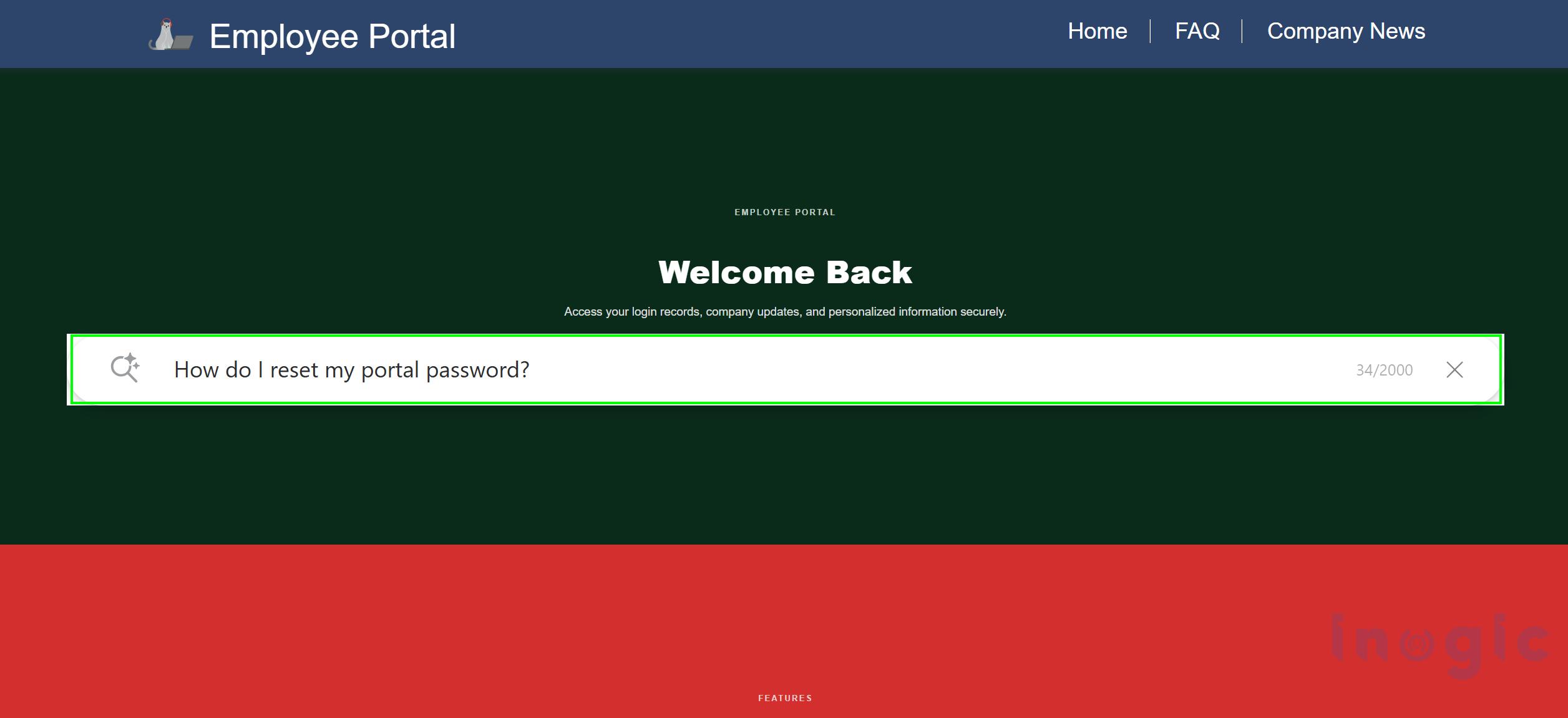
Consider an organization that uses Power Pages as an employee self-service portal for attendance tracking, company resources, and support requests. Employees often need quick answers to common questions, such as how to log their work hours or reset their portal password.
Instead of navigating through multiple pages and documents, employees can simply ask questions such as:
- How do I log my daily work hours?
- How do I reset my portal password?
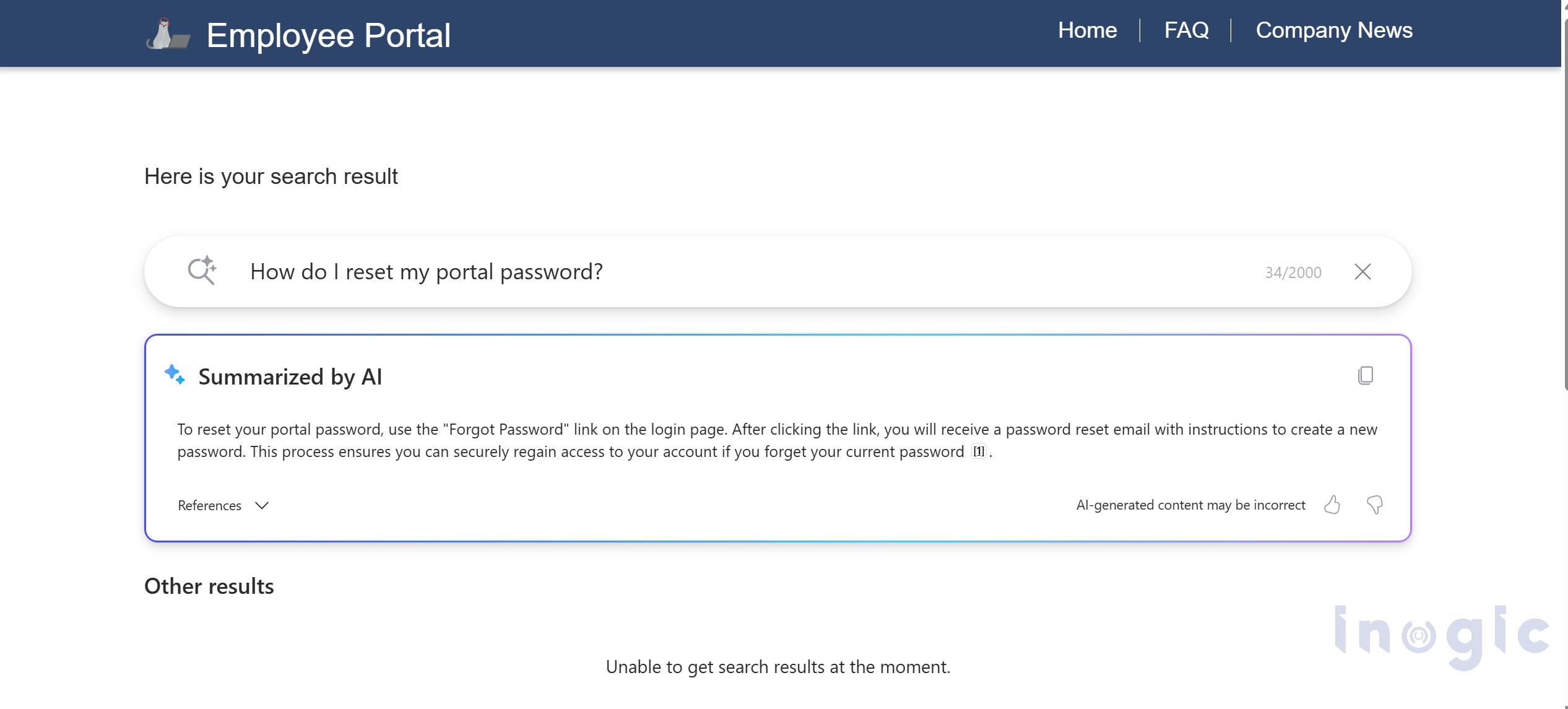
The Search Component searches the available website content and generates a relevant response, helping employees find information quickly while reducing the need to contact HR or support teams.
The following example demonstrates the Search Component answering a user query based on content available within the Power Pages site.
Adding the Search Component
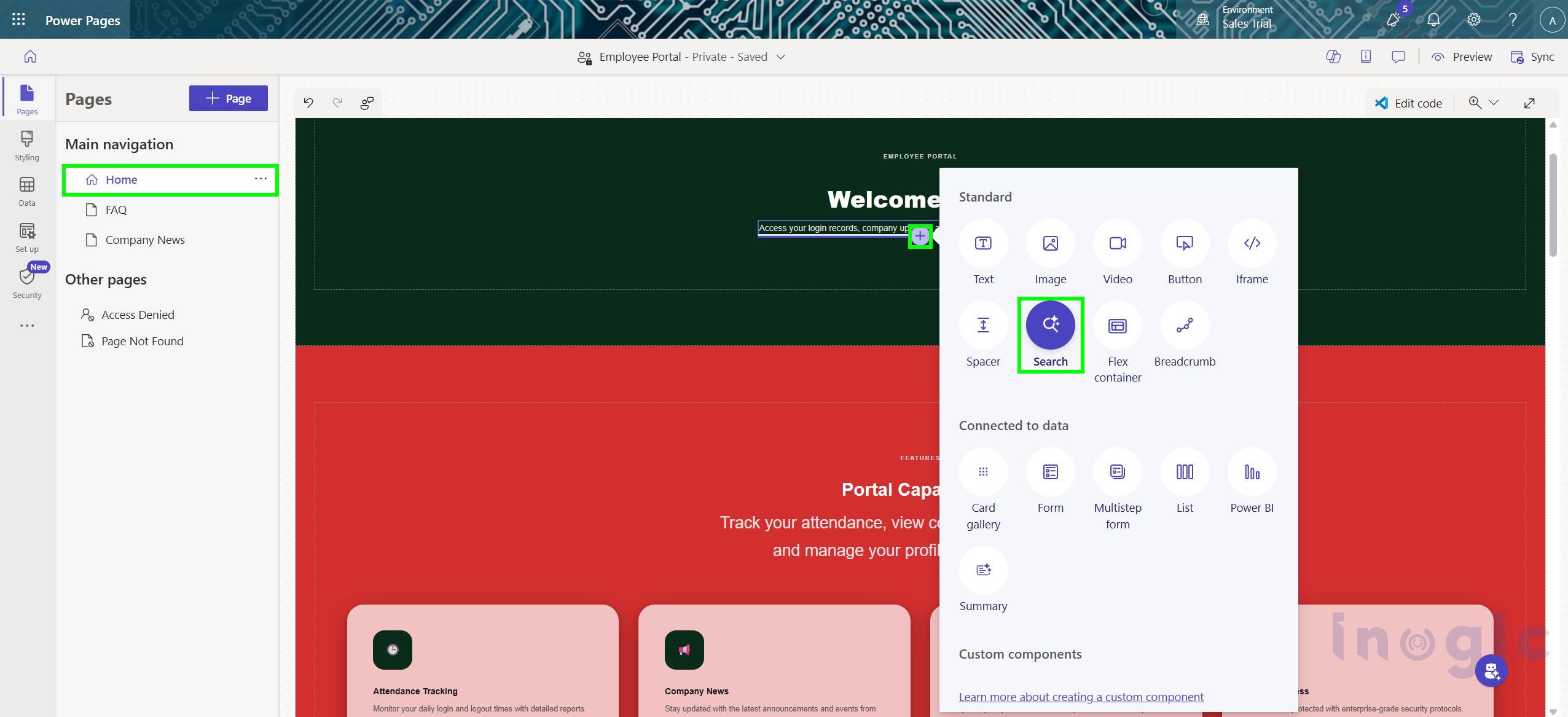
Adding the Search Component is straightforward and can be completed entirely through Design Studio.
Steps
- Open Power Pages Design Studio.
- Select the page you want to modify.
- Choose the section where the search experience should appear.
- Hover over an editable area.
- Select Search from the component panel.

Configuring the Search Component
After adding the Search Component to a Power Pages page, you can customize its behavior and appearance through the Search Design panel. The available settings are divided into two sections: Search Bar and Search Summary.
Search Bar Settings
The Search Bar tab contains settings that control how users interact with the search experience.
Show Search Result Inline
This option determines where search results are displayed after a user submits a query.
- Enabled: Results and AI-generated summaries are displayed directly below the search box on the same page.
- Disabled: Users are redirected to a dedicated search results page.
This setting allows makers to choose between an inline search experience or a centralized search results page.
Placeholder Text
The Placeholder Text property defines the text displayed inside the search box before users begin typing.
A meaningful placeholder helps guide users and encourages them to ask relevant questions. For example:
- Ask about leave policies, payroll, or benefits…
- Search articles and documentation…
- What would you like to know?
 Search Summary Settings
 Search Summary Settings
The Search Summary tab controls the AI-generated response section displayed beneath the search bar.
Heading Text
The Heading Text property allows makers to customize the title displayed above the AI-generated summary.
By default, the heading is set to “Summarized by AI”, but it can be modified to better match your organization’s branding or user experience. Examples include:
- AI Summary
- Portal Assistant
- Search Insights
- Knowledge Assistant
Customizing the heading helps provide a more personalized and intuitive search experience for site visitors.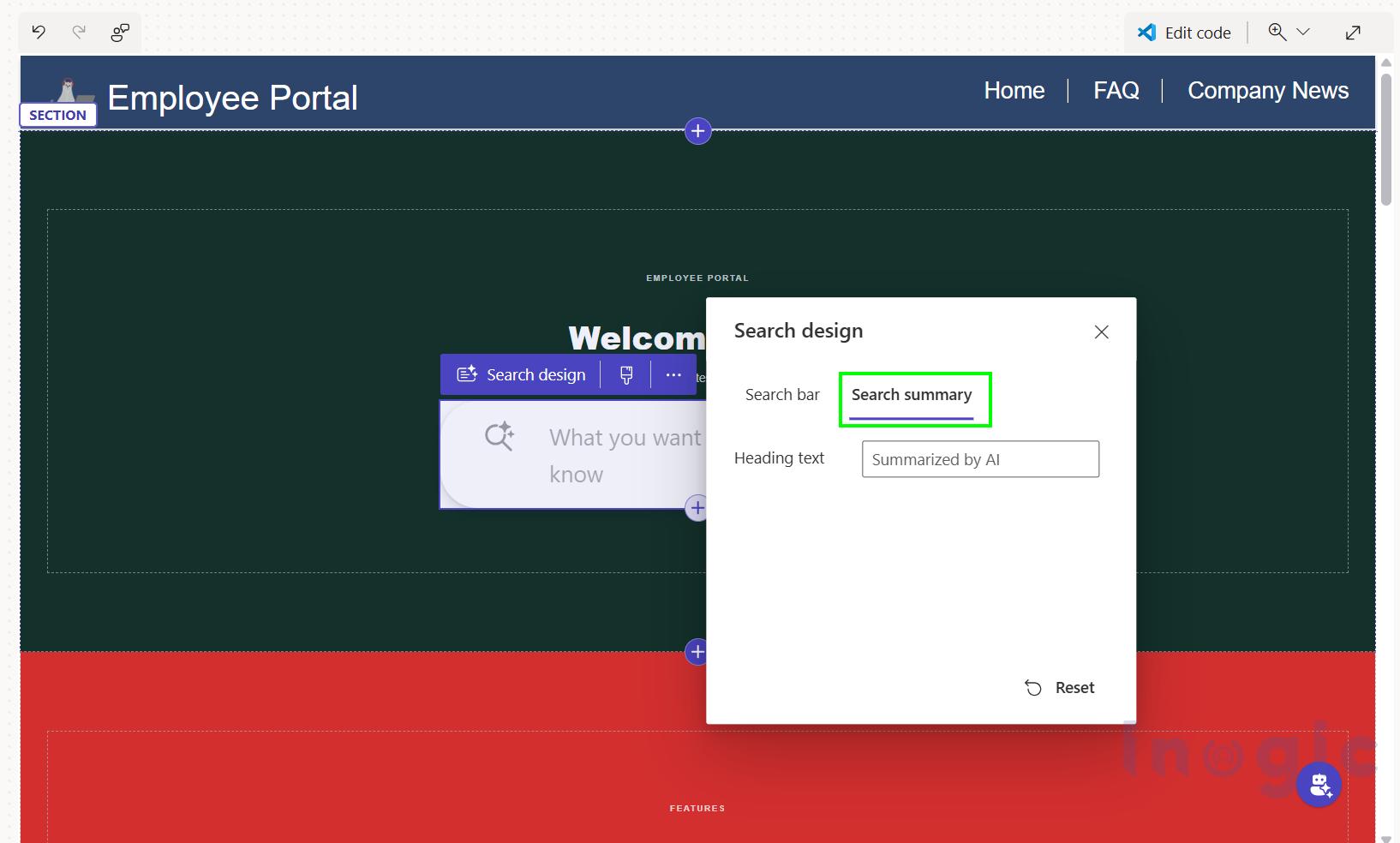
Creating a Dedicated Search Results Page
Power Pages automatically creates a default search results page when a site is provisioned. However, this page isn’t directly available within the Pages workspace for customization. If you want greater control over how search results are displayed, you can create a dedicated Search Results page.
Steps
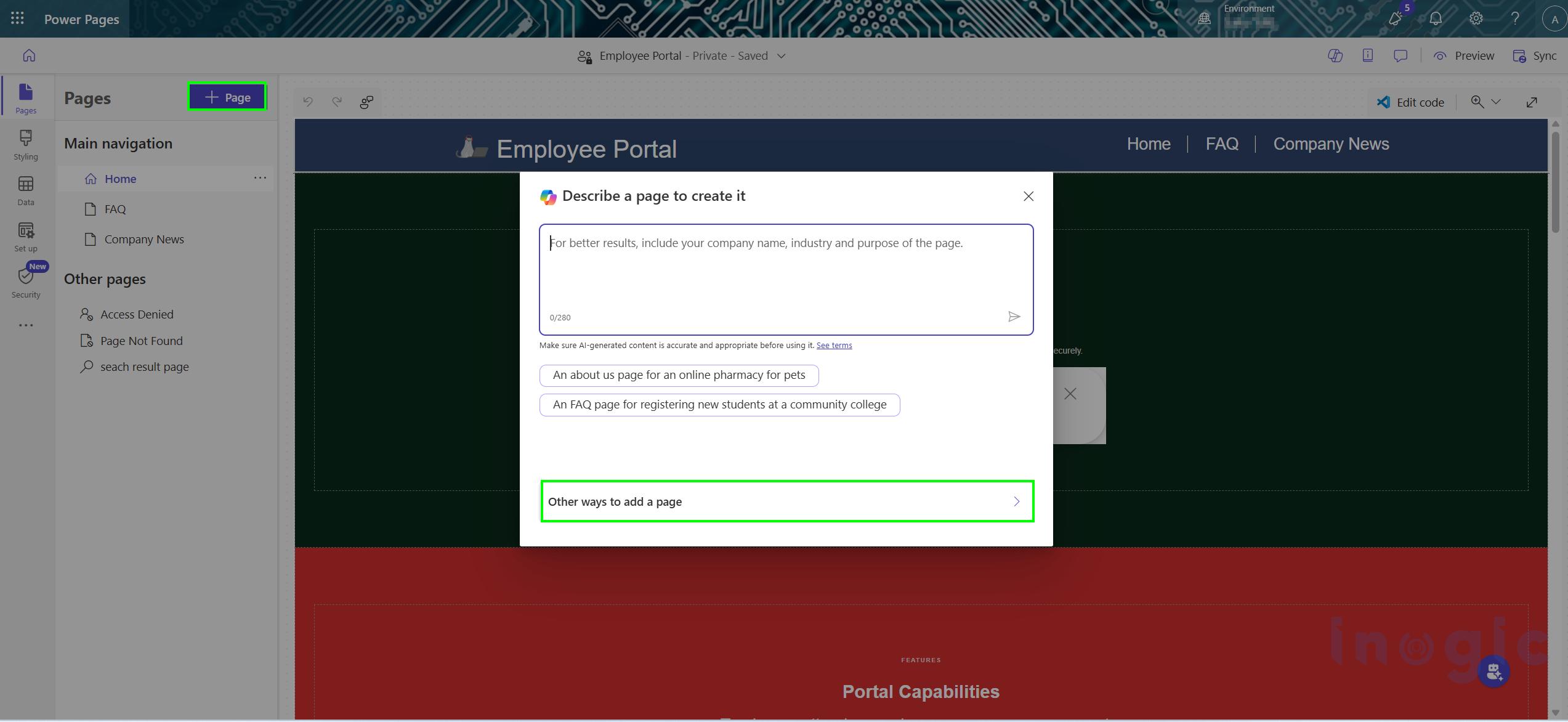
- Select + Page.
- Choose Other ways to add page.

- Enter a page name.
- Select the Search Standard Page Layout.

- Click Add.
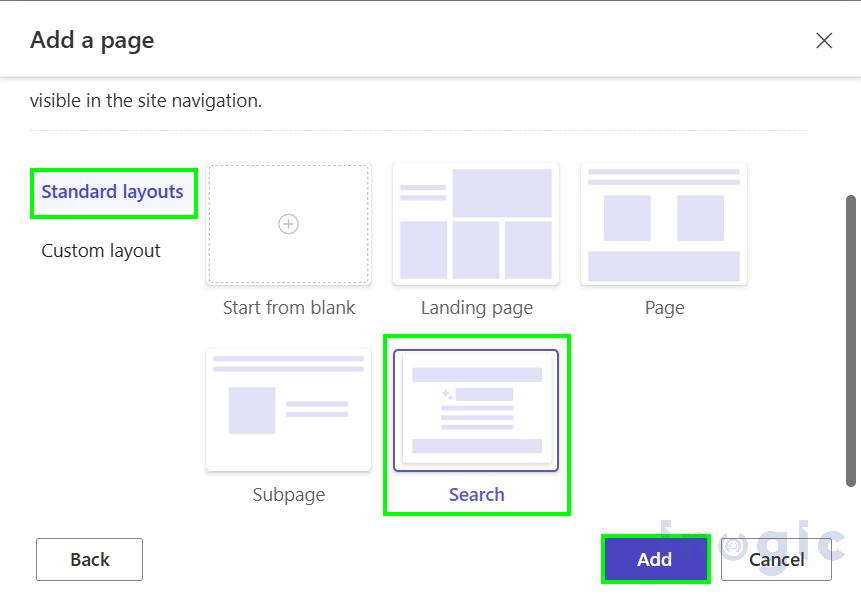
This creates a dedicated page specifically designed to display search results.
Once the page is created, you can customize its layout and content to align with your site’s branding and user experience requirements. When a user submits a query through the Search Component, the results can be displayed on this page (when Show Search Result Inline is disabled), allowing you to provide a centralized and consistent search experience across the website.
The following example shows search results being displayed on a custom Search Results page created using the Search Standard Page Layout. Unlike the default search page, a custom Search Results page can be tailored to match your organization’s branding and desired user experience, providing greater flexibility in how search results and AI-generated summaries are presented to users.
 Conclusion
 Conclusion
The Search Component represents a significant advancement in how users interact with content in Power Pages. By combining intelligent search capabilities with AI-generated summaries, it enables users to find relevant information faster, ask questions in natural language, and receive meaningful responses without navigating through multiple pages.
Beyond improving content discovery, the component helps organizations deliver more efficient self-service experiences, reduce support effort, and increase user engagement across customer portals, employee hubs, and knowledge bases. With its low-code configuration and seamless integration into Power Pages, makers can quickly implement a modern search experience that aligns with today’s AI-driven expectations.
FAQs
What is the Search Component in Microsoft Power Pages?
The Search Component is a built-in Power Pages feature that lets website visitors search content using natural language queries. It can display relevant search results and, when Generative AI Search is enabled, provide AI-generated summaries to help users find information more quickly.
How do I add AI-powered search to a Power Pages website?
You can add AI-powered search directly from Power Pages Design Studio by selecting the desired page, choosing an editable section, and inserting the Search Component. No custom coding is required, making it a simple low-code implementation.
What is Generative AI Search in Power Pages?
Generative AI Search enhances the Search Component by generating concise summaries based on your website’s content. Instead of only showing matching pages, it provides direct answers to users’ questions, making information easier to access.
Can the Power Pages Search Component understand natural language questions?
Yes. Users can ask questions in everyday language, such as “How do I reset my password?” or “How do I submit a leave request?” The Search Component interprets these queries and retrieves the most relevant content available on the website.
Can organizations use the Search Component to reduce support requests?
Yes. By enabling users to quickly find answers to common questions through AI-powered search, organizations can reduce repetitive support inquiries, improve employee productivity, and lower help desk workloads.