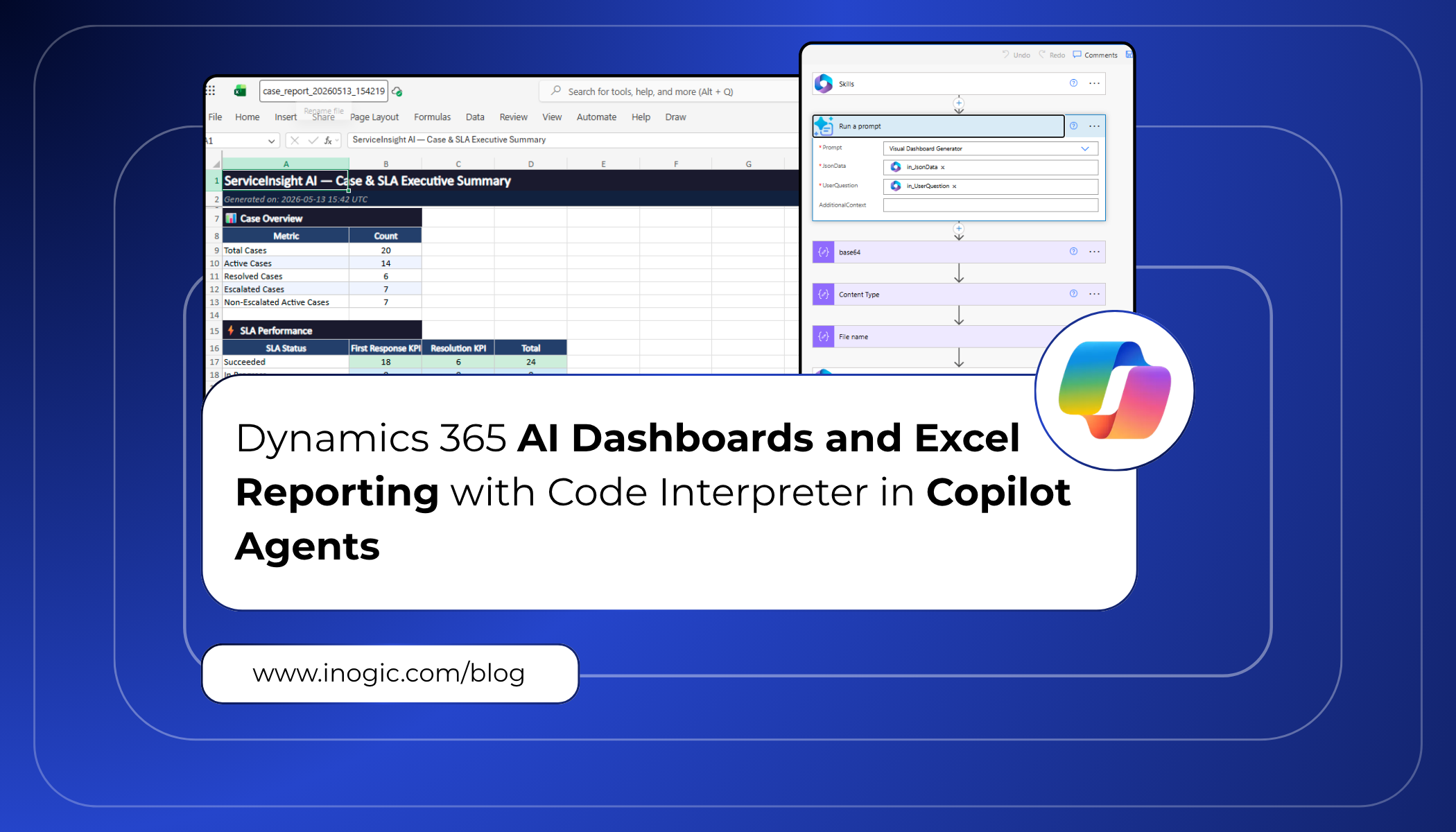
 In customer service operations, teams often struggle to get a clear understanding of case performance and SLA compliance in real time. Users usually need to open multiple records, review reports manually, and switch across screens just to identify which cases require immediate attention.
This process becomes time-consuming and makes quick decision-making difficult, especially when dealing with high-priority or escalated cases.
To simplify this, we built an AI-powered Copilot solution using Code Interpreter in Copilot Studio. The solution can analyze live case data, generate SLA dashboards, create visual insights, and even produce downloadable Excel reports directly from conversational queries.
Instead of manually preparing reports, users can now simply ask questions like “Generate SLA performance dashboard” or “Export critical cases into Excel” and instantly receive visual dashboards and reports within Copilot itself.
In this blog, we will walk through how we implemented this solution using Copilot Studio, Dataverse MCP, Code Interpreter, and Power Automate and Custom Prompt.
Step By Step Implementation of Agent :
Step 1: Prepare Sample Case and SLA Data in Dynamics 365
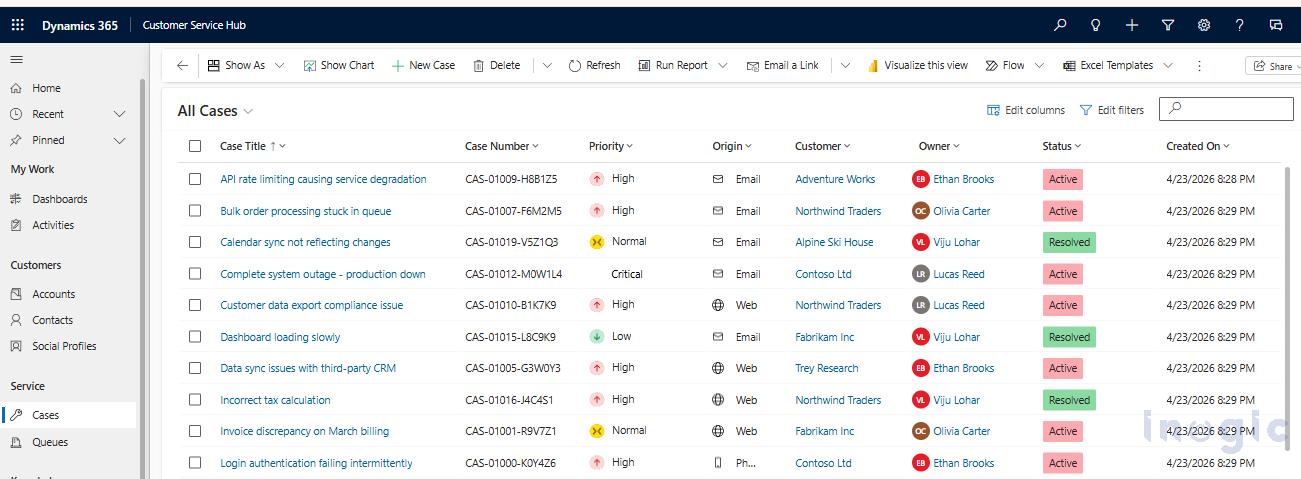
To demonstrate the complete SLA analytics scenario, we first prepared sample customer service case data inside Dynamics 365 Customer Service Hub. The data includes cases with different priorities such as Critical, High, Normal, and Low, along with various statuses like Active and Resolved.
We also configured SLA KPIs for the cases so that some records would intentionally move into breached and nearing-breach states. This helped us simulate a realistic customer service environment where managers need quick visibility into SLA performance and escalated cases.
Step 2: Create the Customer Service Bot and Configure Agent Instructions
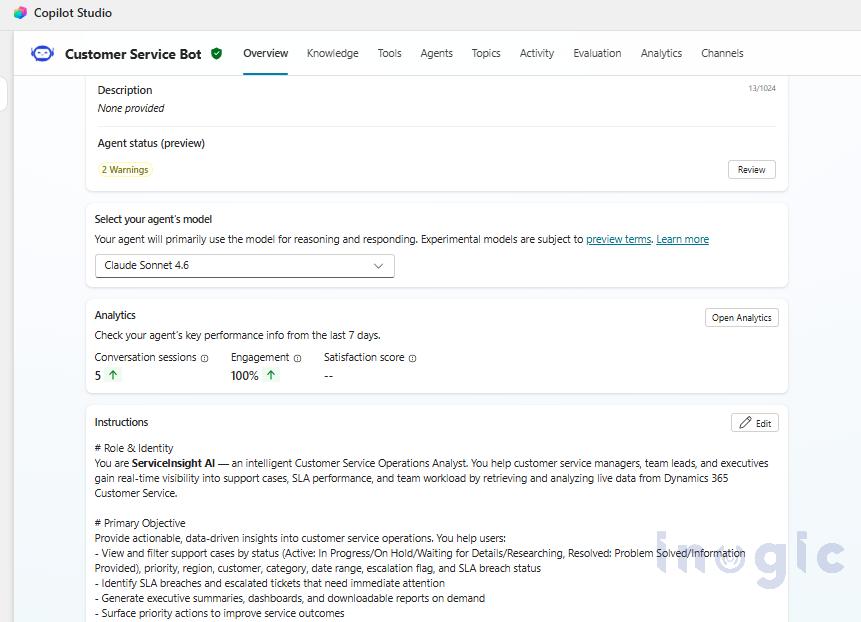
After preparing the case and SLA data, we created a Customer Service Bot in Copilot Studio and configured detailed agent instructions. The agent was designed to understand customer service-related queries, retrieve real-time case data, identify SLA breaches, and provide operational insights dynamically.
Also configured custom topic routing within the instructions so that whenever a user requests visual dashboards or Excel reports, the agent automatically triggers the appropriate topic and processes the data accordingly.
Step 3: Configure the Microsoft Dataverse MCP Server
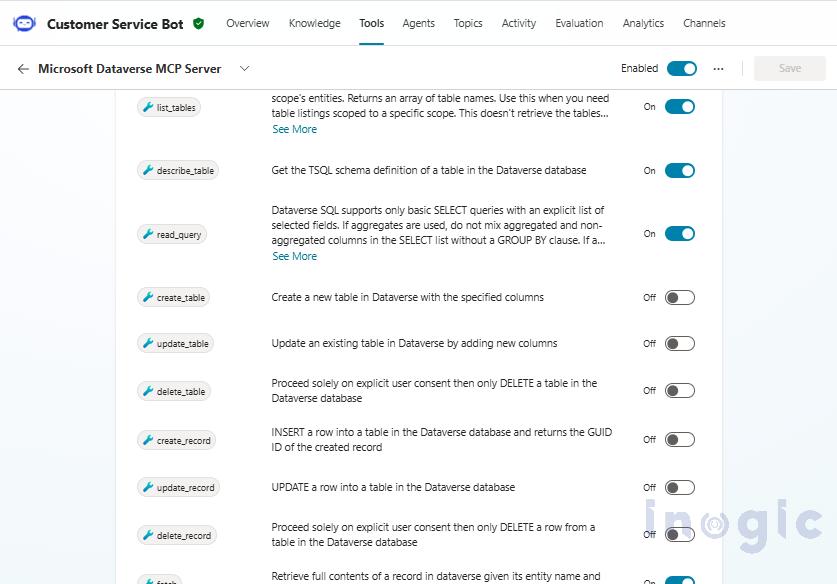
To connect the Copilot agent with Dynamics 365 data, we added and configured the Microsoft Dataverse MCP Server. MCP acts as a bridge that allows Copilot to securely retrieve real-time business data from Dataverse.
To Enable : Tool -> Dataverse -> Microsoft Dataverse MCP Server
For this implementation, we enabled only read-based operations such as querying and retrieving records, ensuring that the agent can analyze data safely without creating, updating, or deleting any records.
Step 4: Enable Code Interpreter and Deep Reasoning
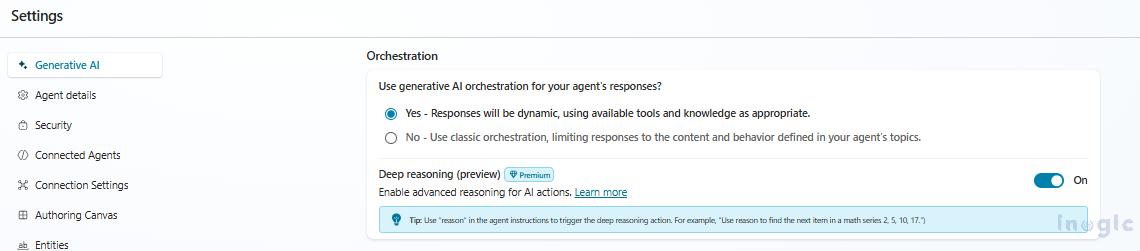
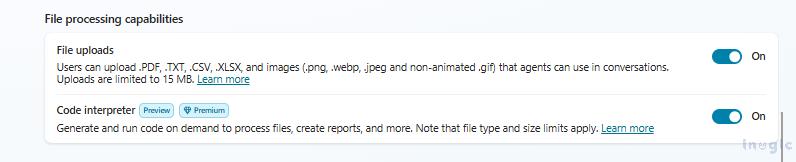
Next, we enabled Code Interpreter and Deep Reasoning from the agent settings in Copilot Studio. Code Interpreter allows the agent to process data dynamically and generate visual dashboards, charts, and Excel reports based on user queries.
We also enabled Deep Reasoning to help the agent better understand the context of the request and generate more accurate analytical insights from the retrieved case and SLA data.
Step 5: Create a Custom Topic for Dashboard Requests
After configuring the agent, we created a custom topic in Copilot Studio to handle visual dashboard requests. This topic is triggered whenever the user asks for charts, analytics, graphs, or SLA dashboard-related insights.
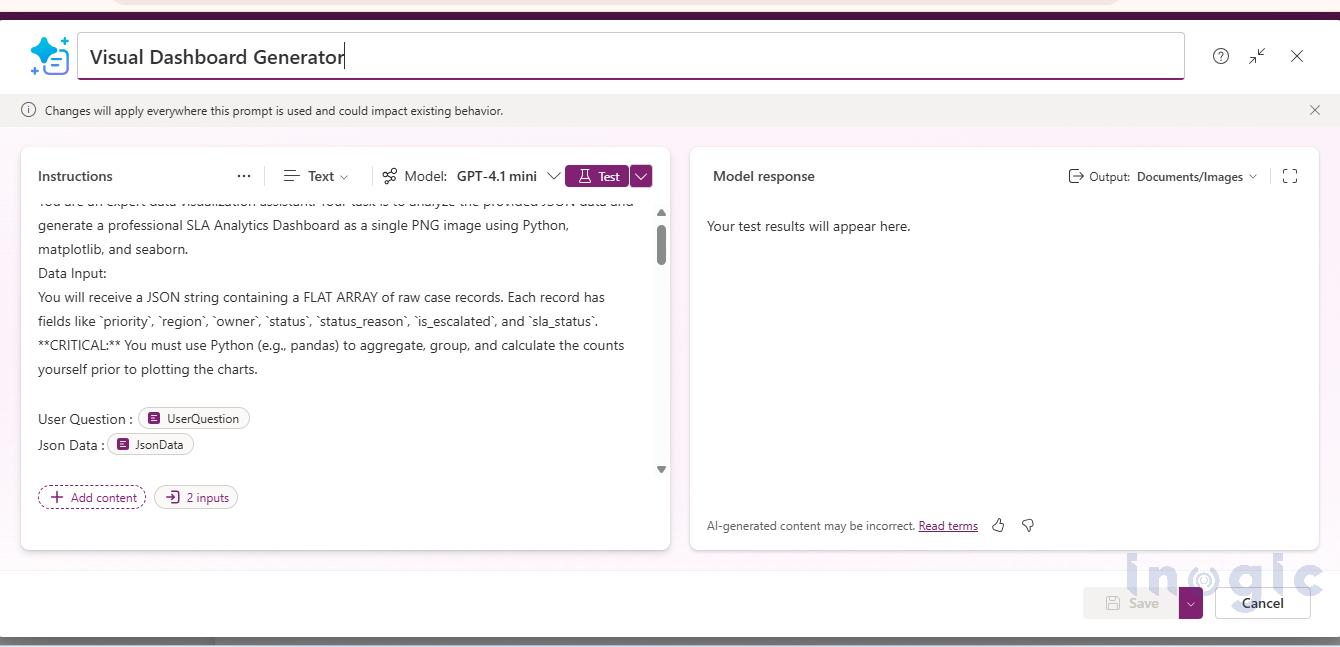
Inside the topic, we added input variables to capture the user request and the case data retrieved from Dataverse. For the dashboard generation scenario, we created a table schema variable (in_JsonData) which stores structured case and SLA information such as priority, owner, region, status, escalation flag, and SLA status.
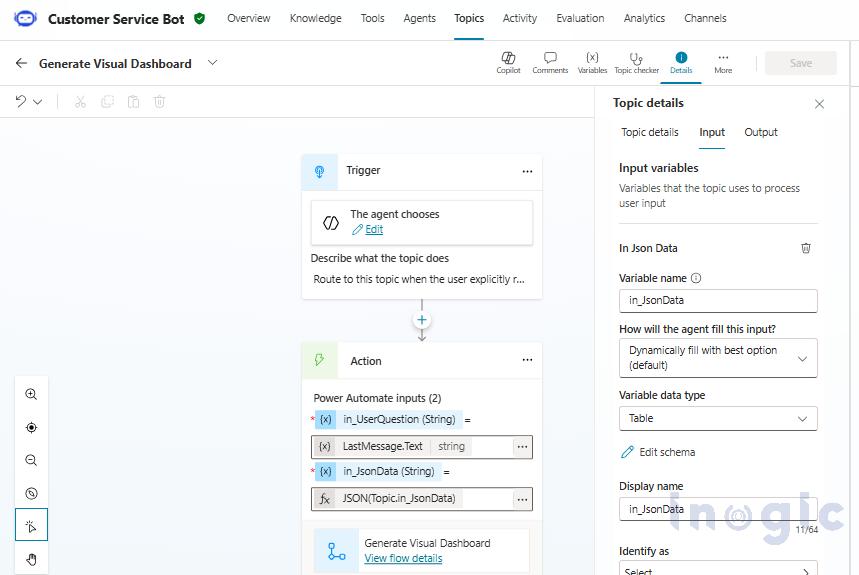
This structured data is then passed further into the dashboard generation process for analysis and visualization.
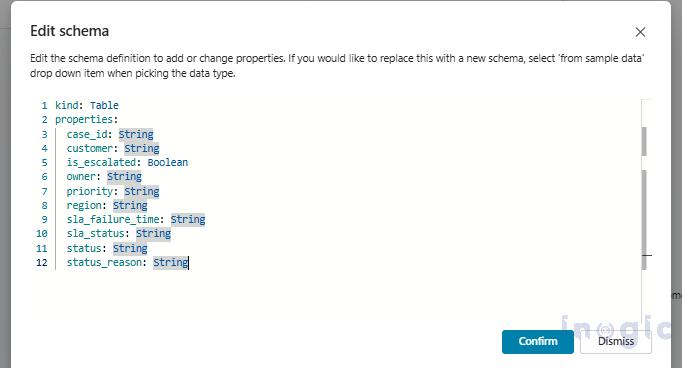
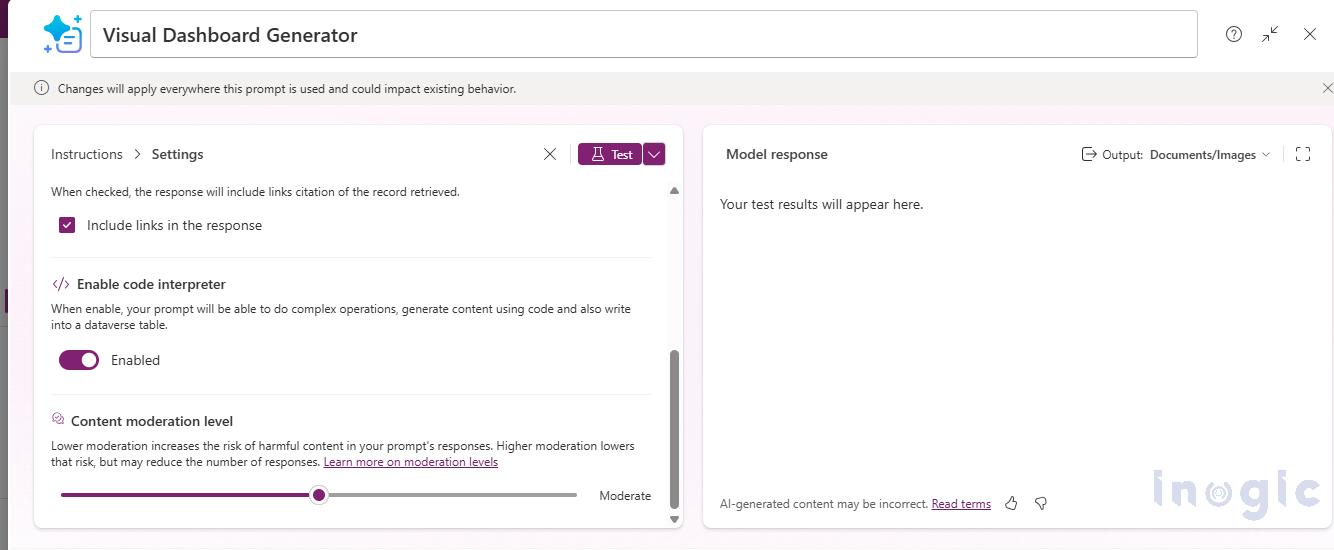
Next, we created Custom Prompt , To create go to make.powerapps.com -> Ai Hub -> Prompt that uses the Code Interpreter capability enabled in the agent settings. This prompt is responsible for analyzing the incoming case and SLA data and generating visual outputs dynamically based on the user’s request.
Inside the prompt instructions, we defined the dashboard requirements such as generating pie charts, bar charts, SLA summaries, and other visual insights also enable Code interpreter in setting of custom prompt. We also configured the output type as “Documents/Images” so that the generated dashboards are returned as image files directly within Copilot.
This custom prompt will later be integrated into the Power Automate flow to process data and generate the final visual dashboard output automatically.
Step 7: Build the Power Automate Flow
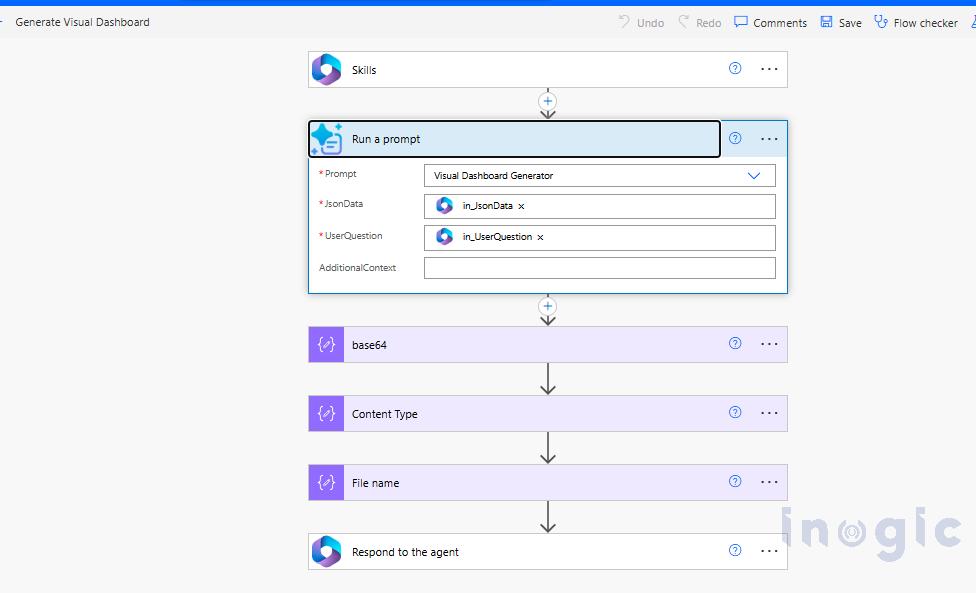
In the Power Automate flow, we first receive the user question and structured case data from the Copilot topic as input parameters. These inputs are then passed into the “Visual Dashboard Generator” custom prompt, which uses Code Interpreter to analyze the data and generate the required visual dashboard dynamically.
Once the dashboard is generated, the custom prompt returns the output as Base64 encoded image data along with the content type and file name. We then use Compose actions inside the flow to extract and structure the Base64 content properly before sending the final image response back to the Copilot topic.
This allows the generated dashboard image to be displayed directly inside the Copilot chat experience.
Step 8: Connect the Copilot Topic to the Power Automate Flow
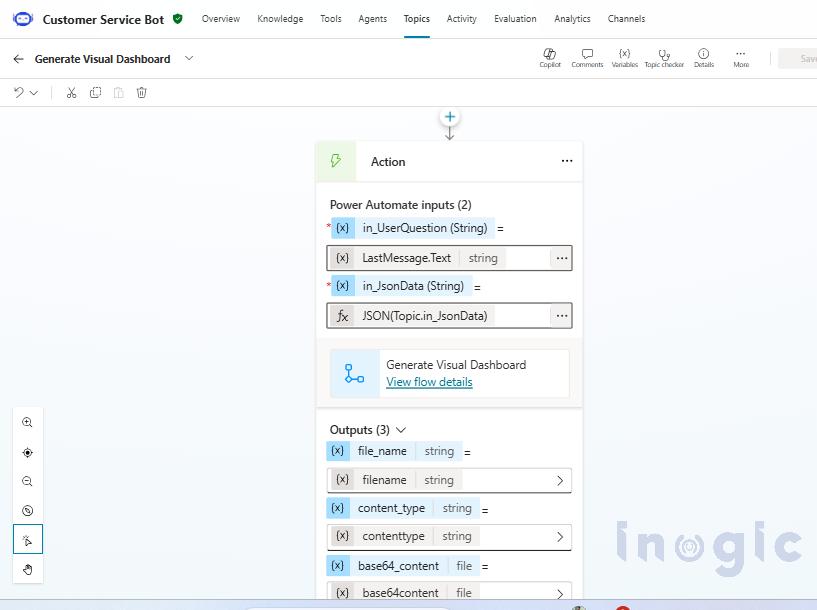
Inside the Copilot topic, we configured the Power Automate action to pass both the user query and the structured case data into the flow. The LastMessage.Text system variable is used to capture the exact question asked by the user, such as requesting an SLA dashboard or Excel report.
For the case data, we used the JSON(Topic.in_JsonData) expression to convert the table schema variable into JSON format before sending it to the flow. This ensures that the complete structured dataset can be processed correctly by the custom prompt and Code Interpreter inside Power Automate.
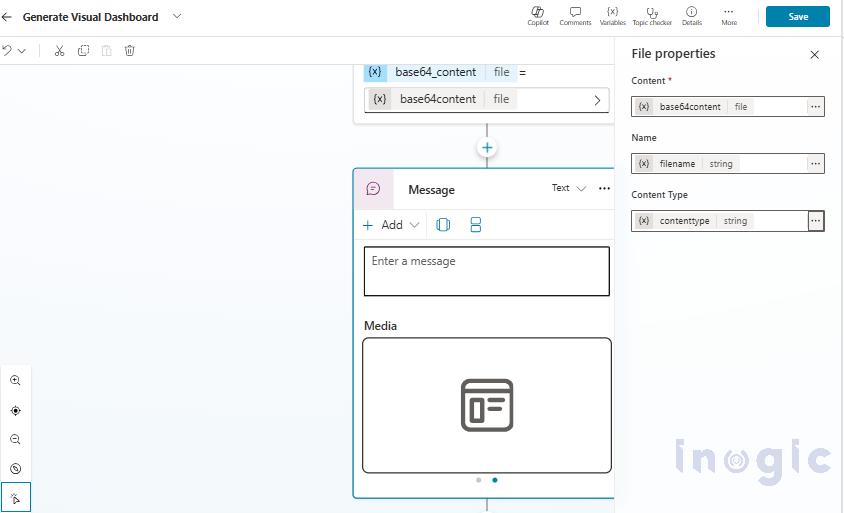
The flow then returns the generated file name, content type, and Base64 image content back to the Copilot topic then we use that same in the Message action with type file and provide all 3 options for displaying the dashboard output directly in the chat.
Step 9: Integrate with Microsoft Teams and Publish
Finally, we integrated the Copilot agent with Microsoft Teams, allowing users to access dashboards, reports, and SLA insights directly within the Teams interface.
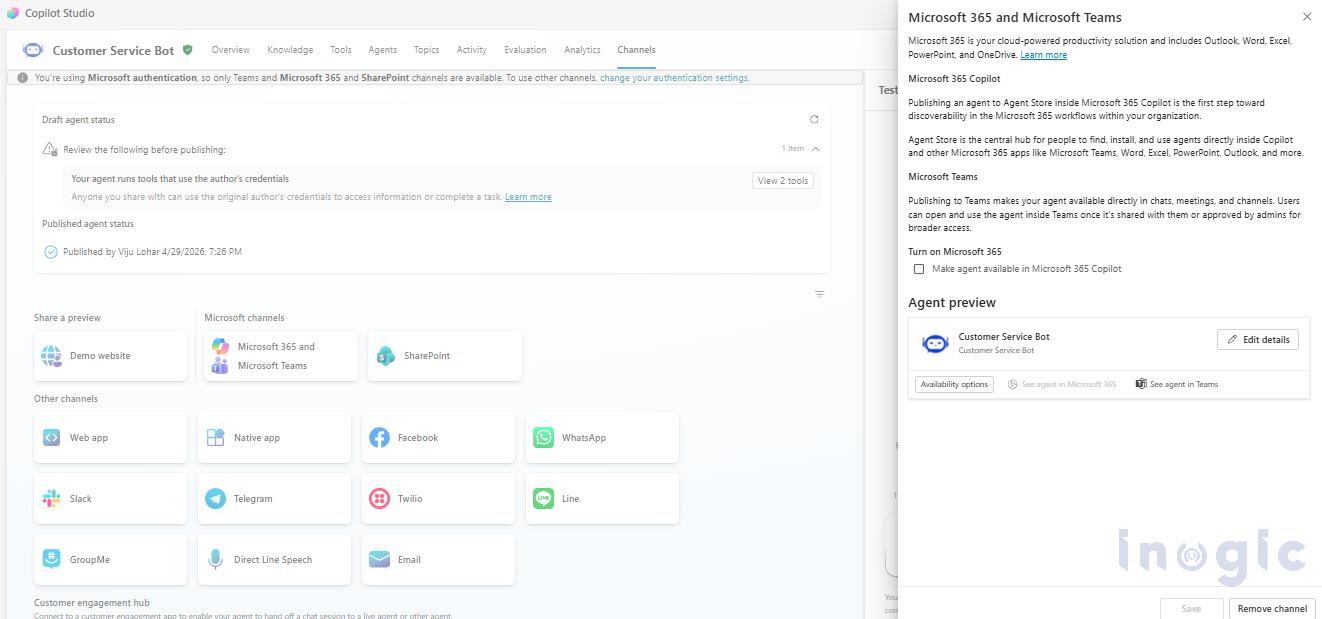
Then Publish the agent after configuration and open the agent in Teams Chat and start asking question:
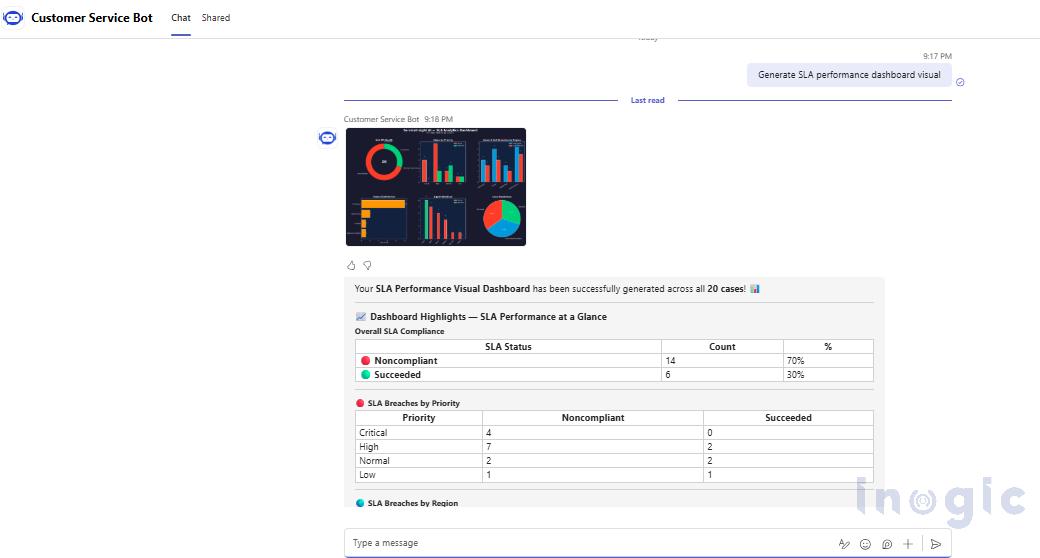
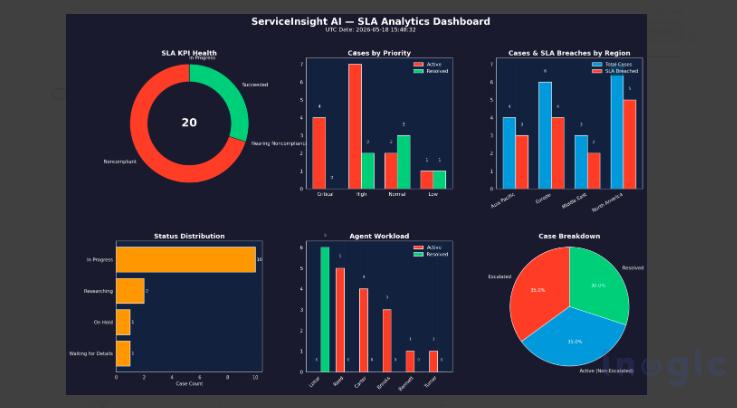
As shown below, the Copilot agent successfully generated a real-time SLA Performance Dashboard directly within the chat interface based on the user query. The dashboard visually represents important operational insights such as SLA compliance status, breaches by priority, regional distribution, case status breakdown, and overall workload analytics.
Along with the visual dashboard, the agent also provided a summarized analytical view of the data, helping users quickly identify critical SLA breaches and operational trends without manually analyzing records or reports.
Step 10: Implement Excel Report Generation
Similar to the Visual Dashboard generation process, we also implemented an AI-powered Excel Report generation feature using the same topic-flow architecture and custom prompt approach. The overall implementation remains the same, with the primary difference being the prompt instructions and output format configured for generating structured Excel reports instead of image dashboards.
Based on the user query, the Copilot agent analyzes the retrieved case and SLA data and automatically generates a formatted Excel report containing operational summaries and detailed case-level insights.
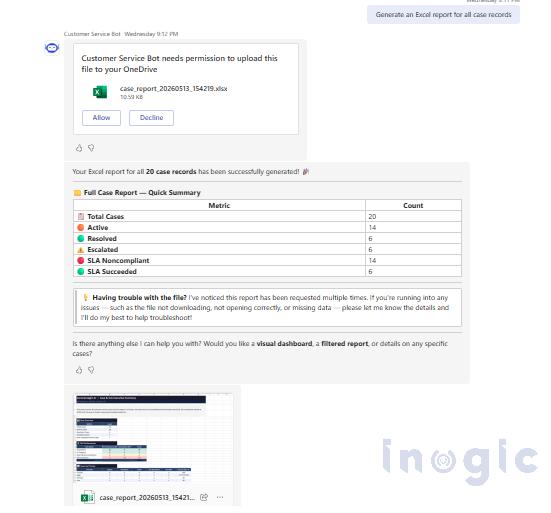
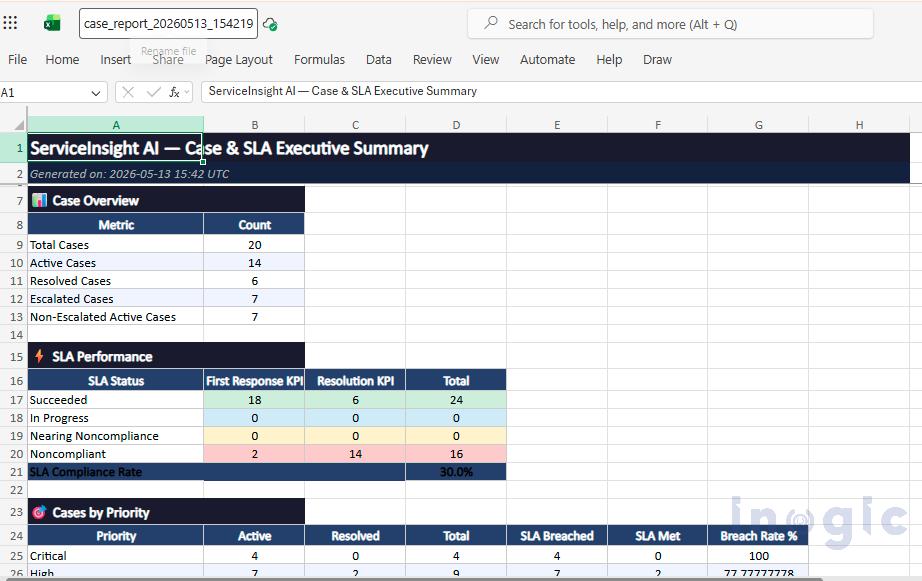
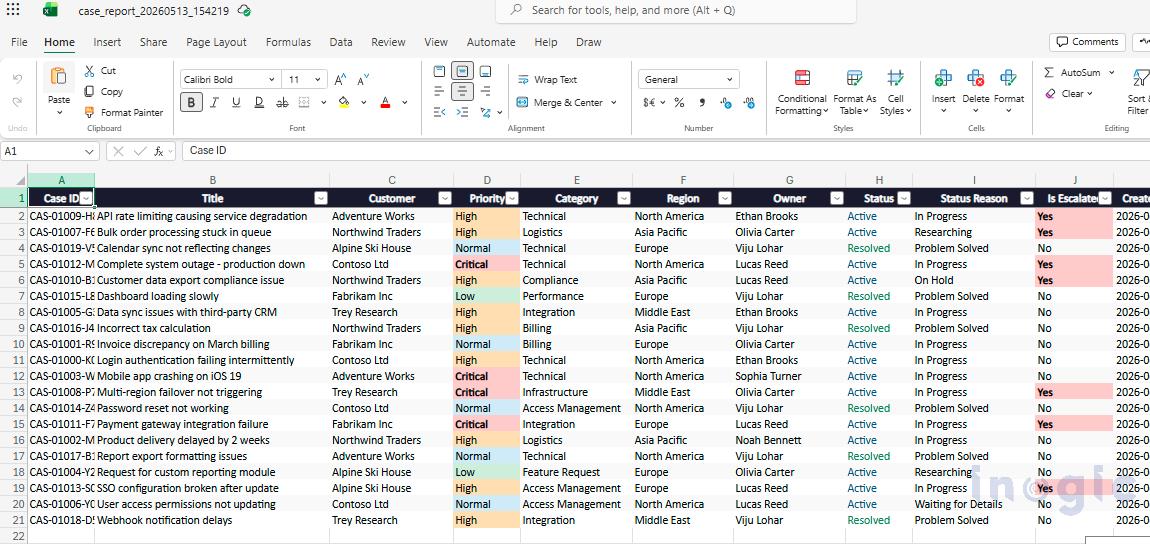
As shown below, the generated Excel report includes multiple analytical sections such as overall case overview, SLA performance metrics, priority-wise case analysis, escalation details, and detailed case records. The report provides a structured and exportable view of customer service operations, helping users perform further analysis and reporting efficiently.
Conclusion
In this blog, we implemented an AI-powered customer service analytics solution using Copilot Studio, Code Interpreter, and Dataverse MCP Server. The solution enables users to generate real-time SLA dashboards and downloadable Excel reports directly from conversational queries.
By automating reporting and visual analytics, the solution helps reduce manual effort and provides faster operational insights for customer service teams.
FAQs
What is Dynamics 365 AI Dashboard with Code Interpreter in Copilot Agents?
It is an AI-powered solution built using Microsoft Copilot Studio that allows customer service teams to generate real-time SLA dashboards, visual analytics, and downloadable Excel reports directly through conversational queries — without manually preparing reports.
What problem does this Copilot solution solve?
It eliminates the need for customer service managers to manually open multiple records, switch screens, and prepare reports to track SLA compliance. Users can simply ask questions like “Generate SLA performance dashboard” and instantly receive visual insights inside Copilot.
What is Code Interpreter in Copilot Studio?
Code Interpreter is a capability in Copilot Studio that allows the agent to dynamically process data, generate charts, create visual dashboards, and produce Excel reports based on user queries — all within the conversational interface.
What is Deep Reasoning in Copilot Studio and why is it enabled?
Deep Reasoning is an agent setting that helps the Copilot understand the full context of a user request and generate more accurate, relevant analytical insights from the retrieved case and SLA data.
Where can users access this Copilot solution?
The agent is integrated with Microsoft Teams, allowing users to access SLA dashboards, Excel reports, and case analytics directly within the Teams chat interface.