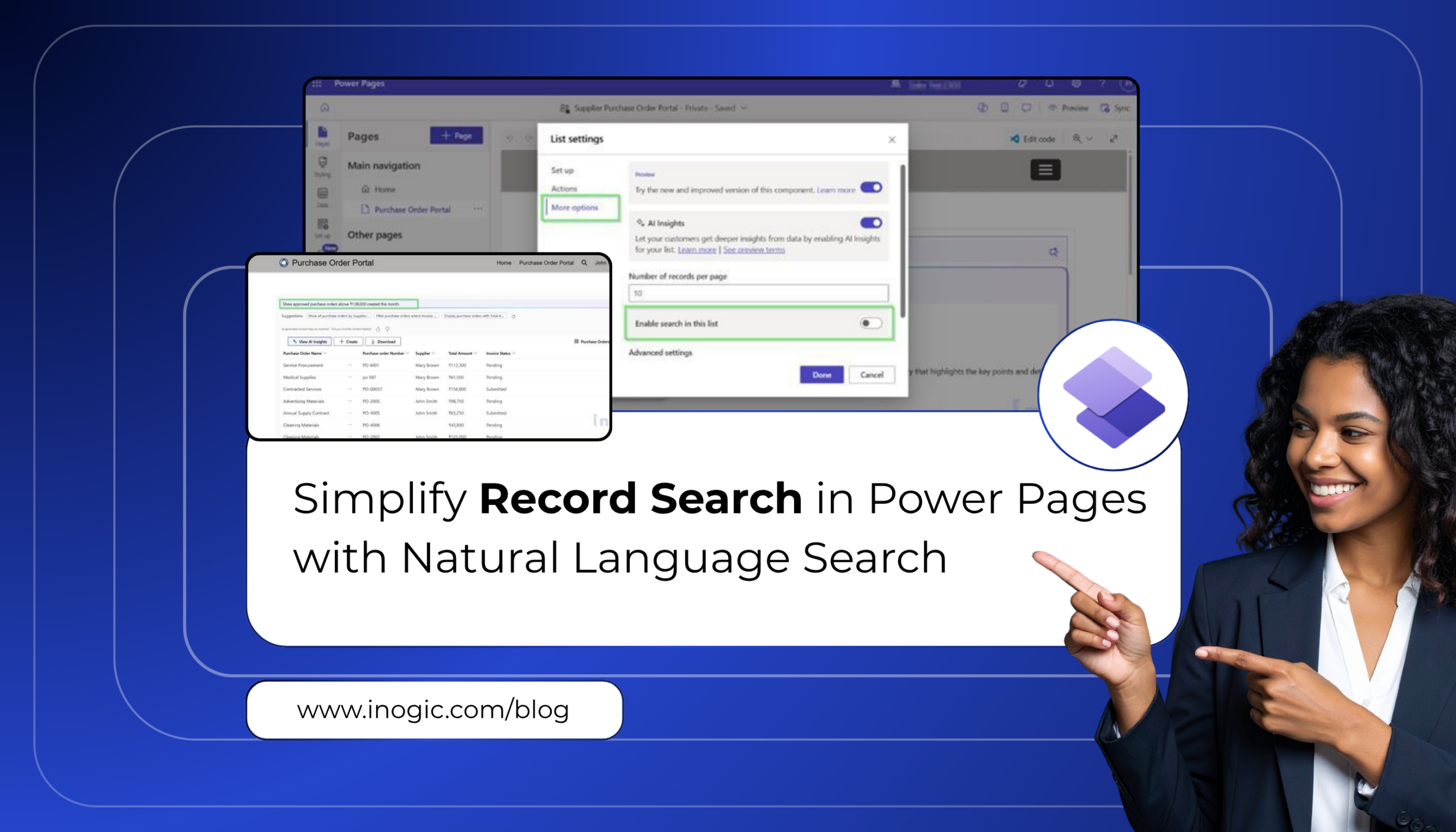
 Power Pages makes it relatively straightforward to build business portals. However, as the amount of data grows, helping users quickly find the right information becomes increasingly challenging.
Take a Purchase Order Portal as an example. In the beginning, searching is simple because there are only a handful of purchase orders. But as the business grows, so does the data. Before long, the portal contains hundreds of purchase orders.
One morning, a procurement manager is preparing for a review meeting and needs quick answers.
- Which purchase orders are still pending approval?
- Which orders above ₹1,00,000 need immediate attention?
- Which orders are scheduled for delivery this week?
The information is already in the portal, but finding it isn’t always quick. Instead of finding the required information right away, the manager must navigate through multiple filters, choose the appropriate fields, define several conditions, and occasionally refine the search again if the results don’t match the intended criteria.
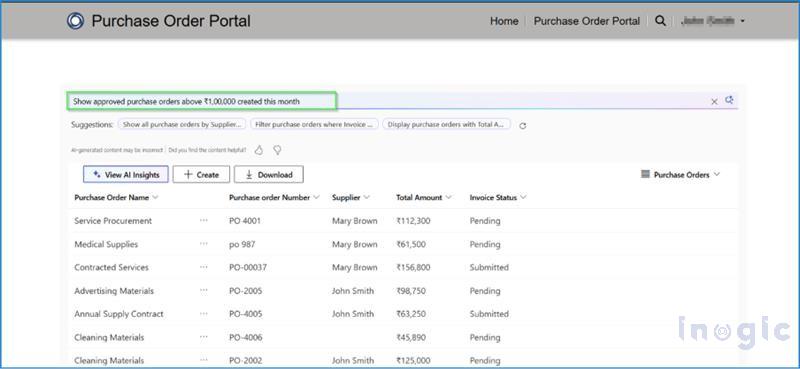
Power Pages includes a Natural Language Search feature that allows users to search using everyday language instead of building filters manually. Users can simply type queries such as “Show pending purchase orders” or “Find orders above ₹1,00,000,” and the portal understands the request and automatically displays the matching records.
The improvement is immediately noticeable, making the search experience much more intuitive and efficient. Searching felt much more natural because users no longer had to think about which filters to apply, they simply described what they wanted to find.
How Natural Language Search Works
Natural Language Search makes searching Power Pages lists much more intuitive.
Instead of relying only on keywords, users can type their search the way they would normally ask a question. Power Pages interprets the request and applies the appropriate filters behind the scenes.
For example, users can search for:
- Show pending purchase orders above ₹1,00,000
- Find purchase orders created last week
- Display approved purchase orders waiting for delivery
Instead of manually combining multiple filters, the portal returns the purchase orders that match the request.
If users search using one or two words, such as PO-1025 or Laptop, Power Pages continues to use the regular text search.
This means users can continue searching the way they always have while also using natural language whenever they need a more specific search.
Step-by-Step Configuration Guide
Step 1 – Open Your Power Pages Website
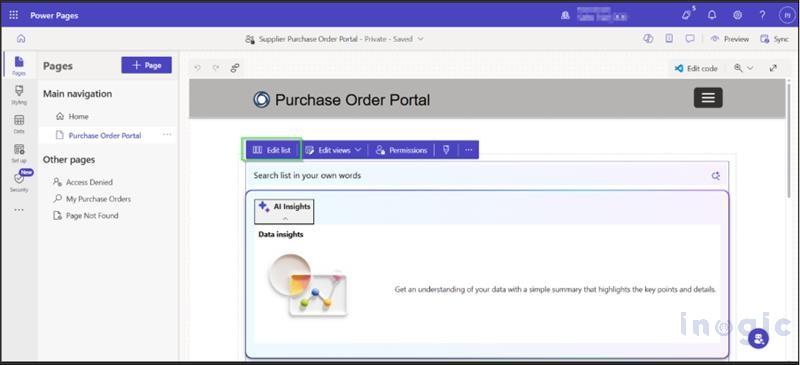
Open your Power Pages website and navigate to the page that contains the list where you want to enable Natural Language Search.
For this example, we’ll use the Purchase Orders list.
Step 2 – Edit the List
Select the existing list.
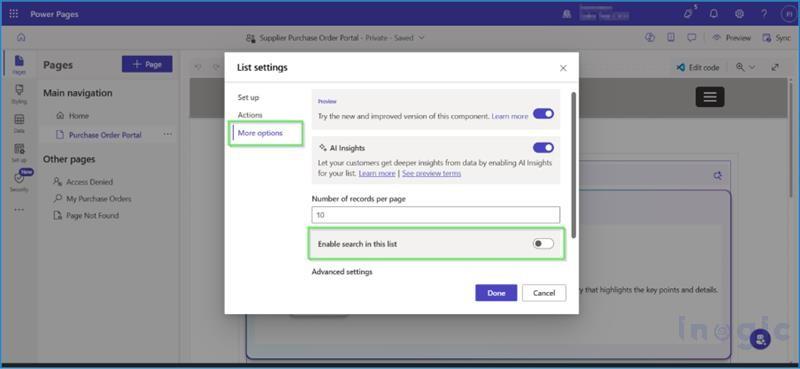
Choose Edit List and then select More options.
Step 3 – Enable Natural Language Search
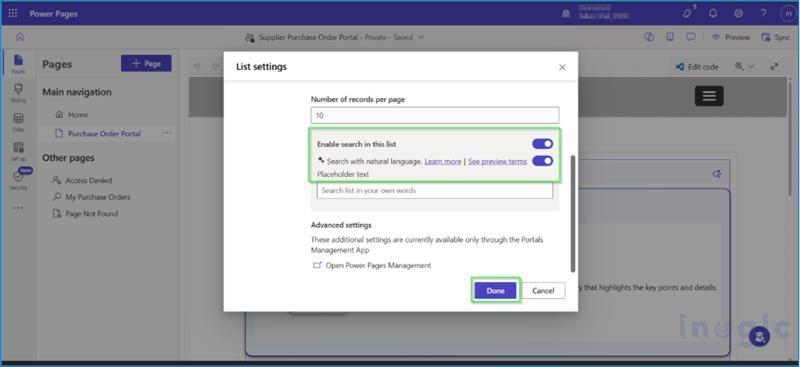
In the More options section:
- Turn on Search in this list.
- Enable Search with natural language.
- Save your changes.
Natural Language Search is now available for the selected list.
Note: Your Power Pages website must be running version 9.7.4.x or later for this feature to work.
Trying It Out
For example:
Show pending purchase orders
Only purchase orders with a Pending status are displayed.
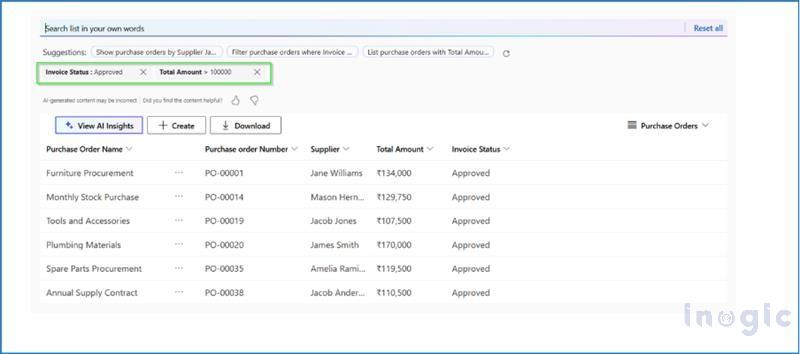
Find purchase orders above ₹1,00,000
The list displays only purchase orders whose value is greater than ₹1,00,000.
Show purchase orders created this month
Only purchase orders created during the current month are displayed.
Show approved purchase orders waiting for delivery
Instead of applying multiple filters, the portal understands the request and displays the matching records.
Once the configuration saved, open the Purchase Orders list and try searching using everyday language instead of manually applying filters.
AI Search Suggestions
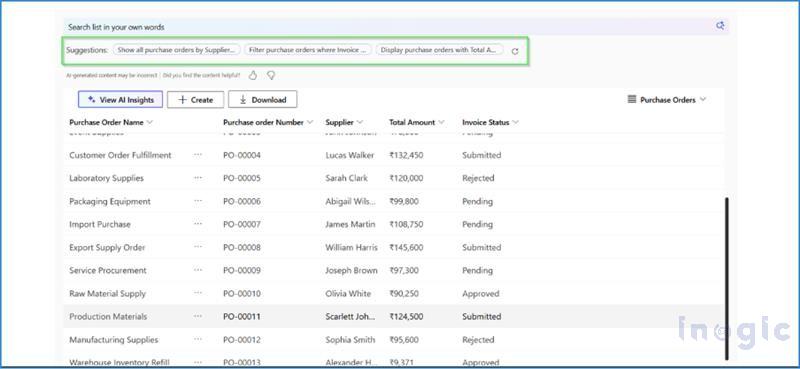
The search box doesn’t leave users guessing about what to type. Along with allowing natural language queries, Power Pages also displays AI-generated search suggestions based on the data in the list.
For example, you might see suggestions like:
- Show purchase orders by Supplier James
- Filter purchase orders where Invoice Status is Approved
- List purchase orders with Total Amount above ₹1,00,000
If one of these suggestions matches what you’re looking for, you can simply click it instead of typing your own query. Power Pages automatically applies the relevant filters and displays the matching records.
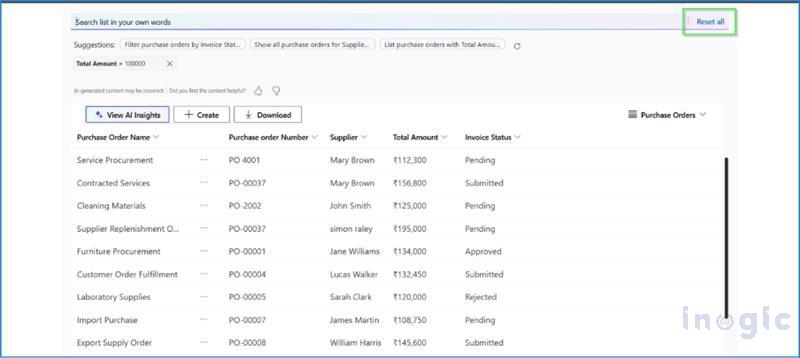
Another small but helpful feature is that every applied search condition appears as a filter chip below the search box. This makes it easy to understand how the results are being filtered. If you want to start over, simply click Reset all to clear the applied filters and return to the complete list.
Where Can This Feature Be Useful?
Although this example demonstrates the feature using a Purchase Order Portal, Natural Language Search can enhance the search experience across a wide range of business portals, including:
- Customer Self-Service Portals
- Supplier Portals
- Partner Portals
- Employee Service Portals
- Invoice Management Portals
- Service Request Portals
- Vendor Management Systems
- Warranty and Claims Portals
In short, if users regularly search through business data, Natural Language Search can help them find what they need faster with much less effort.
Things to Keep in Mind
Before enabling Natural Language Search, keep these limitations in mind:
- Your Power Pages website must be running version 7.4.x or later.
- Virtual tables aren’t currently supported.
- Lists should contain at least five records to generate meaningful results.
- If a list contains more than 5,000 records, summarization considers only the first 5,000 records because of Dataverse page size limits.
- Some limitations of the Dataverse Tabular Data Stream (TDS) endpoint also apply.
Conclusion
The challenge isn’t collecting business data, it’s helping users find the right information quickly as that data grows.
Natural Language Search makes this much easier by allowing users to search in plain language instead of manually applying multiple filters. It’s simple to enable, requires very little configuration, and can make a noticeable difference to the overall user experience.
Whether you’re building a supplier, customer, or employee portal, this feature helps users spend less time searching and more time focusing on their work. Sometimes, small improvements like this can have the biggest impact on how users experience a portal.