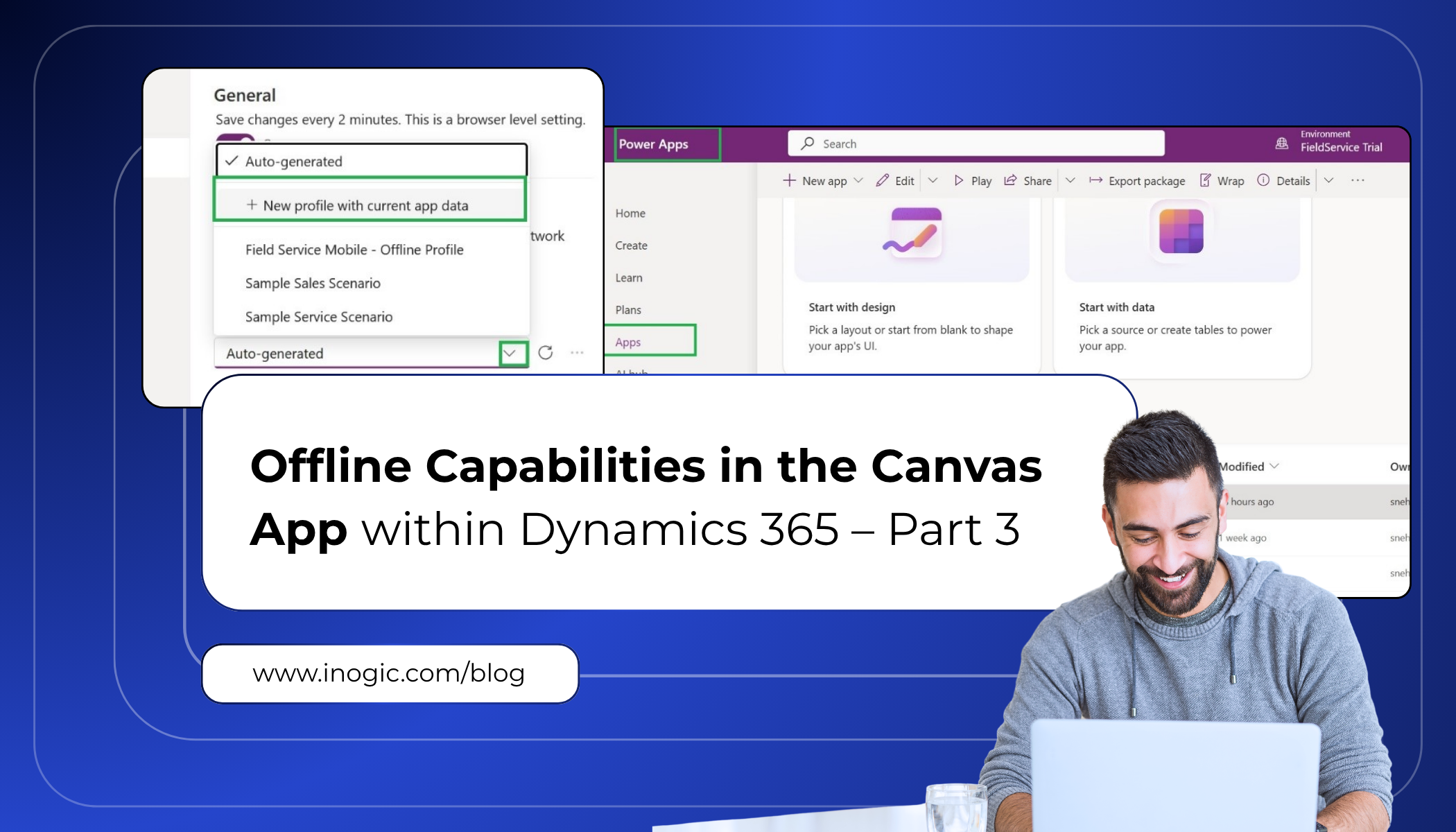
Creating Offline Profiles Directly from Maker Studio
In our previous blog, we explored how to enable offline capabilities in Canvas apps and how to manage offline data such as images and attachments within Dynamics 365. However, one important part of the offline setup was not fully streamlined creating and managing offline profiles.
Previously, to configure offline settings, we had to navigate to the Power Platform Admin Center and create or manage the offline profile there before associating it with the Canvas app in Power Apps. This process required switching between multiple portals, which made the setup a bit complex and time-consuming for makers.
In the 2025 Wave 1 release of Power Apps, Microsoft made working offline much easier. Now, the person who builds the app (the app maker) can create these offline profiles directly inside the Maker Studio the Power Apps design interface without needing an IT admin. In other words, you can stay in your app’s Settings menu and turn on offline mode and build the profile on the spot. This new feature saves time (no more asking admins for help) and lets you quickly get your app ready for offline use.
What are offline profiles and why do they matter?
Think of an offline profile as a defined set of information that your app stores on the device so it can continue working even when there is no internet connection. It determines what data the app should download and store for offline use.
For example, if your app tracks inventory, the offline profile may include the product list and stock quantities but only the required fields such as product name and available quantity. It also controls how often the app should synchronize and update the data, such as every hour or once a day.
Use Case:
Imagine your company has field workers who fix things at people’s homes using Canvas app built on Power Apps. These workers often go places with spotty or no internet. But they still need to see stuff like their job details, who the customer is, what equipment they’re working on, and past service records, plus be able to mark jobs done or jot down notes. If the app can’t work offline, they’re stuck without that info when they lose connection. That’s why offline profiles are a big deal.
An offline profile lets the app grab and save just the important data on the worker’s device and within its self in makers studio rather than switching the portals. For instance, you can set it up to download jobs assigned to them, their customer info, and the equipment linked to those jobs. This way, they can keep working even without internet. When they get back online, everything syncs up with Dataverse automatically. Using offline profiles helps companies make sure their field staff can keep working without breaks, rely less on having internet all the time, and generally make their mobile apps work better and more dependably.
Step by Step guidance on how to Create offline Profile in Maker Studio
1. Open https://make.powerapps.com
2. Go to the Canvas app you want to edit.
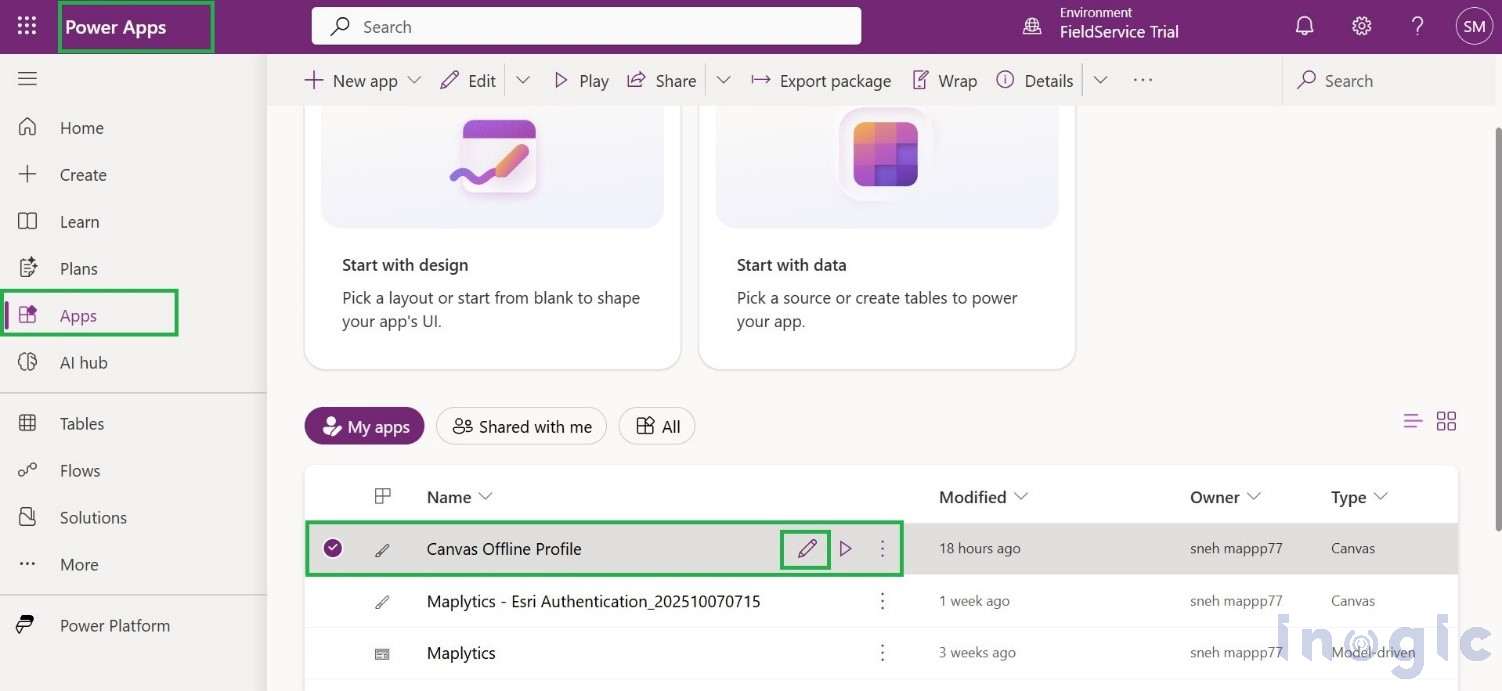
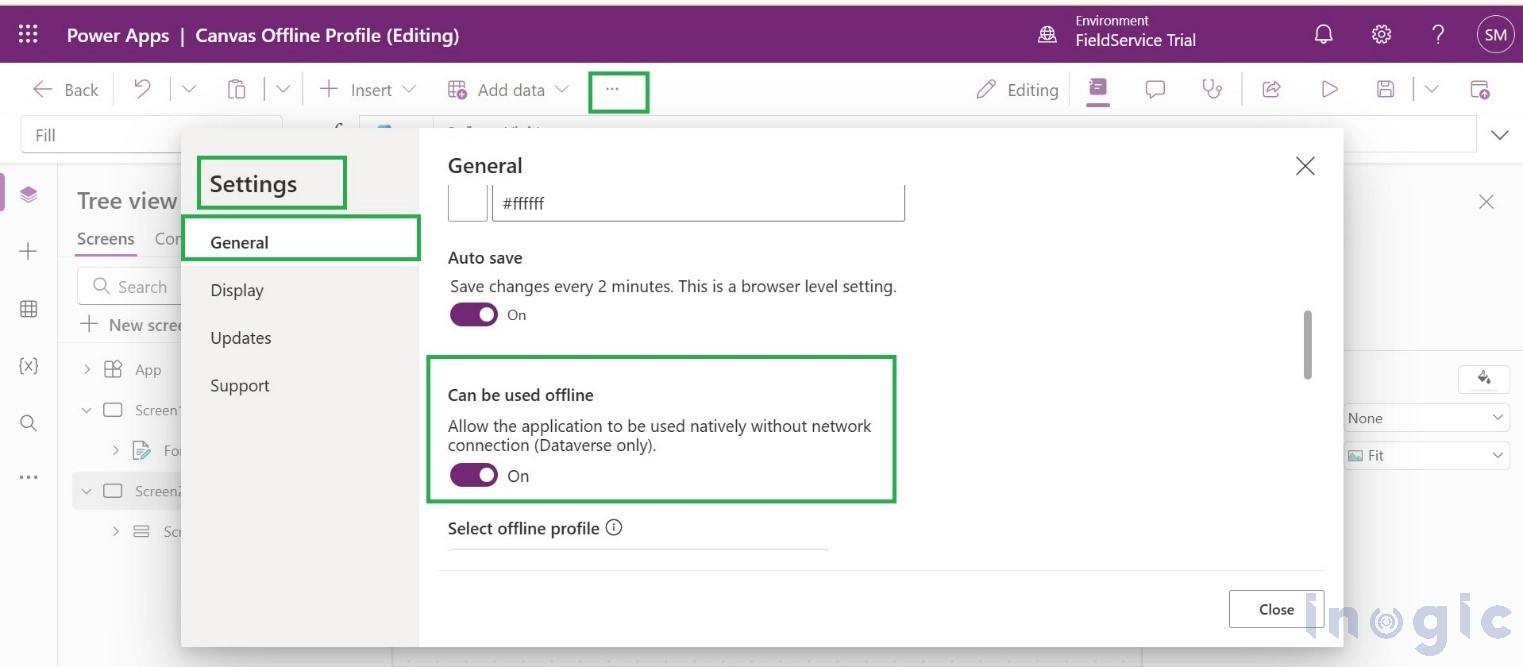
3. Go to Settings → General
4. Turn on “Can be used offline.”
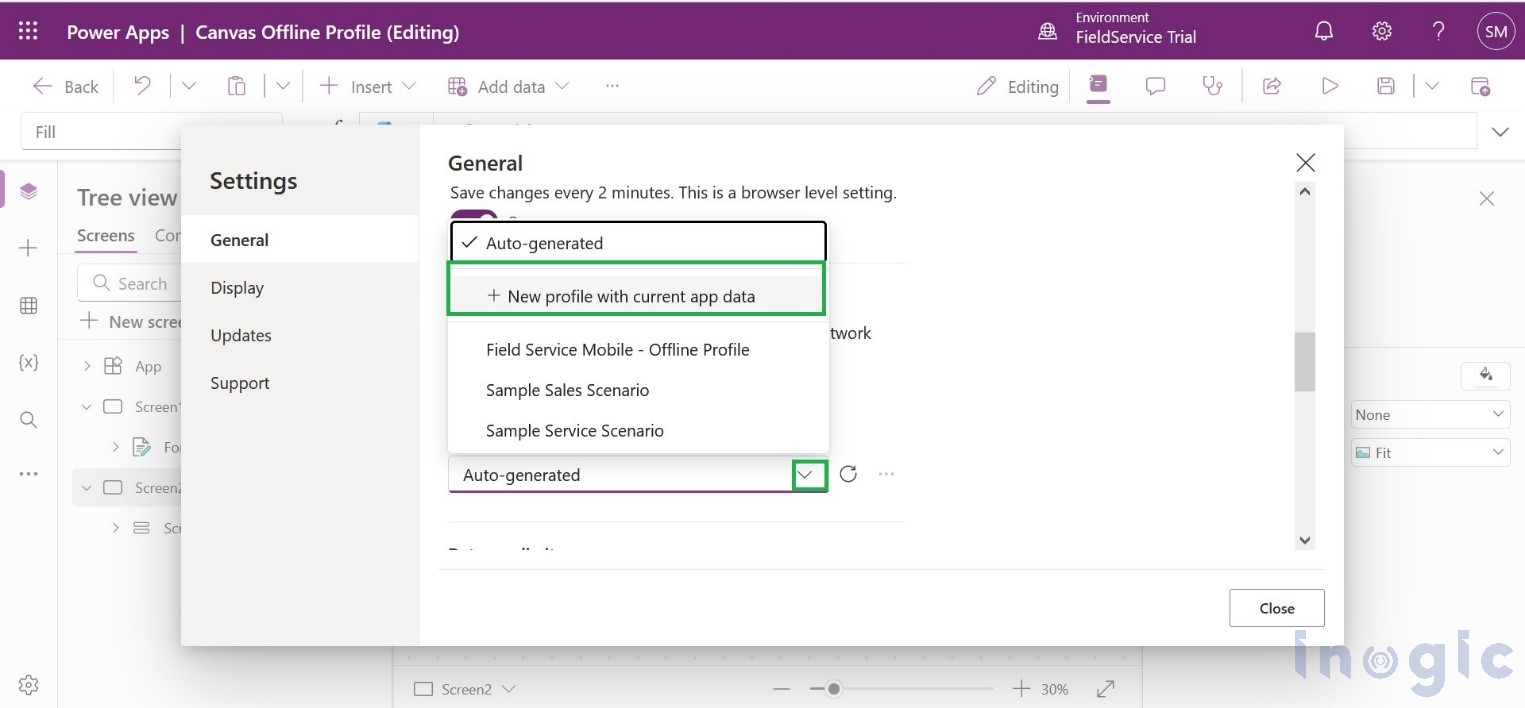
5. Choose or create an offline profile: After you Enable offline mode, a new drop-down will appear. Select New profile with current app data. This starts creating a fresh offline profile for your app.
6. Name the profile and pick data: Now give the profile a name. Then add the tables your app needs offline.
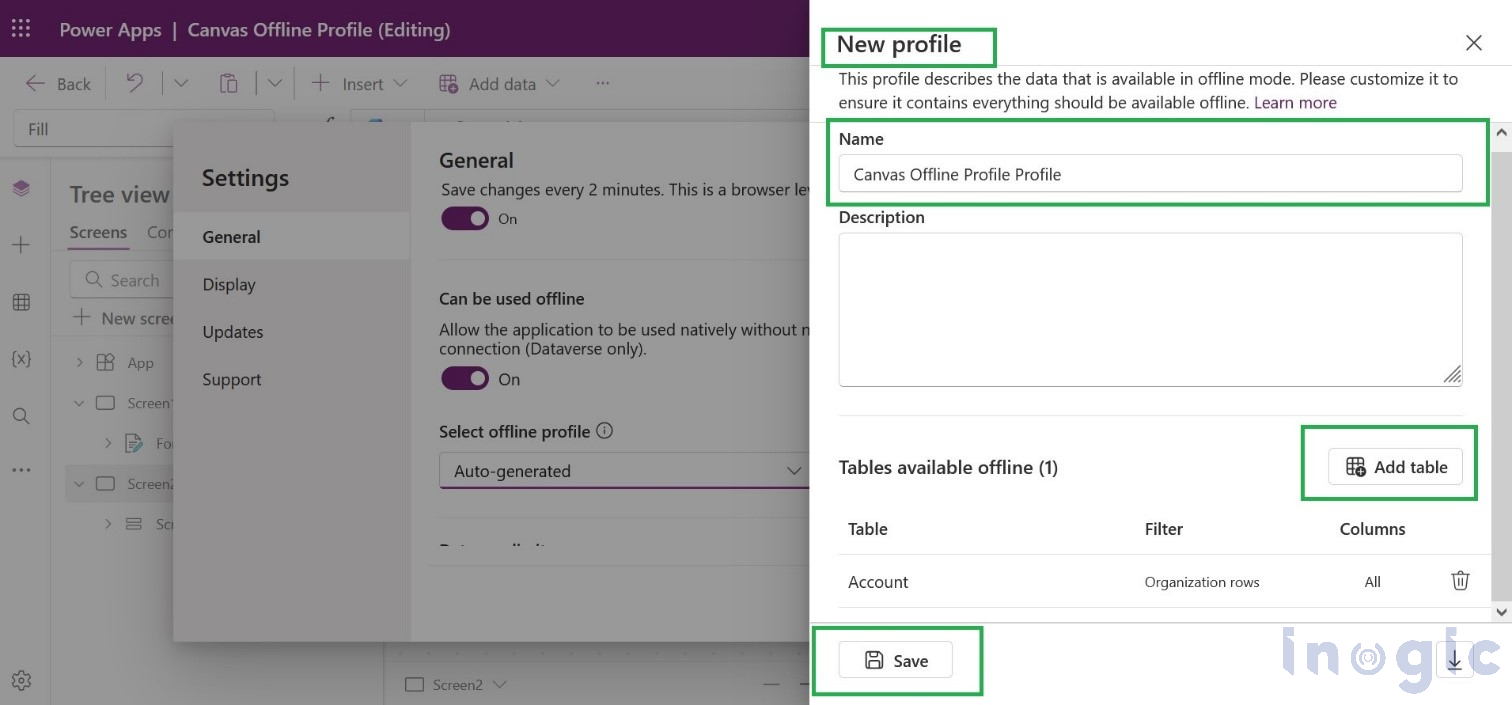
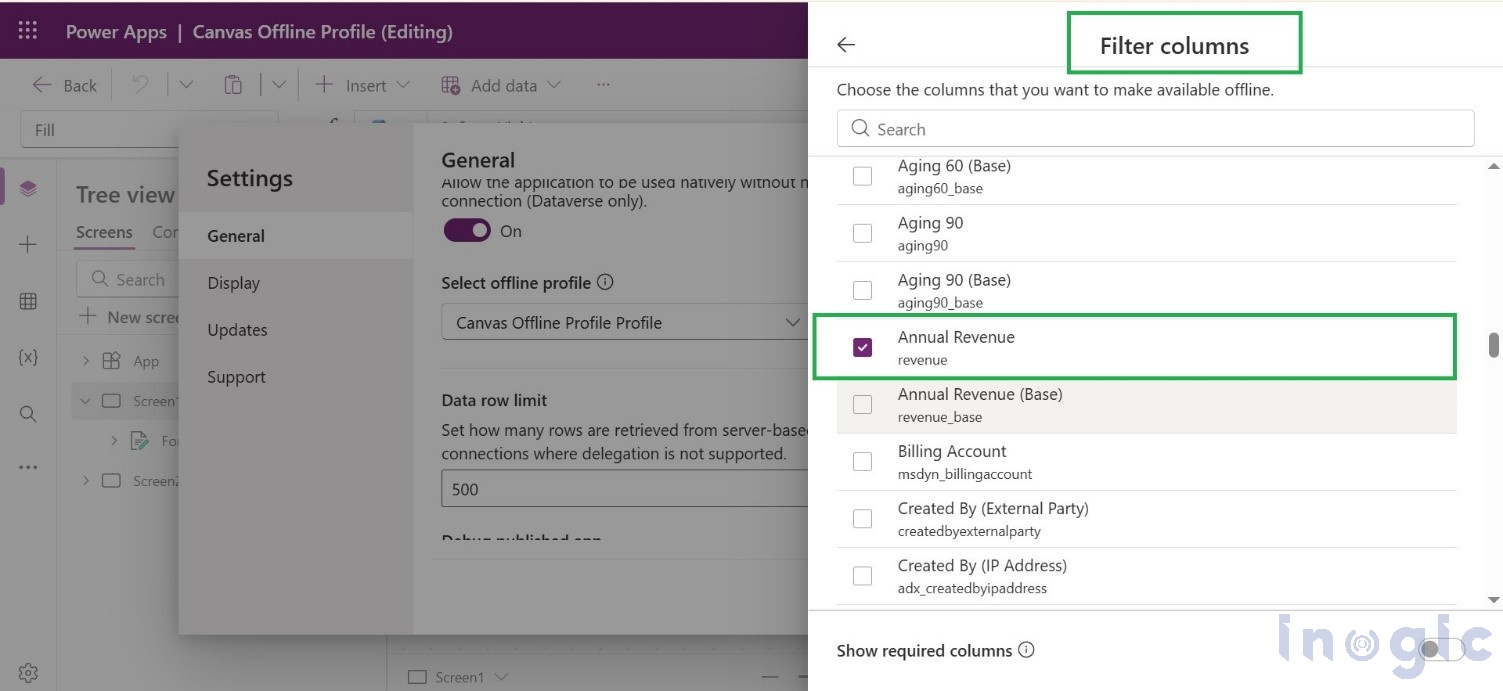
7. For each table, you can pick which columns and records to include. For example, add your Account table, but maybe only annual revenue column is required to work with. Now go back and Save and Publish.
Benefits for business users and app makers
- Faster app rollout: Makers no longer need to depend on IT administrators to configure offline data. Offline profiles can now be created directly in Maker Studio, which speeds up development and deployment.
- Empowered makers: Even people who aren’t professional developers, often called “citizen developers,” can create apps without needing special permissions. Microsoft points out that this capability is open to anyone building Canvas apps, even without administrator privileges.
Conclusion
The Power Apps 2025 Wave 1 release introduces a simple but powerful improvement by allowing makers to create offline profiles directly within Maker Studio. This change removes the dependency on the Power Platform Admin Centre for offline configuration and enables app makers to manage everything from a single interface.
As a result, Canvas apps can be prepared for offline use more quickly, reducing development time and improving the experience for both makers and end users. With easier offline configuration, organizations can build more reliable applications that continue to function anytime and anywhere, even without internet connectivity.
FAQs
1. What is an offline profile in Microsoft Power Apps Canvas apps?
An offline profile in Microsoft Power Apps defines which data (tables, columns, and records) is downloaded and stored locally on a device so a Canvas app can function without an internet connection.
2. What changed in offline profile creation in the 2025 Wave 1 release of Power Apps?
In the 2025 Wave 1 update of Microsoft Power Apps, offline profiles can now be created directly within Maker Studio instead of using the Power Platform Admin Center, reducing dependency on administrators and simplifying the process.
3. Why are offline profiles important for Canvas apps in Dynamics 365?
Offline profiles ensure that Canvas apps connected to Microsoft Dynamics 365 can:
- Work without internet connectivity
- Provide uninterrupted access to critical data
- Sync updates automatically when the connection is restored
4. How does offline data synchronization work in Power Apps Canvas apps?
Offline data in Microsoft Power Apps is stored locally on the device. When internet connectivity is restored, the app automatically syncs changes with Dataverse, ensuring data consistency.
5. Who can create offline profiles in Power Apps Maker Studio?
App makers, including citizen developers, can create offline profiles directly in Maker Studio without requiring admin access to the Power Platform Admin Center.