If you’ve ever tried building apps with Microsoft Power Apps, you know the process: creating tables, designing screens, adding controls, connecting data, and writing formulas. While the traditional app-building process is effective, it can also be time-consuming and complex.
But now, imagine this:
You simply describe the app you need, and within minutes, Power Apps Vibe takes over:
- A complete data model is generated.
- UI screens are automatically designed.
- Built-in logic is incorporated.
- A functional prototype is ready to go.
All this, without having to drag a single control or write a line of code.
Welcome to Power Apps Vibe—a revolutionary AI-powered app development platform. Unlike traditional app design methods, Power Apps Vibe makes building apps simpler, faster, and more intuitive than ever before.
Instead of spending hours designing screens and wiring logic, Vibe transforms app development into a simple, conversational experience. You describe what you need, and it creates the foundation for your app—data model, UI, navigation, and logic—automatically.
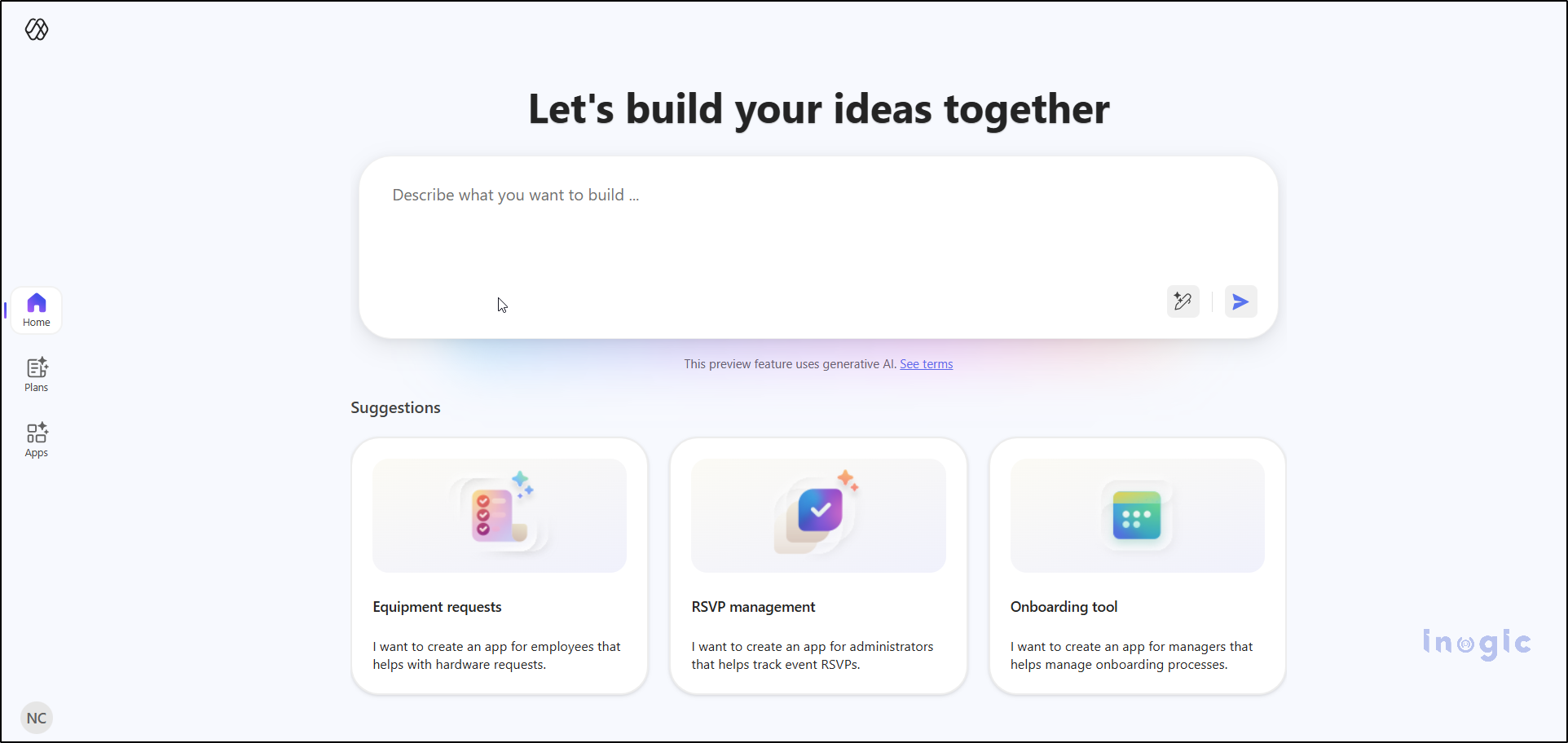
In this blog, I’ll break down what Vibe is, why Microsoft created it, and how you can start building full-stack apps with nothing more than a sentence.
What is Power Apps Vibe?
Power Apps Vibe is Microsoft’s AI-driven app-building experience, designed to simplify app development. Available now in preview, this feature combines the best aspects of low-code and AI-powered development into a single, seamless interface.
Unlike traditional app-building tools such as Canvas or Model-Driven apps, Vibe functions like a creative partner, helping you bring your app ideas to life faster. Here’s how it works:
- You describe your app’s requirements in simple language.
- Power Apps Vibe automatically creates:
- The data model behind your app.
- The UI screens you need.
- Navigation and action flows.
- The core logic for functionality.
You still have full control to modify or refine any aspect of the app. Think of Power Apps Vibe as a combination of Power Apps, an AI architect, a UI designer, and a developer, all within a single interface.
Think of it as Power Apps + a smart architect + a designer + a developer, all rolled into one interface.
Why Did Microsoft Introduce Power Apps Vibe?
The goal behind Power Apps Vibe is simple: to make app development faster, smarter, and more accessible for everyone, from business users to developers.
Organizations often face challenges such as:
- Long development cycles
- Lack of skilled developers
- Difficulty translating business ideas into working apps
- Fragmented requirements
- Slow prototype development
Power Apps Vibe addresses these issues by enabling anyone, whether a business user, analyst, or developer, to rapidly create a solid app foundation. With Vibe, you can skip the time-consuming setup and dive straight into customizing the app for your specific needs.
We can maintain full control for customization, but the time-consuming initial setup is handled for us.
Where Do You Access Power Apps Vibe?
Currently, Power Apps Vibe is available in preview and is not yet part of the standard Power Apps studio. To get started, head over to the preview portal: Power Apps Vibe Preview
Simply sign in with your Microsoft account, and you’ll be greeted with a clean, intuitive workspace. A large prompt box will be ready for your ideas, making it easy to get started.
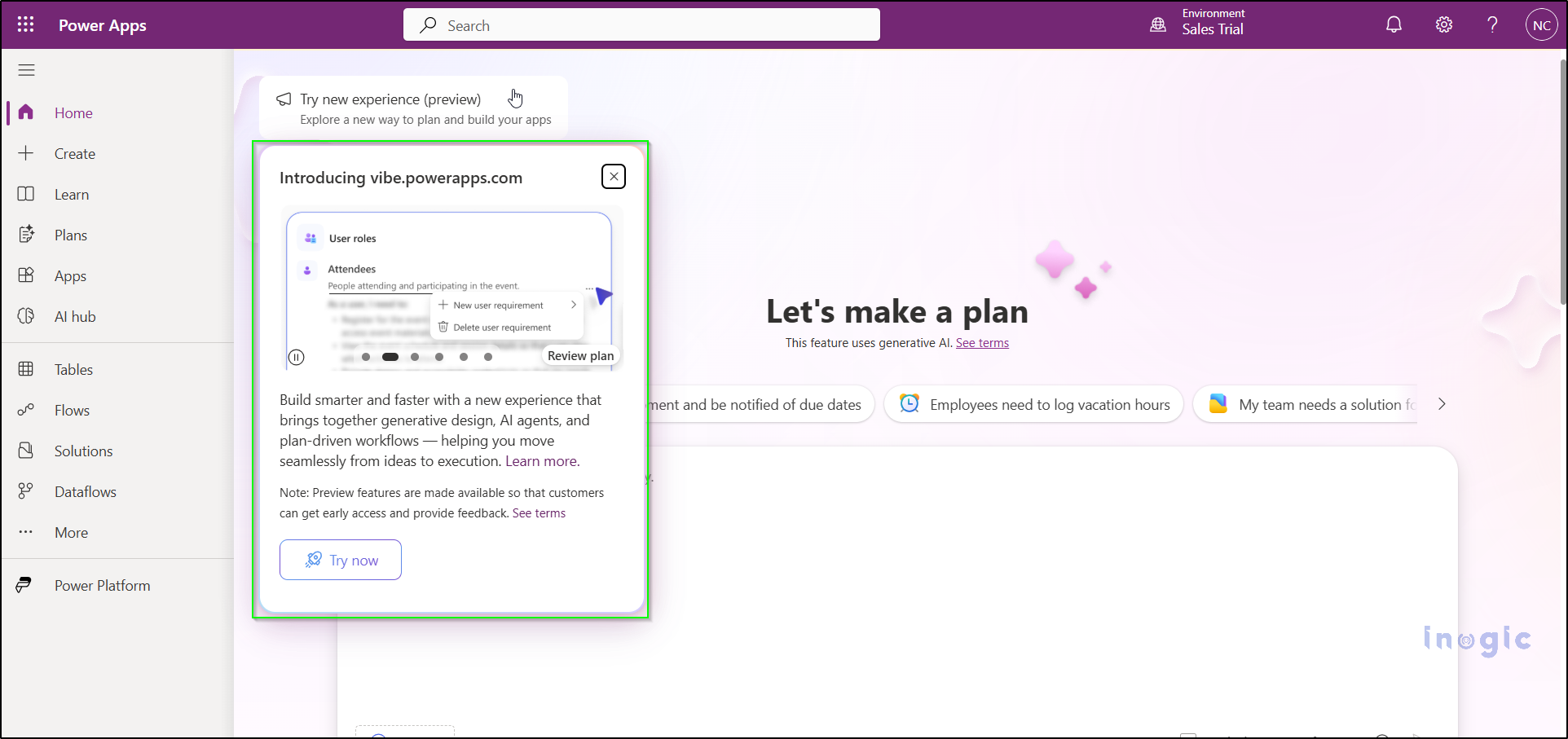
To use it, Navigate to:
🔗 https://vibe.preview.powerapps.com
Sign in with your Microsoft account, and you’ll enter a clean, streamlined workspace featuring a large prompt area—ready for your ideas.
How to Build an App Using Vibe?
Step-by-Step Guide to Building an App with Power Apps Vibe
Here’s what surprises most people:
Using Power Apps Vibe feels less like coding and more like having a conversation with a colleague. You describe what you need, and Vibe does the heavy lifting. Here’s how the process works:
Let’s walk through the complete process step by step.
Step 1: Describe the App You Want
In the prompt box, simply describe your app in plain language. You don’t need to worry about technical jargon or formatting. For example:
“I want to build a Time Entry Admin app. Admins should be able to update the Base Pay Code, view a list of time entries, and edit the Base Pay Code only on this screen.”
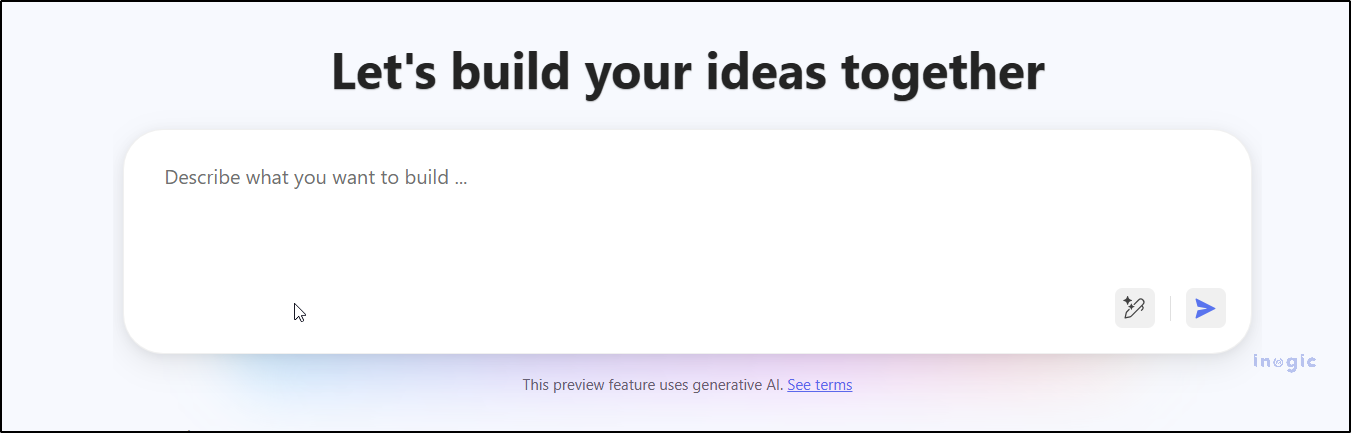
No need for complex formatting or technical jargon.
Just describe your app idea as if you were explaining it to a teammate – simple, clear, and conversational.
Step 2: Vibe Generates Your App Plan
Once you submit your prompt, Vibe analyses your requirements and generates a detailed plan. This blueprint typically includes:
- The tables it will create
- The fields within those tables
- The screens your app will have
- Actions and commands for functionality
- Navigation flow between screens
Test Prompt:
“Create an app for managing Time Entries. The main screen should list all time entries. When I click a row, take me to a detail screen. Admins should be able to update the Base Pay Code on this screen. Non-admin users should not be able to edit this field.”
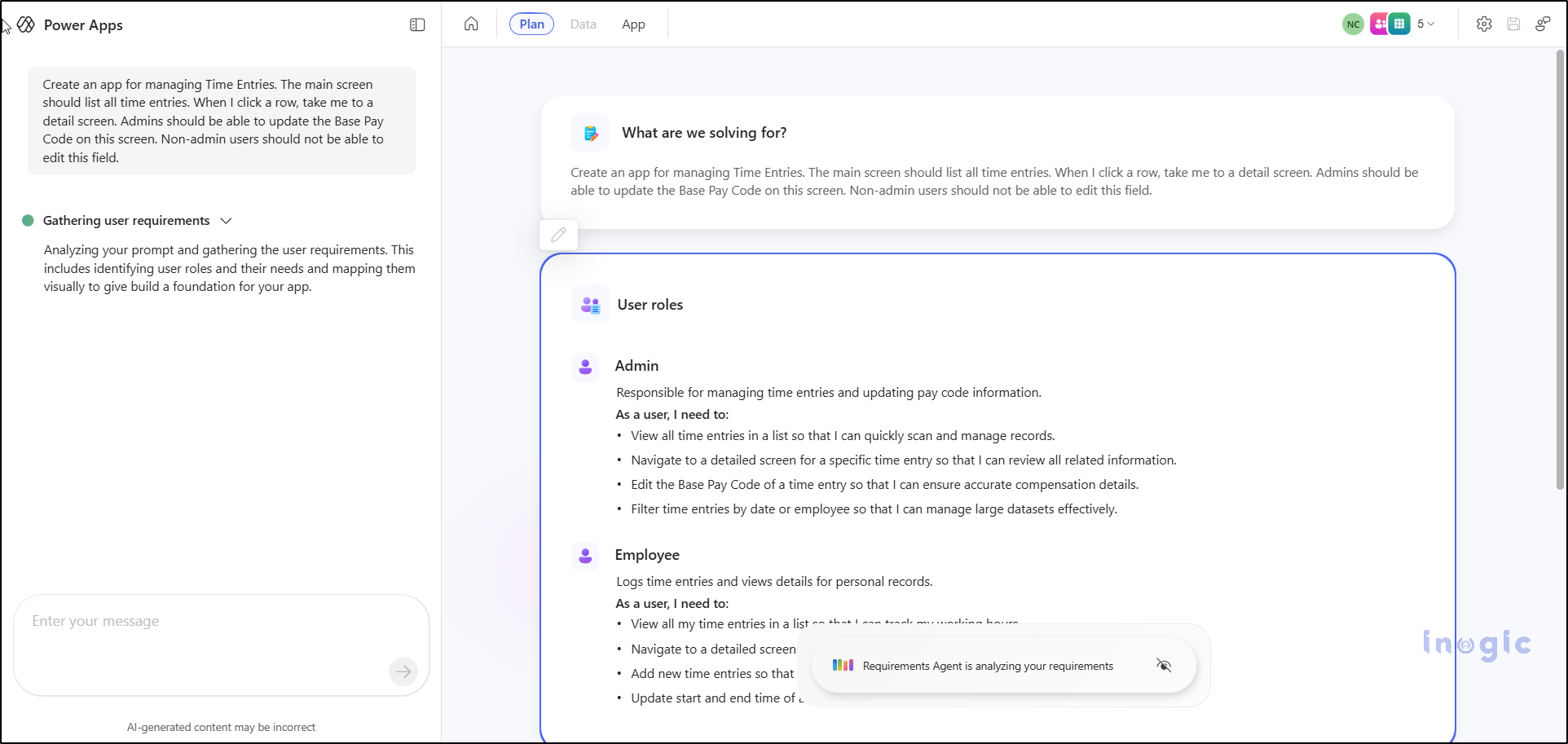
It’s essentially the blueprint of your app. If something doesn’t look right, you don’t need to start over – just refine your prompt. For example:
- Add an audit field
- Change the name of this table
- Make Base Pay Code read-only for non-admins
Vibe instantly updates the plan based on your instructions, making the process feel conversational and effortless.
Step 3: Create the App
Once your plan looks good, simply click Create App.
Vibe now builds:
- The user interface (UI)
- Interactive forms
- The underlying data model
- Core logic for functionality
This process yields a functional web application that is available for immediate preview.
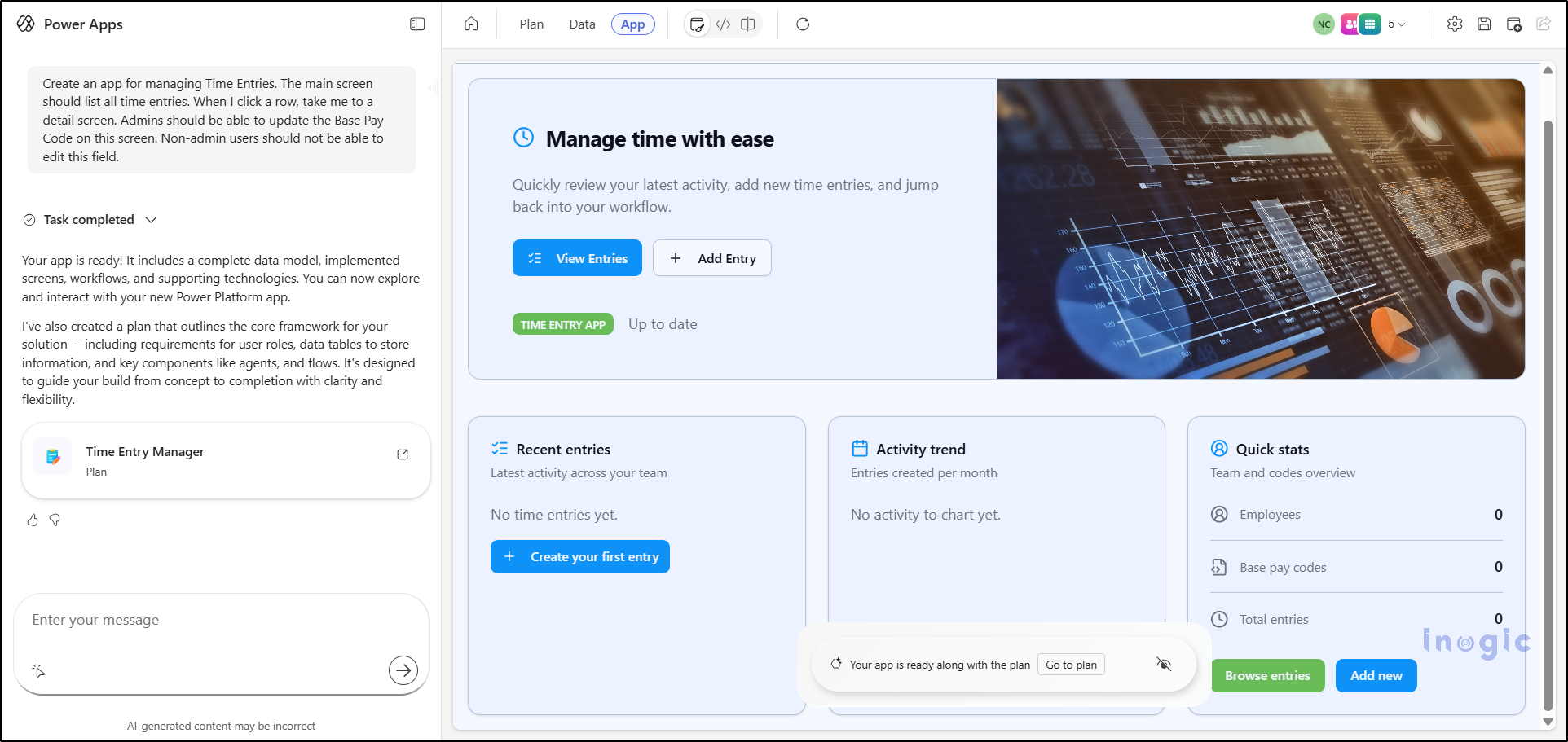
Vibe handles all the heavy lifting so you can focus on refining ideas instead of wrestling with syntax.
Step 4: Refine the App Through Natural Language
This is where Vibe feels different from anything we’ve seen before.
You can simply chat with it:
- “Make the Base Pay Code field bigger.”
- “Add a dashboard screen with totals.”
- “Add a search bar at the top.”
- “Show only records assigned to the logged-in user.”
And Vibe will update the app instantly.
It’s the first time Power Apps feels like a conversation instead of a tool.
Step 5: Save Your App
When you save the app for the first time, Power Apps stores:
- the app
- the plan
- the screens
- and the data model
All inside a single solution.
It becomes part of your Power Apps environment, just like any other app.
Step 6: Connect to Real Data (Optional)
When you first build the app, it uses “draft data” – temporary tables that exist only for prototyping.
Once your app is ready for real use:
- Go to Data
- Connect to Dataverse, SQL, SharePoint, or any supported source
- Map the fields
- Publish the app again
This step turns your prototype into a production-ready application.
Step 7: Publish and Share
Once everything looks right, click Publish.
Your app becomes live, and you can share it with your team exactly like any other Power App.
Where Power Apps Vibe Really Shines
After playing with it, I realized Vibe is perfect for:
- Rapid prototyping
- Converting ideas into real apps within minutes
- Building admin tools
- Internal dashboards
- Small line-of-business apps
- Automating manual processes
- Mockups for client demos
- Reducing the back-and-forth between business teams and developers
It reduces friction. It reduces waiting. It reduces technical complexity.
You still get full control — formulas, data, actions, security, connectors — everything you normally have in Power Apps remains available.
But the start is dramatically faster.
Limitations to Keep in Mind for Power Apps Vibe
Since Vibe is still a preview feature, a few things have limitations:
- You cannot edit Vibe apps in the classic Canvas app studio.
- If you export/import the solution, it may break the link with the AI “plan.”
- It currently supports creating only one app per plan.
- Existing Dataverse tables aren’t automatically suggested during generation.
- Some refinements still need to be done manually.
But even with these limitations, Vibe is powerful enough to start real-world projects and prototypes.
Final Thoughts
Power Apps Vibe is one of the biggest updates to the Power Platform in years.
It brings a fresh, modern, conversational style of development that feels more natural and less stressful.
Instead of spending hours designing screens and wiring logic, you can now focus on:
- Refining ideas,
- Improving workflows,
- And delivering value faster.
If you haven’t tried it yet, open the preview today and type the first idea that comes to mind.
You’ll be surprised how quickly it becomes a working app.
Frequently Asked Questions: Power Apps Vibe
1. What is Power Apps Vibe and how is it different from traditional Power Apps development?
Power Apps Vibe is an AI-powered app-building tool that allows you to create full-stack apps simply by describing your requirements in natural language. Unlike traditional Power Apps, which involve manually designing screens and writing formulas, Vibe automatically generates the data model, UI, navigation, and logic. It simplifies app development by transforming it into a conversational, automated process.
2. Can I use Power Apps Vibe without any coding knowledge?
Yes, Power Apps Vibe is designed for users with little or no coding experience. It allows you to create apps by simply describing what you want in plain language. The AI handles the complex aspects of app development, such as data modeling, UI design, and logic, so you can focus on refining your ideas rather than writing code.
3. Is Power Apps Vibe available for all users or only those in certain regions?
Currently, Power Apps Vibe is in preview and can be accessed by users who sign in through the dedicated portal at https://vibe.preview.powerapps.com. While the feature is available globally, its availability might vary based on regional preview settings and Microsoft’s rollout timeline. Keep an eye on updates for broader access.
4. What are some limitations of Power Apps Vibe?
While Power Apps Vibe is a powerful tool, it does have some limitations:
- You cannot edit Vibe-generated apps in the classic Canvas App Studio.
- The feature currently supports only one app per plan.
- Existing Dataverse tables aren’t automatically suggested during the app creation process.
- Some refinements still require manual adjustments after the initial app is generated.
5. How can I connect my Power Apps Vibe app to real data?
Once your prototype is ready, you can connect your Power Apps Vibe app to real data by navigating to the Data section within Power Apps and linking it to supported data sources such as Dataverse, SQL, or SharePoint. After mapping the fields, you can publish the app again to make it production-ready.