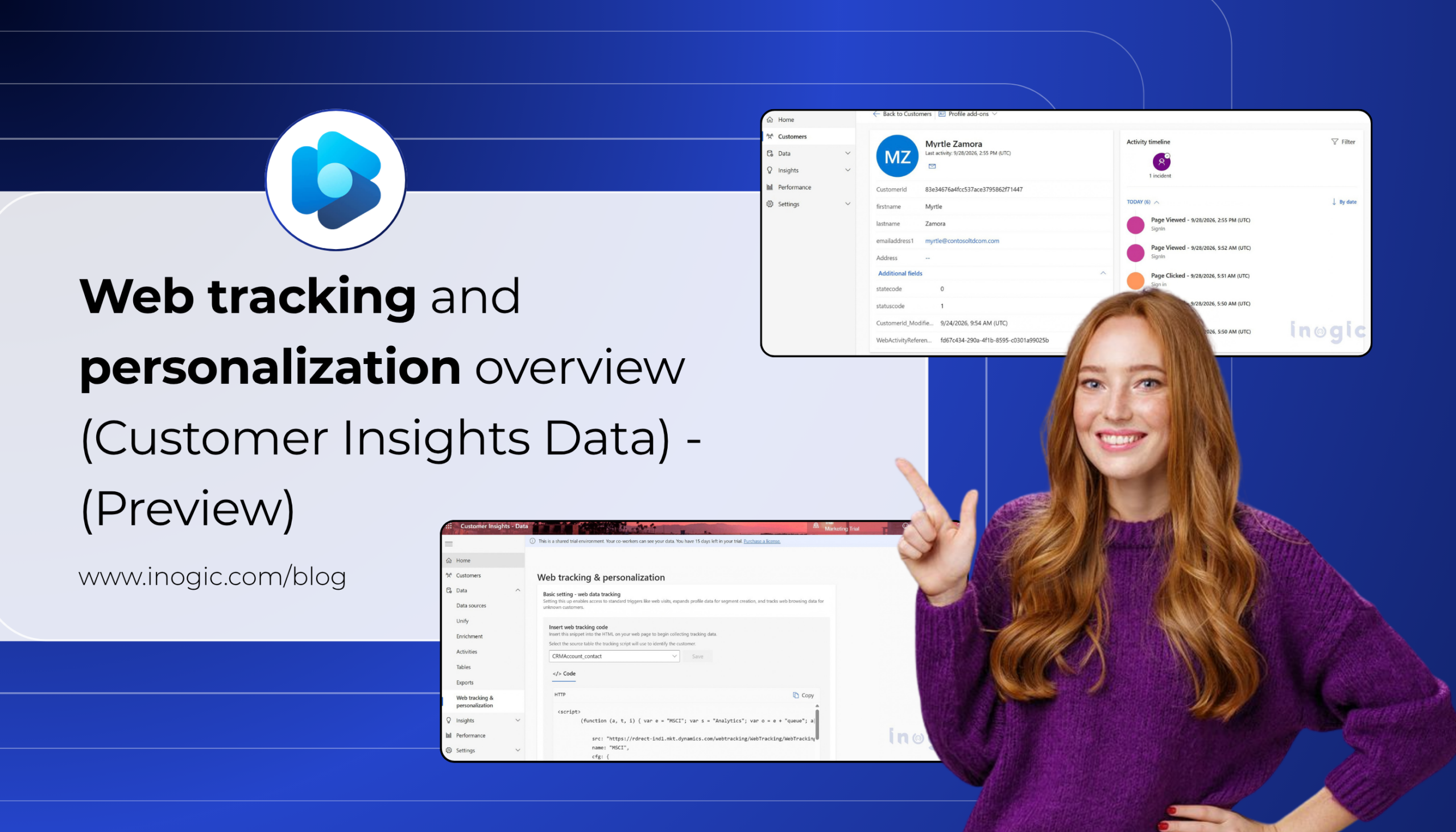
 Web tracking and personalization in Dynamics 365 Customer Insights – Data (Preview) enables organizations to track website interactions from anonymous and known visitors. This data can be associated with customer profiles and used for segmentation and personalized website experiences.
For example, an insurance customer may browse coverage plans and use a quote calculator before creating an account. Web tracking can help connect those earlier interactions with the customer’s known profile.
Note: Web tracking and personalization is a prerelease feature and is subject to change.
The scenario: an insurance quote calculator
Let’s say an insurance company have a customer portal on Power Pages. Visitors can browse coverage plans and calculate a quote without logging in. Once they like their quote, they register for an account to save it and manage future claims.
The goal: don’t lose that pre-signup browsing history. When a site visitor calculates a quote as an anonymous visitor and then signs up, his account should show that he looked at the “Comprehensive Coverage” plan twice before registering — not start with a blank slate.
How it works, conceptually
There are two moving parts:
- Anonymous tracking — the moment anyone lands on your site, a small script drops a cookie and starts logging page views. Customer Insights creates an “Unknown” profile keyed to that cookie.
- Identity merge — when that visitor eventually logs in or registers, you tell Customer Insights, “this cookie belongs to this real person.” Everything the cookie did gets folded into their actual customer profile.
That is the overall approach. Now, let’s move forward with the implementation.
Step-by-step implementation
Step 1 – Enable the feature and get your script
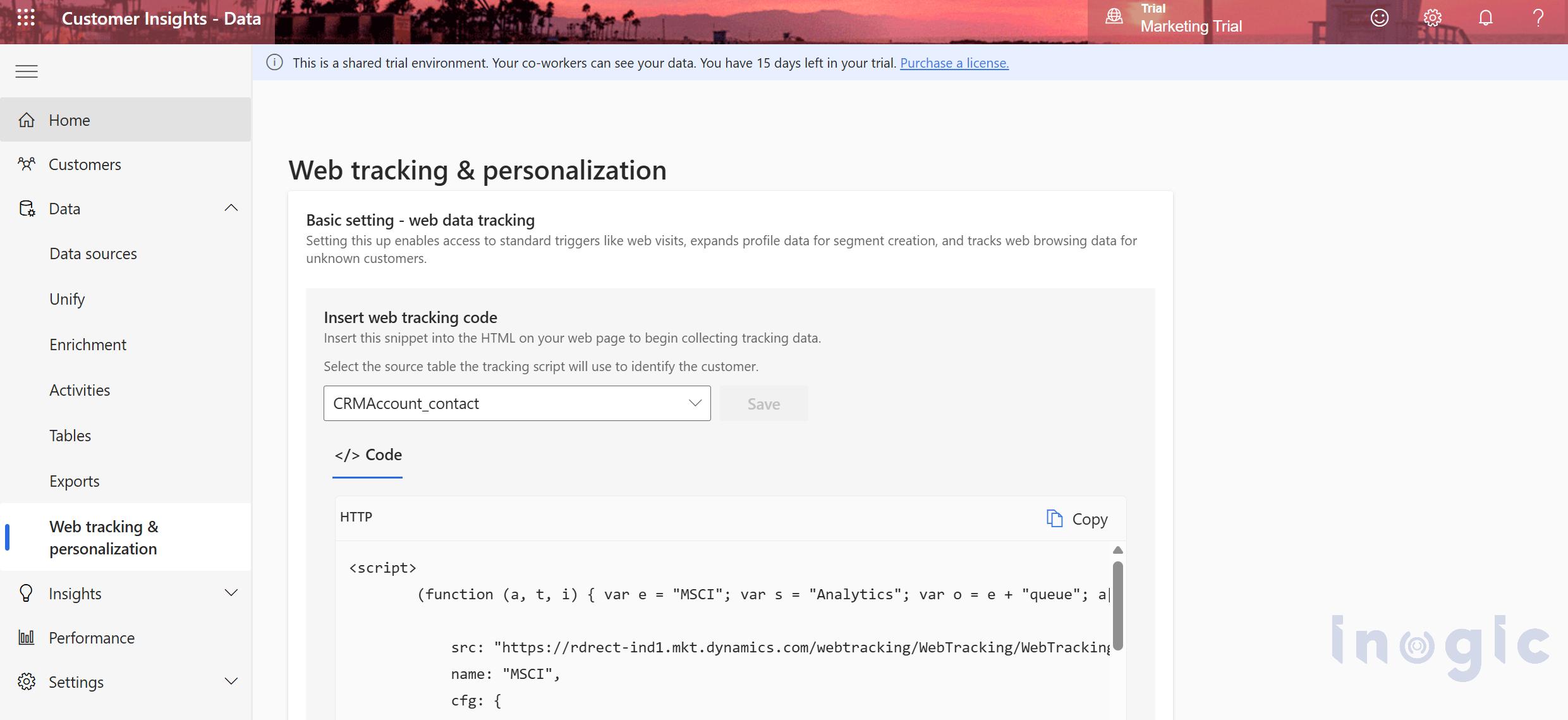
In Customer Insights – Data, go to Web tracking & personalization, select Contact as your identifying table (this should almost always be Contact, not Account — Contact represents an individual person who can actually log in; Account represents an organization), and copy the generated JavaScript snippet.
Step 2 – Add the script to your Power Pages site
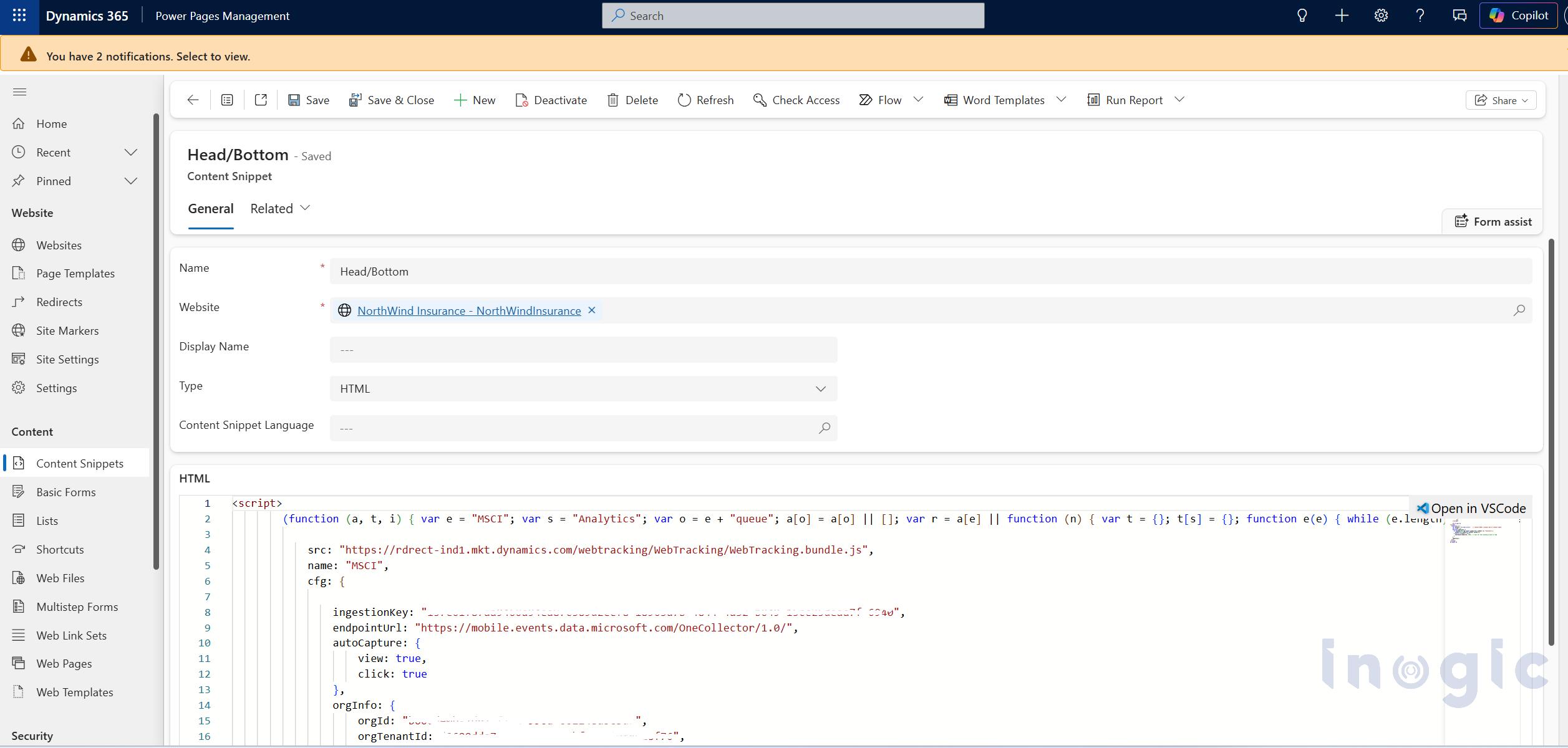
This is the part that trips people up: the “Header” web template in Power Pages isn’t the literal <head> tag — it’s a partial. The correct place is a Content Snippet named exactly Head/Bottom, set to type HTML, with no language specified so it applies globally. Paste your tracking script in there and publish.
Step 3 – Handle the Content Security Policy
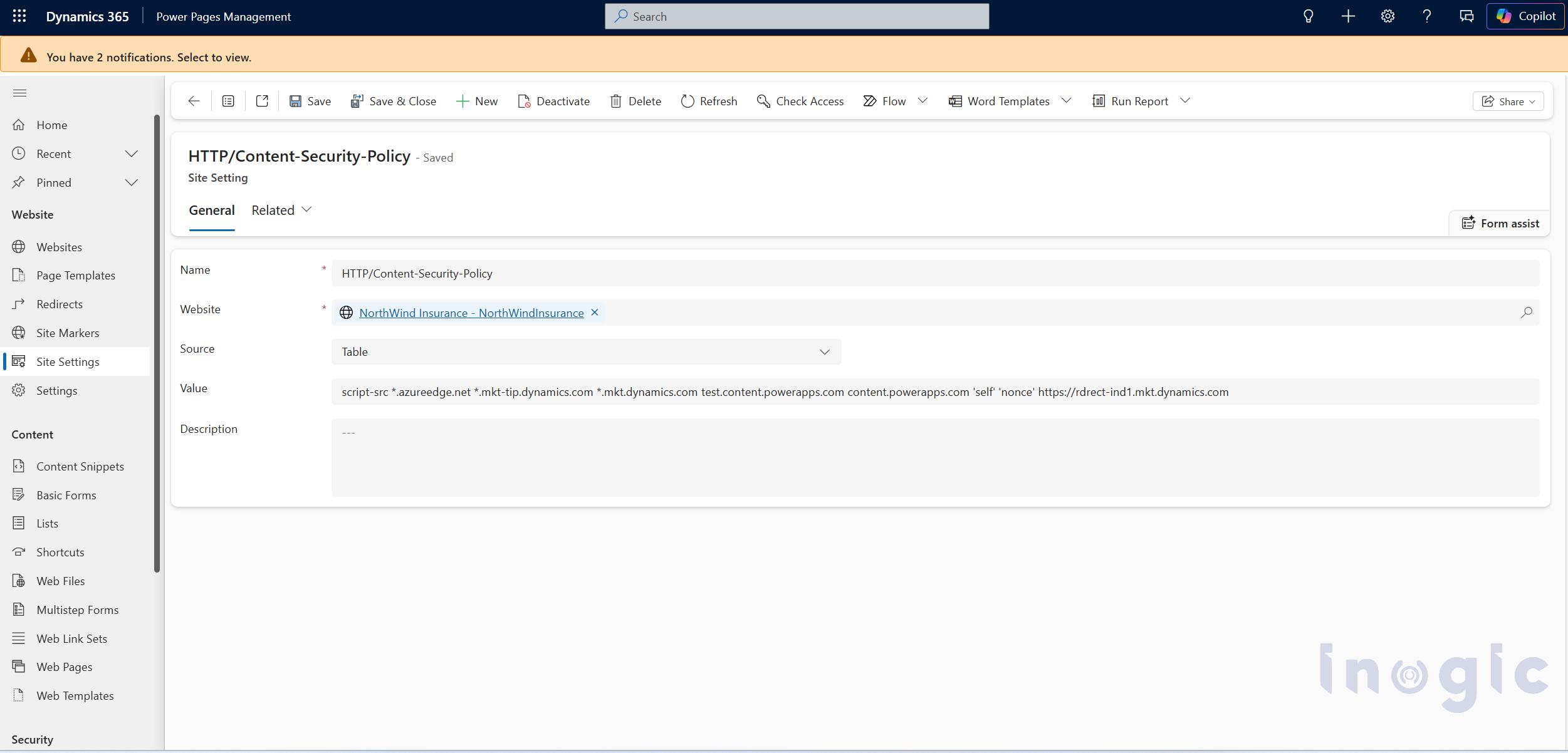
If your site was created recently, Power Pages enforces a Content Security Policy by default, and it’ll block the tracking script’s domain unless you allow it. Go to Portal Management → Site Settings, find (or create) HTTP/Content-Security-Policy, and add the tracking script’s domain to script-src. You’ll see the exact domain to add in your browser console if it gets blocked — copy it from the CSP violation error rather than guessing.
Step 4 – Test as an anonymous visitor
Open your site in an incognito window and click through a couple of pages — say, your quote calculator and a coverage page. Back in Customer Insights, go to Customers → Unknown, and you should see a cookie-ID profile appear with those page visits logged, usually within about 30 seconds.
Step 5 – Link identity on login
Add a small script to the same Head/Bottom snippet, using Liquid to detect an authenticated visitor:
{% if user %}
<script>
if (window.msci && typeof window.msci.setUser === “function”) {
window.msci.setUser(“{{ user.contactid }}”);
}
</script>
{% endif %}
{{ user.contactid }} is Power Pages’ built-in way of exposing the signed-in contact’s ID via Liquid — no custom login code needed. This script runs on every authenticated pageview, which is fine; it just re-confirms the link each time.
Step 6 – Verify the merge
Register a test account, log in, and refresh a page. Back in Customer Insights, search for that Contact under Known customers — their timeline should now show the quote-calculator visit and coverage page views that happened before they ever logged in.
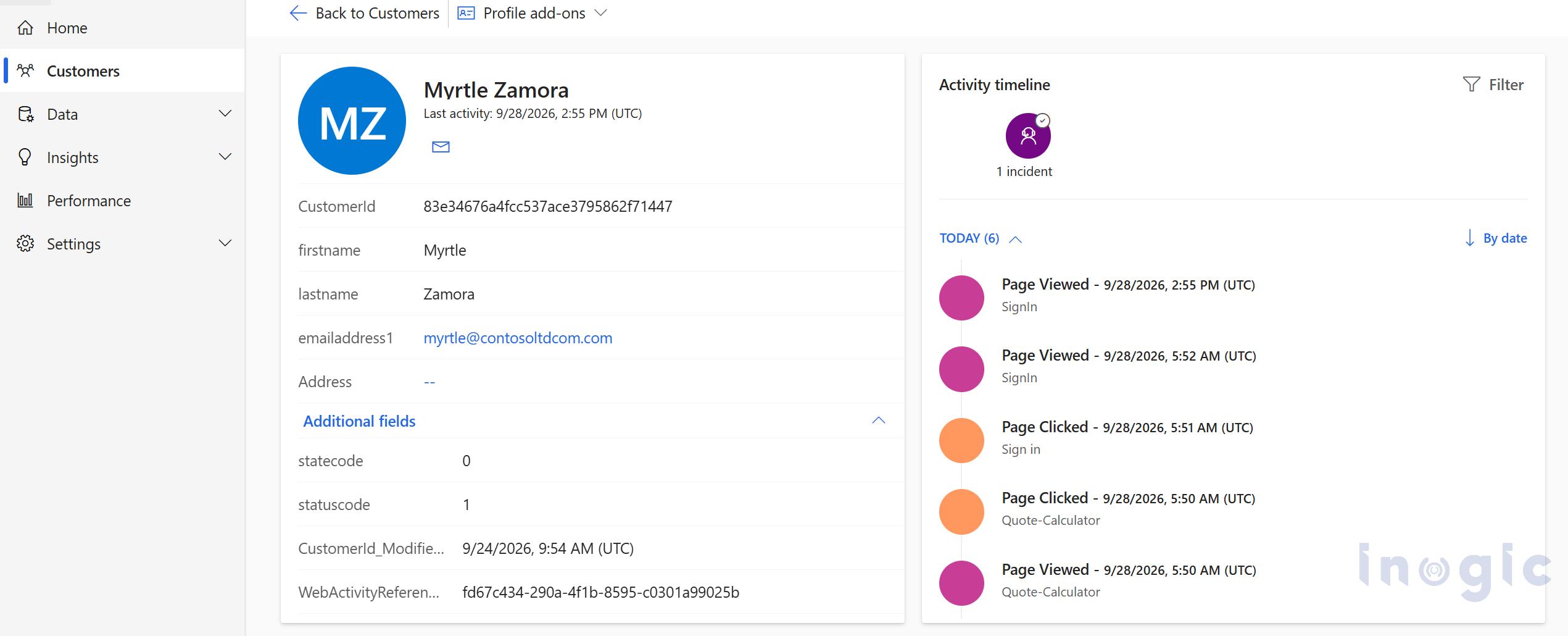
Step 7 – Make the data useful
Once this is flowing, the real payoff shows up in two places:
- Support: an agent looking at a contact’s profile sees their full journey — which coverage page they read, whether they used the quote calculator — before ever picking up the phone.
- Marketing/retention: build a segment like “known contacts who viewed Comprehensive Coverage but haven’t upgraded in 30 days” and trigger a targeted follow-up.
Why this matters more than it sounds
The key benefit is not simply tracking page views. The website engagement data can be associated with the customer record in Dynamics 365, alongside other customer information such as policies, support tickets, and claims.
This allows website interactions to become part of the customer’s overall record and provides the business with additional information that can be used for customer segmentation, engagement tracking, and personalized website experiences.
Conclusion
Web tracking and personalization in Dynamics 365 Customer Insights – Data can help organizations connect website engagement with customer profiles. By capturing anonymous interactions and associating them with known contacts, businesses can gain more context about customer interests and use that data for segmentation and personalized experiences.
As this is a Preview capability, implementation details may change as Microsoft continues to develop the feature. If you need help implementing web tracking and personalization with Dynamics 365 Customer Insights, contact the Inogic team at crm@inogic.com.
Frequently Asked Questions
1. What is web tracking and personalization in Dynamics 365 Customer Insights – Data?
Web tracking and personalization is a Preview capability in Dynamics 365 Customer Insights – Data that enables organizations to capture website interactions from anonymous and known visitors. The collected engagement data can be associated with customer profiles and used for segmentation and personalized website experiences.
2. Can Dynamics 365 Customer Insights track anonymous website visitors?
Yes. Web tracking can capture interactions from visitors who have not yet identified themselves. Customer Insights uses an anonymous visitor identifier to associate activity with an Unknown profile. When the visitor is later identified, the organization can associate the anonymous activity with the corresponding known customer profile.
3. How can anonymous website activity be associated with a known contact?
When an anonymous visitor identifies themselves, the website can provide the corresponding customer identifier to Customer Insights. This allows previously captured website interactions to be associated with the known contact profile, subject to the configured identity and tracking setup.
4. Can web tracking be used with Power Pages?
Yes. Power Pages can be configured to include the Customer Insights web tracking script. The implementation may also require additional configuration, such as adding the tracking domain to the site’s Content Security Policy and handling the association between an authenticated Power Pages user and their contact record.
5. What can businesses do with website engagement data in Customer Insights – Data?
Website engagement data can provide additional context about customer interests and interactions. Organizations can use this information with other customer data for scenarios such as segmentation, engagement analysis, and personalized website experiences.