 Every sales pipeline eventually faces the challenge of managing increasing deal volume and complexity. As opportunities grow, sellers spend more time reviewing emails, updating notes, tracking interactions, and gathering information from different sources. Opportunities can also lose momentum when key contacts become unresponsive, decision-makers change, or competitors enter the discussion. Without a structured process for tracking these changes, such opportunities may not receive timely attention until a forecast or pipeline review.
The Sales Opportunity Agent in Dynamics 365 Sales helps streamline opportunity management by supporting sellers with opportunity research, prioritization, and risk identification. Instead of relying solely on manual reviews and dashboards, it can help surface relevant information and potential issues associated with open opportunities.
For CRM administrators and RevOps teams, implementing the agent requires appropriate configuration and preparation. This guide covers the key capabilities of the Sales Opportunity Agent, the benefits of configuring it, the prerequisites to consider, the main configuration steps, and how to validate the setup before making it available to sales users.
What is a Sales Opportunity Agent?
At a high level, the Sales Opportunity Agent in Dynamics 365 Sales helps sales teams monitor and manage open opportunities based on criteria defined by the administrator. It supports opportunity prioritization, risk identification, account research, and recommended actions, helping sellers focus on opportunities that may require attention.
The agent can be configured from the Dynamics 365 Sales AI Hub, with administrators defining which opportunities are included. Once configured, it can support the following activities:
- Opportunity prioritization: Categorizes opportunities based on factors such as deal value, account information, and historical sales data.
- Risk assessment: Reviews information available in CRM, including related activities and email interactions, to identify potential risks or areas requiring attention.
- Opportunity research: Organizes relevant information about stakeholders, competitors, account details, business challenges, and other opportunity-related factors, with references to the available sources.
- Recommended actions: Provides suggested next steps on the opportunity record based on the information and risks identified.
- Scheduled updates: Runs according to the configured schedule, allowing opportunity information and related activities to be reviewed periodically.
This provides sellers with a more structured view of opportunity status, potential risks, and recommended follow-up actions without requiring them to manually review every source of information.
The agent can also use the predictive opportunity scoring model available in Dynamics 365 Sales as part of its risk assessment. If the required predictive scoring model is not already configured, the necessary setup may be initiated when the agent runs.
It is important to understand the scope of the Sales Opportunity Agent. Its primary purpose is to research, assess, and provide recommendations for opportunities. It does not independently contact customers or perform outbound sales activities. Customer outreach is handled through other Dynamics 365 Sales capabilities, such as the Sales Close Agent.
For administrators, clearly defining opportunity selection criteria and understanding how different sales capabilities interact is important when configuring the agent.
Why the Setup Effort Is Worth It?
For sales operations teams, configuring the Sales Opportunity Agent can provide several practical benefits across the sales process:
- Reduces manual research: Opportunity information, account details, stakeholder information, and competitive data can be organized within the opportunity, reducing the need for sellers to gather information manually from multiple sources.
- Identifies risks earlier: Changes in stakeholder engagement, missing key information, or other opportunity gaps can be highlighted earlier, allowing sellers and managers to address potential issues before they affect the deal.
- Creates consistent prioritization: Opportunities can be evaluated using consistent criteria, giving sales teams a more structured approach to determining which opportunities require attention.
- Improves pipeline visibility: Sales managers can review opportunities using consistent information and risk indicators, making pipeline reviews more structured and data-driven.
- Supports higher sales volumes: As the number of opportunities increases, standardized research and assessment processes can help reduce the additional administrative effort required from sellers.
Overall, the configuration helps establish a more consistent process for reviewing, prioritizing, and managing sales opportunities, while reducing the amount of manual effort required from sales teams.
Prerequisites
Before configuring the Sales Opportunity Agent, make sure your Dynamics 365 Sales environment, licenses, and user permissions meet the required prerequisites. These requirements can be grouped into general Sales agent requirements and prerequisites specific to the Sales Opportunity Agent.
General Requirements
- Administrator access: You should have the appropriate administrator permissions in the Dynamics 365 Sales environment to configure the agent.
- Copilot Studio license: A Copilot Studio license is required because the agent is configured and operates through Copilot Studio.
- Modern UI enabled: The modern user interface should be enabled for the Sales Hub app. Some agent configuration options and related views may not be available without it.
- Access to Dynamics 365 AI Hub: The administrator should be able to access General Settings > Dynamics 365 AI Hub. If this option is unavailable, review the user’s security roles and permissions.
Sales Opportunity Agent-Specific Requirements
- Required license or service access: At least one supported license or service should be available, such as a Microsoft 365/Office 365 license, Power Automate Premium, or Dynamics 365 Sales Enterprise/Premium Edition. This is required for accessing the opportunity owner’s email information and related insights.
- Email access configuration: Determine how email information will be accessed. The agent can use server-side synchronization to work with email data synchronized to Dynamics 365 Sales or direct Microsoft 365 Services access. Both options can also be enabled when required.
- Bing Search configuration: If the agent needs to use public information about accounts and competitors, ensure the required Bing Search terms are accepted and configured in the Power Platform admin center.
- Security roles: Confirm that sales users have the required permissions to view the agent’s information and recommendations. Standard Salesperson and Sales Manager roles provide the necessary access. If your organization uses custom security roles, verify that equivalent permissions have been assigned.
Completing these prerequisites before configuration helps avoid issues with agent visibility, email access, data availability, and user permissions during implementation.
Step-by-Step Configuration
Below is the click-by-click path to stand up a brand-new instance of the agent.
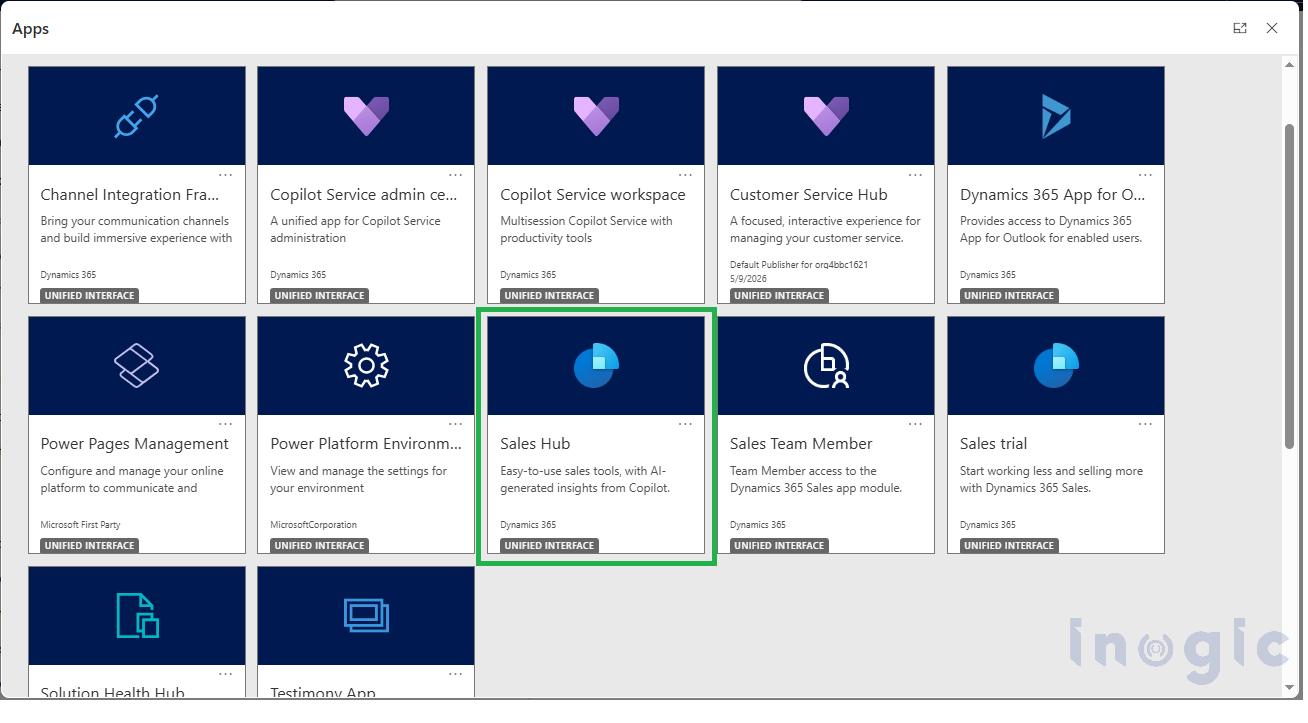
Step 1: Open the Sales Hub App
- Sign in to Dynamics 365 and launch Sales Hub from your app list.
Step 2: Get to the AI Hub
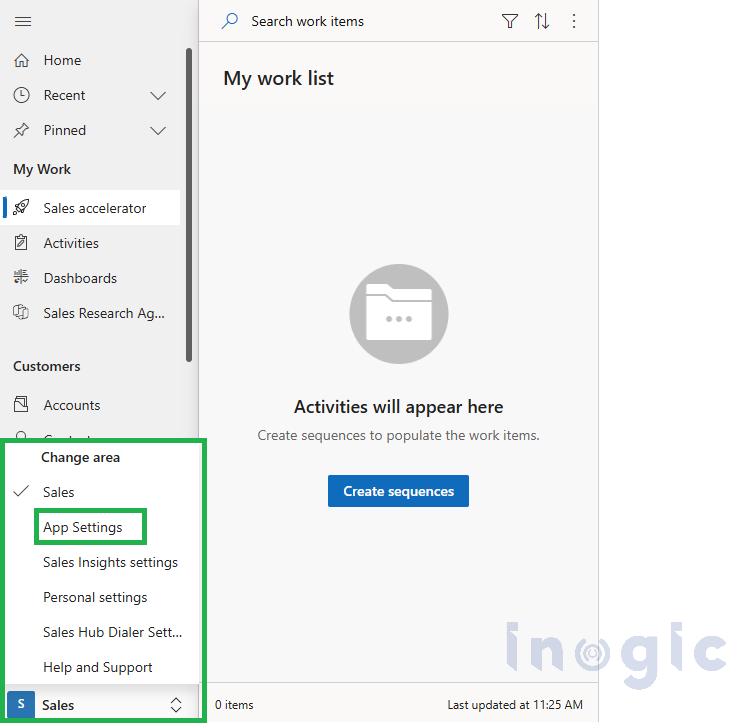
- In the bottom-left corner of the screen, open the Change area menu — by default it’ll say “Sales.”
- Choose App Settings from the menu that pops up.

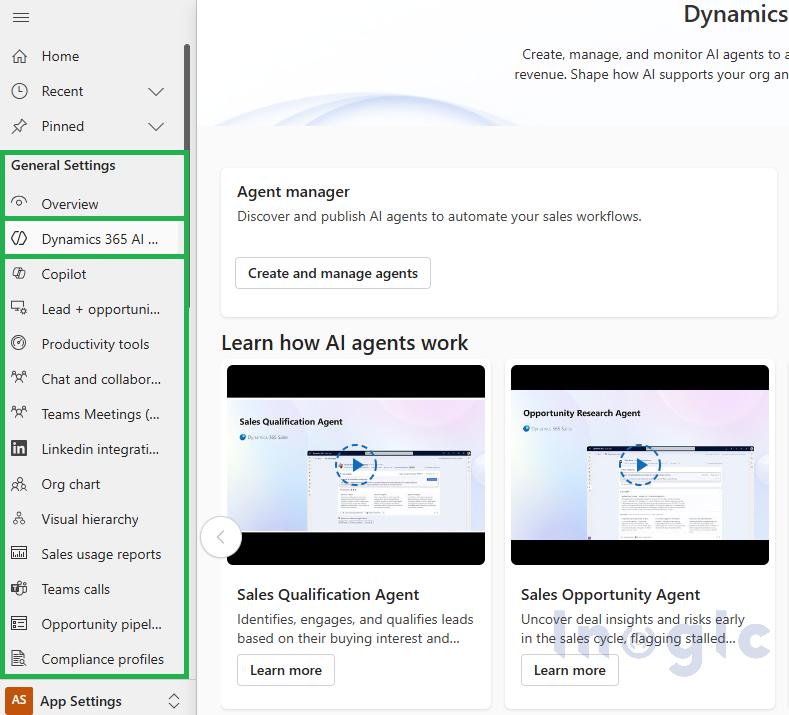
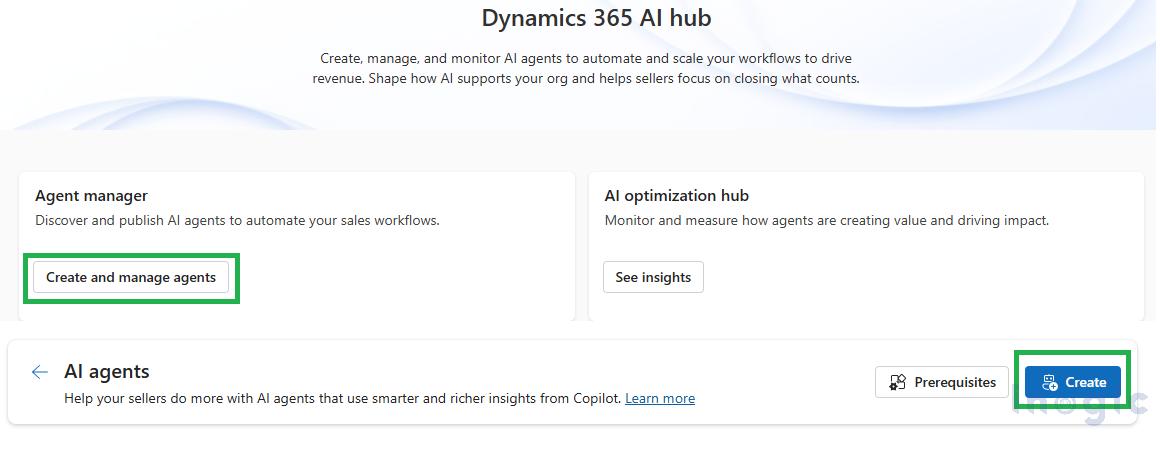
- In the left navigation pane, scroll down until you see General Settings, then click Dynamics 365 AI Hub.
Step 3: Kick Off Agent Creation
- Under the Agent manager section, choose Create and manage agents.
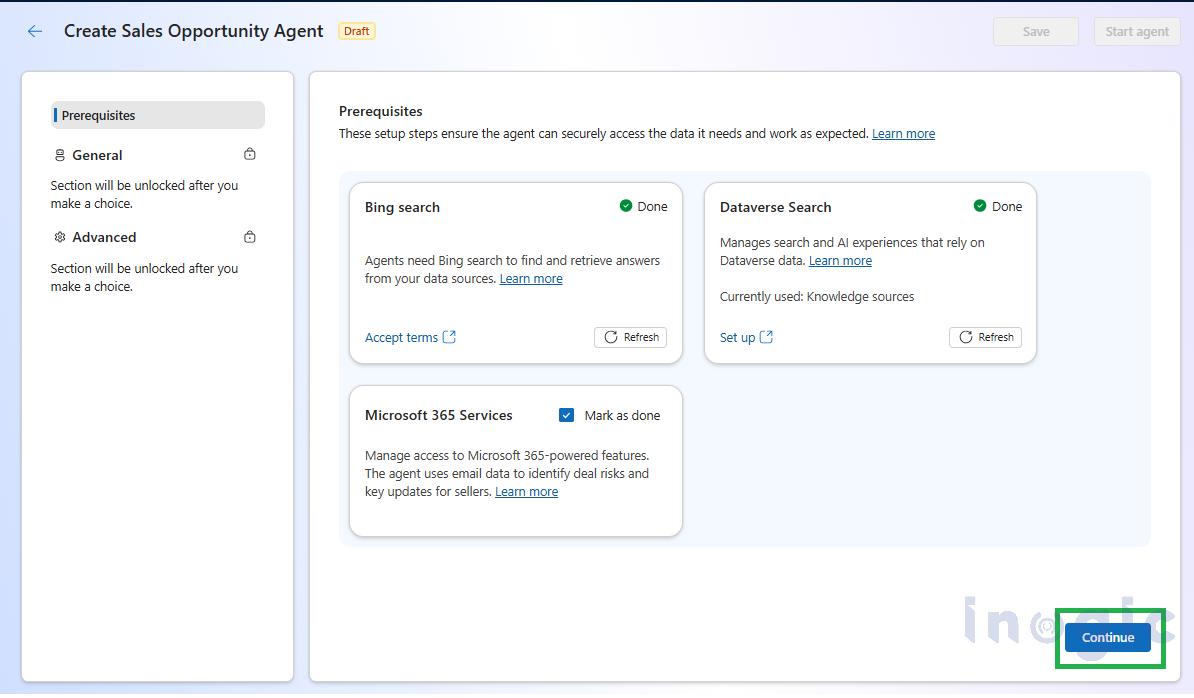
- First time here? You’ll hit a Prerequisites page — read through it and accept before moving on.

- First time here? You’ll hit a Prerequisites page — read through it and accept before moving on.
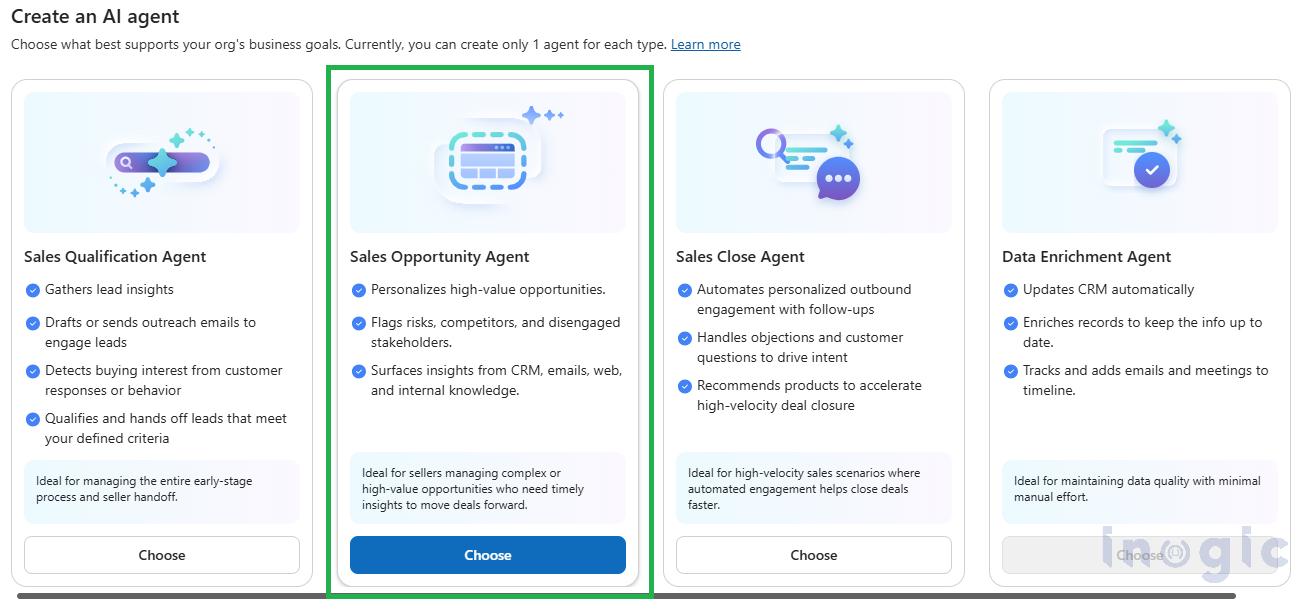
- Hit Create, then pick Sales Opportunity Agent from the list of agent types.

- Give it a name that actually means something later — “High-Value Enterprise Deals” will save you confusion down the road; “Test” will not.
Step 4: Fill in Profile and Company Details
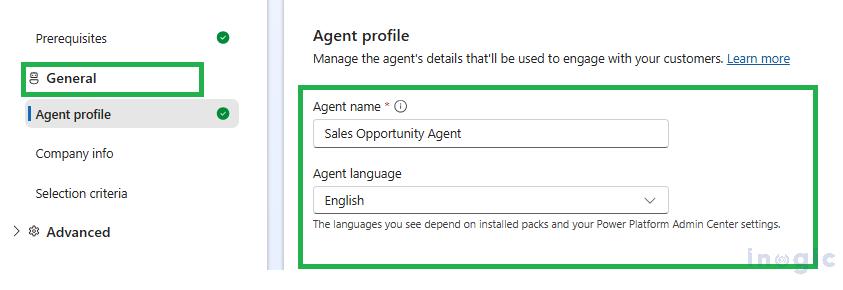
- Click into the General tab.
- Fill out the Agent profile section — this is metadata the app uses internally.

- Complete the Company info section. This is what the agent references when it’s putting together competitor comparisons and account-level research, so it’s worth getting right.

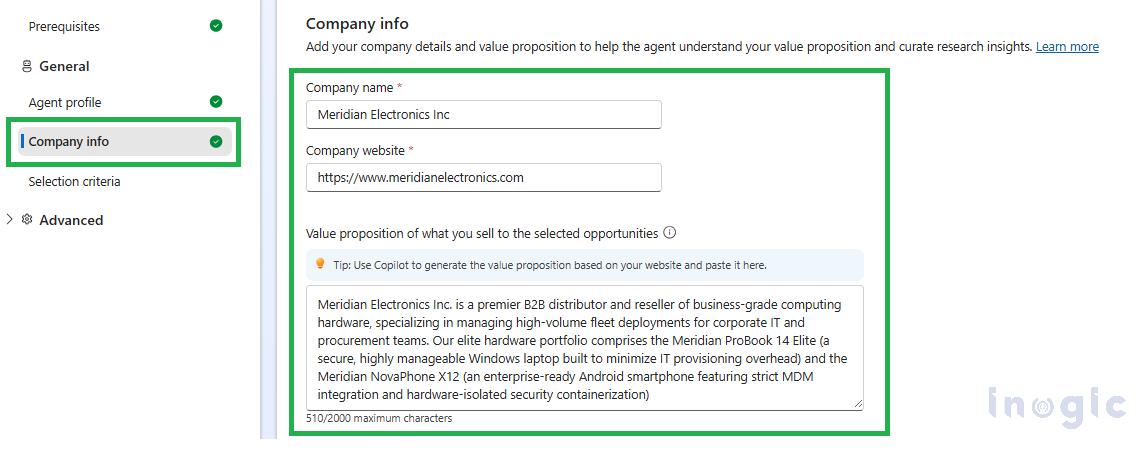
Step 5: Set Your Selection Criteria
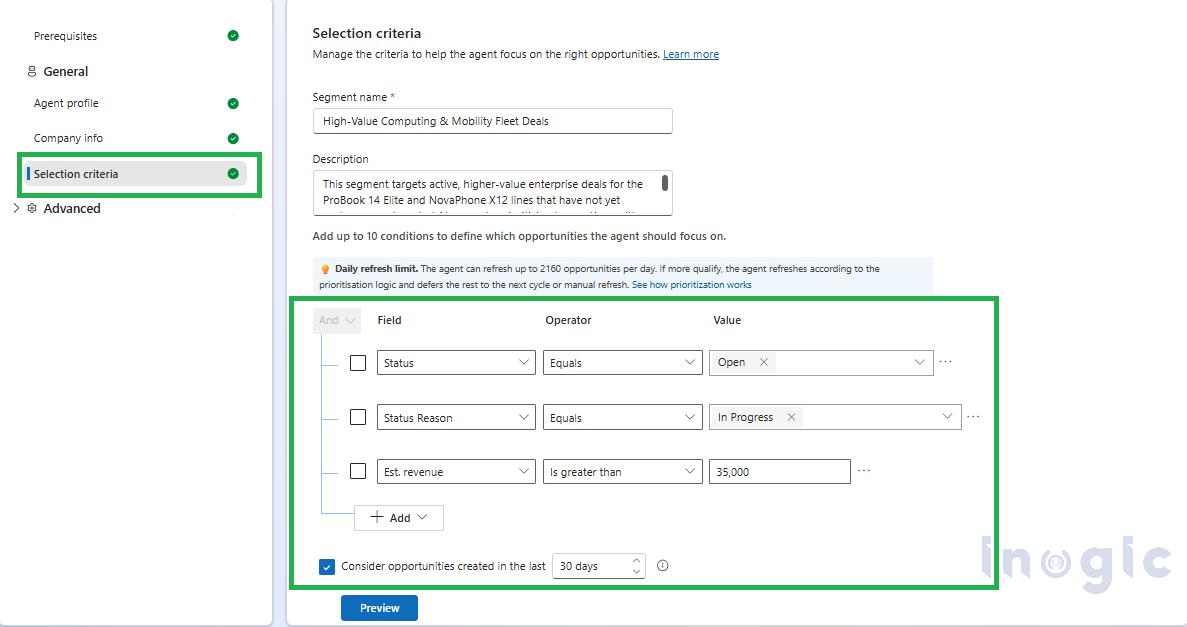
This is the step that decides which records actually get worked on. Spend real time here — sloppy criteria means the agent burns cycles researching deals that were never going anywhere.
- Head to the Selection criteria section.
- Build out conditions using AND logic. A reasonable starting baseline:
- Field: Status | Operator: Equals | Value: Open
- Field: Status Reason | Operator: Equals | Value: In Progress
- Field: Estimated revenue | Operator: Is greater than | Value: [your target amount]

- Optional: turn on the “Consider opportunities created in the last [N] days” toggle if you’d rather scope the agent to a rolling window instead of pointing it at your entire historical pipeline.
Step 6: Configure Advanced Settings
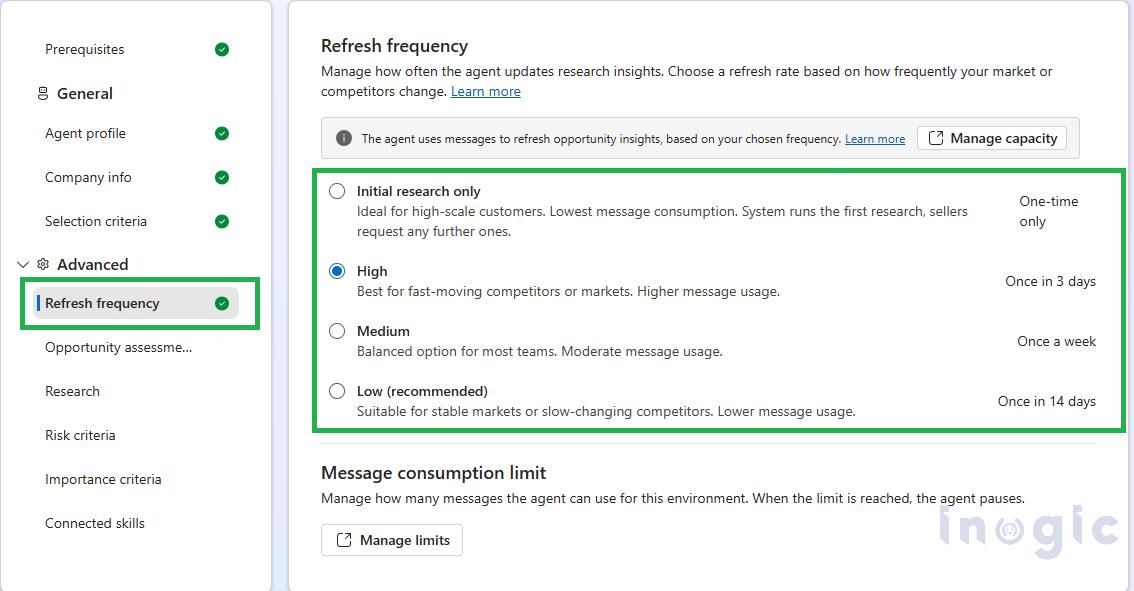
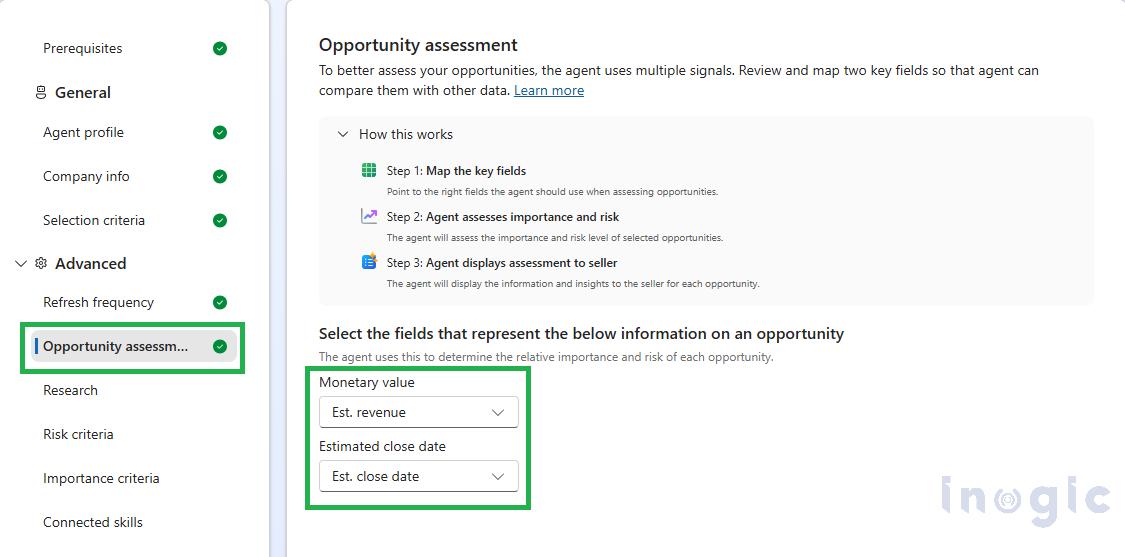
- Open the Advanced section to fine-tune how the engine behaves.
- Refresh frequency: how often the agent re-runs the full research pass — 3, 7, or 14 days are the typic

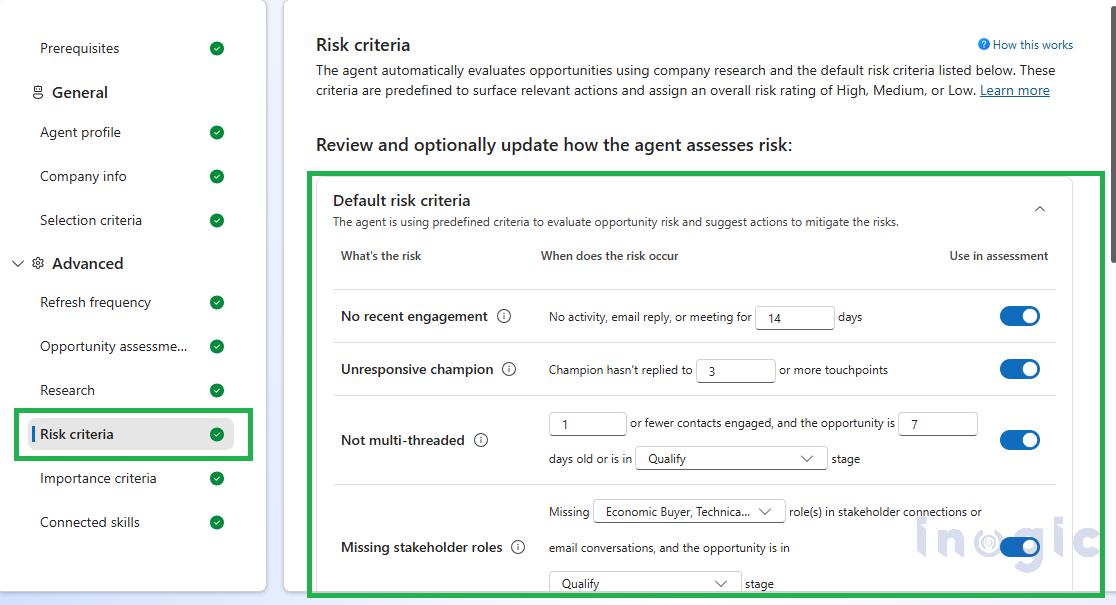
- Opportunity assessment: the logic that decides how deal importance gets weighted.

- Risk & Importance criteria: the specific thresholds that trigger each label.


- Refresh frequency: how often the agent re-runs the full research pass — 3, 7, or 14 days are the typic
Step 7: Save It and Turn It On
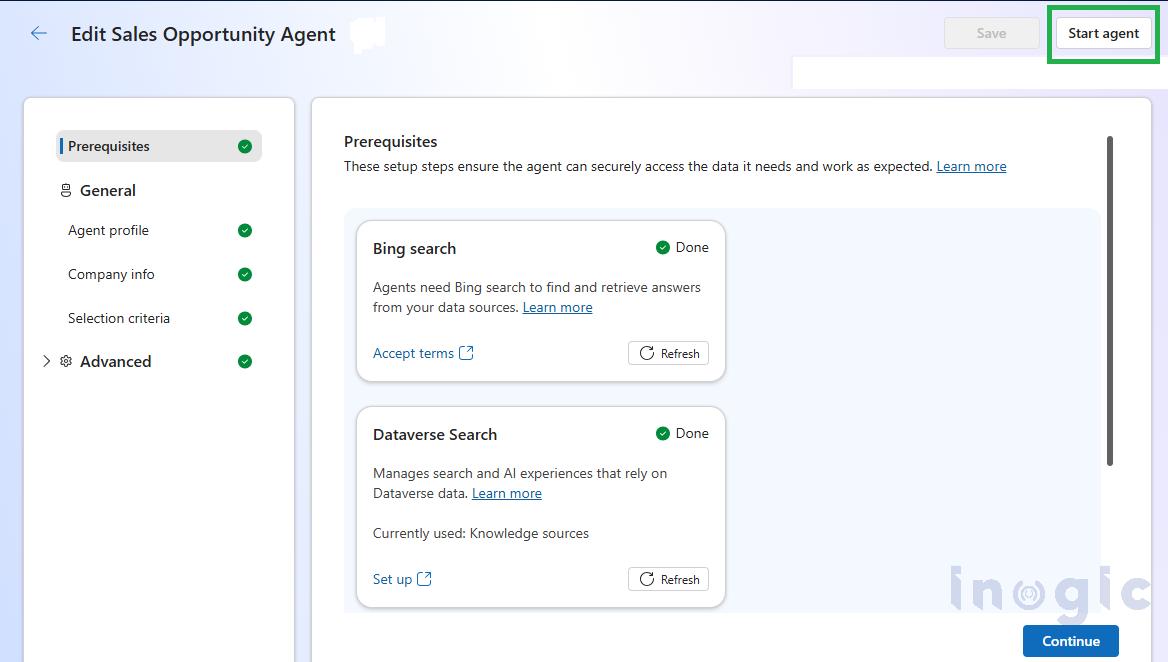
- Click Apply changes to save the configuration.
- Flip the agent’s toggle to On.
- Check the status indicator near the top of the page to confirm it’s actually running. You can come back to this same screen and click Stop agent any time you need to pause it.

Pro Tip: Running Multiple Agent Instances
Dynamics 365 Sales supports up to 10 active Sales Opportunity Agent instances per environment. Instead of using one instance with broad selection criteria, administrators can create separate instances based on business requirements, product lines, opportunity types, or deal segments.
For example, an organization could configure:
- One instance for large enterprise opportunities with a longer refresh interval.
- Another instance for smaller manually created opportunities that may not meet the primary instance’s selection criteria.
This approach allows each instance to have more focused selection criteria and refresh settings, making it easier to manage different types of opportunities.
Testing and Validation
Before enabling the agent across the entire sales pipeline, validate the configuration with a controlled set of opportunities. This helps identify selection, data, and permission issues before users start relying on the results.
1. Review the Preview
Use the Preview panel on the Selection criteria page to review a sample of opportunities that match the configured criteria.
The preview is intended as a representative sample and should not be treated as a guaranteed lookup for a specific opportunity. If you need to verify whether a particular opportunity meets the criteria, use an Opportunities view, Advanced Find, or a saved view with the same conditions.
2. Test with Known Opportunities
Start with a small number of opportunities that the sales team already understands well. Review whether the generated research, importance classification, and risk information are consistent with the information already available in Dynamics 365.
This provides a practical way to identify configuration or data issues before expanding the agent to the full pipeline.
3. Review the Generated Views
After the agent completes at least one processing cycle, review the associated views to confirm that opportunities are being categorized correctly:
- My top opportunities from AI agent – Review high- and medium-importance opportunities.
- Opportunities researched by AI agent – Review opportunities that have been researched.
- Deals at risk (AI agent) – Review opportunities where a risk has been identified.
If expected opportunities are missing, review the selection criteria and related configuration.
4. Apply Configuration Changes and Allow for Refresh
Changes to the selection criteria do not take effect until you select Apply changes. Also, the agent processes opportunities according to its configured refresh schedule rather than immediately after every record update.
After making changes, allow a complete processing cycle before concluding that an opportunity has not been picked up.
5. Review the Actual Research Results
Don’t limit validation to checking how many records were processed. Open several researched opportunities and review the information provided about:
- Stakeholders
- Competitors
- Account information
- Opportunity risks
- Recommended actions
Compare the results with information already known by the sales team. This can help identify issues with data availability, configuration, or external search results before the agent is made widely available.
A structured testing process ensures that the agent’s selection criteria, generated information, views, and refresh behavior are working as expected before it is introduced into the wider sales process.
Conclusion
The Sales Opportunity Agent helps teams research, assess, and prioritize opportunities in Dynamics 365 Sales while reducing manual effort.
A successful setup requires the right licensing, security roles, selection criteria, and data access. Start with a small set of opportunities, validate the results, and expand gradually.
With proper configuration, the agent can provide consistent opportunity insights, earlier risk identification, and better pipeline management.
FAQs
Q: Will the Sales Opportunity Agent contact my customers directly?
No. The Sales Opportunity Agent is designed for research and analysis and does not initiate outbound customer communication. Customer outreach is handled separately through the Sales Close Agent’s engage function, which can be configured and scoped independently. If both agents are running in the same environment, make sure their selection criteria do not overlap to avoid duplicate processing or, in some cases, conflicting risk labels on the same opportunity.
Q: Can I run more than one Sales Opportunity Agent instance at the same time?
Yes. You can have up to 10 active Sales Opportunity Agent instances per environment. This can be useful for organizations with different product lines or deal segments that require different thresholds, refresh frequencies, or knowledge sources. Instead of using one broad set of criteria, you can create separate instances to address specific business requirements.
Q: What happens to opportunities that fall below the revenue threshold?
A Sales Opportunity Agent instance only processes opportunities that meet its configured selection criteria. If an opportunity falls below the defined revenue threshold, that instance will not research it. If you need to cover lower-value opportunities as well, you can create a separate instance with criteria and a refresh cycle suited to that segment.
Q: Can I change the selection criteria after configuring the Sales Opportunity Agent?
Yes. You can update the selection criteria as your business requirements change. After making changes, select Apply changes for the updated criteria to take effect. The agent will then process opportunities according to its configured refresh schedule.
Q: How can I verify that the Sales Opportunity Agent is working correctly?
You can validate the configuration by reviewing the Preview panel, testing the agent with known opportunities, and checking the generated views after the agent completes a processing cycle. You can also review the generated research, risk information, and recommended actions to confirm that the results align with the information already available to your sales team.