 In many Field Service implementations, mobile offline capability is essential, especially for technicians working in low or no network areas. However, if not configured properly, it can lead to performance issues.
In one of our implementations, we noticed that the mobile app was syncing a large amount of unnecessary data, resulting in slow performance and longer sync times. The issue was not with offline functionality itself, but with the way the offline profile was configured.
The standard filtering approach was not enough to handle more complex requirements involving multiple related entities. This is where the FetchXML Editor helps by allowing more precise control over the data being synced.
In this blog, we will walk through a real-world scenario and see how FetchXML can be used to optimize offline data in Dynamics 365 Field Service.
Key Takeaways
- Standard offline profile filters in Dynamics 365 Field Service work well for simple scenarios, but fall short when complex, multi-entity filtering logic is needed.
- The FetchXML Editor gives you precise, query-level control over exactly which records get synced to mobile devices, going far beyond what the visual filter builder supports.
- Introducing advanced logic like nested link-entities (e.g., territory-based filtering via a linked Account entity) permanently moves your configuration out of the visual editor; all future edits must be made directly in FetchXML.
- Filtering offline data by service territory ensures technicians only download work orders relevant to their region, reducing sync time and improving mobile app performance.
- Proper offline profile optimization is not a one-time fix, it requires validating results with real test scenarios to confirm that only the intended records are synced
Accessing the Mobile Offline Profile
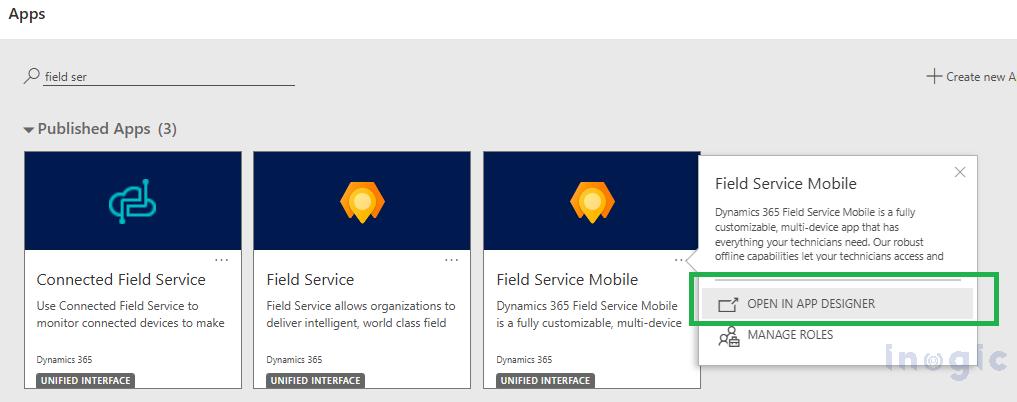
Before making any changes to the offline configuration, the first step is to locate and open the Mobile Offline Profile in Dynamics 365.
From the App Designer – Open in App Designer
Enabling Offline Mode and Selecting the Profile
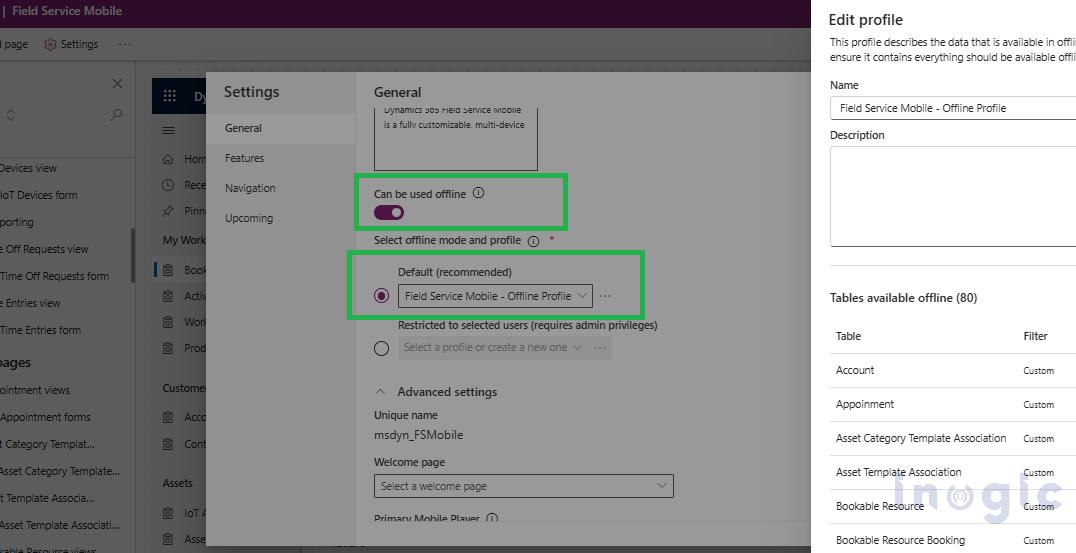
Once we access the application settings, the next step is to ensure that mobile offline capability is properly enabled.
Within the app settings, you can see an option to enable offline usage and choose the appropriate offline profile.
In this case, the Field Service Mobile – Offline Profile was selected as the default profile. This profile defines what data will be downloaded and available on the device when the user is working offline.
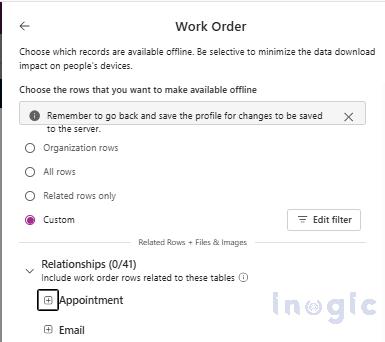
Now you need to navigate to the Work Order table. Instead of selecting all records, choose the Custom option, which allows you to define specific filtering logic.
By clicking Edit Filter, you can configure which work orders are available offline.
Reviewing the Default Filter Configuration
Once you select the Work Order entity and open the filter configuration, you can see that a default filter was already in place.

Moving to FetchXML for Advanced Filtering
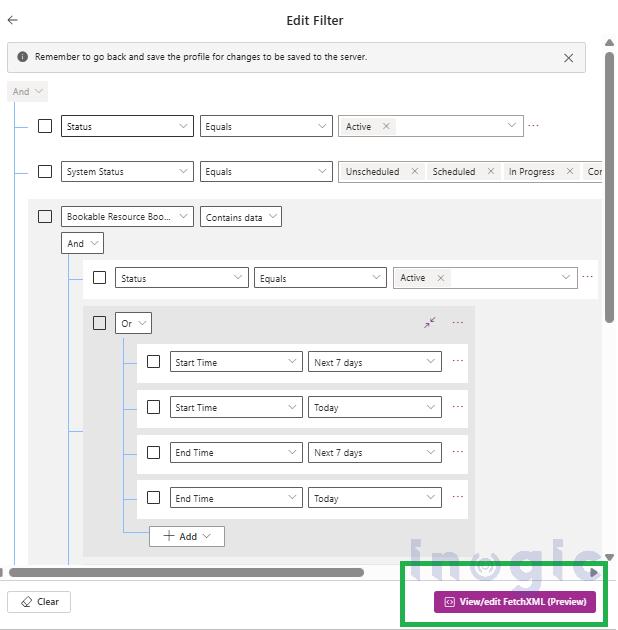
While the default filter was powerful, it did not include territory-based filtering, which was a key requirement in our scenario.
To extend this logic, you can use the “View/Edit FetchXML (Preview)” option available in the filter configuration.
This option allows you to move beyond the visual filter builder and directly work with FetchXML, giving full control over the query.
Extending the Filter with Territory Logic
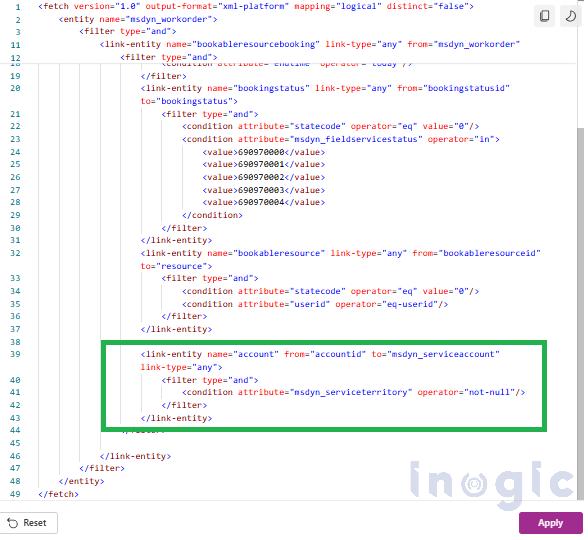
In the FetchXML editor, you can extend the existing logic by adding a new link to the Account entity and applying a condition on the Service Territory field.
This additional logic ensures that:
- Only work orders linked to accounts with a defined service territory are included
- The data becomes more relevant based on the regional context
This enhancement helps reduce unnecessary data and improves overall performance in offline scenarios.

Why the Visual Filter is No Longer Available
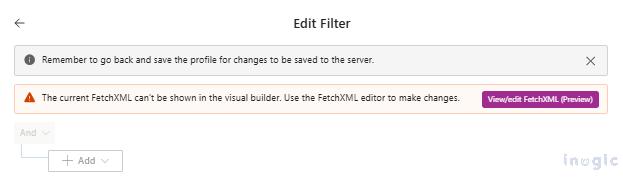
After applying these changes, save the profile. You can notice that the visual filter builder is no longer accessible.
Instead, the system displayed a message indicating that the current FetchXML could not be shown in the visual editor.
This is expected behavior.
Once advanced logic, such as nested link-entities, is introduced, the configuration moves beyond what the visual builder can represent. From this point onward, all further changes must be made directly in the FetchXML editor.
Validating the Results in Mobile Offline
After applying the FetchXML changes and configuring the data accordingly, the next step is to validate the behavior in a real scenario.
To test this, create sample work orders with similar conditions, ensuring that:
- Both work orders were assigned to the same technician
- Both had valid bookings within the required date range
- The only difference was the service territory of the associated account
One work order was linked to an account within the expected service territory, while the other was linked to a different or unrelated territory

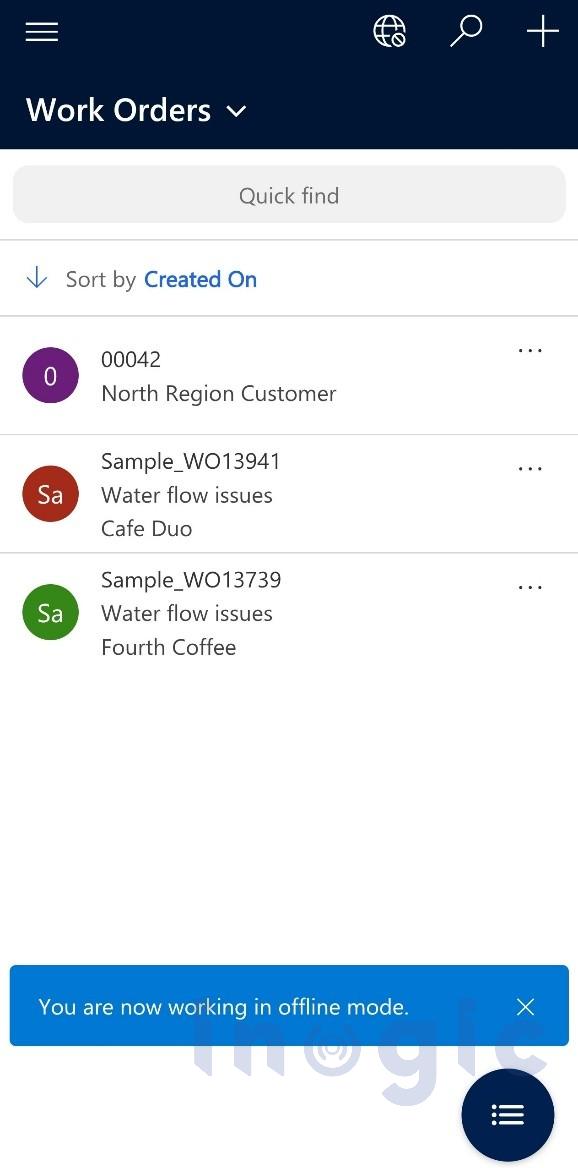
Only the work order that matched the defined territory condition was available in the mobile application.
The other work order, although valid in terms of assignment, status, and schedule, was not synced because it did not meet the territory criteria.
Conclusion
Mobile offline functionality is powerful, but its effectiveness depends heavily on how well the data is filtered.
While the default configuration in Dynamics 365 Field Service provides a solid starting point, real-world scenarios often require more refined control. FetchXML enables that level of customization, allowing us to design filters that go beyond basic conditions.
By introducing territory-based filtering, we were able to significantly improve both performance and data relevance, making the mobile experience more efficient for end users.