 We frequently work with clients who need modern, interactive, and visually appealing custom pages inside their model-driven apps.
Most clients expect clean, interactive dashboards with filters, charts, quick actions, and a UI that blends seamlessly with Dynamics 365. In the past, fulfilling these requests was quite time-consuming. We had to write React code, manage multiple files, bundle them using additional tools, upload manually, and spend many hours debugging when things did not work as expected.
Microsoft has now made this much easier and faster with Generative Pages in Power Apps. This AI-powered feature significantly simplifies and accelerates this process.
Part 1 of a two-part series exploring the fundamentals of Generative Pages.
What are Generative Pages?
Generative Pages is a smart AI tool that allows us to build professional-looking pages inside model-driven apps simply by describing a requirement. The AI automatically creates a fully functional page that connects directly to the client’s data and looks clean and modern, blending seamlessly with the Dynamics 365 environment.
Client Scenario: The Active Cases Dashboard
One of our clients in the customer service space had a specific requirement. They wanted to replace the standard out-of-the-box case grid with a modern, interactive dashboard for active cases.
The client specifically asked for:
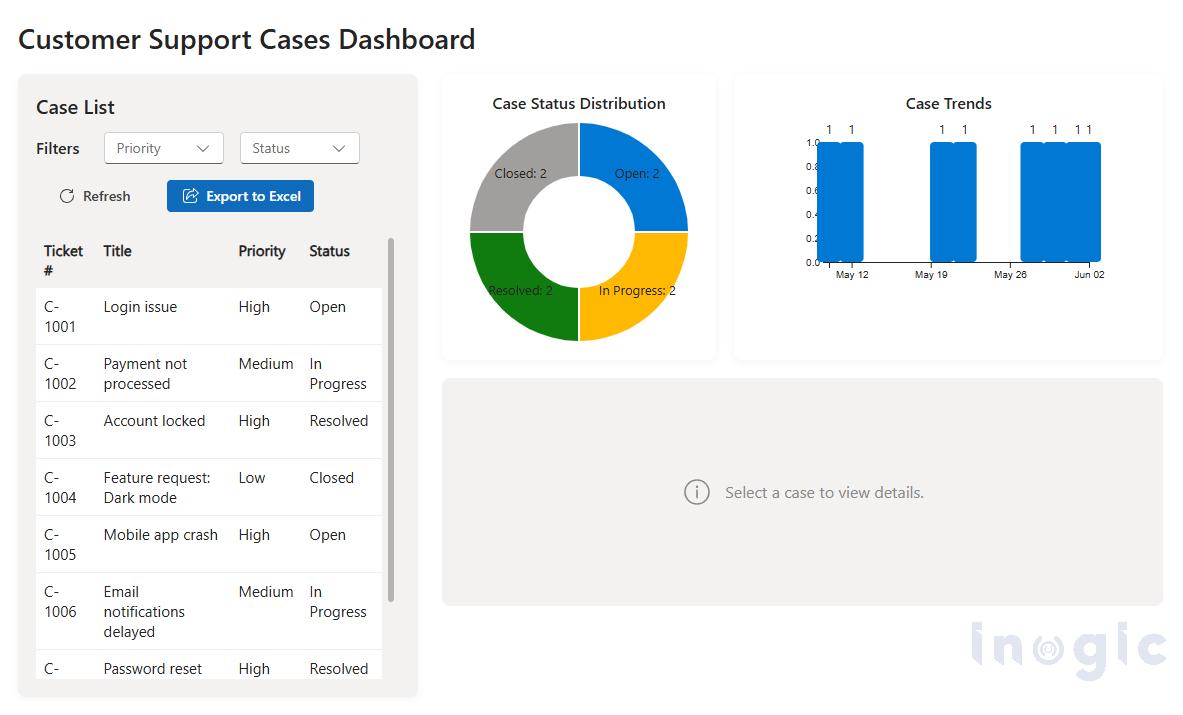
- A clean list of active cases showing key details like ticket number, title, priority, and status
- Visual charts displaying case status distribution and trends
- Easy filters for priority and status
- A one-click button to export the filtered data to Excel
- Color indicators to highlight urgent cases based on SLA
- A professional appearance that matches their existing Dynamics 365 theme
In the past, this kind of request would have taken several days of development work. This time, we used Generative Pages to tackle and deliver the requirement efficiently.
The Recommended Approach
A practical hybrid approach works best:
Step 1: Generate the Page
Start by going to make.powerapps.com, open the client’s solution, and navigate to the model-driven app. Click Add page → Describe a page and enter a clear description of the requirements.
Step 2: Refine the Code
After the AI generates the initial version, download the code (.tsx file), open it in Visual Studio Code, and refine it using AI coding assistants like Claude and GitHub Copilot. Improve the charts, fine-tune the filters, and ensure the SLA indicators work correctly.
Step 3: Deploy the Page
Finally, upload the polished page back into the app using the Power Platform CLI.
This approach combines the speed of AI with the control of manual refinement.
Two Simple Ways to Create Generative Pages
There are two effective ways to work with Generative Pages:
- Quick Start: Directly in the Browser (make.powerapps.com)
● More Control: Using Code Editing + Power Platform CLI
These approaches can also be combined starting in the browser for fast generation and then refining in code to meet professional standards.
Step-by-Step Guide: How to Create Generative Pages
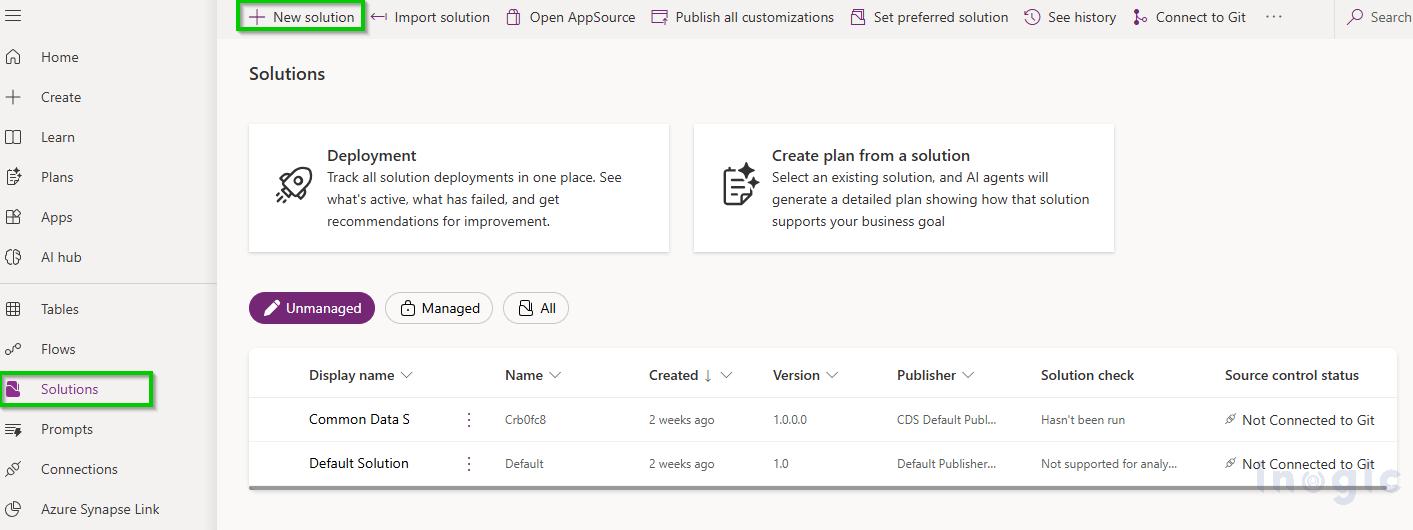
Step 1: Go to https://make.powerapps.com
Step 2: Create or open a Solution and open the Model-Driven App in the app designer.
Step 3: Click Add page → Select Describe a page.
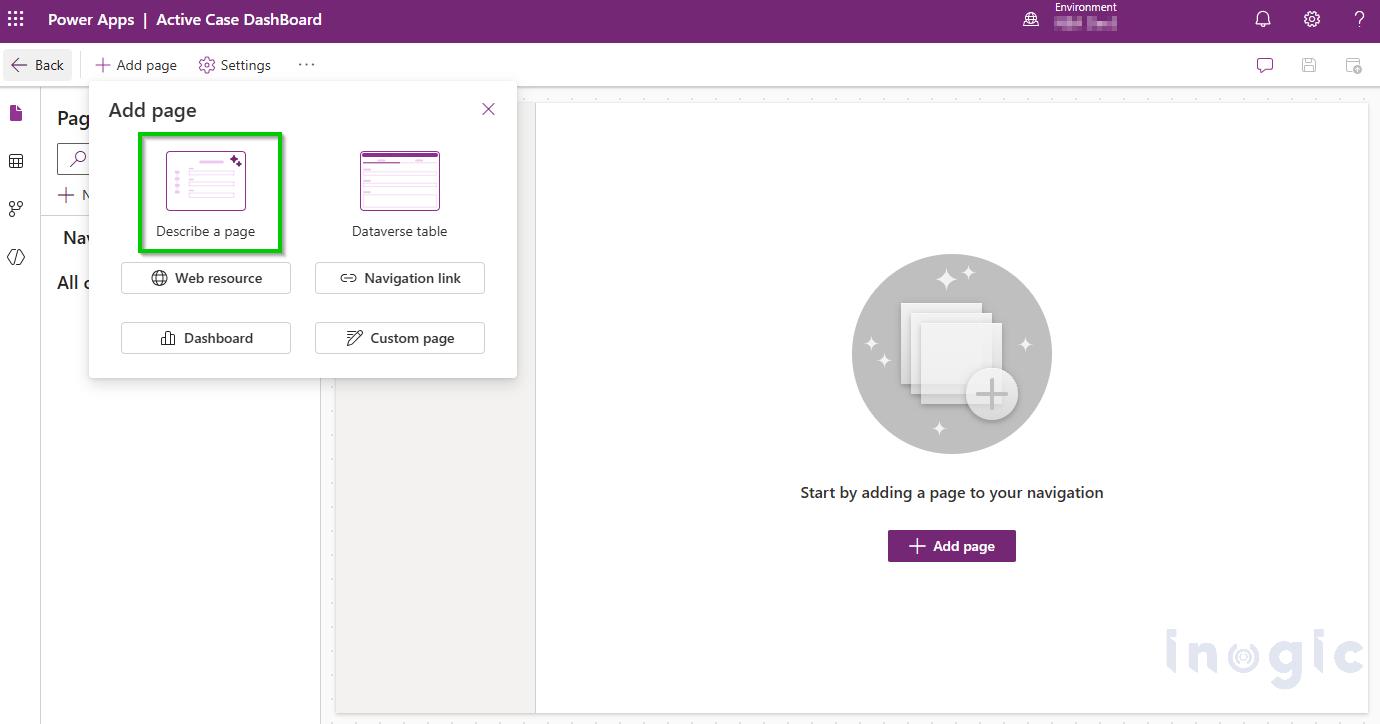
Note: Generative Pages is currently available only in the United States (USA) region.
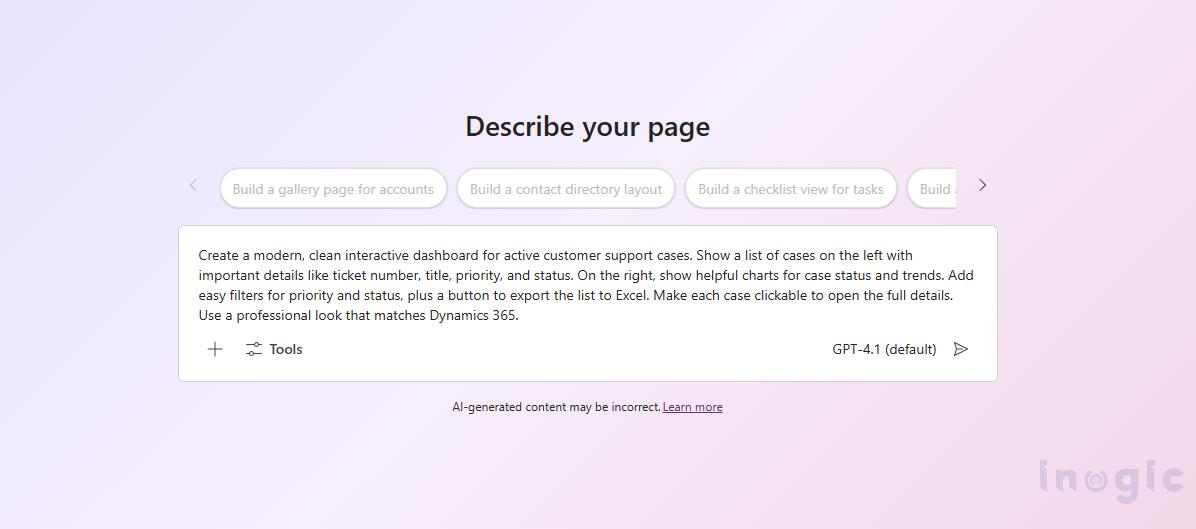
Step 4: Describe the requirement and allow the AI to generate the page.
Step 5: Review the result and download the generated .tsx file.
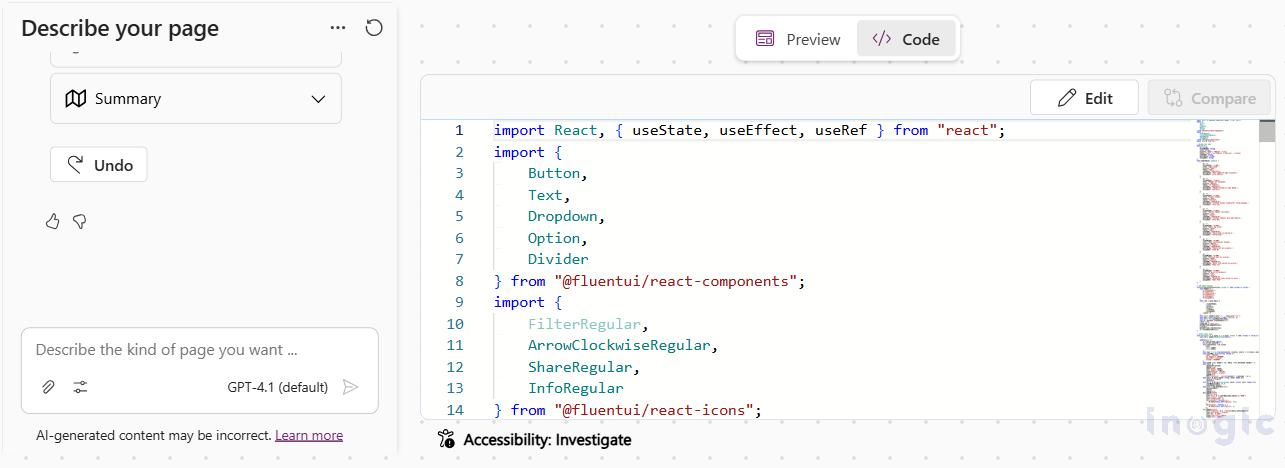
Step 6: Open the file in VS Code and improve it using AI assistants (Claude, GitHub Copilot, or Cursor).
Step 7: Upload the final version using this command:
pac model genpage upload –app-id [your-app-guid] –page-id [your-page-guid] –code-file ActiveCasesDashboard.tsx –data-sources incident –prompt “[Your description here]”
Alternative: Build the Page in VS Code (Full Control)
When there are very specific or complex needs, the entire page can be built directly in Visual Studio Code.
Follow these steps:
- Open Visual Studio Code.
- Create a new file and save it as ActiveCasesDashboard.tsx.
- Write the React code in this single file (or ask an AI coding tool to generate the base structure).
- Add all required features such as lists, charts, filters, and buttons inside this one file.
- Save the file and upload it using the Power Platform CLI command.
Note:- You can refer Power Platform CLI commands from the official Microsoft Power Platform CLI model command reference.
Example Prompt
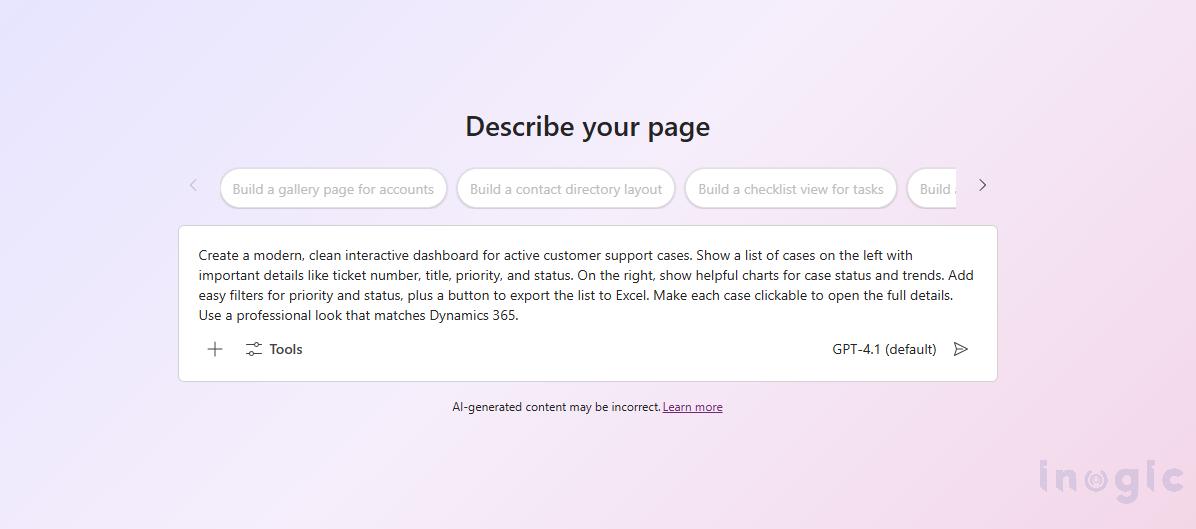
This prompt was used for the Active Cases Dashboard:
“Create a modern, clean interactive dashboard for active customer support cases. Show a list of cases on the left with important details like ticket number, title, priority, and status. On the right, show helpful charts for case status and trends. Add easy filters for priority and status, plus a button to export the list to Excel. Make each case clickable to open the full details. Use a professional look that matches Dynamics 365.”
Real Result: The Active Cases Dashboard
The final dashboard delivered to the client included:
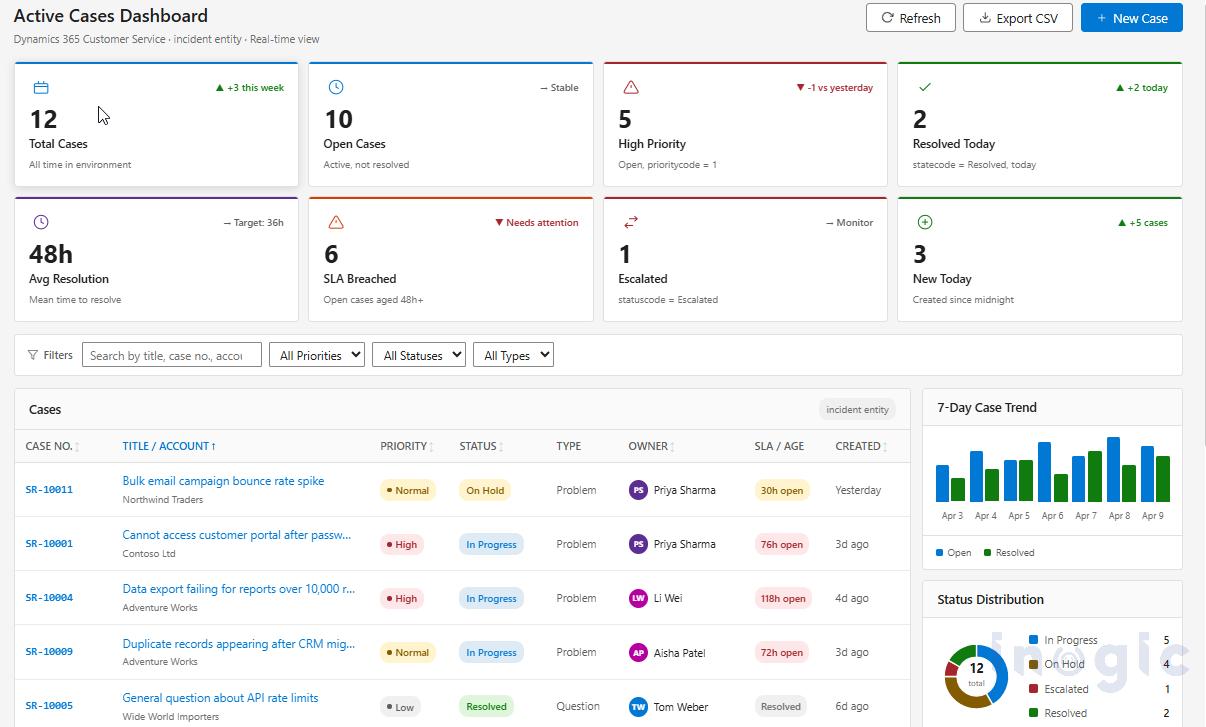
- A clear list of active cases with key information
- Helpful visual charts for status and trends
- Quick filters for easy searching
- One-click export to Excel
- Color indicators for urgent SLA cases
The client was very pleased with the modern interface and improved user experience. What previously took days was completed in just a few hours.
Frequently Asked Questions (FAQs)
Q: Can third-party libraries or npm packages be used with Generative Pages?
A: Not directly. Everything must stay inside one single file. AI tools can be used to add the required functionality.
Q: Are Generative Pages available in all countries?
A: Currently, the Describe a page feature in the browser is available only in the United States (USA) region. If you are in another region, you may need to switch your environment or wait for wider availability.
Q: Is programming knowledge required to use Generative Pages?
A: No. You can get started directly by entering prompts in the browser. For more advanced results, you can edit and customize the generated code using tools like VS Code.
Q: Where can the App ID and Page ID be found?
A: These can be found in the model-driven app designer or by using Power Platform CLI commands.
Q: Can the page be used in multiple environments?
A: Yes. It can be included in a solution or uploaded using the PAC CLI in other environments.
Q: Is the generated page secure?
A: Yes. It runs safely inside the app and respects existing user permissions.
Q: What if the AI does not understand the description?
A: Make the prompt more detailed and specific. A base version can be generated first and then refined in VS Code.
Conclusion
Generative Pages has transformed how custom pages are delivered for clients. It allows for faster responses to demands, significantly reduces development time, and still provides modern, professional results.
Whether starting with AI in the browser, refining the code, or building the page from scratch in VS Code, flexible options are available to meet client expectations effectively.
In Part 2, we shift our focus to canvas apps and explore how AI code generation tools are transforming that space as well.
We would love to hear your experience in the comments.
Have you tried Generative Pages yet? What kind of page did you deliver for your clients?