Microsoft Power Pages provides a platform for building business websites and portals with minimal coding. However, when developers need to build more dynamic and customized user experiences using modern frameworks like React, deploying those applications to Power Pages can introduce additional challenges.
One of the main challenges is moving a locally developed React application into a Power Pages environment without running into deployment issues. Developers may encounter blocked JavaScript file uploads due to Dataverse security settings, authentication issues when working across multiple environments, and unnecessary files accumulating during repeated deployments.
To address these challenges, it is important to follow a structured deployment process rather than relying on trial and error.
In this blog, we will walk through how to create a React Single-Page Application (SPA) using Vite and deploy it to Microsoft Power Pages using Power Platform CLI (PAC CLI). We will cover the required environment configurations, project setup, authentication, deployment, and site activation to help make the entire process smooth and repeatable.
Key Takeaways
- SPA sites in Power Pages render entirely in the browser and are managed through source code and CLI tools, not server-side Liquid templates.
- The pac command works against your active authentication profile, not inline environment flags.
- A powerpages.config.json file lets the CLI match your site by name and clean up old bundles.
- Use pac auth create, pac auth list, and pac auth select to move between Dataverse environments.
- Vite builds static assets into dist/, and pac pages upload-code-site uploads them.
- A newly uploaded code site appears under Inactive sites and must be reactivated before users can see it.
The Problem: Bridging Local React Apps to Power Pages
Power Pages has traditionally relied on server-side rendering, Liquid templates, out-of-the-box forms, and styling limited to the design studio. Developers who wanted React, Angular, or Vue ran into friction with deployment, file restrictions, and environment targeting.
SPA support closes that gap. You can build a modern interface locally with Vite and deploy it from the command line. Moving from localhost to an enterprise environment, however, raises three specific hurdles:
- Blocked script uploads: Dataverse environments block .js attachments by default. Uploads can fail silently or return attachment validation errors.
- Environment targeting and authentication: With several Dataverse environments, it is easy to deploy to the wrong one, especially if you try to pass environment flags the CLI does not support.
- Asset pipeline cleanup: Vite adds content hashes to bundle names (index-*.js, index-*.css). Without cleanup rules, old bundles accumulate as orphaned web files.
The Solution: A CLI-Driven Deployment Pipeline
Four practices solve these problems:
- Prepare Dataverse security: Allow JavaScript attachments in the Power Platform admin center.
- Scaffold locally with Vite: Build the React TypeScript app on fast, modern tooling.
- Configure powerpages.config.json: Simplify deployments and define stale-bundle cleanup.
- Use PAC CLI auth profiles: Target staging, UAT, or production explicitly.
Step-by-Step Implementation Guide
Step 1: Allow JavaScript Uploads in Your Environment
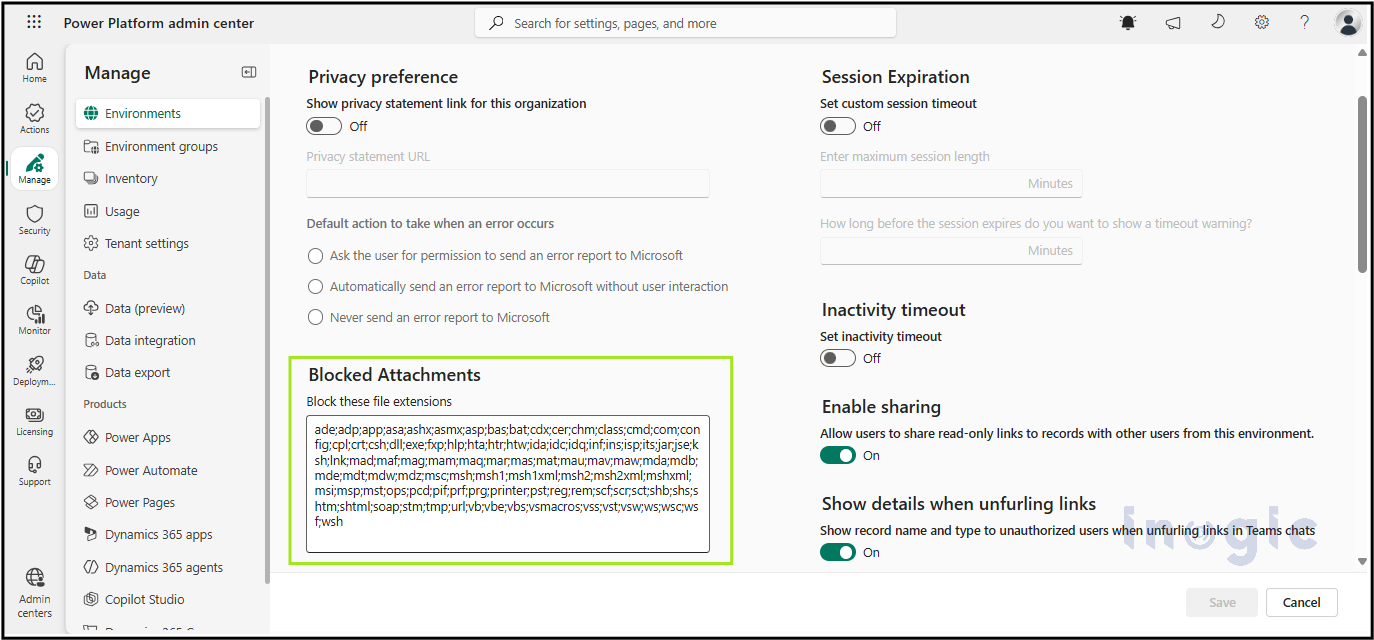
Some Dataverse environments block .js file uploads for security reasons. Before deploying, check that your target environment allows them. Make this change only if your organization’s security policy permits it.
- Sign in to the Power Platform admin center.
- Go to Manage > Environments and select your target environment.
- Click Settings in the command bar.
- Expand Product and select Privacy + Security.
- Under Blocked Attachments, remove js from the list of extensions and click Save.
Step 2: Initialize the React Project
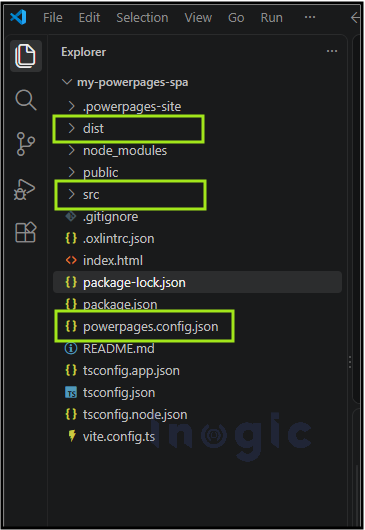
Scaffold a React TypeScript app with Vite:
npm create vite@latest my-powerpages-spa — –template react-tscd my-powerpages-spanpm install
Step 3: Configure powerpages.config.json
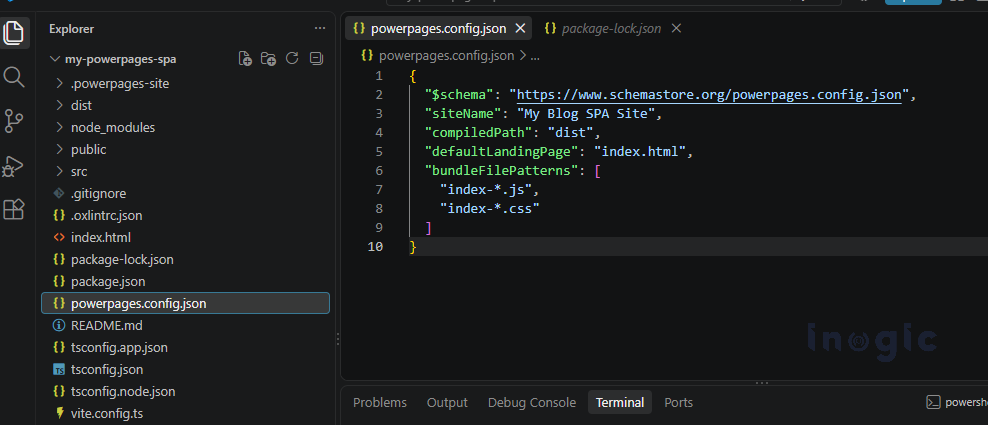
Create a powerpages.config.json file in the project root. It tells the CLI which site to match, where the build output lives, and which bundle files to clean up on each deployment.
{ “$schema”: “https://www.schemastore.org/powerpages.config.json”, “siteName”: “My Blog SPA Site”, “compiledPath”: “dist”, “defaultLandingPage”: “index.html”, “bundleFilePatterns”: [ “index-*.js”, “index-*.css” ]}
Step 4: Authenticate and Select the Target Environment
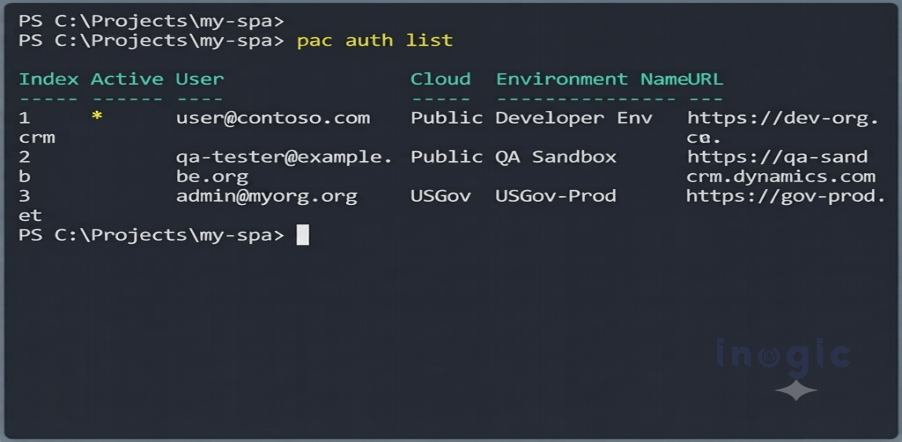
If you work with several environments, create an authentication profile for each Dataverse URL, then choose the active one:
pac auth create –url “https://your-target-env.crm8.dynamics.com”pac auth listpac auth select –index <profile-number>
Run pac auth list before every deployment. The active profile is marked with an asterisk (*), and every pac command runs against that environment.
Step 5: Build and Deploy
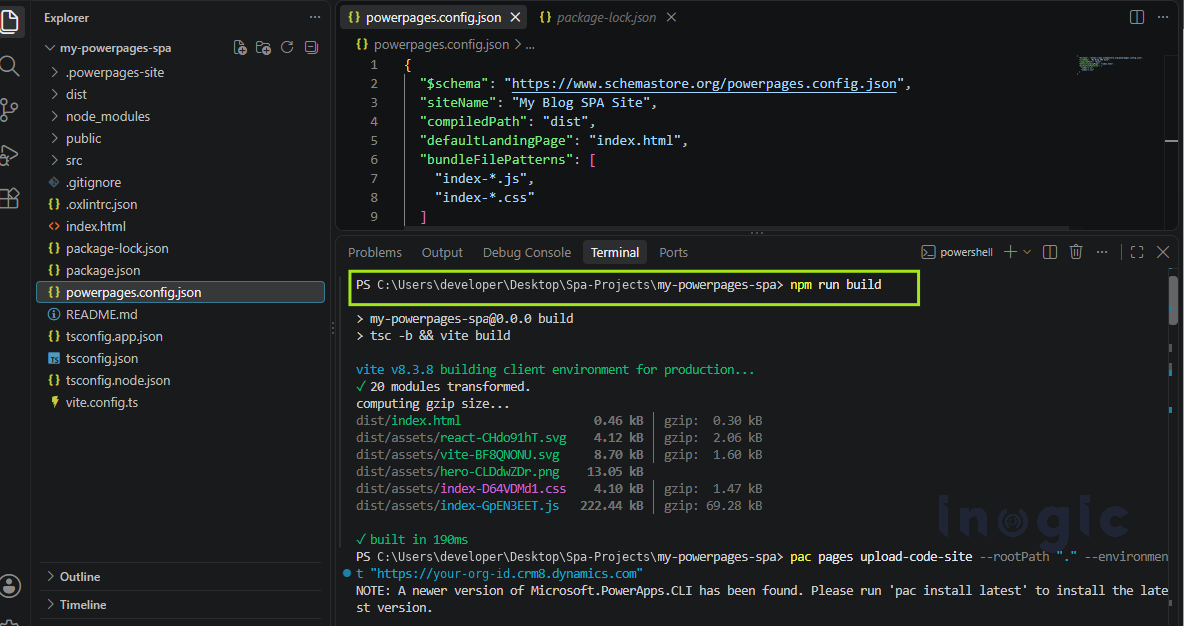
Compile the production assets, then upload them to the active environment:
npm run buildpac pages upload-code-site –rootPath “.”
Step 6: Activate the Site in the Maker Portal
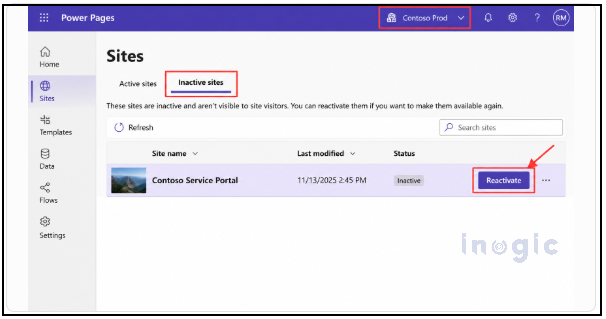
- Open the Power Pages maker portal.
- Switch the environment selector (top right) to your target environment.
- Open Inactive sites, find your uploaded site, and click Reactivate.
Conclusion:
Taking the time to verify CLI authentication rules, adjust Dataverse security settings, and set up your configuration structure before deployment saves hours of frustrating troubleshooting. As enterprise portals continue to evolve, relying on brittle manual configurations or default workarounds is a recipe for maintenance headaches.
By combining Vite’s lightning-fast frontend bundling with the Power Pages SPA deployment pipeline (pac pages upload-code-site), you establish a robust, repeatable path from your local development environment straight to a live enterprise portal. Adopting this structured architecture ensures your custom React applications remain scalable, maintainable, and seamlessly integrated into the Power Platform ecosystem.
Best Practice Summary for Power Pages SPA Deployments:
- Allow JavaScript attachments in the target environment before your first upload.
- Check pac auth list before every deployment to confirm the active environment.
- Keep powerpages.config.json in source control and define bundle patterns so old files are cleaned up.
- Reactivate the site from Inactive sites after each new upload.
Following this process lets you ship modern, component-based front ends to Power Pages across environments without surprises.
Frequently Asked Questions
How do you deploy a React application to Microsoft Power Pages?
You can deploy a React application to Microsoft Power Pages using Power Platform CLI (PAC CLI). Build the React application using Vite, configure the powerpages.config.json file, authenticate with the target Dataverse environment, and run pac pages upload-code-site to upload the compiled files. After uploading, reactivate the site from the Power Pages maker portal.
Can you use React to build a Single-Page Application (SPA) in Power Pages?
Yes. Microsoft Power Pages supports Single-Page Applications built with modern JavaScript frameworks such as React. Developers can create the frontend locally, compile it into static assets, and deploy it as a code site using PAC CLI.
What is PAC CLI used for in Power Pages deployment?
Power Platform CLI (PAC CLI) is a command-line tool used to manage and deploy Power Pages code sites. It allows developers to upload compiled React application files, manage authentication profiles, and streamline deployments across Dataverse environments.
Why does PAC CLI fail when uploading JavaScript files to Power Pages?
JavaScript uploads can fail because the target Dataverse environment blocks .js attachments through its security settings. Check the Blocked Attachments configuration in the Power Platform admin center and remove the JavaScript extension only if your organization’s security policies permit it.
How do you deploy a React SPA to different Power Pages environments?
You can deploy a React SPA to different Power Pages environments by creating separate PAC CLI authentication profiles for each Dataverse environment. Use pac auth list to review available profiles and pac auth select to choose the target environment before deployment.
What is the purpose of powerpages.config.json in Power Pages SPA deployment?
The powerpages.config.json file helps PAC CLI identify the target Power Pages site, locate the compiled application files, specify the landing page, and define patterns for cleaning up outdated JavaScript and CSS bundles during deployment.
How do you make a React application live after uploading it to Power Pages?
After uploading a React SPA using PAC CLI, open the Power Pages maker portal, select the correct environment, and locate the uploaded site under Inactive sites. Select Reactivate to make the site available.