Videos are valuable resources for employee training, equipment maintenance, and troubleshooting. However, storing videos in SharePoint does not always make them easy to access when employees need them. Switching between business applications and SharePoint to find and play videos can interrupt workflows and delay important tasks.
Imagine a technician standing next to a machine that has suddenly stopped working. An experienced engineer recorded a video years ago explaining exactly how to fix this issue. However, the video is buried among hundreds of files. The technician searches through confusing file names, guesses which video is relevant, and eventually calls a colleague for help.
The Stream (Preview) control for Power Apps Canvas apps solves this challenge by letting users play SharePoint-hosted videos directly in a canvas app.
In this blog, we will explore how maintenance technicians can use this control to access repair instructions while working. We will build a simple maintenance video guide that allows technicians to search by machine number, model, machine name, or fault description, select a matching record, and watch the associated repair video without leaving the app. We will also explore the benefits of this approach and its current limitations.
Key Takeaways
- The Stream control plays videos stored in Microsoft SharePoint inside a Canvas App. It is currently in preview.
- The control needs the video’s embed URL. This URL must be on a *.com domain and must contain the UniqueId value.
Why Technicians Often Skip Videos Stored Outside the App
In many business applications, a video library is simply a collection of links that open SharePoint in a separate browser tab. This seemingly small inconvenience can create several problems:
- Difficult to find: File names such as mp4 do not clearly indicate which machine or fault the video addresses.
- Easy to lose context: Switching between browser tabs can interrupt the workflow and make it harder to return to the original record.
- Uncertainty about relevance: Technicians may not know whether a video applies to their specific machine model or fault, so they may skip it and ask an experienced colleague for help.
Simply reorganising SharePoint folders will not completely solve this problem. A more effective approach is to associate each video with a record containing relevant machine and fault details, then display the record and its video together on the same screen.
The Scenario: A Video Guide for Plant Maintenance
Consider a factory with conveyor systems, CNC milling machines, and gearboxes operating across several production lines. The maintenance team uses a canvas app on tablets to access machine information and perform routine maintenance.
Experienced engineers have recorded short videos demonstrating common repairs and maintenance procedures. These videos are stored in a SharePoint site named Maintenance.
The team needs a solution that meets four requirements:
- Flexible search: Technicians can search using a machine number, model, machine name, or a few words describing the fault.
- Relevant record details: Search results display enough information to help technicians identify the correct procedure.
- In-app video playback: Selecting a record displays its associated video on the same screen.
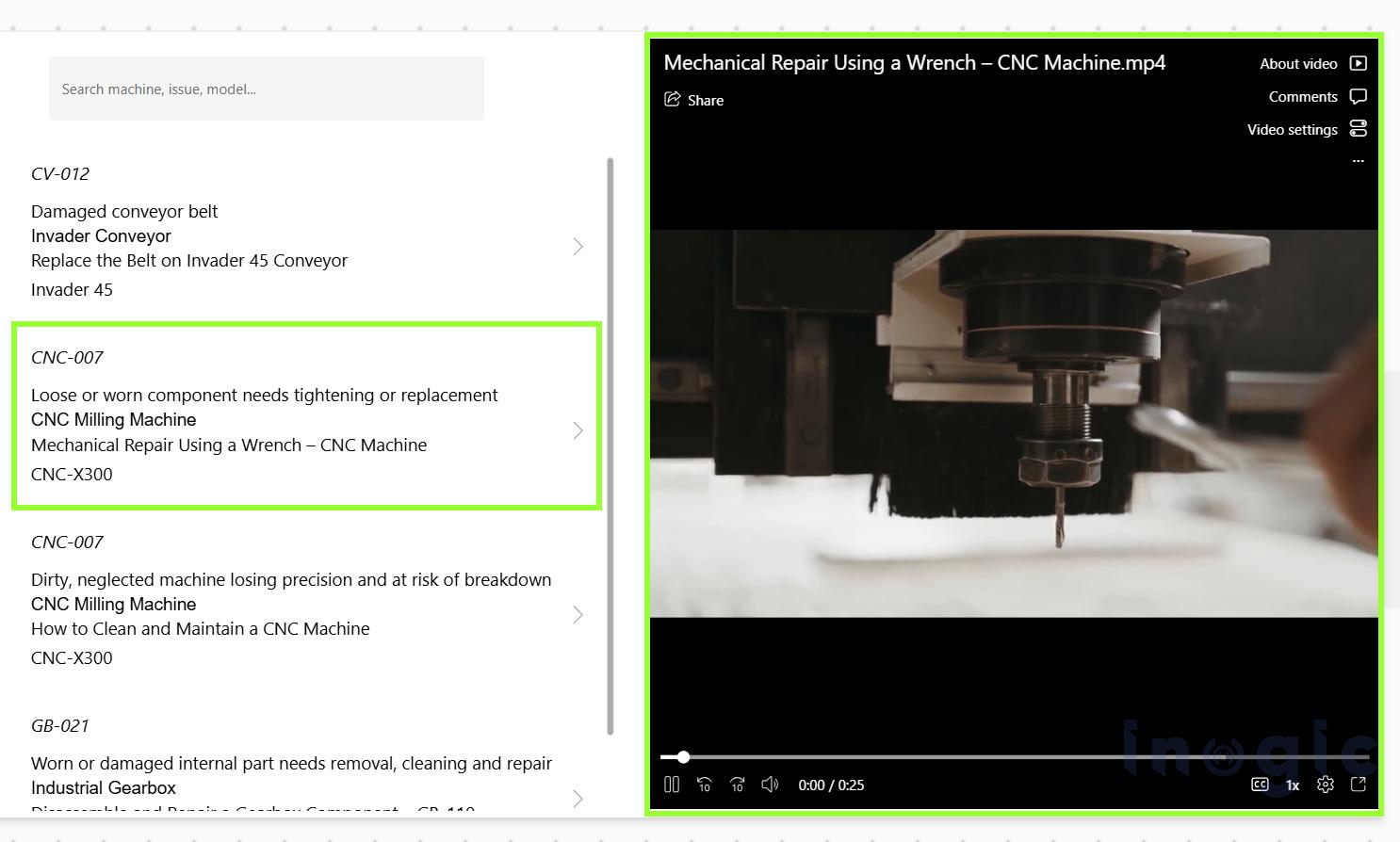
How the Pieces Fit Together
| Component | Role |
| SharePoint document library | Stores the video files. Stream (on SharePoint) plays them. |
| Dataverse table: Procedure Video | Stores the machine details, the fault and the embed URL of each video. |
| Canvas app | A search box, a gallery of records and one Stream control. |
The video files remain in SharePoint rather than being stored in Dataverse. Dataverse holds the relevant information and the URL that connects each record to its video.
Step-by-Step Implementation
Follow the steps below to upload your videos, retrieve their embed URLs, and add the Stream control to your canvas app.
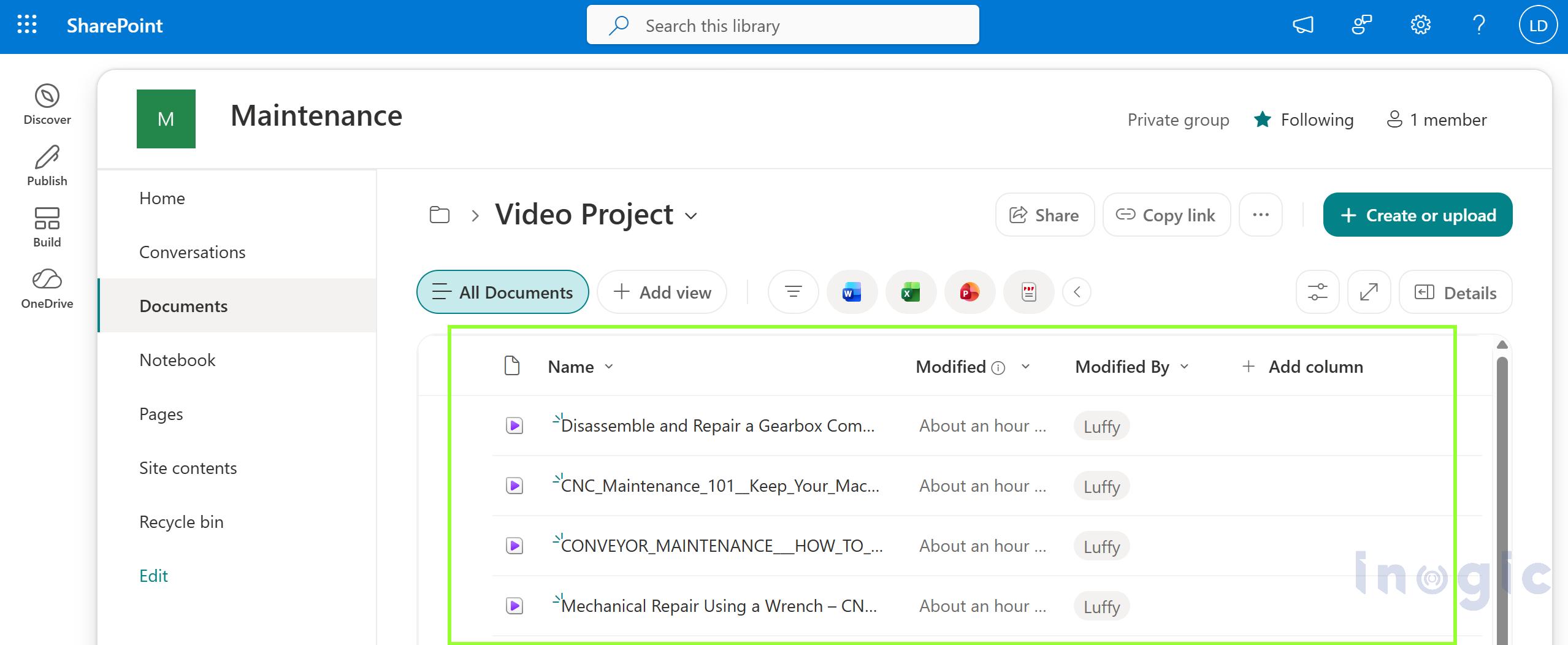
Step 1: Create a SharePoint site and upload the videos
- Open SharePoint and select Create site > Team site.
- Select the Standard team template and name the site “Maintenance”.
- Open the site, go to Documents and create a folder named “Video Project”.
- Inside the folder, select Create or upload > Files upload and add your “.mp4” files.
- Give each file a clear name, such as Disassemble and Repair a Gearbox Component – GB-110.mp4”.
Step 2: Get the embed URL for every video
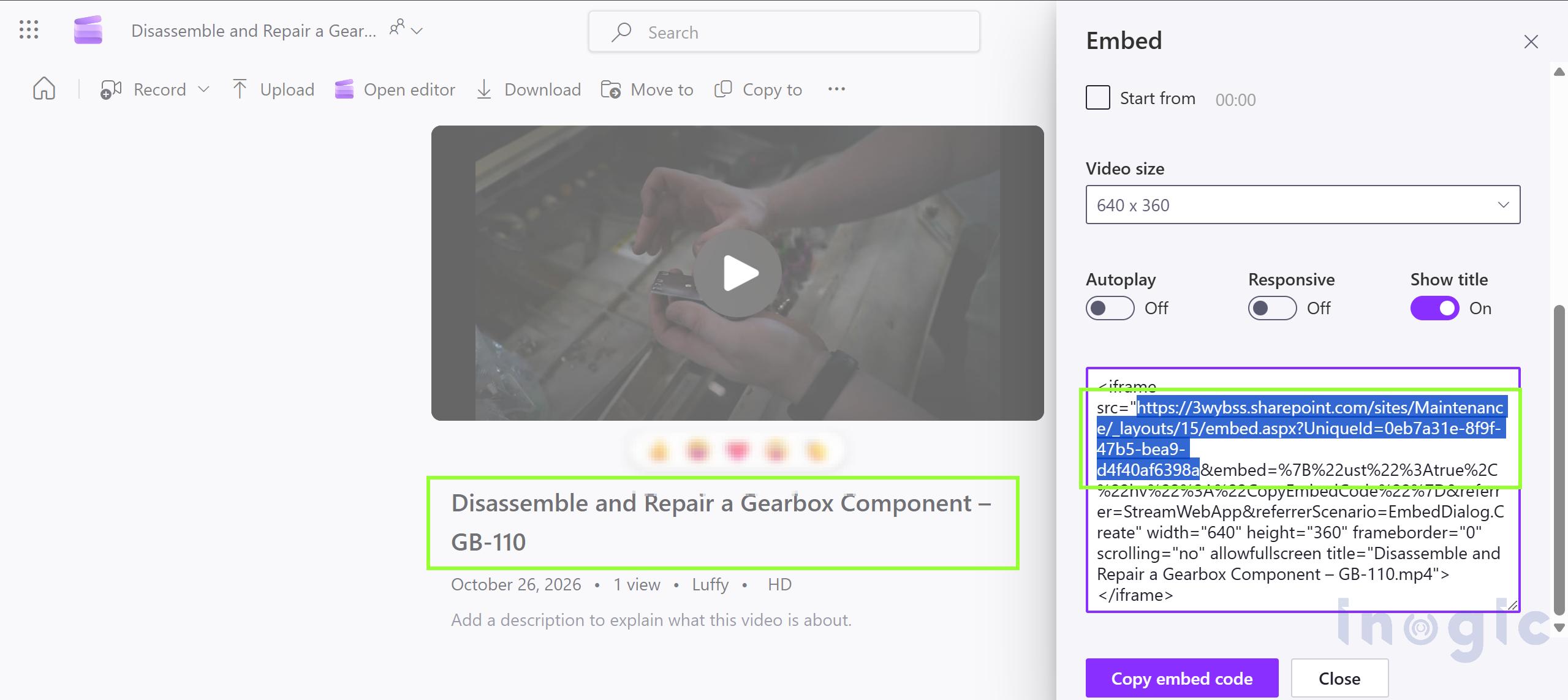
- Select the video name to open it in the Stream player.
- Select Share > Embed code.
- Select and copy the required part of the embed URL, as highlighted in the image below.
Step 3: Add the Stream Control
- Select Insert > Media > Stream (Preview) to add the Stream control to your canvas app.
- Add the Embed URL to the Stream URL property, as shown in the image below.
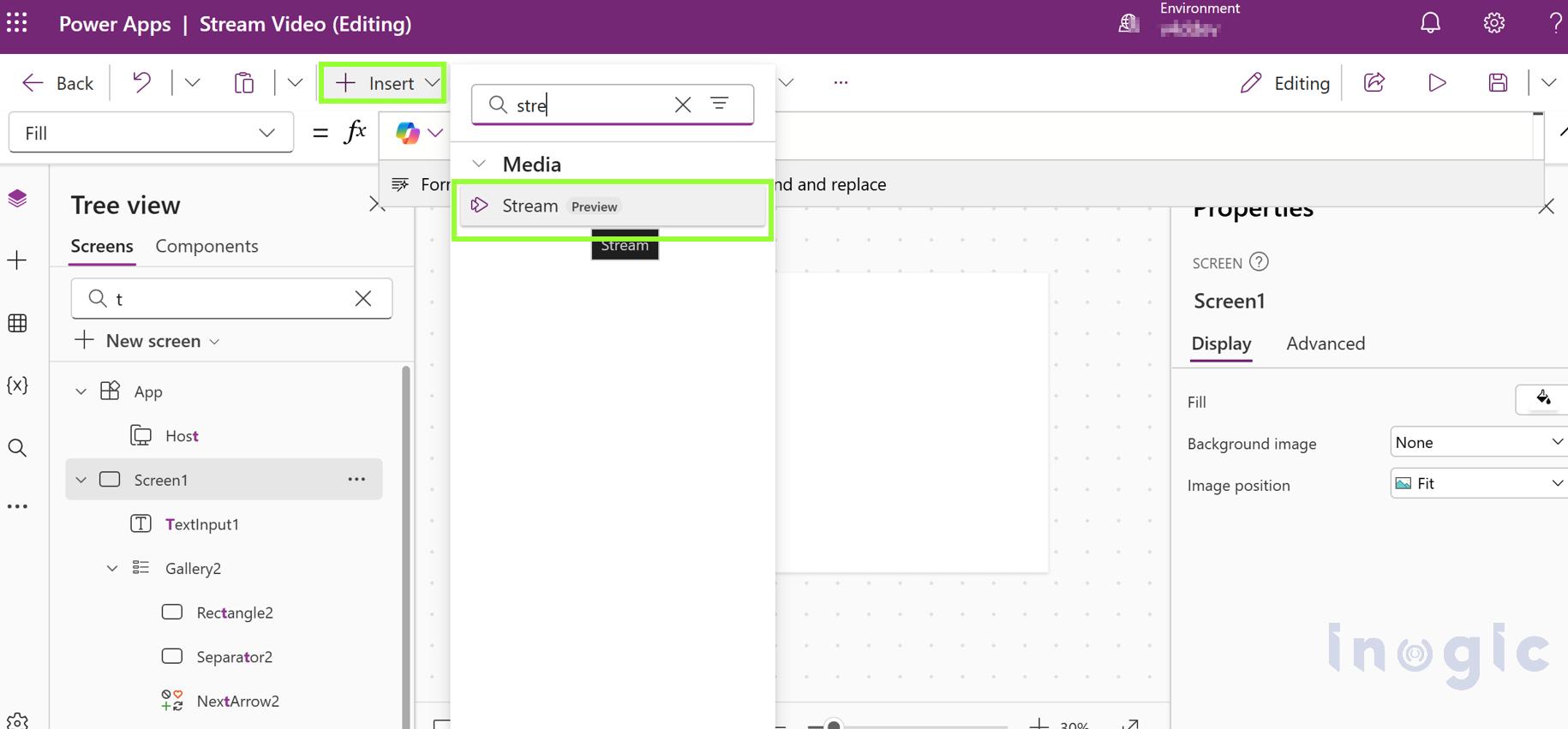
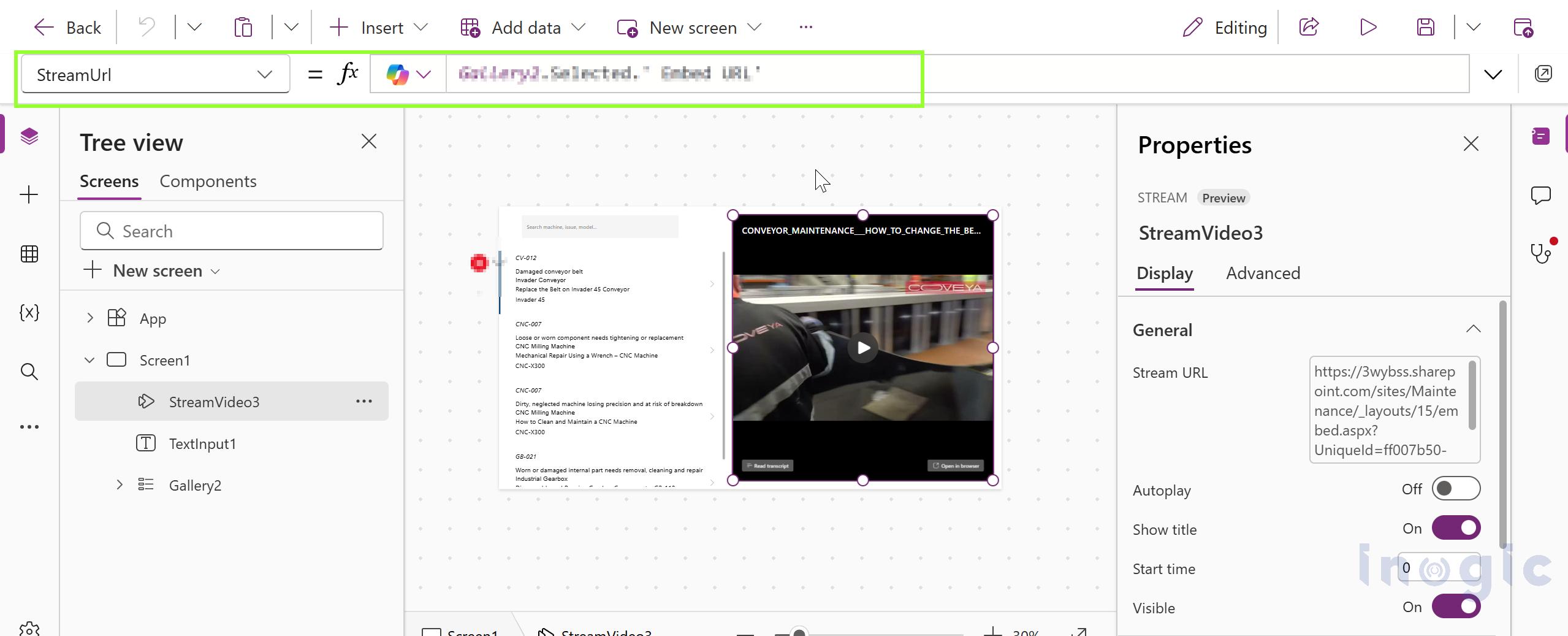
Once you add the embed URL, the Stream control is ready to play the selected SharePoint video within your canvas app. Technicians can now access repair instructions alongside the relevant machine details without switching applications.
What Changes for the Technician
The maintenance video guide changes how technicians find and use repair instructions. Here’s a comparison of their experience before and after implementing this approach.
| Before | After |
| Opens SharePoint, scrolls through file names and guesses | Types a machine number, model or issue |
| Leaves the app and loses their place | Watches the video next to the record |
| Calls a senior colleague for a known fix | Finds the recorded procedure immediately |
| Knowledge leaves with the engineer | Procedures stay in the company, linked to the machine |
Where Else Can You Use This Approach?
The same concept can be applied to other business scenarios. Whenever a record identifies a task, product, or issue, the canvas app can display the associated video alongside the relevant information.
- Field service: Technicians open a work order and watch the repair video associated with the customer’s product model.
- Customer service: Support agents search for a product or fault and access troubleshooting videos while assisting customers.
Limitations to Keep in Mind
While the Stream (Preview) control makes SharePoint video playback easier in Canvas Apps, there are a few technical limitations to consider before implementing it.
| Limitation | What it means for you |
| *.sharepoint.com URLs only | A SharePoint domain that does not follow this pattern shows an invalid URL error. |
| Only the unique ID in the URL | Remove any extra parameters from the embed link before saving it. |
| No auto start, auto play or start-from yet | Users must press play themselves, and you cannot start the video from a set position. |
| Maximum of four videos per screen | More videos can slow down the app. Use one player controlled by a gallery, as in this demo. |
| iOS devices | Turn on Allow Cross-Website Tracking for Power Apps in the device settings. |
Conclusion
The Stream control provides a simple way to play SharePoint videos directly within a Power Apps Canvas app. By embedding videos into the app, users can access relevant information without switching between applications. This approach makes video content more accessible and helps organizations make better use of their existing resources.
Frequently Asked Questions
1. Can I play SharePoint videos directly in Power Apps Canvas Apps?
Yes. The Stream (Preview) control allows you to play SharePoint-hosted videos directly within a Power Apps Canvas App.
2. Do I need to store videos in Dataverse to play them in Power Apps?
No. You can store videos in SharePoint and use Dataverse to store their details and embed URLs.
3. Can the Stream control play videos automatically?
No. The current preview control does not support autoplay. Users must manually press play.
4. Can I display multiple videos in a Power Apps Canvas App?
Yes. You can display up to four Stream controls on a screen. However, using one Stream control connected to a gallery is a practical way to let users select and play different videos.