What if understanding your customer relationships was as simple as asking a question?
Map My Relationships now lives inside Copilot and Teams. Just ask.
Key Takeaways
- Prepare for customer conversations faster by exploring an account’s related contacts, opportunities, and cases in one interactive map.
- Use AI-generated relationship health analysis to review relevant context, key findings, and suggested next steps alongside the visualization.
- Explore multiple levels of configured CRM relationships without manually opening each record.
- Preview records, open them in Dynamics 365 CRM, and create supported related records from the map.
- Access Map My Relationships Agent through Microsoft Teams and Microsoft 365 Copilot after an administrator completes the required configuration.
Prepare for the Customer, Not for a Tour of CRM Records
Before a customer meeting, a sales representative may need to review the account, identify the right contacts, check open opportunities, and understand whether support cases could affect the conversation. That information may already exist in Microsoft Dynamics 365 CRM, but gathering it can mean opening several records and piecing together the context manually.
Map My Relationships helps users explore configured relationships between CRM records through interactive visualizations. With Map My Relationships Agent, users can bring that experience into Microsoft Teams and Microsoft 365 Copilot, ask for a relationship map in natural language, and review AI-generated relationship health analysis alongside the map.
The benefit is practical: users can spend less time navigating between records and more time deciding what deserves attention before the next customer interaction.
1. Start with a Business Question
Suppose you are preparing for a review with Fourth Coffee. You want a quick view of the account’s related contacts, opportunities, and cases before the meeting. Instead of opening each record separately, you can ask the Map My Relationships Agent in Copilot:
“Show relationships for Fourth Coffee account.”
The agent generates an interactive mind map based on the relationships configured for that CRM table. In this example, the account is shown alongside related contact, opportunity, and case records. This gives the user a starting point for deciding which records to review before the meeting.
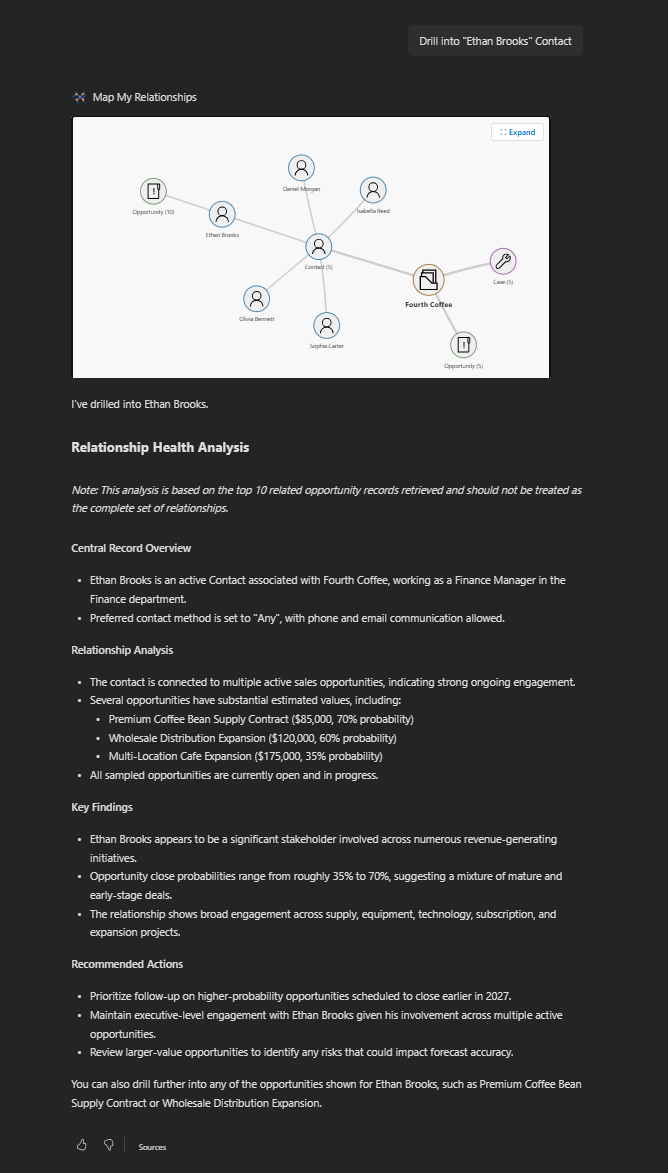
Figure 1. Map My Relationships Agent displays the Fourth Coffee account map and relationship health analysis in response to a natural-language prompt.
Rather than treating the map as an end in itself, use it to answer a practical question: Which open opportunities, customer contacts, or support issues should I review before speaking with this account? The map helps surface the relevant records; the user can then inspect the underlying CRM information and determine the appropriate next step.
2. Follow Related Records Across Multiple Levels
An account-level view is often only the starting point. A contact may be associated with several opportunities, and those opportunities may have different values, stages, and timelines. Exploring those related records can help a representative understand the contact’s role in active business and identify which opportunity needs follow-up.
With Map My Relationships Agent, users can ask to explore a particular related record or expand a node directly in the visualization. For example, after viewing Fourth Coffee, a user can drill into the contact Ethan Brooks to examine the records associated with that contact.
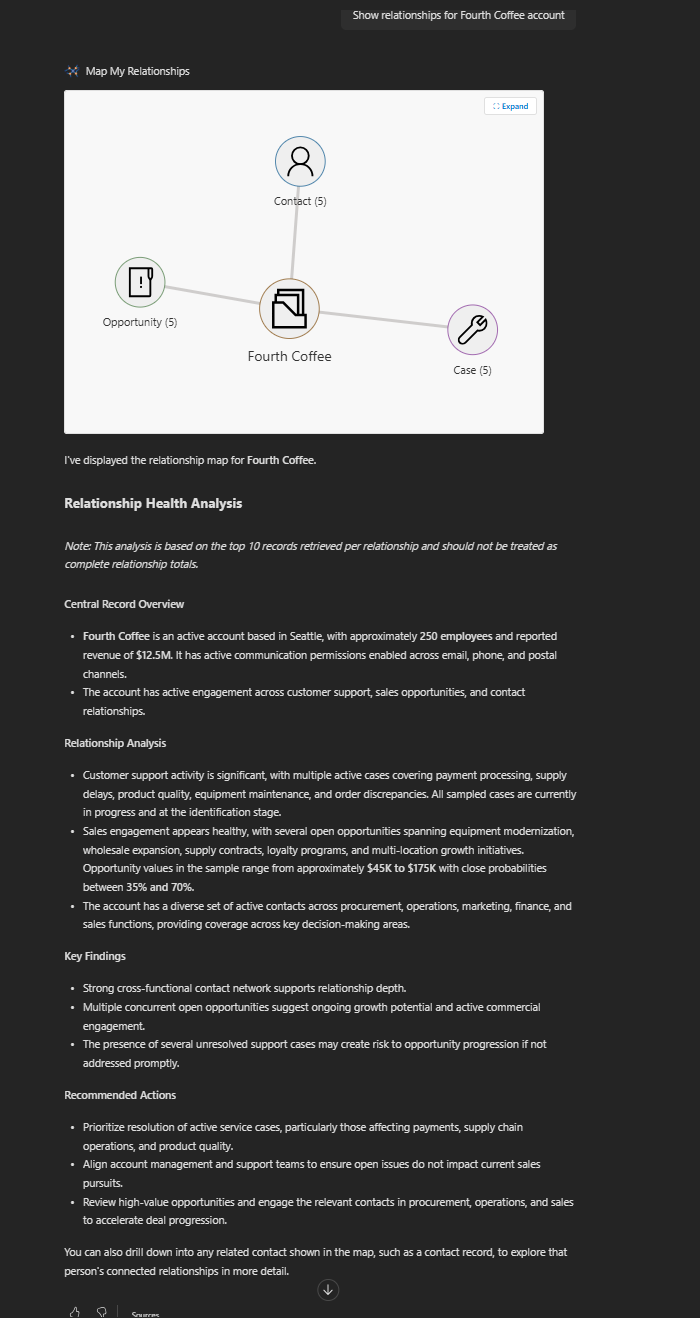
Figure 2. Drilling into Ethan Brooks reveals additional related records and a contact-level relationship health analysis.
This view can help a user prepare more targeted questions, identify opportunities that merit attention, and avoid relying on a single account summary. The available information depends on the relationships configured for the relevant CRM tables and the records retrieved for the visualization.
3. Use Relationship Health Analysis to Prioritize Follow-Up
Knowing which records are related is useful. Understanding what the available information indicates helps users decide where to focus next. Map My Relationships Agent provides AI-generated relationship health analysis alongside a generated visualization, without requiring a separate prompt for the analysis.
Depending on the CRM data available, the analysis includes a central record overview, relationship observations, key findings, and recommended actions. For example, an account view surfaces active support cases alongside open opportunities, helping the user recognize that a service issue needs attention before an important sales discussion. A contact view highlights involvement across multiple opportunities and suggests which records deserve closer review.
Treat these insights as decision support, not as a substitute for checking the source records. The analysis is based on the top 10 records retrieved per relationship and is not a complete relationship total. Users should verify important details in Dynamics 365 CRM before acting on an AI-generated observation.
4. Take Action Without Losing the Context
The relationship map is designed to support record exploration as well as visualization. Users can:
- Double-click a node to expand related records and explore another level.
- Hover over a record to preview five fields from its configured CRM view.
- Left-click a node to open the corresponding Dynamics 365 CRM record.
- Right-click an entity node to open a quick-create form for a new related record.
For example, if a representative identifies a contact who should be associated with an account, they can start creating the contact from the map through the supported quick-create action. After the record is saved, it is linked to the main record and appears in the visualization, subject to the configured relationship and application behavior.
These actions help users move from understanding the record landscape to carrying out the next task, while keeping the related CRM context close at hand.
5. Bring Relationship Mapping into Teams and Microsoft 365 Copilot
Map My Relationships Agent extends the relationship-visualization experience into Microsoft Teams and Microsoft 365 Copilot. This lets users request a map through conversational prompts in the tools where they already collaborate and work, rather than making a separate trip through CRM screens just to begin exploring related records.
To make the agent available, an administrator must configure the required tables in Map My Relationships Entity Configuration and enable the “Use This Configuration for AI Tool” setting. The map and its insights depend on the CRM relationships and configuration available to the agent.
See the Bigger Picture with Map My Relationships
CRM data becomes more valuable when the relationships behind it are easier to understand.
With Map My Relationships Agent, Inogic combines conversational AI, interactive visualization, relationship health analysis, and direct record management to deliver a more connected Dynamics 365 CRM experience.
Your CRM already holds the connections. Discover what they can reveal.
Ready to explore your CRM relationships with AI? Get started with a 15-day free trial of Map My Relationships or explore the solution on Microsoft Marketplace.
For more information, visit www.inogic.com or contact us at crm@inogic.com.
Frequently Asked Questions
What is Map My Relationships Agent?
Map My Relationships Agent is an AI-powered capability from Inogic that enables users to visualize, explore, and interact with Dynamics 365 CRM relationships through Copilot using natural language prompts and interactive mind maps.
Does Map My Relationships Agent provide AI-powered relationship health analysis?
Yes. Relationship health analysis runs automatically whenever a visualization is generated, providing contextual observations, key findings, and recommended actions alongside the relationship map.
Can users explore multiple levels of CRM relationships?
Yes. Users can drill down into connected records through conversational prompts or by double-clicking nodes within the interactive map. The available connections depend on the configured CRM relationships.
Can users create Dynamics 365 CRM records directly from the map?
Yes. Right-clicking an entity node opens a quick-create form. Once saved, the new record is linked to the main record and appears in the visualization.
What setup is required for Map My Relationships Agent?
Administrators must configure CRM Entity Visualization for the required tables and enable the Use This Configuration for AI Tool setting in Map My Relationships Entity Configuration.
How does Map My Relationships Agent handle data security and privacy?
Map My Relationships Agent is a customer-hosted agent. You install the Map My Relationships managed solution from Microsoft AppSource into your Dataverse environment, then deploy and set up the agent directly from the Dataverse application into your own Azure subscription. The agent runs entirely within your Azure subscription and stays inside your Microsoft tenant boundary. Because the agent runs in your environment, your CRM data remains under your control and your organization’s existing security, compliance and governance policies. The agent also respects your Dynamics 365 security model. Users see only the records and relationships their assigned security roles and permissions allow.