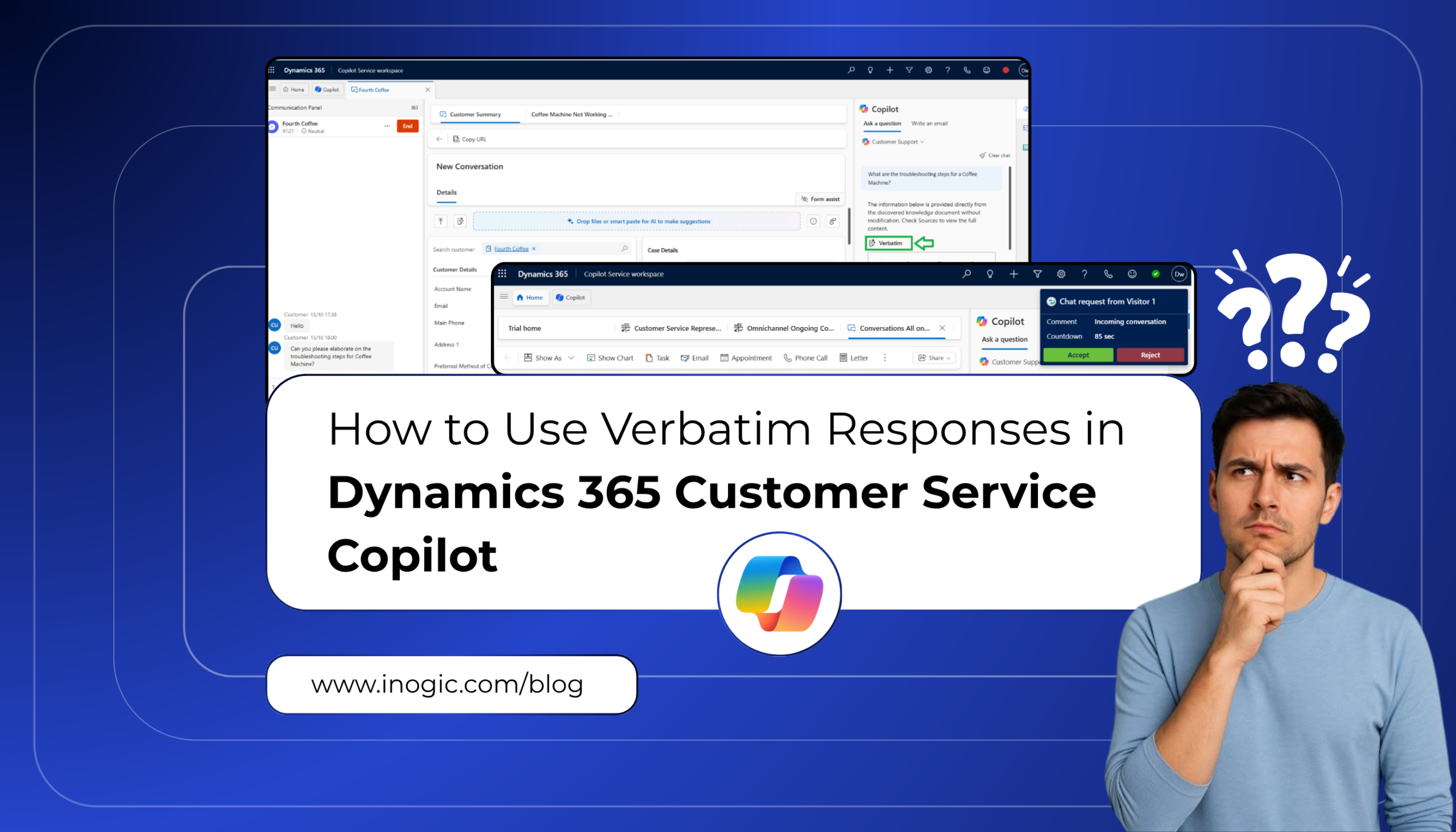
 What happens when Copilot rewrites a safety instruction or changes the wording of a legally approved statement? A small change in wording can alter a requirement, remove an important condition, or create confusion for customers.
In Dynamics 365 Customer Service, verbatim responses in Copilot help address this problem by returning approved knowledge content without rewriting or summarizing it. This is particularly useful for legal disclaimers, regulatory guidance, safety instructions, and standard procedures that must remain unchanged.
In this blog, we’ll explain how verbatim responses work, when to use them, and how to configure a knowledge article so Copilot returns the exact wording your team needs.
Why does it matter?
Some customer-facing content can’t be reworded. Think of a legal disclaimer, a regulatory notice, or a fixed procedure that your legal or compliance team has signed off. If Copilot paraphrases it, a condition can quietly disappear, or a requirement can start to sound optional.
The same logic applies beyond legal text. A loosely summarized safety instruction can put a customer at risk, and approved scripts, such as a refund explanation or a contract statement, lose value once they are reworded.
What is it?
Verbatim responses let Copilot return the original wording from a knowledge article, without rewriting or summarizing it, when representatives use Ask a question.
You have two levels of control:
- Whole article: everything in the article is returned as written.
- Specific sections: only the marked part is returned as written. The rest of the article follows standard response behavior.
Note: Verbatim responses apply only to Ask a question. Drafting emails and chat responses continue to use standard response generation. If you expect verbatim wording in an email draft, it won’t happen.
How does it work?
When an agent asks a question, Copilot retrieves the relevant knowledge articles. If the matching content is marked verbatim, it returns the original wording along with a reference to the source article.
Business scenarios:
Scenario1:
A lender’s support team often gets questions about early repayment. The legal team has approved one paragraph explaining the fees and the customer’s rights. If Copilot summarizes it, the wording changes and the compliance team loses control of what customers are told. The knowledge manager marks that paragraph as verbatim and leaves the rest of the article.
Scenario2:
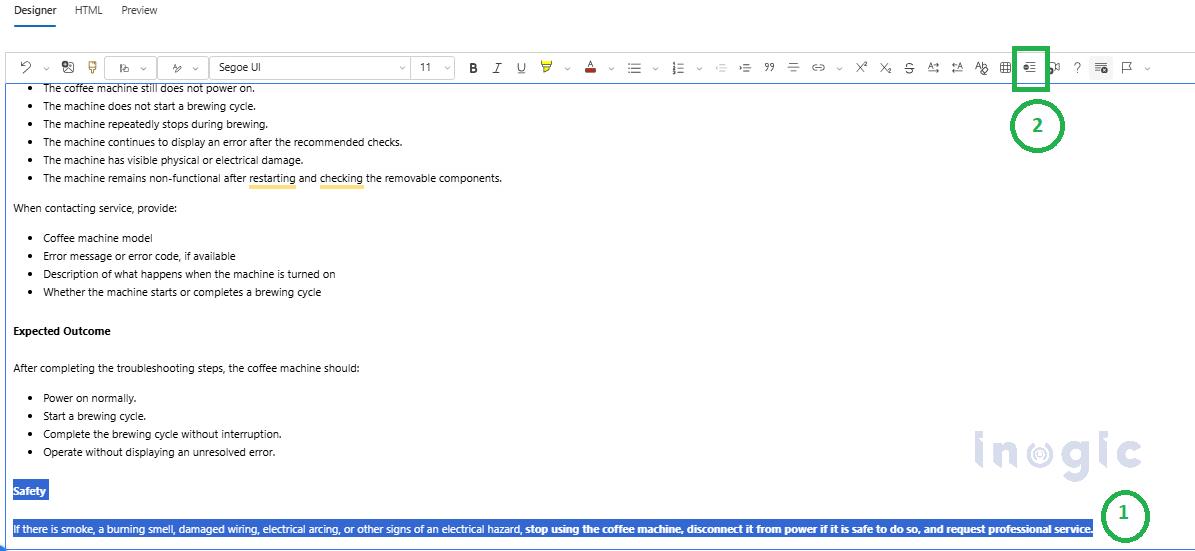
A support team maintains a knowledge article called “Coffee Machine Not Working – Basic Troubleshooting”. Most of it is general how-to guidance: check the power, restart the machine, inspect the water reservoir. The Safety section is different. It tells the customer to stop using the machine, disconnect it from power if it’s safe, and request professional service when there is smoke, a burning smell, damaged wiring, or arcing. If Copilot summarizes this, a step can get lost or reworded. The knowledge manager opens the article in the Designer tab and selects the Safety section. They then select the verbatim icon in the toolbar and publish the article.
In this blog, let us walk through implementing scenario 2.
Switch the feature on first:
In the Copilot Service admin center, open Productivity, select Manage under Copilot settings, and open the settings for the Customer Support agent under Agents within Copilot. There you’ll find a Deterministic Response checkbox. You can click the checkbox and set it to Yes.
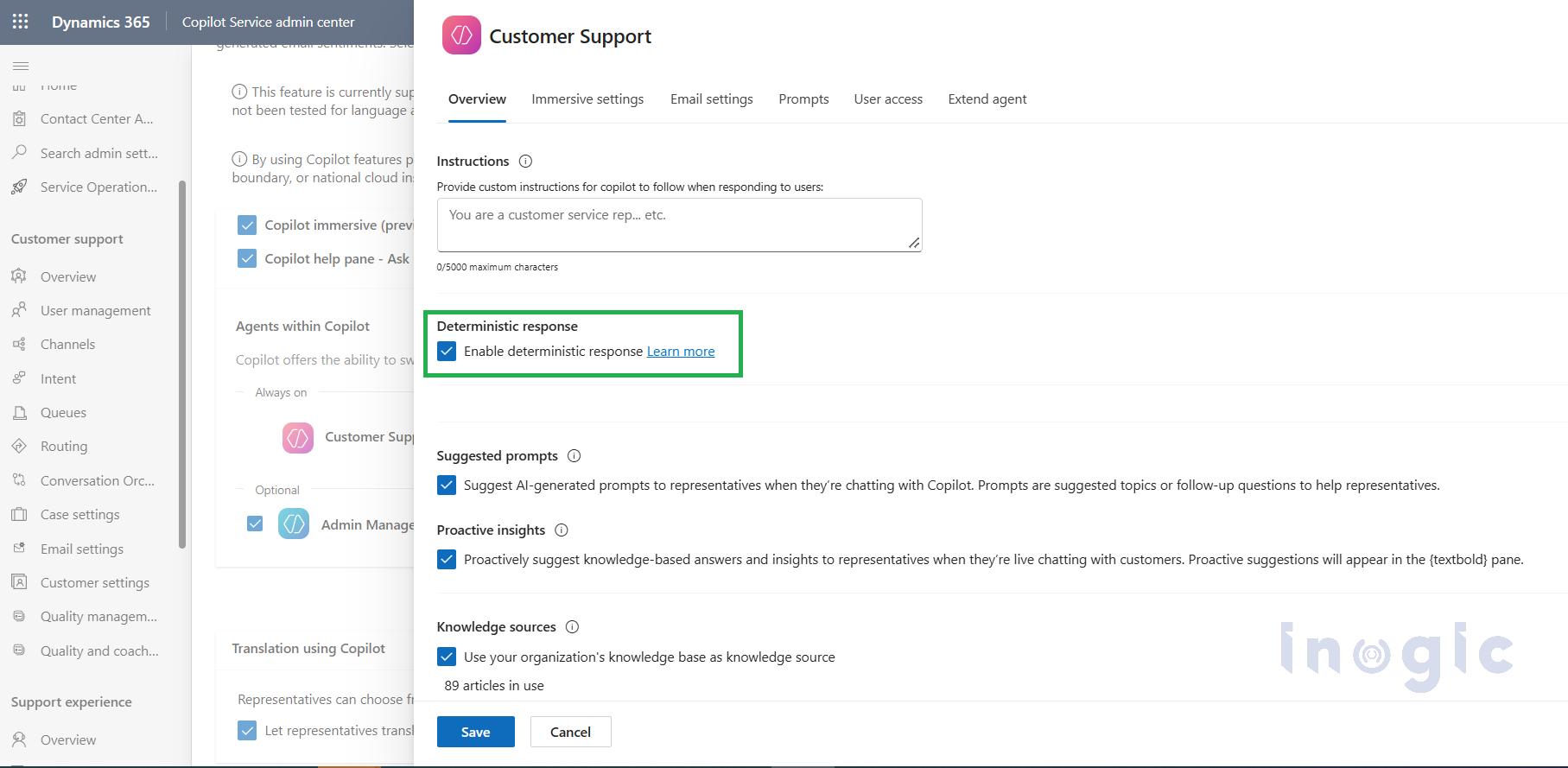
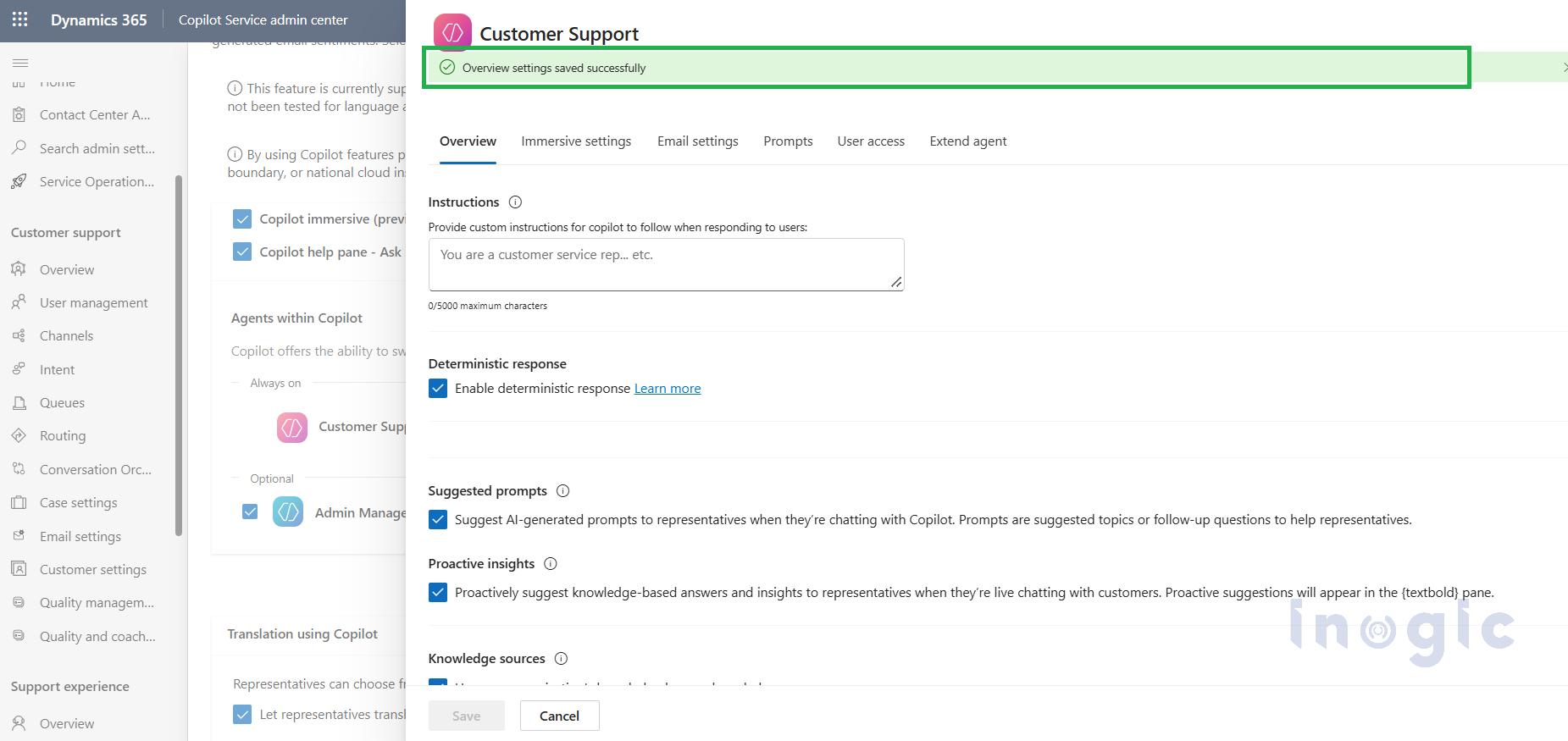
Once done, click the Save button as below:
Mark specific sections as Do not summarize:
- In the Copilot Service workspace, go to Service > Knowledge Articles.
- Select the subsection that must stay exact.
- The walkthrough describes this as a Do not summarize button on the designer command bar, which adds a bordered section where you paste the approved text.
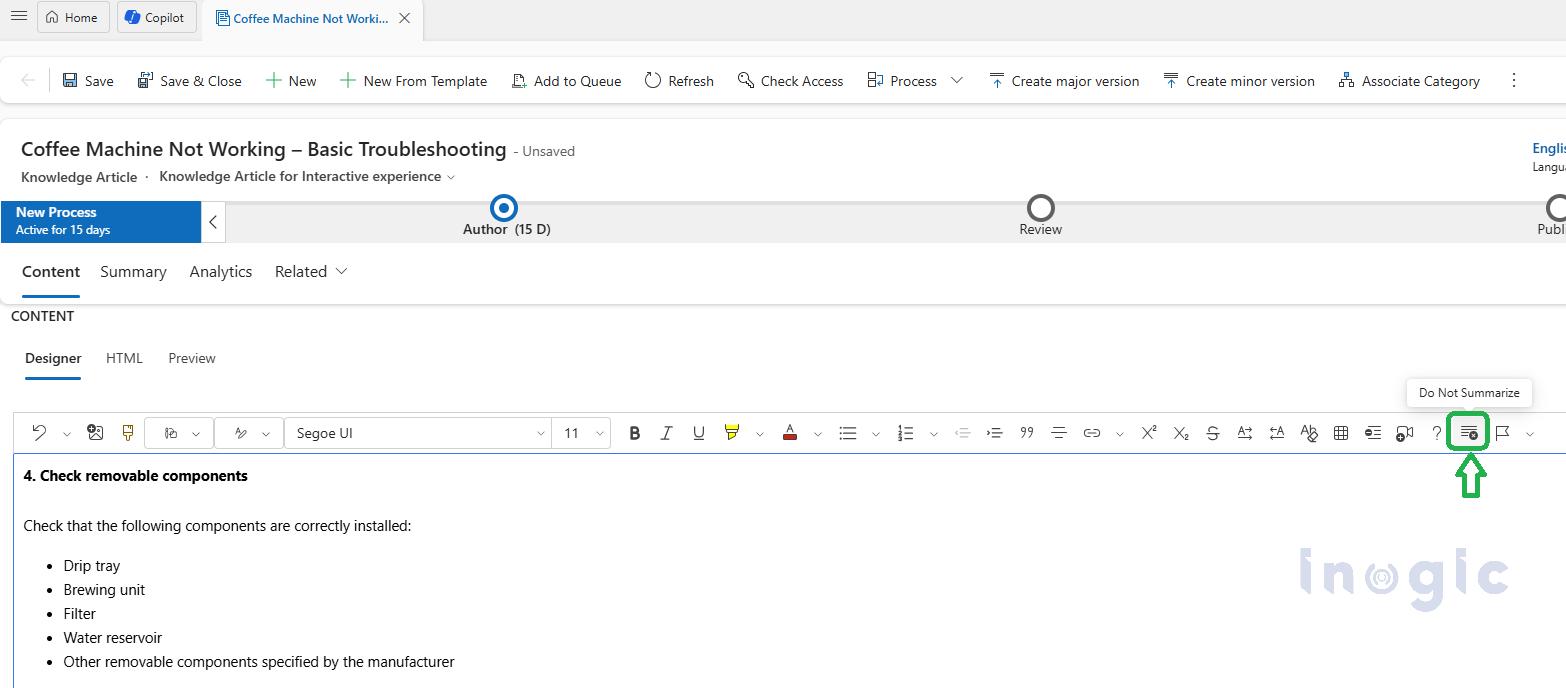
For example, if I wanted to keep the “Safety” precautions section as is (unaltered), then select that section and click on “Do not summarize” as shown below:
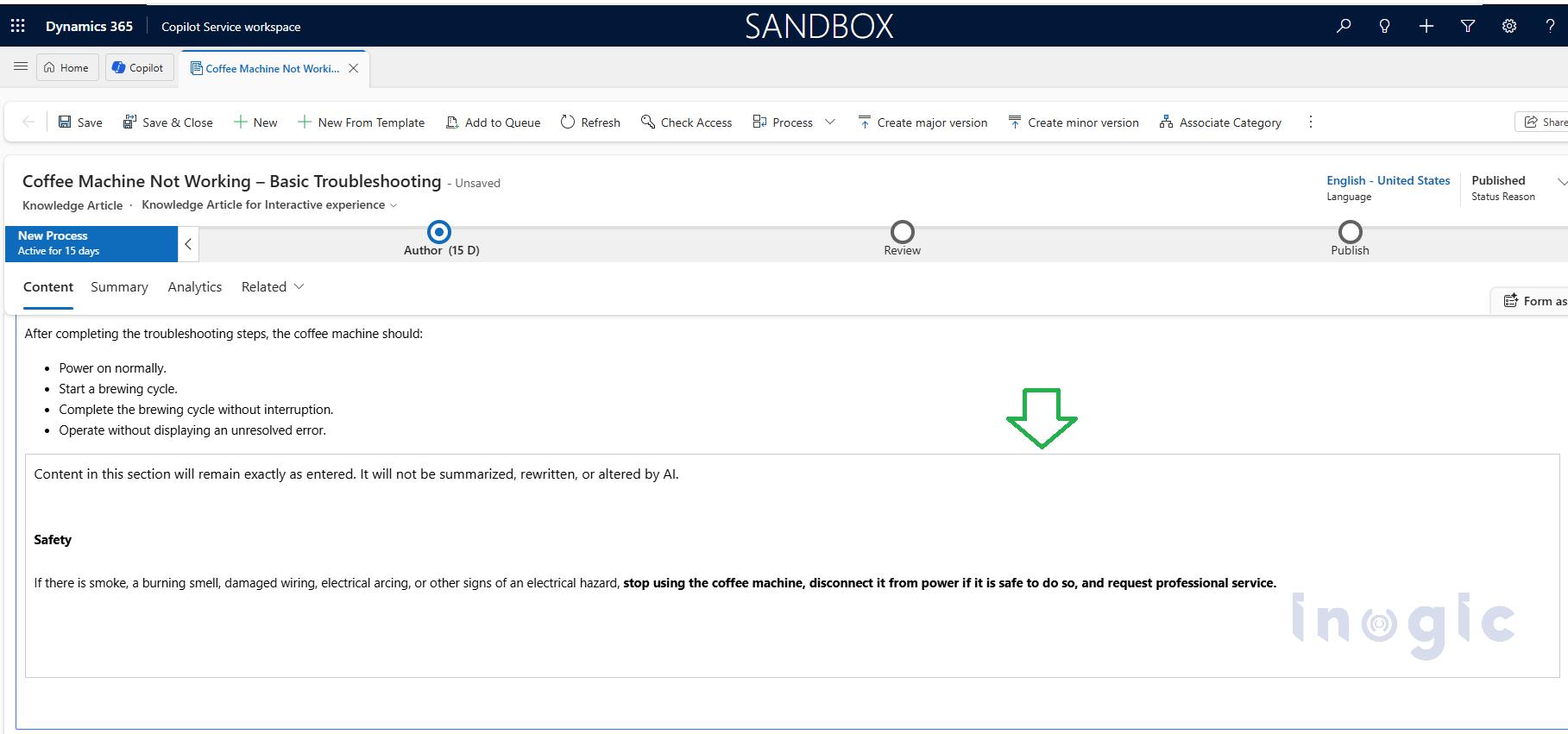
 After clicking, you will observe that a new section will be appended: “Content in this section will remain exactly as entered. It will not be summarized, rewritten, or altered by AI.”
You need to paste the text here in this section as shown below:
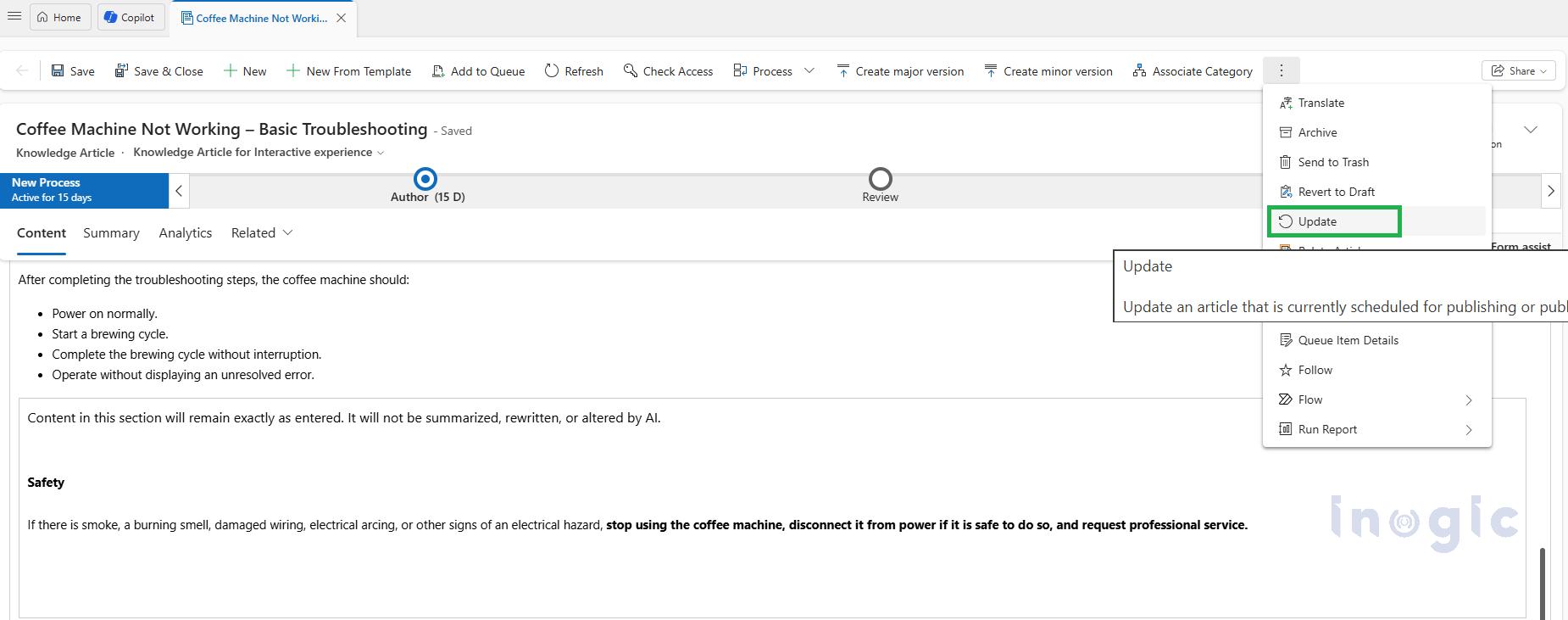
4. Save and publish if it’s a new article, or for an existing published article, you can click on the “Update” button as shown below:
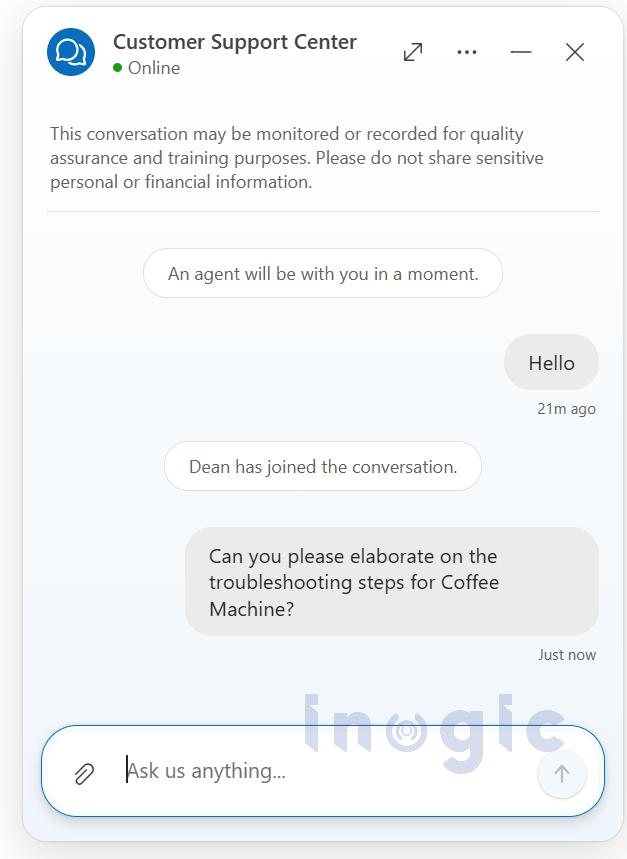
To see verbatim responses in action, we switch to the representative’s seat. A customer opens the chat window on the support site and sends a message through the chat widget, as shown below:
The available CSR agent will then receive this conversation and will accept it from below chat request:

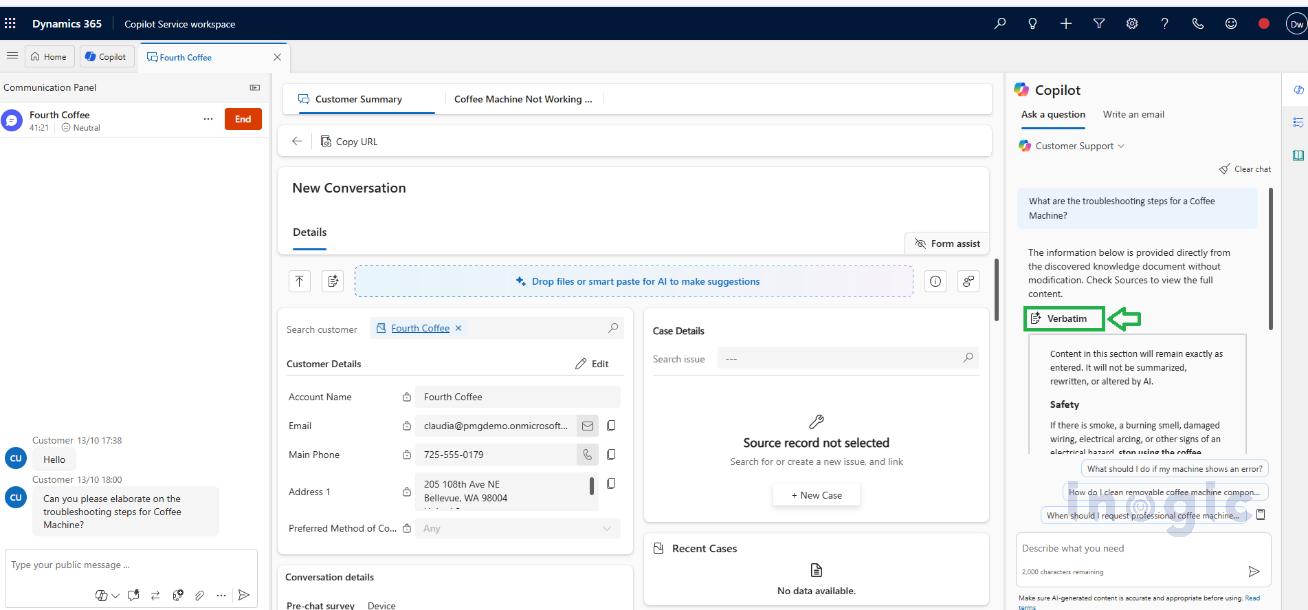
Once accepted, the agent will experience the conversation window as shown below, from where the agent uses the Copilot “Ask a question” feature.
As shown below, the word “Verbatim” appears in the response, indicating that this section is displayed exactly as provided, without any modifications.
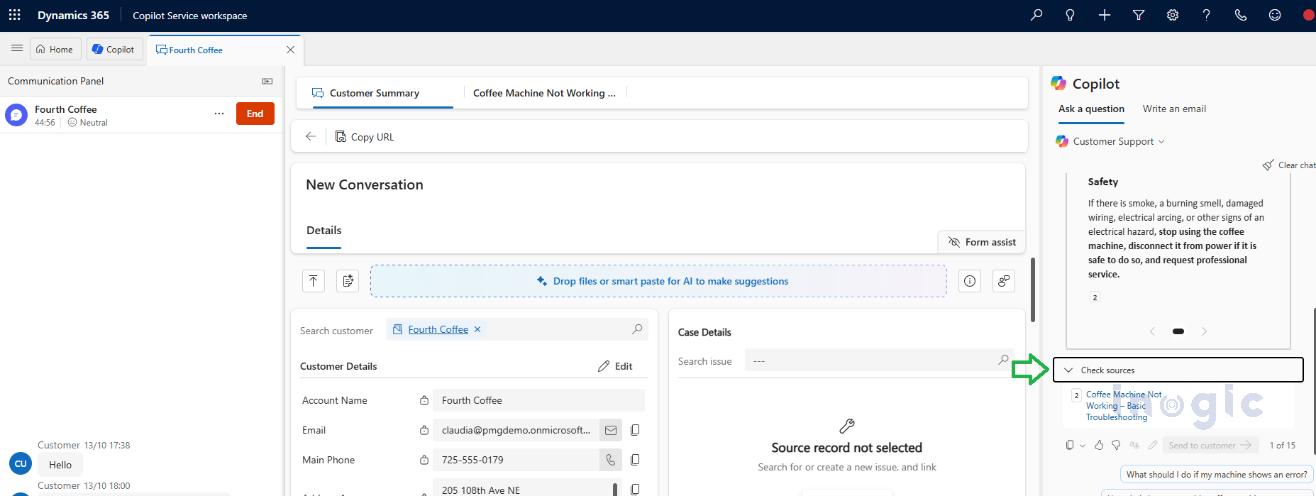
When you scroll down below you will find “Check sources” link as shown:
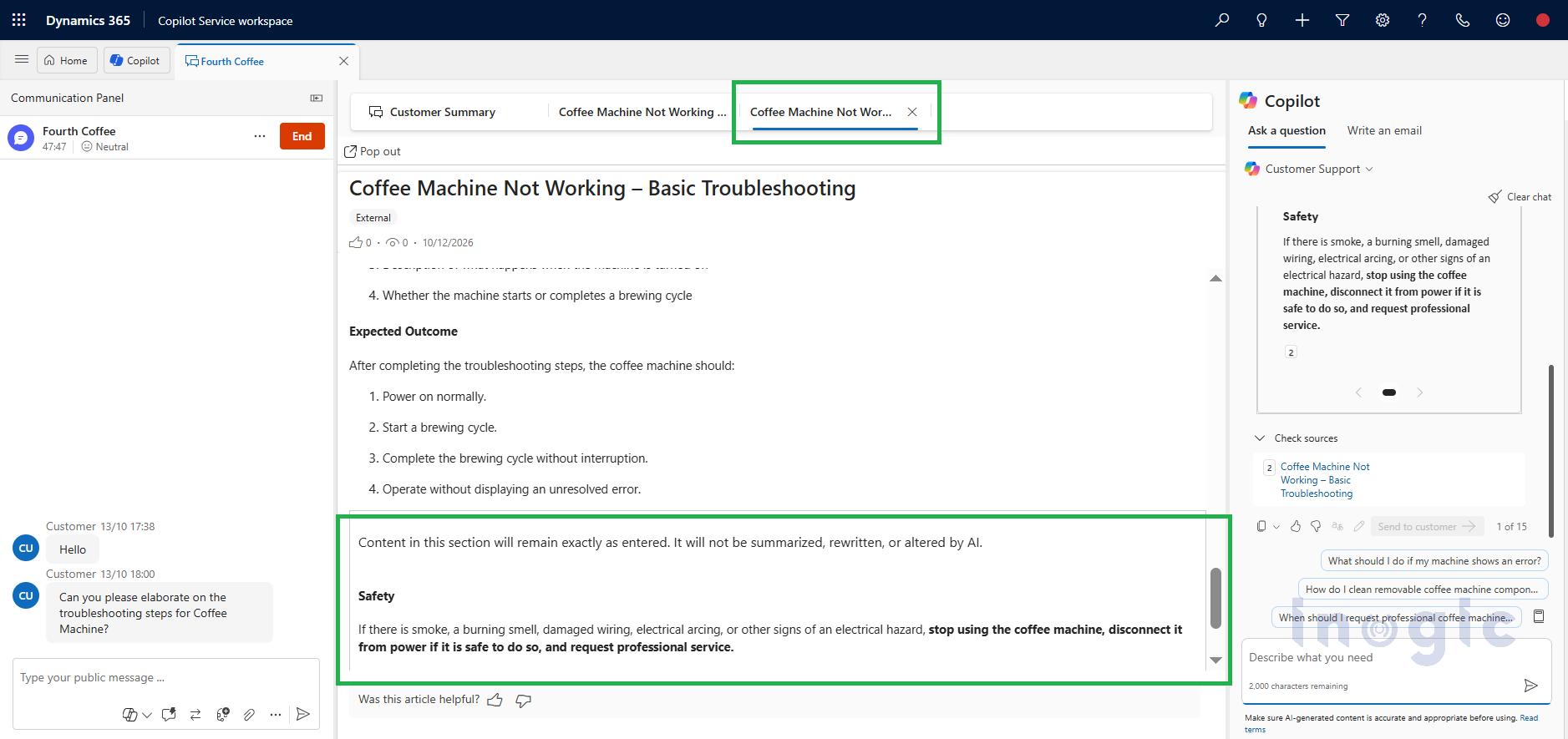
The Agent can open the Knowledge Source document and can review the complete article if needed, where that particular Verbatim header section will be highlighted as shown below:
“Content in this section will remain exactly as entered. It will not be summarized, rewritten, or altered by AI”.
Note: If you want to make the complete article verbatim, then add the “doNotSummarize” word in the keyword field. For more information, you can refer to this doc.
For a fully Verbatim article, the agent sees a notice that the content must be used exactly as written, with a link to the source article.
Things to keep in mind
- Only ask a question. Emails and chat drafts don’t follow verbatim rules.
- Use sections where you can. Marking a whole article verbatim removes the summarizing benefit for all of it.
- Be selective. Compliance statements, safety instructions, policies and approved messaging suit verbatim. Troubleshooting guides, how-tos and FAQs usually work better with a summarized answer.
- Check the output. Copilot output isn’t meant to be used without human review, so agents should still confirm the source.
- Existing limits apply. The Copilot FAQ says Copilot can’t currently read tables and images in knowledge articles, so don’t rely on verbatim text inside a table.
Conclusion
Verbatim responses give teams a way to keep AI help without giving up exact wording. The setup is small: one keyword for a whole article, or a tag on a section. The gain is that approved text reaches the customer unchanged. Start with your highest-risk articles, such as disclosures and regulated procedures, tag those, and check how they appear in Ask a question before rolling out further.