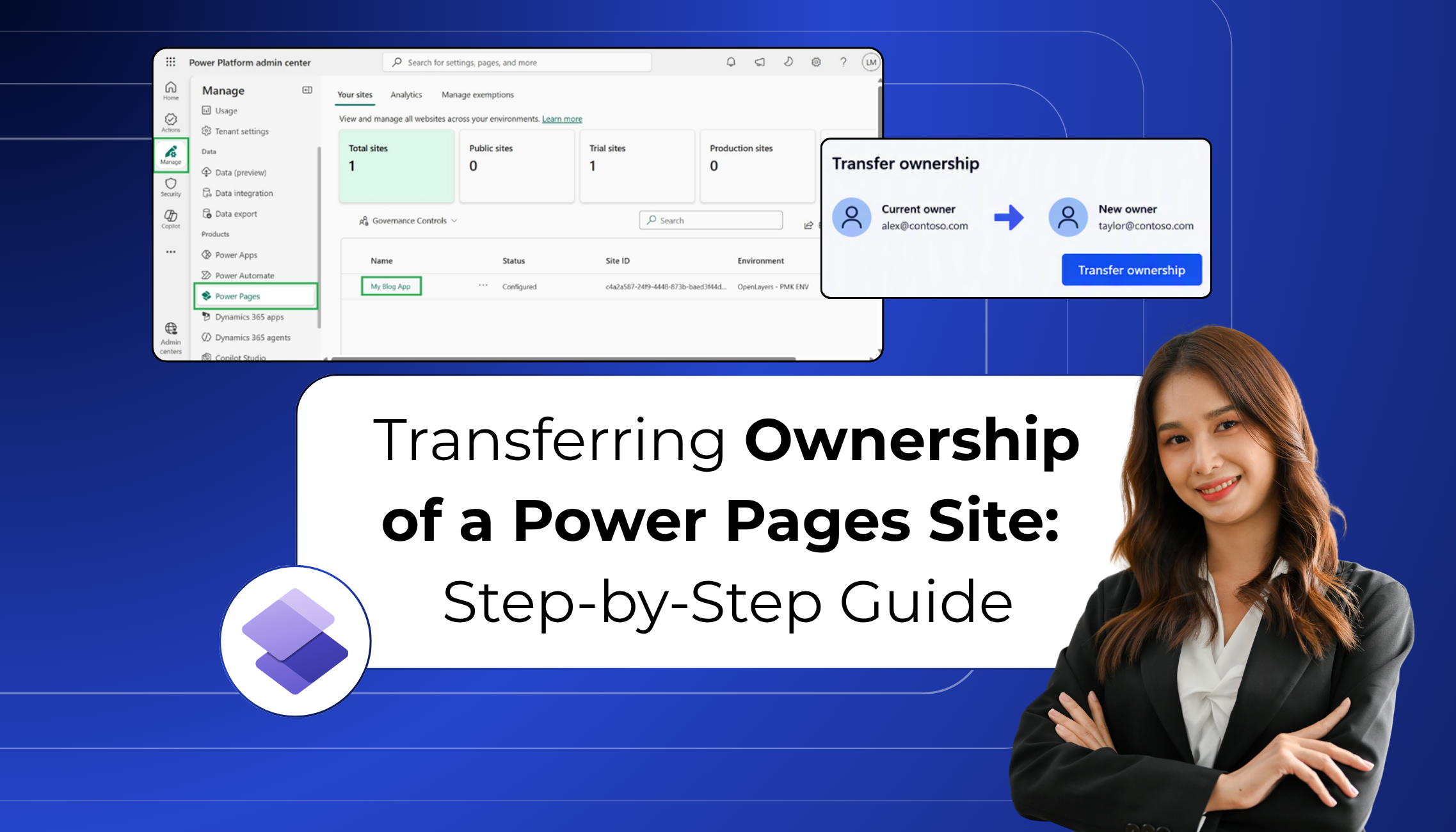
When the person responsible for a Power Pages site moves to another role or leaves the organization, ownership should be transferred to someone who will manage the site going forward.
Microsoft provides an option to transfer site ownership through the Power Platform admin center. This guide covers the process, the impact on Dataverse records, and how to verify the transfer using activity logs.
Key Takeaways
- Site ownership can be transferred in the Power Platform admin center under Manage > Power Pages.
- You must be a website owner who is also a System Administrator, a Dynamics 365 administrator, or a Power Platform administrator.
- The new owner needs an active Microsoft Entra account with the Member user type, not a guest account.
- The transfer cannot be automatically undone. Another authorized administrator must perform a new transfer to restore the previous owner.
- Transferring site ownership does not change ownership of Dataverse records such as Accounts, Contacts, and Cases. Reassign these separately.
- After the transfer, confirm the new owner’s access and check whether the previous owner still has permissions.
Why transfer site ownership?
Consider an organization that uses a Power Pages site to let its customers submit service requests, track cases, and access documents.
When the current site owner moves to another role, a new user takes responsibility for managing the site. Transferring ownership helps maintain accountability and ensures the site has a designated owner.
However, transferring site ownership and transferring ownership of Dataverse records are two separate tasks.
Prerequisites
Before starting, confirm the following:
- Permissions: You must be a website owner who is also a System Administrator, a Dynamics 365 administrator, or a Power Platform administrator.
- Admin center access: You must have access to the Power Platform admin center.
- New owner: The new owner must have an active Microsoft Entra account with the Member user type, rather than a guest account.
For details, refer to Microsoft’s Power Pages admin roles documentation.
Steps to transfer site ownership
Follow these steps in the Power Platform admin center.
- Open Power Pages
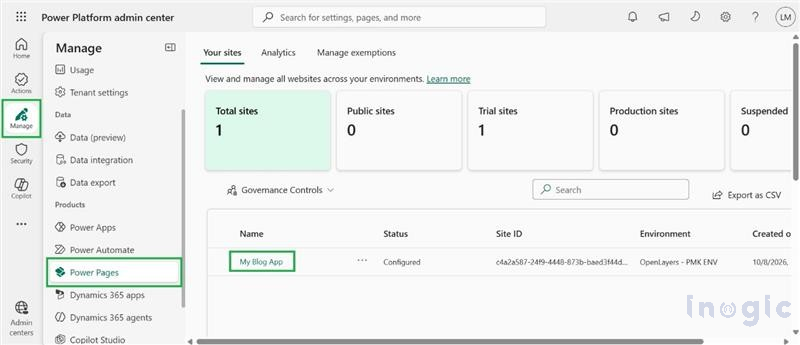
Sign in to the Power Platform admin center. Select Manage > Power Pages to view the available sites.
- Select your site
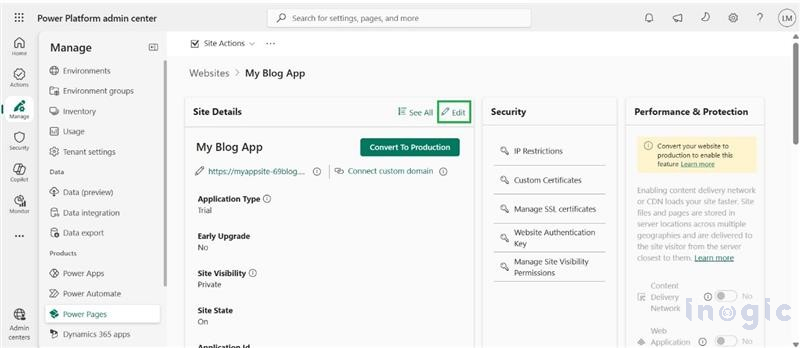
Select the site whose ownership you want to transfer. The Site Details page displays its configuration and current owner information.
- Under Site Details, select Edit to open the Edit Details panel.

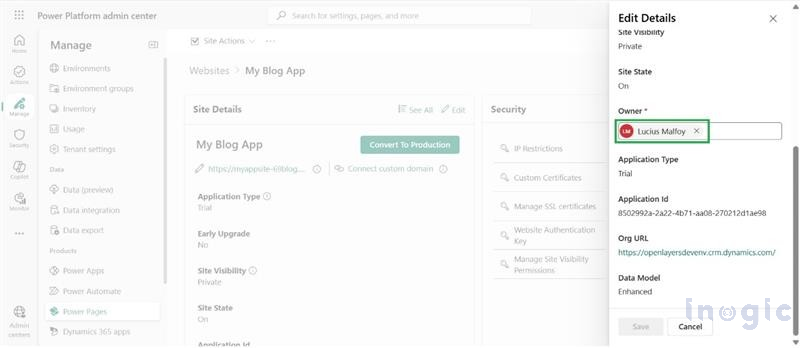
- Change the owner
In the Owner field, remove the existing owner and search for the new owner. Select the appropriate user.
- Save and confirm
Select Save. Review the confirmation message and select Transfer to complete the process.
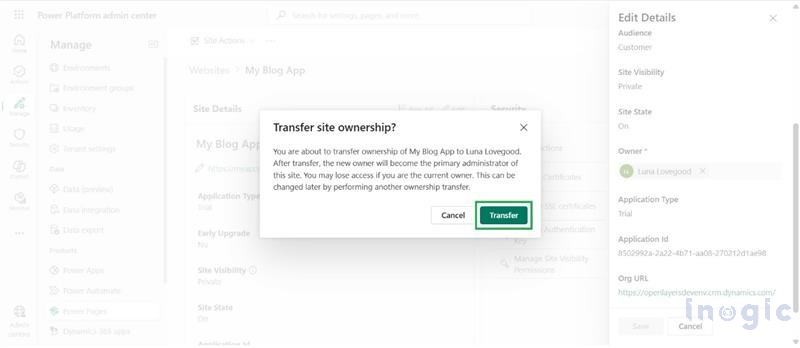
After the transfer, verify that the new owner can access and manage the site.
Note: The transfer cannot be automatically undone. An authorized administrator must perform another transfer to restore the previous owner.
Transferring a Power Pages site’s ownership does not change the ownership of Dataverse records. Records such as Accounts, Contacts, and Cases remain assigned to their existing owners unless reassigned separately.
To transfer these records, use the Reassign Records option in the Power Platform admin center or update ownership in Dataverse. Afterward, verify the record owners and review any related permissions, records, or workflows that may be affected.
For more information, refer to Microsoft’s Update a record Owner and Owning Business Unit documentation.
After the transfer
Once the transfer is complete:
- Confirm that the new owner appears in the site’s details.
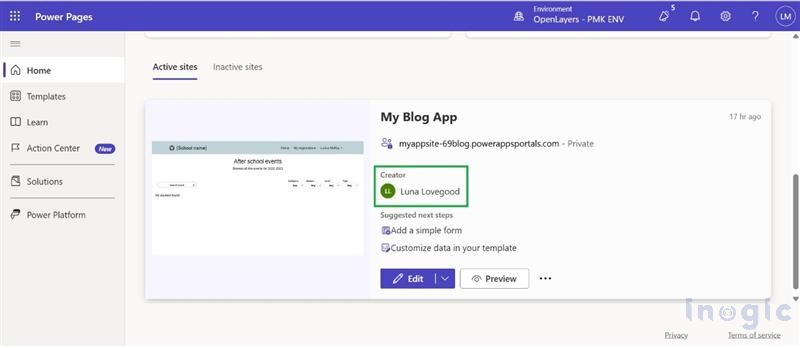
- Ask the new owner to verify access to the site.
- Check whether the previous owner still has access, and update permissions if necessary.
- Review Dataverse records separately and reassign them if required.
Conclusion
Transferring a Power Pages site is a straightforward administrative task, but it is important to distinguish site ownership from Dataverse record ownership. The new owner becomes responsible for the site, checking both the Power Pages activity logs and Dataverse record ownership helps ensure that the handover is complete.
FAQs
How do I transfer ownership of a Power Pages site?
Sign in to the Power Platform admin center, go to Manage > Power Pages, select the site, choose Edit under Site Details, replace the Owner, then select Save and Transfer.
Who can transfer Power Pages site ownership?
A website owner who is also a System Administrator, a Dynamics 365 administrator, or a Power Platform administrator.
Does transferring a Power Pages site also transfer Dataverse records?
No. Accounts, Contacts, Cases, and other Dataverse records stay with their current owners until you reassign them using Reassign Records or by updating ownership in Dataverse.
Can I undo a Power Pages site ownership transfer?
Not automatically. An authorized administrator must perform another transfer to restore the previous owner.
What should I check after transferring a Power Pages site?
Confirm the new owner appears in Site Details, ask them to verify access, check whether the previous owner still has access, and review Dataverse record ownership.
What happens when a Power Pages site owner leaves the organization?
Transfer site ownership to an active Member user so the site has a designated owner, then reassign any Dataverse records that belonged to the departing user.