 As part of the 2026 Release Wave 1, Microsoft introduced the Security Agent in Power Pages to help makers configure and improve website security using AI-powered guidance. One of its key capabilities is assisting with authentication configuration, making it easier to implement secure sign-in experiences while following Microsoft’s recommended security practices.
Authentication is one of the most critical aspects of securing any website. However, configuring it correctly can often be complex and time-consuming.
With the Security Agent, developers and makers can receive intelligent recommendations, review existing authentication settings, and confidently apply security improvements without manually navigating every configuration option.
Let’s take a closer look at the Security Agent, its core capabilities, how it helps simplify authentication configuration, and how it can be used effectively in a Power Pages website.
Key Takeaways
- Configure Power Pages authentication using AI-powered guidance.
- Receive security recommendations based on Microsoft’s best practices.
- Review authentication settings before applying changes.
- Reduce configuration errors through guided recommendations.
- Retain full control by reviewing and confirming every change before it is applied.
Benefits of Security Agent
The Security Agent is an AI-powered assistant available in the Security workspace of Power Pages Design Studio.
It helps makers improve the security of their websites by:
- Reviewing website security settings
- Providing security recommendations
- Helping configure authentication
- Explaining security concerns in simple language
- Suggesting improvements before changes are applied
Unlike automated configuration tools, the Security Agent never applies changes automatically. Makers remain in full control and can review, modify, or reject every recommendation before it is implemented.
Use Case
Let’s take a look at the following scenario: ABC company creates a customer support website using Power Pages where customers can log in, raise support tickets view their data and file a complaint about the issues they are facing.
To guarantee that only customers who have registered can safely log in, the administrator must set up authentication. Rather than manually verifying all authentication settings, they utilize the Security Agent.
In accordance with Microsoft’s best security practices, the Security Agent evaluates the authentication settings, finds any potential problems, and suggests improvements. After reviewing these recommendations, the administrator makes the suggested changes and releases the website with more confidence.
During the website setup phase, this procedure helps reduce configuration errors, improve security, and save time.
Steps to Use Security Agent for Authentication in Power Pages
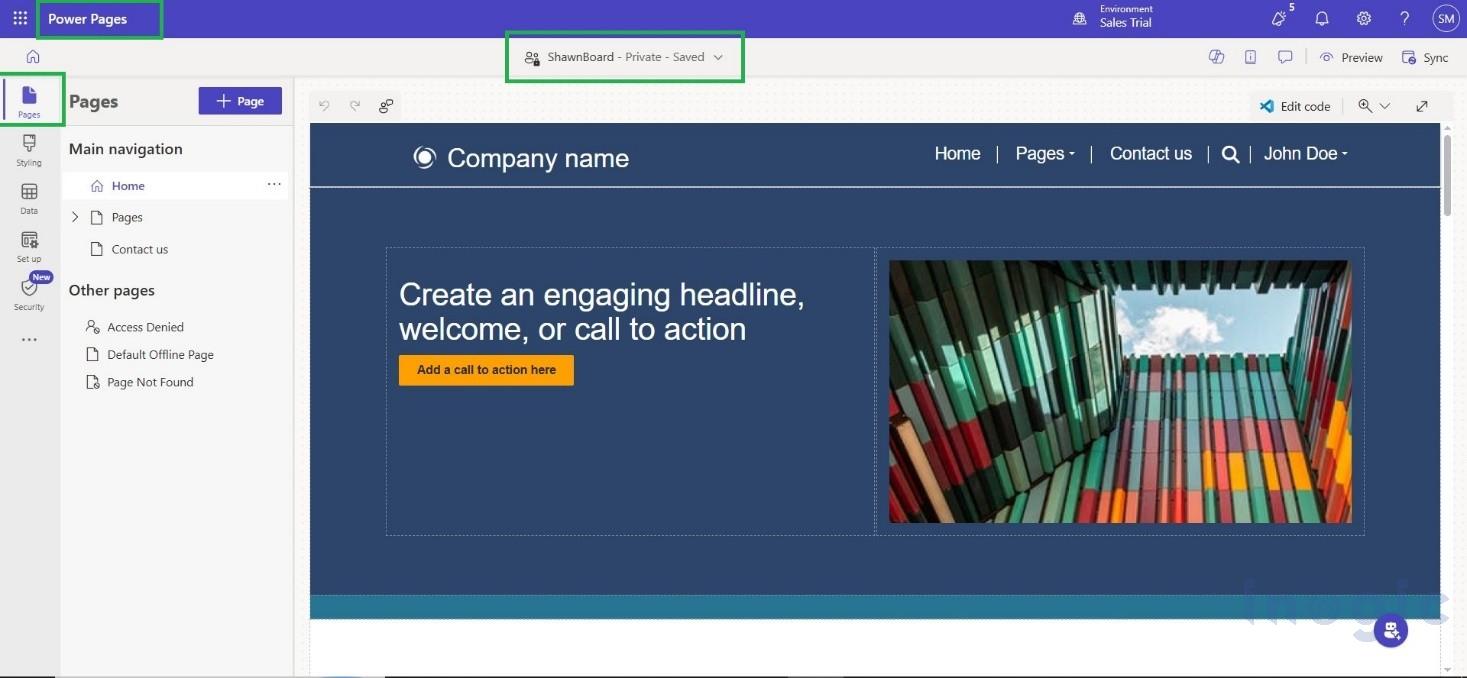
1. Open your Power Pages website
Sign in to Power Pages.
Open the website you want to configure.
2. Open the Security Workspace
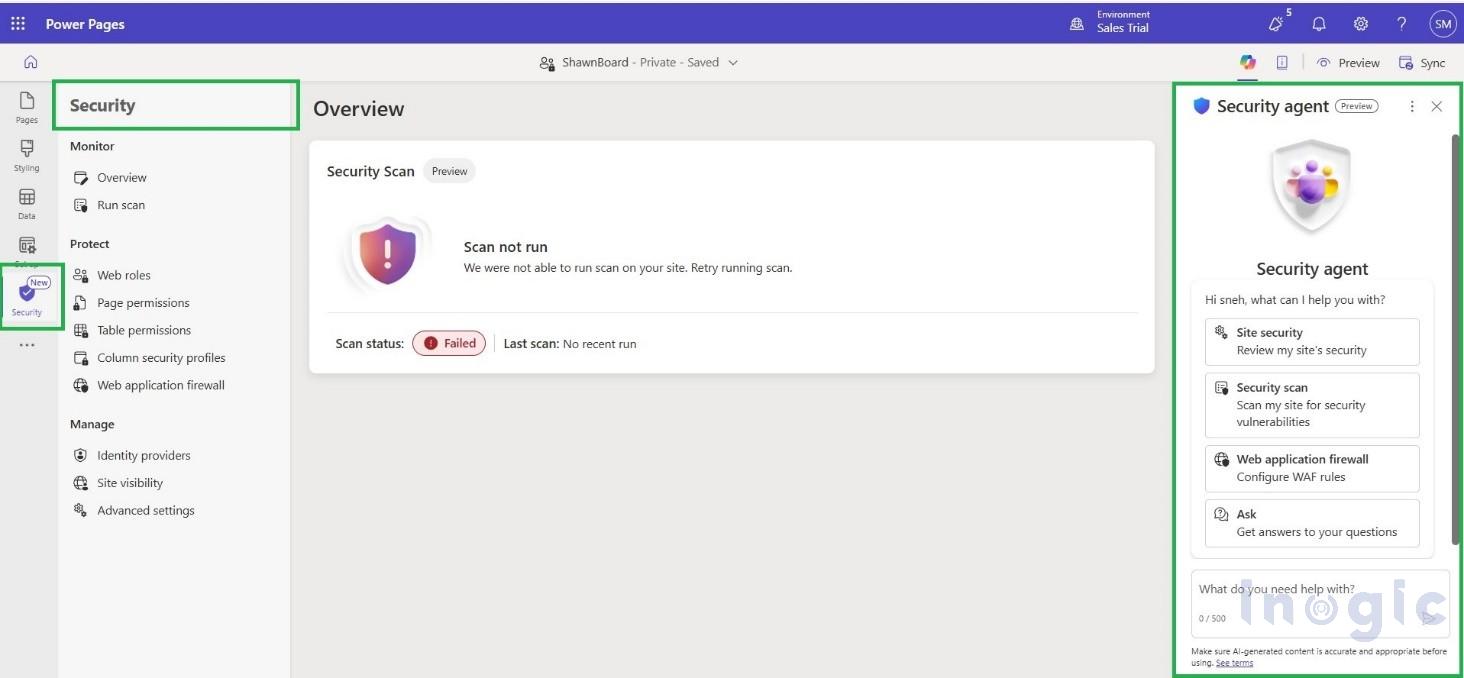
In Power Pages Design Studio:
Select Security from the left navigation pane.
Open the Security Agent tab.
The AI-powered Security Agent opens as a chat panel where you can interact using natural language.
3. Ask the Security Agent for Authentication Help
You can ask it questions in natural language, such as:
Help me configure authentication or Review my authentication settings.
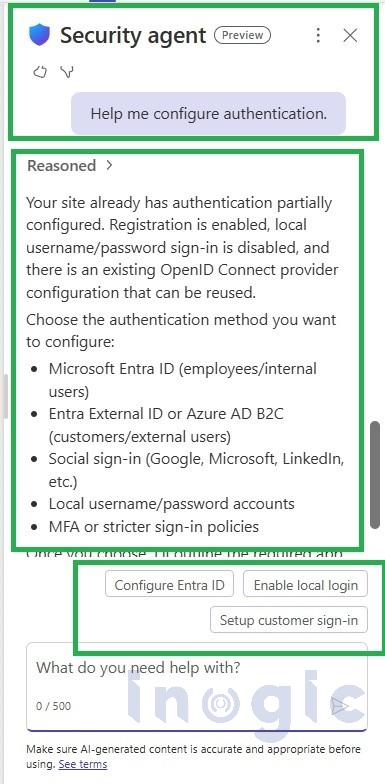
After entering the prompt “Help me configure authentication,” the Security Agent analysed the existing authentication settings of my Power Pages site. It found that the site’s authentication was only partially configured and recommended MFA, Microsoft Entra ID, Entra External ID (Azure AD B2C), Social Sign-in, and Local Login. Additionally, it offered rapid action buttons to specify the chosen login method, simplifying and expediting the setup procedure.
4. Review Authentication Configuration
After reviewing my authentication settings, the Security Agent recommended enabling Restrict Registration to improve the site’s security. It clarified that I could either turn off self-service sign-up while maintaining invitation-only access or completely disable new user registration.
5. Enable Invitation Access
Next, I asked the Security Agent to enable invitation access. It automatically updated the required authentication settings by disabling Open Registration and enabling Invitation Access. Before applying the changes, it displayed a confirmation card where I could review the settings and click Confirm. Once I clicked Confirm, the Security Agent updated the site’s authentication settings to Invitation Access, allowing only invited users to register and access the portal.
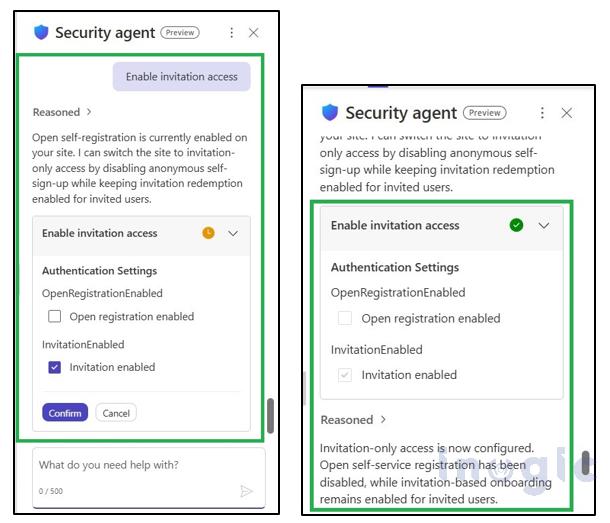
Note: The Security Agent does not apply changes automatically. It always asks for confirmation before updating your Power Pages authentication settings.
6. Verify the Changes
The Security Agent applies the chosen authentication settings once you click Confirm. To make sure the modifications have been applied correctly, you may check the revised configuration under the Security Agent. In this way we can change or Configure authentication with help of Security Agent.
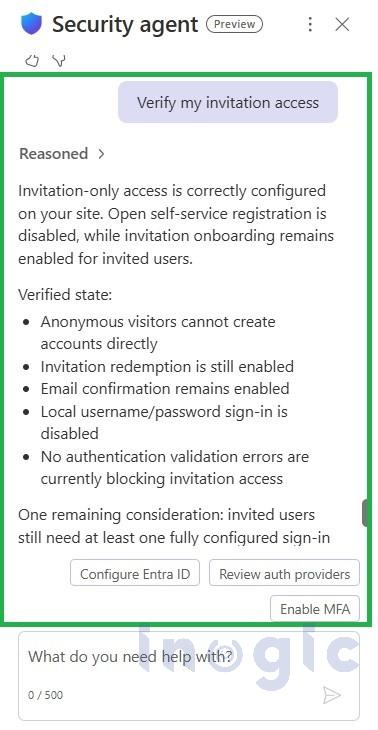
While this blog focuses on authentication, the Security Agent can also assist with other security-related tasks, such as reviewing website security settings, identifying potential vulnerabilities, and recommending improvements for additional Power Pages security features.
Conclusion
Authentication is one of the most important components of securing a Power Pages website, but configuring it correctly can often be complex and time-consuming. The Security Agent simplifies this process by providing AI-powered recommendations that help makers configure authentication more accurately while following Microsoft’s security best practices.
By reviewing existing settings, identifying potential security gaps, and recommending appropriate improvements, the Security Agent enables administrators to build more secure websites with greater confidence. As Microsoft continues to enhance this capability, it has the potential to make authentication management simpler, faster, and more reliable for Power Pages makers.
Frequently Asked Questions
1. What is the Security Agent in Power Pages?
The Security Agent is an AI-powered assistant available in the Security workspace of Power Pages Design Studio. It helps makers review security settings, configure authentication, and receive recommendations based on Microsoft’s security best practices.
2. Can the Security Agent automatically change authentication settings?
No. The Security Agent only recommends changes. Every configuration update requires administrator confirmation before it is applied.
3. What authentication methods can the Security Agent recommend?
Depending on your website configuration, it can recommend authentication options such as:
- Microsoft Entra ID
- Microsoft Entra External ID (Azure AD B2C)
- Multi-Factor Authentication (MFA)
- Social Sign-in
- Local Login
4. Does the Security Agent help improve website security?
Yes. It reviews your current security configuration, identifies potential weaknesses, explains security recommendations in simple language, and suggests improvements based on Microsoft’s best practices.
5. Can the Security Agent help with features other than authentication?
Yes. In addition to authentication, the Security Agent can assist with reviewing website security settings, identifying configuration issues, and recommending improvements for other Power Pages security features.
6. Is the Security Agent available inside Power Pages Design Studio?
Yes. The Security Agent is available through the Security workspace within Power Pages Design Studio.
7. Why should I use the Security Agent instead of configuring authentication manually?
The Security Agent simplifies the authentication setup process by providing AI-powered guidance, reducing configuration errors, saving time, and helping administrators implement Microsoft’s recommended security practices while maintaining complete control over every change.