 Organizations increasingly use Microsoft Fabric to build analytics and reporting solutions powered by Microsoft Dataverse data. However, during the initial Dataverse-to-Fabric setup, administrators often faced a challenge: they had little control over which tables were synchronized.
Previously, the first synchronization automatically replicated all eligible Dataverse tables, regardless of whether they were required for reporting or analytics. This often resulted in unnecessary data replication, increased storage consumption, and additional administrative effort.
To address this challenge, Microsoft has introduced Guided Table Selection for First-Time Dataverse Sync, enabling administrators to choose only the required tables before synchronization begins.
To see how this enhancement improves the setup experience, consider the following scenario.
Key Takeaways
- Administrators can now select specific Dataverse tables before the first Fabric sync.
- Unnecessary system and custom tables no longer need to be synchronized by default.
- Storage, compute usage, and administrative overhead are reduced.
- Analytics projects can be deployed faster with a cleaner and more focused data model.
Business Scenario
Michael Johnson, a Sales Operations Manager at Contoso Electronics, uses:
- Dynamics 365 Sales
- Microsoft Dataverse
- Microsoft Fabric
- Power BI
His leadership team requires reporting and analytics based only on the following Dataverse tables:
- Accounts
- Contacts
- Leads
- Opportunities
No additional tables are required for reporting purposes.
The Challenge Before Guided Table Selection
When Michael started configuring the Dataverse-to-Fabric link, he expected to choose only the tables needed for reporting.
Expected Experience
- Accounts
- Contacts
- Leads
- Opportunities
Actual Experience
Instead, Dataverse automatically selected and synchronized all eligible tables, including:
- Accounts
- Contacts
- Leads
- Opportunities
- Audit
- AsyncOperation
- PluginTraceLog
- Process Sessions
- System Jobs
- Hundreds of custom tables
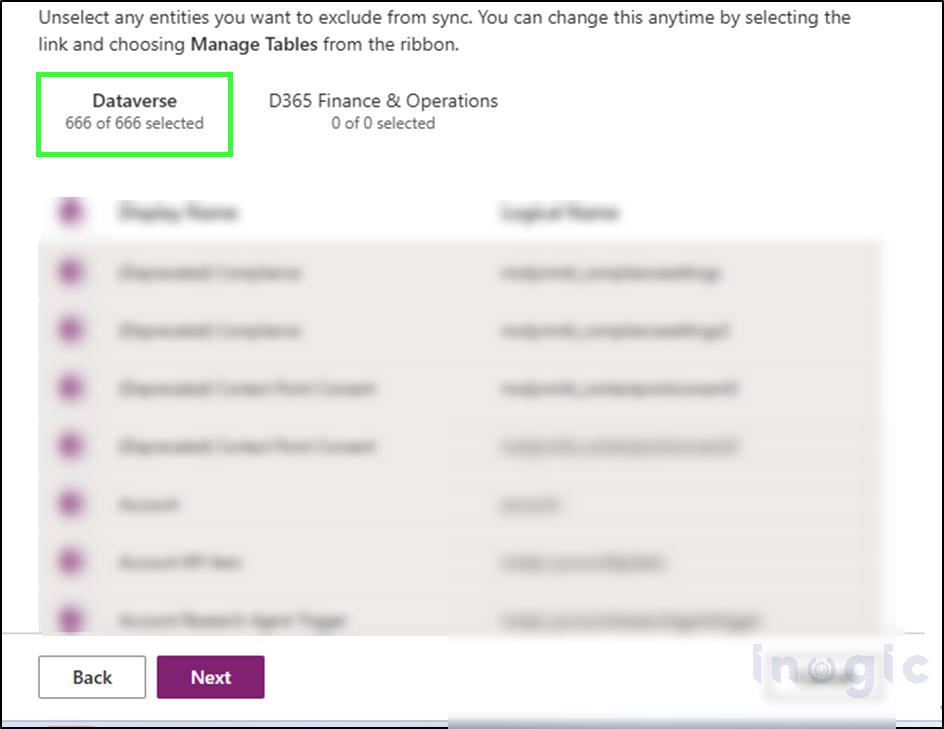
In Michael’s environment, nearly 666 tables were synchronized even though only four were required.
Prerequisites for Dataverse-to-Fabric Sync
Before configuring Dataverse synchronization with Microsoft Fabric, ensure the following prerequisites are met:
1. Dataverse Environment
An active Dynamics 365 or Power Apps environment with Dataverse enabled.
2. Microsoft Fabric Workspace
A Fabric workspace must be available to receive the synchronized data.
3. Required Permissions
The user performing the configuration should have:
- System Administrator or Environment Admin access in Power Platform.
- Workspace Admin or Member access in Microsoft Fabric.
4. Microsoft Fabric Licensing
Microsoft Fabric must be enabled and licensed for your organization.
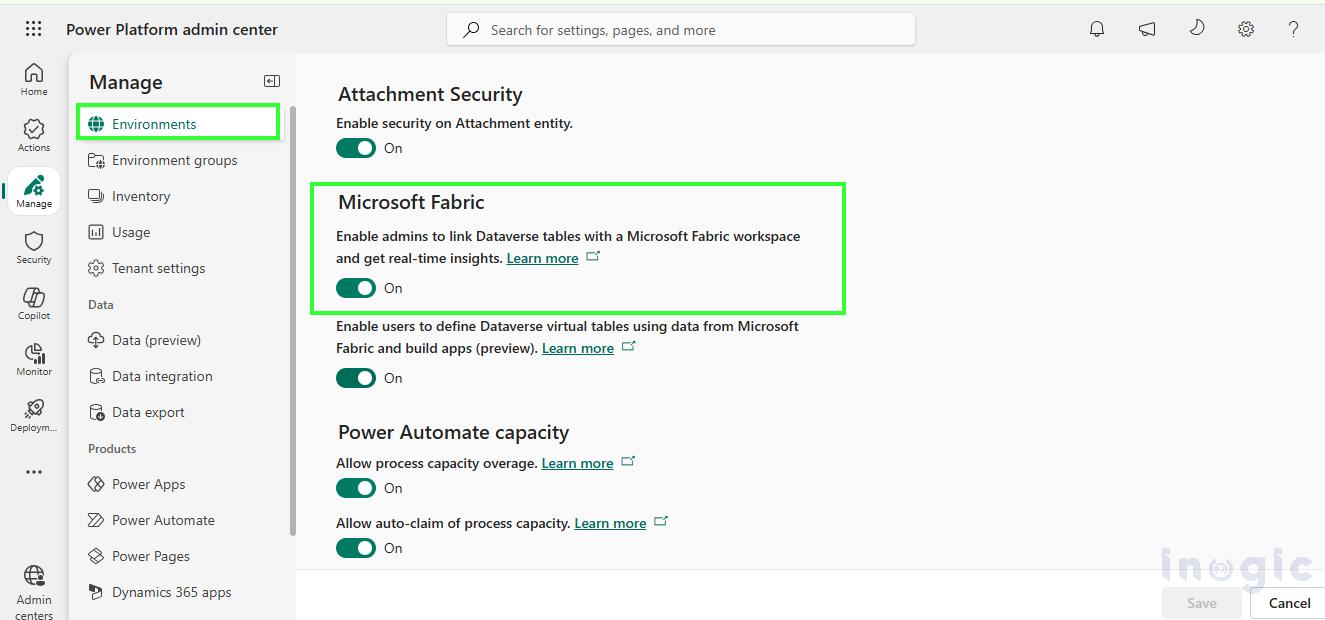
5. Link to Microsoft Fabric Availability
Verify that the Link to Microsoft Fabric option is available within your Dataverse environment.
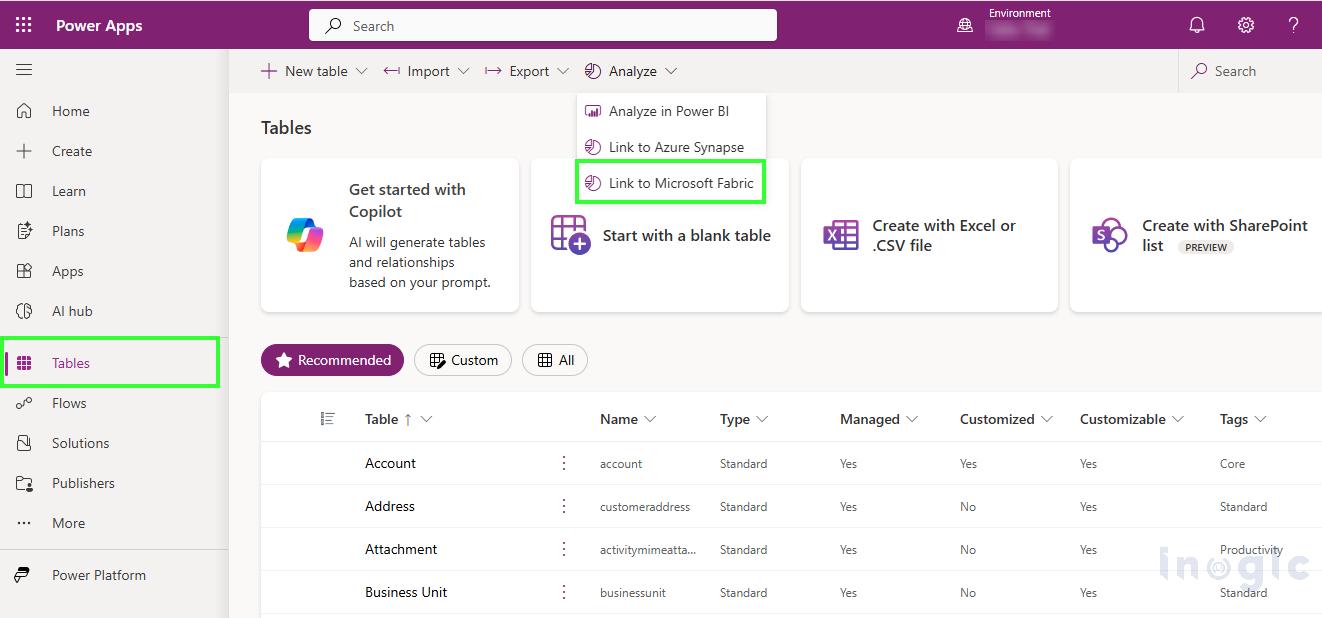
Traditional Dataverse-to-Fabric Setup
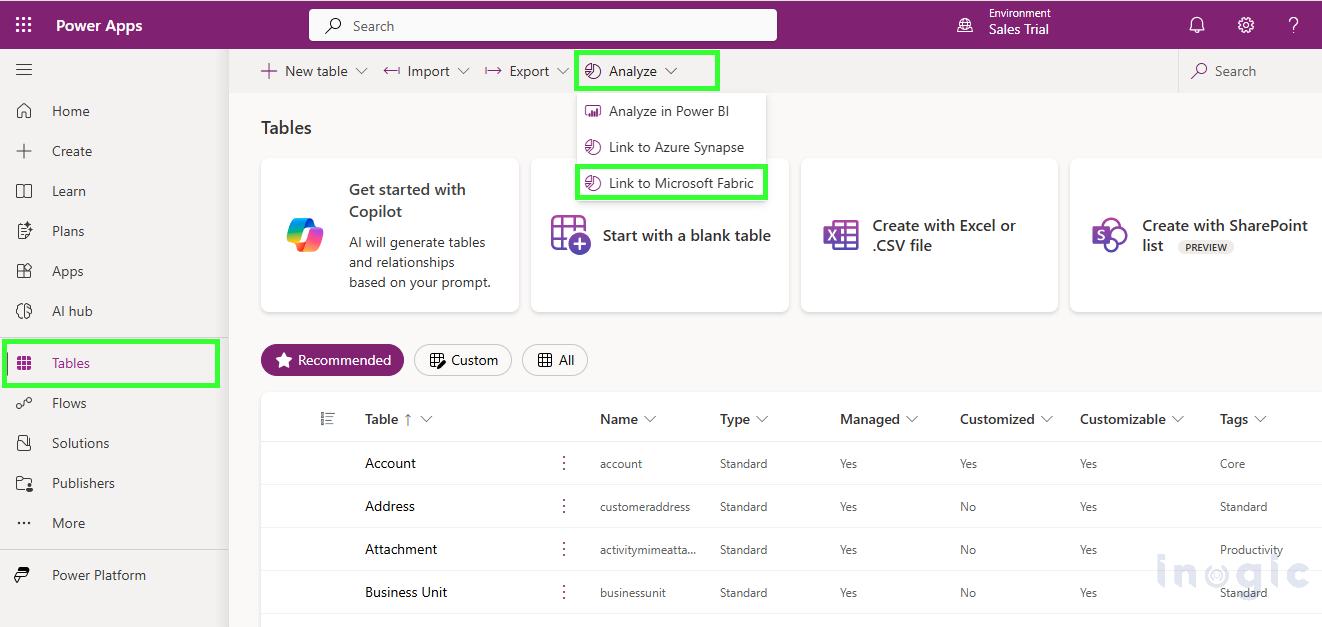
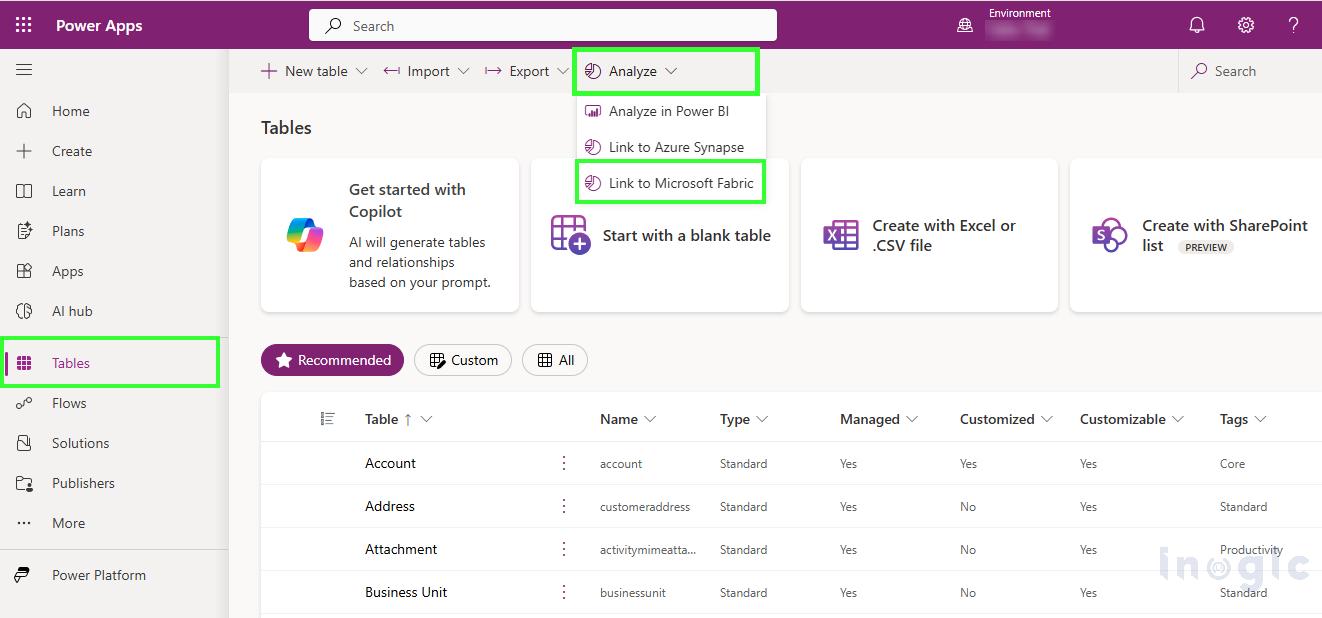
To create a Fabric link:
- Navigate to make.powerapps.com.
- Select your Dataverse environment.
- Open Tables.
- Click Analyze.
- Select Link to Microsoft Fabric.
Key Limitation
All eligible Dataverse tables were automatically selected, and administrators had no opportunity to choose only the tables they needed before the initial sync.
Important: All Dataverse tables were synchronized regardless of whether they were required for analytics or reporting.
Challenges with the Previous Approach
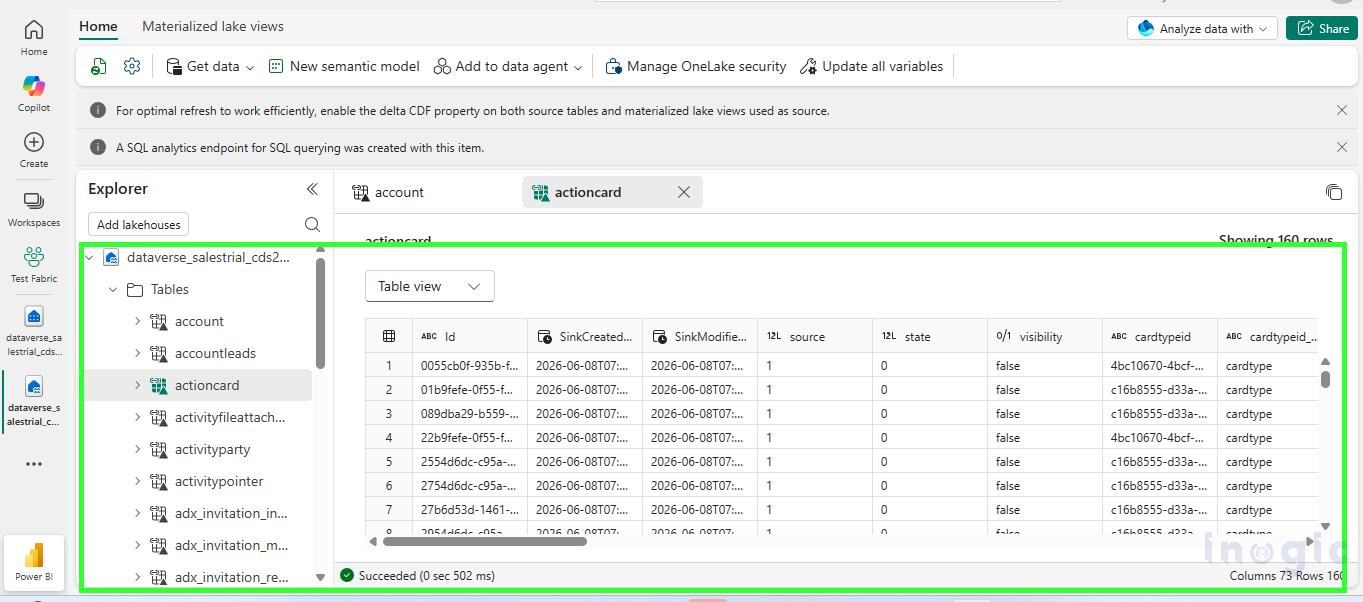
Excessive Storage Consumption
Fabric created storage objects for every replicated table, including many that were never used for reporting or analytics.
Although only four business tables were required, hundreds of additional tables consumed storage resources.
Increased Operational Costs
Synchronizing unnecessary data resulted in:
- Higher storage utilization
- Increased compute consumption
- Larger refresh operations
Additional Administrative Effort
Administrators had to manually:
- Open Manage Tables
- Review hundreds of synchronized tables
- Identify irrelevant tables
- Remove them individually
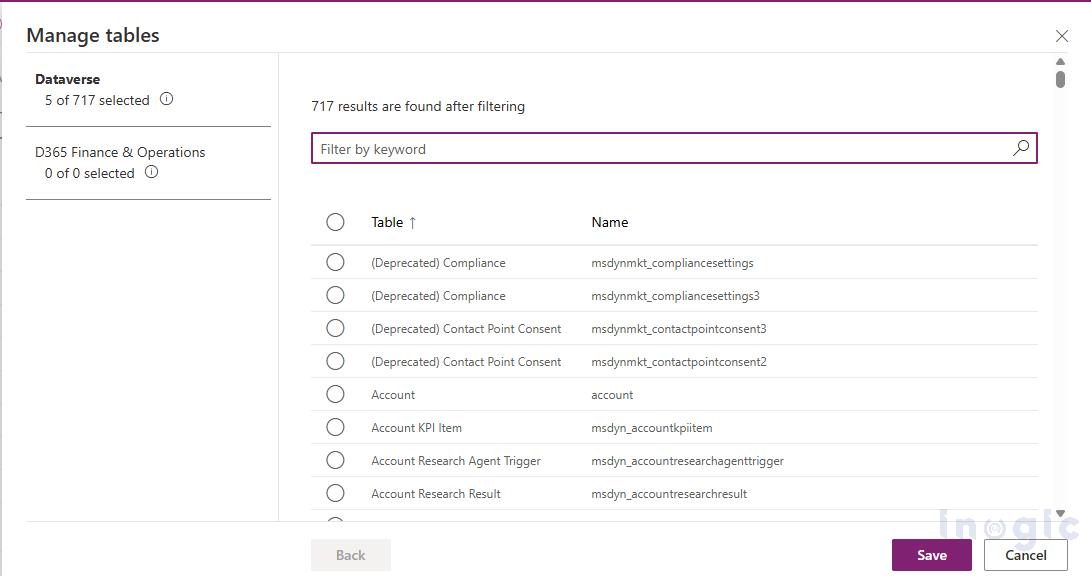
This process was both time-consuming and prone to error.
Complex Onboarding Experience
New administrators often struggled to identify:
- Business tables
- System tables
- Tables that could safely be excluded
As a result, onboarding became more complex than necessary.
Microsoft’s Solution: Guided Table Selection
With Guided Table Selection, table selection is now integrated directly into the initial setup experience.
Instead of synchronizing everything first and cleaning up later, administrators can choose exactly which tables should be synchronized before data movement begins.
How the New Experience Works
Step 1: Create the Fabric Link
Navigate to:
- make.powerapps.com
- Select the desired environment
- Open Tables
- Click Analyze
- Select Link to Microsoft Fabric
Step 2: Review Available Tables
The system now presents a list of available Dataverse tables before synchronization starts.
Example:
- Accounts
- Contacts
- Leads
- Opportunities
- Audit
- PluginTraceLog
- AsyncOperation
- Process Sessions
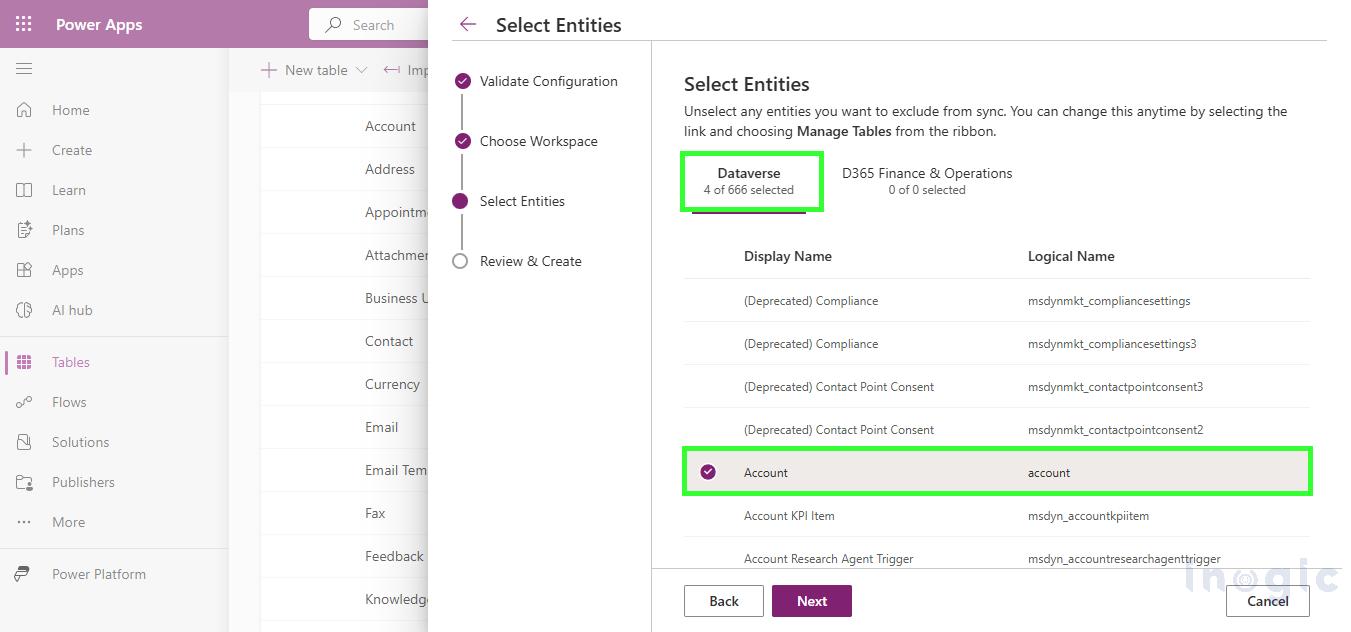
Administrators can select only the tables relevant to their reporting and analytics requirements.
Step 3: Confirm Table Selection
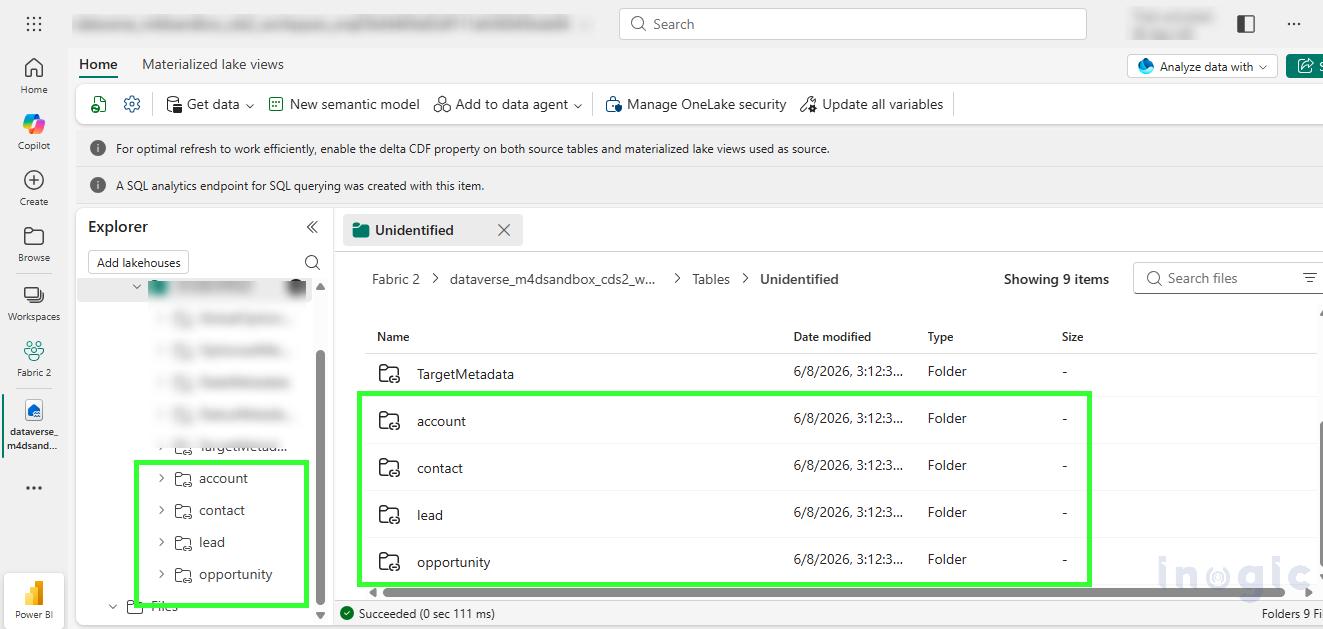
In Michael’s case, only the following tables were selected:
- Accounts
- Contacts
- Leads
- Opportunities
This reduced the synchronization scope from 300 tables to just 4 tables.
Step 4: Start Synchronization
Synchronization begins only for the selected tables, eliminating unnecessary data replication from the start.
Why This Feature Matters
The most significant improvement is not technical – it’s operational.
Organizations no longer need to:
- Synchronize all tables first
- Remove unwanted tables later
- Consume unnecessary storage resources
- Manage hundreds of irrelevant tables
Instead, they can:
- Synchronize only business-relevant tables
- Reduce storage and compute costs
- Simplify administration
- Accelerate analytics projects
Conclusion:
The introduction of Guided Table Selection for First-Time Dataverse Sync gives administrators greater control over the Dataverse-to-Fabric integration process. Rather than synchronizing every eligible table and removing unwanted ones later, organizations can now select only the tables that support their reporting and analytics requirements.
This streamlined approach reduces storage consumption, minimizes administrative effort, improves onboarding, and helps organizations realize value from Microsoft Fabric more quickly. For businesses looking to build efficient analytics solutions with Dataverse and Microsoft Fabric, this enhancement makes the setup process significantly more focused and manageable.
Frequently Asked Questions (FAQs)
1. What is Guided Table Selection in Dataverse-to-Fabric Sync?
Guided Table Selection is a new enhancement that allows administrators to select specific Dataverse tables before the first synchronization with Microsoft Fabric begins, rather than automatically replicating all eligible tables.
2. Why is Guided Table Selection important?
It helps organizations avoid synchronizing unnecessary tables, reducing storage consumption, compute usage, and administrative effort while creating a cleaner analytics environment.
3. Does this feature affect existing Dataverse-to-Fabric links?
No. Guided Table Selection is primarily designed for the initial setup experience. Existing Fabric links continue to be managed through the standard table management options
4. Can system tables be excluded during setup?
Yes. Administrators can review the available table list and choose only the business-relevant tables required for reporting and analytics.
5. What are the benefits of synchronizing fewer tables?
Benefits include:
- Lower storage consumption
- Reduced compute costs
- Faster refresh operations
- Easier administration
- Improved analytics performance