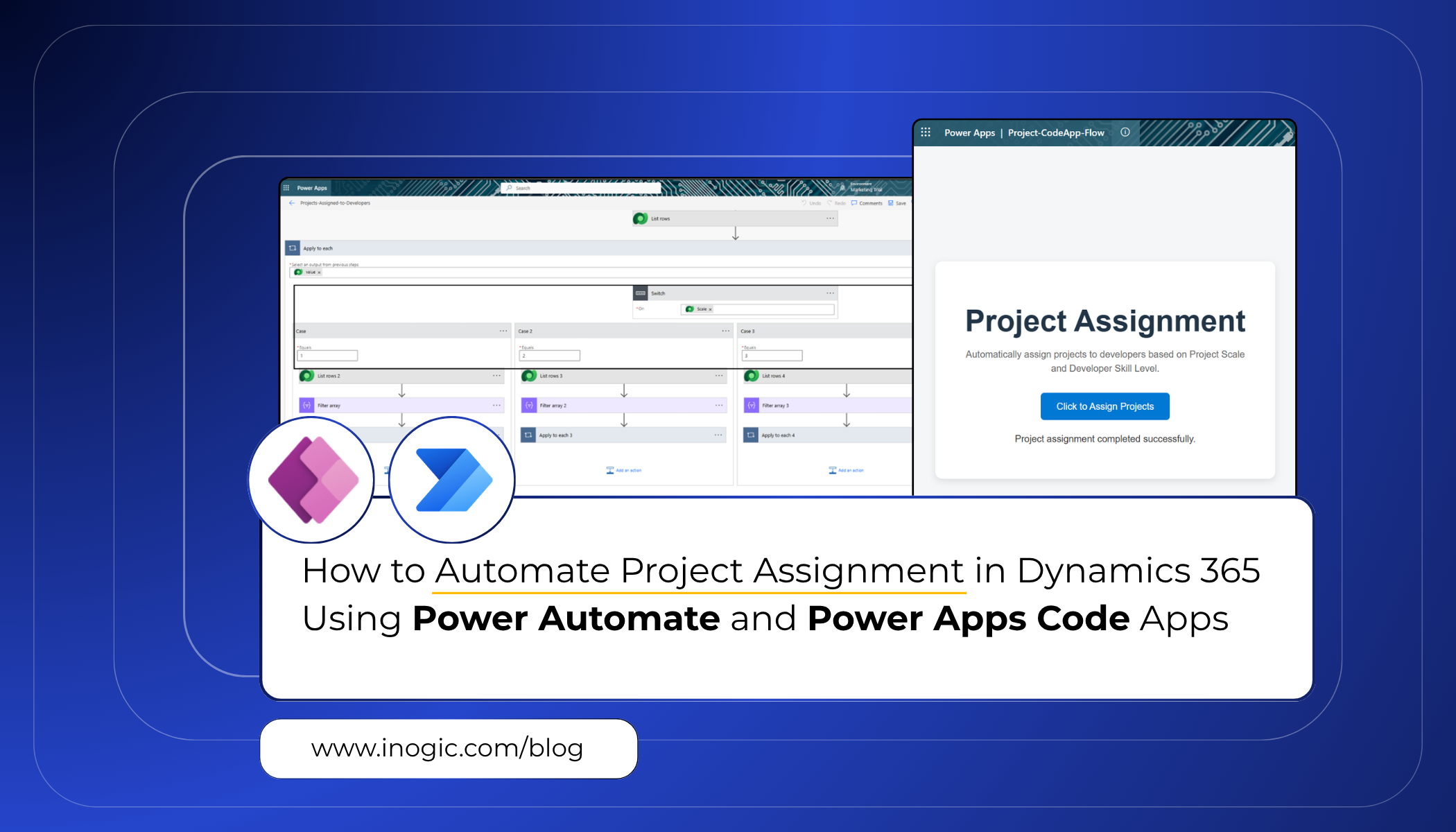
 This blog demonstrates how to automate project assignments in Microsoft Dynamics 365 using Microsoft Power Automate and Power Apps Code Apps, where unassigned projects are retrieved from Dataverse and automatically assigned to developers based on project scale and developer skill level.
Business Scenario
An IT services company manages multiple software development projects across different technologies and business domains. Since projects vary in complexity, scope, and business impact, the organization needs an efficient way to distribute projects among developers based on their experience and skill level.
The organization follows a scale-based project assignment strategy:
| Project Scale | Assigned To |
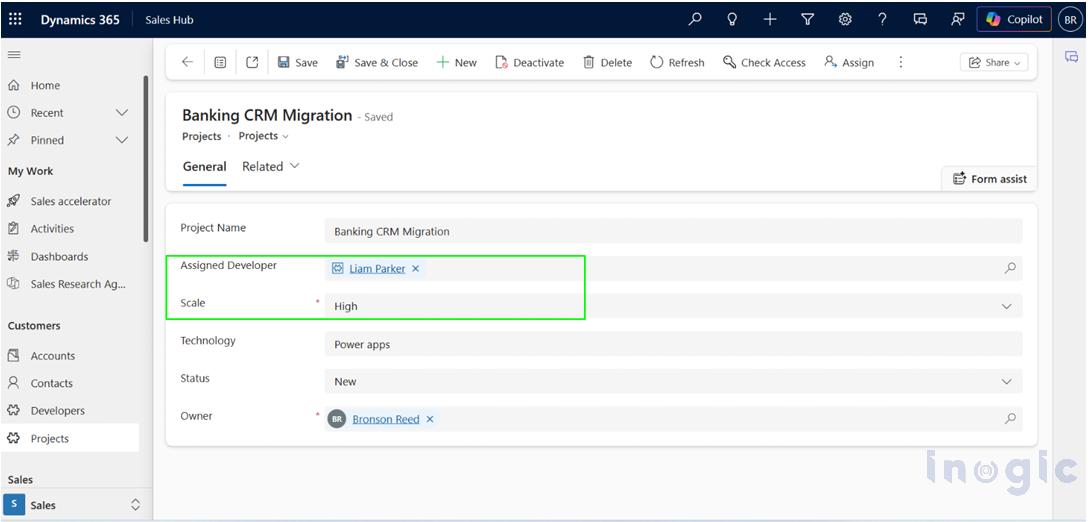
| High | Professional Developers |
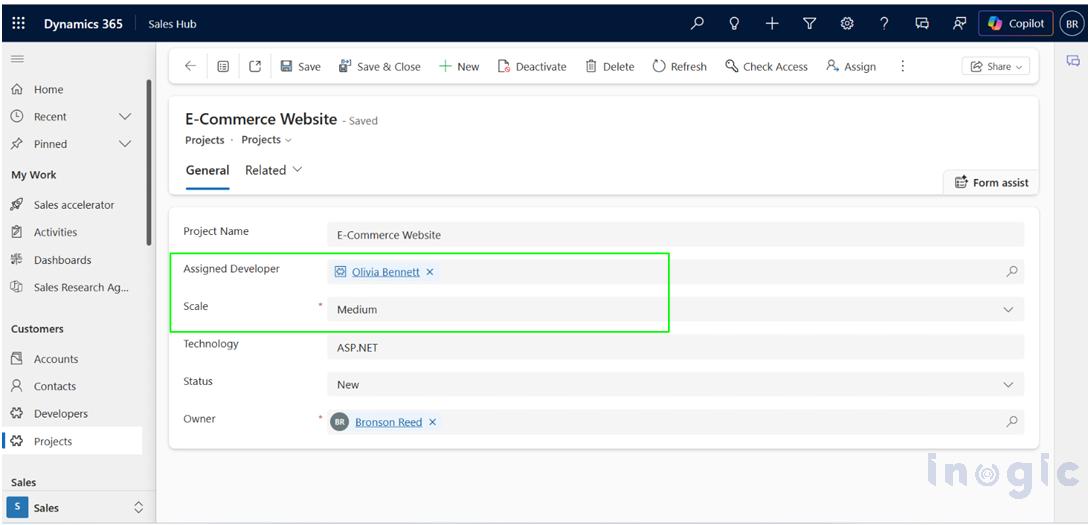
| Medium | Intermediate Developers |
| Low | Fresher Developers |
High-scale projects are usually handled by experienced professional developers because they involve enterprise-level architecture, complex integrations, critical business requirements, and larger implementation efforts. Medium-scale projects are assigned to intermediate developers, while low-scale projects are allocated to fresher developers for faster execution and learning opportunities.
Previously, project managers manually reviewed and assigned projects inside Microsoft Dynamics 365, which was time-consuming and often caused delays in project allocation and resource management.
To solve this problem, the organization automated the project assignment process using:
- Microsoft Power Automate
- Dataverse
- Power Apps Code Apps
Prerequisites
Before starting, ensure you have:
- Microsoft Dynamics 365 with Dataverse enabled
- Access to Microsoft Power Automate and Power Apps
- Node.js installed
- Visual Studio Code
- Power Platform CLI (pac)
Creating the Power Automate Flow
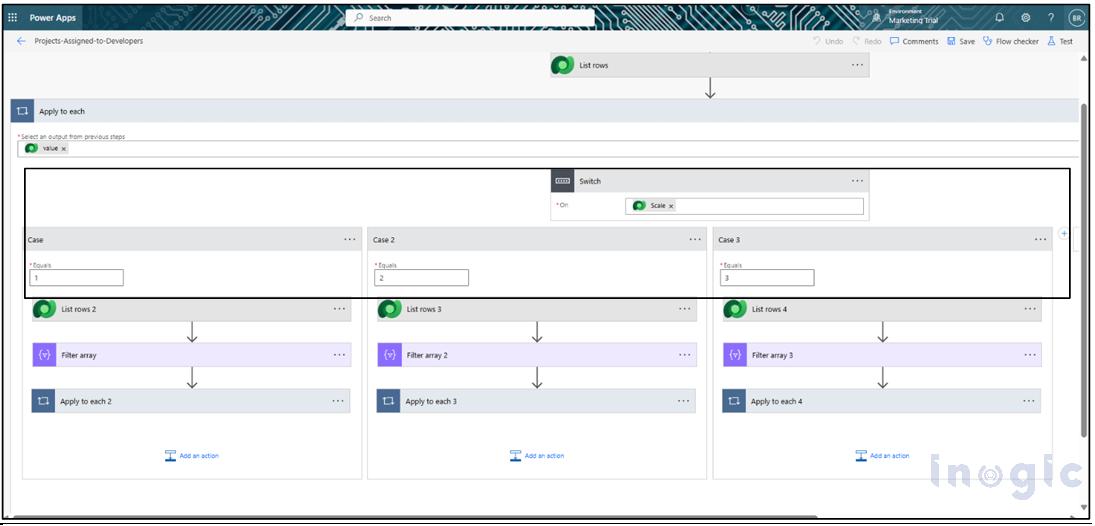
The flow retrieves unassigned projects from Dataverse, evaluates the project scale of each project, and automatically assigns the project to the appropriate developer based on predefined business rules and developer skill levels.
The flow is triggered directly from the Power Apps Code App using:
When Power Apps calls a flow (V2)
Integrating the Flow with Power Apps Code Apps
After testing the Power Automate flow successfully, the next step is integrating it with a React-based Power Apps Code App.
Create the Code App Project
Create a new folder and open it in VS Code.
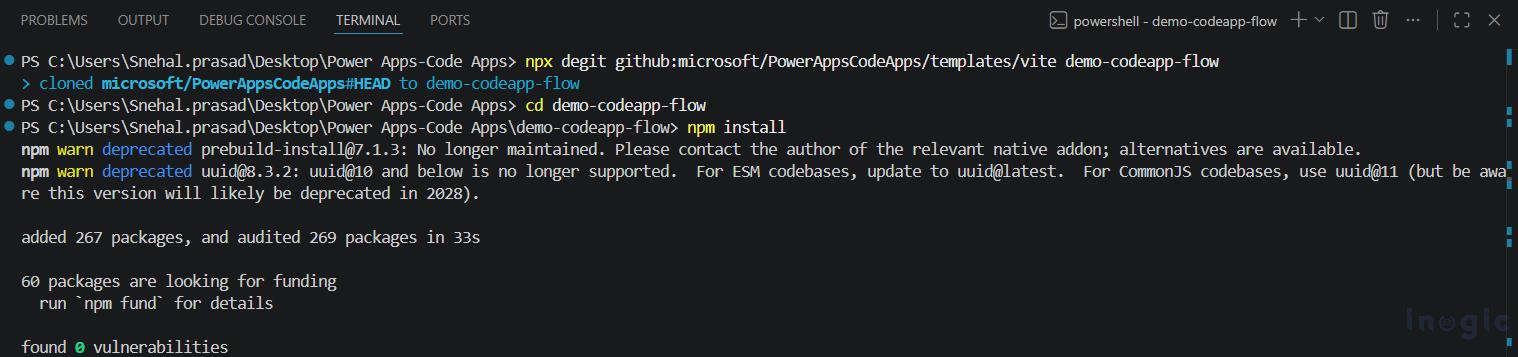
Run: npx degit github:microsoft/PowerAppsCodeApps/templates/vite demo-codeapp-flow
Move to the project folder and install dependencies:
cd demo-codeapp-flow
npm install
Initialize the Power Apps Project
Run the following command:
npx power-apps init –display-name “Power Apps-CodeApp-Flow” –environment-id <environment-id>

Connect the Flow
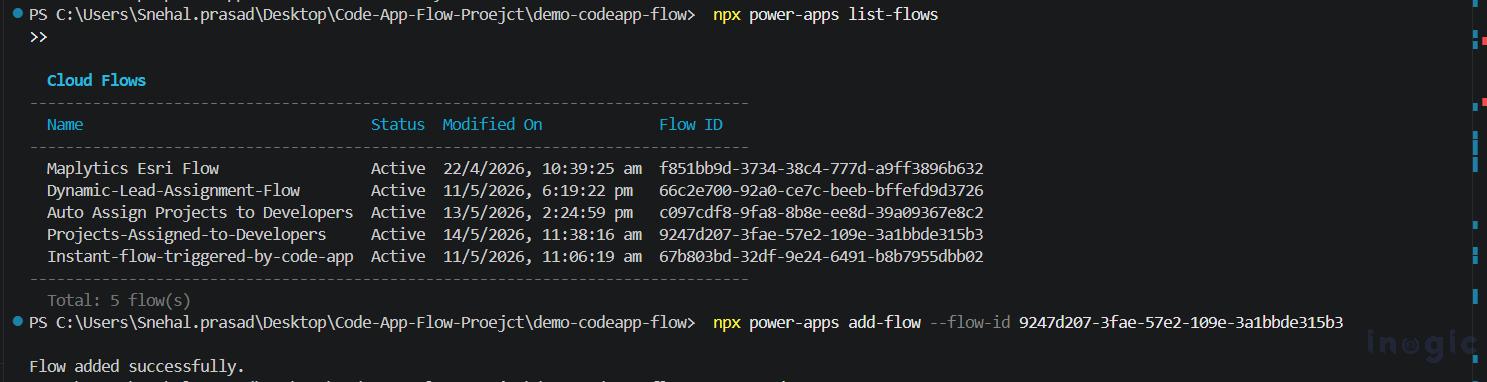
List available flows: npx power-apps list-flows
Add the flow: npx power-apps add-flow –flow-id <flow-id>
This generates the required service and model files automatically.
Create the UI
Update the App.tsx file to trigger the flow from the UI.
Note:
The generated service name and import path may differ based on your flow name.
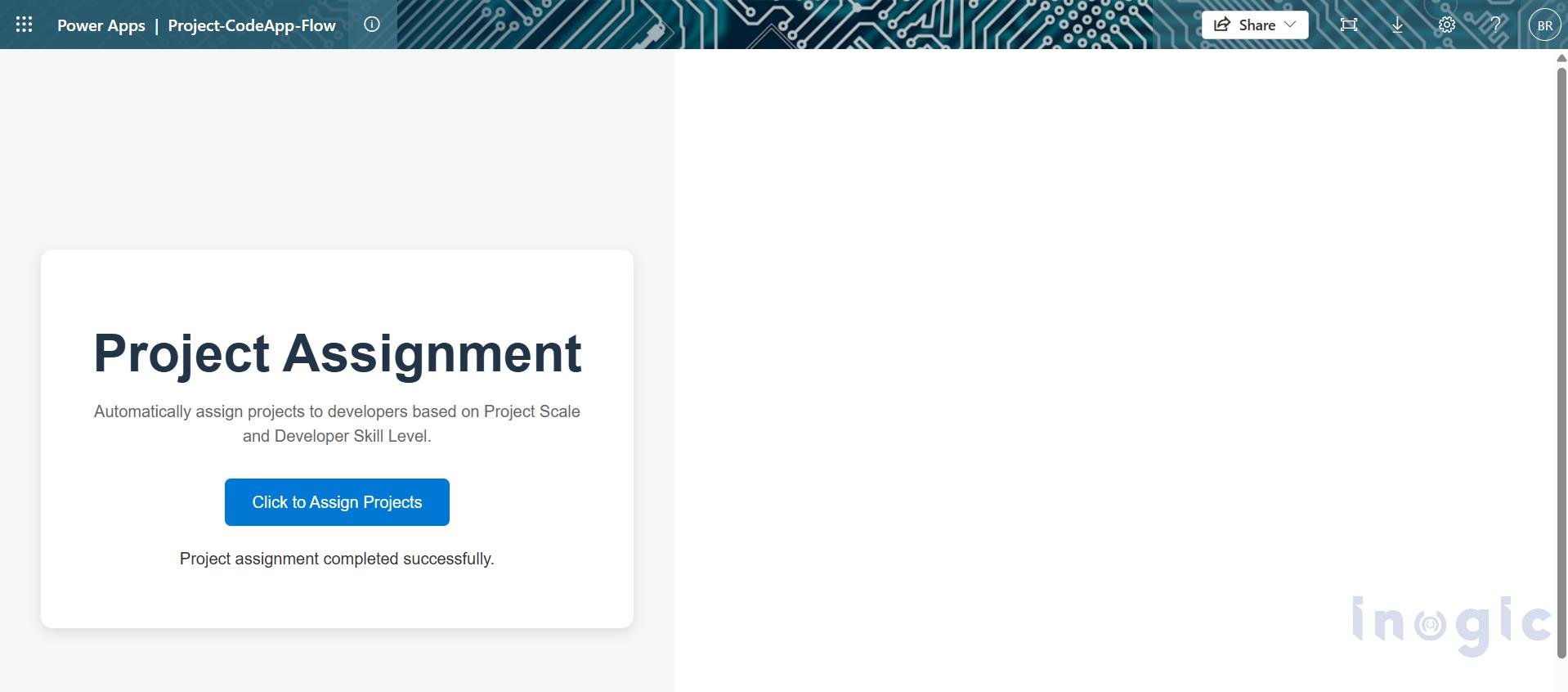
The UI contains:
- A button to trigger the flow
- Loading handling
- Success and error messages
Run and Publish the Code App
Run locally: npm run dev
Build the application: npm run build
Push the app to Power Apps: npx power-apps push
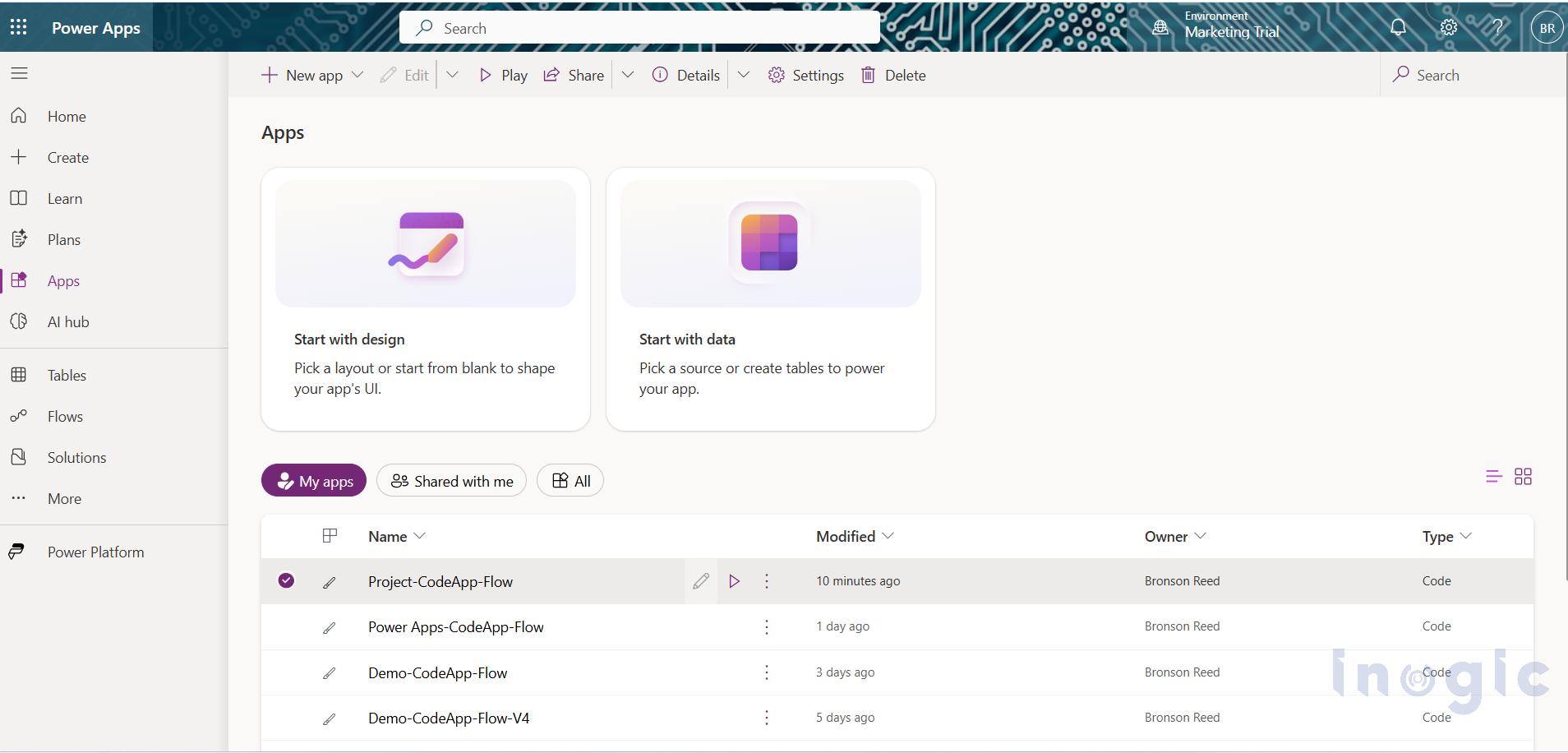
Open: Power Apps → Apps → Play to launch the application UI.

Verify Project Assignment
Click: Click to Assign Projects
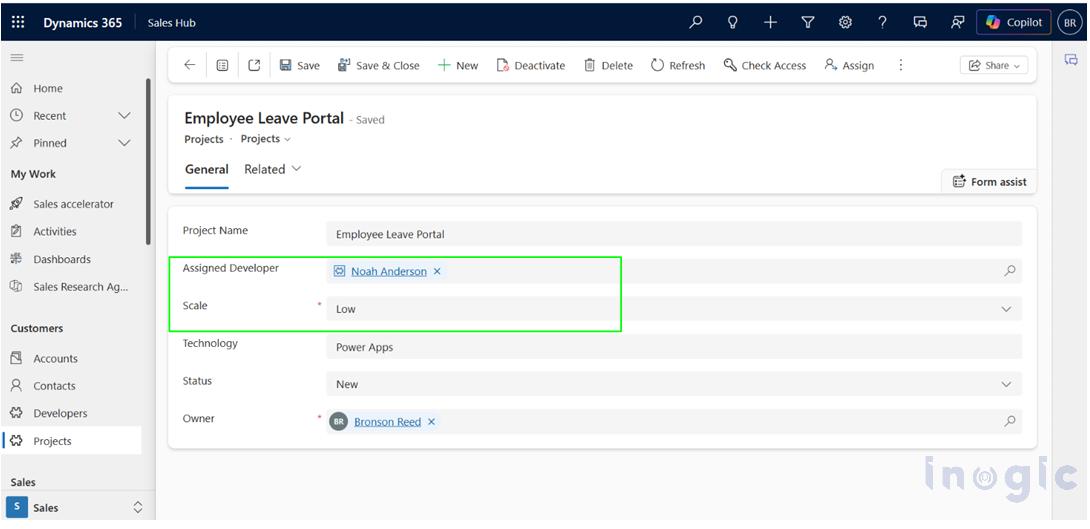
After successful execution, verify in Microsoft Dynamics 365 that the Assigned Developer lookup field is updated automatically based on the Project Scale and Developer Skill Level conditions.
Conclusion
Using Microsoft Dynamics 365, Microsoft Power Automate, and Power Apps Code Apps, the project assignment process can be automated easily. Unassigned projects are retrieved automatically, project scale is evaluated, and projects are assigned to the appropriate developers based on their skill levels without manual effort, making the overall resource allocation process faster and more efficient.
FAQs
Can Power Apps Code Apps trigger Power Automate flows?
Yes, Power Apps Code Apps can directly trigger Power Automate flows using the “When Power Apps calls a flow (V2)” trigger, enabling custom UI-driven automation inside Dynamics 365.
What is the role of Dataverse in Dynamics 365 automation?
Dataverse acts as the centralized data platform that stores project records, developer information, and assignment data used by Power Automate and Power Apps.
Is coding required for Power Apps Code Apps?
Yes, Power Apps Code Apps support low-code plus pro-code development. Developers can use React, TypeScript, and JavaScript to build custom user interfaces and integrate Power Automate flows.
How do you connect Power Automate flows with Power Apps Code Apps?
You can connect flows by:
- Initializing the Power Apps project
- Listing available flows
- Adding the required flow using Power Platform CLI commands
- Calling the generated service inside the React application