 In the previous blog, the “what” and “why” of Server Logic were explored. This entry takes the concept further by demonstrating the implementation of a full CRUD (Create, Read, Update, Delete) interface that communicates with an external OData service.
The goal here is simple: move the “heavy lifting” to the server so your frontend stays clean and API calls stay secure.
Prerequisites:
Before beginning, ensure the following are available:
- An active Microsoft Dataverse
- A valid Power Pages license and access to a Power Pages site.
Getting Started
- Open Power Pages and select your desired environment and site.
- Navigate to Setup → Server logic (Preview).
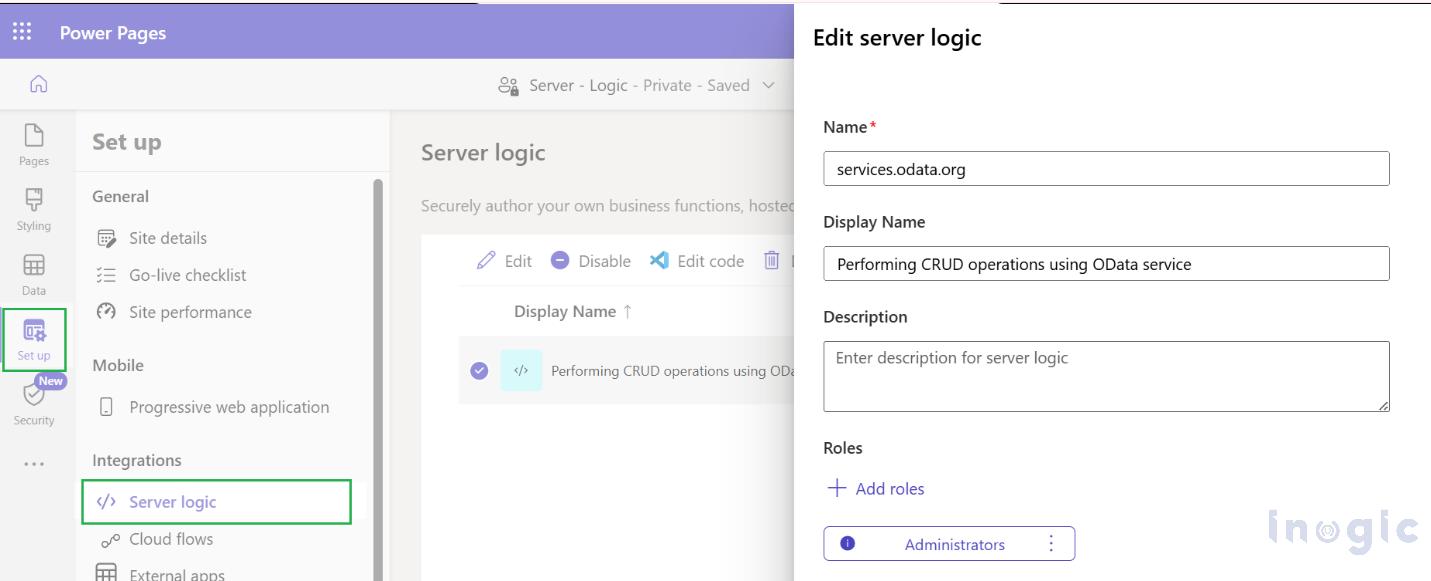
Using the built-in Visual Studio Code editor, you can define your standard HTTP methods.
The beauty of this approach is that you don’t need separate scripts for every action; everything is handled within the get(), post(), put(), and del() functions.
Note: Server Logic assigned to a higher web role won’t be accessible to lower roles.
Authoring Server Logic
Below is a look at how the get() and del() methods appear inside the Server Logic file using the HttpClient object:
JavaScript

const baseUrl = "https://services.odata.org/TripPinRESTierService";


async function get() {

try {

Server.Logger.Log("GET called");

const id = Server.Context.QueryParameters["username"];

// If username exists, fetch specific; else fetch all

const url = id ? `${baseUrl}(${id})/People` : `${baseUrl}/People`;

return await Server.Connector.HttpClient.GetAsync(url, {'content-type':'application/json'});

} catch (err) {

Server.Logger.Error("GET failed: " + err.message);

}

}


async function del() {

Server.Logger.Log("DEL called");

const username = Server.Context.QueryParameters["username"];

const url = `${baseUrl}/People('${username}')`;

return await Server.Connector.HttpClient.DeleteAsync(url, {'content-type':'application/json'});

}

}
Building the Interactive Frontend
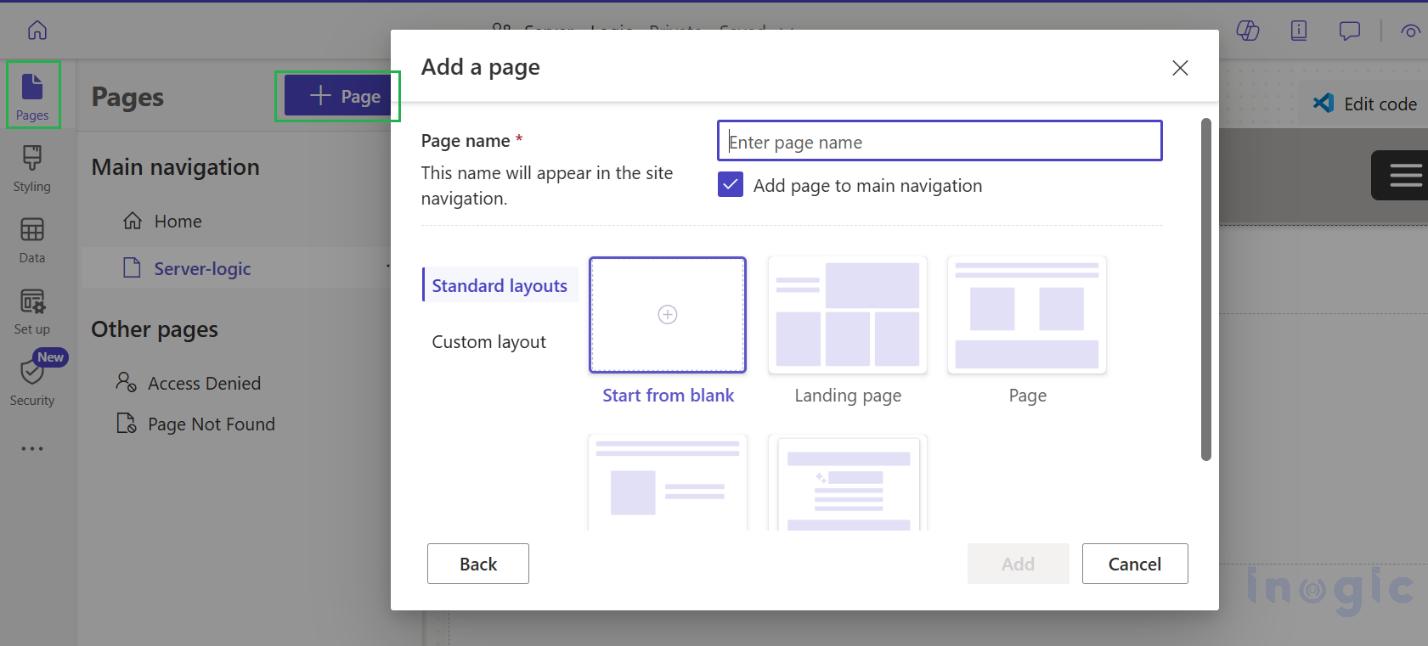
Once the server-side logic is prepared, add a page in the Pages workspace.
jQuery and the webapi.safeAjax wrapper are utilized to interact with the new endpoint at /_api/serverlogics/services.odata.org.
Note: services.odata.org refers to the internal name of the Server Logic component.
Sample Code Link: https://learn.microsoft.com/en-gb/power-pages/configure/server-logic-external-services
Create a Contact with the required role, log in to the site, and navigate to the page. Below is how it will look.
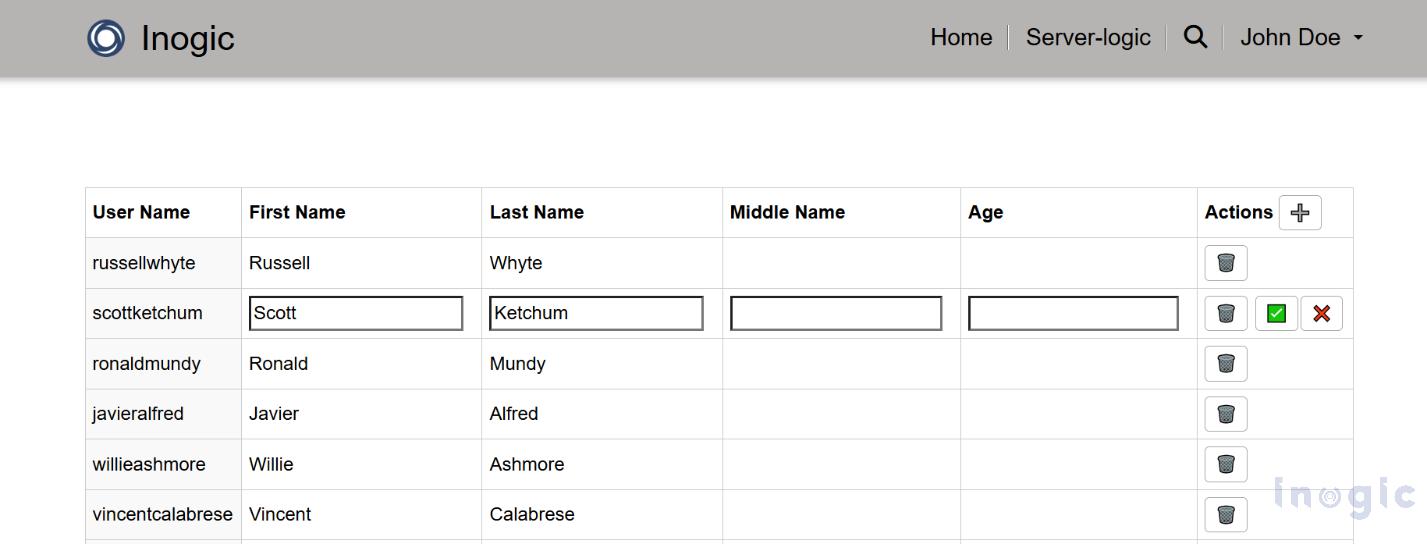
What the UI does:
- Read: Automatically loads data into a responsive table on page load.
- Create: A ➕ button generates a new record and sends a POST
- Update: Double-click any row to edit fields (like First Name or Age) and save with a ✅.
- Delete: A simple 🗑️ button triggers the DELETE logic on the server.
Advantages of This Approach
The Server Logic provides several critical benefits for enterprise-level Power Pages deployments:
- Enhanced Security: Business logic and external URLs are executed on the server, meaning they are never exposed in the browser “Network” tab. This prevents end users from viewing or tampering with sensitive integration details.
- Centralized Management: If an external API URL or business rule changes, updates are made in a single Server Logic file rather than across multiple individual web pages.
- Robust Debugging: Developers can utilize Logger to capture detailed logs of server-side operations, making it much easier to diagnose and resolve failures.
- Performance Optimization: By handling heavy data transformations and computations on the server, only the necessary JSON is returned to the client. This results in a faster, more responsive user experience.
Conclusion
Moving from client-side scripting to Server Logic is a big step forward in how we build Power Pages sites. While it takes a few extra steps up front, the security and maintenance benefits are huge for any enterprise project.
By keeping sensitive business rules and API keys on the server, you build more trust with your users and make your own life easier as a developer. Just don’t forget to Sync your code in the designer after editing in VS Code to make sure your changes are live!
FAQs
What is Server Logic in Power Pages?
Server Logic in Power Pages is a backend feature that allows developers to execute HTTP operations such as GET, POST, PUT, and DELETE on the server. It is used to securely handle API calls and business logic without exposing them to the browser.
Why is Server Logic used in Power Pages?
Server Logic is used to move business logic and API processing from the client to the server. This improves security, performance, and maintainability by keeping sensitive operations hidden from end users.
Is Server Logic secure in Power Pages?
Yes. Server Logic is secure because all API calls and business rules run on the server. Sensitive information such as API URLs and logic is not exposed in the browser network tab.
How do you debug Server Logic in Power Pages?
You can debug Server Logic using Server.Logger. It allows developers to log execution flow, capture errors, and monitor API calls directly from the server-side script.
Do changes in Server Logic require publishing?
Yes. After editing Server Logic in VS Code, changes must be synced or published in Power Pages for them to reflect on the live site.