 In many Dynamics 365 implementations, case forms primarily capture and display data but don’t actively help resolve issues. Support teams often rely on experience or external tools to determine the next steps.
In this guide, we’ll transform a standard case form into an AI-powered assistant using Agent Response and Copilot Studio. This setup enables real-time suggestions such as case summaries, possible causes, and resolution steps directly within the form.
How to Add Agent Response in Dynamics 365 Case Form
To begin with, the first step was to bring the Agent Response component onto the case form.
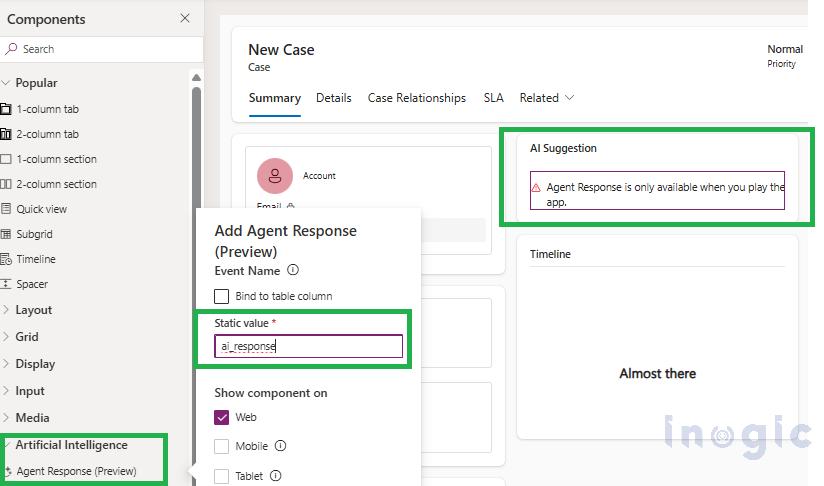
Inside the form designer, I navigated to the Components panel and selected Agent Response (Preview) under the Artificial Intelligence section. This component is what enables us to display AI-generated suggestions directly within the form.
After adding the component, I placed it in a dedicated section labeled “AI Suggestion” to keep the UI clean and focused.
How to Configure Agent Response Component (Event Setup)
Once the component was added, the key part was configuring the Event Name.
This event name acts as a bridge between the form and the Copilot agent. Whenever the form is loaded, this event is triggered, and the agent responds with the relevant AI-generated output.
In this case, I configured the event name as:
ai_response
It’s important to note that this same event name must be used later while configuring the topic inside Copilot Studio. If the names don’t match, the agent won’t be triggered.
A Small Note
While working in the form designer, you might notice a message saying:
“Agent Response is only available when you play the app.”
This is expected behavior. The component doesn’t render inside the designer preview — it only works when the app is actually running.
With this setup in place, the form is now ready to communicate with the Copilot agent. The next step is to configure the agent and define how it processes the case data to generate meaningful suggestions.
How to Configure the App-Bound Agent
After adding the Agent Response component to the form, the next step was to configure the Copilot agent that will actually generate the AI suggestions.
In model-driven apps, agents can be directly associated with the app itself. This makes them context-aware and allows them to interact with the data within that specific app.
Accessing the Agent
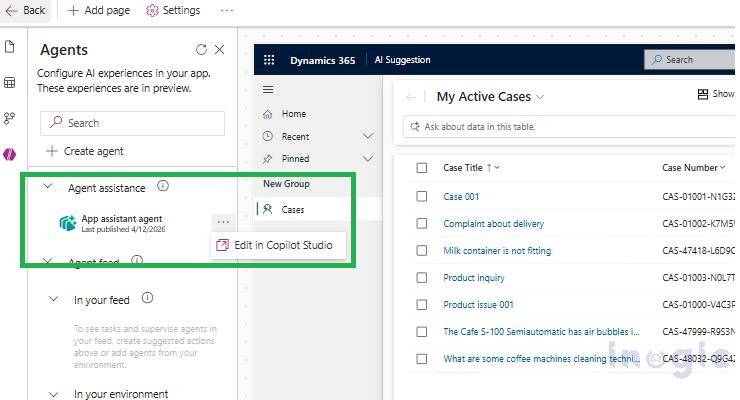
Inside the app designer, I navigated to the Agents panel. Here, you can see the available agents under the Agent assistance section.
Since the agent is already bound to the app, there’s no need to create everything from scratch again. Instead, you can simply click on:
👉 Edit in Copilot Studio
This opens the agent in Copilot Studio, where we can define its behavior.
Key Takeaway
At this point, we are not just creating an agent — we are working with an app-bound interactive agent, which is essential for enabling real-time AI suggestions inside the form.
Creating the Topic and Configuring the Trigger
Once the agent is opened in Copilot Studio, the next step is to define how and when the agent should respond. This is done by creating a topic and configuring its trigger.
Creating a New Topic
Inside Copilot Studio, I navigated to the Topics section and created a new topic specifically for handling AI suggestions on the case form.
Setting the Trigger Type
Instead of using a regular message-based trigger, I selected:
👉 “A custom client event occurs”
This is a key step.
Since the Agent Response component on the form triggers an event (in our case ai_response), the topic must listen for that exact event. This is what connects the form and the agent.
Configuring the Event Name
After selecting the trigger, I configured the Event Name as:
ai_response
This value must match exactly with the event name defined earlier in the Agent Response component on the form.
Fetching Case Data and Generating AI Suggestions
Once the trigger is configured, the next step is to fetch the actual case data and pass it to the AI so it can generate meaningful suggestions.
Retrieving the Record using “Get a Row by ID”
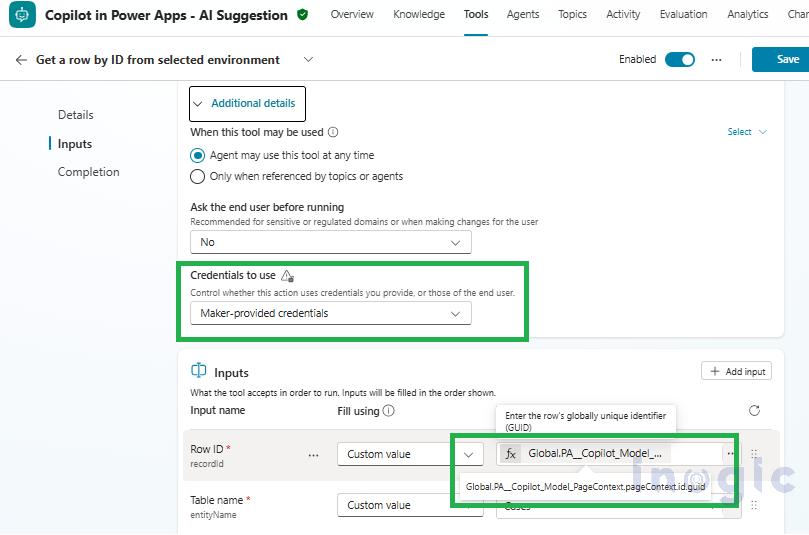
To access the current case details, I used the Dataverse action:
👉 Get a row by ID from selected environment
This step is responsible for retrieving the record that is currently opened in the form.
Passing the Record ID (Important Part)
Since the topic is triggered from the form, we need a way to identify which record is being opened.
For that, I used the following:
Global.PA__Copilot_Model_PageContext.pageContextId.guid
This value dynamically provides the GUID of the current record from the form context you can get this from the system or global variable.
Important Configuration
While setting up this action, make sure to configure:
👉 Credentials to use → Maker-provided credentials
This is very important.
If this is not set, the system will prompt users with a permission popup every time the agent runs, which breaks the user experience.
Generating AI-Based Response
After fetching the data, the next step is to generate a structured AI response using:
👉 Create generative answers
Here, instead of relying on generic responses, I provided a well-defined prompt to control the output format.
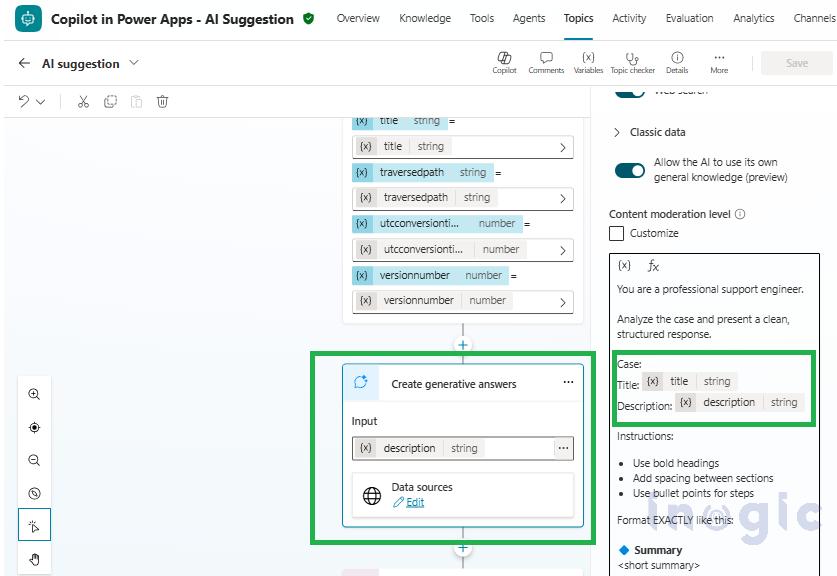
Prompt :
You are a professional support engineer.
Analyze the case and present a clean, structured response.
Case:
Title: Topic.title
Description: Topic.description
Instructions:
Use bold headings
Add spacing between sections
Use bullet points for steps
Format EXACTLY like this:
🔷 Summary
<short summary>
🔶 Possible Cause
<cause>
🛠 Resolution Steps
Step 1
Step 2
Step 3
💡 Recommendation
<optional tip>
Using Dynamic Values
Here, instead of hardcoding values, I used dynamic fields:
- Topic.title → Case Title
- Topic.description → Case Description
These values are populated automatically from the Dataverse record retrieved in the previous step
Final Output: AI Suggestions in Action
After completing all the configurations, the final step is to make everything live and see how it works in a real scenario.
Final Steps Before Testing
Before testing the solution, make sure to:
- ✔️ Save and Publish the form after adding the Agent Response component
- ✔️ Publish the Copilot agent from Copilot Studio
These two steps are important. If the agent is not published, the event won’t trigger and no response will be shown on the form.
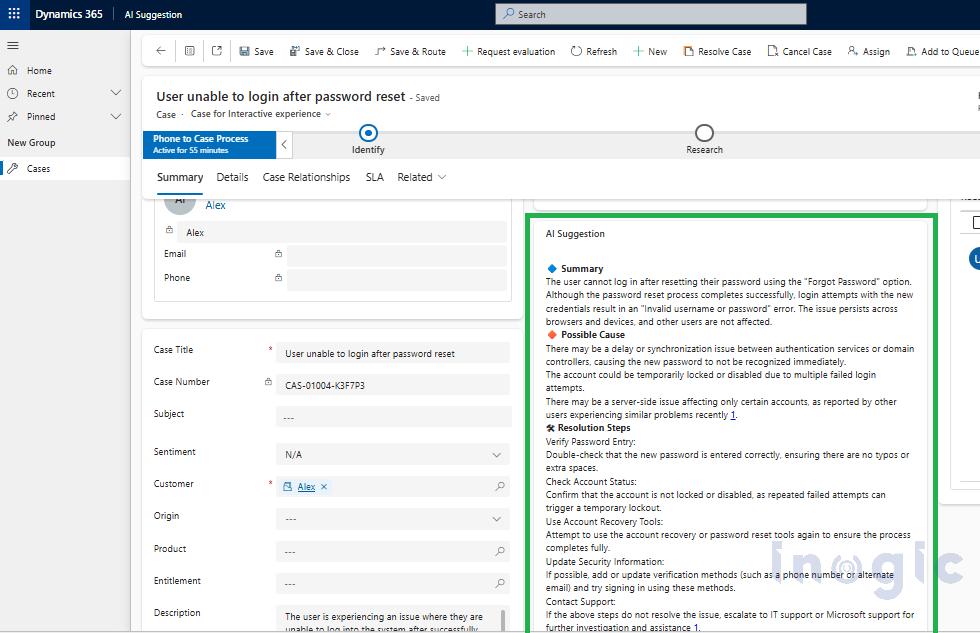
Viewing the AI Suggestion
Once everything is published, open the model-driven app and navigate to any case record.
As soon as the form loads:
- The Agent Response component triggers the event
- The agent processes the case data
- The AI generates a structured response
- And the suggestion is displayed directly inside the form you can Also use Adaptive Card to show a modern UI
Conclusion
By combining Agent Response with Copilot Studio, you can transform a standard Dynamics 365 case form into an intelligent support assistant.
This approach improves resolution speed, reduces dependency on manual expertise, and enhances user productivity.
As AI adoption in Dynamics 365 continues to grow, implementing features like Agent Response can significantly improve both support efficiency and customer experience.
FAQs
Do I need Copilot Studio to use Agent Response?
Yes, Copilot Studio is required to configure the logic behind Agent Response. It allows you to create topics, define triggers, fetch Dataverse data, and generate AI-driven responses based on the context of the record.
Can Agent Response be used in model-driven apps?
Yes, Agent Response is specifically designed for model-driven apps in Dynamics 365. It can be embedded into forms and triggered using custom events to provide real-time AI assistance to users.
How does Agent Response get data from the case form?
Agent Response retrieves data by triggering a Copilot topic, which uses Dataverse actions like “Get a row by ID.” The current record’s GUID is passed dynamically using the page context, allowing the agent to process real-time case data.
Can I customize the AI response format?
Yes, the AI response can be fully customized using structured prompts in the “Create generative answers” step. You can control formatting, tone, and output structure, including summaries, bullet points, and recommendations.