 Territory planning looks deceptively simple from the outside. A manager opens the CRM, divides the market using Dynamics CRM territory mapping, assigns territories to sales representatives, and the team gets to work. On paper, the process appears quick and straightforward.
In reality, territory creation is rarely that simple.
- Markets change constantly.
- New customers appear in unexpected regions.
- Existing clients shift their demand patterns.
- Some territories suddenly become overloaded while others remain underutilized.
This is precisely why territory management in Dynamics 365 requires careful analysis, experimentation, multiple iterations, and an ability to be flexible before arriving at the right structure.
This is where the concept of Draft Territories becomes extremely valuable.
Draft territories allow managers to experiment with territory designs inside the CRM without immediately committing to those decisions. Instead of creating rigid boundaries that are difficult to modify later, managers can design, test, adjust, and refine territory structures until they are confident the plan truly supports business goals. When you manage territory in Dynamics 365 this way, the CRM becomes a strategic workspace rather than a rigid system of record.
In location intelligence tools like Maplytics, integrated with Microsoft Dynamics CRM, Draft Territories provide a practical and flexible way to manage this process through a robust Dynamics 365 maps integration.
Drafting Territories in Dynamics 365
If a user needs to continue working on territories already processed in the past, or needs to make any changes, they can select Save from the Actions drop-down in the territory list.
This saves the territories and processes them as Draft Territories within the CRM, allowing teams to continue refining their Dynamics CRM territory mapping approach without locking in decisions prematurely.
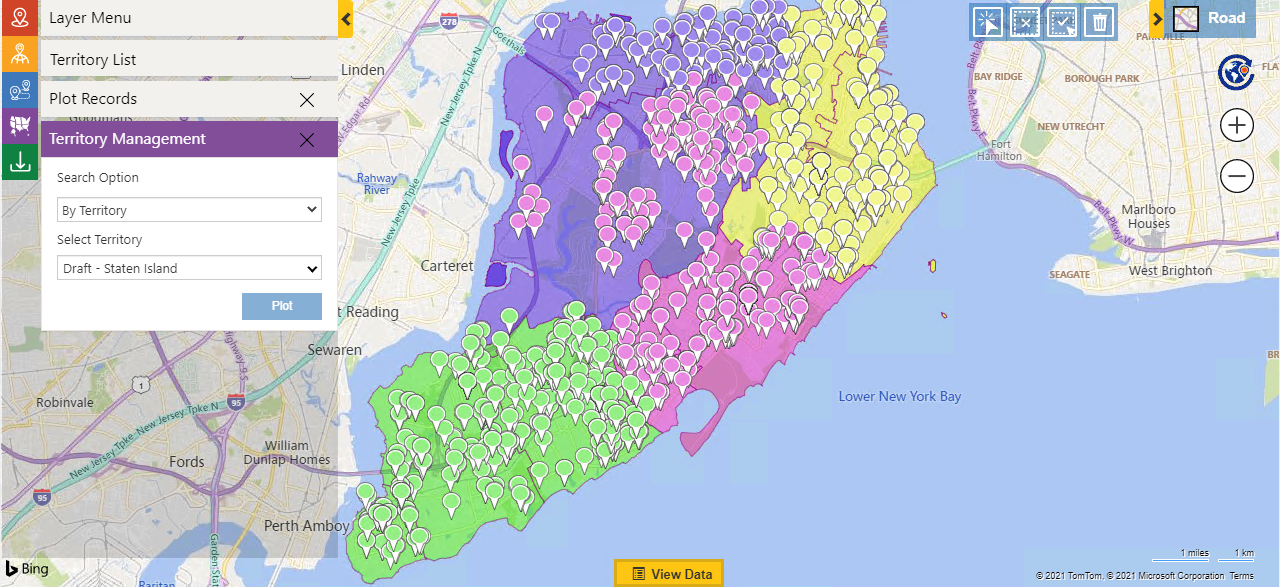
After saving a draft, the user can use the ‘By Territory’ option within the Territory Management card to plot the saved draft territories in the CRM and rework them. They can then save the updated version as a new draft,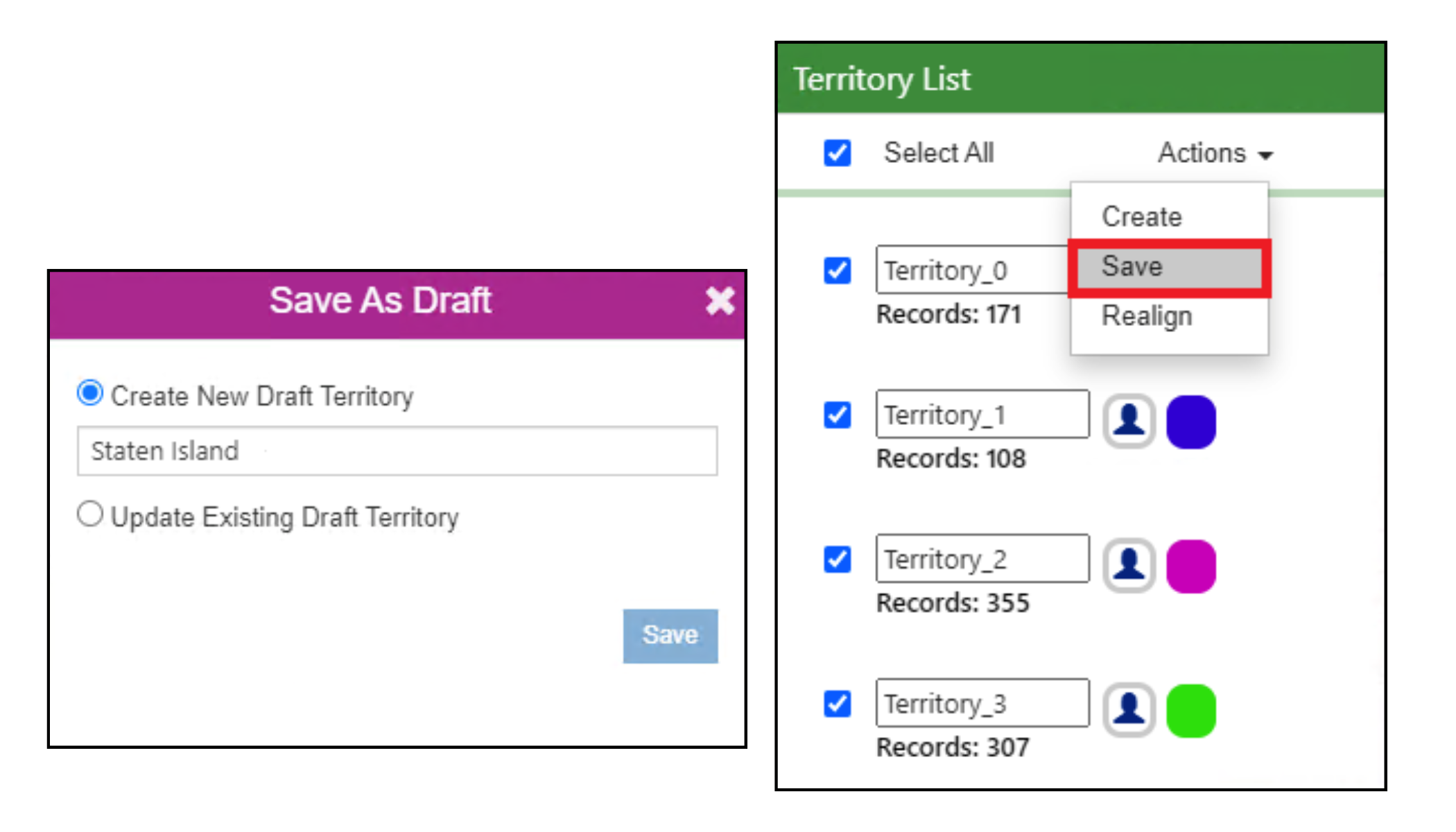 or create the territory in the CRM directly using the ‘Create’ option from the Actions drop-down. Users can also delete a draft territory without creating it if the design no longer serves the intended purpose.
 Sales managers who want to manage territory in Dynamics 365 based on postal codes or regions often need time to research and reach well-informed decisions. Draft territories are especially useful in such situations. Managers can draw shapes on the map, create territories from those shapes, and save them as drafts to revisit whenever required.
 Multiple draft territories can also be plotted together on the map simultaneously, even if all of them are created without records attached.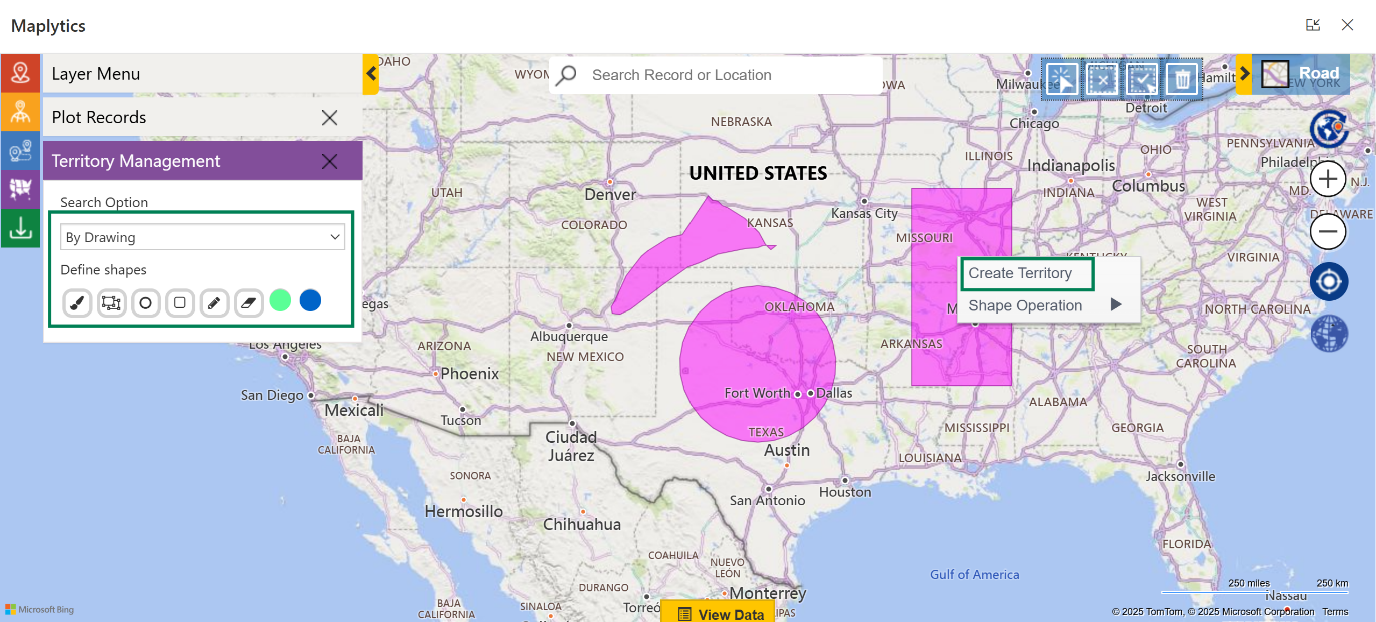
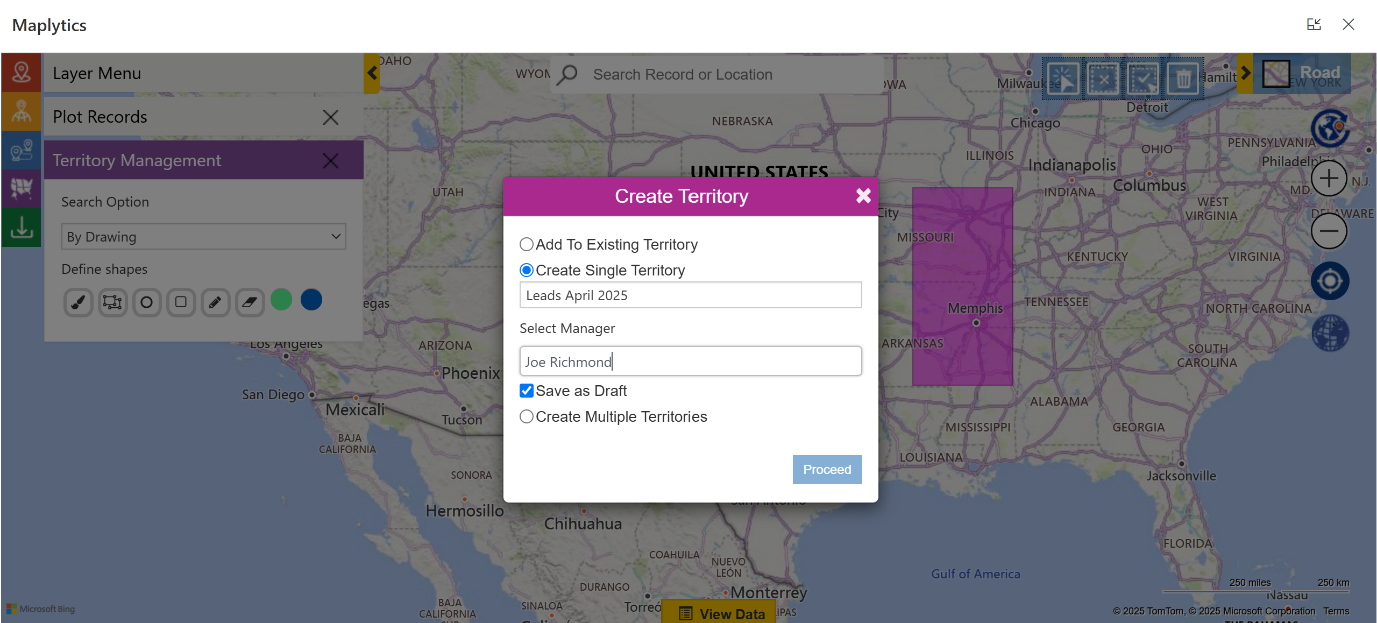 Managers can also create territories with records and save those as drafts in the same manner.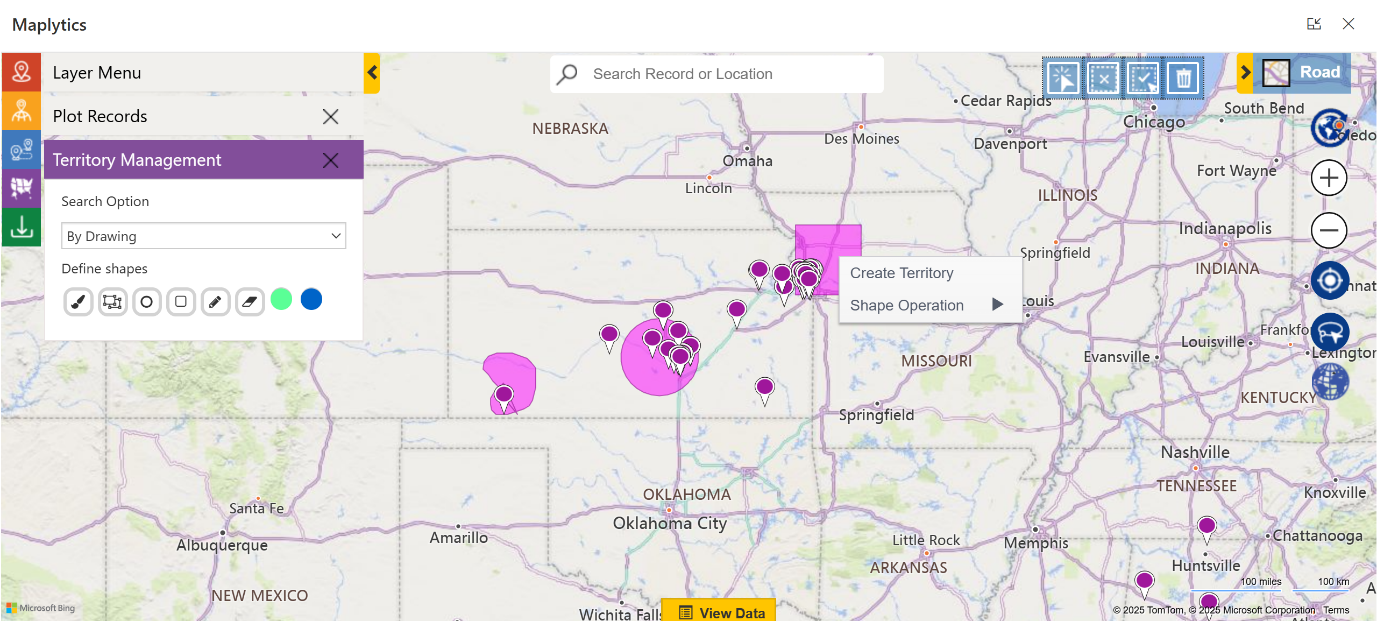
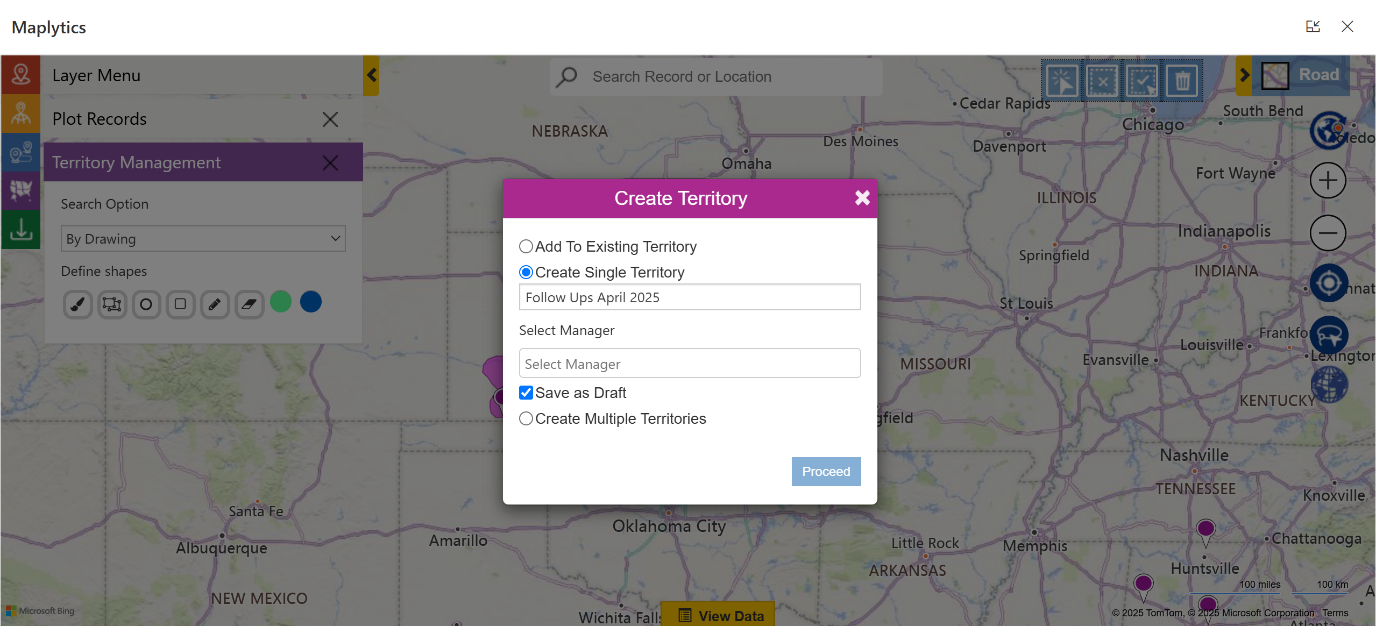
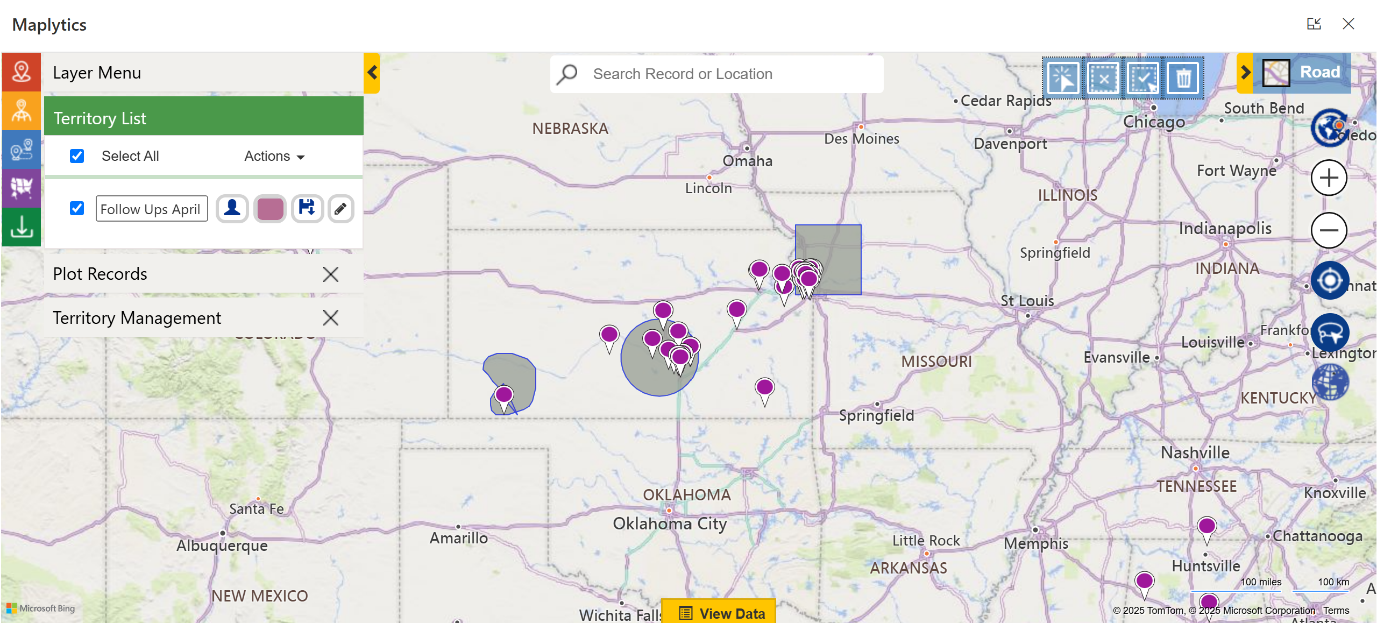 Once ready, the new draft territories appear under the Draft Territory section, where they can be plotted and progressed at any time.
Territory Management in Action
Recently, the team at a manufacturing organization approached us with a specific challenge around territory management in Dynamics 365.
Their sales manager wanted to build territories based on postal codes, market potential, customer density, and regional demand patterns. Gathering the information required for this involved discussion with sales representatives, analysis of customer data with the analytics team, and evaluation of travel distances for field teams. They needed a way to slow the territory-creation process and revisit it incrementally as the manager’s research evolved.
The Dynamics CRM territory mapping capabilities in Maplytics, powered by the Dynamics 365 Maps integration, fully support this research-driven approach.
Managers can sketch potential territories on the map, save them as drafts, and return later after gathering more information. This ensures that final territory decisions are supported by data and practical field insights rather than guesswork. Instead of rushing the process, the CRM becomes a workspace where ideas can evolve organically.
A Smarter Way to Manage Territory in Dynamics 365
Territory planning is one of the most critical aspects of sales operations. Well-designed territories ensure that workloads are balanced, customer coverage is efficient, and travel time remains manageable. However, achieving the right structure requires analysis, experimentation, and ongoing refinement.
Draft Territories make this process significantly easier.
Instead of forcing managers to finalize territory decisions immediately, they provide a flexible workspace where ideas can be tested, adjusted, and improved before becoming a permanent part of the CRM system. By combining visual mapping, record analysis, and iterative design, Draft Territories turns territory planning into a thoughtful and data-driven activity.
With tools like Maplytics, Dynamics CRM territory mapping ensures that territory management in Dynamics 365 evolves from a one-time administrative task into an ongoing strategic process, one that adapts as markets change and business goals shift.
What’s More?
If you wish to combine maps, routes, schedules, and real-time updates to make a difference, Maplytics with MapCopilot, its AI assistant, is available immediately for Dynamics 365, Power Apps, Power Pages, and Dataverse. Organizations interested in adoption, 15-day free trials, or personalized demos are encouraged to contact Maplytics’ sales team at crm@inogic.com
For more information, visit our website or Microsoft Marketplace. One can hop onto the detailed Blogs, Client Testimonials, Success Stories, Industry Applications, and Video Library for a quick query resolution. Technical docs for the working of Maplytics are also available for reference.
Kindly leave us a review or write about your experience on the Microsoft Marketplace or the G2 Website.