Duplicate records in CRM create reporting errors, break automation, confuse sales teams, and reduce AI accuracy. And here’s the uncomfortable truth:
Most organizations merge duplicates without a defined strategy for choosing the Master Record.
The real challenge isn’t just merging duplicates, it’s deciding:
Which record should be the Master Record?
In Microsoft Dynamics 365, merging is easy. Choosing the right master? That’s where data governance begins.
Let me walk you through a real-world scenario.
In this guide, you’ll learn how to configure Master Deciding Rules to intelligently select the correct master record during duplicate merging.
What Is a Master Record in Dynamics 365 CRM?
A Master Record is the primary record that survives after duplicate records are merged.
When duplicates are detected:
- One record becomes the master
- Other records are merged into it
- Data is consolidated
- Relationships and activities are preserved
Without defined rules, selecting the master becomes manual and inconsistent.
The Problem: Two Records. One Decision. Major Consequences.
A CRM Administrator at an enterprise discovers multiple duplicate Accounts:
Account A
- 14 populated fields
- Modified 3 days ago
- 5 related cases
- 2 invoices
Account B
- 6 populated fields
- Modified 30 minutes ago
- 1 related case
- 0 invoices
Now comes the critical question:
Which record should survive?
If you select incorrectly:
- You may lose engagement history
- AI insights may become inaccurate
- Sales teams may follow outdated data
- Reporting becomes misleading
This is where Master Deciding Rules change everything.
What Are Master Deciding Rules?
Master Deciding Rules allows you to define how the master record should be selected during duplicate merges.
Administrators can:
- Create one or multiple rules per entity
- Assign rule types
- Define field-level conditions
- Assign priority scores
- Control automatic suggestions during merge
These rules ensure the system selects the most relevant, complete, and context-aware record as master.

Step-by-Step: How to Create Master Deciding Rules in Dynamics 365 CRM
Step 1: Navigate to Merge Settings
Go to: Merge Settings → Master Deciding Rule and Click + New
Step 2: Enter Basic Rule Information
Provide:
- Unique Name (Descriptive rule name)
- Select the Entity (Account, Contact, Lead, or Custom Entity)
- Choose the Rule Type
Rule Types Explained (When to Use Each)
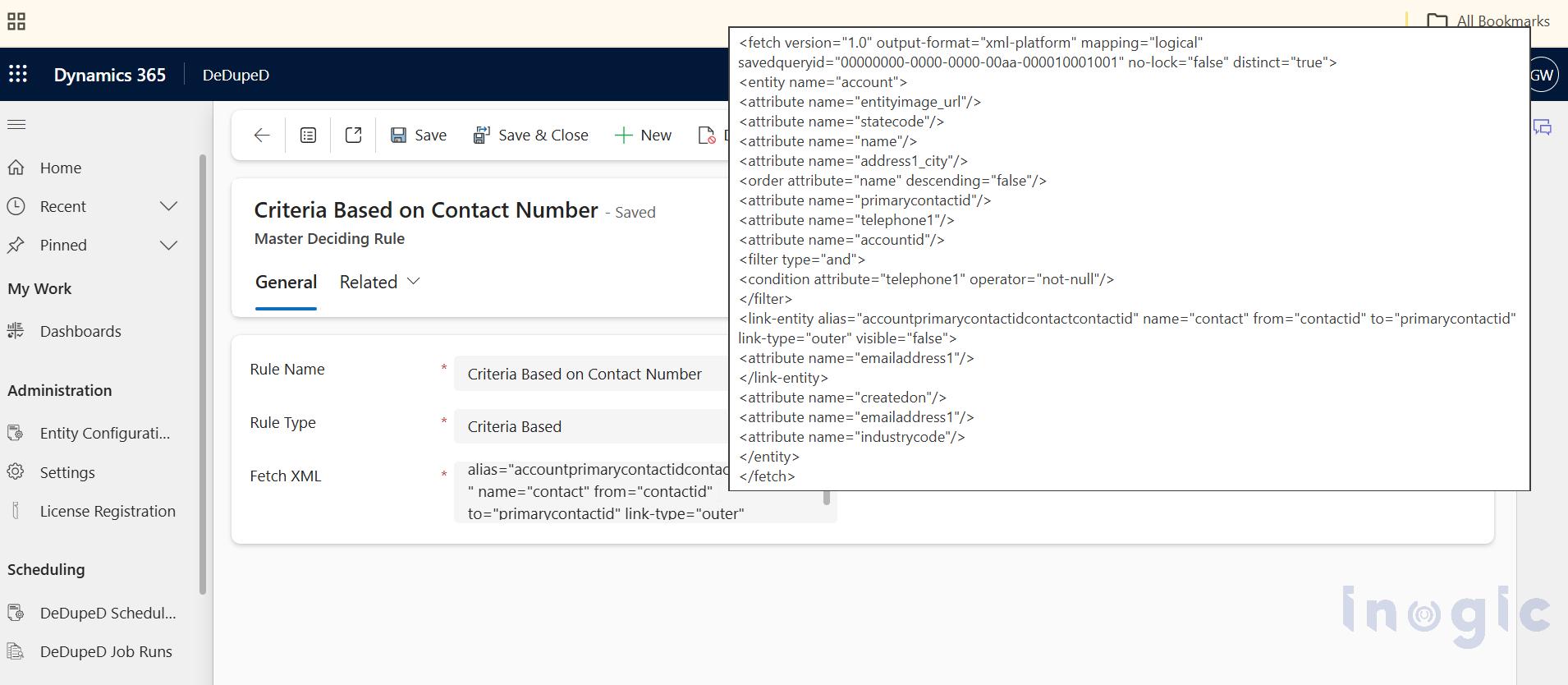
1️. Criteria-Based Rule
Use when you want to define specific field conditions.
Example:
- Email contains data
- Phone field is not empty
- Status = Active
Master is selected based on matching conditions.
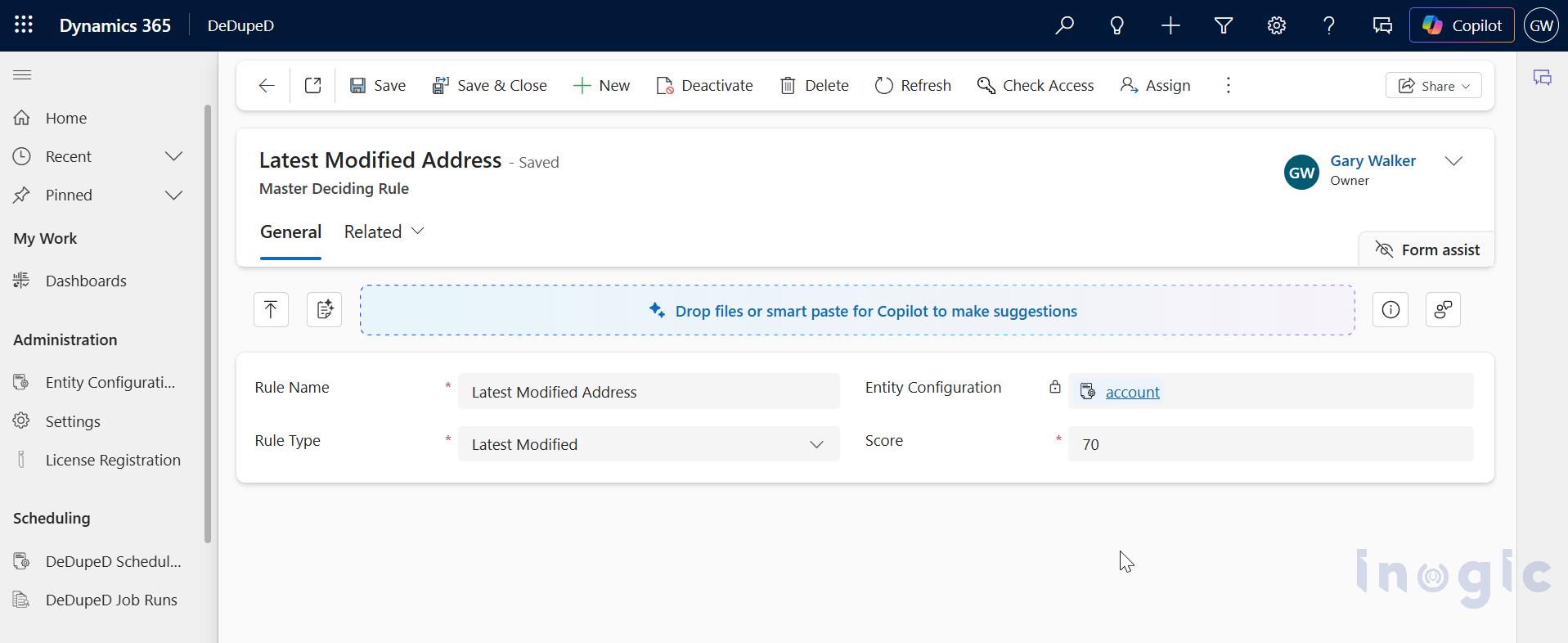
2️. Latest Modified
Most recently updated record becomes master.
Use when:
- Recent updates indicate higher relevance
- Sales teams actively update data
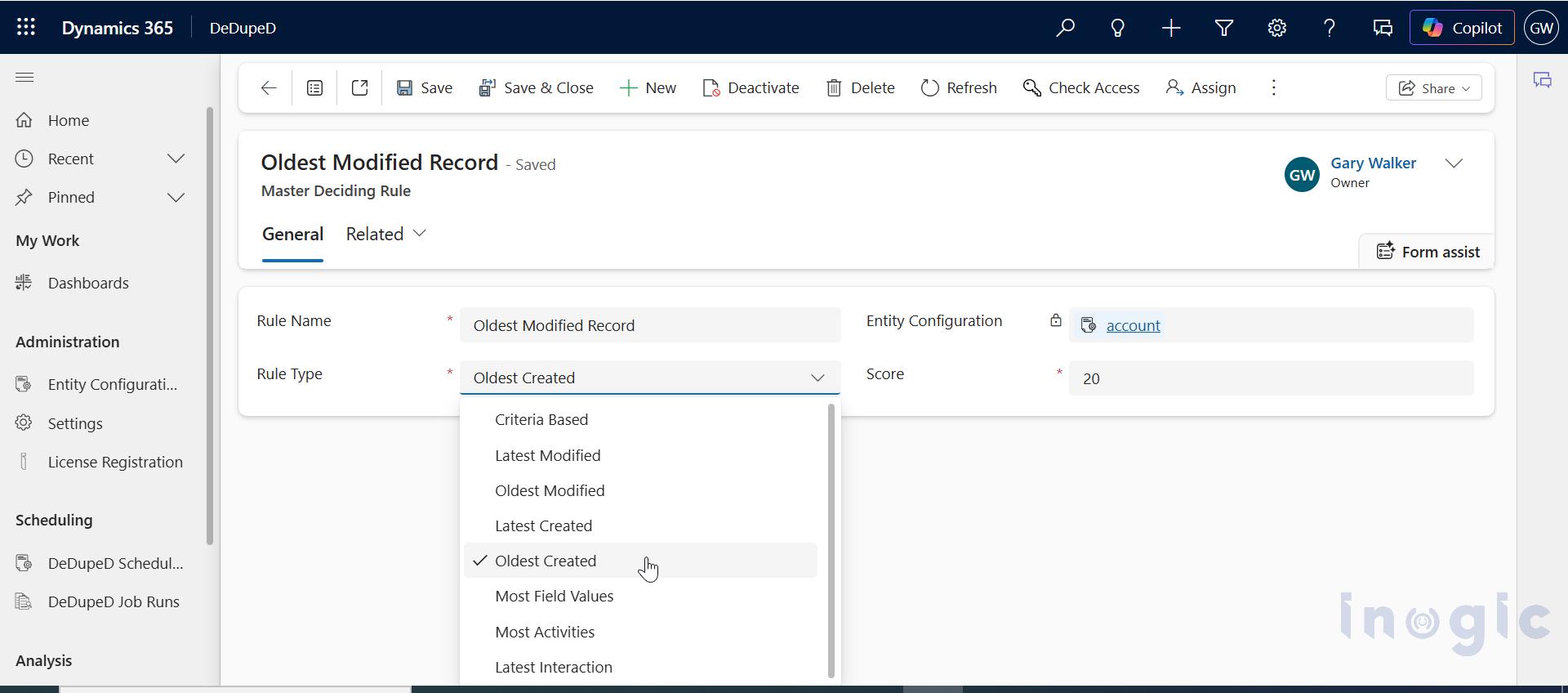
3️. Oldest Modified
Oldest modified record wins.
Use when: Older records are considered verified or stable
4️. Latest Created
Newest record becomes master.
Use when: Recent imports are more reliable
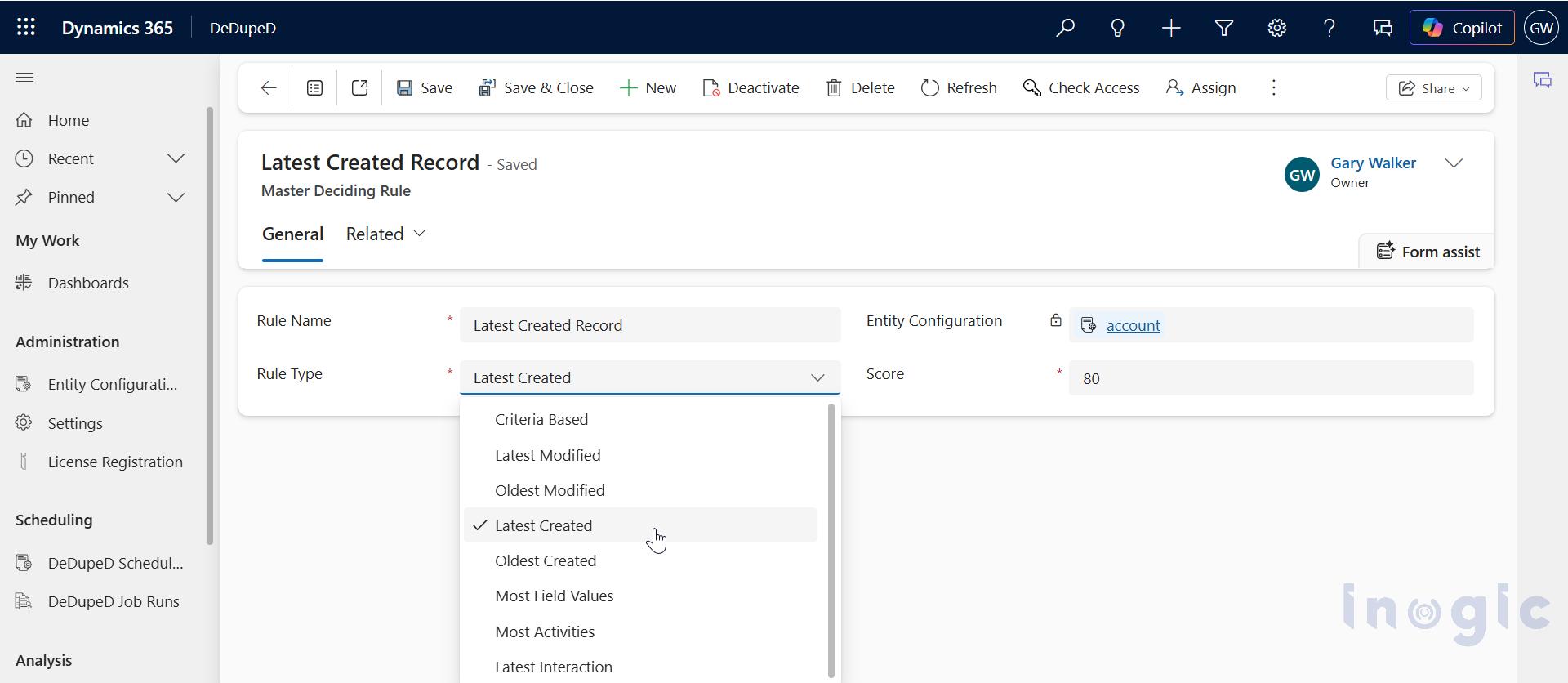
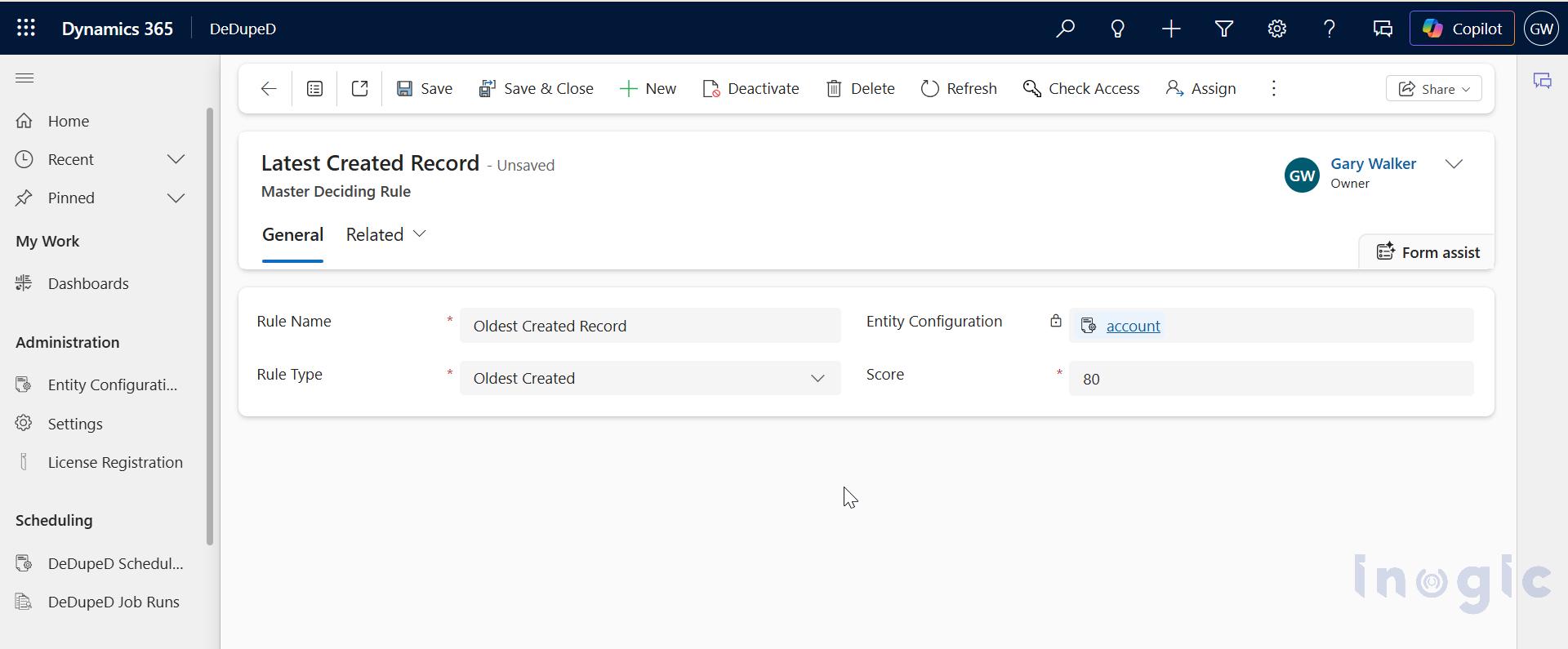
5️. Oldest Created
Original record retained.
Use when: Historical data integrity matters
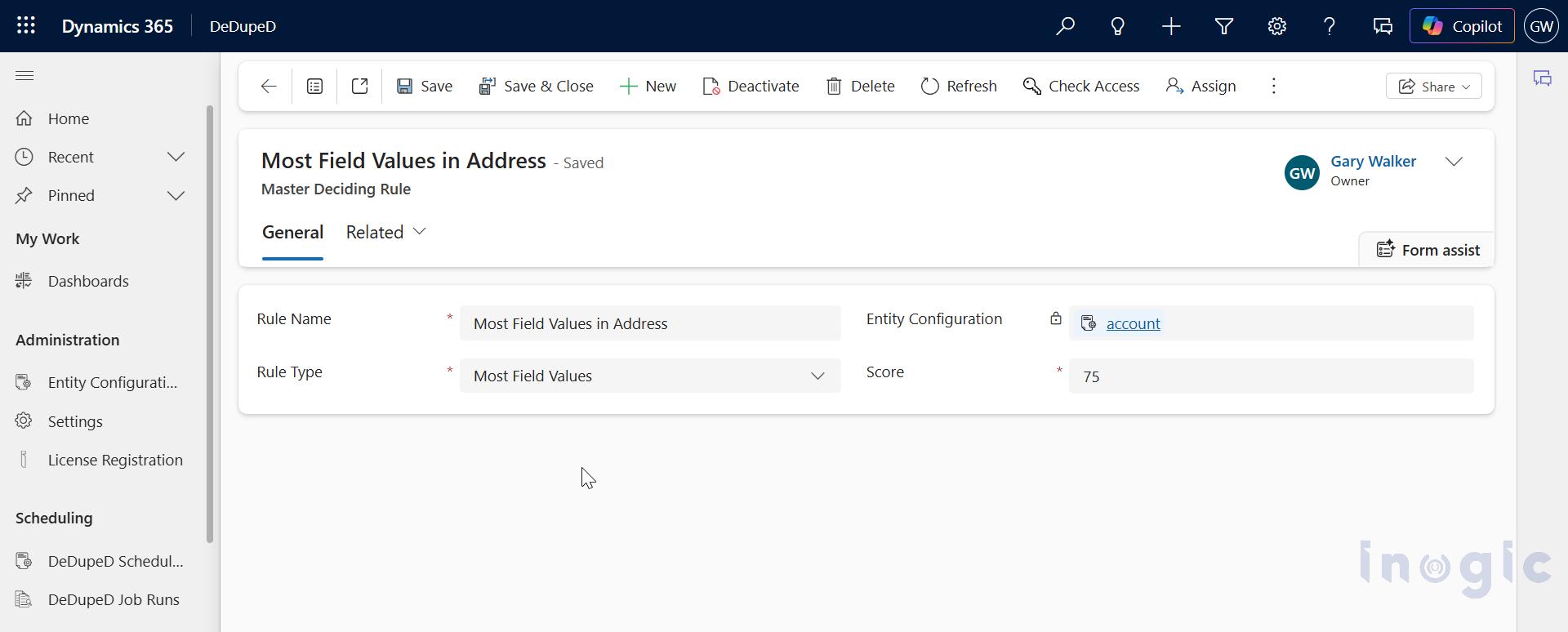
6️. Most Field Values
The record with the maximum populated fields wins.
Use when: Data completeness is priority
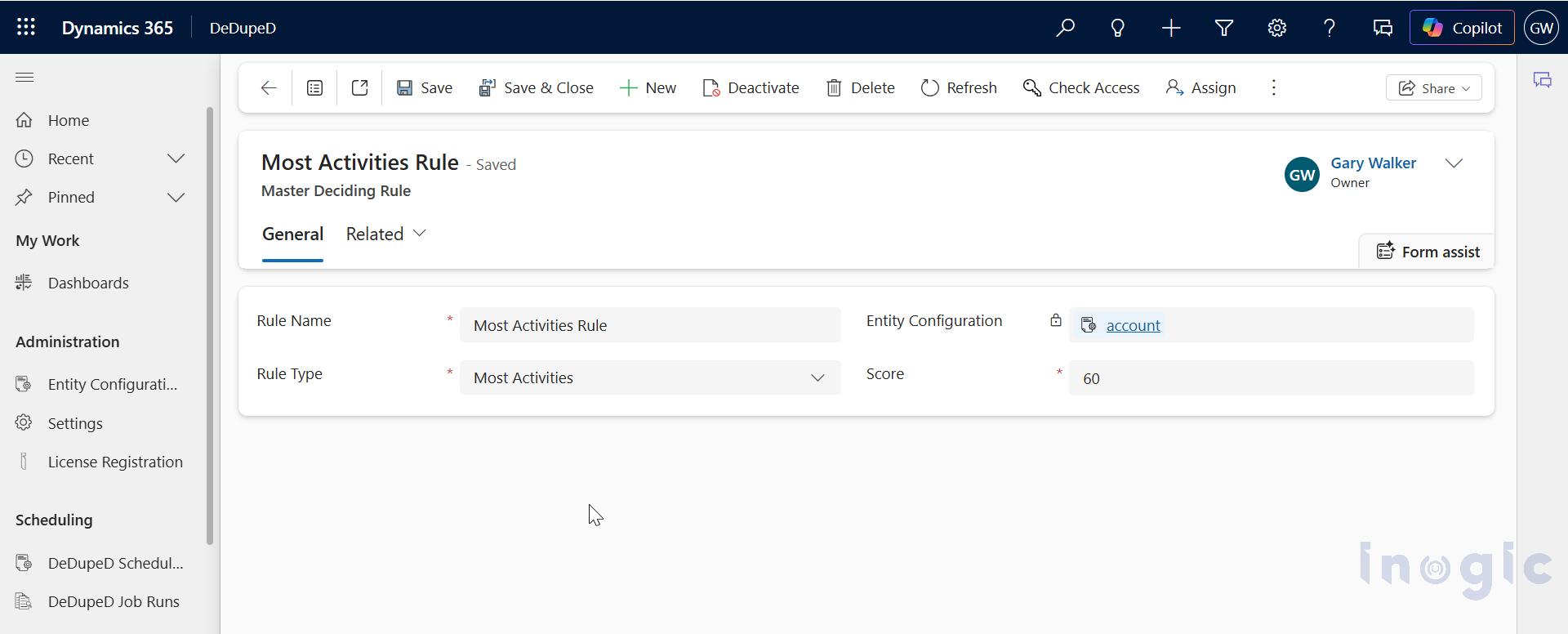
7️. Most Activities
Record with highest engagement becomes master.
Use when: Engagement level indicates importance
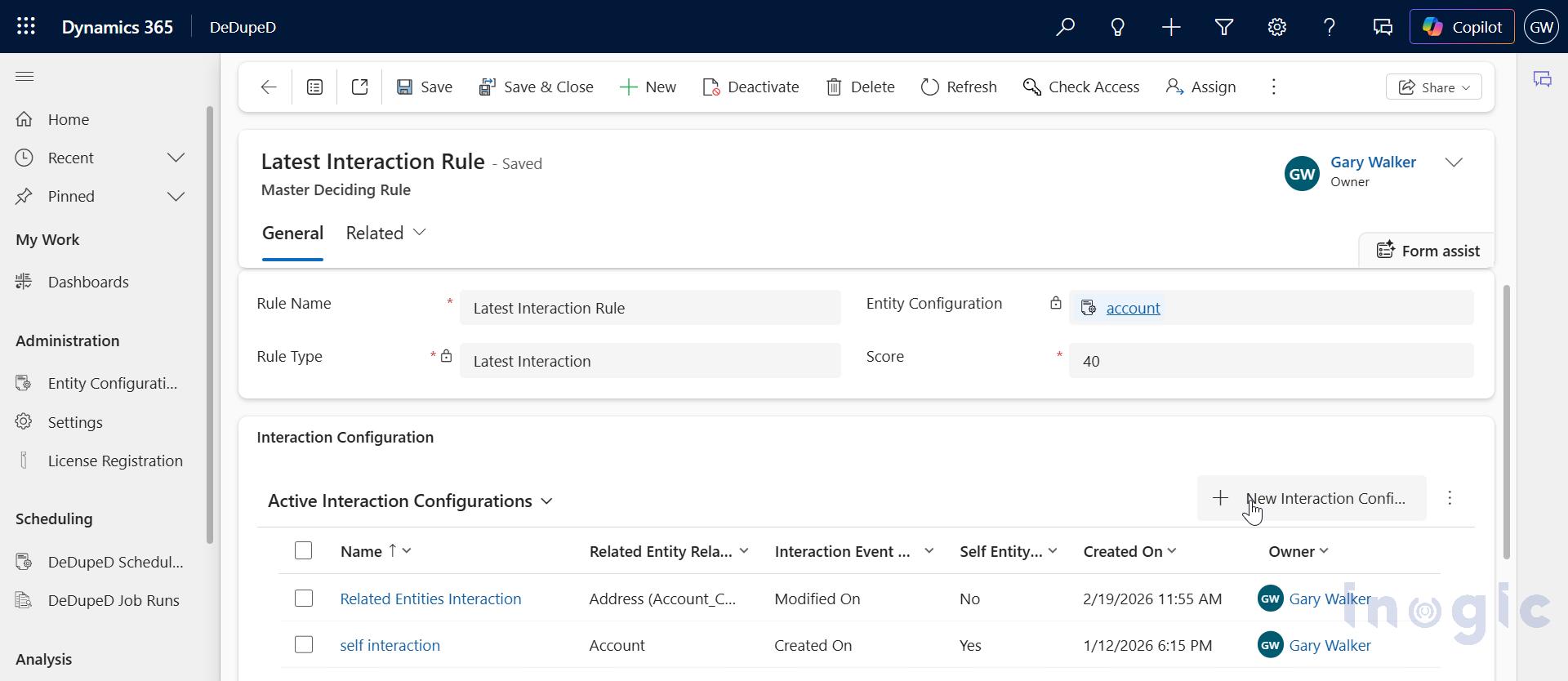
8️. Latest Interaction
Selects master based on the most recent related activity (Cases, Orders, Emails, etc.)
Highly recommended for customer-centric organizations.
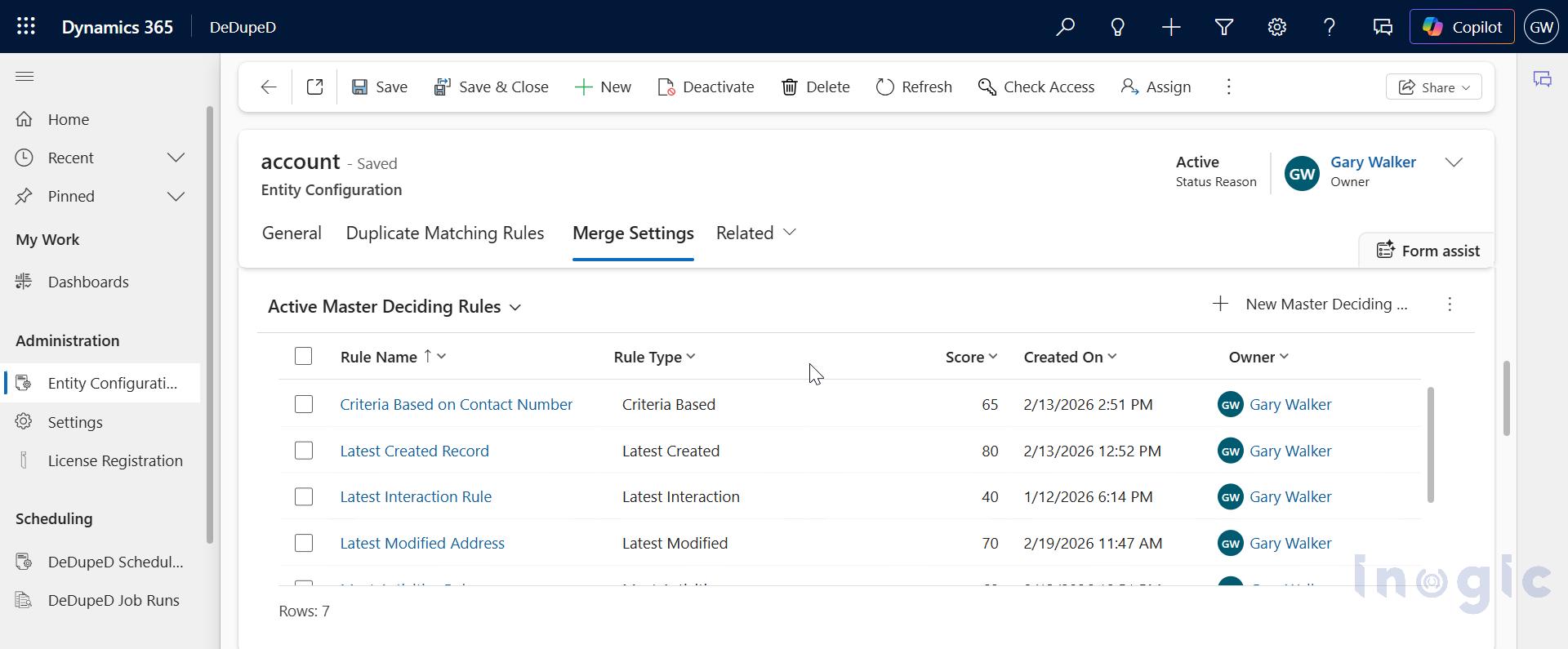
9️. Score-Based Rule
Each rule is assigned a Score (1–100).
Higher score = higher weight in master selection.
How Scoring Works During Auto Merge
During the merge:
- Each duplicate record is evaluated.
- If a record satisfies a rule, it earns that rule’s score.
- Total scores are calculated.
- The record with the highest cumulative score becomes the master.
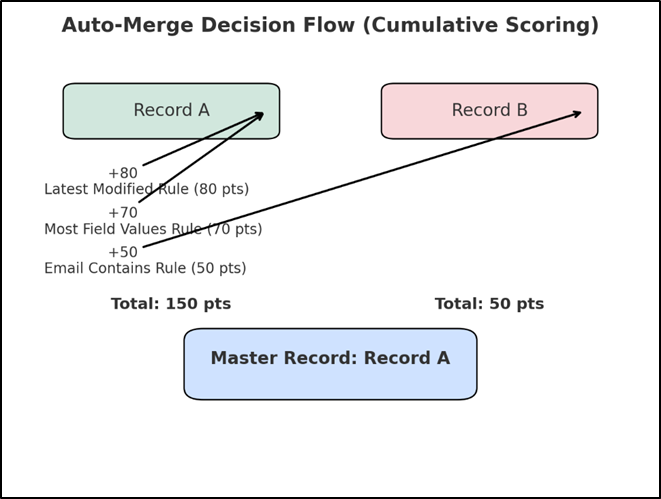
Example:
Active Rules:
- Latest Modified (80)
- Most Field Values (70)
- Email Contains Data (50)
Scenario:
- Record A satisfies Latest Modified + Most Field Values
→ 80 + 70 = 150 points - Record B satisfies only Email condition
→ 50 points
✅ Record A becomes the Master Record.
The highest cumulative score wins. This ensures intelligent, weighted decision-making.
How to Enable Auto-Suggested Master Selection in UI
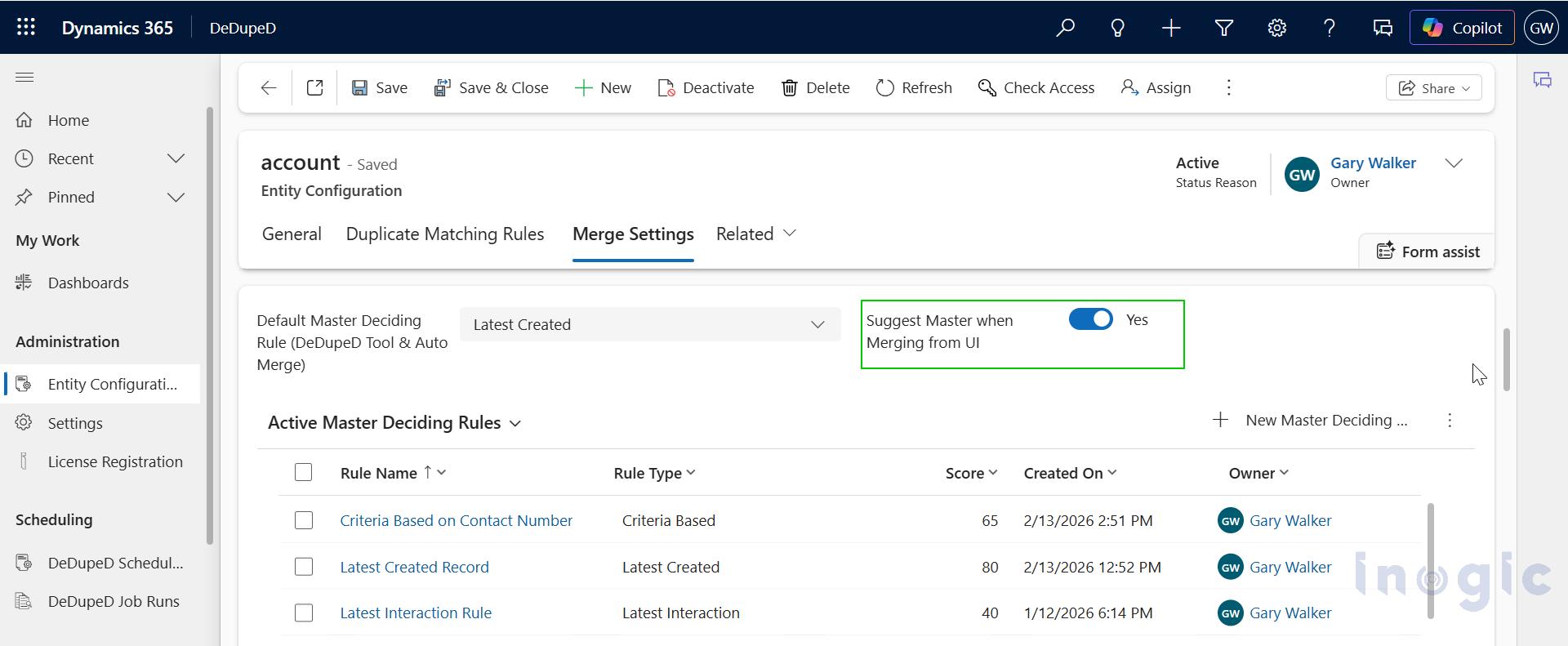
If you want the system to automatically highlight the ideal Master Record:
Set:
“Suggest Master when merging from UI” = Yes
Users can choose:
- Yes → Apply Master Deciding Rules
- No → Retain initiating record as Master
This empowers guided merging without forcing automation.
Advanced Configuration: Latest Interaction Rule
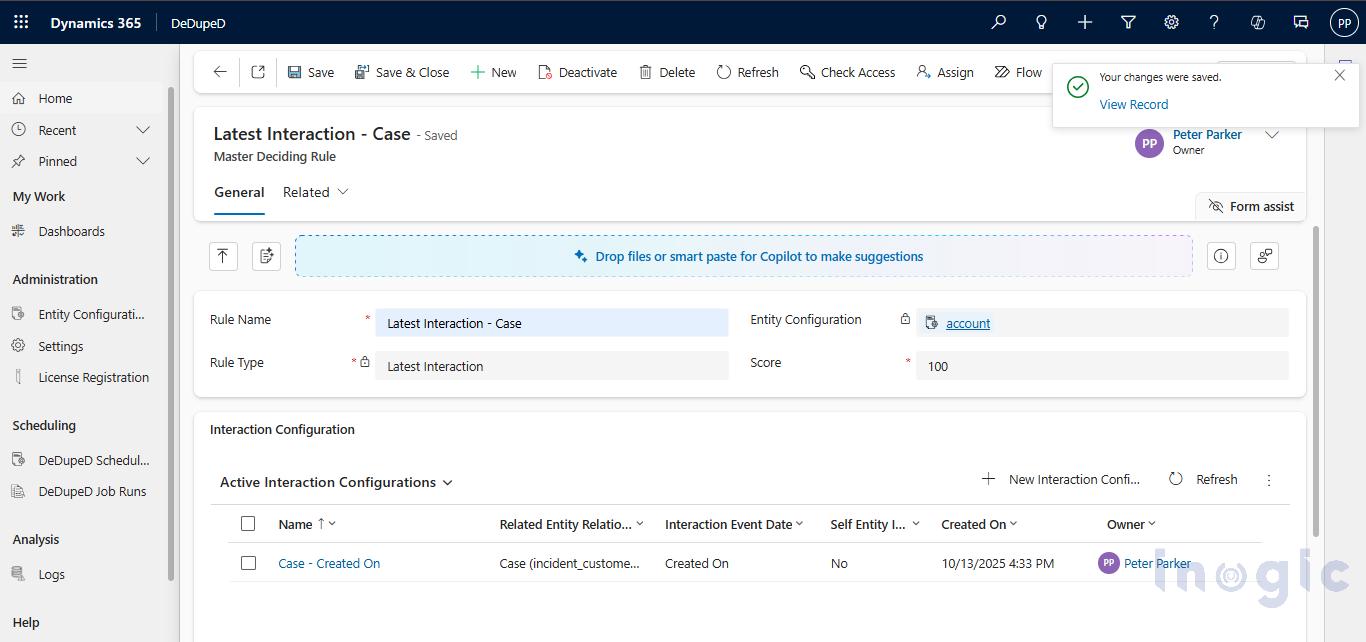
The Latest Interaction rule makes master selection context-aware.
It evaluates:
- Related Entities (Cases, Orders, Invoices, Emails)
- Interaction Date fields (Created On, Modified On)
This ensures the record with the most recent customer activity becomes master.
How to Configure Latest Interaction Rule
- Go to Master Deciding Rules
- Click + New
- Select Latest Interaction as Rule Type
- Click + New Interaction Configuration
Interaction Configuration Fields
| Field | Description |
| Name | Descriptive label |
| Master Deciding Rule | Auto-populated |
| Self-Entity Interaction | Toggle to evaluate same entity |
| Related Entity Relationships | Select related entities |
| Interaction Event Date | Choose date field |
Example: Related Entity Interaction
Two duplicate Accounts:
- Account A → Case created at 4:30 PM
- Account B → Case created at 6:00 PM
Since 6:00 PM is later, Account B becomes Master Record.
Example: Self-Entity Interaction
Two duplicate Accounts:
- Account A → Modified On 10:00 AM
- Account B → Modified On 8:00 AM
Latest modification wins. Account A becomes Master.
What Happens When Rules Are Edited?
The system:
- Allows editing rule type and score
- Saves updates immediately
- Re-evaluates existing duplicate records
- Applies updated logic in future merges
This ensures governance flexibility.
Best Practices for Master Record Selection in Dynamics 365
- Combine Multiple Rules with Scores
- Use Latest Interaction for customer-facing entities
- Prioritize Most Field Values for data quality
- Enable Suggest Master from UI
- Regularly audit active rules
- Align rules with business data governance policies
Frequently Asked Questions
How does Dynamics 365 decide which record is the master during a merge?
It evaluates all active Master Deciding Rules, calculates cumulative scores, and selects the record with the highest total score.
Can I create multiple master deciding rules?
Yes. You can create multiple rules per entity and assign scores to prioritize them.
What is the best rule type to use?
It depends on your business logic:
- Data completeness → Most Field Values
- Recent activity → Latest Interaction
- Engagement level → Most Activities
- Timestamp reliability → Latest Modified
Does the system automatically suggest the master record?
Yes, if Suggest Master when merging from UI = Yes is enabled.
Final Thoughts
Merging duplicates is not just a cleanup activity, it is a data governance strategy.
By configuring Master Deciding Rules:
- You eliminate manual guesswork
- You protect data integrity
- You enable automation
- You support AI-driven insights
- You build a Single Source of Truth
If you’re serious about improving data quality in Dynamics 365 CRM, start by defining intelligent master selection rules today.
Start your 15-day free trial from the Inogic website or via the Microsoft Marketplace.
Prefer a personalized walkthrough? Reach out to us at crm@inogic.com. Our CRM experts are happy to guide you and answer all your questions.
Duplicate merging is not just a cleanup.
It’s:
- Data governance
- Risk mitigation
- AI enablement
- Operational integrity
- Executive trust
If your CRM is your growth engine, then master selection logic is its foundation.