Introduction:
With recent updates to the PowerApps Component Framework (PCF), developers can now create custom PCF controls for lookup fields a capability that was not supported earlier.
Previously, lookup fields in Dataverse and model-driven apps could not be directly bound to PCF controls in a supported manner. However, Microsoft introduced the Lookup.Simple property type, which makes it possible to build fully supported custom lookup experiences using PCF.
In this blog, we’ll walk through how to create a simple lookup PCF control and bind it to a lookup field, using the Primary Contact lookup field on the Account entity as an example.
Scenario Overview
- Create a PCF control for a lookup field
- Bind it using the Simple property
- Allow users to select records using the lookupObjects API
- Display and update the selected lookup value correctly in Dataverse
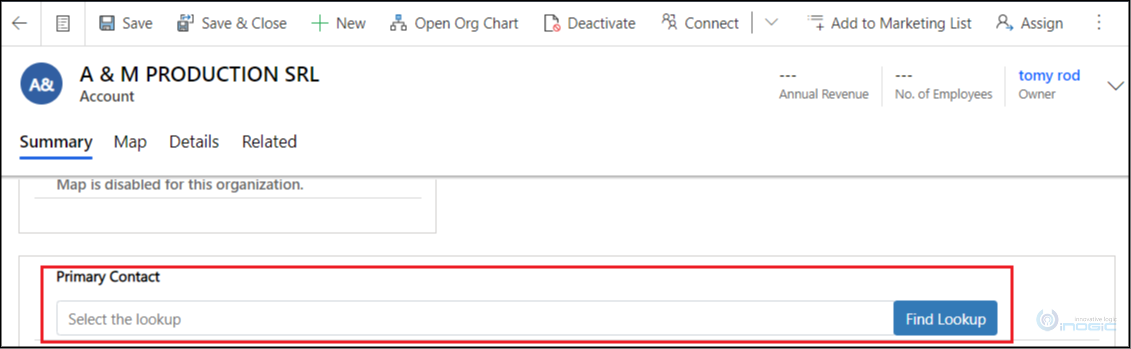
Steps to Create a Lookup PCF Control
Step 1: Add Lookup Property in ControlManifest.Input.xml
First, we need to add lookup type property in ControlManifest.Input.xml file using the code given below:
<property name="sampleProperty" display-name-key="Property_Display_Key" description-key="Property_Desc_Key" of-type="Lookup.Simple" usage="bound" required="true" />
This step is critical, as it enables the PCF control to bind directly to a Dataverse lookup field.
Step 2: Define IInputs and IOutputs in the d.ts File
Next, define the input and output interfaces so they match the lookup property defined in the manifest.
// Define IInputs and IOutputs Type. They should match with ControlManifest.
export interface IInputs {
sampleProperty: ComponentFramework.PropertyTypes.LookupProperty;
}
export interface IOutputs {
sampleProperty?: ComponentFramework.LookupValue[];
}
This allows the framework to pass lookup values into the control and receive updated values back.
Step 3: Open Lookup Dialog Using lookupObjects API
Now, add the action that, on click of ‘Find Lookup’ button, it opens the lookupObjects to select the value:
private performLookupObjects(entityType: string, viewId: string, setSelected: (value: ComponentFramework.LookupValue, update?: boolean) => void): void {
// Used cached values from lookup parameter to set options for lookupObjects API
const lookupOptions = {
defaultEntityType: entityType,
defaultViewId: viewId,
allowMultiSelect: false,
entityTypes: [entityType],
viewIds: [viewId]
};
this._context.utils.lookupObjects(lookupOptions).then((success) => {
if (success && success.length > 0) {
// Cache the necessary information for the newly selected entity lookup
const selectedReference = success[0];
const selectedLookupValue: ComponentFramework.LookupValue = {
id: selectedReference.id,
name: selectedReference.name,
entityType: selectedReference.entityType
};
// Update the primary or secondary lookup property
setSelected(selectedLookupValue);
// Trigger a control update
this._notifyOutputChanged();
} else {
setSelected({} as ComponentFramework.LookupValue);
}
}, (error) => {
console.log(error);
});
}
This opens the standard Dataverse lookup dialog and allows users to select a record.
Step 4: Set Existing Lookup Value Using updateView
When the PCF control loads, use the updateView function to populate the control with the existing lookup value.
public updateView(context: ComponentFramework.Context<IInputs>): void
{
// Add code to update control view
//Update the main text field of the control to contain the raw data of the entity selected via lookup
const lookupValue: ComponentFramework.LookupValue = context.parameters.sampleProperty.raw[0];
this._context = context;
let propertyValue:any = lookupValue.name;
this._input.value = propertyValue;
}
This ensures the lookup field displays the currently selected record when the form loads.
Step 5: Return Updated Lookup Value Using getOutputs
Finally, return the updated lookup value to Dataverse using the getOutputs function.
public getOutputs(): IOutputs
{
// Send the updated selected lookup item back to the ComponentFramework, based on the currently selected item
return { sampleProperty: [this._selectedItem] } ;
}
This step ensures that the selected lookup value is saved correctly to the bound field.
Conclusion:
With the introduction of the Lookup.Simple property type, creating lookup-based PCF controls in Power Apps has become fully supported and much easier.
This approach allows developers to build custom lookup experiences while maintaining compatibility with Dataverse and model-driven apps. When implemented correctly, lookup PCF controls can enhance usability without compromising platform stability.
FAQs
What is Lookup.Simple in PCF?
Lookup.Simple is a property type introduced in PCF that allows controls to bind directly to Dataverse lookup fields in a supported way.
Can this PCF control be used in model-driven apps?
Yes. Lookup PCF controls using Lookup.Simple are fully supported in model-driven apps.
Is multi-select lookup supported with this approach?
No. The Lookup.Simple property supports single-value lookups only.
Which API is used to open the lookup dialog?
The context.utils.lookupObjects API is used to open the standard Dataverse lookup dialog.
Is this approach supported by Microsoft?
Yes. Using Lookup.Simple is the official and supported method for implementing lookup PCF controls.