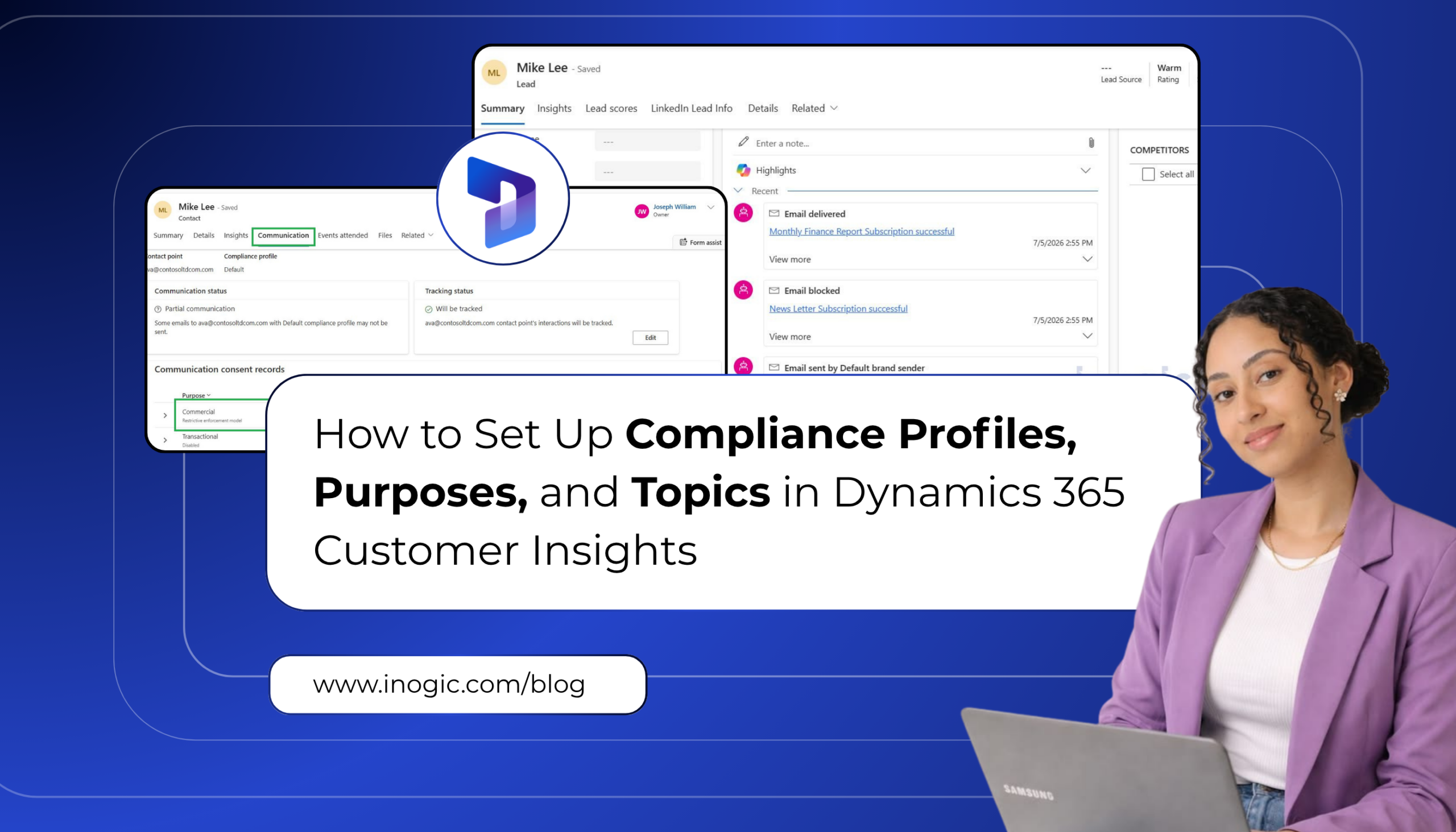
 Every marketing message you send carries a hidden question: did this customer actually agree to receive it? Dynamics 365 Customer Insights – Journeys answers that question with built-in Compliance Management capabilities, letting organizations capture consent, honor communication preferences, and stay aligned with privacy regulations like GDPR and CAN-SPAM.
In this guide, we’ll break down Compliance Profiles, Purposes, Topics, and the Preference Center, then walk through a real-world example showing how they work together from form submission to email delivery.
Why Compliance Management Matters?
Customers no longer accept all-or-nothing subscriptions. Someone who wants your Monthly Finance Report may have zero interest in your Newsletter, and forcing them to choose between “receive everything” or “receive nothing” often ends in a full unsubscribe. Compliance Management solves this by letting customers opt in or out of specific communication types while remaining subscribed to the ones they value.
Business Scenario:
Imagine a visitor who lands on your website for the first time after showing interest in one of your products. They subscribe to two types of email communications: Monthly Finance Reports and Newsletters.
Over time, their preferences shift. They still want the Monthly Finance Reports but no longer wish to receive the Newsletter. Rather than unsubscribing from all marketing emails, they should be able to opt out of just the communication they no longer want, while continuing to receive the updates they find valuable.
This is exactly the flexibility that Compliance Profiles, Purposes, Topics, and Preference Centers are built to deliver.
Prerequisites:
Before you begin, make sure the following records are already in place:
- A Compliance Profile
- A defined Purpose (with the correct email enforcement model)
- The relevant Topics under that Purpose
Step 1: Configure the Compliance Profile:
Navigate to Settings > Customer Engagement > Compliance Profiles.
You can use the existing Default Compliance Profile or create a new one by selecting + New Profile and choosing the With Preference Center option.
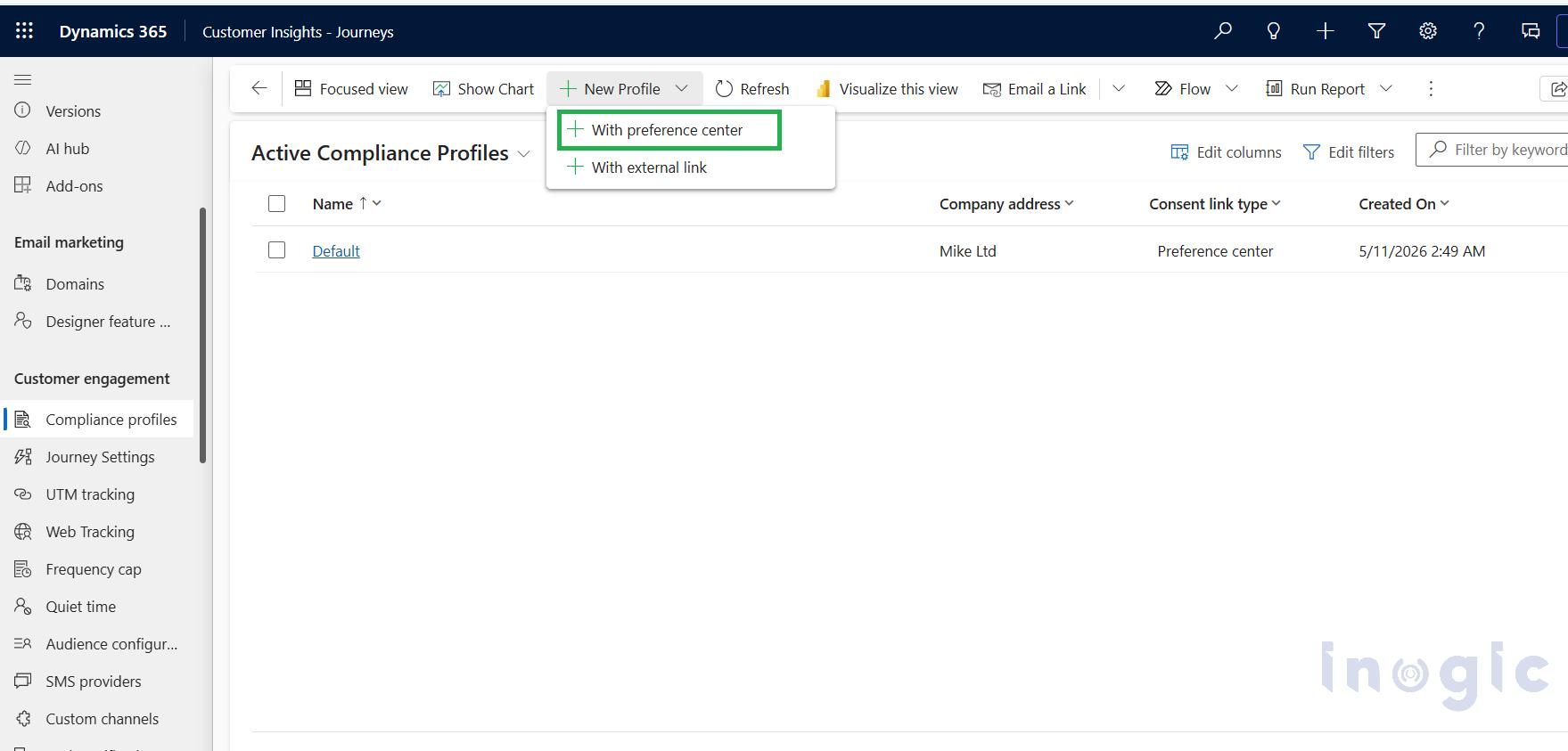
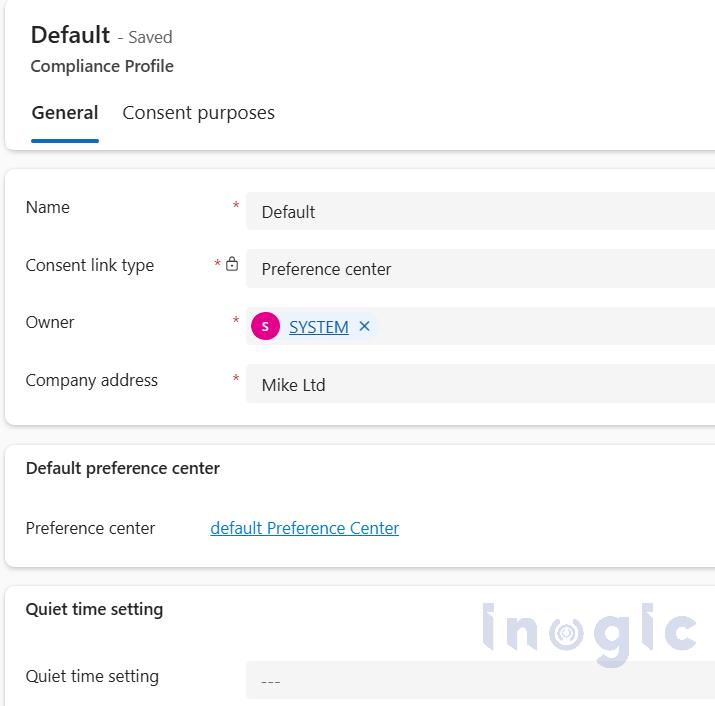
From there, configure the consent model, add your company information, and customize the Preference Center page to match your business requirements. This example uses the existing Default Compliance Profile.
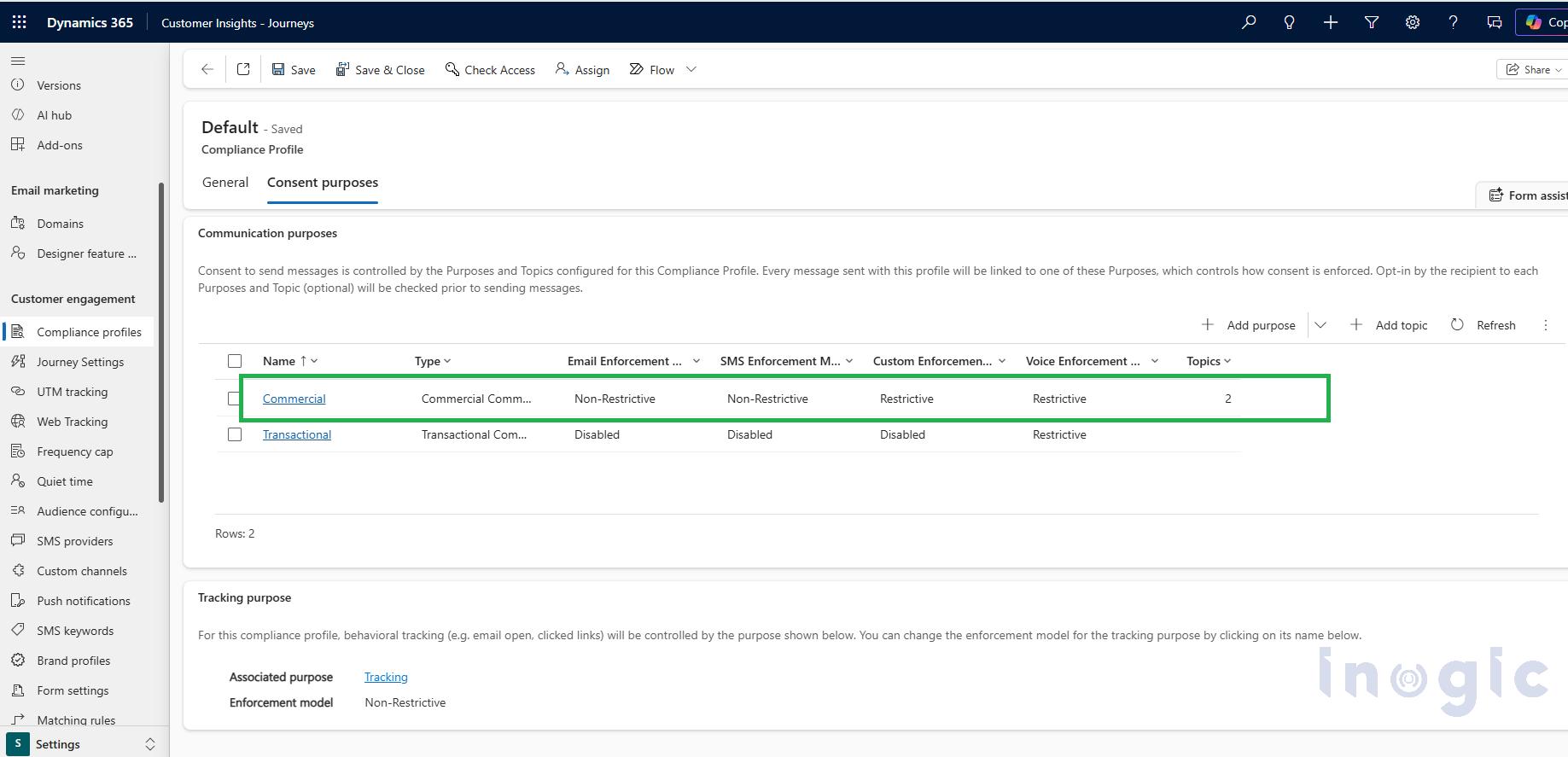
Under the Commercial consent purpose, confirm that the Email Enforcement Model is set to Restrictive.
Understanding the Restrictive Enforcement Model
The Restrictive model follows three simple rules:
- If no Contact Point Consent record exists, the email is blocked.
- If a Contact Point Consent record exists and the customer has opted in, the email is sent.
- If a Contact Point Consent record exists and the customer has opted out, the email is blocked.
In short: no consent record means no email. This default-to-block behavior is what keeps the model compliant by design.
Step 2: Create Purposes and Topics
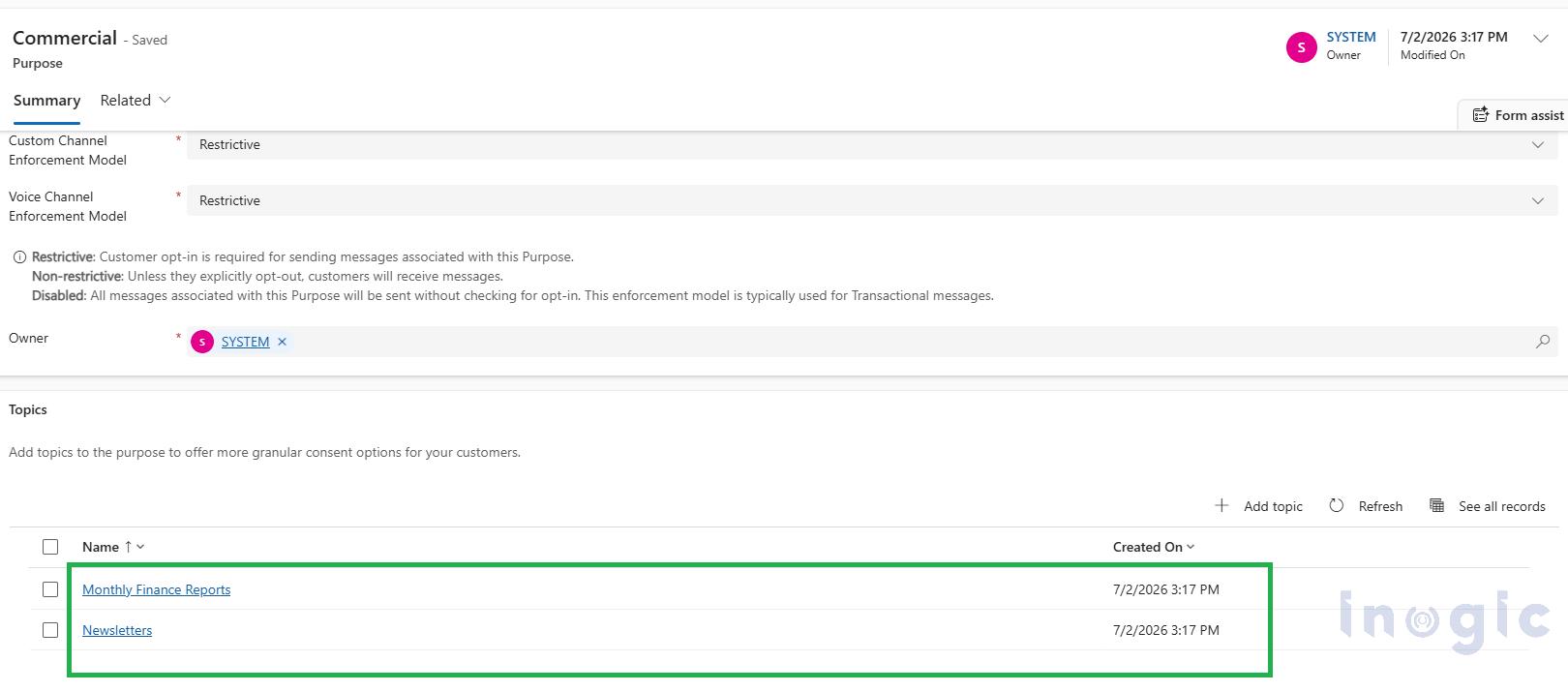
Open the Commercial Purpose record and create two Topics:
- Monthly Finance Reports
- Newsletters
Each Topic sits under the same Purpose, which is what allows customers to manage them independently later on.
Step 3: Configure the Marketing Form
Now let’s connect the Compliance Profile, Purpose, and Topics to a Marketing Form.
Navigate to Real-time Journeys > Channels > Forms, then open the existing Lead Generation Form for editing.
Under Elements > Consent, you’ll find two consent elements:
- Purpose
- Topic
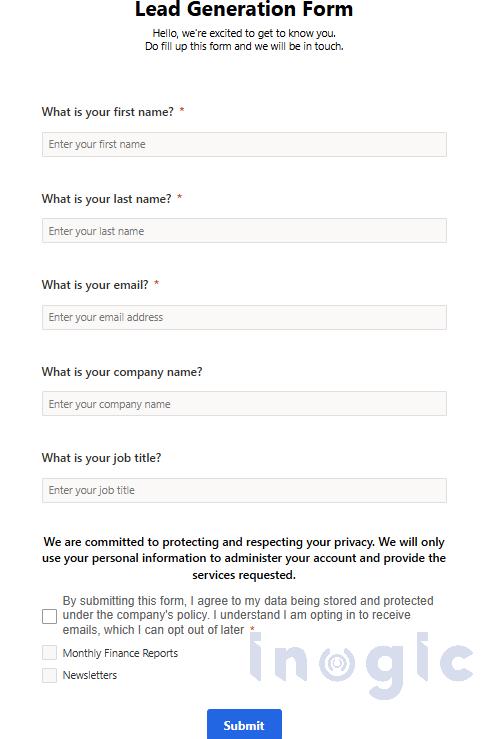
Add both elements to the form. On the finished form, the Purpose typically appears as one section and the Topics as a related section directly beneath it.
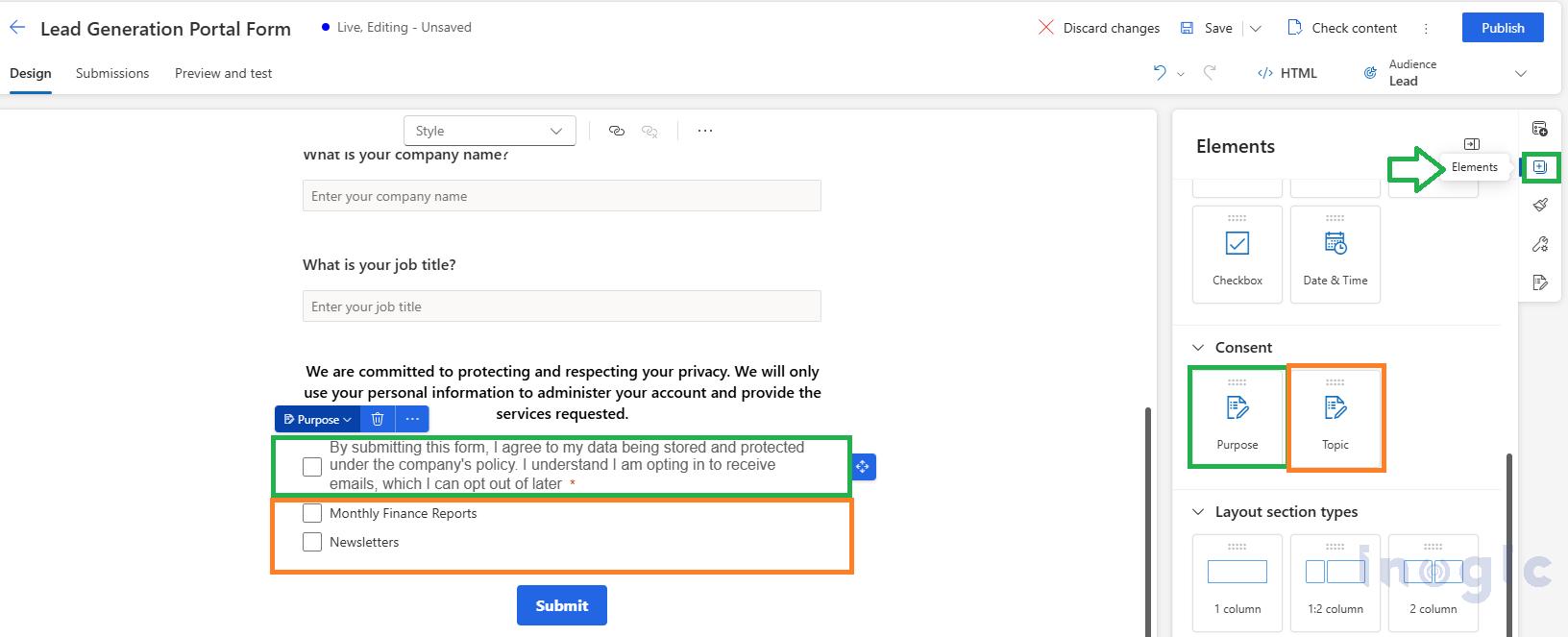
- The green-highlighted section represents the Purpose.
- The orange-highlighted section represents the Topics.
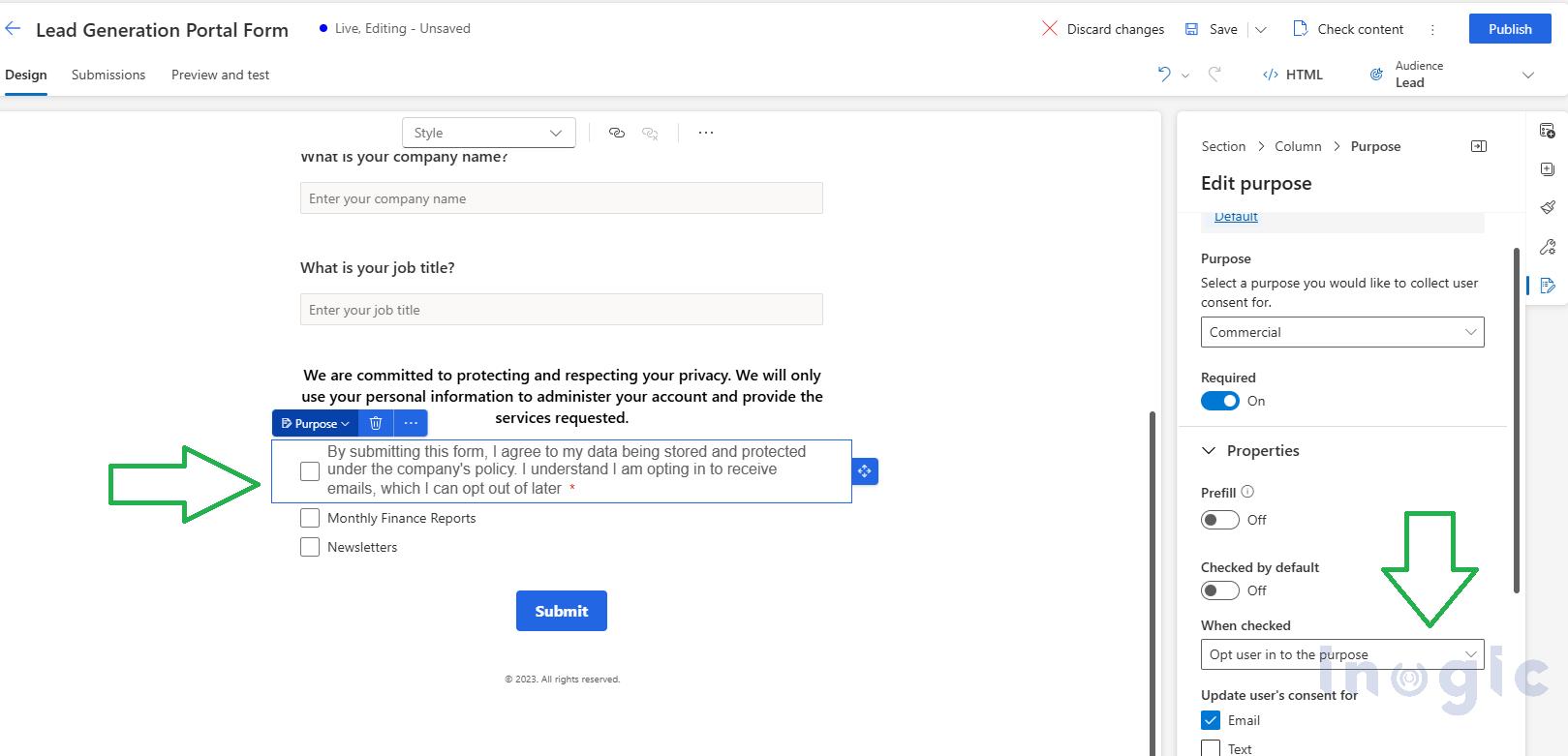 Next, associate each Topic with the same Compliance Profile and the Commercial Purpose. Repeat this configuration for both Monthly Finance Reports and Newsletters.
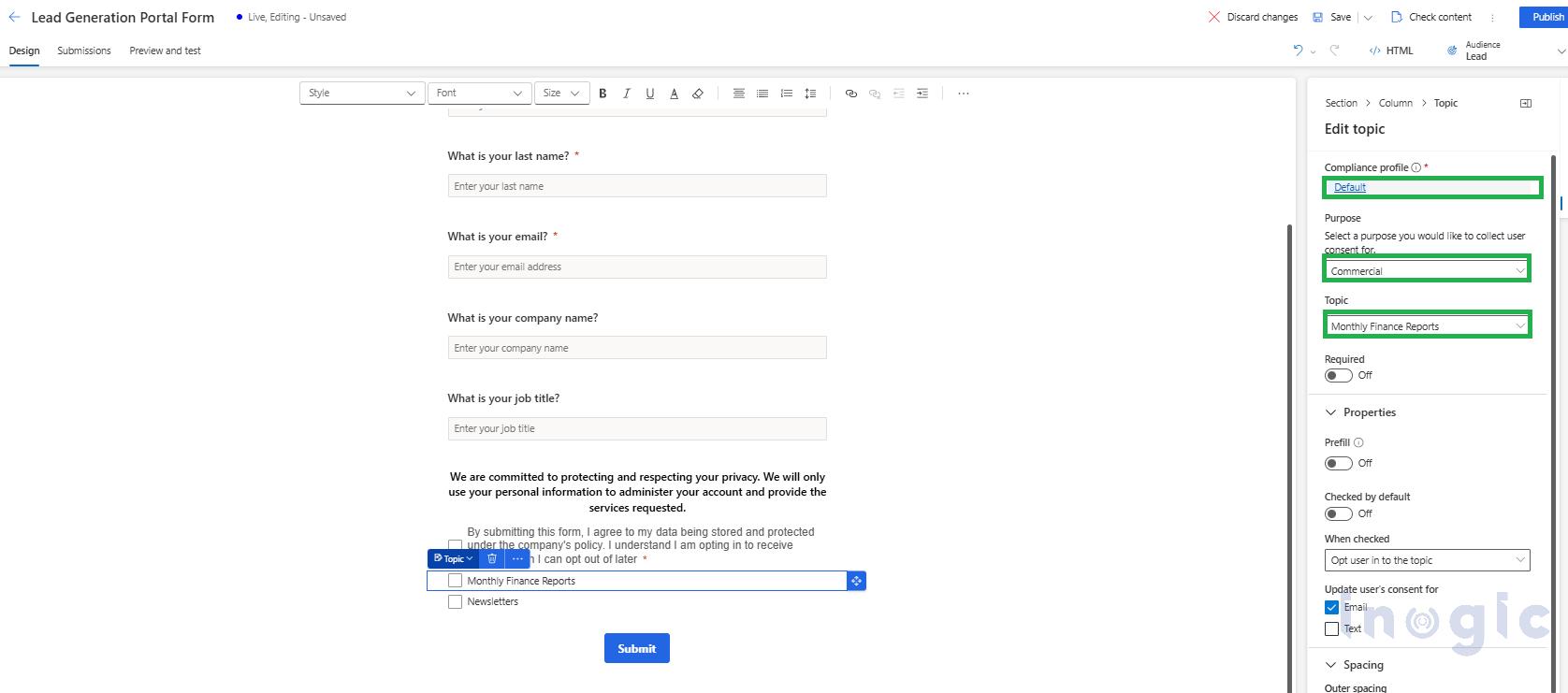
For more detail on this setup, refer to the official Microsoft documentation.
Publish and Test the Form
Once published as a standalone page, the form is ready to accept submissions.
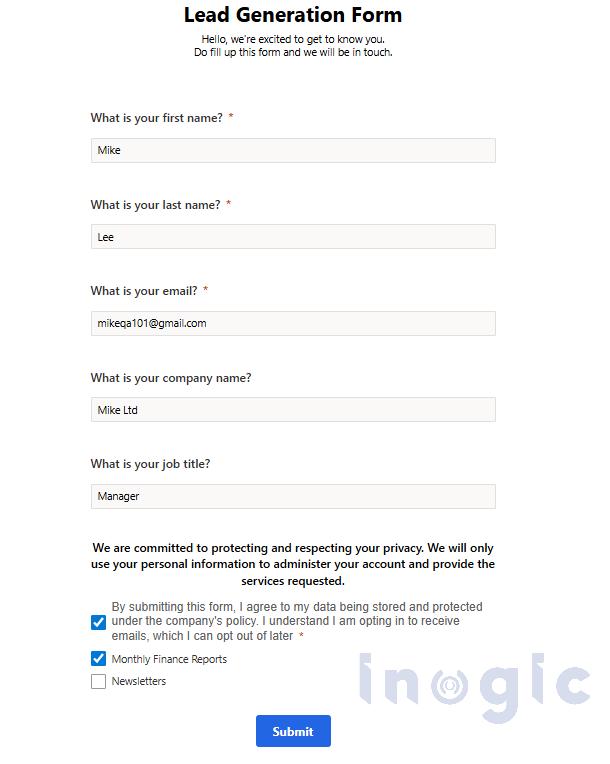
When a visitor submits the form, they must first agree to the Purpose before they can select the Topics they want to subscribe to.
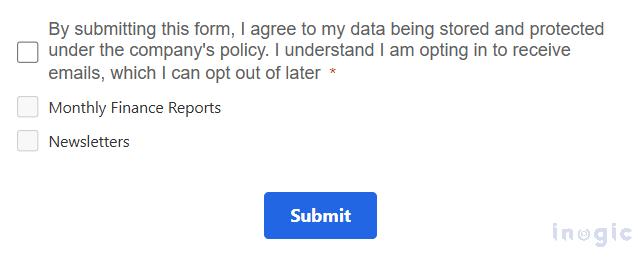
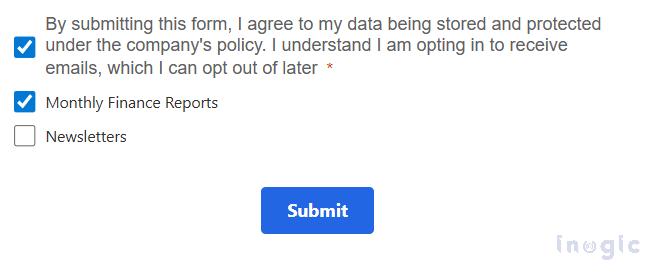
Note: Because Monthly Finance Reports and Newsletters both belong to the same Commercial Purpose, the Topic checkboxes stay disabled until the Purpose consent is selected.
- Purpose not selected: The Topic checkboxes remain grayed out and unavailable.

- Purpose selected: The Topic checkboxes become active, letting customers opt in only to the communications they actually want.

Important Configuration Note
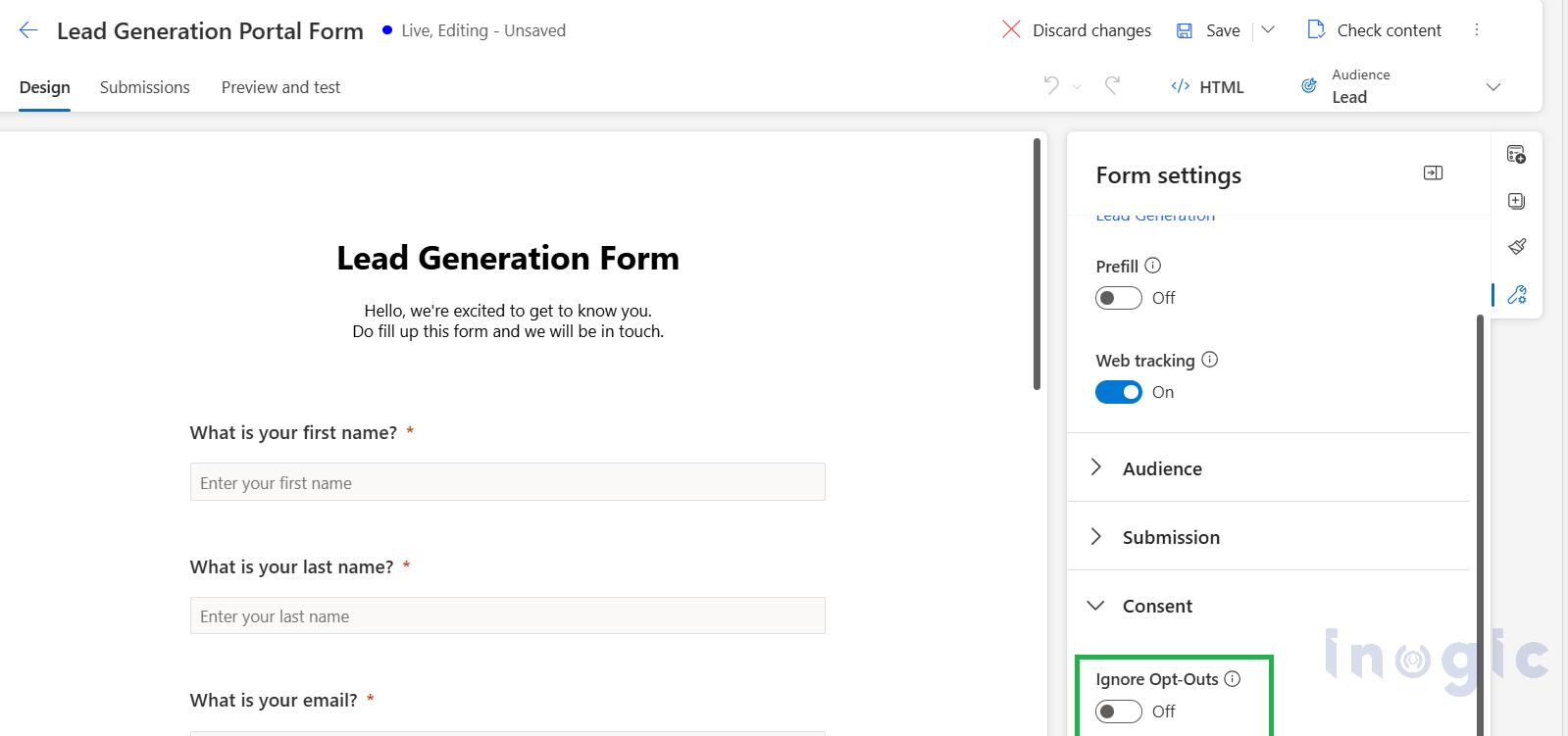
Make sure the Ignore Opt-Outs setting is turned off under Form Settings. If this setting is left enabled, customer opt-out preferences won’t be honored correctly, which defeats the purpose of setting up Compliance Management in the first place.
Sending Compliant Marketing Emails
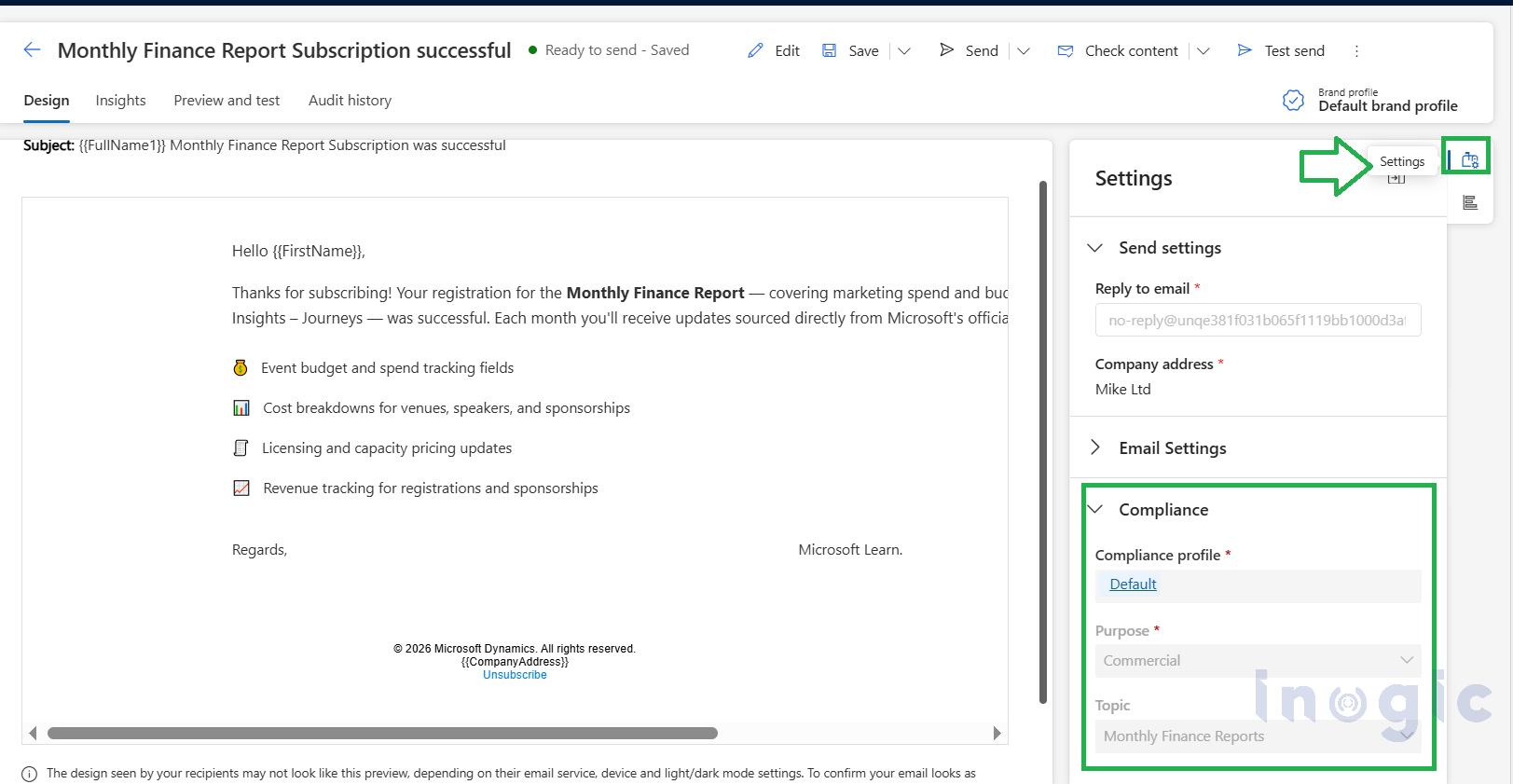
When you create a marketing email, specify the appropriate Compliance Profile and Purpose, then select the Topic the email relates to.
During journey execution, Customer Insights – Journeys checks the recipient’s Contact Point Consent records and either sends or blocks the email based on the consent tied to that specific Topic. This happens automatically, with no manual list management required.
Submit the form by checking the options below:
Viewing and Managing Consent Records
Navigate to Real-time Journeys > Audience > Consent Center to view and manage all Contact Point Consent records generated from customer interactions.
When a customer submits the form, the selected Purpose is recorded as opted in (with the Topic field left blank), and a separate consent record is created for each Topic they selected.
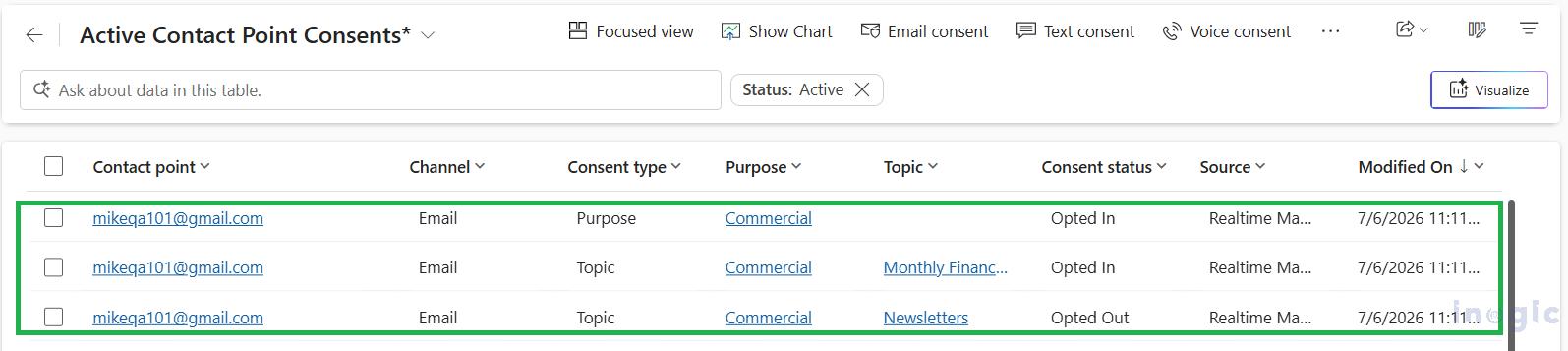
Note: If a customer later opts out of a specific Topic (say, Newsletters), that Topic’s Contact Point Consent record will show a Consent Status of “Opted Out,” while the customer remains subscribed to other Topics, such as Monthly Finance Reports.
Tracking Communication Activity
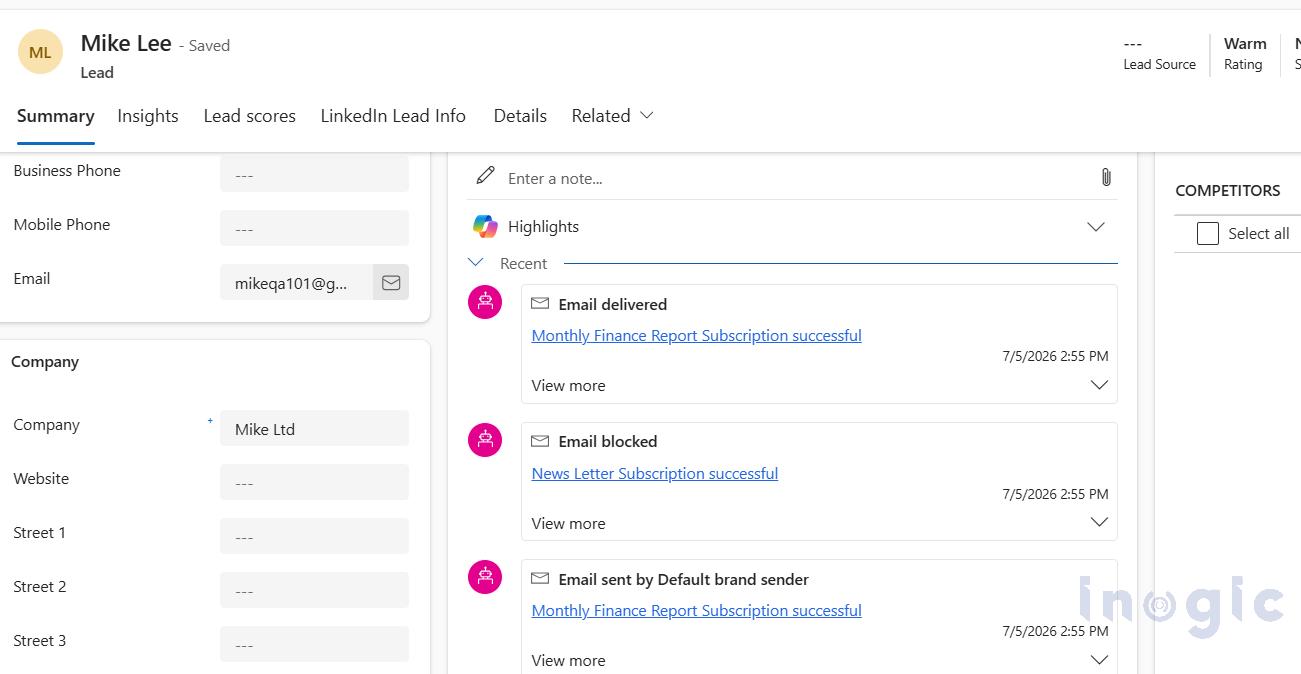
The Timeline on the Lead record gives you a complete history of marketing interactions, including whether an email was delivered, blocked, opened, clicked, or bounced. This visibility makes it easy to audit compliance and troubleshoot delivery issues at the individual contact level.
From Lead to Contact: Consent Continuity
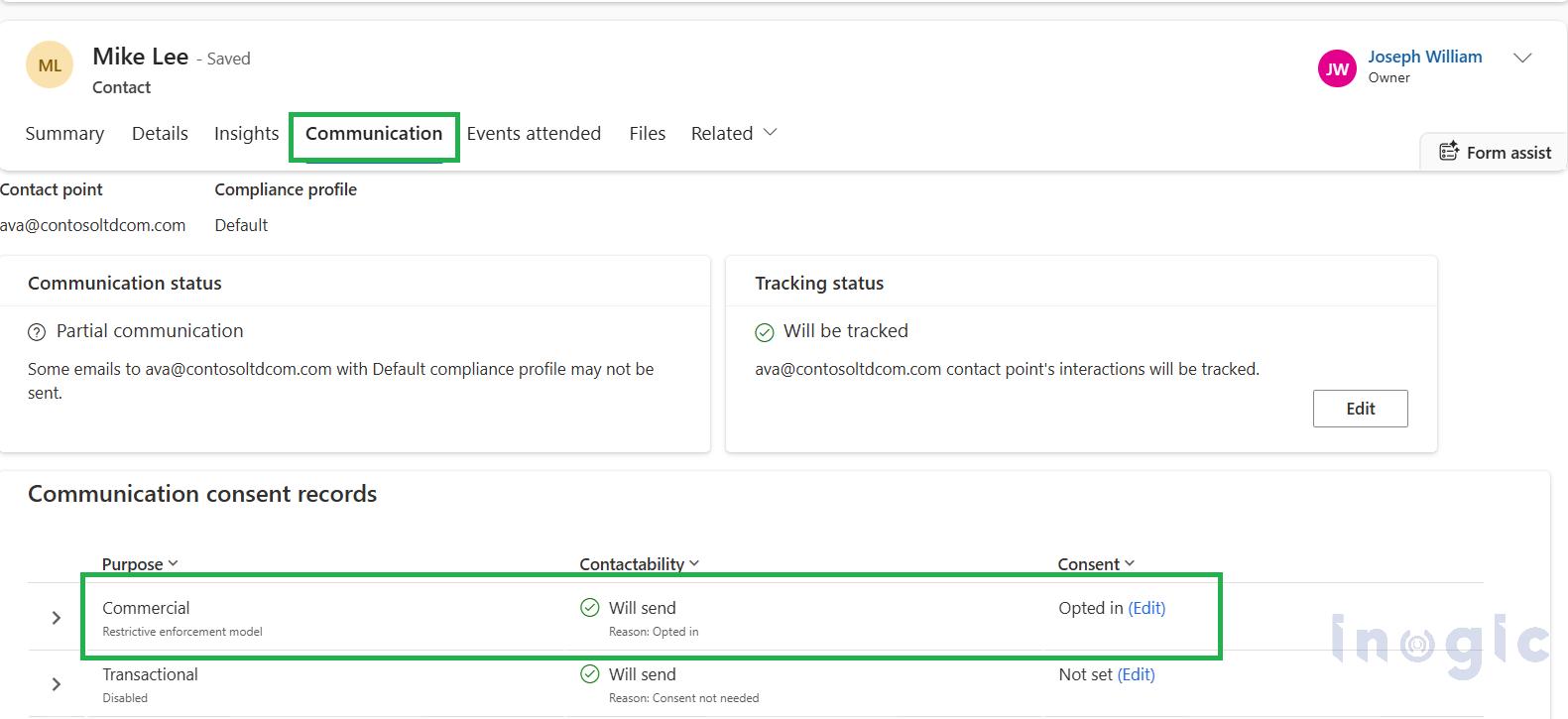
One important detail: consent is tied to the customer’s email address (the contact point), not to the Lead or Contact record itself. This means that when a Lead is qualified and converted into a Contact, the customer’s consent preferences carry over automatically and remain visible under the Communication tab.
Conclusion
Compliance Management in Dynamics 365 Customer Insights – Journeys gives organizations a structured, transparent way to capture, manage, and honor customer consent. By combining Compliance Profiles, Purposes, Topics, and Preference Centers, marketing teams can send personalized, relevant communications while respecting individual preferences and meeting privacy compliance requirements, turning consent management from a legal checkbox into a genuine trust-building tool.
Frequently Asked Questions
What is Compliance Management in Dynamics 365 Customer Insights – Journeys?
It’s a set of built-in tools (Compliance Profiles, Purposes, Topics, and the Preference Center) that let organizations capture customer consent, enforce communication preferences, and stay aligned with privacy regulations.
What is the difference between a Purpose and a Topic?
A Purpose is the broad category of consent (for example, Commercial communications), while a Topic is a specific communication type within that Purpose (for example, Newsletters or Monthly Finance Reports). Customers must consent to the Purpose before they can select individual Topics.
What does the Restrictive Email Enforcement Model do?
It blocks emails by default unless a valid opt-in Contact Point Consent record exists. This means no consent record equals no email, which keeps the system compliant by default rather than by exception.
Why are the Topic checkboxes disabled on the form?
Because Topics are subordinate to their Purpose, until a customer opts into the Purpose, the system has no valid basis to collect Topic-level consent, so those checkboxes stay disabled.
What happens if “Ignore Opt-Outs” is left enabled?
Customer opt-out choices won’t be respected, which can result in sending emails to people who have explicitly opted out, creating both a compliance risk and a poor customer experience.
Does consent transfer when a Lead becomes a Contact?
Yes. Since consent is linked to the email address rather than the record type, it carries over automatically when a Lead converts to a Contact, and it remains visible under the Communication tab.
Where can I see a customer’s consent history?
In the Consent Center, found under Real-time Journeys > Audience > Consent Center. It shows all Contact Point Consent records, including current status for each Purpose and Topic.