 At Technology, while working with Dynamics 365 Customer Service, I noticed a security gap that was hard to ignore. Our team handled all kinds of emails every day, including pricing discussions, contract details, internal escalations, customer environment information, and policy-related communications. Yet inside the system, every email looked the same.
There was no clear way to identify which emails were sensitive and which were not. This meant confidential emails could be forwarded or accessed without any additional protection. We were relying on users to handle sensitive information carefully, but there was no built-in mechanism to enforce it, increasing the risk of accidental data exposure.
The issue became even more noticeable during audits. Questions about data security and access control were difficult to answer because everything depended on manual processes.
That’s when I came across the Data Sensitivity Labels for Emails feature in Dynamics 365. It brings Microsoft Purview sensitivity labels directly into Dynamics 365 emails. While composing an email, users can apply labels such as Confidential or Highly Confidential, and the system automatically applies protections like encryption and access restrictions. Both the sender and recipient can also see the applied label, making the email’s classification clear.
After implementing it, the difference was clear. Sensitive emails were no longer treated like regular messages. They were properly classified and protected, making the entire process more secure, more controlled, and much easier to trust.
Key Takeaways
- Protect sensitive emails by applying Microsoft Purview sensitivity labels directly within Dynamics 365.
- Automatically enforce security with encryption and access restrictions based on the selected label.
- Improve compliance and governance by classifying business emails with standardized sensitivity labels.
- Configure the feature easily by creating and publishing labels in Microsoft Purview, enabling the feature, and updating the Dynamics 365 email form.
- Help users identify sensitive information with clear labels like Confidential and Protected visible in both Dynamics 365 and Outlook.
Step-by-Step Configuration Guide
Step 1: Create Sensitivity Labels in Microsoft Purview
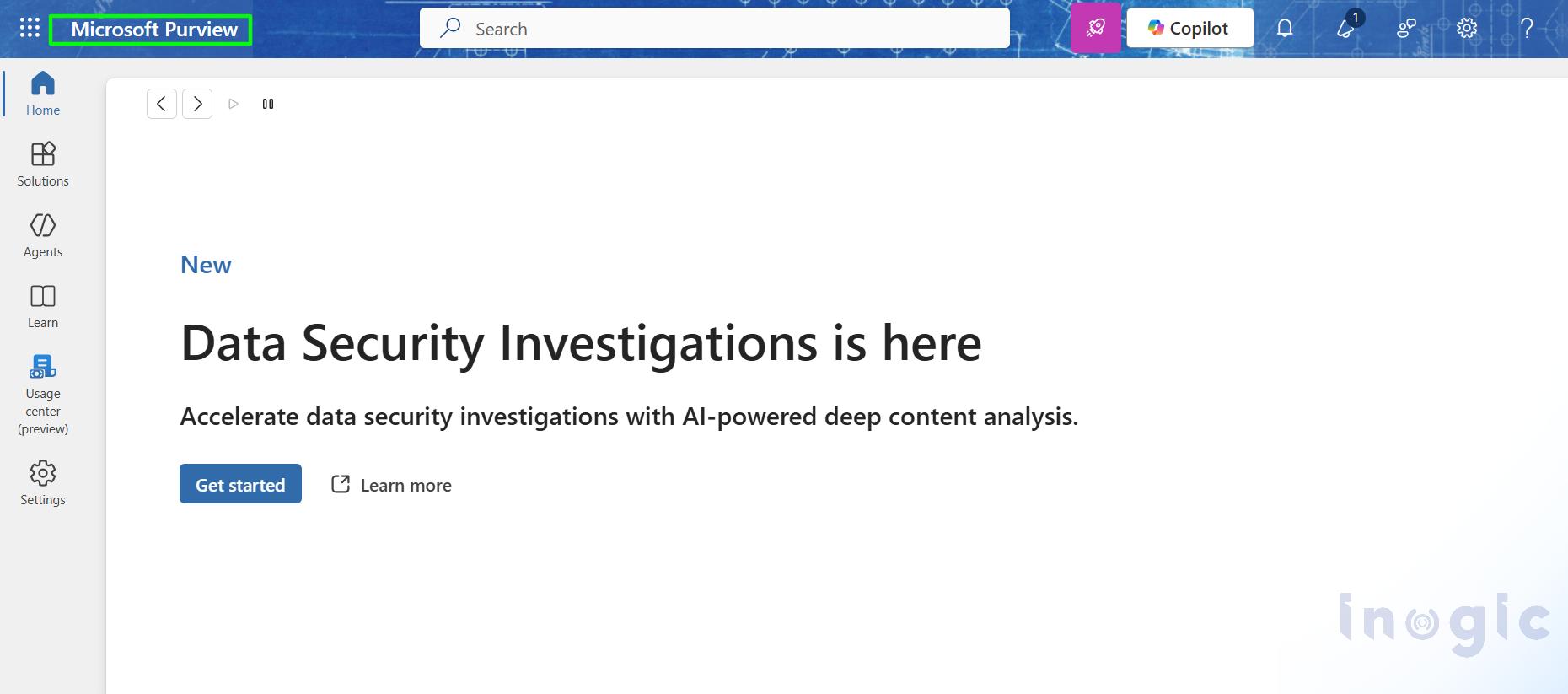
Go to Microsoft Purview Compliance Portal
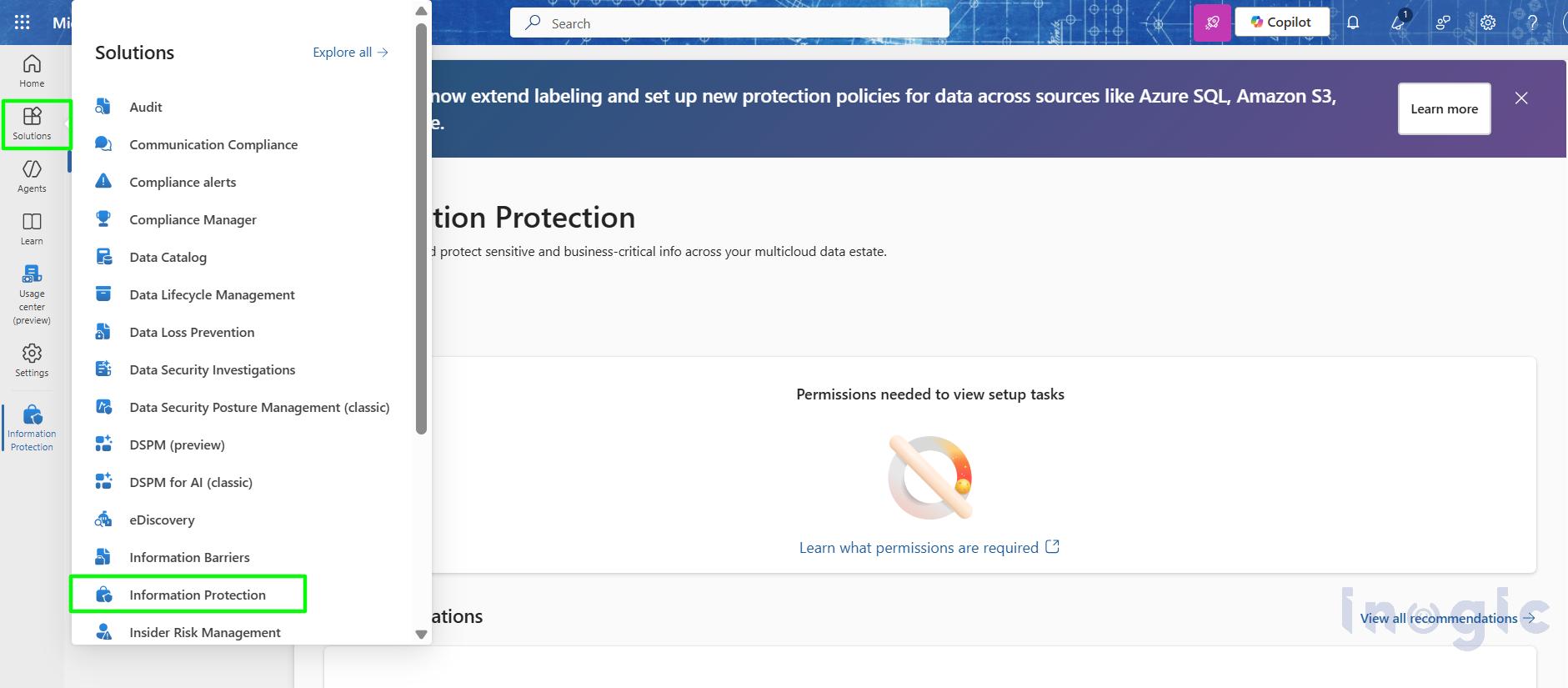
Select Solutions > Information Protection
Go to the sensitive labels
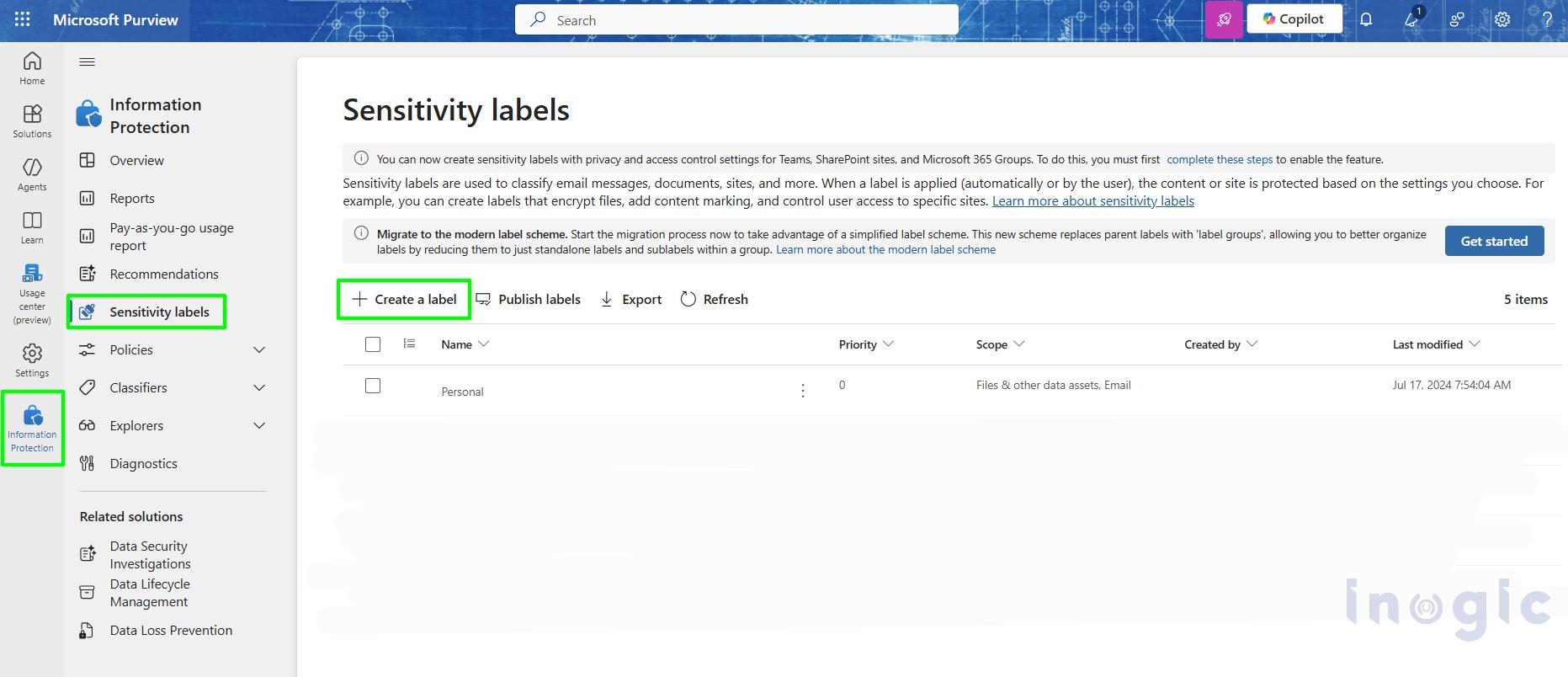
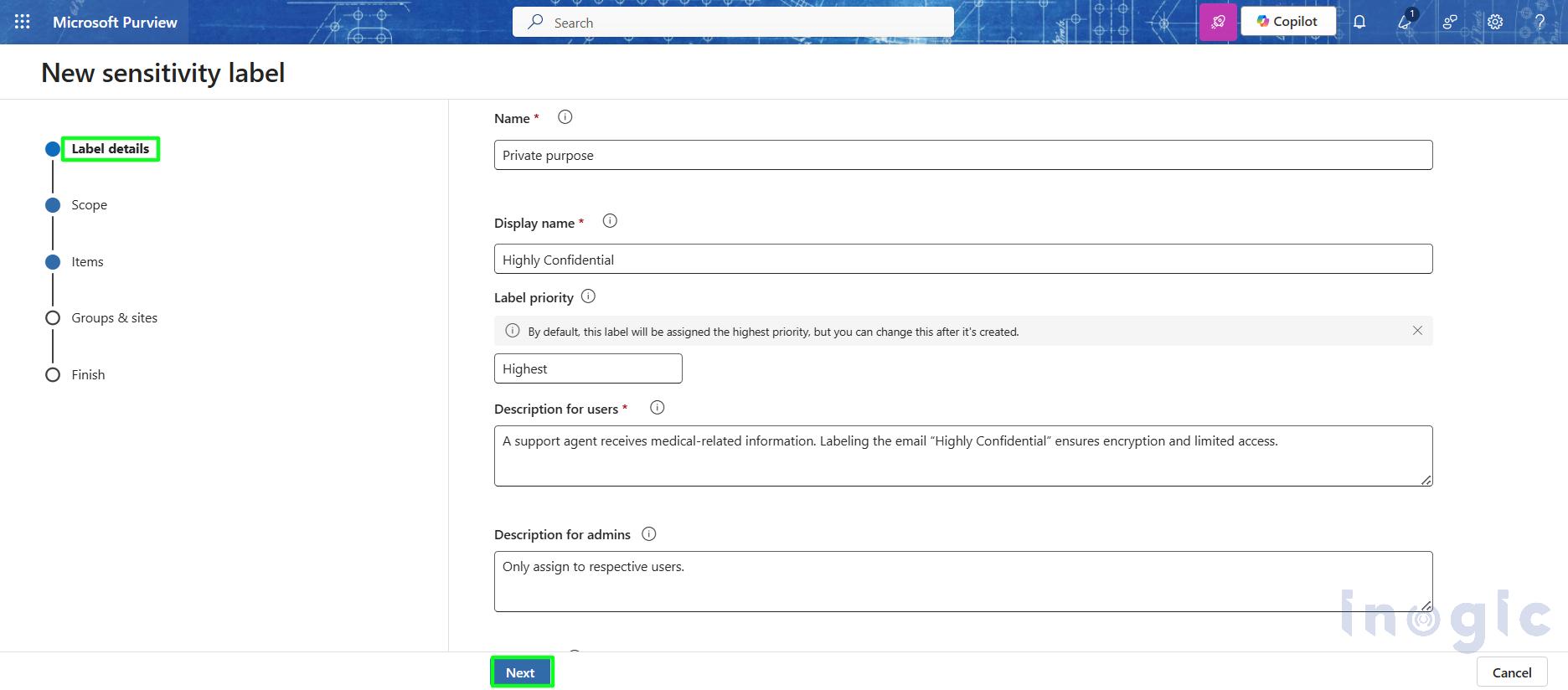
Create a new label and define:
- Name (e.g., Confidential)
- Description for user
- Label Priority
- Description for admins
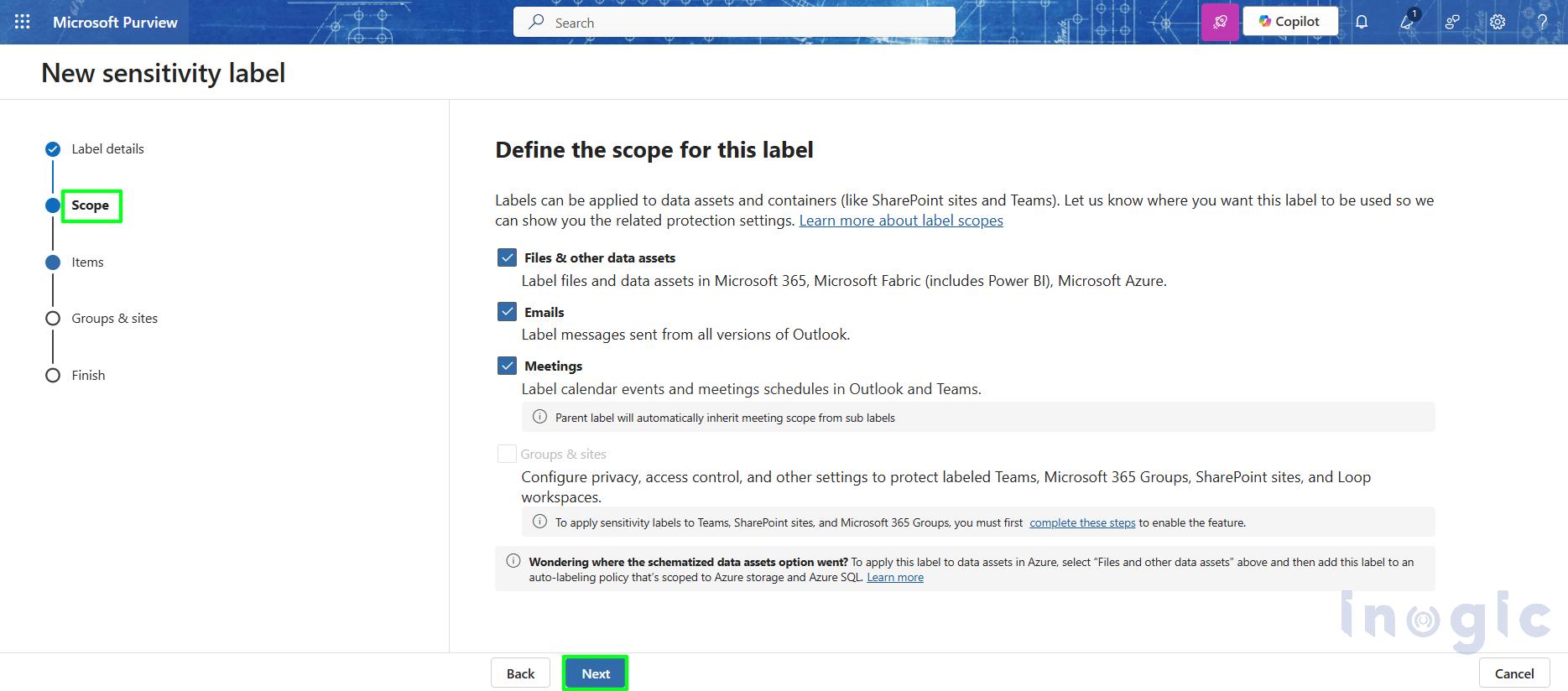
Define scope for this label according your need.
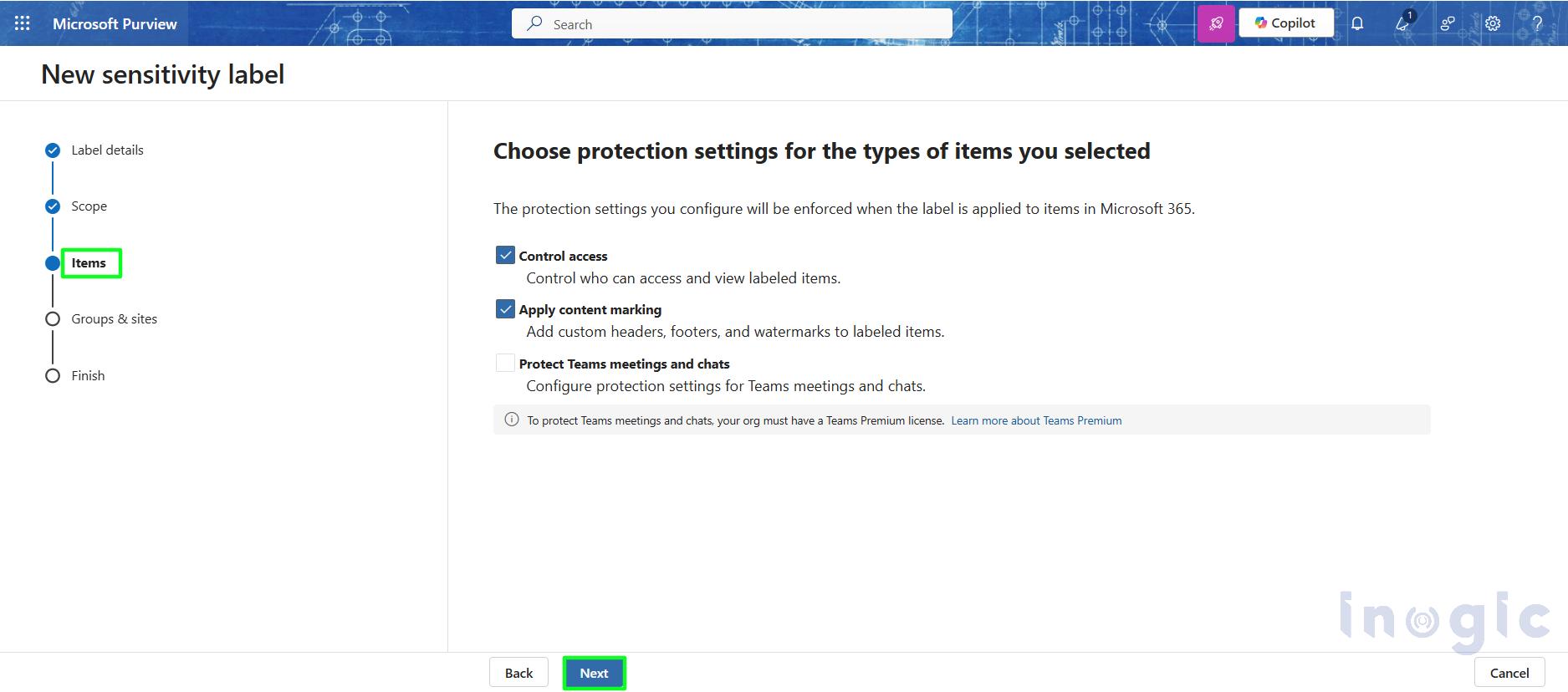
Now choose protection setting for the types of items you selected
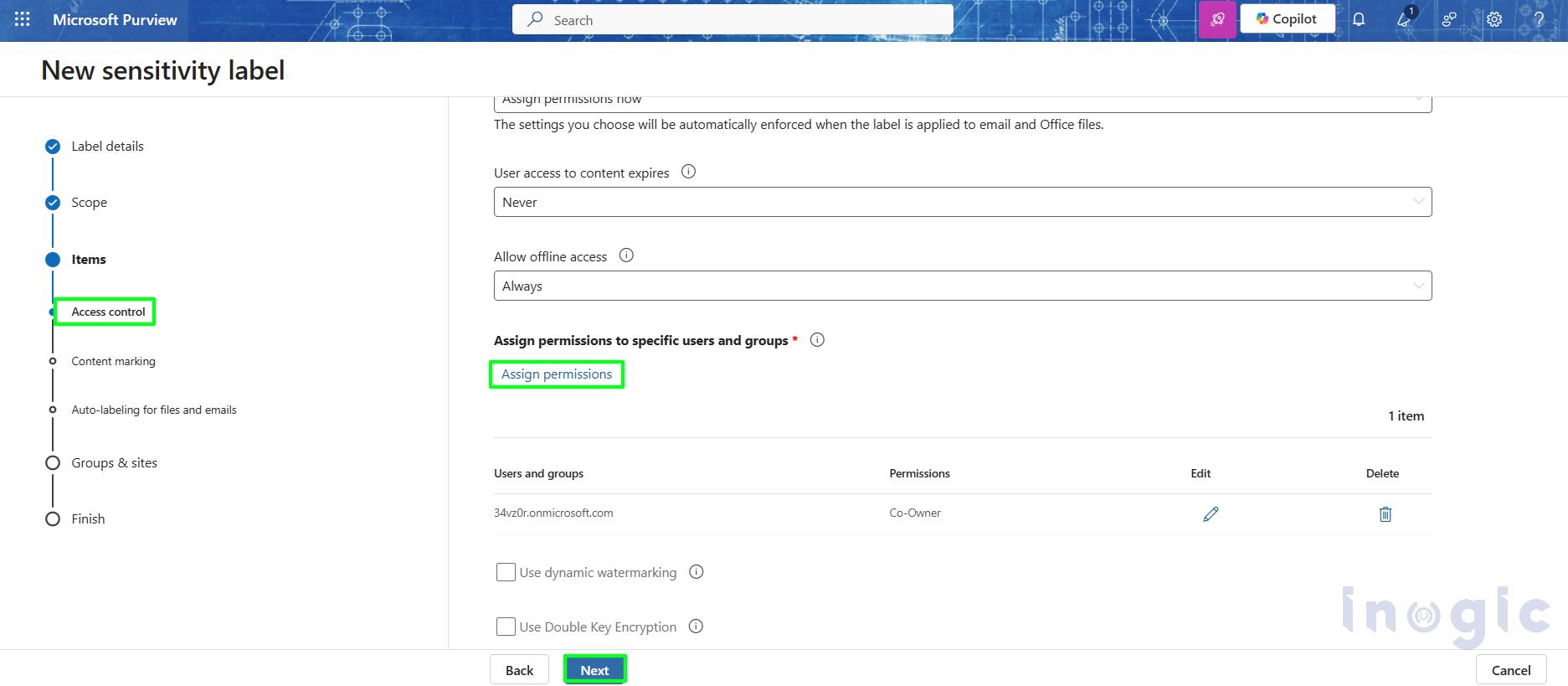
Define Access control who will have access or permissions.
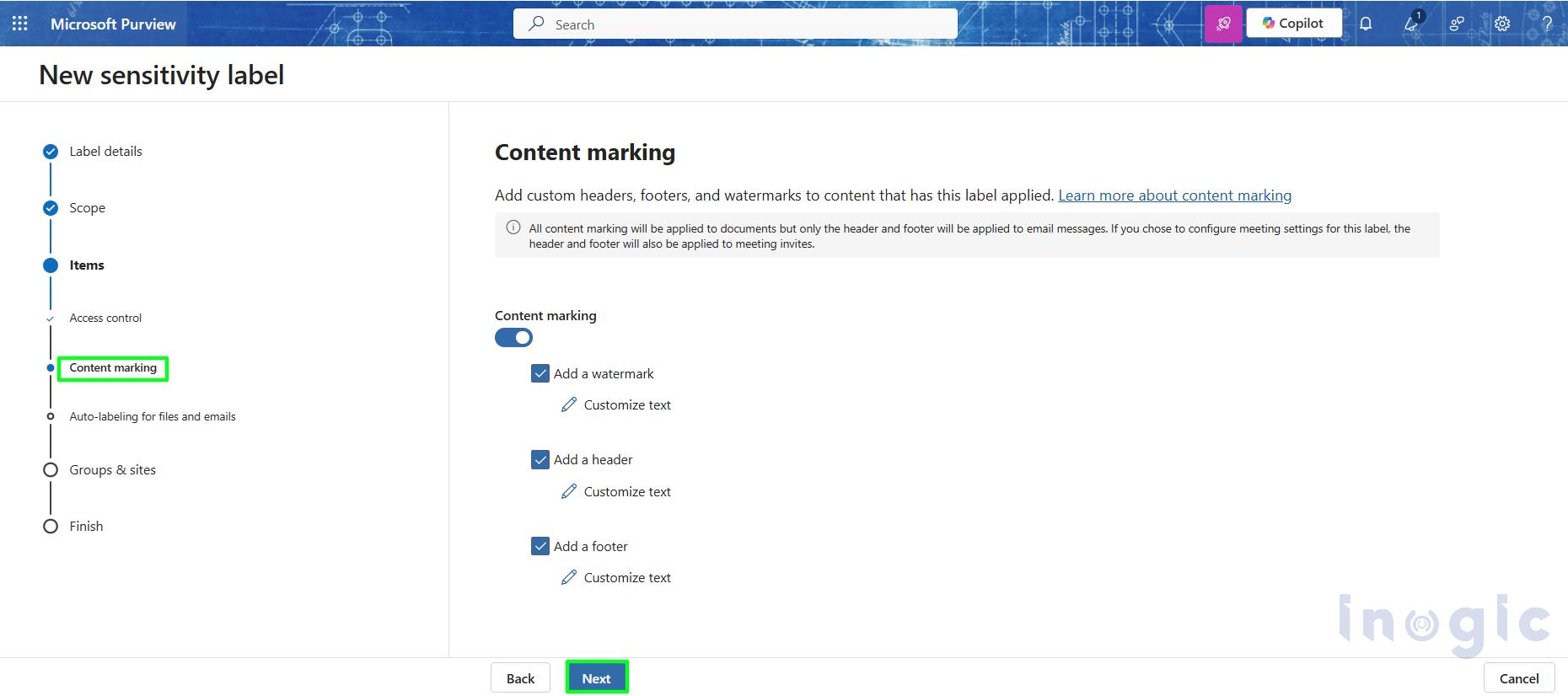
You can customize the label based on adding watermark, add header, add footer as per your requirements.
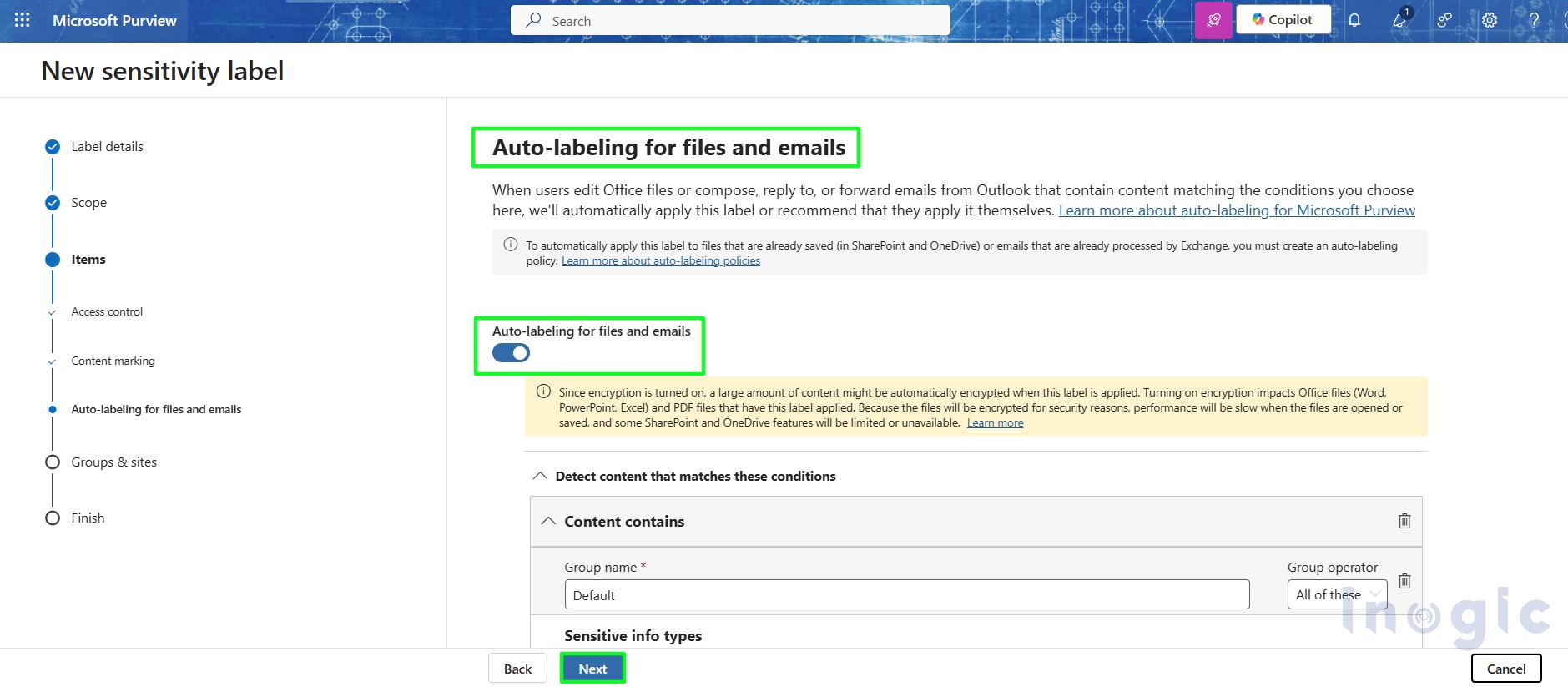
You can enable auto-labeling for email and files by switching the toggle as shown in below screenshot.
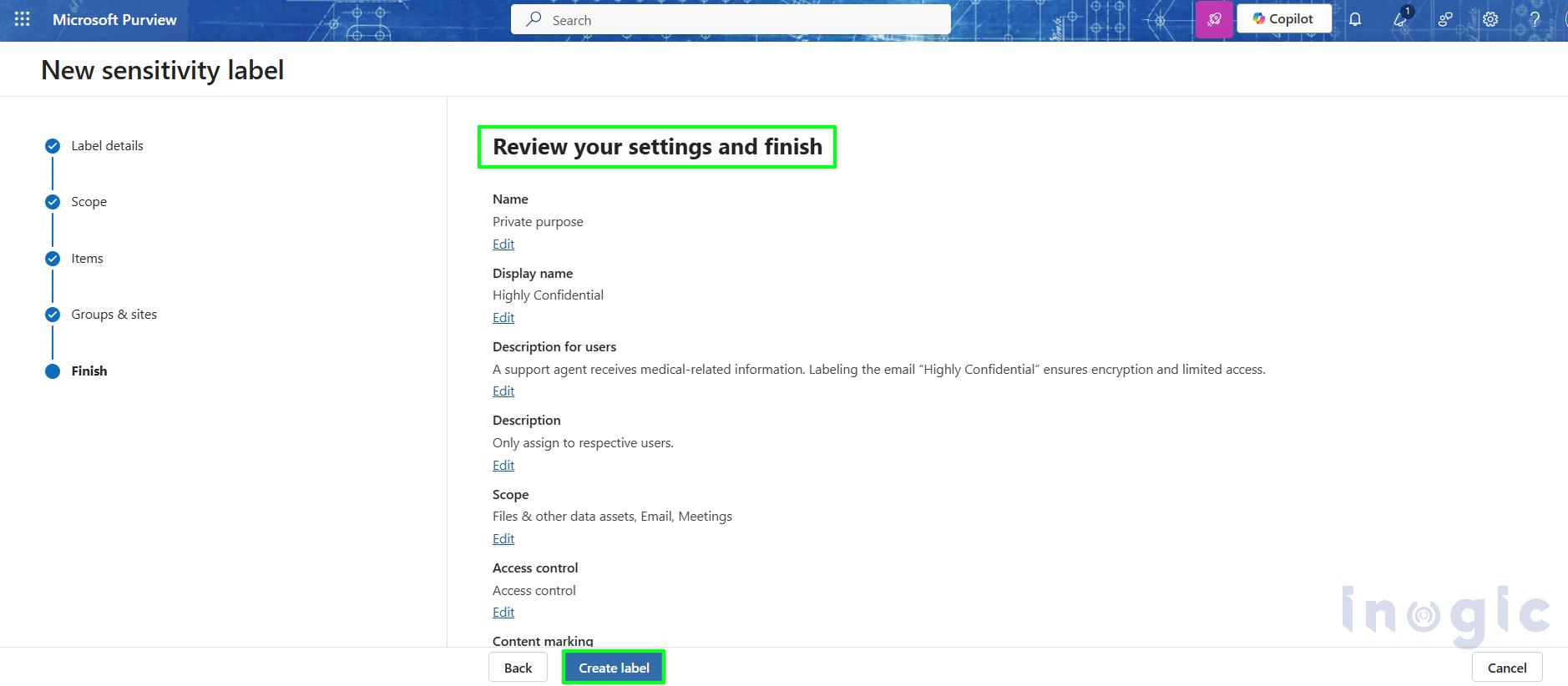
Finally just review the created label and then click on save.
 Step 2: Publish the Label Policy
After creating labels:
- Create a label policy
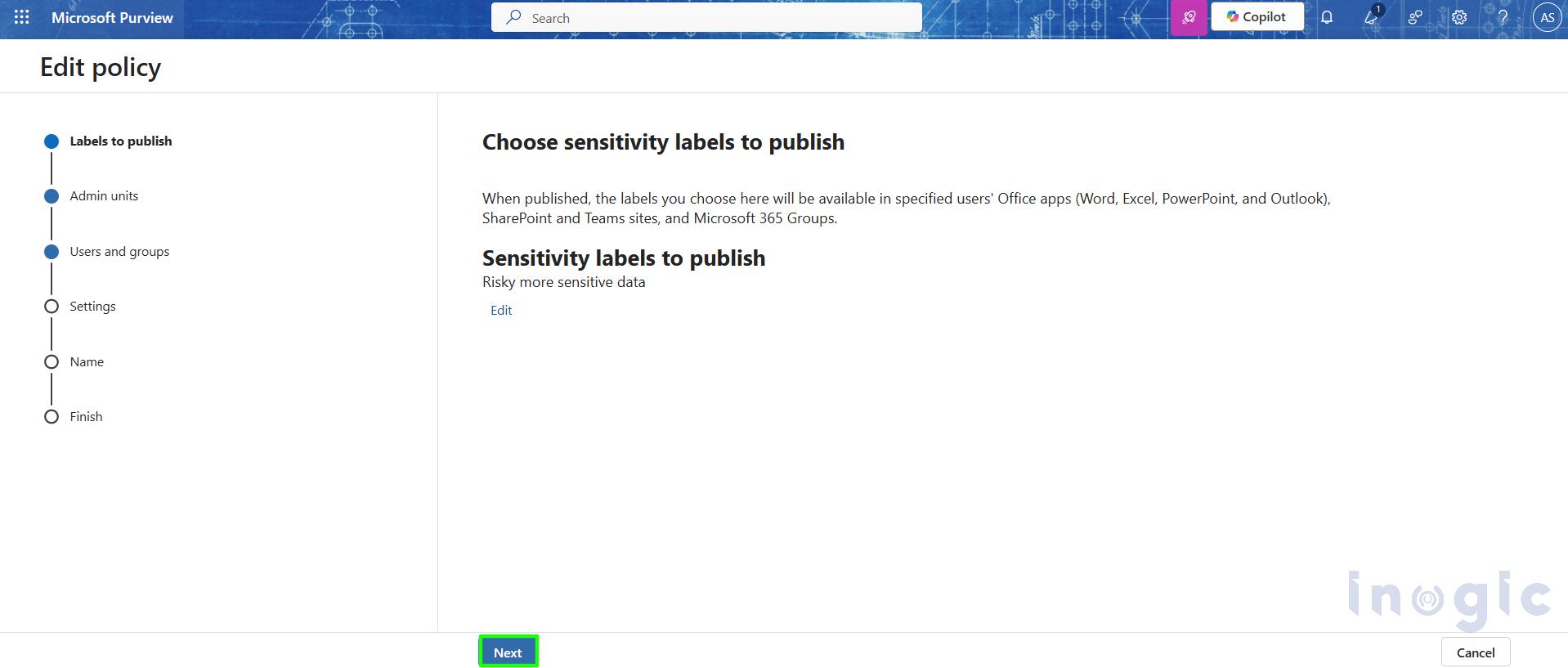
- Assign it to appropriate users or groups
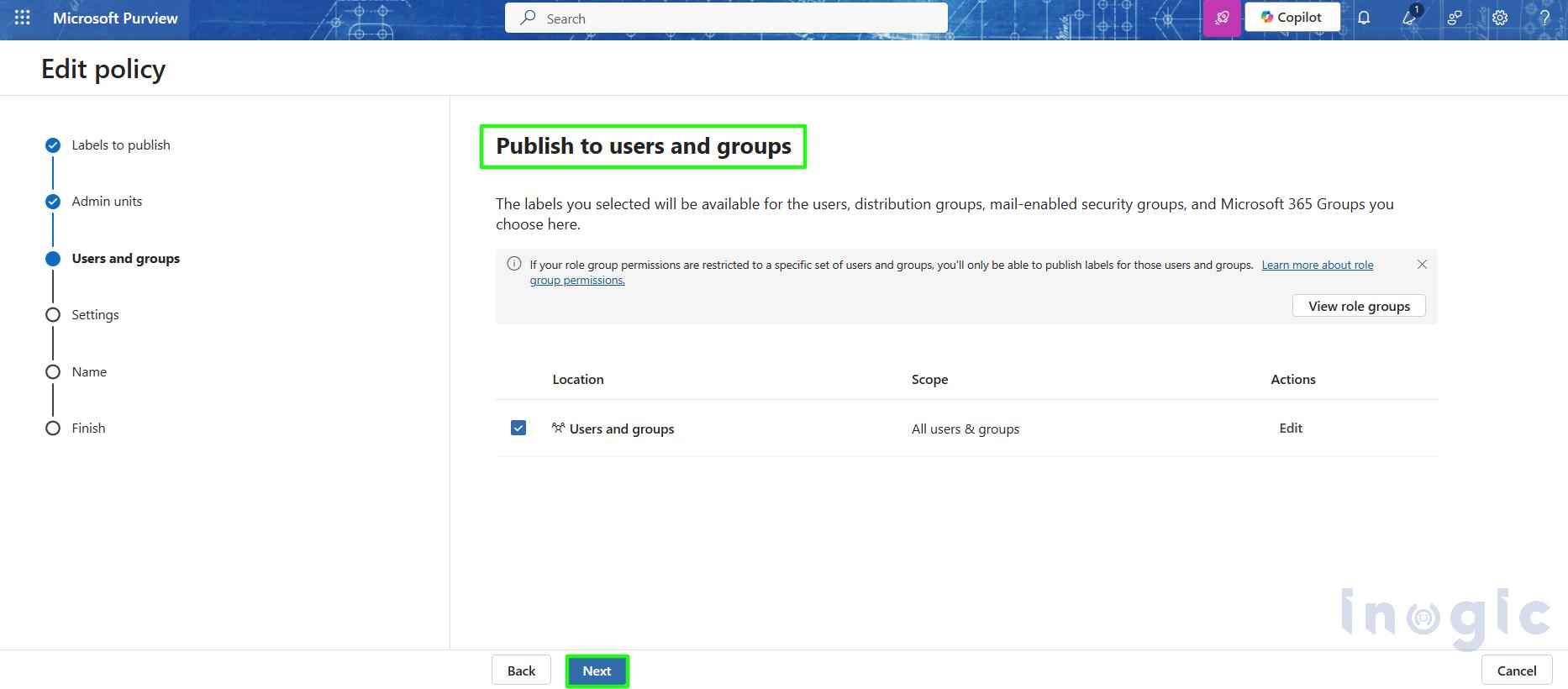
- Publish the policy
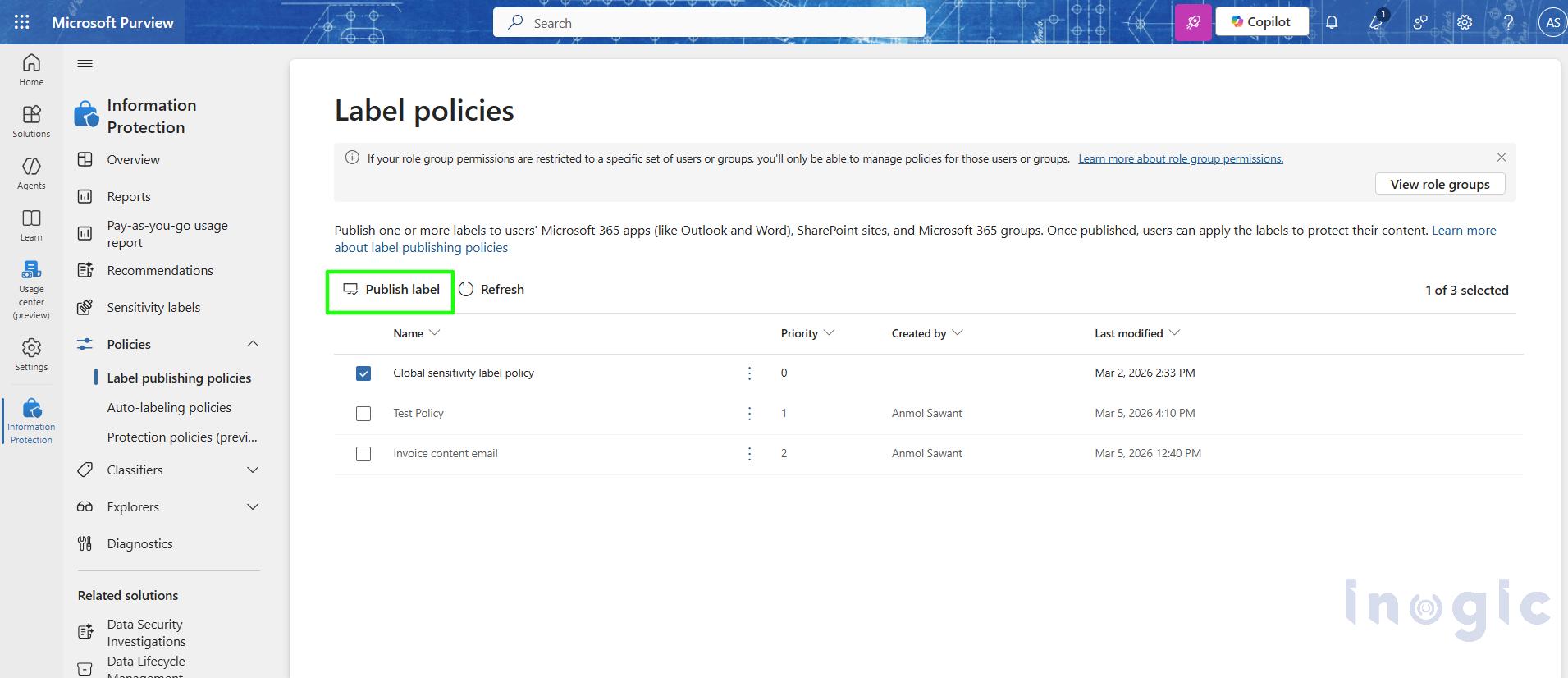
Once you publish the policy, the sensitivity labels become tenant-wide, meaning the same labels can appear in Dynamics 365.
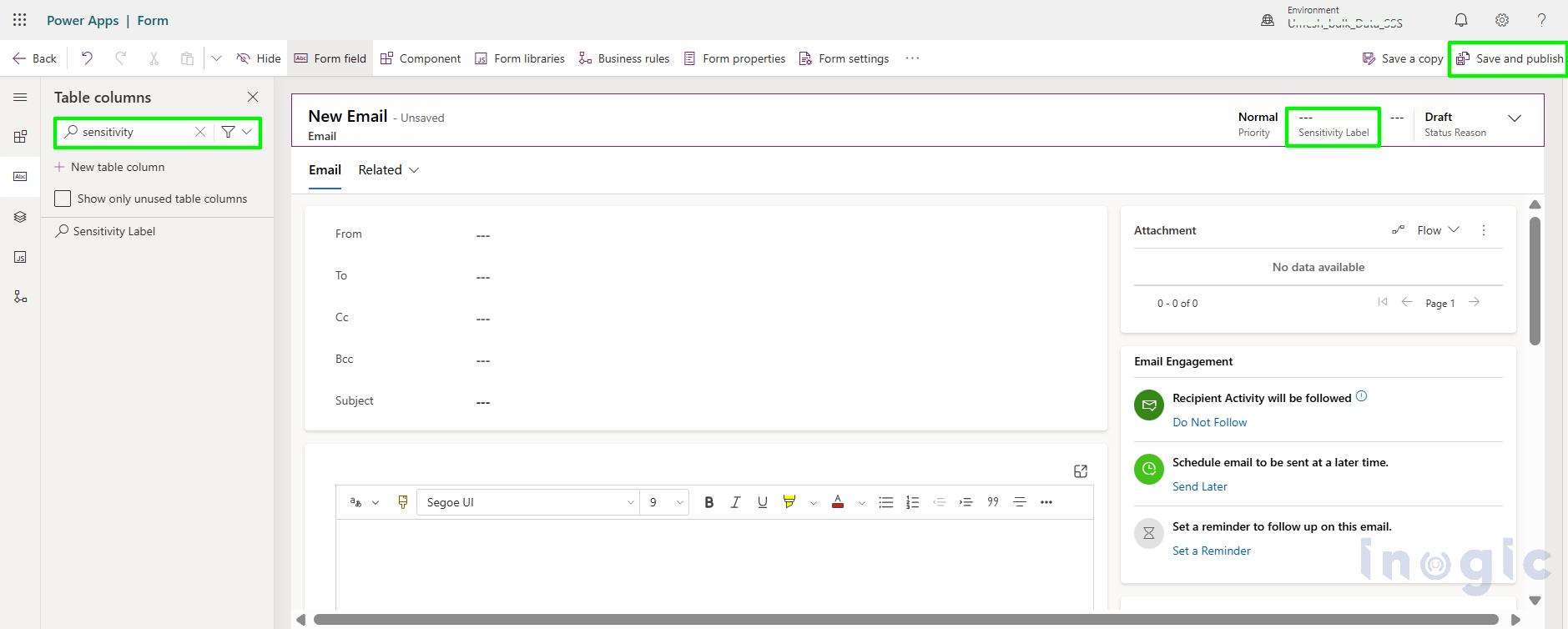
To use this feature in the Microsoft Dynamics 365 CRM email form, first go to Power Apps, select the environment, click Tables, choose the Email table, open the form, add the Sensitivity label field to the header, then click Save and Publish, as shown in the snapshot below.
Enable Email Data Sensitivity Labels
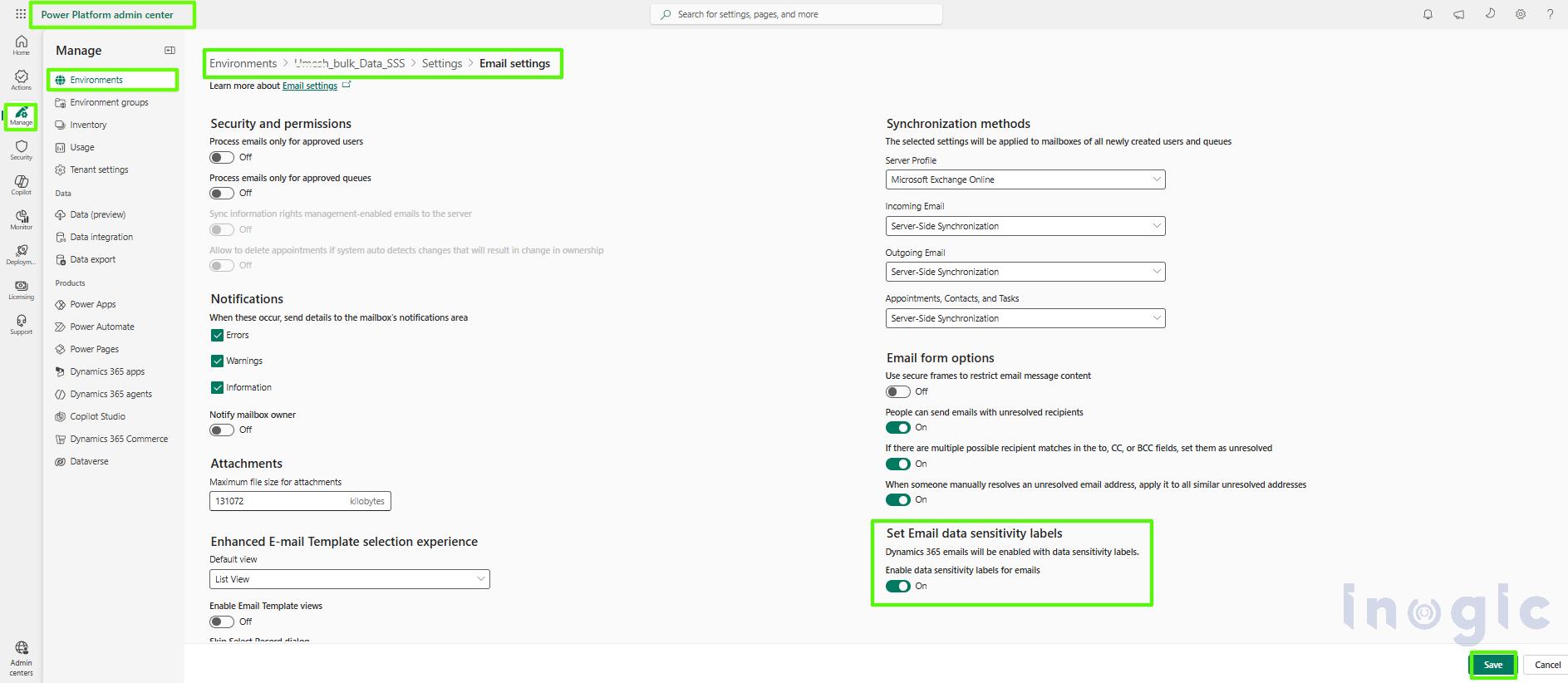
Before adding sensitivity labels to the email form, you must first enable this feature at the environment level using either of the two methods shown below.
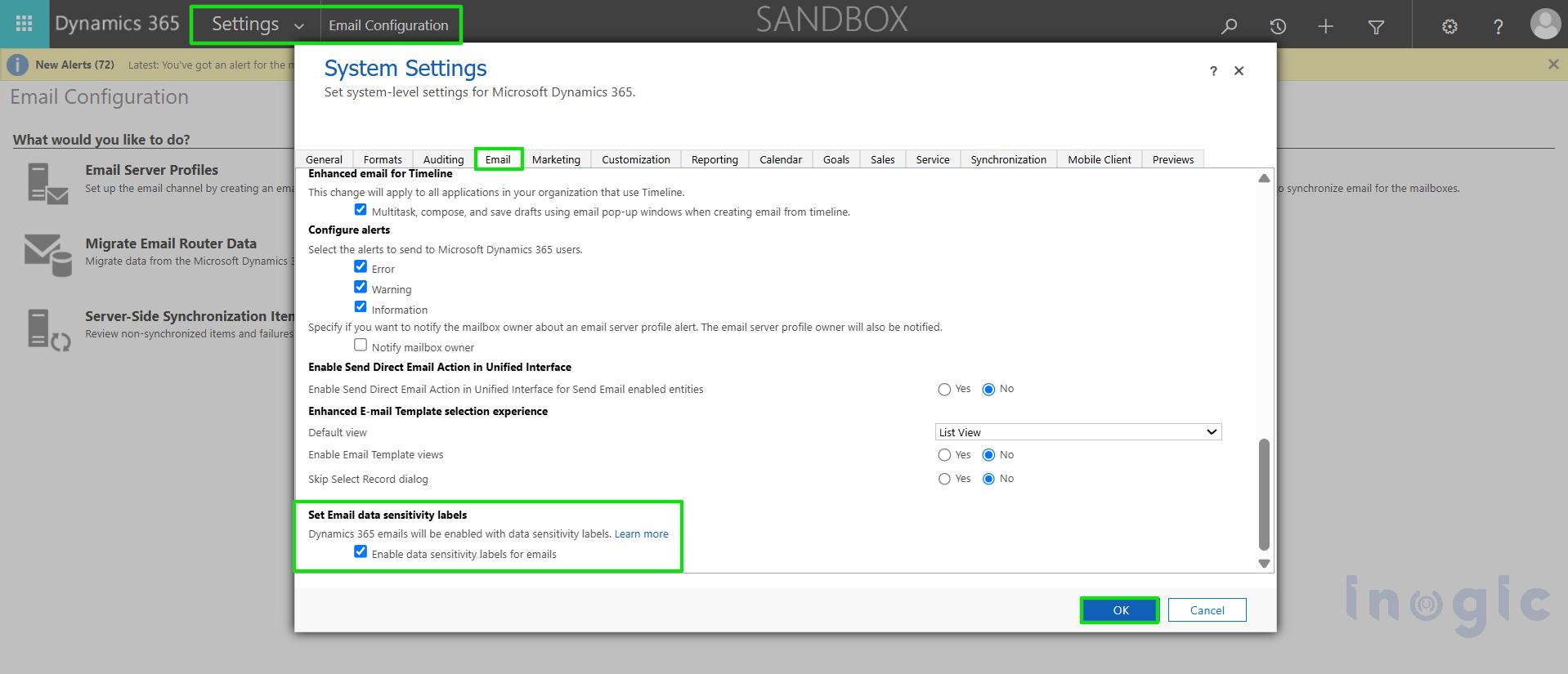
Steps to Enable Sensitivity Labels from old classic UI
- Login to your environment.
- In your browser’s address bar, append the following to the environment URL and open it:
{Your Dynamic crm URl}main.aspx?settingsonly=true - This will open the Settings page. Select Email Configuration.
- Open Email Configuration Settings to access the system settings.
- Go to the Email tab.
- Locate the option Enable data sensitivity labels for emails and check the box.

- Click OK to save your changes.
Steps to Enable Sensitivity Labels from the current modern interface
1. Choose your environment > Settings > Email > Email Settings > Enable email data sensitivity label.
Add Sensitivity Label Column to the Email Form
To display sensitivity labels within email records, you need to add the relevant column and control to the email form.
Steps to Configure the Email Form
1. Open Power Apps and select your environment.
2. From the left navigation, go to Solutions.
3. Navigate to Tables and select the Email table > Click on Forms & open the main email form select Columns.
4. Search for Sensitivity label. Drag and drop the Sensitivity label column onto the form canvas.
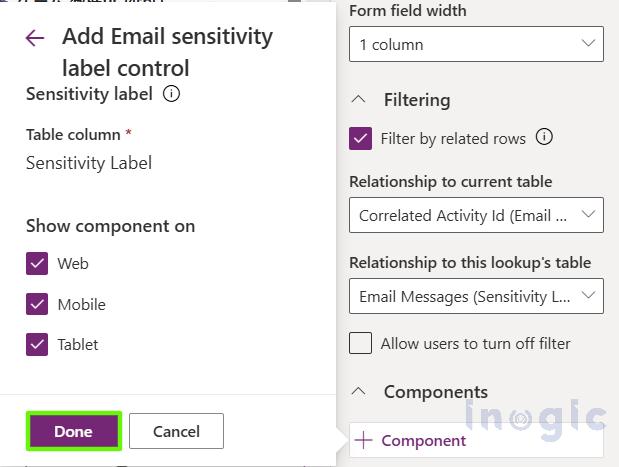
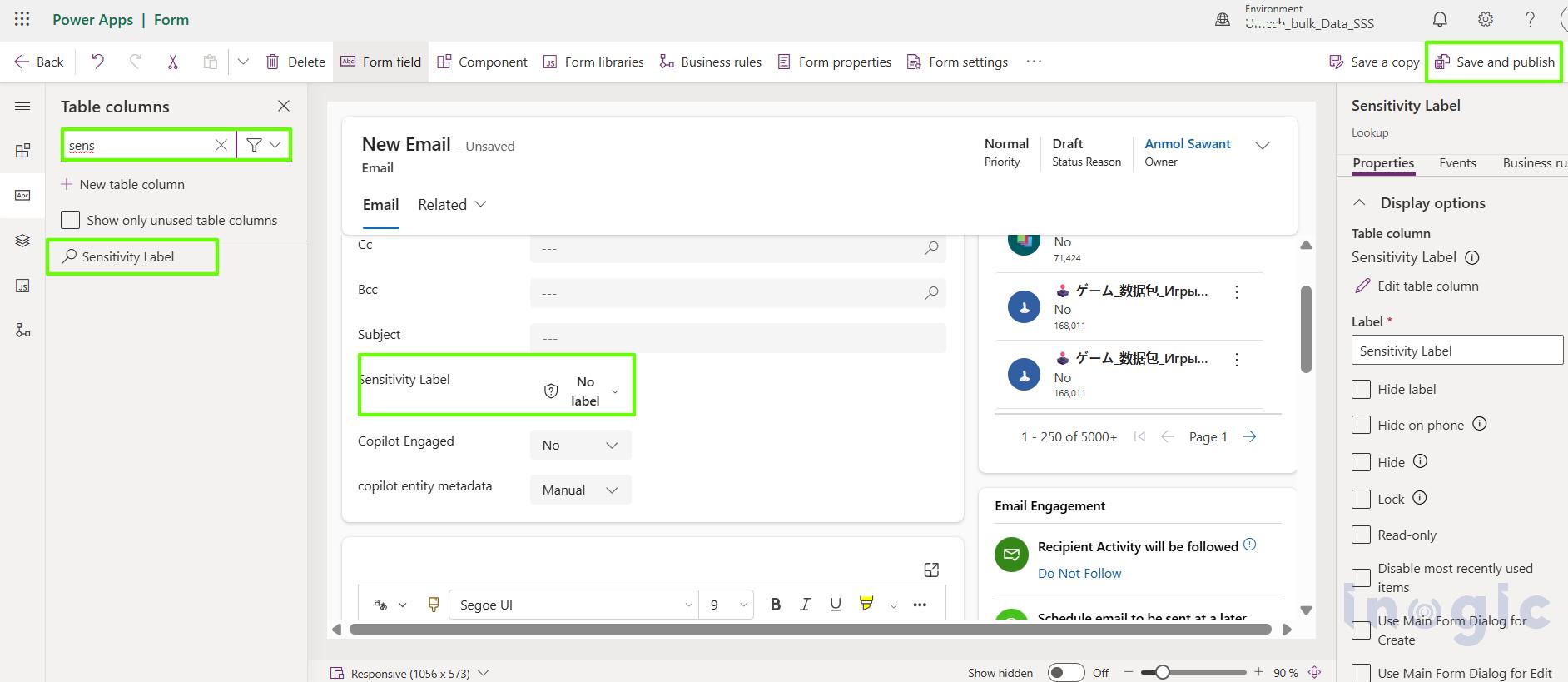 5. Select the added column on the form. In the properties panel, go to Components → + components.
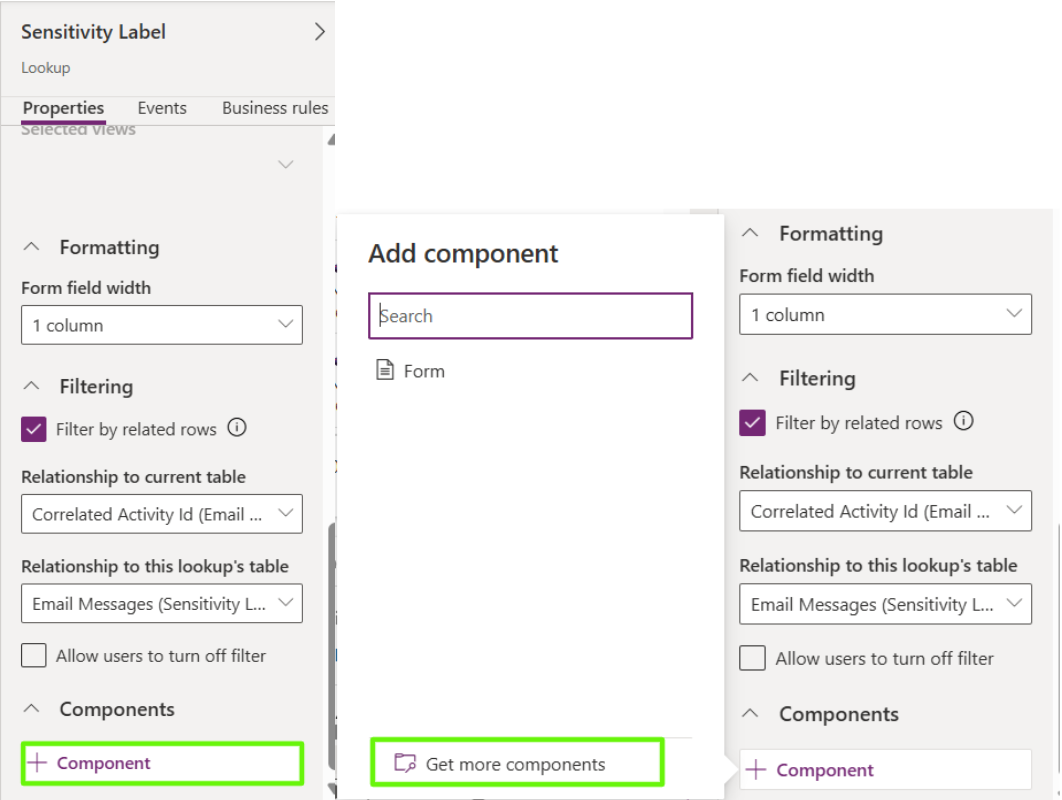
6. Search for and add the Email sensitivity label control.
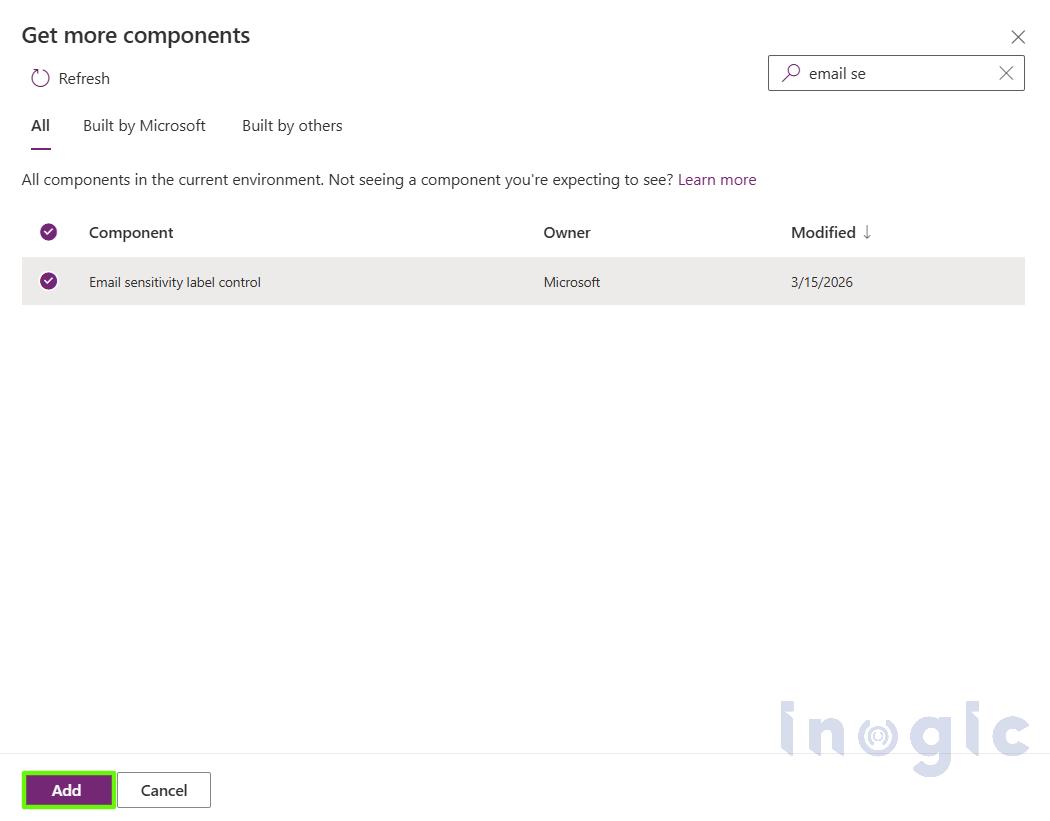
7. Click Done, then Save and Publish the form.
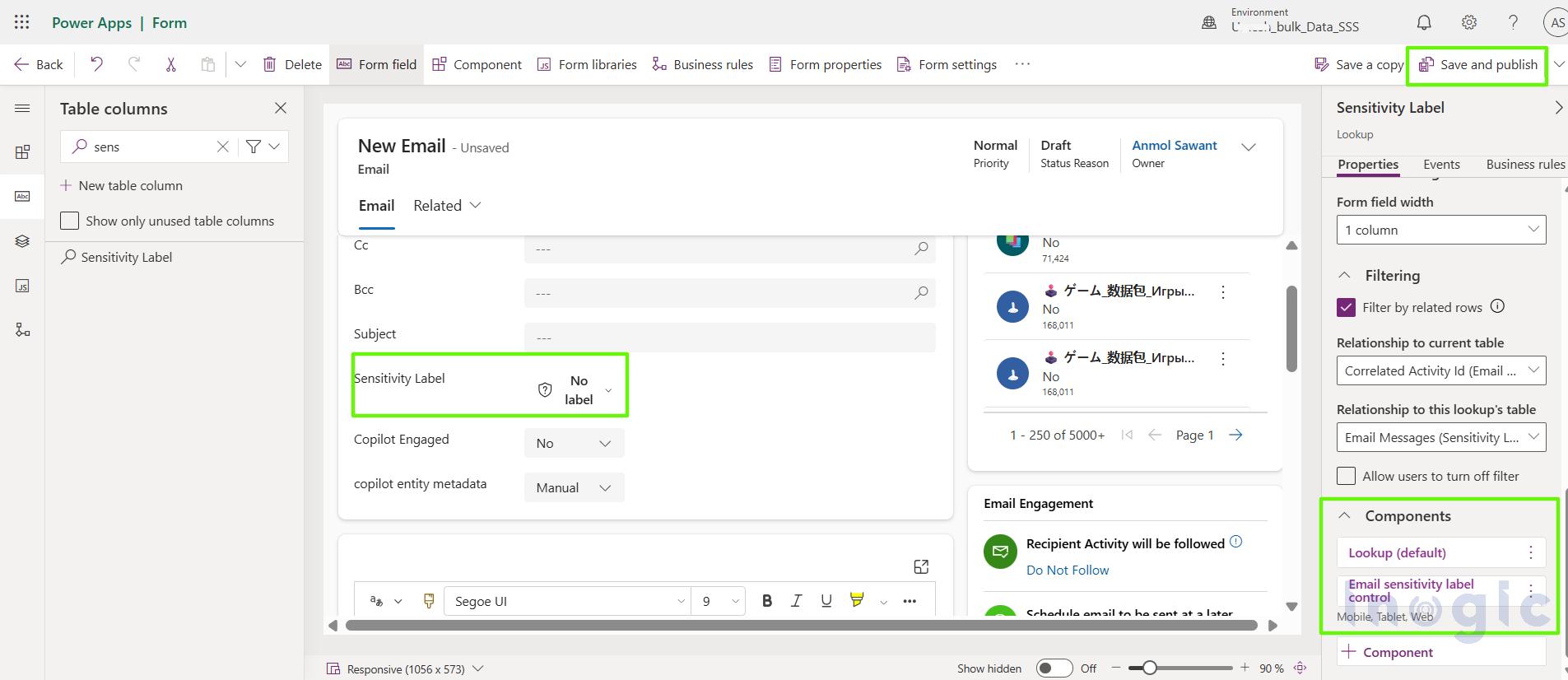
Finally, to save all changes and reflection kindly click on Save and Publish option.
After the configuration is completed successfully, you will see all the labels you created in Microsoft Purview available in the Dynamics 365 email form, as shown below.
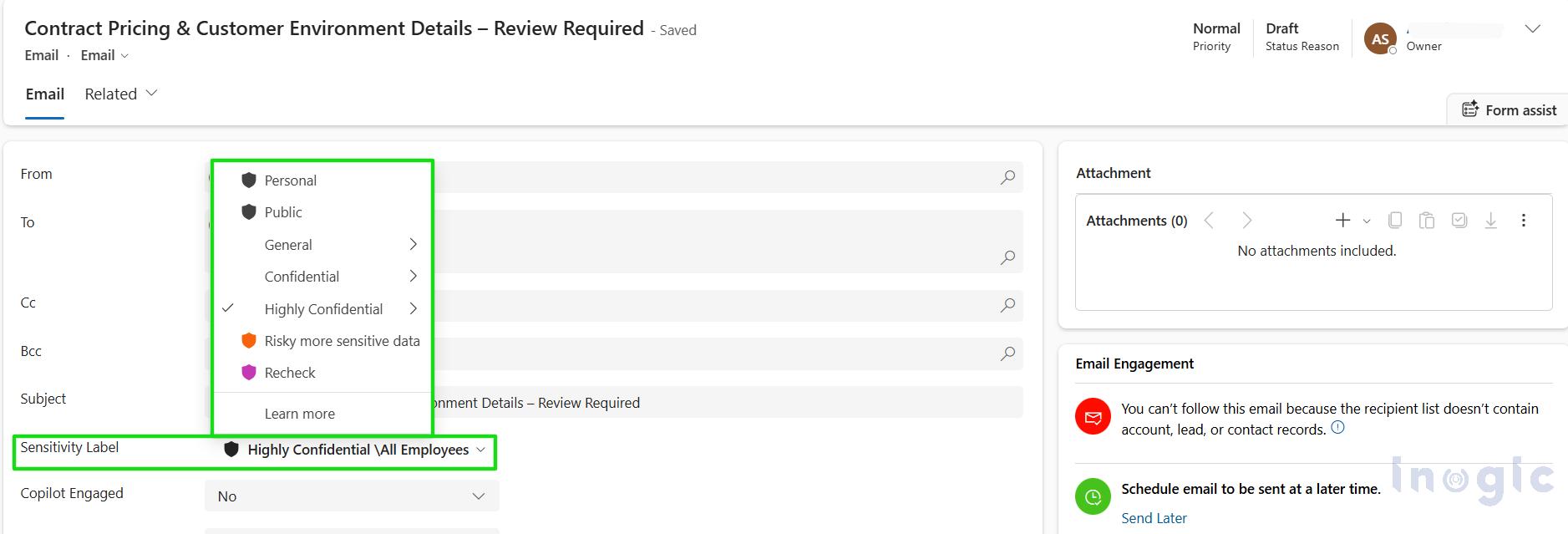
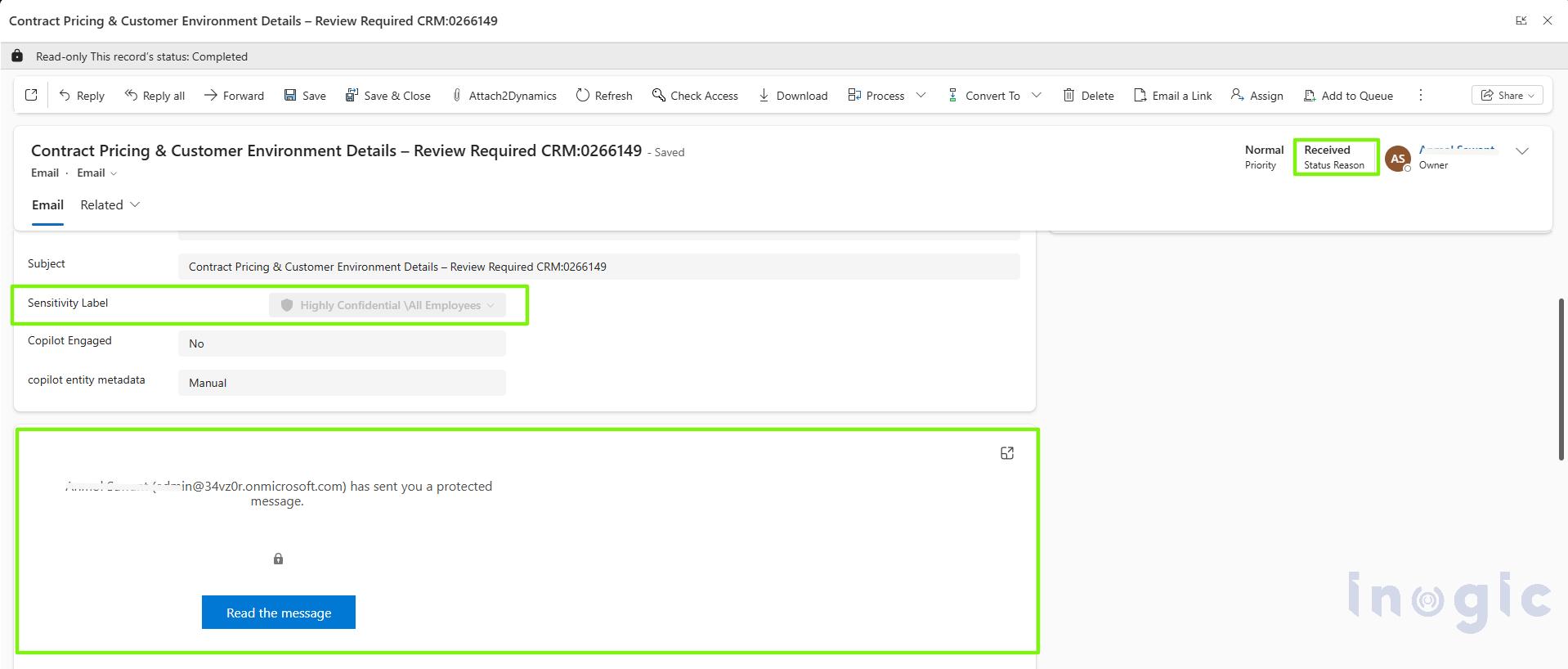
In the screenshot below, you can see how the received email looks.
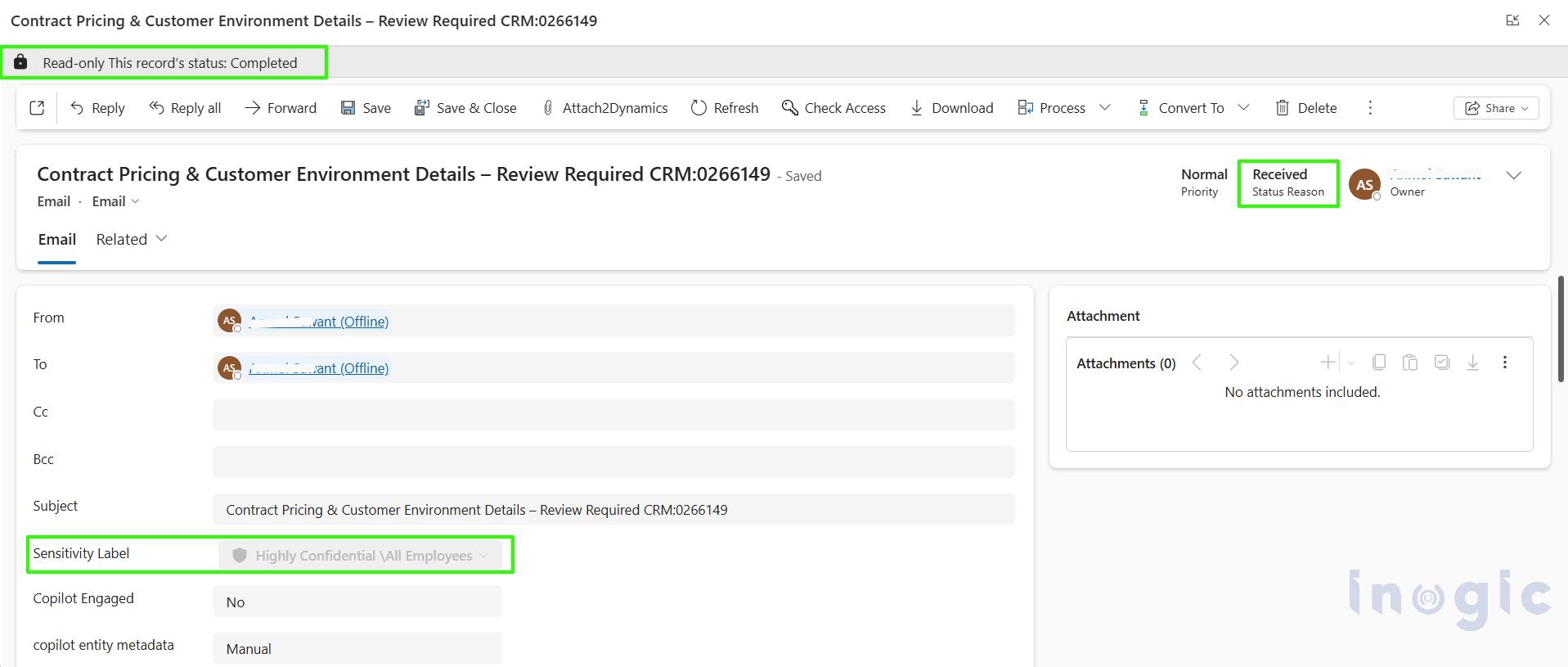
When users receive an email, it is displayed as Protected, Confidential, or with the appropriate label, making it easier to understand the level of sensitivity and enhancing security.
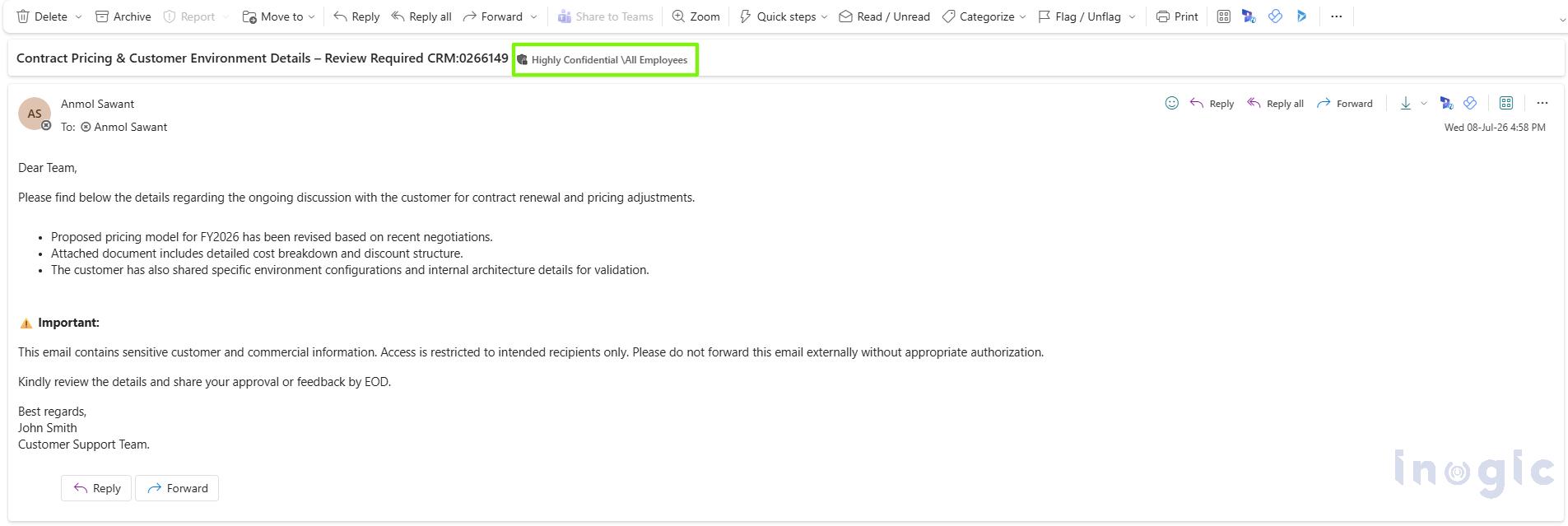
When a user clicks Read the Message, they are redirected to Outlook, where they can read the email content. The sensitivity label is displayed at the top of the email.
Conclusion
Email is one of the most sensitive communication channels in any organization. Bringing structured sensitivity labeling into Dynamics 365 Customer Service transforms email from a potential risk into a governed, auditable, and secure asset.
For enterprises handling sensitive customer interactions daily, this isn’t just a new feature. It’s a necessary evolution in data protection.
FAQs
1. What are Microsoft Purview sensitivity labels in Dynamics 365?
Microsoft Purview sensitivity labels allow you to classify emails in Dynamics 365 based on their level of sensitivity. Labels such as Confidential or Highly Confidential help apply security measures like encryption and access restrictions.
2. How do I enable email sensitivity labels in Dynamics 365?
You can enable email sensitivity labels from Settings > Email > Email Settings in the modern interface or through Email Configuration Settings in the classic interface. After enabling the feature, add the Sensitivity Label field and control to the Email form in Power Apps.
3. Do I need Microsoft Purview to use sensitivity labels in Dynamics 365?
Yes. Sensitivity labels must first be created and published in Microsoft Purview. Once the policy is published, the labels become available in Dynamics 365 for supported users.
4. Can sensitivity labels automatically protect emails?
Yes. Depending on how the label is configured in Microsoft Purview, it can automatically apply protections such as encryption, restricted access, watermarks, headers, and footers.
5. Are sensitivity labels visible in Outlook?
Yes. When a labeled email is sent from Dynamics 365, the applied sensitivity label is also visible in Outlook, helping recipients recognize the email’s classification and protection level.